Blog

  • How to Compress PDF on iPhone: 3 Quick Ways to Reduce File Size (2026)

    How to Compress PDF on iPhone: 3 Quick Ways to Reduce File Size (2026)

    To compress PDF on iPhone in 2026, the fastest method is the built-in Files app — long-press your document and tap “Optimize File Size.” For sensitive documents, use local browser-based tools that process in your device’s RAM. For precise size targets (e.g., 500KB for a government portal), use pdfFiller from the App Store.

    Three Methods Compared

    Method Speed Privacy Size Control Batch Best For
    Files app (native) Instant Full (never leaves device) None (automatic) No Quick everyday compression
    Local browser tools Fast Full (processed in RAM) Some (quality slider) Limited KYC documents, bank statements
    pdfFiller (App Store) Fast Cloud upload Precise MB targets Yes Government portals, tax forms

    Method 1: Files App “Optimize File Size” (iOS 19+)

    Apple built PDF compression directly into the Files app — no extra apps needed.

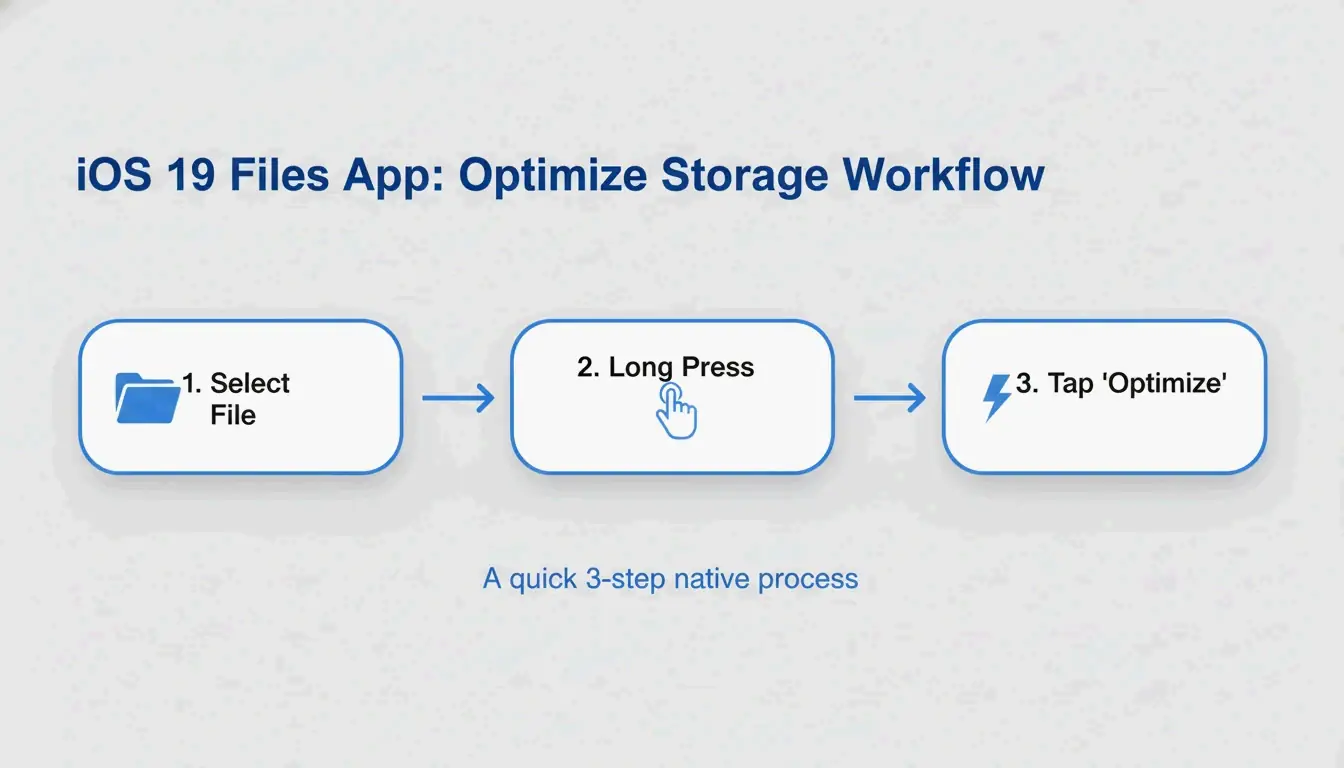
    1. Open the Files app on your iPhone
    2. Find the PDF you want to compress
    3. Long-press the file icon
    4. Tap “Optimize File Size”
    5. A smaller version appears in the same folder (usually named with “optimized”)

    FreePDFCompress notes that modern compression re-encodes images and strips unused metadata, often cutting file size by up to 90% — while keeping vector text perfectly sharp.

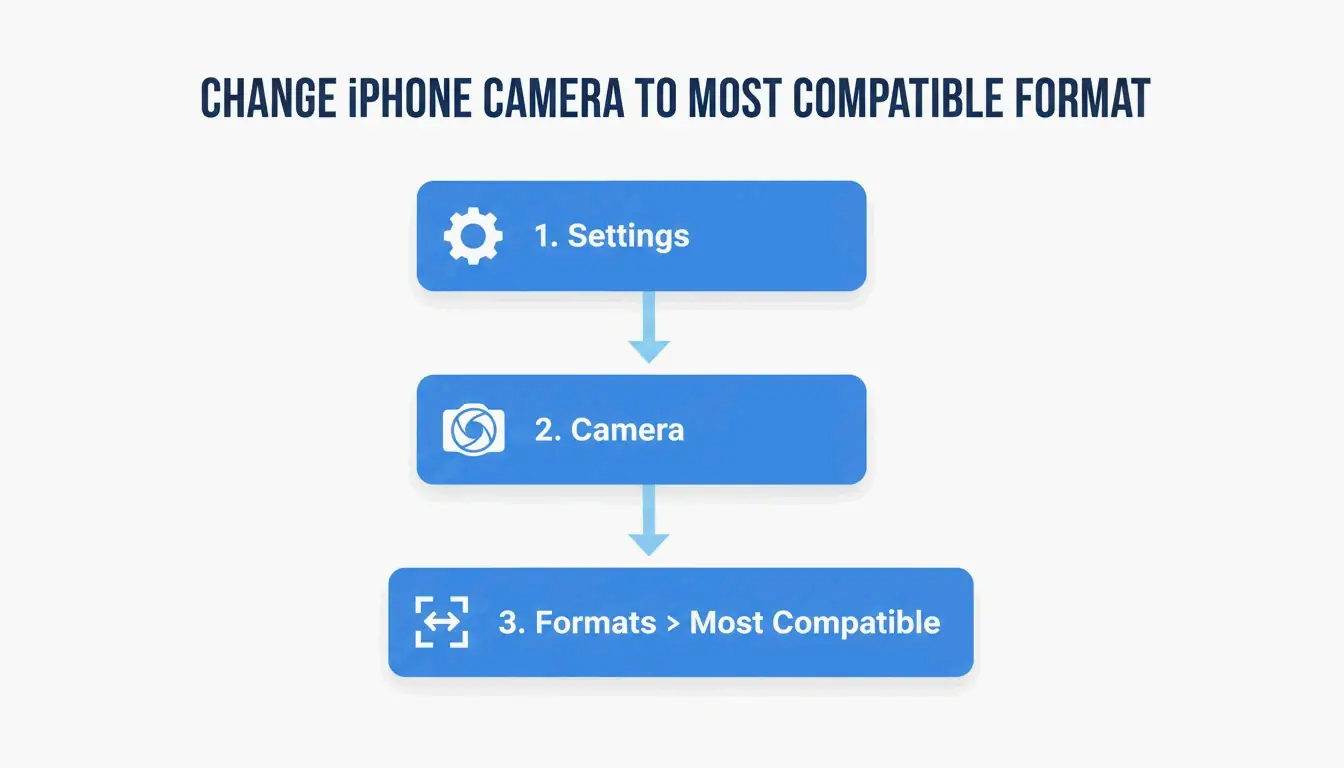
    3-step visualization of the native iOS compression process.

    Pros: Instant, free, fully private, no internet needed.
    Cons: No size control (can’t target “exactly 500KB”), no batch processing.

    Method 2: Local Browser Tools (Maximum Privacy)

    By 2026, privacy standards have shifted away from cloud-everything. Local browser tools use JavaScript to process PDFs entirely in your iPhone’s RAM — your data is never transmitted to any server.

    FreePDFCompress confirms these tools still achieve 90% size reduction while keeping data fully on-device. In Safari, look for a “Processed Locally” badge as your guarantee.

    When to use this method:
    – KYC (Know Your Customer) paperwork
    – Bank statements and tax documents
    – ID scans and passport copies
    – Any document you wouldn’t email to a stranger

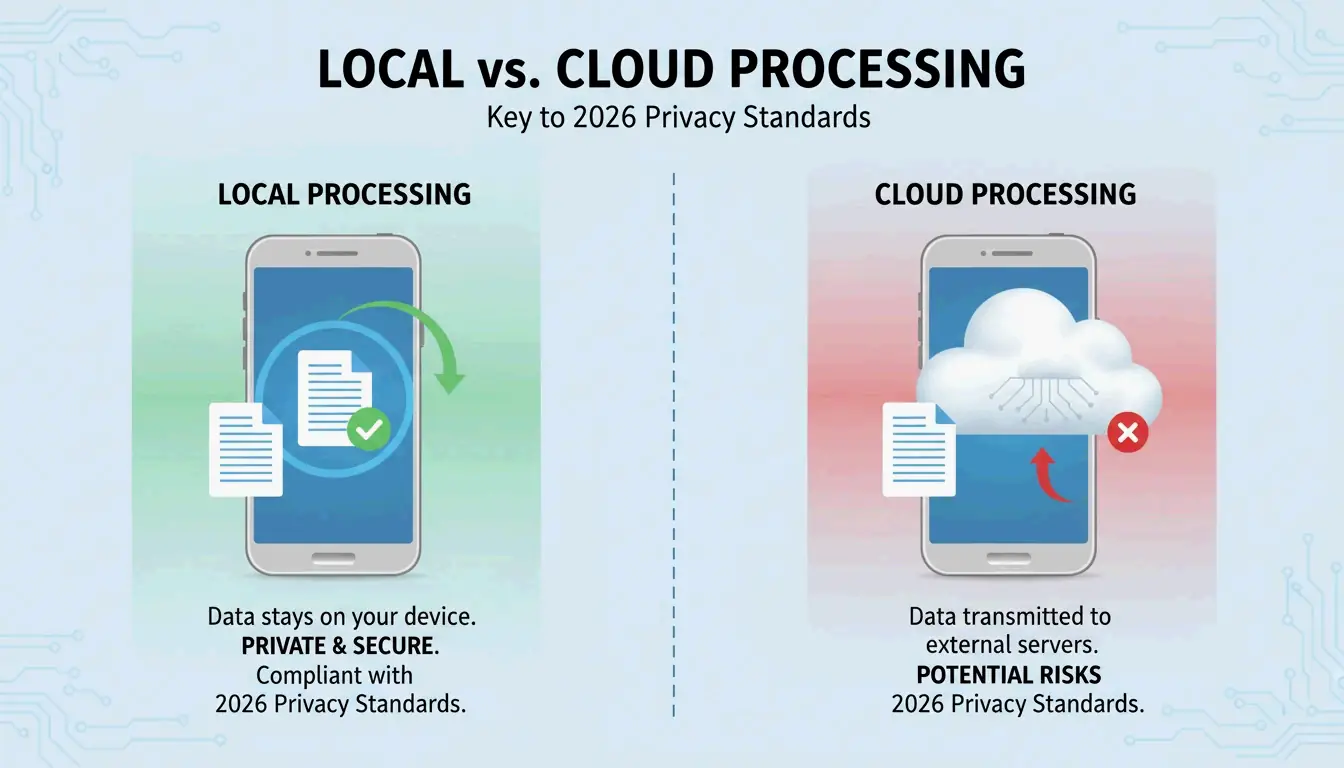
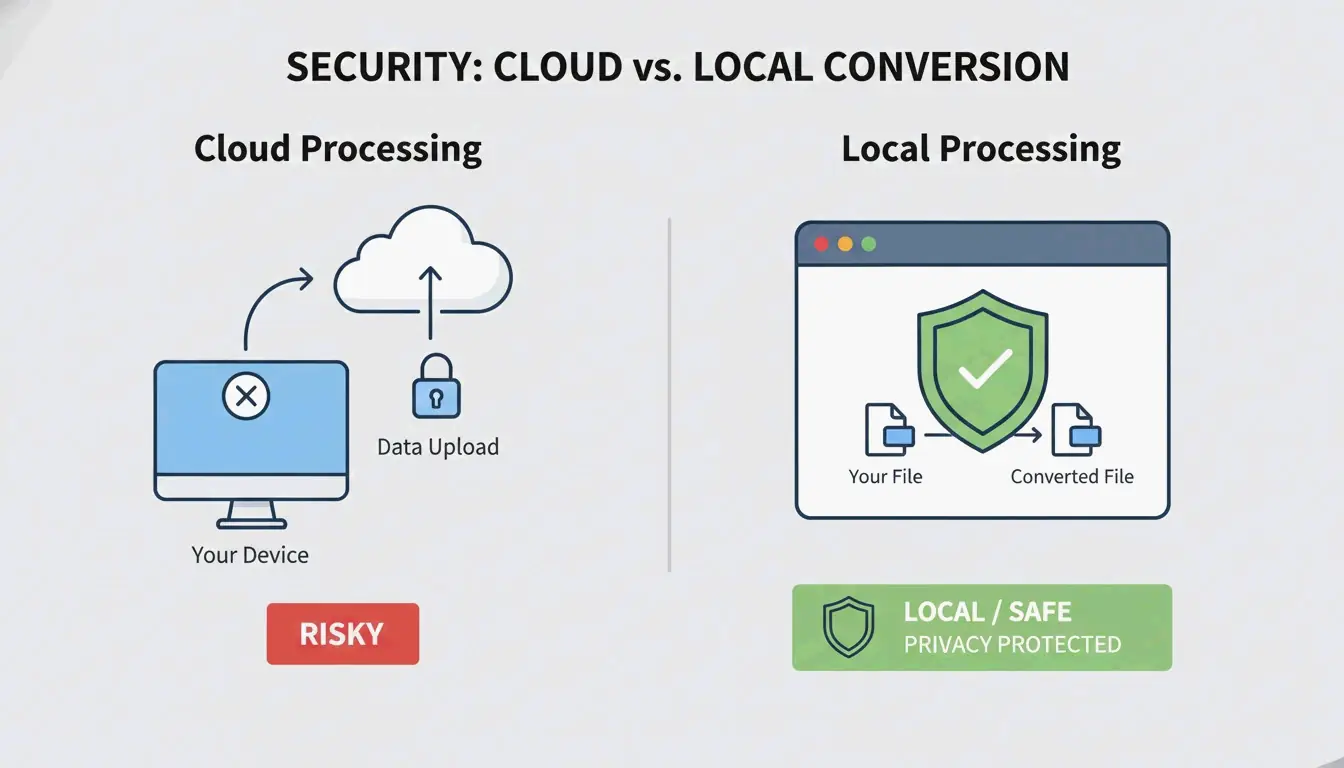
    A simple comparison between Cloud vs. Local processing paths.

    Method 3: pdfFiller (Precise Size Targets)

    When a government portal requires exactly 500KB or less, the native method’s “one-size-fits-all” approach isn’t enough. pdfFiller (App Store) lets you pick specific quality levels and see estimated file size before committing.

    pdfFiller offers three compression levels — High, Medium, Low — with real-time size estimates.

    1. Download pdfFiller from the App Store
    2. Upload your PDF
    3. Tap Compress and pick your target level
    4. Save the optimized file

    Supports batch processing for multiple files at once.

    How PDF Compression Works: DPI, JPEG Re-encoding, and Vector Text

    Component What Compression Does Impact on Quality
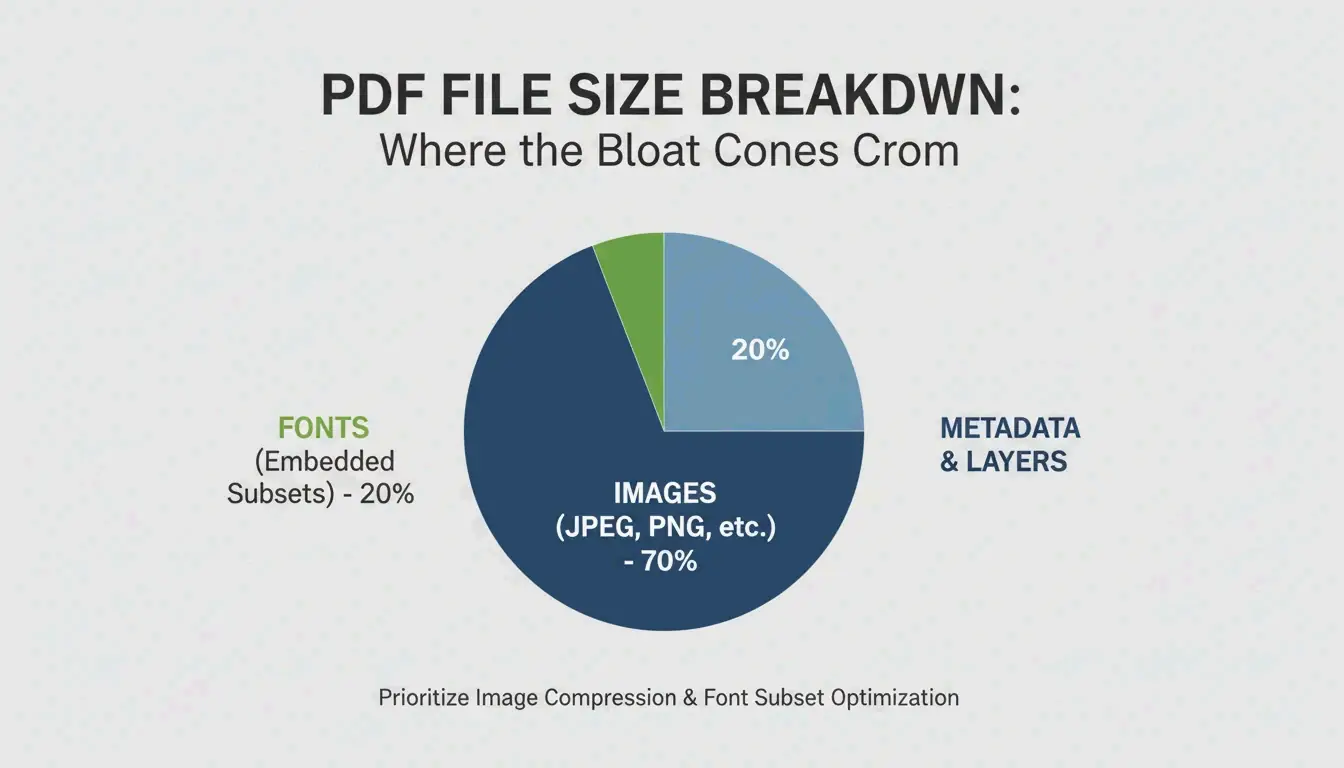
    Images JPEG re-encoding at lower quality Visible softening below 96 DPI
    DPI (resolution) Reduced from 300 → 96–150 DPI Fine for screens; avoid for print
    Vector text Unchanged — stays crisp at any size No quality loss
    Metadata Stripped (EXIF, unused fonts) No visual impact; saves KB

    IRCC Canada recommends 96–150 DPI as the sweet spot for 2026 digital standards — keeps text sharp on phone screens while significantly reducing file weight.

    Key insight: Text is vector-based and stays perfectly crisp regardless of compression. Only images and scans show quality changes.

    2026 Upload Target Sizes

    Platform Upload Limit Recommended Target
    Government / KYC portals 200 KB – 2 MB 500 KB
    HR / Resume portals 2 MB 1 MB
    Gmail / Outlook 20–25 MB 5 MB
    WhatsApp (consumer) 16 MB 2 MB
    WhatsApp Business 100 MB 10 MB

    Never re-compress a compressed PDF. FreePDFCompress warns that repeated compression creates artifacts and blurriness. Always start from the original document.

    Conclusion

    For everyday compression, the Files app is fastest and most private. For sensitive documents, use local browser tools with the “Processed Locally” badge. For precise size targets (government forms, tax submissions), use pdfFiller. Always verify text readability at 150 DPI before submitting.

    FAQ

    Will compressing a PDF damage text readability?

    No. PDF text is vector-based — it stays sharp at any compression level. Only embedded images and scans are affected by DPI reduction. FreePDFCompress confirms 150 DPI keeps everything readable on 2026 mobile screens.

    How do I compress a PDF to exactly 200KB or 500KB?

    The native Files app doesn’t offer size control. Use pdfFiller or StrongPDF — both offer quality sliders and presets. To reach 200KB, you typically need to drop image resolution to 96 DPI.

    Is it safe to upload confidential PDFs to online compression servers?

    For sensitive documents (IDs, bank statements, tax forms), avoid cloud-based compressors. Use local browser tools that process in your device’s RAM. Look for a “Processed Locally” badge to confirm your data never leaves your phone.

  • How to Bypass Discord’s 25MB File Limit Without Nitro (2026)

    How to Bypass Discord’s 25MB File Limit Without Nitro (2026)

    Discord’s free upload limit is 25MB (upgraded from the old 8MB cap). To bypass it without Nitro, either compress your file to stay under 25MB using HEVC encoding, or share via cloud storage (Google Drive, Dropbox, Streamable) and paste the link. Third-party client mods like Vencord offer a third option but violate Discord’s Terms of Service.

    Discord File Size Limits in 2026

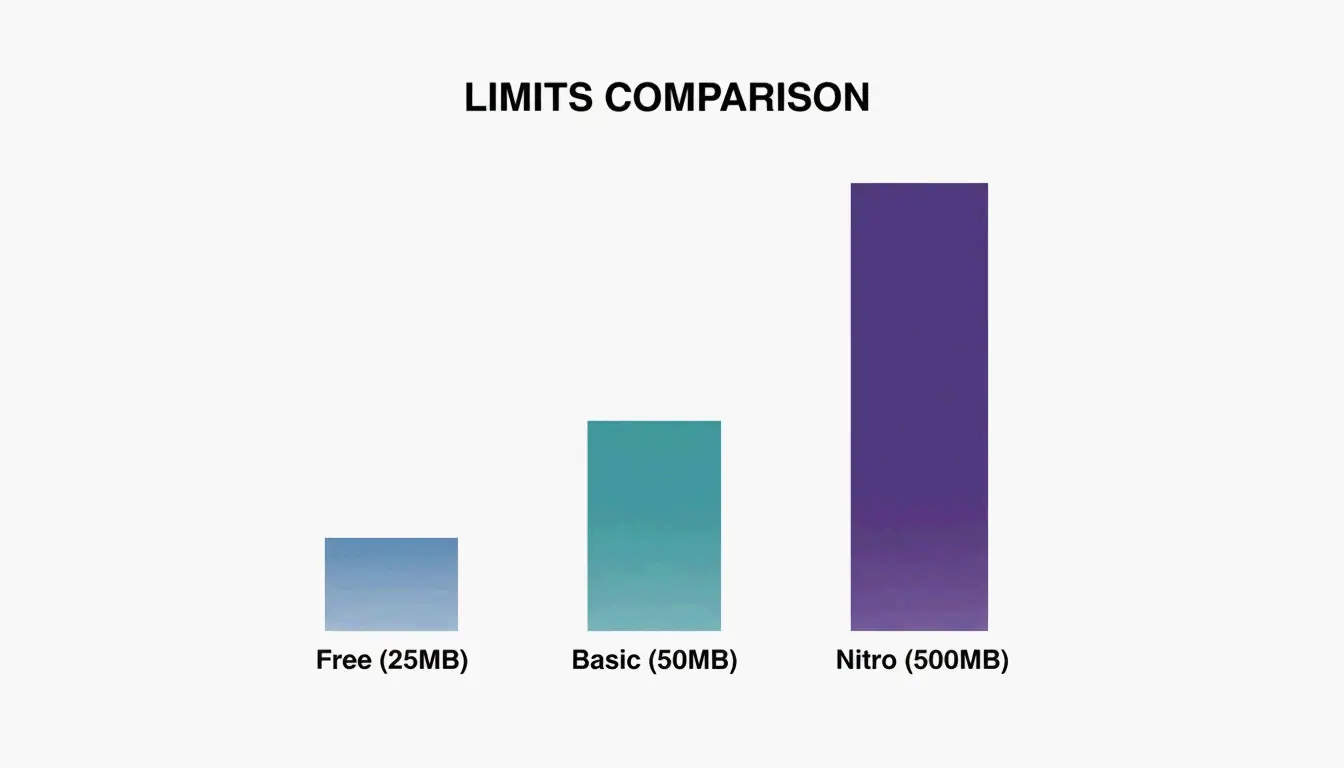
    Tier Max File Size Price
    Free 25 MB $0
    Nitro Basic 50 MB $2.99/month
    Discord Nitro 500 MB $9.99/month

    As 1MB Compress notes, any file exceeding your tier’s limit — even by 1 KB — gets blocked.

    A simple comparison of Discord file limits: Free vs Basic vs Nitro

    Method 1: Compress to Stay Under 25MB

    The most reliable approach is shrinking your file before uploading.

    Optimal Video Settings for Discord

    Parameter Recommended Setting Why
    Resolution 1280 × 720 (720p) Plays natively in Discord’s built-in player
    Frame rate 30 FPS Sufficient for chat clips, saves ~30% vs 60 FPS
    Codec HEVC (H.265) or H.264 HEVC is ~50% smaller at same quality
    Audio 128 kbps AAC Good enough for voice/music, saves extra MB
    Format MP4 or WebM Universal playback in Discord

    Bitrate Formula for 25MB Target

    Calculate your target bitrate: 200 ÷ video length in seconds = target Mbps

    Video Length Target Bitrate Approx. Size
    30 seconds ~6.7 Mbps ~24 MB
    60 seconds ~3.3 Mbps ~24 MB
    2 minutes ~1.7 Mbps ~24 MB
    5 minutes ~0.67 Mbps ~24 MB

    A case study by Filmora shows their compression tools reduce file sizes by 10–90% — a 100MB video can drop to under 25MB without noticeable quality loss at 720p.

    Step-by-Step Compression

    1. Import your video into Filmora, Handbrake, or a web tool like 1MB Compress
    2. Set format to MP4, resolution to 720p, codec to HEVC
    3. Target 25MB — many tools have an “advanced compression” setting for exact file size targets
    4. Export and upload directly to Discord

    Method 2: Cloud Storage Links

    When compression degrades quality too much (long 4K gaming clips, large presentations), host externally:

    Service Free Storage Discord Embed Support Best For
    Google Drive 15 GB Link preview (click to view) Documents, presentations
    Dropbox 2 GB Change dl=0 to dl=1 for direct download General files
    OneDrive 5 GB Link preview Office documents
    Streamable Unlimited (per file) Auto-embeds in Discord Video clips

    Streamable is the top choice for video — it embeds directly in Discord chat so viewers watch without leaving the app. For Dropbox, the dl=1 trick forces direct playback instead of a download page.

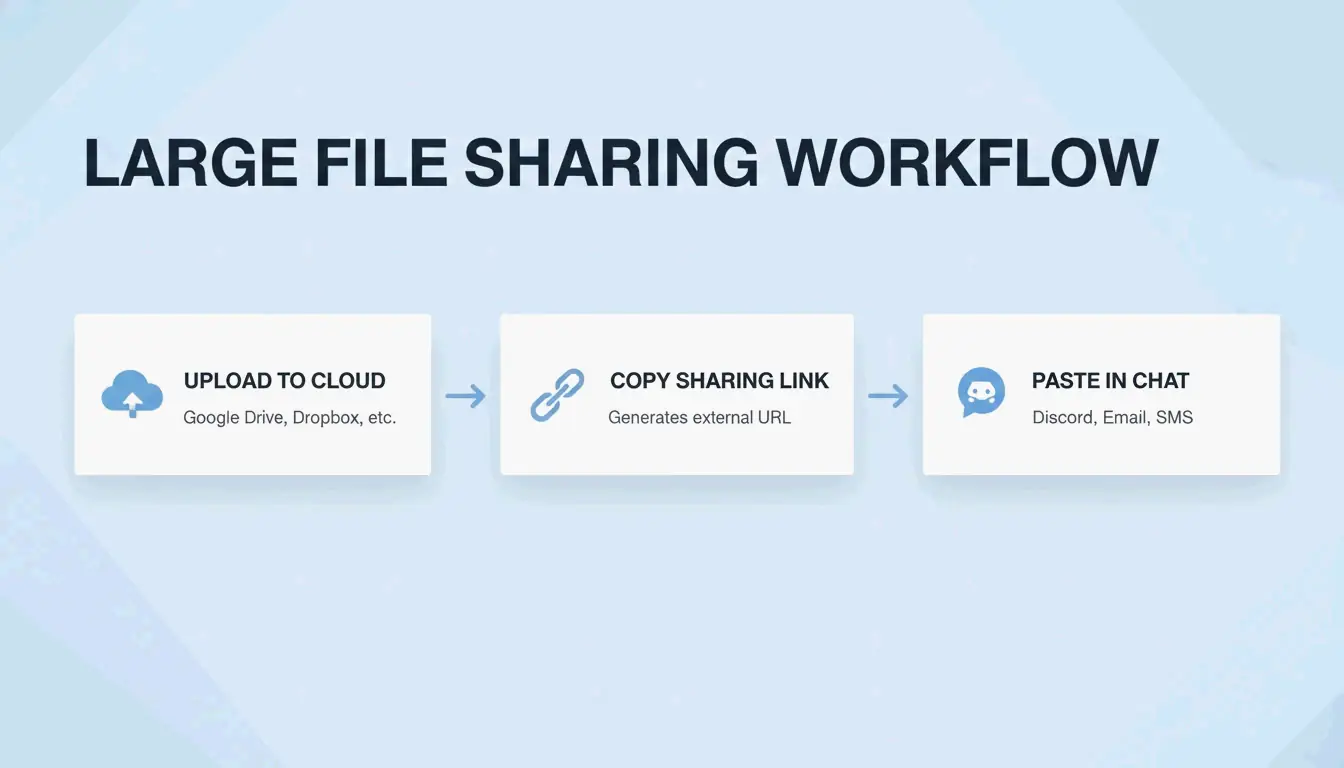
    Simple 3-step process of cloud sharing on Discord

    Method 3: Client Mods (Vencord / BetterDiscord) — Use at Your Own Risk

    Mods like Vencord and BetterDiscord use plugins that automatically detect oversized files, upload them to third-party hosts (Catbox, Litcord), and display them as seamless embeds in chat.

    Aspect Official Discord Client Mods
    Encryption End-to-end (Nitro) Depends on third-party host
    Privacy Discord servers External servers (Catbox, etc.)
    Terms of Service Compliant Violates ToS
    Ban risk None Low but non-zero

    Wikipedia notes that Discord officially forbids client modification. Bans are rare for visual mods, but bypassing paid features (Nitro upload limits) is a clearer ToS violation. For sensitive files, use official cloud sharing instead.

    Conclusion

    For most users, compressing to 25MB with HEVC at 720p is the fastest solution. For long or high-quality files, Streamable provides the best Discord experience (auto-embed, no download). Client mods work but violate Discord’s ToS and rely on third-party servers — use them only for non-sensitive content.

    FAQ

    What is the current Discord free file size limit in 2026?

    25MB per file. This was raised from the legacy 8MB cap. Any file exceeding this requires compression, a cloud link, or a Nitro subscription.

    Does compressing video for Discord significantly reduce quality?

    It depends on settings. Using HEVC at 720p can reduce file size by up to 90% while keeping video clear on phone and desktop screens. Most users won’t notice a difference from the original when viewed in Discord’s built-in player.

    Is using Vencord or BetterDiscord safe?

    Technically, all client mods violate Discord’s Terms of Service. Bans are rare for visual customization, but using mods to bypass file limits involves uploading to third-party servers with no encryption guarantees. Use official cloud sharing for sensitive files.

  • How to Compress a Video Without Losing Quality: Codec, Bitrate & Tools (2026)

    How to Compress a Video Without Losing Quality: Codec, Bitrate & Tools (2026)

    To compress a video without losing quality in 2026, re-encode with AV1 or H.265 (HEVC) — both are roughly 50–60% more efficient than H.264. Use VBR 2-pass encoding with a target of 5–10 Mbps for 1080p to achieve perceptually lossless output. Free tools like Handbrake handle this in a few clicks.

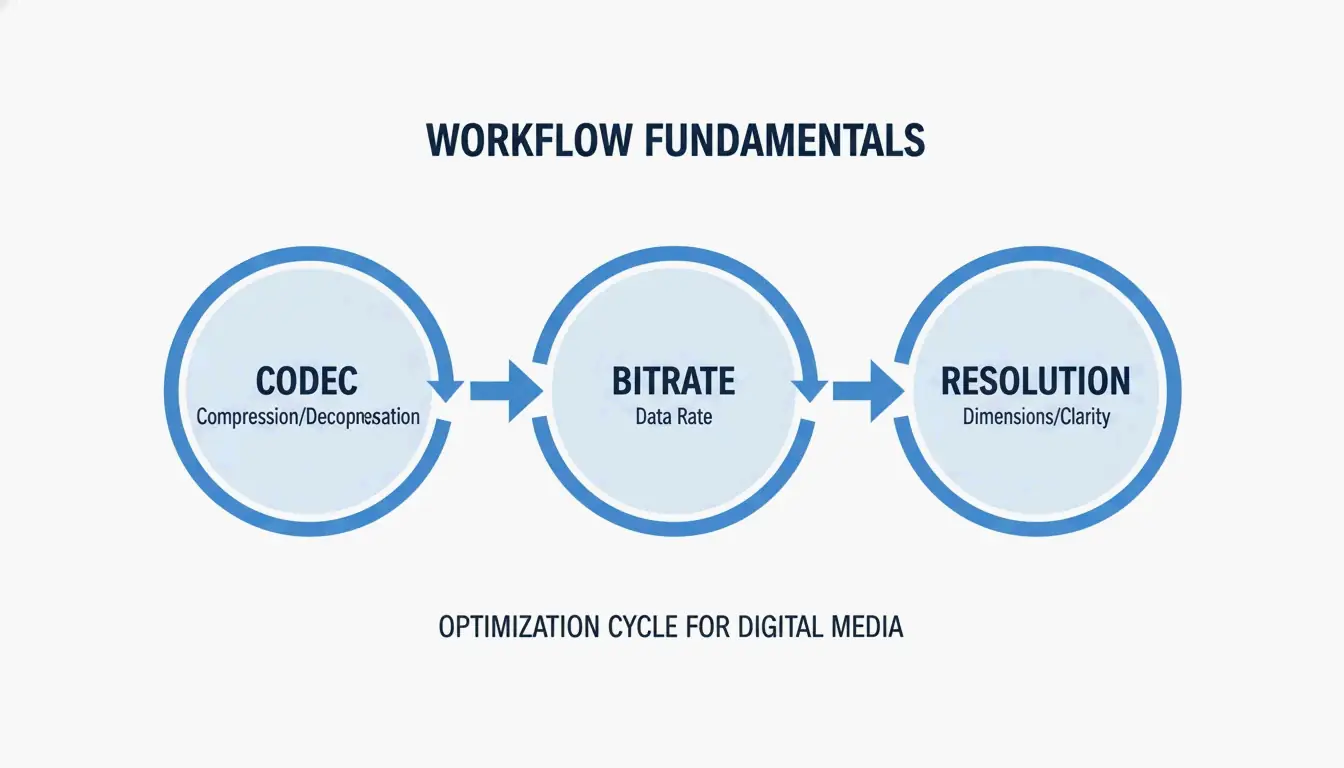
    The Three Pillars of Video Compression

    Effective compression comes down to three decisions:

    1. Codec — The algorithm that encodes your video data
    2. Bitrate — How much data per second you allocate
    3. Resolution — Matching pixel count to the actual display

    A simple 3-node diagram showing the core pillars: Codec, Bitrate, and Resolution.

    Codec Selection: AV1 vs. HEVC vs. H.264

    Codec Efficiency vs. H.264 Royalty Best For Device Support
    AV1 ~63% smaller Free (open-source) Web streaming, YouTube Modern browsers, 2022+ hardware
    H.265 (HEVC) ~50% smaller Licensed 4K HDR, mobile playback Phones, tablets, smart TVs
    H.264 (AVC) Baseline Licensed Maximum compatibility Everything (15+ years)

    Research from MDPI (2024) confirms AV1 saves approximately 63% on bitrate compared to H.264 at equivalent quality.

    Recommendation: Use AV1 for web content. Use HEVC for mobile and 4K. Use H.264 only when you need to support very old devices.

    Bitrate Management: Why VBR 2-Pass Wins

    Constant Bitrate (CBR) uses the same data for every frame — wasteful for static scenes and insufficient for action. Variable Bitrate (VBR) is smarter: it allocates more data to complex, high-motion scenes and saves space on static backgrounds.

    VBR 2-pass encoding scans the entire video first (pass 1), then distributes the data budget optimally (pass 2). This prevents blockiness during fast movement.

    A visual metaphor of VBR: allocating more "fuel" (data) to action and less to static scenes.

    2026 Bitrate Targets

    These are H.264 targets. For H.265 or AV1, reduce by 30–50%:

    Resolution Web / Social High Quality / Archive
    4K (2160p) 35–45 Mbps 50–65 Mbps
    1080p (Full HD) 8 Mbps 12 Mbps
    720p 5 Mbps 8 Mbps

    Swarmify notes that H.265 at RF 22 cuts file sizes by 40–50% with no visible loss on 1080p screens.

    Best Tools for Video Compression

    Tool Type Best For Key Feature
    Handbrake Desktop (free) Full control, any format Manual codec/bitrate/VBR settings
    FFmpeg CLI (free) Batch processing, automation ffmpeg -i input.mp4 -vcodec libx265 -crf 28 output.mp4
    VEED.io Online Quick social clips (<500MB) Automatic optimization
    FreeConvert Online One-off jobs, no install Browser-based
    NVIDIA NVENC GPU hardware 4K processing speed 5x faster than CPU encoding

    HitPaw notes that GPU-accelerated encoding processes 4K video up to 5x faster than CPU-only methods.

    FFmpeg Quick Commands

    
    ffmpeg -i input.mp4 -vcodec libx265 -crf 28 output.mp4
    
    # Compress to AV1 (60%+ smaller, slower encoding)
    ffmpeg -i input.mp4 -vcodec libaom-av1 -crf 30 output.mp4
    
    # Target specific bitrate (VBR 2-pass)
    ffmpeg -i input.mp4 -vcodec libx265 -b:v 5M -pass 1 -an /dev/null
    ffmpeg -i input.mp4 -vcodec libx265 -b:v 5M -pass 2 output.mp4
    

    Platform-Specific Rules

    Every platform re-compresses your upload. Pre-optimizing prevents double-compression artifacts:

    Platform Limit Recommended Settings
    Discord (free) 25 MB Downscale to 720p, H.265, target ~200/seconds of video
    YouTube No hard limit Upload high-bitrate “master” (12+ Mbps 1080p); YouTube re-encodes
    Email (Gmail) 25 MB Compress to 720p, 2-3 Mbps, or use a link instead
    Website / SEO Under 5 MB ideal AV1 or WebM, 5-8 Mbps 1080p

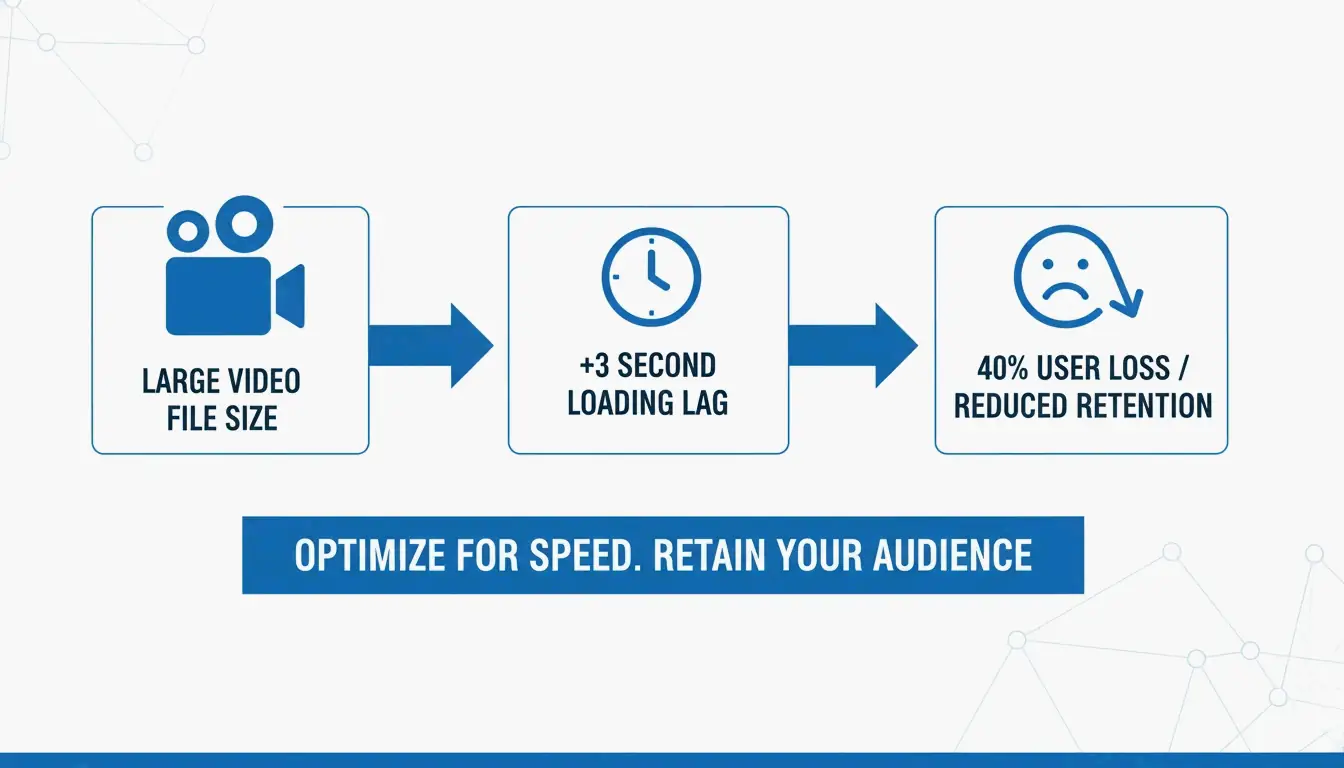
    Tooltester (2026) reports 40% of users abandon sites that take longer than 3 seconds to load — often caused by unoptimized video.

    A simple comparison showing the impact of video size on page load speed/SEO.

    Hidden Savings: Audio and Metadata

    • Audio bitrate: Switch to 128 kbps AAC — sufficient for web video and saves up to 15% total file size
    • Metadata stripping: Remove EXIF data and silent audio tracks from background/hero videos
    • AI-driven optimization: SmartVideo automatically selects the best codec based on viewer bandwidth

    Conclusion

    Video compression in 2026 means using the right codec (AV1 or HEVC), smart bitrate management (VBR 2-pass), and matching resolution to your display target. Start with Handbrake, pick an AV1 or H.265 preset, and use the bitrate cheat sheet above. You can cut file sizes by 60%+ with no visible quality loss.

    FAQ

    Does lowering FPS significantly reduce file size?

    Yes. Dropping from 60 FPS to 30 FPS reduces size by 20–30% (fewer frames to encode). Best for interviews and tutorials. Avoid for sports or gaming content where smooth motion matters.

    What is the best video codec in 2026?

    AV1 wins on efficiency (60%+ smaller than H.264) and is now supported by most browsers. H.265 (HEVC) remains the best for broad device compatibility (phones, tablets, 4K TVs) with a solid 50% size reduction.

    How do I hit Discord’s 25MB limit without pixelation?

    Use H.265 codec. Calculate bitrate: 200 ÷ video length in seconds. Downscale 1080p to 720p — fewer pixels means each one gets more data, producing a clearer image at low bitrates.

  • Why Your Content Needs a Handwritten Feel: Trust Signals in the AI Era

    Why Your Content Needs a Handwritten Feel: Trust Signals in the AI Era

    Generic AI content is a zero-cost commodity in 2026. To build trust, you need human-exclusive signals: lived experience, specific contextual judgment, and a unique personal voice. Data shows 52% of readers stop reading once they detect purely AI-generated content — making authenticity a measurable business advantage.

    Trust Scarcity: The Data Behind the Problem

    Ahrefs 2025 data shows 74.2% of new web pages contain AI-generated text. The result: readers have developed “blindness” to standard marketing copy.

    Metric Value Source
    Web pages with AI text 74.2% Ahrefs 2025
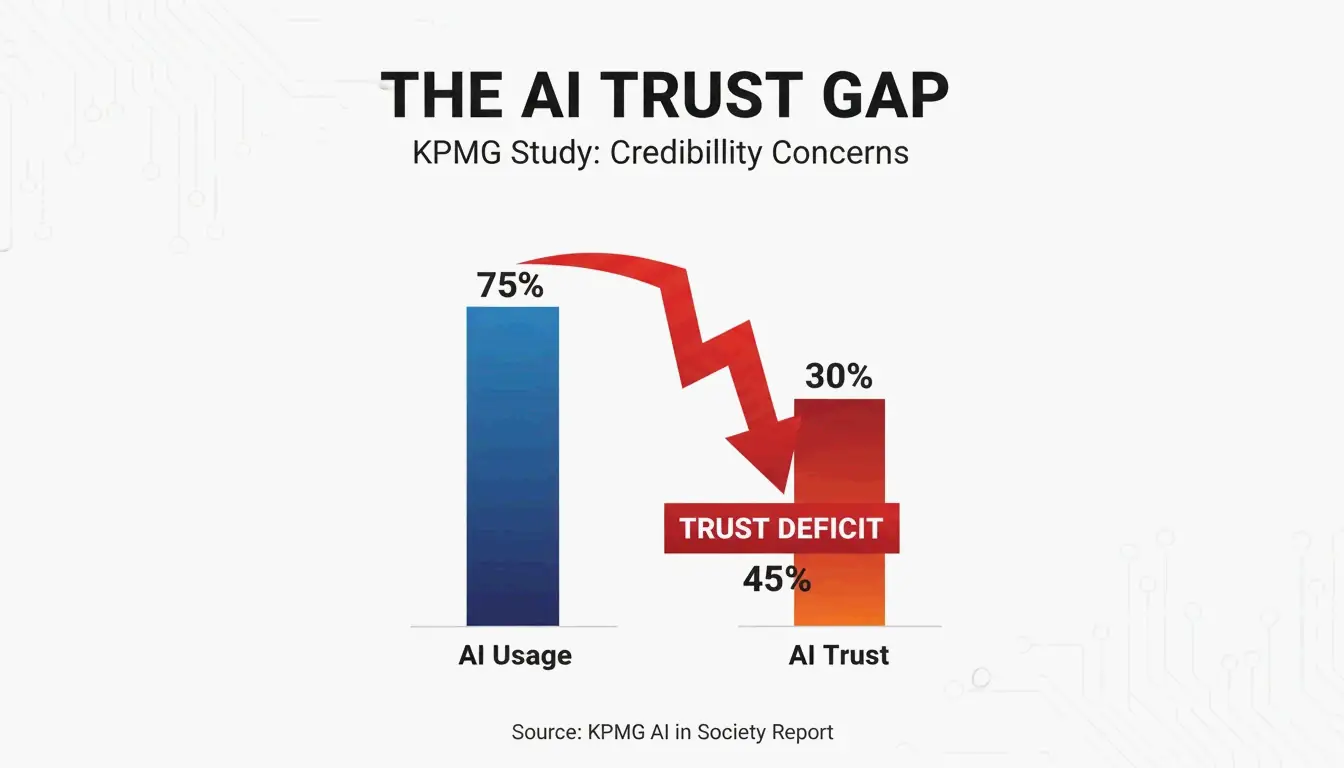
    People who use AI regularly 66% KPMG 2025
    People who trust AI output 46% KPMG 2025
    Readers who abandon pure AI content 52% White Beard Strategies 2026

    The gap between usage (66%) and trust (46%) is the core problem. When readers detect a “bot” behind the screen, they discount the author’s credibility immediately.

    A simple contrast showing the gap between AI usage and human trust.

    Competent Mediocrity: The Statistical Average Trap

    AI models converge toward the statistical middle. As Lilian Makena notes, AI polishes away the quirks and rhythms that make a voice recognizable. The output is grammatically perfect but indistinguishable from thousands of other articles on the same topic.

    What Creates the ‘Handwritten’ Signal?

    A “handwritten feel” is not about fonts. It is about showing the friction of real human thought — the kind of evidence that only comes from doing the work.

    Proof of Work: The Trust Mechanism

    Jonathan Mast shares a case study: a founder posted polished AI content daily for three months. Result: 1,200 followers, $0 in revenue. The volume was there, but the human proof wasn’t.

    AI-Only Content Human-Proof Content
    General best practices Specific failures and lessons learned
    Statistical average advice Counterintuitive opinions from experience
    Generic examples First-person anecdotes with real outcomes
    “Safe” recommendations Recommendations that carry personal risk

    The Skin in the Game Audit

    Before publishing, ask: Could a competitor using the same AI tools produce this exact piece? If yes, the content lacks the human risk signal that builds trust. Content that builds credibility costs the creator something — a controversial stance, a vulnerable mistake, or a counterintuitive opinion.

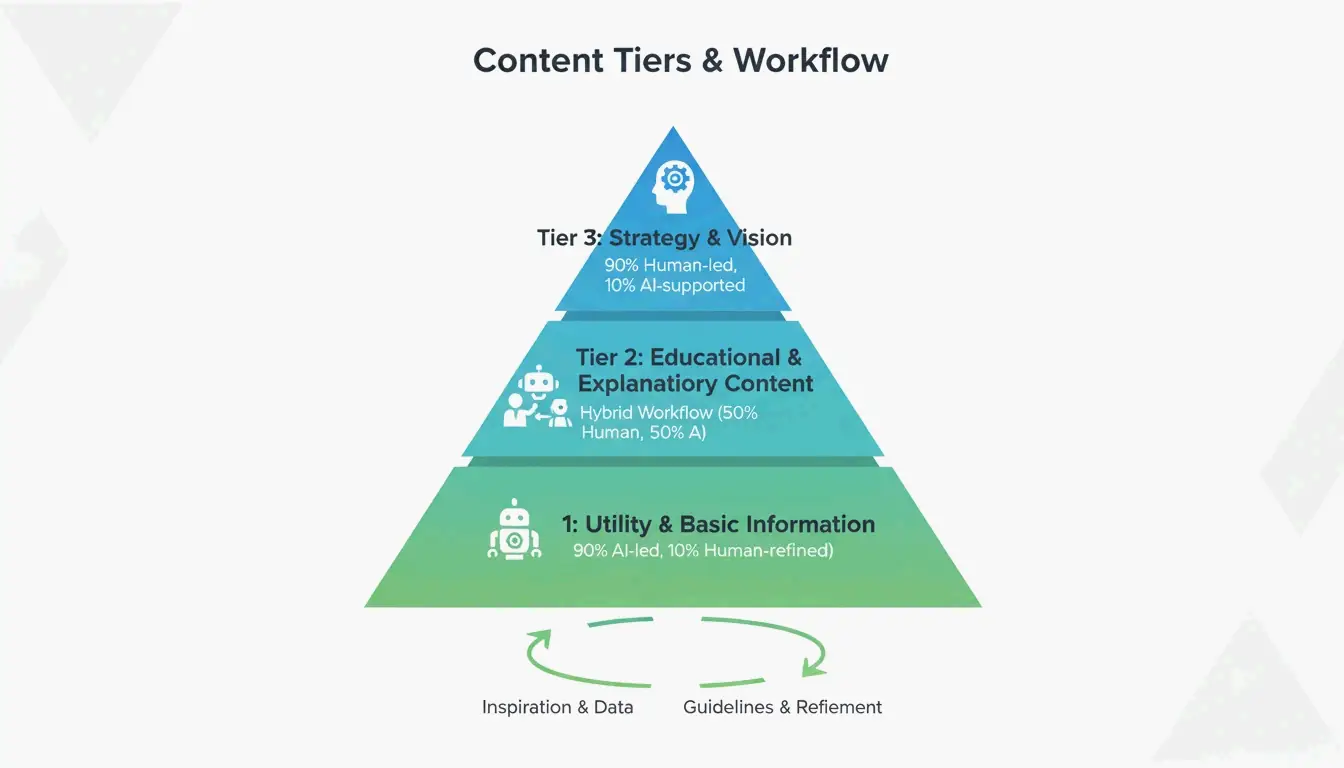
    Tiered Protocol: Human vs. AI Balance by Content Type

    A minimalist 3-tier pyramid showing the human vs. AI balance.

    Tier Content Type Human/AI Split Requirement
    Tier 1 Strategy, opinion, thought leadership 90% human-led Voice anchor before AI touches the draft
    Tier 2 Educational how-to guides Human-anchored, AI-supported Expert adds authenticity signals + real data
    Tier 3 Product descriptions, summaries AI-led, human-verified Human checks accuracy and brand tone

    This hybrid workflow lets you scale production without compromising the high-stakes content that closes sales.

    Cost Per Quality Unit: The Metric That Matters

    “Cost Per Word” is obsolete when words are infinite and free. The new metric is Cost Per Quality Unit — how much it costs to produce content that actually converts.

    The “Trust Tax” from AI-only content: 52% of consumers stop reading once they detect pure AI output (White Beard Strategies). This leads to fewer leads and longer sales cycles.

    Measurement: Track “Attribution by Anecdote” — how often a lead mentions a specific story or unique take from your content during a sales call. This directly correlates trust-building content to revenue.

    Voice Anchoring: Scaling Without Losing Authenticity

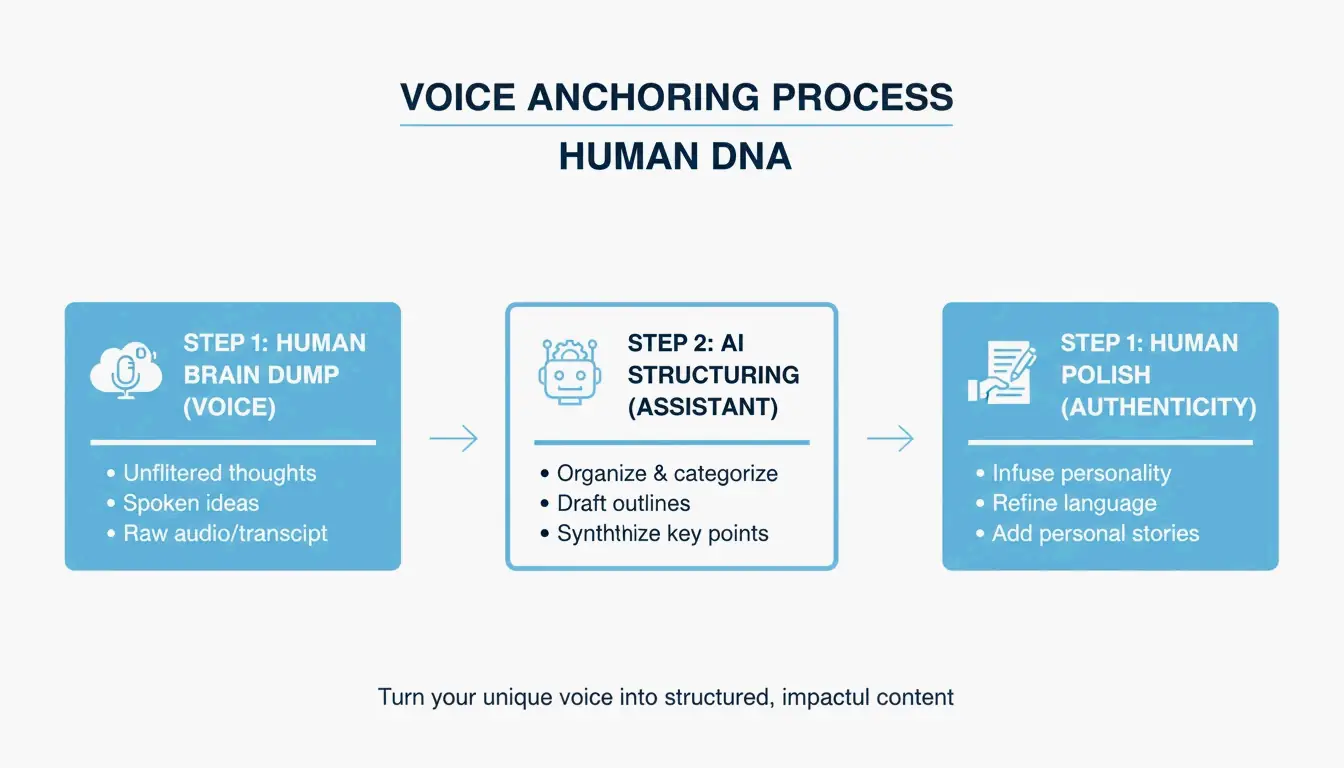
    The 3-step Voice Anchoring process.

    1. Record a 2-minute “brain dump” of your unique thoughts on the topic (voice-to-text or interview).
    2. Use AI as a research librarian to find supporting data, or as a formatting assistant to organize your thoughts.
    3. Preserve the human perspective as the DNA of the final piece — the viewpoint must come from you.

    As Invoke Media notes, authentic content proves you understand a client’s specific reality rather than repeating publicly available information.

    Conclusion

    In 2026, your only competitive edge in content is the “handwritten feel” — the specific, lived reality of human expertise. Apply the tiered protocol: keep Tier 1 content 90% human-led, use voice anchoring to scale, and measure results with Cost Per Quality Unit rather than Cost Per Word.

    Immediate action: Audit your top 10 pages. Find one generic, AI-sounding section in each and replace it with a specific case study, a personal lesson, or a unique opinion.

    FAQ

    Can I train an AI persona to sound like me and still maintain trust?

    AI can mimic your sentence structure and vocabulary, but it cannot replicate lived experience. Use AI to mirror your structure, then inject a “human anchor” — a story or specific observation only you know. Trust requires current judgment that AI’s training data doesn’t contain.

    How do I measure ROI of trust-building content vs. high-volume SEO posts?

    Shift from “Traffic” to “Conversion Intent” and “Sales Cycle Length.” High-trust content produces fewer visitors but higher-quality leads further along the buyer’s journey. Track “Attribution by Anecdote” — instances where a prospect references a specific take from your content during a sales call.

    What authenticity markers do search engines and readers look for in 2026?

    Search engines prioritize “Information Gain” — new, non-training-data insights added to the web. Readers look for “First-person specificity” (I, We, Our) backed by unique data or real-world photos. A consistent perspective that occasionally disagrees with the AI statistical average is the strongest human-expert signal.

  • Temperature Converter Guide: Formulas, Calibration, and Scale Reference

    Temperature Converter Guide: Formulas, Calibration, and Scale Reference

    Convert between Celsius, Fahrenheit, and Kelvin using these core formulas: °F = (°C × 1.8) + 32, °C = (°F − 32) / 1.8, K = °C + 273.15. For hardware accuracy, calibrate digital thermometers with the Ice Point Method (0°C / 32°F) at least weekly.

    Core Conversion Formulas

    From To Formula Example
    Celsius Fahrenheit °F = (°C × 1.8) + 32 40°C = (40 × 1.8) + 32 = 104°F
    Fahrenheit Celsius °C = (°F − 32) / 1.8 68°F = (68 − 32) / 1.8 = 20°C
    Celsius Kelvin K = °C + 273.15 25°C = 298.15 K
    Fahrenheit Kelvin K = (°F − 32) / 1.8 + 273.15 32°F = 273.15 K
    Celsius Rankine °R = (°C × 1.8) + 491.67 0°C = 491.67 °R

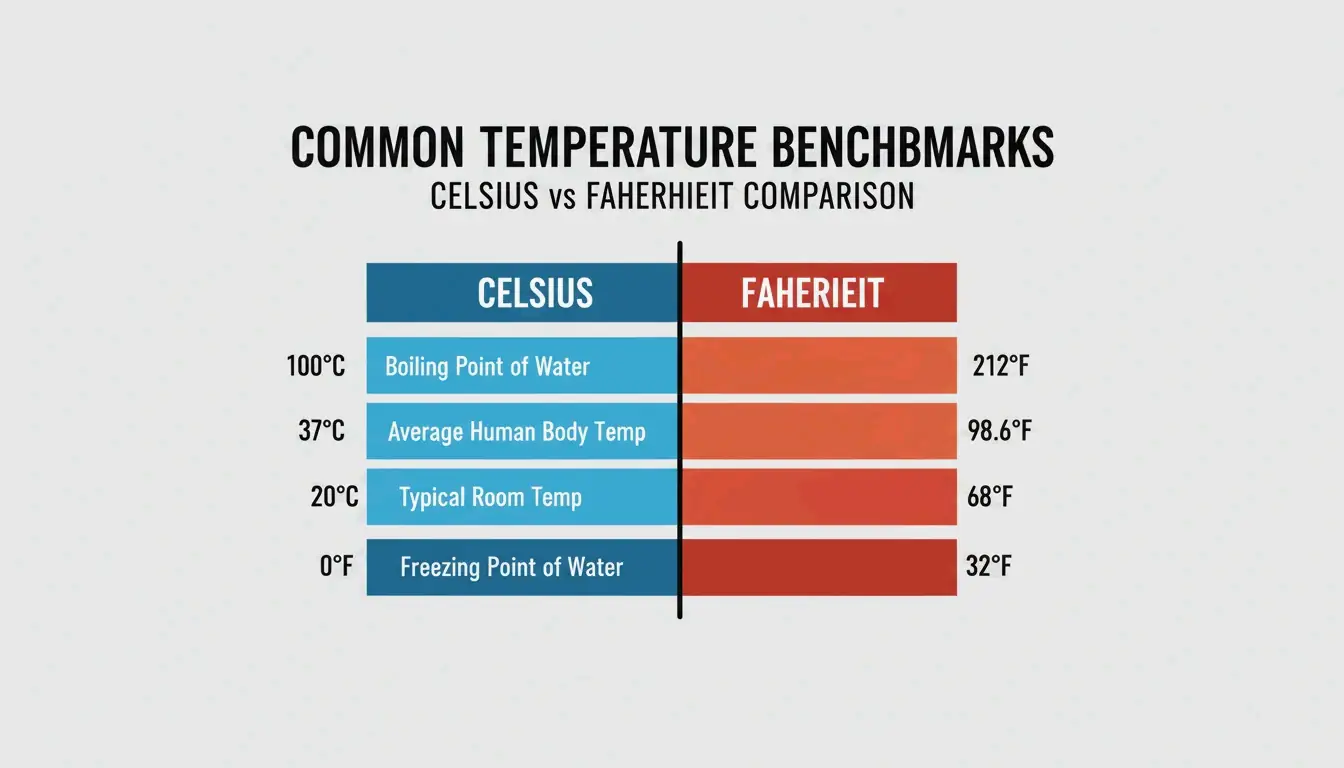
    Key Temperature Benchmarks

    Point Celsius Fahrenheit Kelvin
    Water freezes 0°C 32°F 273.15 K
    Room temperature 20°C 68°F 293.15 K
    Body temperature 37°C 98.6°F 310.15 K
    Water boils (sea level) 100°C 212°F 373.15 K

    A clean comparison bar showing key temperature benchmarks in both Celsius and Fahrenheit.

    Mental Shortcuts for Quick Estimates

    When you need a fast estimate without a calculator:

    Quick & Dirty: Double the Celsius and add 30.

    Actual Shortcut Error
    20°C = 68°F (20 × 2) + 30 = 70°F +2°F
    30°C = 86°F (30 × 2) + 30 = 90°F +4°F
    10°C = 50°F (10 × 2) + 30 = 50°F 0°F

    Adequate for weather and travel decisions. Use the exact formula (C × 1.8) + 32 for cooking, science, or medical contexts.

    For digital conversion, browser-based tools like FastTool Temperature Converter handle all four scales (Celsius, Fahrenheit, Kelvin, Rankine) instantly. The Tootoolz Temperature Converter works offline — useful for remote sites and flights.

    Thermometer Calibration: The Ice Point Method

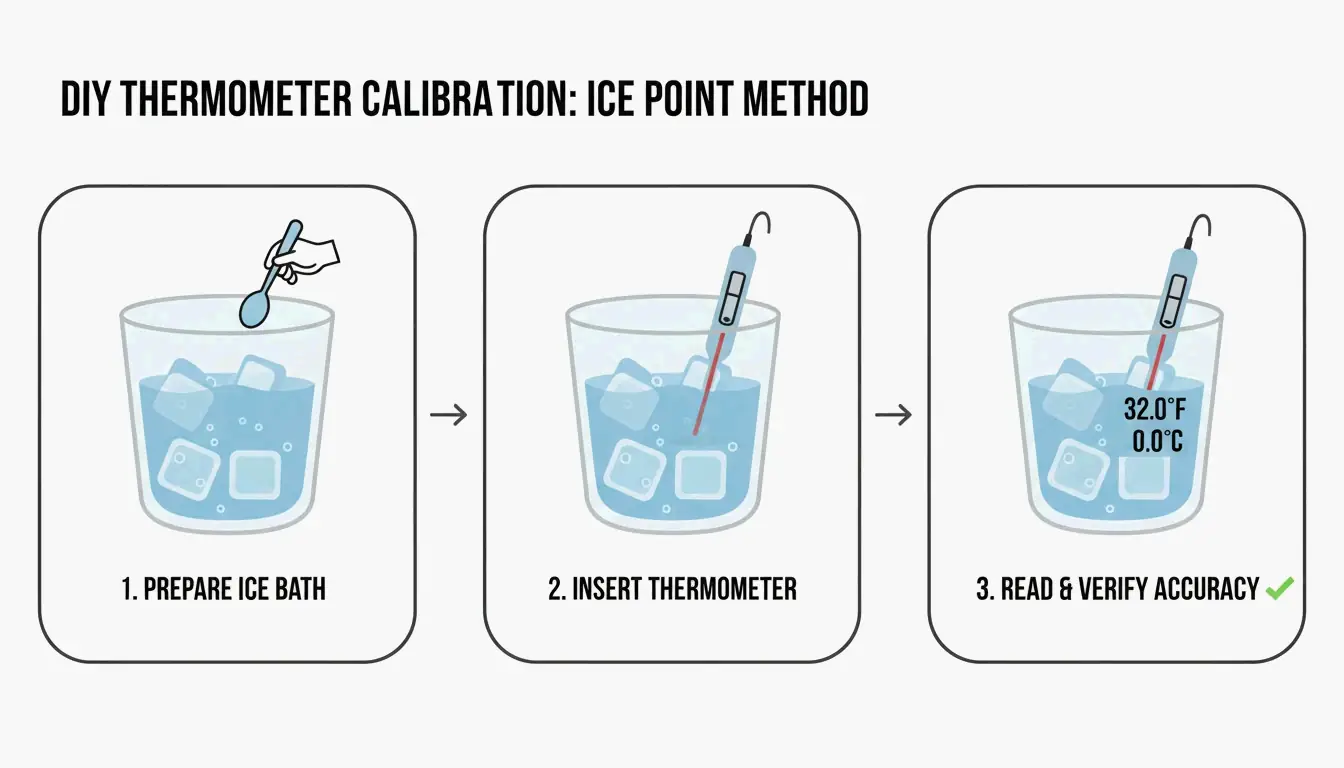
    Digital thermometers drift over time due to battery drain or physical impact. The Ice Point Method is the standard calibration procedure.

    A simple 3-step visual guide to the Ice Point Method: Ice Slurry, Stir, and Probe.

    Steps (per Paddl):

    1. Fill a tall glass with crushed ice, add cold water to fill gaps.
    2. Stir for 30 seconds to reach thermal equilibrium.
    3. Insert the probe into the center — do not touch sides or bottom.
    4. Expected reading: 32°F (0°C). If off by more than ±1.8°F (±1°C), adjust the calibration offset.

    Calibration frequency: Weekly for daily-use kitchen thermometers. Immediately after dropping the device or exposing it to extreme temperature swings (e.g., blast freezer → hot oven). Professional kitchens must maintain a calibration log for health inspections.

    For professional-grade accuracy, use NIST-Traceable devices — accuracy certified against the National Institute of Standards and Technology. As Helen Rosner reported in The New Yorker, an oven just 25°F off from its display can ruin an entire baking session.

    Tool Selection by Use Case

    Use Case Recommended Tool Accuracy Key Feature
    Weather/travel FastTool (browser) Exact All 4 scales, instant
    Professional kitchen Thermapen ONE ±0.5°F 1-second reading
    Remote/offline Tootoolz (mobile app) Exact Works without internet
    Lab/scientific NIST-Traceable probe ±0.1°F Certified calibration
    PC hardware tuning AMD Ryzen Master Real-time CPU throttling alerts

    As Dr. Elena Marquez from EastWest Studios notes: “Temperature accuracy is not just a detail — it’s a safety imperative.” This applies equally to HACCP food safety standards and PC thermal management. Club386 reports that AMD Ryzen Master’s Curve Optimizer reduced power consumption by 18.8% while boosting performance by over 5%.

    Programmable Thermostats and Energy Savings

    The U.S. Department of Energy reports that setting a programmable thermostat back 7°–10°F for 8 hours per day saves up to 10% annually on heating and cooling.

    Season Setting When
    Winter (awake) 68°F–70°F (20°C–21°C) While home
    Winter (asleep/away) 58°F–60°F (14°C–16°C) 8+ hours
    Summer (home) 78°F (26°C) While home
    Summer (away) 85°F+ (29°C+) While out

    Note: Heat pump systems require specialized “setback” thermostats to maintain efficiency during temperature recovery.

    Conclusion

    Use the exact formulas for precision work, the “double and add 30” shortcut for weather estimates, and calibrate hardware thermometers weekly with the Ice Point Method. For digital conversion, bookmark a reliable tool like FastTool. For energy savings, a programmable thermostat with a 7°–10°F setback during unoccupied hours delivers measurable annual savings.

    FAQ

    How do I calibrate a digital food thermometer?

    Fill a tall glass with crushed ice and cold water. Stir for 30 seconds. Insert the probe into the center without touching sides or bottom. Adjust the calibration until the display reads 32°F (0°C). Recalibrate weekly or immediately after dropping the device.

    What is the fastest mental estimate for Celsius to Fahrenheit?

    Double the Celsius and add 30. Example: 20°C → (20 × 2) + 30 = 70°F (actual: 68°F). Accurate within ±4°F for temperatures between 0°C and 40°C. Not suitable for cooking or scientific use.

    Is 13°C considered cold?

    13°C (55.4°F) is “cool” or “fresh” — typical spring or autumn weather. Comfortable for walking with light layers: T-shirt plus a cardigan, light jacket, or overshirt, with full-length trousers.

  • How to Convert PDF to Word: 2026 Methods Ranked by Accuracy

    How to Convert PDF to Word: 2026 Methods Ranked by Accuracy

    Use Microsoft Word for simple digital PDFs, Adobe Acrobat Pro for complex layouts with tables, or AI-powered tools (Copilot, PDNob) for scanned documents. The right method depends on whether your PDF is Native (selectable text), Scanned (image of text), or requires AI rebuilding.

    Decision Framework: Match PDF Type to Tool

    A simple 3-node diagram showing the three types of PDFs: Native, Scanned, and AI-Rebuilt.

    PDF Type Characteristics Best Tool Expected Accuracy
    Native Selectable text, digital origin Microsoft Word (free) ~95%
    Scanned Image-based, no selectable text PDNob / Adobe Acrobat (OCR) Up to 99%
    Complex layout Nested tables, multi-column, graphics Adobe Acrobat Pro ~98%
    AI-rebuild needed Mixed content, broken formatting Microsoft Copilot ~97%

    Method 1: Microsoft Word — Best for Native PDFs

    For digitally-created PDFs with simple layouts, Microsoft Word is the fastest free option.

    Desktop: Right-click the PDF → “Open with” → Microsoft Word.

    Web: Open Word for the Web, go to “Open,” select your PDF. Word converts columns, spacing, and line breaks into editable text.

    Important: Word often opens converted files in “Compatibility Mode,” which blocks advanced editing features. Microsoft’s editorial team recommends saving immediately as .docx to unlock all formatting tools.

    Method 2: Microsoft Copilot — AI Document Rebuilding

    The 2026 shift is from reflowing text to rebuilding it. Copilot uses AI to understand document context — recognizing headers, footers, nested tables, and style hierarchies that traditional converters flatten.

    Workflow:

    1. Attach the PDF to a Copilot chat in Word.
    2. Copilot analyzes structure and rebuilds the document with organized headings and lists.
    3. Use natural language prompts to clean up conversion artifacts.

    A simple 3-step process: Upload PDF -> AI Context Analysis -> Rebuilt Word Doc.

    Cleanup prompts that work:

    • “Identify and fix broken line breaks and duplicated text, while adding bullet points and headings.”
    • “Review this document and suggest improvements to heading structure and table formatting for accessibility.”
    • “Identify and suggest corrections for spacing, uneven fonts, or incorrect list numbering.”

    Microsoft offers “Zero-Knowledge” cloud processing for enterprise users — confidential documents stay within your organization’s secure environment.

    Method 3: Adobe Acrobat Pro — Complex Tables and Layouts

    Adobe Acrobat Pro remains the industry standard for PDFs with complicated structures. Its layout-aware engine preserves borders, cell alignments, and multi-column formatting. Export to .docx through Acrobat handles graphics and nested tables better than free alternatives.

    Method 4: OCR for Scanned Documents

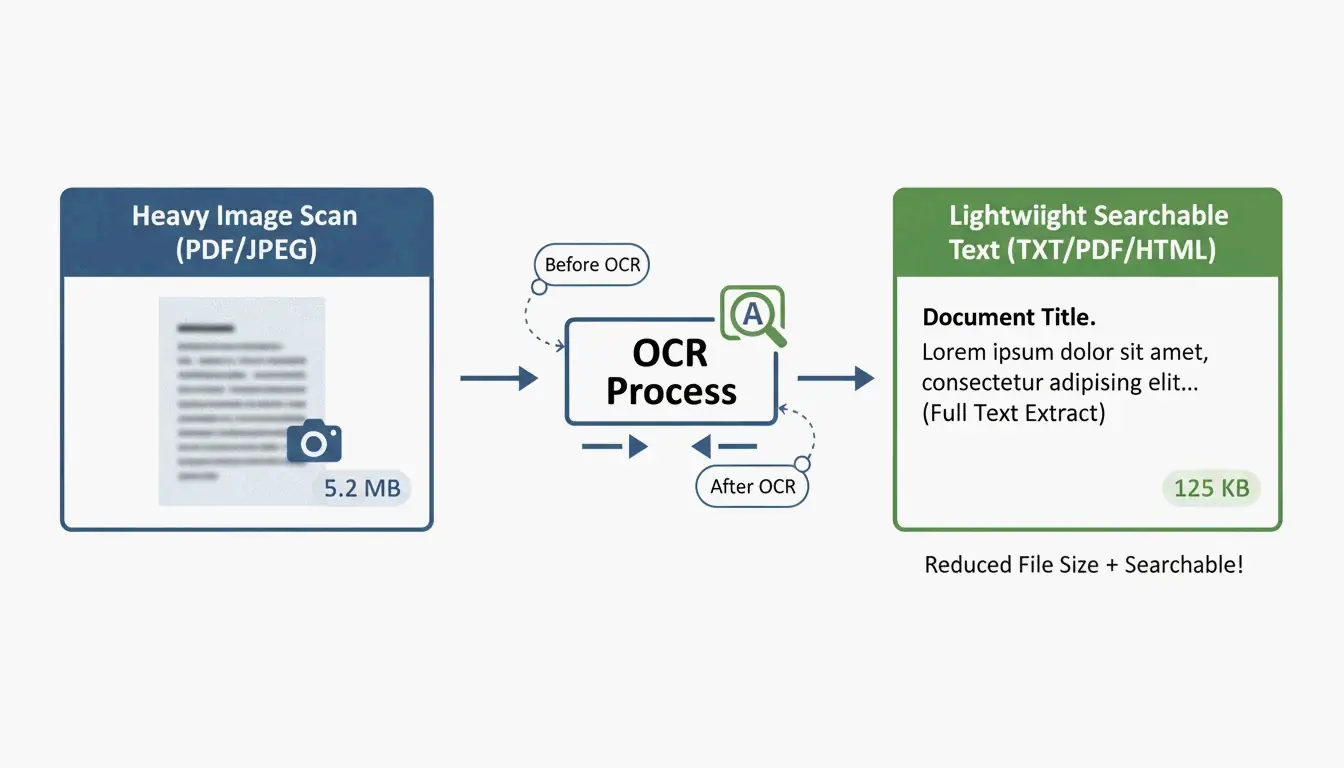
    Standard conversion cannot extract text from image-based PDFs. OCR (Optical Character Recognition) is required, and quality depends on scan resolution.

    Scan Quality DPI OCR Accuracy Use Case
    Low 150 DPI ~90% Quick text extraction
    Professional 300 DPI ~99% Legal, medical documents
    High 600 DPI 99%+ Archival, fine print

    According to PDNob, AI-driven OCR engines in 2026 achieve 99% precision at 300 DPI. PDNob PDF Editor offers batch processing — apply the same OCR settings to dozens of invoices or contracts at once.

    Method 5: Google Docs — Free Basic OCR

    Upload the PDF to Google Drive, right-click → “Open with” → Google Docs. A built-in OCR process converts image text to editable content.

    Limitations: Google Docs frequently fails to match original fonts and displaces images into text lines. Adequate for extracting plain text from simple pages; insufficient for branded documents or complex data tables.

    A simple comparison visual showing 'Basic Tools' (Word/Google) vs 'Pro Tools' (Acrobat/AI) for layout complexity.

    Tool Comparison Summary

    Tool Cost Best For OCR Batch Privacy
    Microsoft Word Free Simple native PDFs No No Local
    Microsoft Copilot Subscription AI rebuilding No No Zero-Knowledge
    Adobe Acrobat Pro Paid Complex tables, layouts Yes (Pro) Yes Local/Cloud
    PDNob PDF Editor Freemium Scanned batch OCR Yes (AI) Yes Local
    Google Docs Free Quick text extraction Basic No Cloud

    Conclusion

    Match the tool to the PDF type: Word for native documents, Adobe Acrobat Pro for complex layouts, and AI-powered OCR (PDNob, Copilot) for scanned files. For professional results on scanned documents, ensure the source is at least 300 DPI. Always save the converted file as .docx immediately to exit Compatibility Mode and unlock full editing capabilities.

    FAQ

    Can I convert PDF to Word for free without losing formatting?

    Text-heavy native PDFs convert well with Word for the Web or Google Docs. Complex layouts with nested tables require Adobe Acrobat or AI-rebuilding tools to preserve structure. Free tools lack the advanced OCR engines needed to interpret spatial relationships in complex documents.

    Is it safe to use online PDF converters for sensitive documents?

    Security depends on the provider. Look for “Zero-Knowledge” cloud processing (Microsoft Copilot enterprise) or use local desktop software (Adobe Acrobat Pro, PDNob) for legal and medical files. Verify SOC2 compliance and AI data privacy labels before uploading sensitive content.

    How does AI improve PDF to Word conversion?

    AI tools like Copilot understand document structure beyond character recognition — they identify headers, footers, styles, and table hierarchies that traditional converters flatten. Natural language prompts let you fix specific formatting errors (broken line breaks, inconsistent fonts) without manual editing.

  • Timezone Converter: Accurate Global Time Scheduling with UTC and DST Handling

    Timezone Converter: Accurate Global Time Scheduling with UTC and DST Handling

    A professional timezone converter must sync with the IANA Time Zone Database (400+ zones), apply Daylight Saving Time (DST) automatically, and calculate UTC offsets down to the minute—including non-standard offsets like UTC+5:30 (India) and UTC+5:45 (Nepal). Tools like Time.now pair this data with visual meeting planners for reliable cross-timezone scheduling.

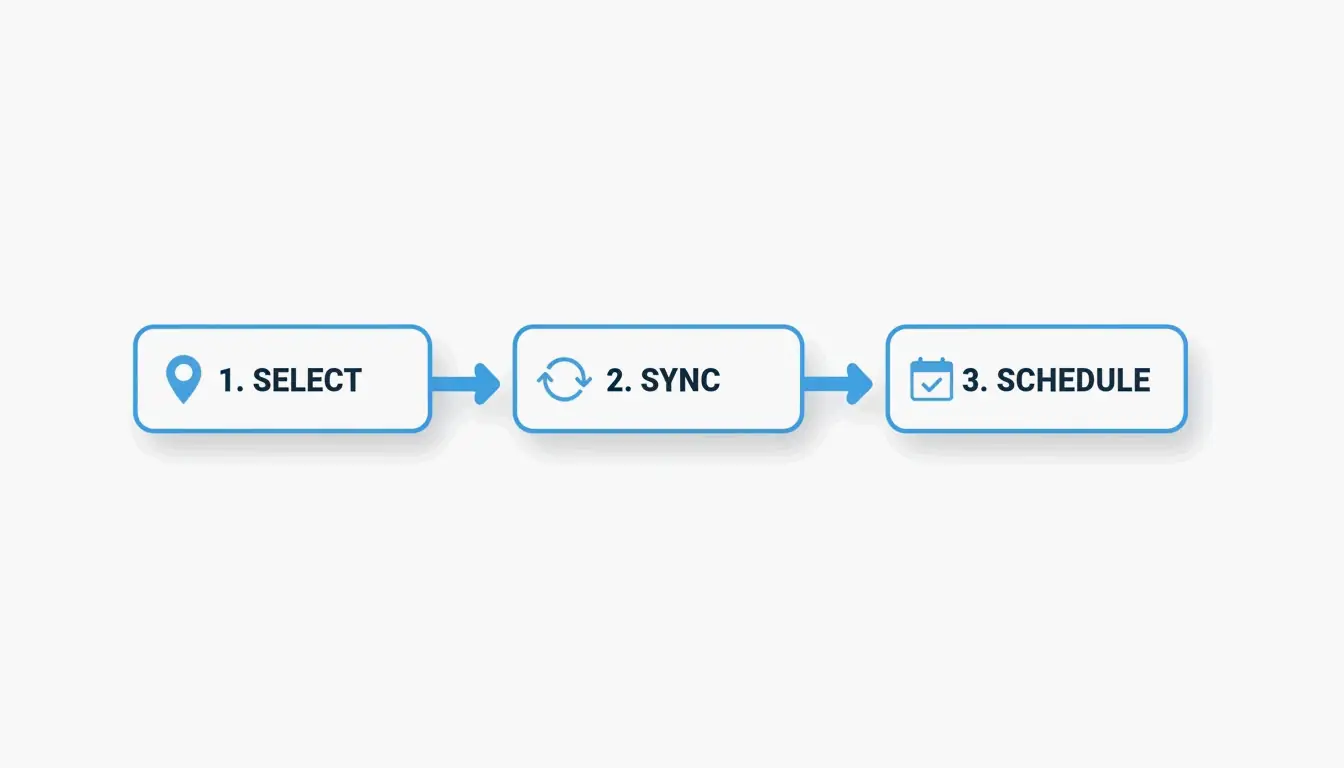
    3-Step Workflow: Select, Sync, Schedule

    The 3-step workflow: Select, Sync, Schedule.

    Step Action Why It Matters
    Select Choose source and target timezones IANA database tracks 400+ zones worldwide
    Sync Apply UTC offset + current DST status 62 locations observe DST as of May 2026
    Schedule Find overlapping “Golden Hours” Avoids midnight meetings and zoom fatigue

    Step 1: Establish the UTC Baseline

    UTC (Coordinated Universal Time) never shifts for DST. Use it as your anchor: Local Time = UTC + Offset + DST Adjustment. This formula stays correct even when local laws change clock rules.

    Step 2: Automate DST Adjustments

    As of May 7, 2026, Time and Date confirms 62 locations are observing DST. A reliable converter handles these shifts automatically—London switches between GMT (UTC+0) and BST (UTC+1) without manual intervention.

    Step 3: Find Golden Hours

    “Golden Hours” are overlapping windows where all participants are within working hours. For teams spanning EST (New York), PST (California), IST (India), and JST (Japan), visual grid planners highlight these slots instantly.

    UTC vs. GMT: Technical Distinction

    Property UTC GMT
    Definition Atomic time standard Time zone for UK/Europe/Africa
    Precision Millisecond-level Second-level
    DST affected Never Yes (UK switches to BST in summer)
    Required for Aviation, finance, servers General scheduling in UK/Africa

    As 24TimeZones notes, UTC and GMT are functionally identical for casual use. For technical logs, financial trades, and Unix systems, UTC is the required standard. Unix Time counts seconds since January 1, 1970 (Epoch), giving servers a timezone-independent reference.

    DST Status in 2026: What Still Changes

    Despite legislative efforts like the U.S. Sunshine Protection Act and EU proposals to end biannual clock changes, DST remains active in many regions.

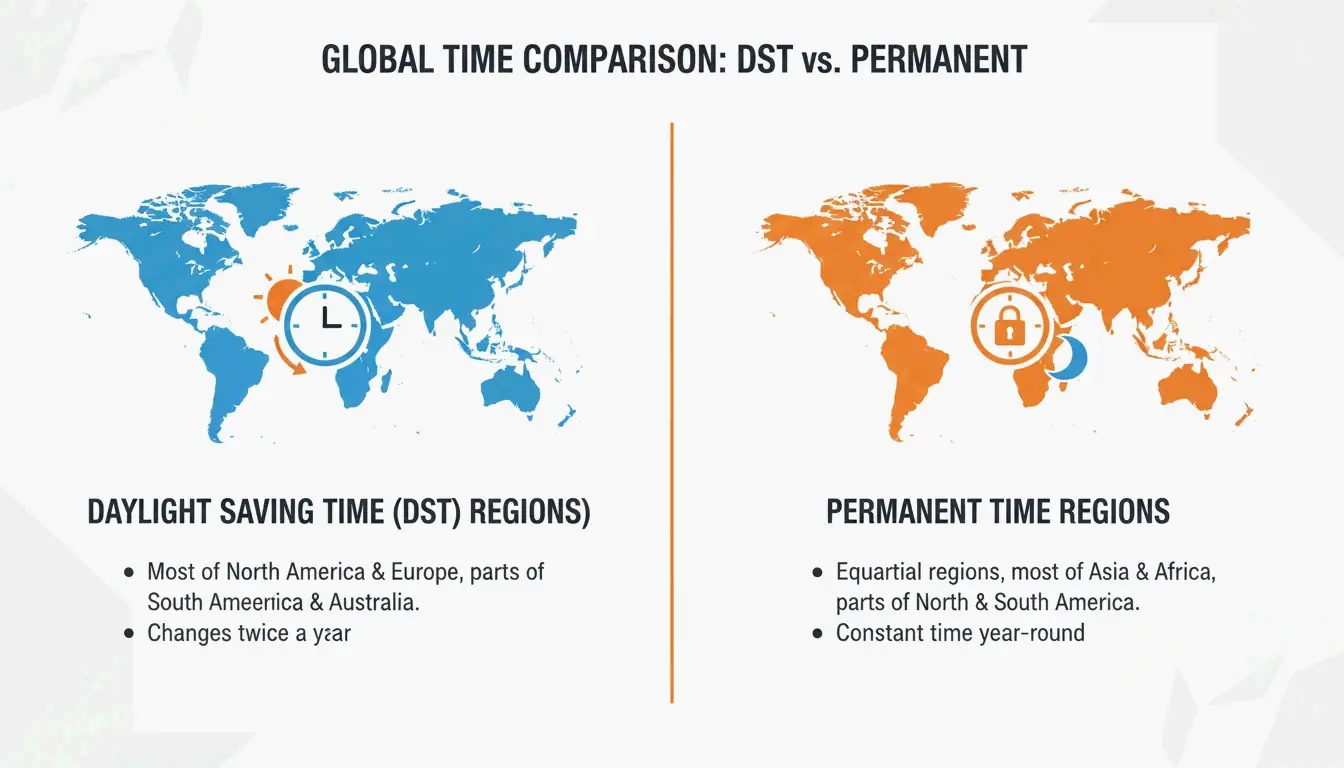
    Visual contrast between DST-observing regions and Permanent Time regions.

    Category Regions DST Status (May 2026)
    DST active US, Canada, EU, parts of Australia +1 hour offset applied
    Permanent Time Arizona (US), China, India, Japan, most of Africa/Africa No seasonal shift

    When using a converter, look for a “Permanent Time” label to confirm a location does not shift clocks.

    Non-Standard Timezone Offsets

    Not all timezones shift by whole hours. Common non-standard offsets:

    Offset Region Note
    UTC+5:30 India (IST) 30-minute offset
    UTC+5:45 Nepal (NPT) 45-minute offset
    UTC+9:30 Australia (ACST) Northern Territory, South Australia
    UTC+3:30 Iran (IRST) 30-minute offset

    Always verify these zones when scheduling “on the hour” — a meeting set for 9:00 AM in New York is 6:30 PM in Mumbai, not 7:00 PM.

    AI-Powered Timezone Workflows

    Modern teams use AI Time Assistants to eliminate manual conversion:

    • Natural language scheduling: “Schedule a 30-minute sync with Tokyo and London for next Tuesday morning” — the AI checks IANA data and finds the best overlap automatically.
    • Slack/Teams integration: Auto-update your status based on local time and working hours.
    • Offline sync: Apps like World Clock: Timezone Converter cache timezone data for use without Wi-Fi.

    For high-stakes coordination — like the Hubble 36th Anniversary scientific event — synchronized time standards are non-negotiable across global observatories.

    Conclusion

    Use an IANA-backed timezone converter that applies UTC offsets and DST adjustments automatically. For team scheduling, a visual “Golden Hours” planner outperforms a basic converter by showing overlapping working windows. For the highest throughput, integrate an AI Time Assistant into your existing Slack or Teams workflow. Always double-check non-standard offsets (UTC+5:30, UTC+5:45) before confirming meeting times.

    FAQ

    What is the difference between GMT and UTC?

    UTC is an atomic time standard with millisecond precision, used globally by technology and science. GMT is a specific timezone used by the UK (in winter) and parts of Africa. For scheduling, they are functionally identical. For aviation, finance, and server logs, UTC is the required standard.

    Which countries do not observe DST?

    Most of Asia (China, India, Japan), Africa, and South America do not observe DST. In the US, Arizona (except the Navajo Nation) stays on standard time year-round. Look for a “Permanent Time” label in your converter to confirm.

    How do 30-minute and 45-minute timezone offsets work?

    Regions like India (UTC+5:30) and Nepal (UTC+5:45) use fractional offsets. Modern converters using the IANA database handle these automatically. When scheduling across these zones, double-check the exact local time — a one-hour scheduling assumption can put you 30 minutes late.

  • TOML to YAML: Quick Conversion Guide with Syntax Map and Pitfalls

    TOML to YAML: Quick Conversion Guide with Syntax Map and Pitfalls

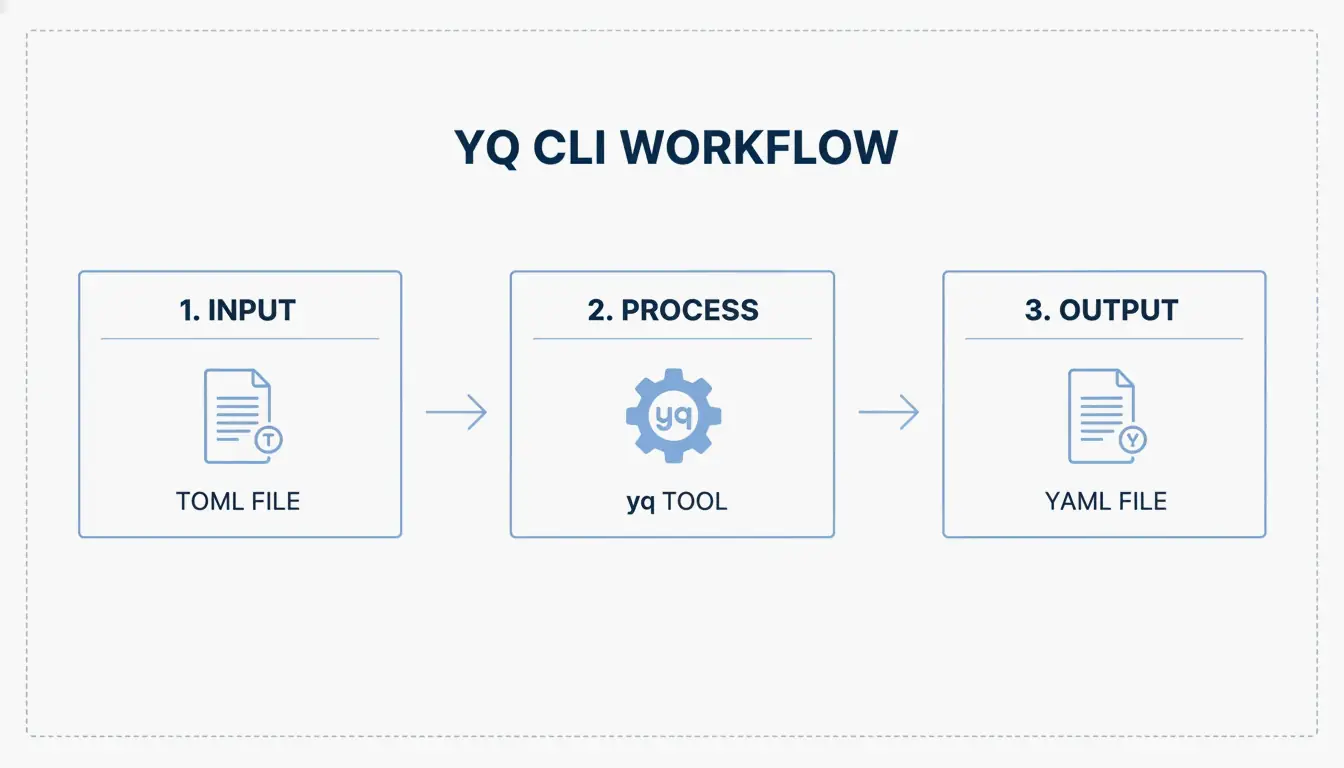
    The fastest way to convert TOML to YAML is yq -oy '.' file.toml. For manual conversion, map TOML [table] headers to YAML indented blocks, TOML arrays to dash-prefixed lists, and always quote ambiguous strings to avoid the “Norway Problem.”

    Quick Conversion: Using yq CLI

    TOML (Tom’s Obvious, Minimal Language) reached its v1.1.0 release in December 2025, but YAML remains the standard for CI/CD pipelines and Kubernetes manifests. The yq tool handles the conversion in a single command.

    Install yq

    Platform Command
    macOS/Linux brew install yq
    Windows choco install yq
    Python (pip) pip install yq

    The Go-based version by Mike Farah is preferred for speed. As noted in Mike Farah’s yq documentation, the tool decodes TOML structure and re-encodes it as clean YAML.

    Run the Conversion

    Display in terminal:

    yq -oy '.' your-config.toml
    

    Save to file:

    yq -oy '.' your-config.toml > your-config.yaml
    

    The -oy flag sets output format to YAML. This handles key-value pairs, nested tables, and arrays.

    Simple 3-step terminal conversion process

    Syntax Translation Map: TOML Structure to YAML

    Developer Drew DeVault has noted that while TOML is popular, YAML handles deep nesting more cleanly. Here is the exact mapping:

    Tables to Indented Keys

    TOML uses bracket headers; YAML uses indentation.

    TOML YAML
    [server] server:
    host = "127.0.0.1" host: 127.0.0.1
    port = 8080 port: 8080

    Critical difference: In TOML, indentation is cosmetic. In YAML, indentation is structural — one wrong space breaks the entire config.

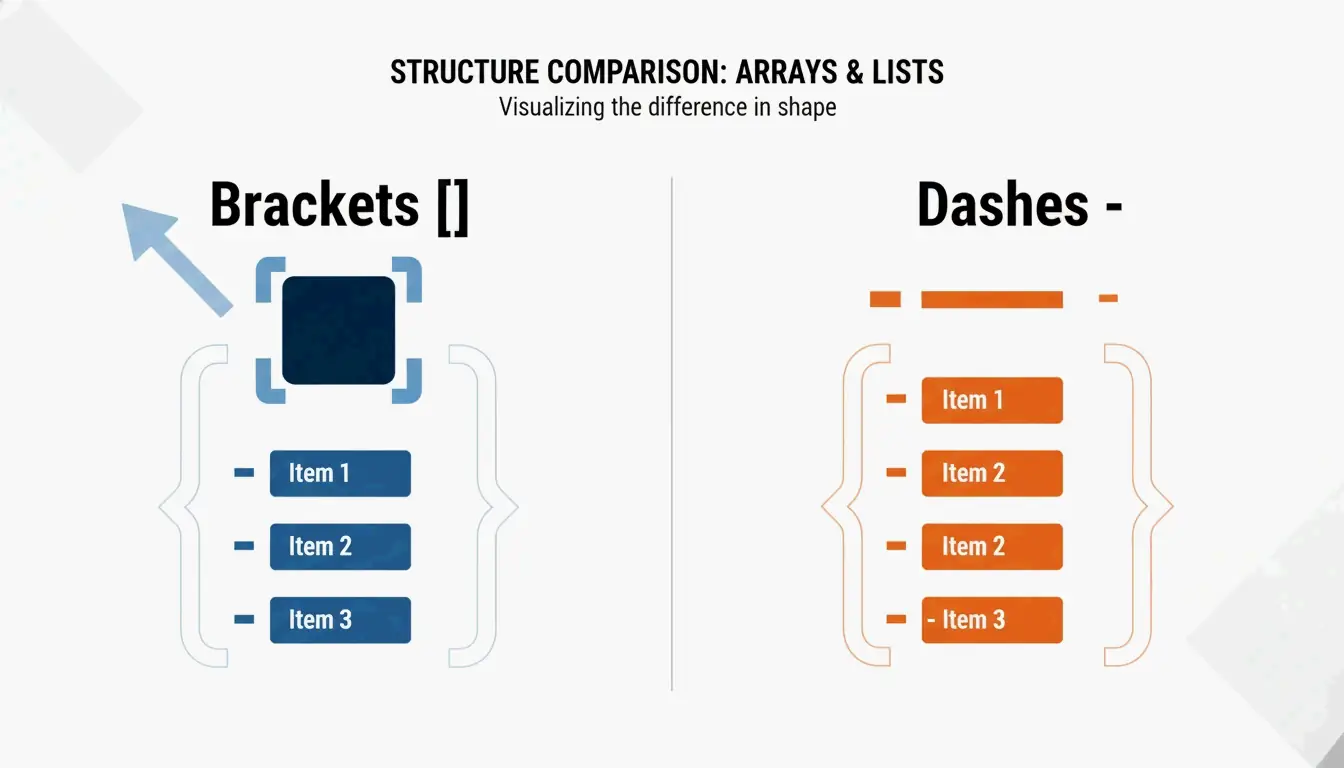
    Arrays to Dash-Prefixed Lists

    TOML: ports = [ 8000, 8001 ]

    YAML:

    ports:
      - 8000
      - 8001
    

    Side-by-side structural comparison of TOML vs YAML

    As Knightli.com explains, YAML’s “block style” makes lists readable, provided vertical alignment is consistent.

    Inline Tables and Dotted Keys

    TOML Construct YAML Equivalent
    [a.b.c] (dotted header) a:b:c: (nested indentation)
    point = { x = 1, y = 2 } (inline table) point:x: 1y: 2

    Real-World Use Cases

    Hugo Static Site Configuration

    Hugo accepts hugo.toml, hugo.yaml, or hugo.json. Most projects start with TOML (the default), then migrate to YAML when config needs to align with deployment platforms like Netlify or GitHub Actions. Hammer Europe notes that the hugo command reads these files to determine how Markdown converts to a live site.

    Python Packaging: pyproject.toml to CI/CD YAML

    The Python community standardized pyproject.toml via PEP 518. These settings frequently need translation to YAML for GitHub Actions CI/CD workflows. For AI agent workflows, CocoIndex reports that optimized YAML configs can reduce token usage by up to 70%.

    The Norway Problem and Other Conversion Pitfalls

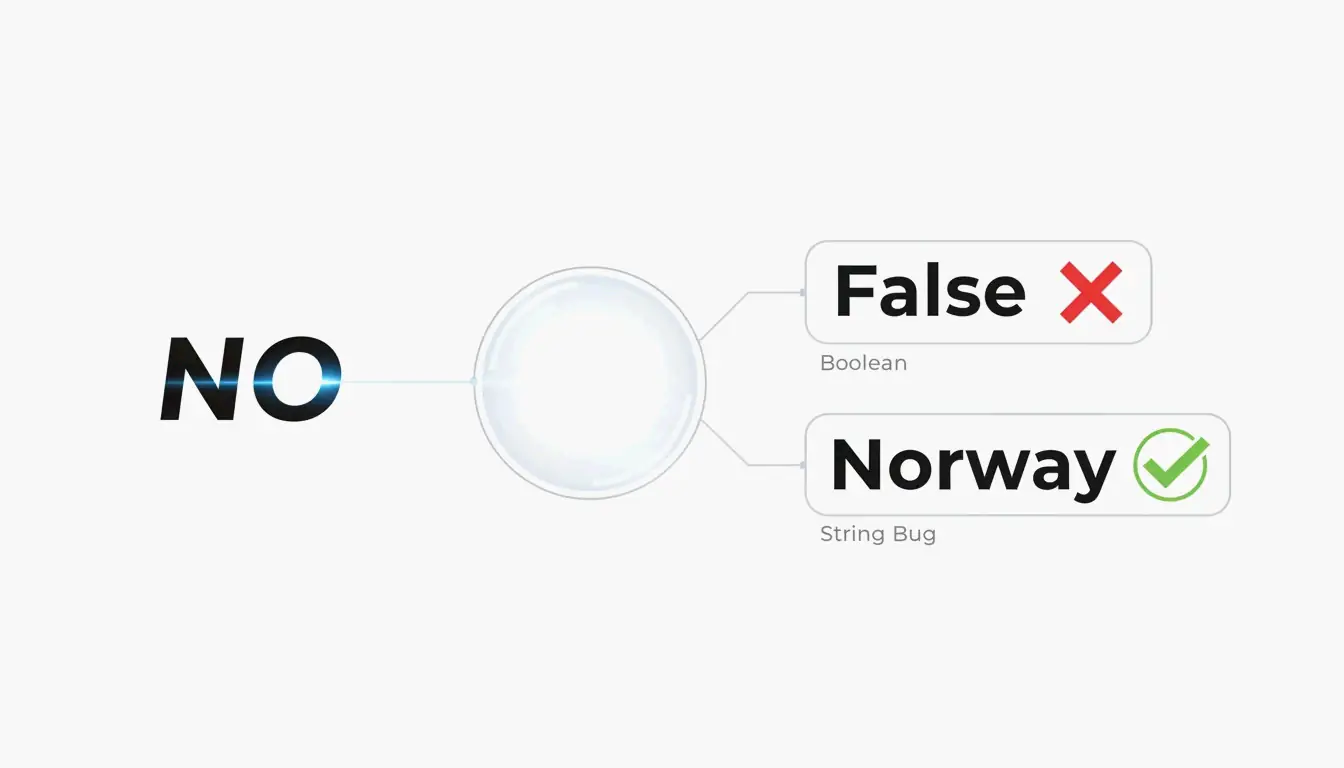
    The NO Country Code Bug

    In YAML 1.1, bare strings like NO, OFF, and YES are auto-coerced to boolean false or true. TOML avoids this by requiring quotes on all strings. When converting, always quote ambiguous values in YAML:

    Value YAML 1.1 Interpretation Fix
    NO false "NO"
    OFF false "OFF"
    YES true "YES"
    On true "On"

    YAML 1.2 (the current spec) fixes most of these coercions, but many parsers still default to 1.1 behavior.

    Visual metaphor for the 'Norway Problem' (Boolean vs String)

    Indentation Errors

    YAML parsers reject files with inconsistent indentation. Common mistakes:

    • Mixing tabs and spaces (YAML forbids tabs)
    • Using 3 spaces in one block and 2 in another
    • Misaligned list items

    AI-Assisted Generation

    Tools like AgentBuilder let you describe configuration in plain English and output validated YAML. This “describe → generate → validate” cycle helps avoid both indentation errors and the Norway Problem.

    Conclusion

    Use yq -oy '.' file.toml for automated conversion. For manual work, map TOML tables to YAML indentation, arrays to dash-prefixed lists, and always quote strings that could be mistaken for booleans. After any conversion, validate the YAML output before deploying — a single misaligned space or unquoted NO can break your entire pipeline.

    FAQ

    Does YAML support comments like TOML?

    Yes. Both use # for single-line comments. YAML comments can interfere with multi-line string parsing, so place them on separate lines when in doubt.

    What is the ‘Norway Problem’ in YAML?

    In YAML 1.1, bare strings like NO (Norway’s country code) are auto-converted to boolean false. TOML avoids this by requiring quotes on all string values. When converting TOML to YAML, wrap any potentially ambiguous string in quotes.

    Which format handles deep nesting better?

    YAML. TOML requires repeating long headers like [table.subtable.subsubtable] for each level, which becomes verbose. YAML represents the same hierarchy with indentation — more compact and readable at depth.

  • Best HEIC to JPG Converter Online for Windows Users: 5 Free Tools Compared

    Best HEIC to JPG Converter Online for Windows Users: 5 Free Tools Compared

    The best free HEIC to JPG converter for Windows in 2026 depends on your priority: Picovert for private browser-based conversion, iMazing HEIC Converter for offline batch processing, or the built-in Windows Photos app for occasional one-off files. All five methods compared below.

    Selection Criteria: What Makes a Top HEIC Converter in 2026?

    A professional-grade converter must satisfy three requirements:

    Criterion What to Look For Why It Matters
    Batch speed Process 100+ images in under 30 seconds Modern photo libraries contain thousands of files
    EXIF preservation GPS, timestamps, camera settings retained Essential for photo organization and legal metadata
    Privacy Client-side (browser-local) processing Prevents personal photos from reaching third-party servers

    As Arpit Kuzo notes: “Stop uploading private photos to shady servers! Learn how to batch convert HEIC to JPG locally in your browser.” Modern tools use WebAssembly to run the conversion entirely in your browser tab—no upload required.

    Local Browser Processing vs Cloud Upload Comparison

    Method 1: Picovert — Secure Local Browser Conversion

    Picovert handles conversion entirely in your browser’s memory using WebAssembly. Files never leave your device.

    Steps (Windows 11, Chrome 105+ / Edge):

    1. Open the Picovert HEIC converter.
    2. Drag .heic files into the browser window.
    3. Set quality to 90% — the optimal balance between visual fidelity and file size.
    4. Click “Convert” — JPGs download instantly.

    Other tools using the same local-processing approach include Warpbin and SafeHEICtoJPEG.

    Method 2: iMazing HEIC Converter — Best Desktop Batch Tool

    For large offline archives, iMazing remains the benchmark. In a FileHulk Lab Test (April 2026), iMazing converted 30 iPhone photos in 11 seconds with a 100% success rate.

    Its key advantage is full EXIF metadata preservation — date taken, GPS coordinates, and camera settings survive the conversion. This is critical for photographers who rely on searchable, organized libraries.

    Method 3: Windows Photos App — Native HEIC Support

    Windows 11 can convert HEIC natively if you install two extensions:

    Extension Cost Purpose
    HEIF Image Extensions Free Thumbnail preview and basic HEIC rendering
    HEVC Video Extensions $0.99 Decode Apple’s specific compression codec

    Steps:

    1. Open the HEIC file in the Windows Photos app.
    2. Click the three-dot menu (…).
    3. Select “Save As” → “JPEG.”

    According to FileHulk, this works for approximately 93% of files. The main limitation: HDR color mapping can produce slightly washed-out results in some exports.

    Method 4: 4DDiG File Repair — Professional Batch with Repair

    4DDiG File Repair includes an AI-enhanced image format converter designed for high-throughput workflows. Its distinguishing feature is structural validation during conversion — it can often repair corrupted HEIC files that browser tools simply reject. Supports one-click bulk processing for thousands of images.

    Method 5: ImageMagick — Command-Line Power

    For developers and automation pipelines, ImageMagick offers the highest throughput. Install on Windows, then convert an entire folder:

    magick mogrify -format jpg *.heic
    

    No GUI, no click-through — just raw volume processing. Best suited for users comfortable with the command line.

    5 Methods at a Glance

    Method Privacy Batch Speed EXIF Preserved Best For
    Picovert Local (browser) Fast Yes Quick, private conversion
    iMazing Full offline 30 photos/11s Yes Large photo archives
    Windows Photos Offline Slow (one-by-one) Partial Occasional single files
    4DDiG Desktop Very fast Yes Corrupted files + bulk
    ImageMagick Full offline Fastest Configurable Developers, automation

    Should You Switch iPhone to ‘Most Compatible’?

    If you want to eliminate HEIC entirely, change your iPhone camera settings:

    1. SettingsCameraFormats
    2. Tap Most Compatible

    3-Step iPhone Camera Settings Change

    Trade-off: A 2MB HEIC file becomes approximately 5MB as JPG, according to Freetoolonline. You lose roughly 50% storage efficiency but gain universal compatibility across all Windows devices and websites.

    Conclusion

    For most Windows users in 2026, the optimal setup is: use Picovert for quick, private conversions without installing software; use iMazing for batch-processing large photo libraries offline. If HEIC incompatibility is a recurring headache, switching your iPhone to “Most Compatible” mode is the simplest long-term fix — at the cost of 50% more storage per photo.

    FAQ

    Does converting HEIC to JPG reduce image quality?

    Yes — JPG is a lossy format, so some data is discarded during re-encoding. However, at 90%+ quality settings, the visual difference is imperceptible to the human eye. The trade-off is file size: the resulting JPG will be approximately 2× larger than the original HEIC.

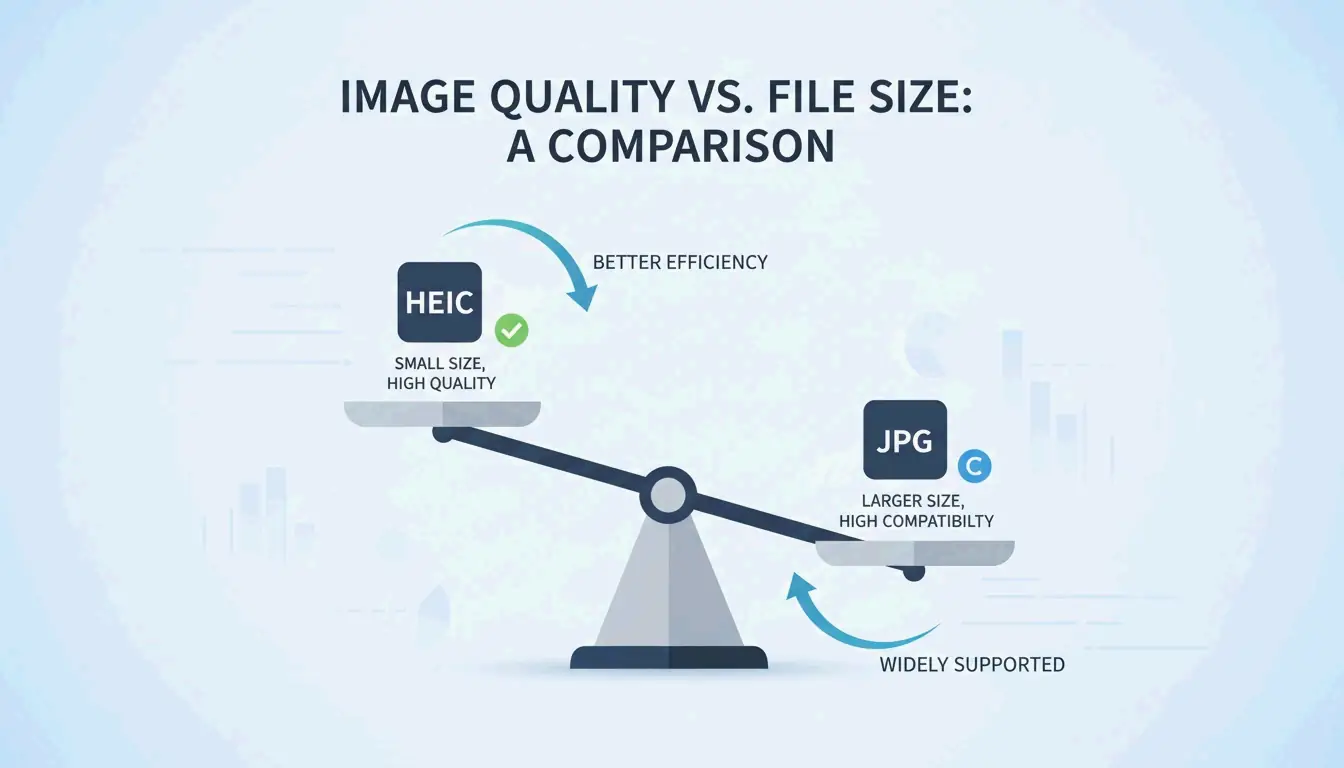
    HEIC vs JPG: Quality & File Size Balance

    How do I preserve EXIF metadata during bulk conversion?

    Use iMazing HEIC Converter or Picovert — both offer explicit “Keep Metadata” or “Include EXIF” options. The Windows Photos “Save As” method typically retains the date but may strip GPS tags and HDR color data depending on your system configuration.

    Can I convert HEIC to JPG on Windows 11 without third-party software?

    Yes, using the built-in Photos app with the HEIF Image Extensions installed from the Microsoft Store. Open the image, use “Save As” and select JPEG. This method is slower for batching since files must be saved individually.

  • How to AI Prompt with BeConverter: Reverse Engineer Any Visual in 4 Steps

    How to AI Prompt with BeConverter: Reverse Engineer Any Visual in 4 Steps

    Upload an image to BeConverter, let its Vision-Language Model (VLM) decompose the visual into style tokens, then paste the extracted prompt into Midjourney, Stable Diffusion, or FLUX. That is the complete workflow for turning any visual into a reproducible AI prompt—no guesswork required.

    What Is Reverse Prompting and How Does BeConverter Work?

    Reverse prompting converts pixels back into text a generative model can understand. Instead of writing a prompt from scratch and hoping the output matches a reference, you start with the finished image and extract the exact keywords, lighting conditions, and aesthetic tags that define its look.

    BeConverter uses a Vision-Language Model (VLM) to analyze an image’s artistic properties. The model compares your photo against its training data to classify attributes like rendering style (3D vs. oil painting), lighting setup (volumetric vs. ambient), and composition. The result is a structured text prompt you can feed into any image generator.

    VLM vs. OCR: Why Standard Scanning Cannot Read Art

    Optical Character Recognition (OCR) reads text—letters, numbers, receipts. A VLM reads art direction. As PromptsEra explains, where OCR sees the word “STOP” on a sign, a VLM detects the octagonal shape, the faded red paint, the depth of field, and the angle of the sun—details essential for visual reproduction.

    Simple comparison between OCR (text focus) and VLM (artistic focus)

    Capability OCR VLM
    Reads text Yes Limited
    Identifies lighting No Yes
    Detects composition style No Yes
    Extracts color grading No Yes
    Outputs prompt-ready text No Yes

    4-Step Workflow: How to AI Prompt with BeConverter

    Based on the Style Token Isolation Strategy from PromptsEra, follow this sequence:

    1. Upload your source image — Use a high-resolution file. The VLM needs clear pixels to detect subtle attributes like “volumetric lighting” or “35mm lens grain.”
    2. Choose your interrogator — Select CLIP Interrogator for descriptive, poetic prompts (ideal for Midjourney) or DeepDanbooru for comma-separated tags (ideal for Stable Diffusion).
    3. Isolate style tokens — Delete the subject tokens (e.g., “a cat”) and retain only the style markers (e.g., “cyberpunk, neon rim lighting, 8k, cinematic depth of field”).
    4. Paste into your generator — Copy the cleaned tokens into Midjourney v7, Stable Diffusion, or FLUX and generate.

    3-step core workflow: Upload -> Extract Tokens -> Generate New

    Adapting Prompts for 2026 Models: FLUX vs. Midjourney

    Each model interprets prompts differently. PromptsEra notes that abstract descriptions like “melancholy atmosphere” work well in Midjourney but fail in FLUX, which requires literal spatial descriptions like “dark room with rain hitting the window, overhead fluorescent light casting long shadows.”

    Prompt Style Midjourney v7 FLUX Stable Diffusion
    Abstract/poetic Strong Weak Moderate
    Literal/spatial Moderate Strong Moderate
    Comma-separated tags Moderate Moderate Strong
    Negative prompts Supported (--no) Supported Supported

    The Frankenstein Strategy: Merging Styles from Multiple Images

    The most effective reverse engineering technique combines style tokens from different sources. Use BeConverter to extract lighting from Image A and subject rendering from Image B, then merge them into a single prompt.

    Key controls for consistent merging:

    • Aspect Ratio — Set explicitly (e.g., --ar 16:9 for Midjourney) since reverse tools cannot infer your intended canvas.
    • Negative Prompts — Always add exclusions like “blurry, deformed, low quality.” Reverse tools only detect what is present; they cannot identify what should be absent.

    As Andrew Lo, Director of MIT’s Laboratory for Financial Engineering, advises: “Always ask the LLM, what are you uncertain about? What information are you missing?” Apply the same principle—identify the gaps in your reconstructed prompt before generating.

    BeConverter vs. Zemith vs. PromptShot: Tool Comparison (2026)

    Feature BeConverter Zemith PromptShot AI
    Interrogator modes CLIP + DeepDanbooru Multi-model (25+) Single-pass
    Daily free credits Yes 100 Unlimited
    Sign-up required No Yes No
    Best for Token isolation All-in-one workflow Quick extractions
    Output format Descriptive + tags Model-specific Prompt string

    Additional options worth noting:

    • Zemith — Over 30,000 users as of 2026. According to Zemith, it supports 25+ models including GPT-5.5 with 100 daily credits.
    • PromptShot AI — No account needed. PromptShot AI offers a 5-step process designed for creators who need to “recreate and improve” AI art quickly.
    • Dreamina (GPT Image 2) — Generate and edit in one window. According to Dailyhunt, the GPT Image 2 model supports inpainting and lighting adjustments directly after prompt generation.

    Key highlights/strengths of the three mentioned tools

    Conclusion

    Reverse prompting with BeConverter converts any reference image into a structured, reusable AI prompt in seconds. Upload your image, extract style tokens with CLIP or DeepDanbooru, isolate the artistic attributes, and paste into your generator of choice. For best results, adapt the prompt format to your target model—abstract for Midjourney, literal for FLUX, tag-based for Stable Diffusion—and always include negative prompts to maintain output quality.

    FAQ

    Can reverse prompting recover the exact original prompt used by another creator?

    No. It reconstructs a descriptive approximation based on visual analysis. Different VLM models prioritize different attributes, so the output is a high-quality reconstruction—not hidden metadata or keystroke recovery.

    Does image-to-prompt technology work on real smartphone photographs?

    Yes. PromptsEra notes that VLMs can identify real-world attributes like “golden hour lighting” or specific camera lenses and translate those textures into prompts for artistic reinterpretation.

    Is it legal to use prompts extracted from copyrighted artwork?

    Prompts are short text strings and are not typically covered by copyright. The ethical approach is to extract style tokens to inform your own original work. As PromptsEra points out, attempting to exactly replicate a protected character can create legal issues—use these tools to learn techniques, not to copy.