To bulk resize photos and videos in 2026, the most efficient approach is to use browser-based tools like BIRME or FastTool for images, and local API platforms for video files. Upload your batch, set your dimensions while locking the Aspect Ratio, adjust Compression Quality to 80-90%, and download the optimized results as a ZIP file — all without your data ever leaving your device.
The 2026 Standard for Bulk Resizing Photos and Videos
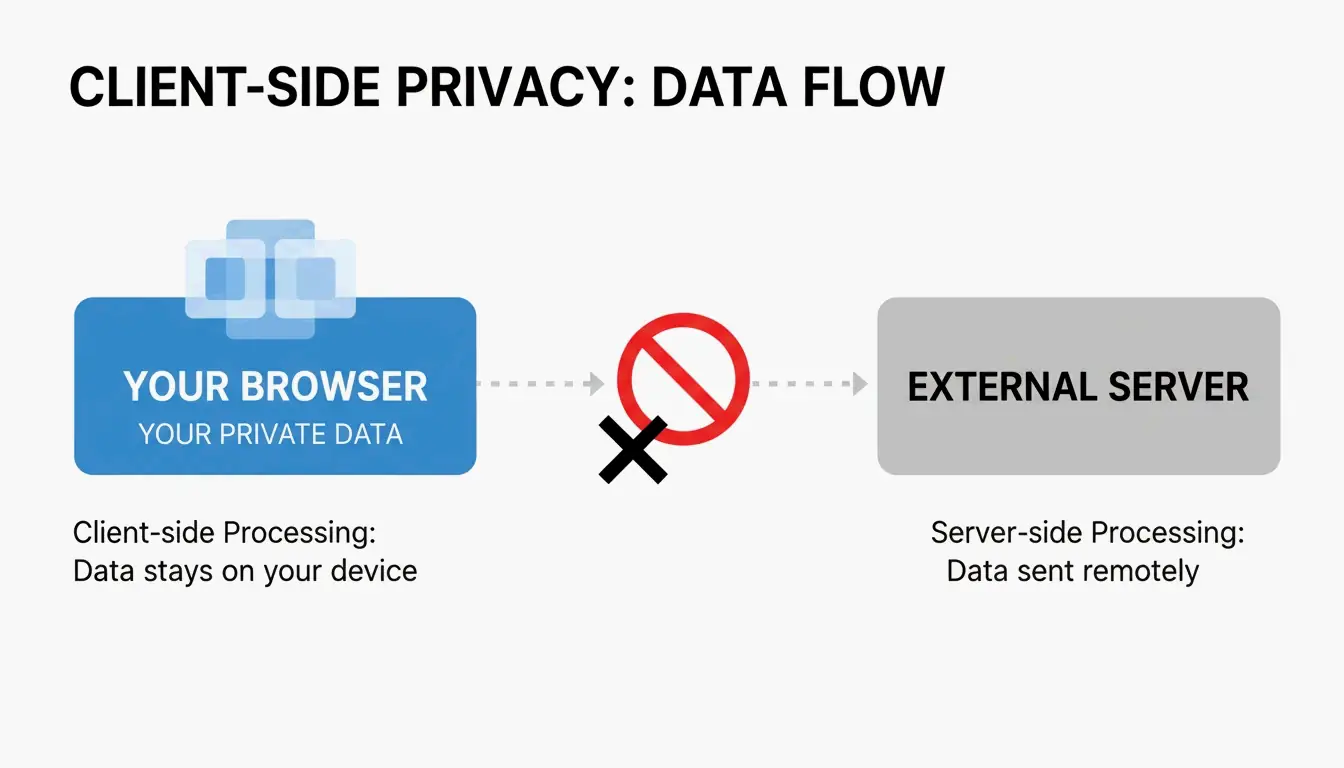
By 2026, media processing has shifted toward a “local-first” approach. Instead of sending private files to a distant server, your computer does the work right inside the browser. This is powered by the Canvas API and HTML5 Canvas, which allow modern browsers to handle heavy image editing at speeds comparable to native software.
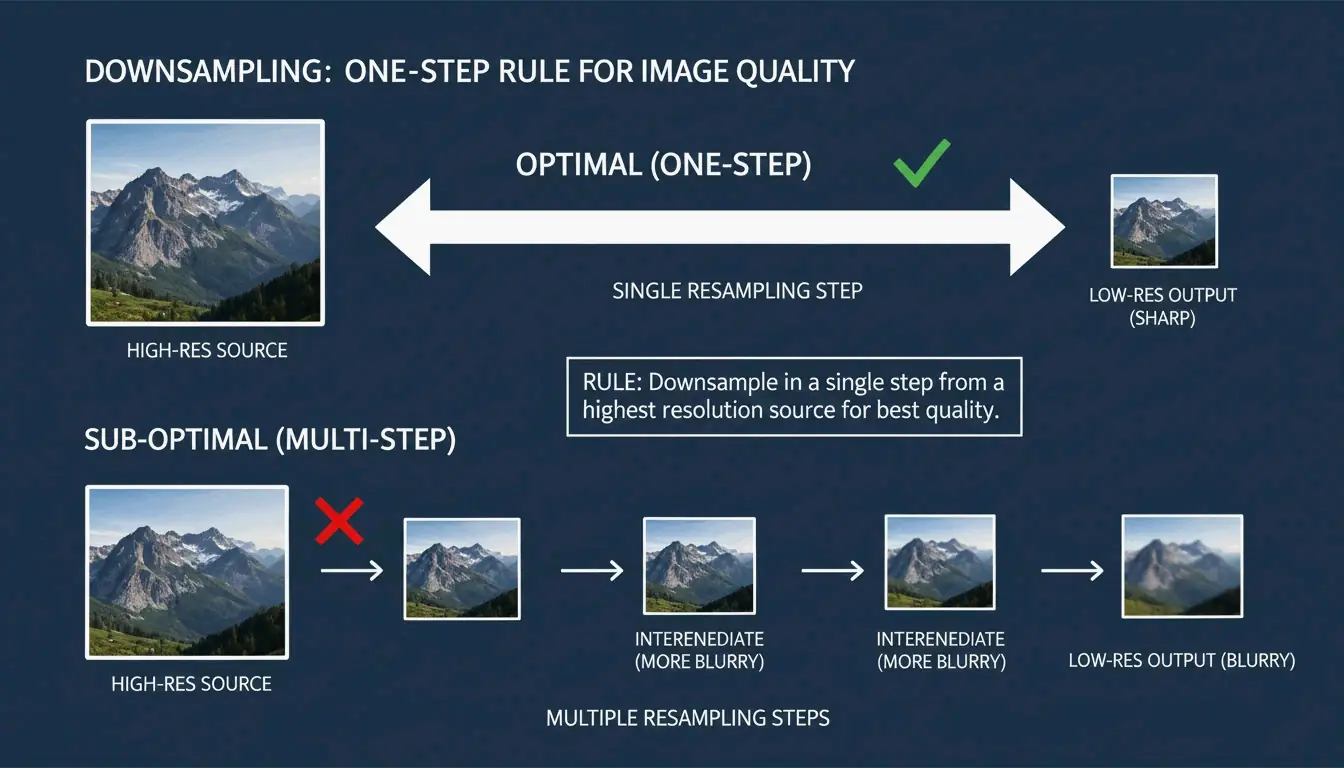
The FastTool Engineering Team highlights a key rule for keeping images sharp: always downsample in one step. If you need to take a 2048px image down to 512px, doing it in a single step produces a cleaner result than resizing multiple times (e.g., 2048 to 1024 to 512), which often causes “ringing” or blurry artifacts.
Step 1: Selecting Your Batch Processing Tool
Your choice depends on how many files you have and how much you care about privacy.
| Scenario | Recommended Tool | Why |
|---|---|---|
| Privacy-first, under 100 images | BIRME or FastTool | Browser-local, files never leave your device |
| Large batches (hundreds of high-res files) | ConvertFT | Server-side C++ engines prevent browser freezes |
| Mobile on-the-go editing | Native iOS/Android tools | No installation required |
Step 2: Defining Constraints to Maintain Aspect Ratio
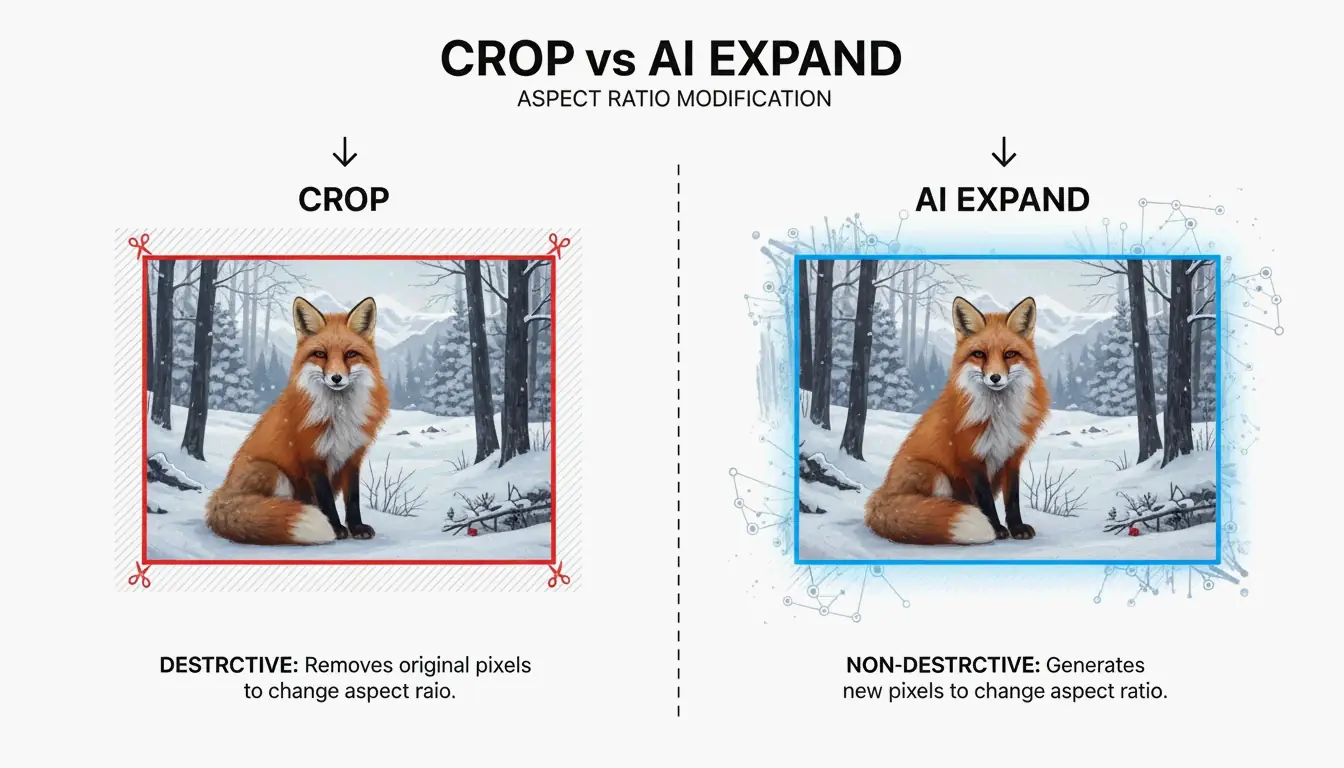
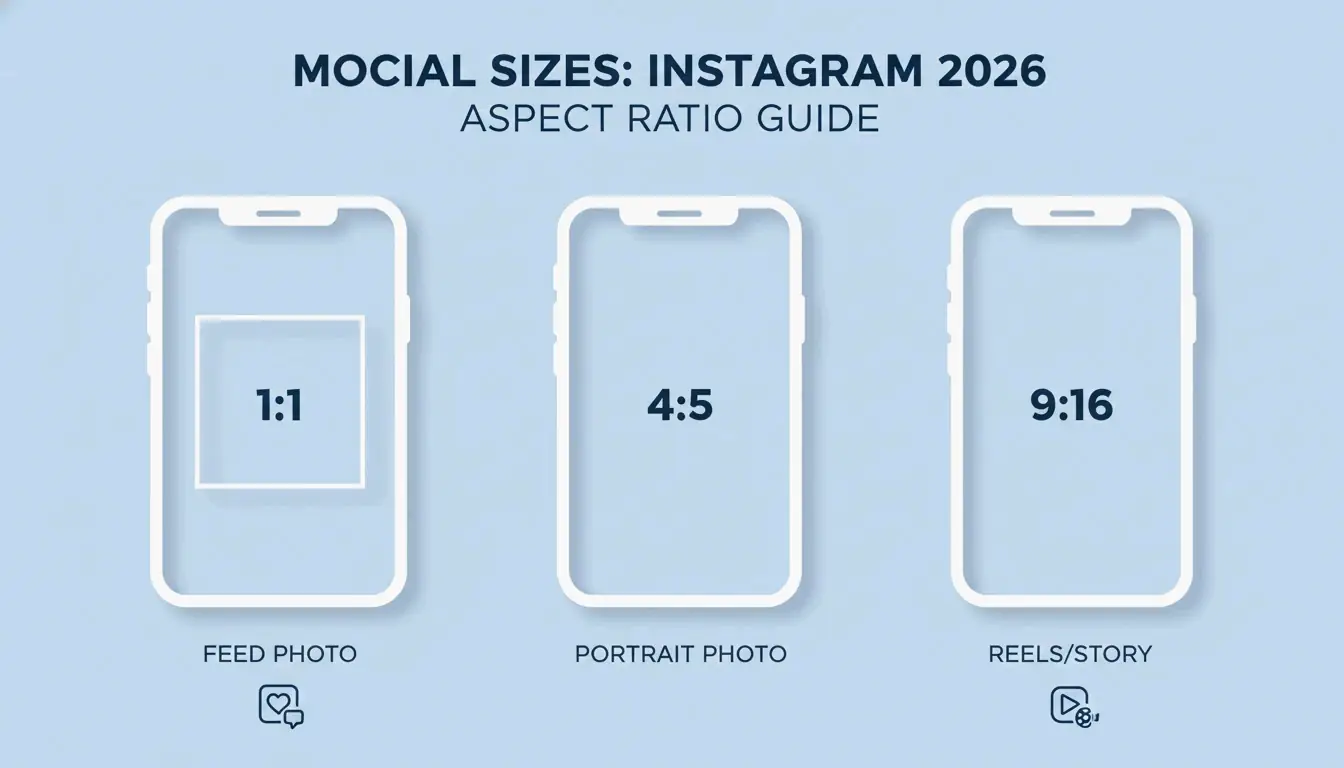
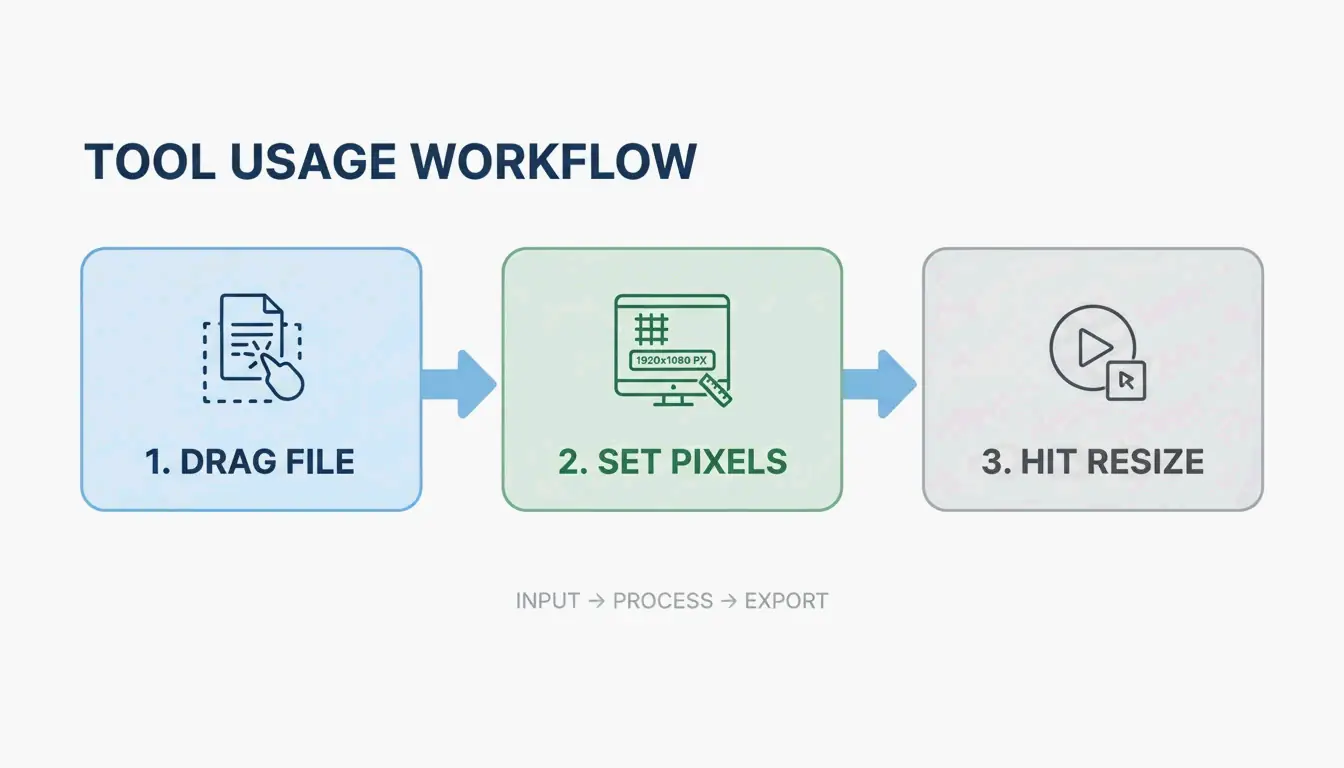
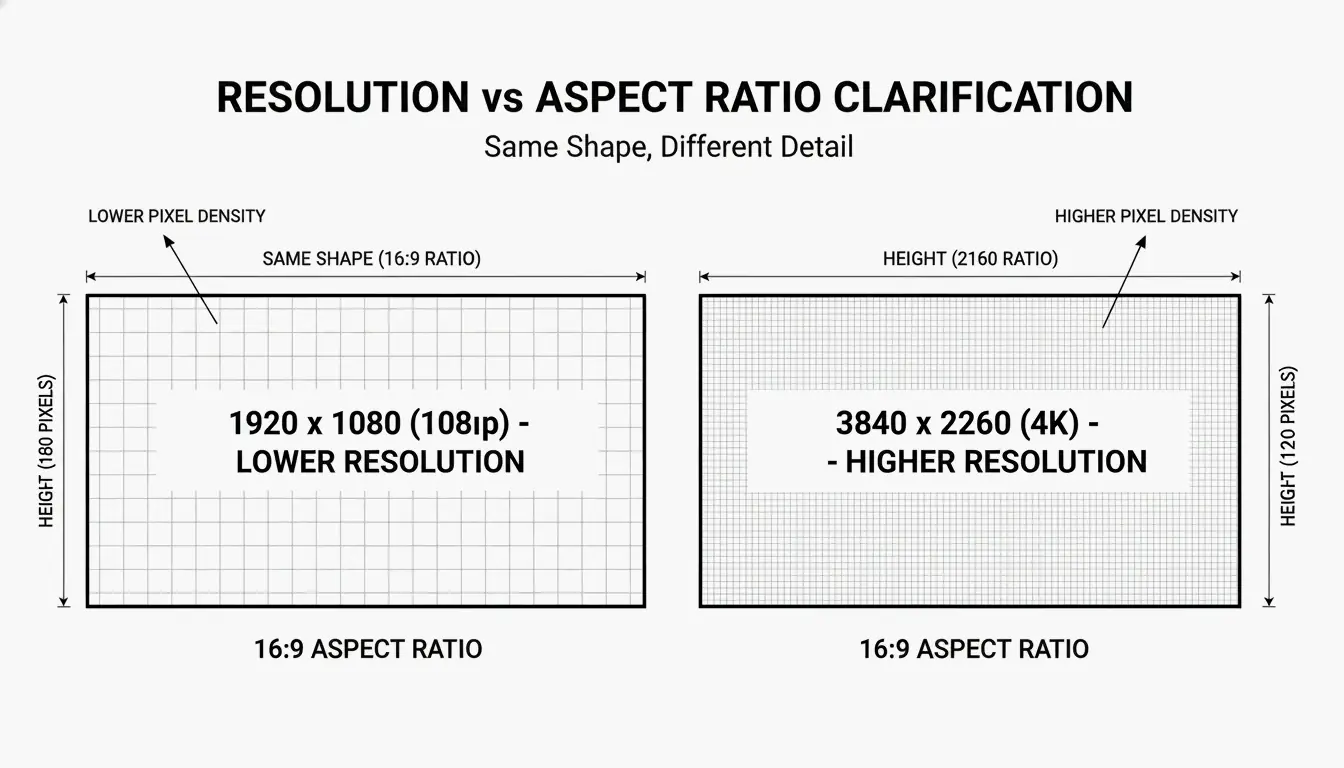
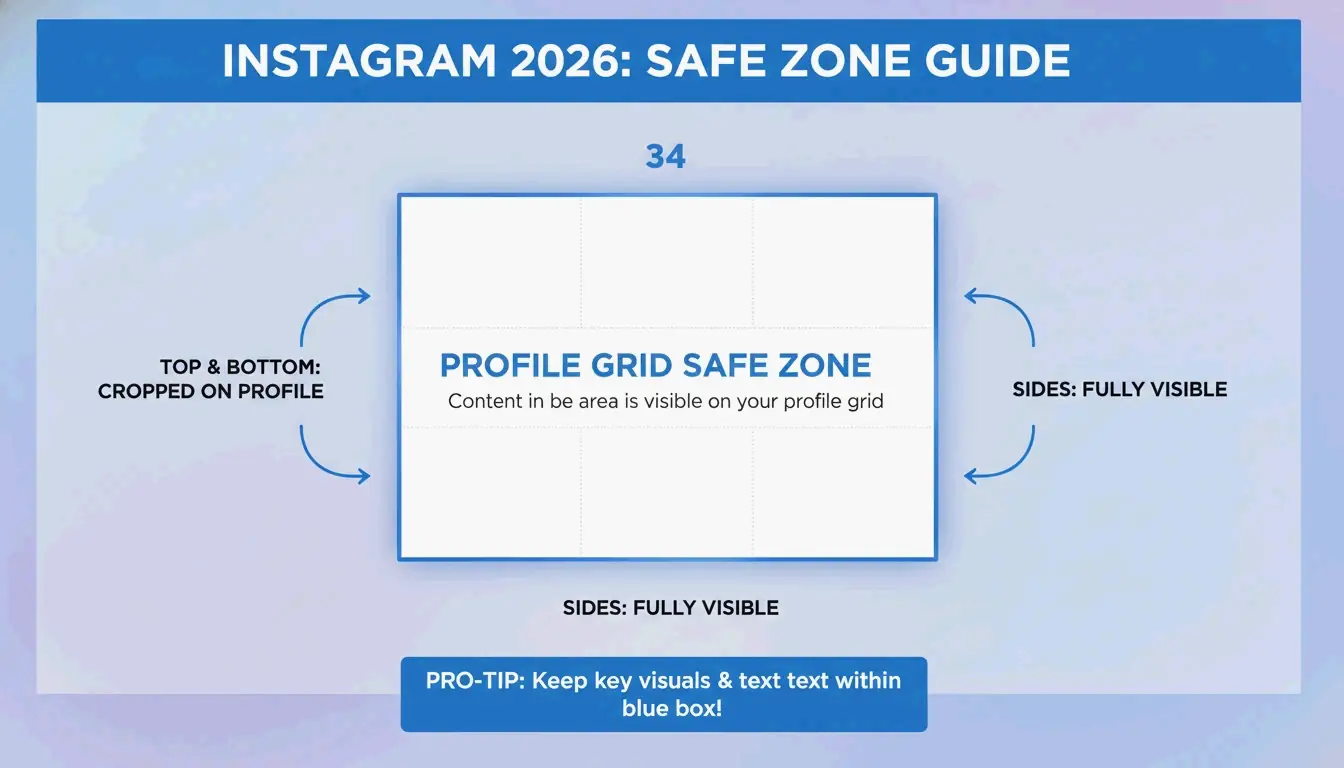
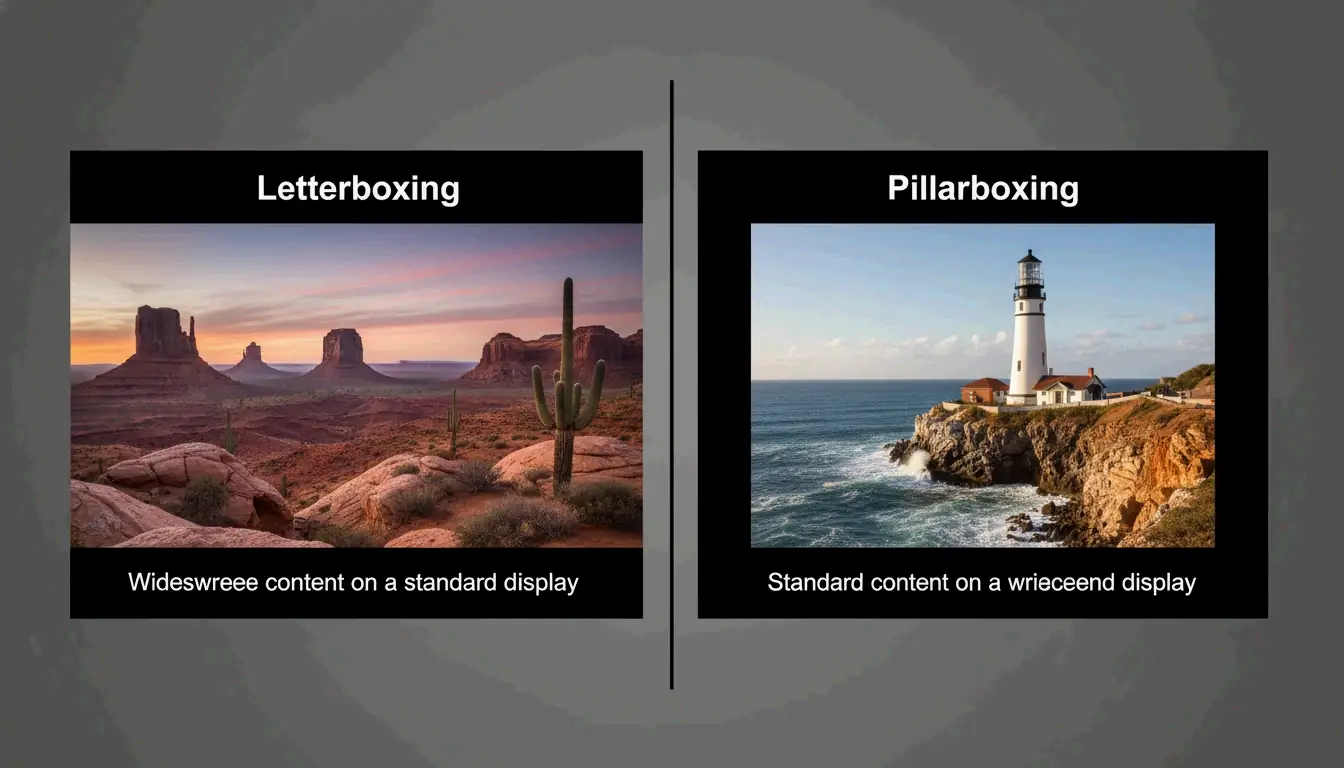
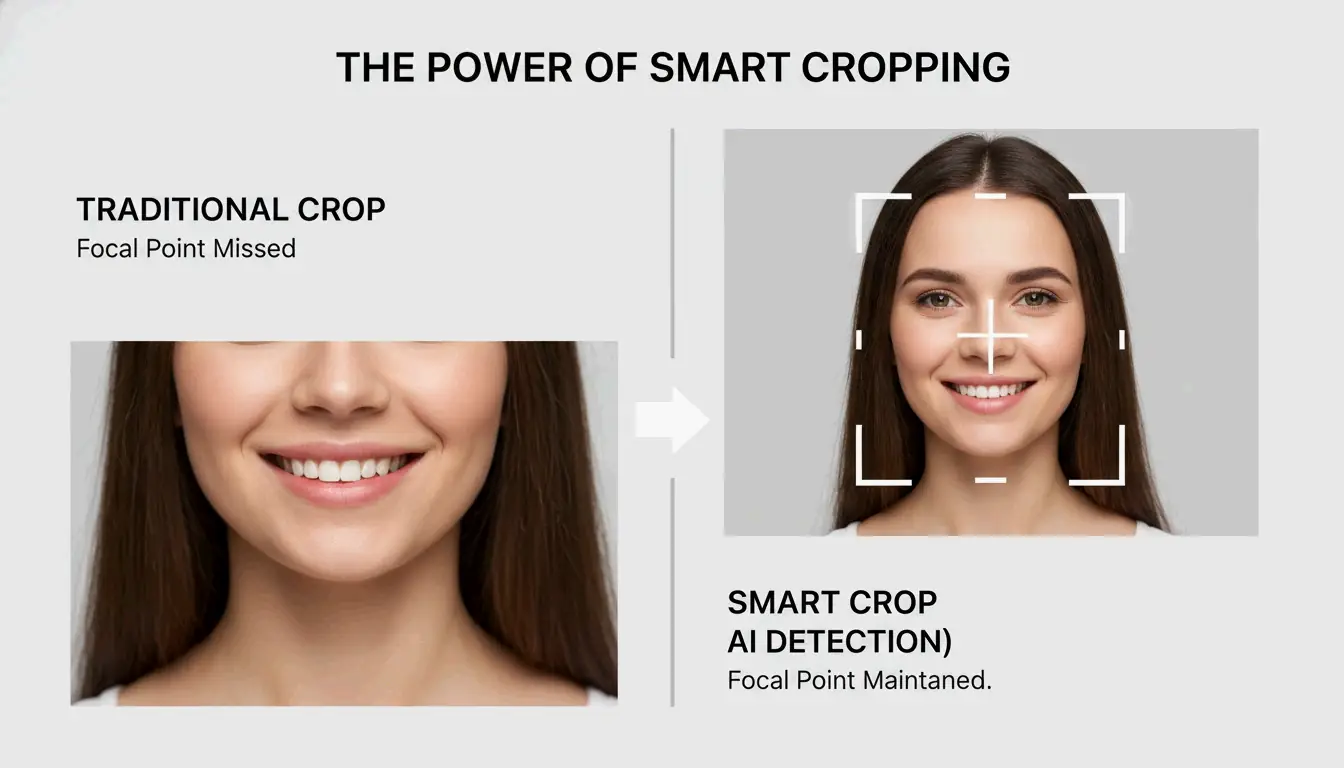
Nobody wants “squashed” or stretched photos. Always keep the Aspect Ratio locked. Most tools in 2026 let you set a fixed width (like 1200px) and automatically calculate the correct height. If you are prepping images for a specific shape like a square Instagram post, look for “Smart Cropping” — this feature finds the focal point of the photo so you do not accidentally cut off someone’s head.
Common Aspect Ratio Settings:
| Platform | Ratio | Pixel Dimensions |
|---|---|---|
| Instagram Feed (Square) | 1:1 | 1080 x 1080px |
| Instagram Reels / TikTok | 9:16 | 1080 x 1920px |
| YouTube Thumbnail | 16:9 | 1280 x 720px |
| Facebook Cover | ~2.7:1 | 820 x 312px |
Step 3: Instant Local Export
After you hit go, the browser uses canvas.toBlob to re-encode your media. The standard in 2026 is to export everything as a single ZIP file. This is a clever workaround for browser limits that usually block you from downloading dozens of individual files at once, letting you save your entire library with one click.
Video vs. Photo: Bridging the Gap in Bulk Workflows
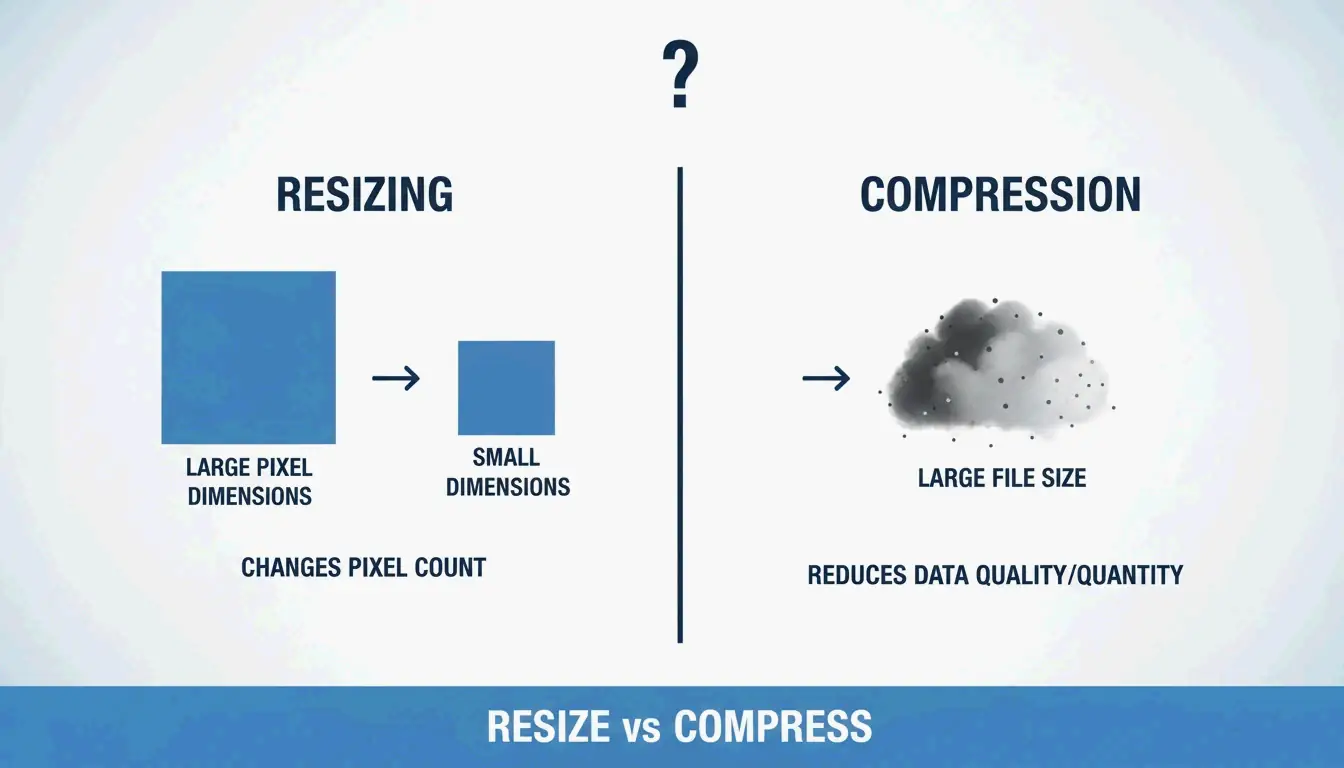
Batch processing photos is mostly about pixels and dimensions, but video adds another layer: bitrate management. A video’s file size depends more on its bitrate (the amount of data processed per second) than its actual resolution. When resizing videos in bulk, your tool needs to adjust the encoding to match the new size. If it does not, you might end up with a tiny 480p video that still has a massive, unnecessary file size.
Resolution vs. Bitrate: What Video Resizing Actually Means
Shrinking a video from 4K to 1080p will not help your website load faster if the bitrate stays the same. Modern apps like Resize Now! let you choose specific Output Formats and aspect ratios (like 9:16 for TikTok) while managing these background settings. Whether you are working with MP4, MOV, or WebM, the goal is to get a consistent resolution that fits where you are posting it.
Modern Standards: Adopting AVIF and HEVC for 2026
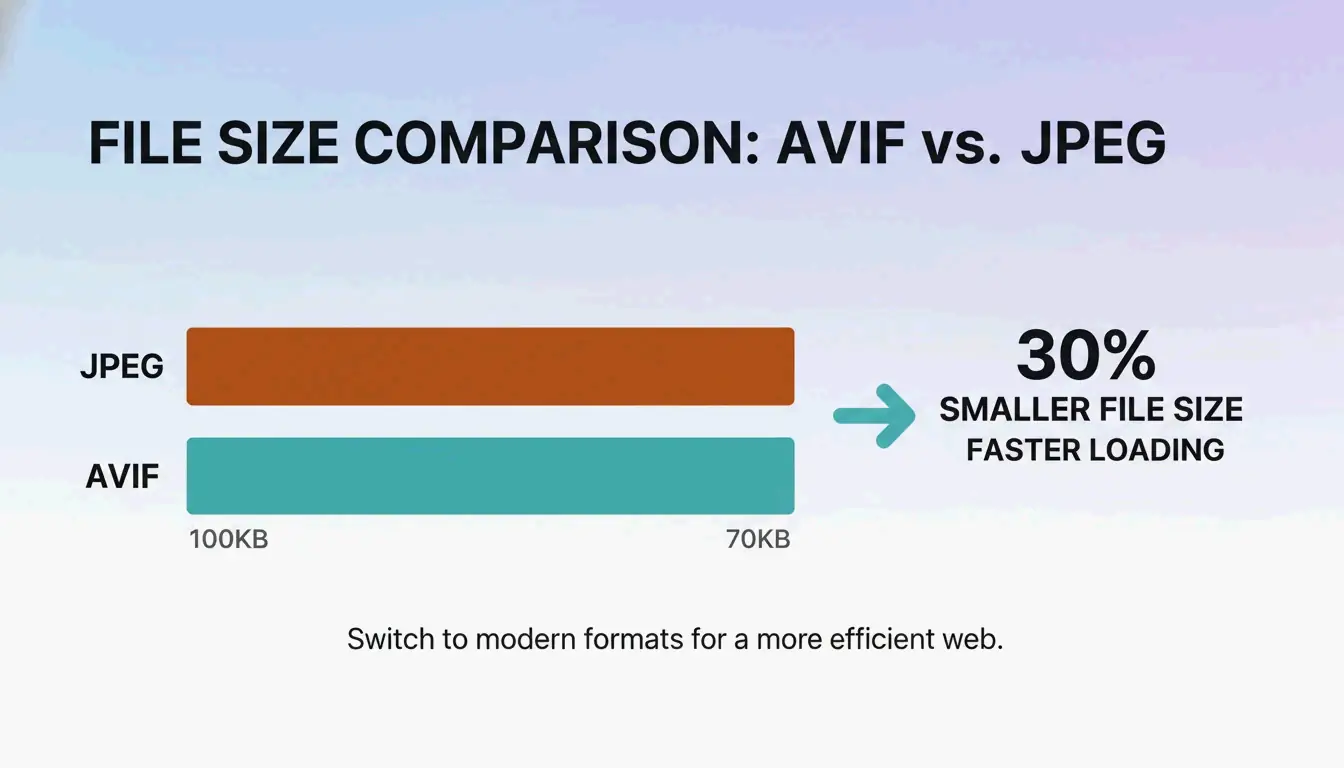
In 2026, old-school JPEGs are taking a backseat to more efficient formats. FastTool notes that WebP and AVIF formats are usually 25-35% smaller than JPEGs or PNGs of the same quality. When resizing your library, converting to AVIF (for images) or HEVC (for videos) ensures your content loads instantly on the latest phones and high-speed networks.
| Format | Type | Savings vs JPEG | Best Use |
|---|---|---|---|
| AVIF | Image | 30-50% | Web photos, hero images |
| WebP | Image | 25-35% | General web use |
| HEVC (H.265) | Video | 40-50% vs H.264 | 4K/8K video delivery |
Optimizing Compression Quality without Losing Sharpness
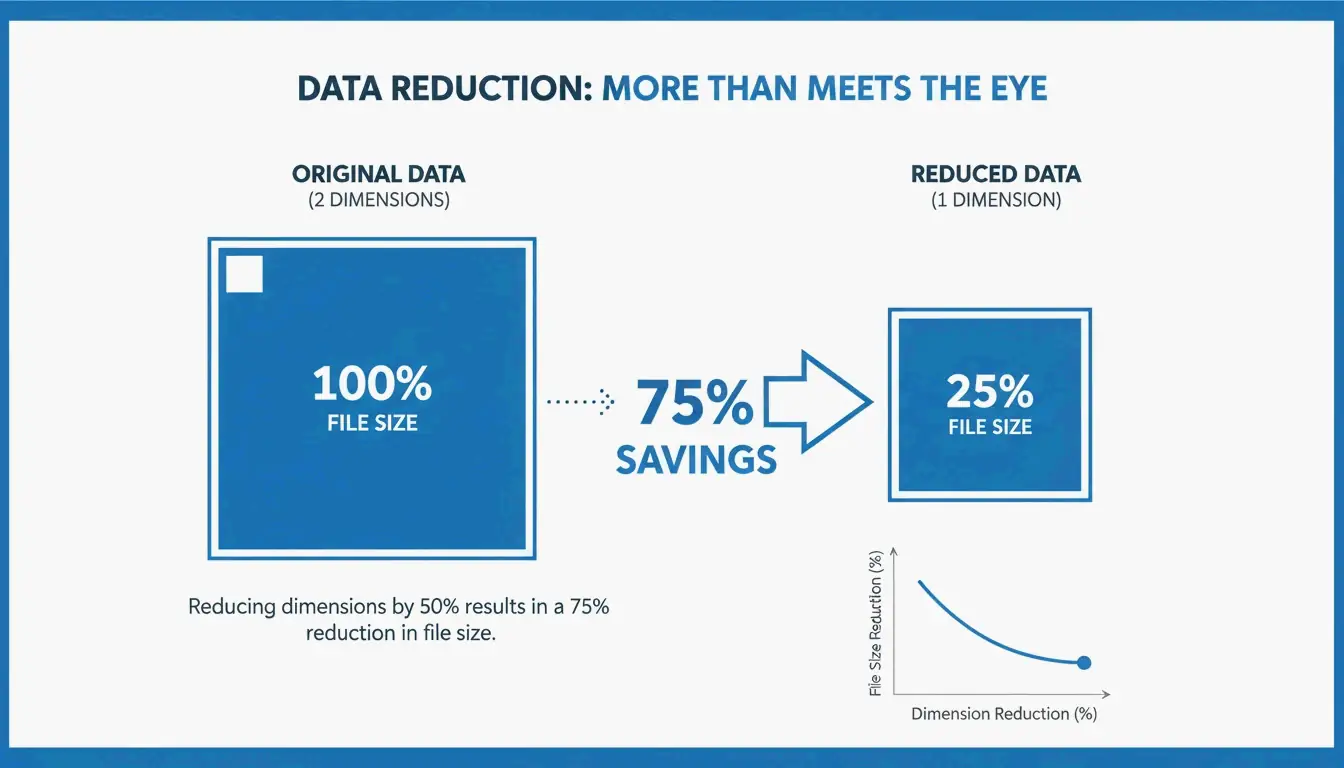
Finding the “sweet spot” for Compression Quality is the secret to professional-looking files. For most websites, a setting between 80% and 90% is ideal. The BIRME guidelines mention that going above 90% rarely looks better to the human eye, but it makes the file size jump up significantly.
To keep things crisp when shrinking images, 2026 tools use advanced algorithms like Lanczos and Bicubic Resampling. These algorithms calculate new pixel data in a way that prevents the “soft” or blurry edges you see in cheap editors.
Compression Quality Reference:
| Quality Setting | File Size Impact | Visual Difference | Best For |
|---|---|---|---|
| 90-100% | Very large | Imperceptible gain vs 85% | Print, archival |
| 80-90% | Moderate | Barely noticeable loss | Web, e-commerce |
| 70-80% | Small | Slight softening on close inspection | Thumbnails, mobile |
| Below 60% | Very small | Visible artifacts | Avoid for professional use |
Case Study: Shopify Store Speed Optimization
In one case from FastTool, a clothing store owner had 240 product photos shot at 24 megapixels. By bulk resizing them to 2048px wide at 85% JPEG quality, the store’s load time dropped from 4.8 seconds to just 1.9 seconds. That speed boost led to more sales in the very next quarter.
| Metric | Before | After | Change |
|---|---|---|---|
| Image dimensions | 6000 x 4000px | 2048px wide | -66% width |
| Quality | 100% (original) | 85% JPEG | -15% quality |
| Page load time | 4.8 seconds | 1.9 seconds | -60% |
| Total image weight | ~1.4 GB | ~45 MB | -97% |
Advanced Features: Focal Point Detection and Metadata
Handling a mix of portrait and landscape shots in one batch used to be a headache. Modern tools now use Focal Point Detection to fix this.
Solving the Mixed Orientation Problem
Instead of just cropping the center of every image — which might cut out the product or a person’s face — 2026 tools use the Smartcrop library. This tech analyzes the image for interesting shapes and lines to figure out the most important part of the photo, then centers the crop there automatically.
Privacy First: Handling EXIF Metadata in 2026
Every smartphone photo contains EXIF Metadata — essentially a digital fingerprint including your GPS location, the time the photo was taken, and your phone model.
- When to strip it: For social media or public galleries, removing this data is a smart privacy move.
- When to keep it: Pro photographers often keep EXIF data to protect their copyright or keep track of their camera settings.
Modern resizers usually give you a simple toggle to either “Strip Metadata” for privacy or “Preserve EXIF” for professional work.
Conclusion
By 2026, bulk resizing has evolved. It is no longer just about changing numbers; it is about balancing privacy, using modern formats like AVIF, and using smart detection to make sure your quality stays high on every screen. By sticking to browser-local processing, you can handle sensitive media without worrying about data leaks on a remote server.
Action Plan: Start by checking your current files to see which ones are slowing you down. Use a browser-local tool to test a few samples and find your best compression-to-quality ratio (usually 80-85%) before you update your whole library. It is a small step that makes a huge difference for your SEO and your visitors.
FAQ
Why do my photos look pixelated after resizing?
Pixelation usually occurs if you attempt to upscale an image beyond its original dimensions. It can also be caused by using incorrect resampling algorithms. For the best results, always downsize rather than enlarge, and ensure your tool uses Lanczos or Bicubic filtering rather than simple linear scaling.
Is it safe to upload sensitive client photos to an online resizer?
It depends on the tool’s architecture. To ensure maximum safety, look for “Serverless” or “Local-only” tools (like BIRME or FastTool) that use the Canvas API. These tools process images entirely within your browser, meaning your files never leave your device and are never stored on a remote server.