Blog

  • Under the Hood of Codex: How OpenAI Engineered an AI to Physically Drive Your Mac

    Under the Hood of Codex: How OpenAI Engineered an AI to Physically Drive Your Mac

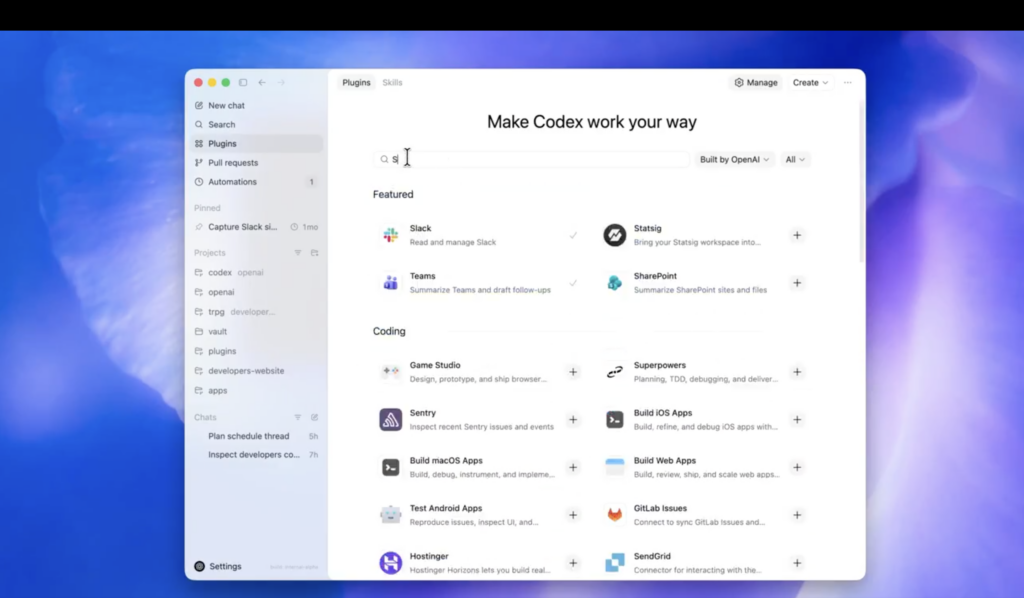
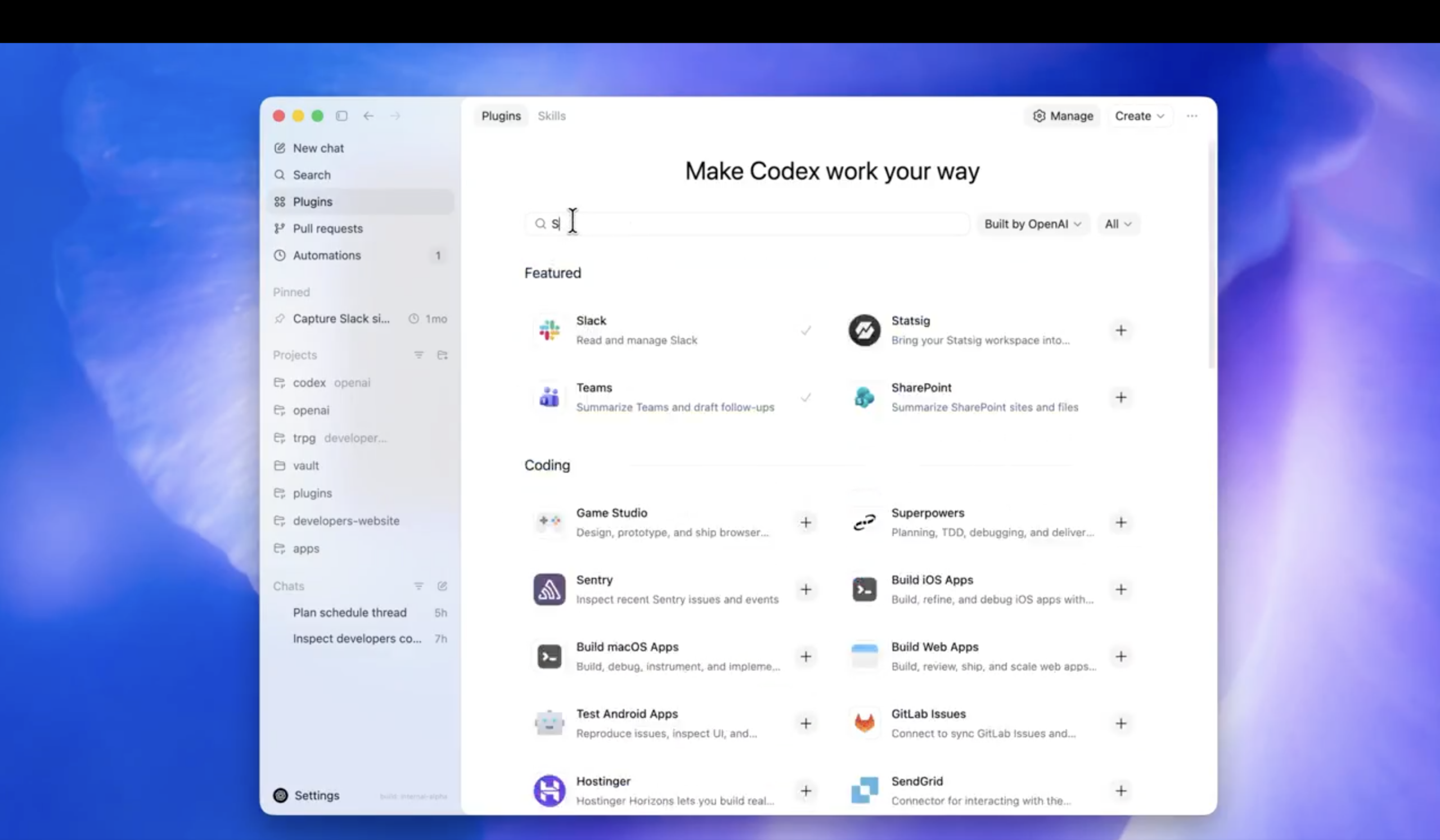
    When OpenAI released Codex for (almost) everything, the tech world took notice. AI has been writing code and drafting emails for years, but the claim that Codex can now operate macOS — “by seeing, clicking, and typing with its own cursor” — represents a fundamentally different capability.

    Bridging the gap between a cloud-based language model and a local operating system is notoriously difficult. For decades, automation relied on brittle Application Programming Interfaces (APIs) or DOM-scraping scripts that break the moment a UI element changes.

    The core engineering insight: Codex has abandoned code-level integration in favor of pixel-level execution. By combining multimodal vision with low-level kernel event injection, OpenAI has turned the Graphical User Interface (GUI) into a universal API.

    Here is the technical architecture that makes this possible.

    The Architecture of a Mac-Native Agent

    For an AI to test an application or iterate on a frontend design without human intervention, it needs a continuous Perceive-Reason-Act loop. Here is how Codex likely implements each stage on macOS.

    1. Perception: Semantic Vision and the Grounding Engine

    Traditional automation tools like AppleScript read the UI accessibility tree. This approach is fast but fails on custom Electron apps, web canvases, or games where UI elements lack proper accessibility tags.

    OpenAI states that Codex uses apps by “seeing” them, which means it relies on Computer Vision. The host application running on the Mac takes high-frequency frame grabs of the desktop. A multimodal model then parses these frames using semantic segmentation — it does not look for HTML tags but visually recognizes the shape and context of interface elements like buttons, search bars, and menus.

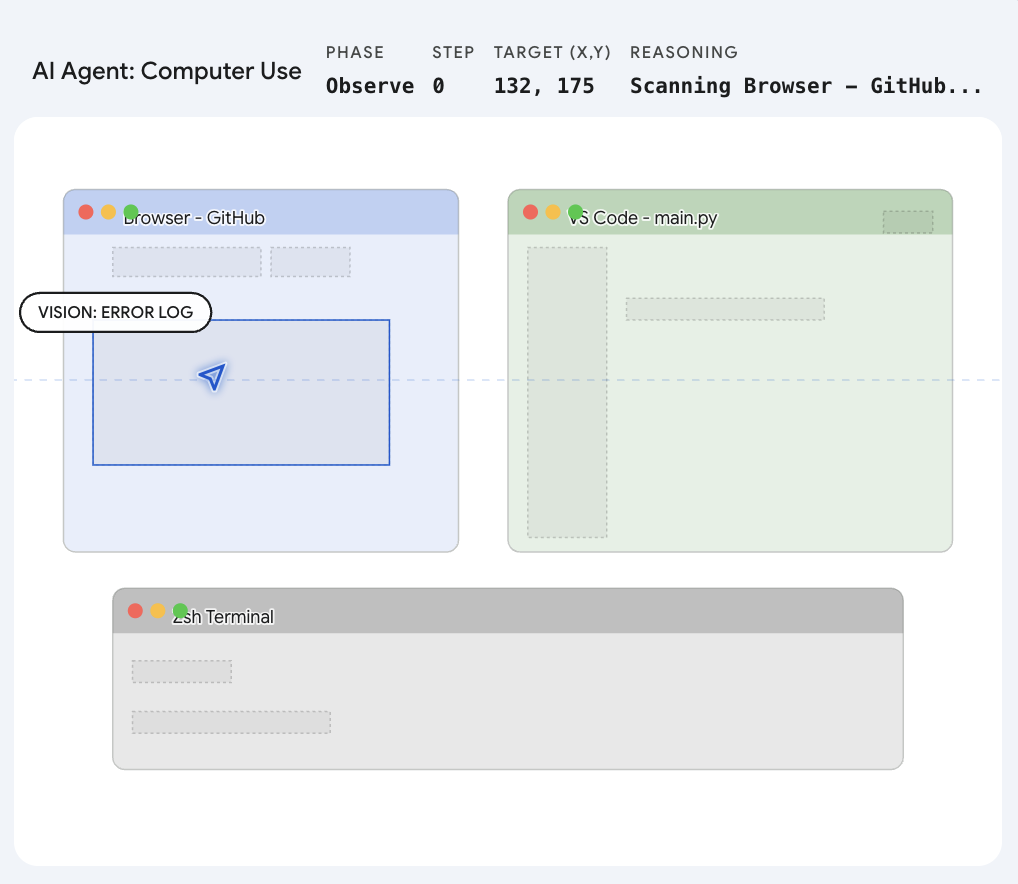
    The Codex architecture diagram showing the perception-reason-act loop for macOS.

    The key engineering challenge here is Grounding. Once the AI identifies a target, it runs a calculation to map the semantic object to precise pixel coordinates on the screen. It translates “click the close button” into exact (x, y) positions, adjusting for the specific display resolution and scaling factor.

    Stage What Happens Technology
    Frame Capture High-frequency screenshots of the desktop Host application
    Semantic Parsing Identify UI elements by visual appearance, not code Multimodal vision model
    Grounding Map semantic targets to pixel coordinates Coordinate regression model
    Action Dispatch Inject synthesized input events into the OS System framework hooks

    2. Action: Injecting OS-Level Events

    Knowing where to click is only useful if the software can actually trigger the action. Codex bypasses physical hardware entirely.

    To interact with macOS at a native level, Codex almost certainly taps into Apple’s deepest system frameworks: Quartz Event Services and the Accessibility API.

    When Codex decides to click, it synthesizes a virtual CGEvent — a mouseDown followed by a mouseUp — and injects it directly into the macOS system event queue. From the operating system’s perspective, this synthetic event is indistinguishable from a physical trackpad press. This is why Codex can operate any application: if a human can click it, Codex can click it.

    3. Isolation: The “Ghost Cursor” Mechanics

    Perhaps the most technically ambitious claim is that Codex runs “in the background without taking over your computer.” Anyone who has used a macro recorder knows that traditional automation hijacks the mouse cursor entirely.

    To achieve concurrent execution, the system must isolate the AI’s inputs from the user’s physical inputs. There are two likely implementation approaches:

    Approach How It Works Trade-off
    Targeted Window Routing macOS allows sending events to specific Process Identifiers (PIDs). Codex routes synthesized clicks directly to the target application’s event loop, bypassing the global hardware cursor. Lower overhead; requires precise window targeting.
    Virtual Framebuffers The system spins up a headless virtual desktop layer. Codex “sees” and operates within this invisible workspace while the user continues working in the primary workspace undisturbed. Higher memory usage; stronger isolation guarantees.

    The virtual framebuffer approach aligns with the mechanics observed when Anthropic released their own Computer Use capability, suggesting this may be emerging as an industry-standard pattern for desktop AI agents.

    The Outlook: A Post-API World

    The downstream impact extends well beyond the technical implementation. By solving the vision-to-action pipeline at the OS level, OpenAI has made traditional APIs optional. We are entering the era of the Large Action Model (LAM).

    Consider the practical implications:

    • Legacy Software Integration: Enterprise tools from 2008 with no API? Codex does not need one. It opens the application, navigates the interface, copies data, and pastes it into a modern dashboard.
    • Platform Restrictions: Platforms that limit developer access through aggressive API rate limiting? Codex opens the web browser and drives the interface directly, just as a human user would.
    • Cross-Application Workflows: Tasks that previously required custom middleware between disconnected applications can now be orchestrated through a single natural-language instruction.

    The software industry has spent decades building bridges between applications. With Codex mastering the macOS GUI, the applications no longer need to talk to each other. The AI uses them on our behalf.

    FAQ

    How does Codex “see” the screen on macOS?

    Codex uses a host application that captures high-frequency screenshots of the desktop. A multimodal vision model then performs semantic segmentation on these frames, identifying UI elements like buttons, menus, and text fields based on their visual appearance rather than underlying code or accessibility tags.

    What macOS frameworks does Codex use to simulate clicks and keystrokes?

    Codex likely interfaces with Apple’s Quartz Event Services and the Accessibility API. It synthesizes virtual CGEvents (such as mouseDown and mouseUp) and injects them into the macOS system event queue, making these inputs indistinguishable from physical hardware events.

    How can Codex operate in the background without hijacking the cursor?

    The system probably uses either targeted window routing — sending events directly to specific Process Identifiers (PIDs) — or virtual framebuffers, which create an invisible desktop workspace where the AI operates independently while the user’s physical cursor remains unaffected.

    What is a Large Action Model (LAM) and how does it differ from an LLM?

    A Large Action Model extends the capabilities of a Large Language Model from text generation to real-world task execution. While an LLM generates responses, a LAM perceives its environment through vision, reasons about what actions to take, and executes those actions through system-level input injection. Codex represents a practical implementation of the LAM concept.

  • How to Compress Photos in 2026: Reduce File Size Without Losing Quality

    How to Compress Photos in 2026: Reduce File Size Without Losing Quality

    To compress photos in 2026, use online tools like TinyJPG or professional software like Adobe Photoshop. You can reduce file sizes by up to 90% by adopting modern formats like WebP or AVIF, setting quality sliders to the 75-85% range, and resizing dimensions to a standard 1000px width for web use.

    The 2026 Standard: How to Compress Photos Efficiently

    Photo compression in 2026 has moved beyond simple file shrinking. The goal is clear: achieve the smallest File Size (KB/MB) possible without sacrificing visual quality. Modern standards now favor next-generation formats like AVIF over traditional JPEG because they encode more visual data into a smaller footprint.

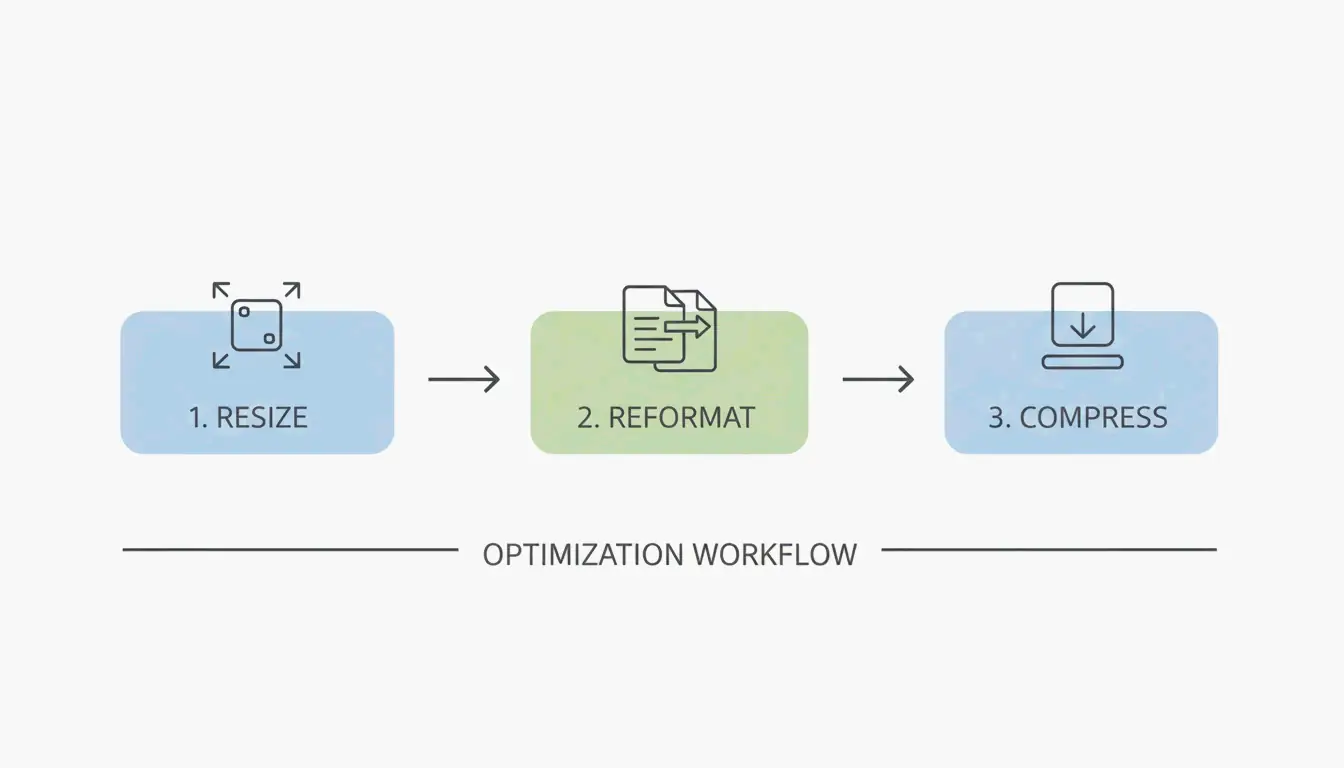
    Follow this three-step workflow for professional results:

    1. Resize — Scale down pixel dimensions to match where the image will actually appear.
    2. Reformat — Convert older formats to high-efficiency types like WebP or AVIF.
    3. Compress — Apply quality reduction to strip data the human eye will not notice.

    A simple 3-step workflow: Resize, Reformat, Compress

    The 75-85% Quality Sweet Spot

    The “sweet spot” principle is the most important rule for web compression. Setting quality between 75% and 85% cuts file size significantly without introducing pixelation or blurry artifacts. As the Tech Guide Admin explains, “Smart compression is better than aggressive compression.” It is better to optimize intelligently than to degrade an image for marginal size savings.

    According to Mass Image Compressor, modern utilities can achieve a 90% reduction in size, making it practical to share high-resolution galleries instantly, even over mobile networks.

    Setting the Right Resolution for Web

    High-end cameras produce photos much larger than any digital screen can display. For typical web use, the UCSC web optimization standard recommends a maximum width of 1000 pixels for the longest edge. Resizing a 3000px image down to 1000px slashes file size before compression even begins.

    Source Resolution Web Resolution Approximate Size Reduction
    6000 x 4000 px (24MP) 1000 x 667 px ~85% before compression
    4000 x 3000 px (12MP) 1000 x 750 px ~80% before compression
    3000 x 2000 px (6MP) 1000 x 667 px ~75% before compression

    Why WebP and AVIF Are the New Kings of Compression

    Image formats have evolved to keep up with mobile data limits and the demand for instant loading. Here is how the main formats compare in 2026:

    Format Compression vs JPEG Browser Support Best Use Case
    JPEG Baseline Universal Compatibility-first scenarios
    WebP 25-35% smaller All modern browsers General web use
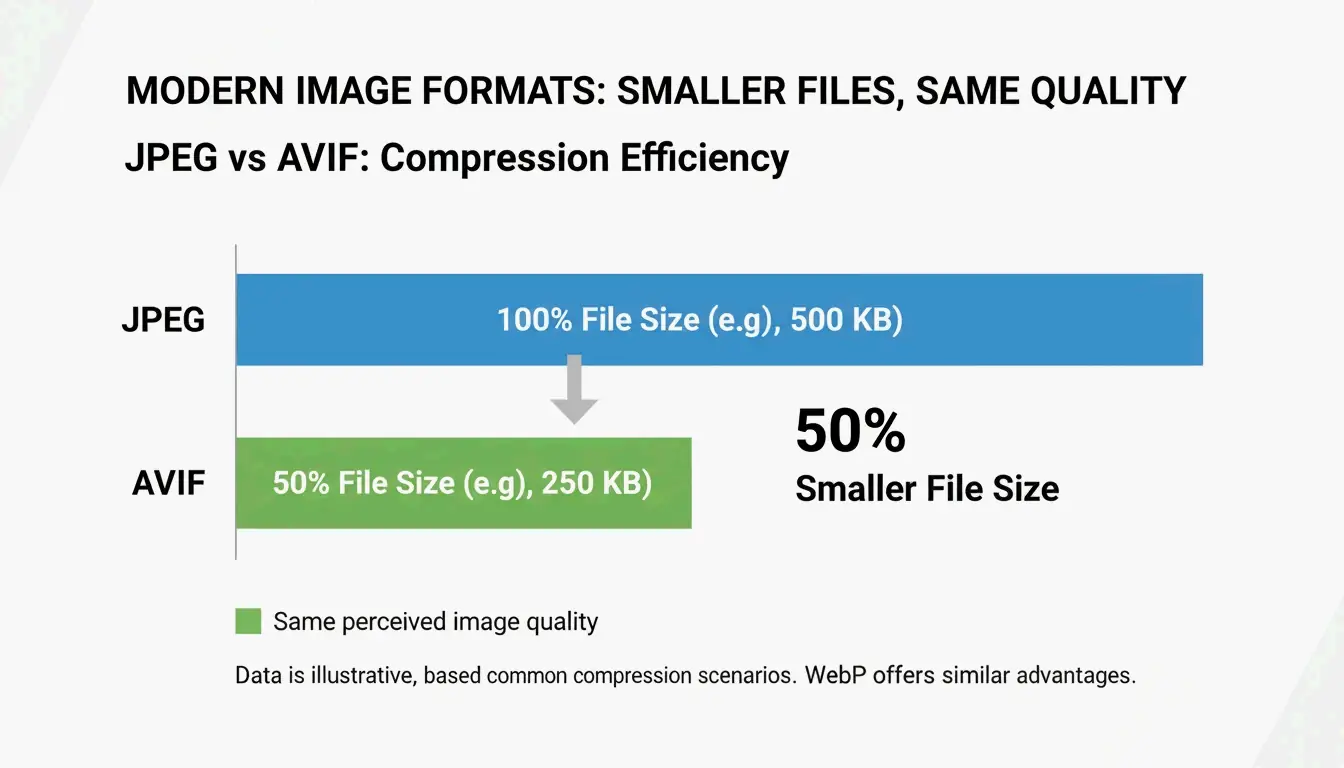
    AVIF 40-50% smaller All modern browsers Mobile-first, maximum savings
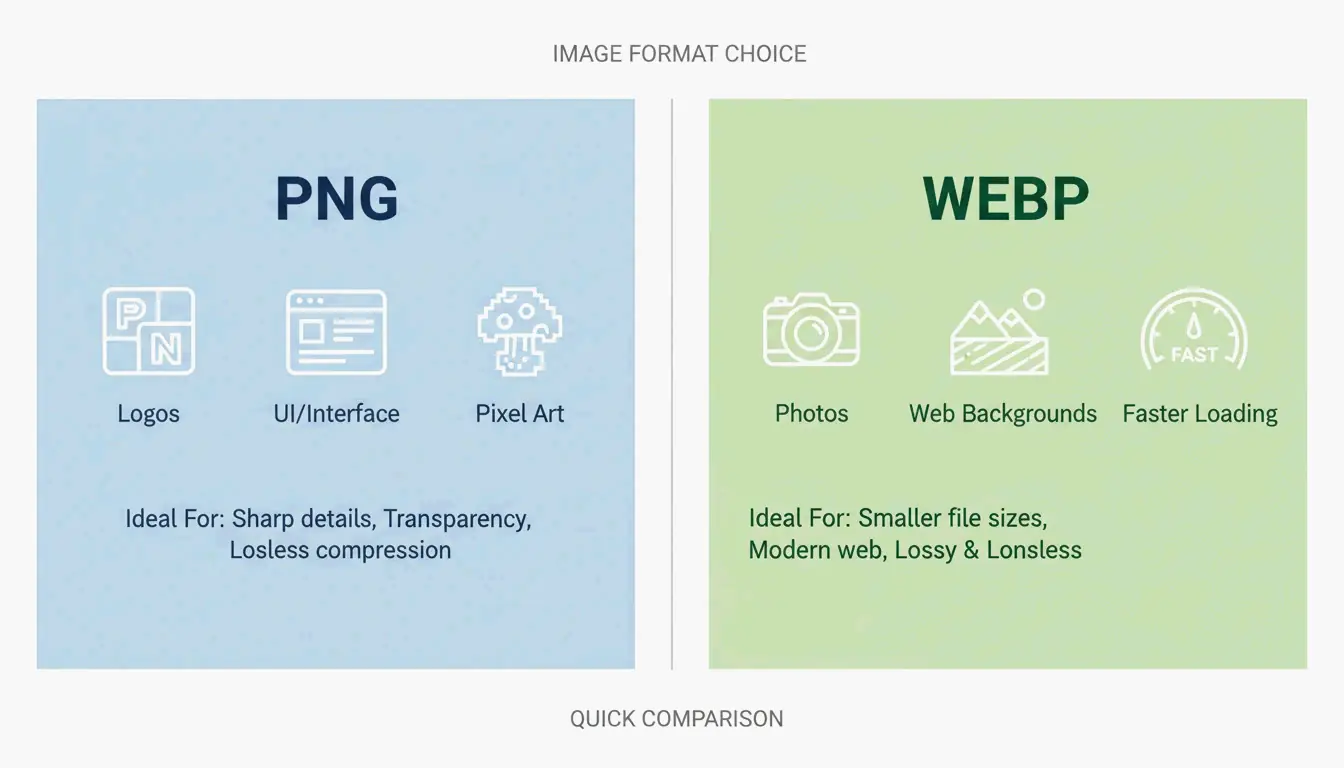
    PNG Larger (lossless) Universal Graphics, transparency

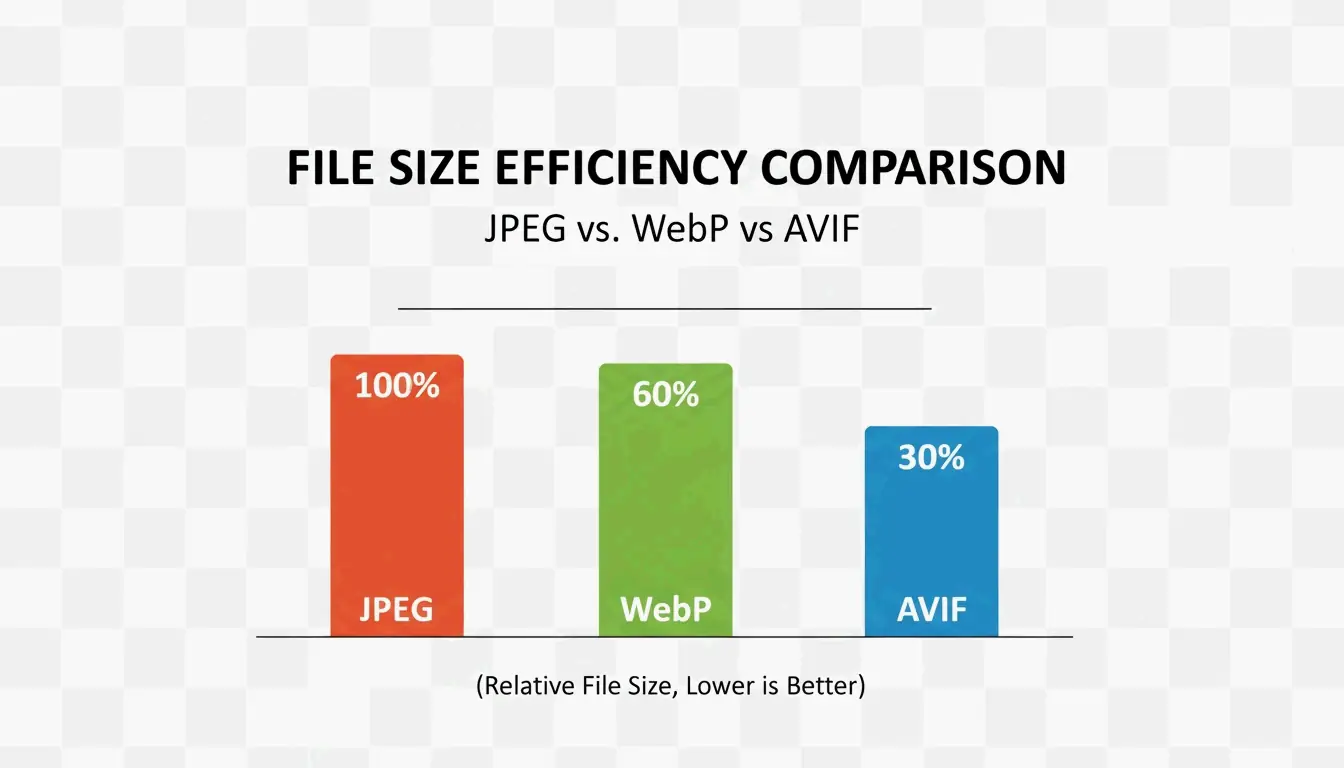
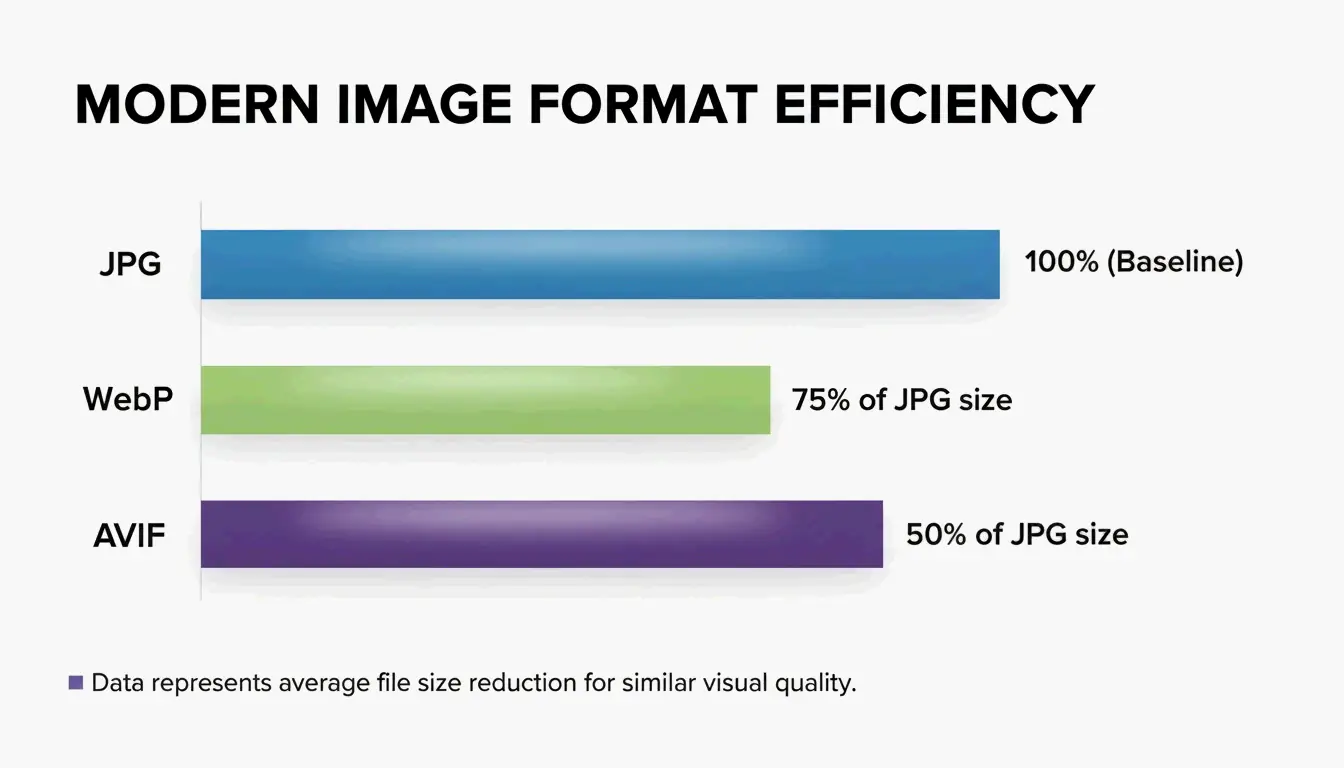
    WebP is now the industry standard for the web, offering 25-35% smaller files than JPEG at equivalent quality. AVIF has taken the lead for mobile-first environments, compressing an additional 20% beyond WebP while keeping fine details sharp in high-contrast areas. Since all modern browsers now support AVIF, it is the top choice for cloud storage savings.

    A clean comparison of file sizes between JPG, WebP, and AVIF

    Professional Tools for Batch Compression

    When working with hundreds of images, batch compression is essential. Professional software like Adobe Photoshop provides full control via the “Export As” function (File > Export > Export As), where you adjust the quality slider and see a real-time preview of the final file size.

    For managing mobile formats, HEIC files from iPhones need conversion for use on Windows or the web. Tools like Ashampoo Image Compressor (reporting 80% size reduction capability) and Easy Photo Compressor convert HEIC to JPEG or WebP while preserving metadata.

    Best Free Online Compressors for Quick Gains

    For quick, one-off compression without installing software:

    Tool Strength Best For
    TinyJPG / TinyPNG Automatic JPEG and PNG optimization General web images
    JPG20KB Shrink to specific KB targets like 20KB Government forms, ID photos
    pdfFiller Compress to specific limits like 300KB Legal documents, embedded photos

    Troubleshooting: How to Fix Over-Compressed Photos

    Over-compression occurs when the quality slider is pushed too low, producing “blocking” or “banding” artifacts — visible blocks of color in skies or shadows. If photos look blurry, the quality setting likely dropped below the 75% floor.

    For recovery, AI-driven tools like 4DDiG AI Photo Enhancer use neural networks to reconstruct missing data. According to 4DDiG, these tools upscale the image and clean up compression artifacts to restore original clarity. Note that recovery results are always approximate — prevention is more effective than repair.

    Conclusion

    Compressing photos in 2026 is about using AVIF and smart tools to reach 80-90% file size reduction without visible quality loss. High-resolution files from modern cameras can exceed 50MB, but with the right workflow they become small enough to share anywhere. For the best results: convert your library to WebP or AVIF, target the 75-85% quality range, and resize images to 1000px wide for web use. This keeps content fast, professional, and accessible on any device.

    FAQ

    What is the difference between lossy and lossless compression?

    Lossy compression (JPEG, WebP) removes data to shrink files significantly, making it ideal for web use and social media. Lossless compression (PNG, TIFF) preserves all original data for perfect quality but produces much larger files, which is best for professional printing or archival.

    How do I compress photos on an iPhone without losing quality?

    Use the “High Efficiency” (HEIC) format in Camera Settings, which captures high-quality data at roughly half the size of a JPEG. For sharing, use the Shortcuts app or third-party tools like Easy Photo Compressor to resize dimensions and convert to WebP.

    Which image format offers the best balance in 2026?

    AVIF is the 2026 leader for maximum compression with high fidelity, especially for mobile users. WebP remains the most compatible high-efficiency choice across all platforms, providing a safe middle ground for developers and casual users who need both speed and reliability.

  • How to Crop Pics Fast: 2026 Guide for Mobile, Desktop, and AI Bulk Tools

    How to Crop Pics Fast: 2026 Guide for Mobile, Desktop, and AI Bulk Tools

    To crop pics in 2026, you can use built-in apps like Windows Photos or macOS Preview for quick everyday edits. For mobile users, Google Photos now features AI Enhance for smart framing. For bulk work without compromising privacy, client-side tools like BIRME or Pixotter allow you to batch crop locally in your browser so no files ever reach a server.

    How to Crop Pics on Windows and Mac Using Built-in Tools

    Cropping trims away the edges of an image to fix composition or fit a specific aspect ratio. Your computer’s native apps are often the best starting point — they are fast, keep your data private, and preserve image quality.

    Windows Photos App: The Fastest Offline Method

    The Windows Photos app handles basic cropping without any additional software. Double-click the file to open it. Click Edit image (or press Ctrl+E) to enter the editor. Cropping handles appear on the corners and sides immediately. Drag them manually or pick a standard ratio like “Square” or “16:9” from the Aspect ratio menu.

    A practical tip from Pixotter: always use “Save as copy.” Once you close the app, you cannot undo a crop on the original file, so keeping a backup is the safer approach.

    Windows Photos Shortcut Action
    Ctrl+E Open Edit mode
    Aspect ratio menu Select preset ratios (1:1, 16:9, etc.)
    Save as copy Preserve original file

    macOS Preview: Precision Cropping with Shortcuts

    Mac users can skip extra software and use Preview. Open the image and click the Markup Toolbar (pencil icon) or press Shift+Cmd+A. Use the Selection tool to draw a box over the area you want to keep, then press Cmd+K to crop.

    According to IT@UMN, images destined for websites should stay under 600 pixels wide. This helps pages load faster and keeps the layout clean.

    AI Auto-Cropping vs. Manual Control: The 2026 Mobile Standard

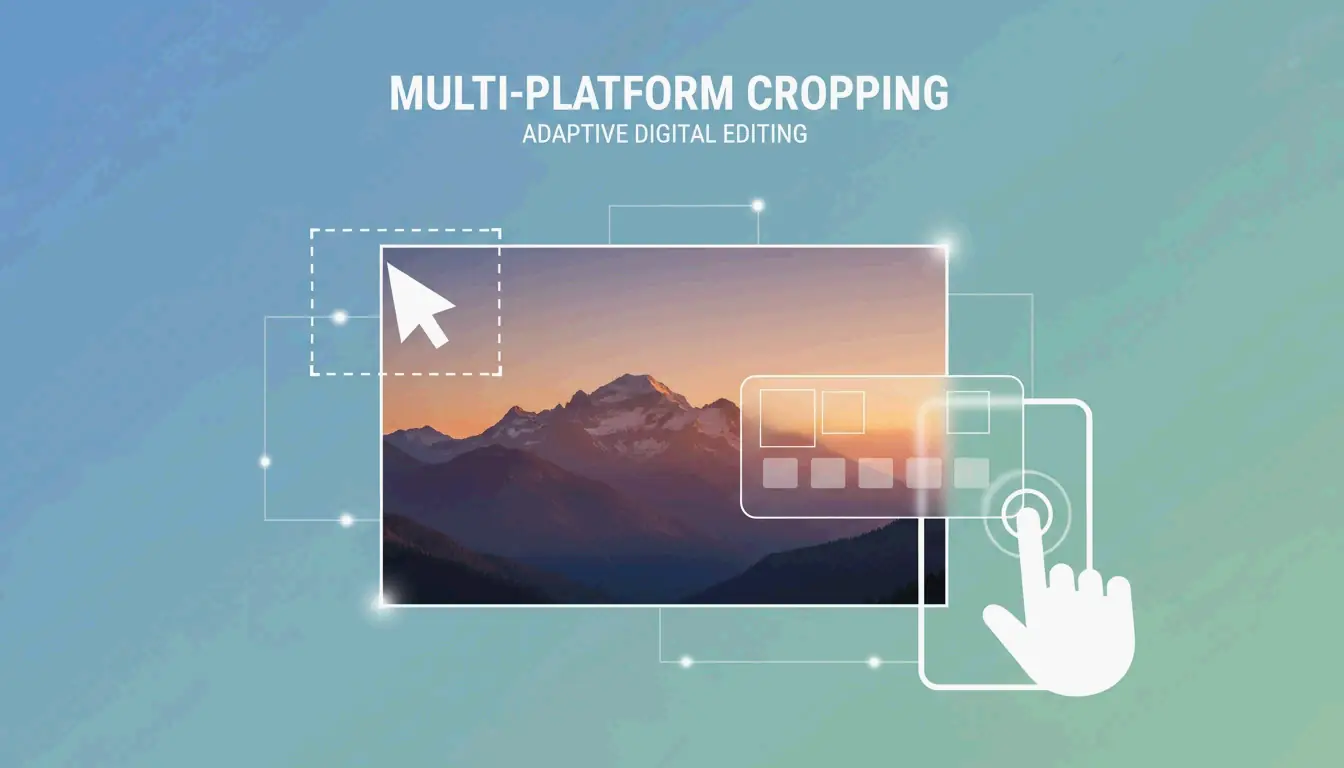
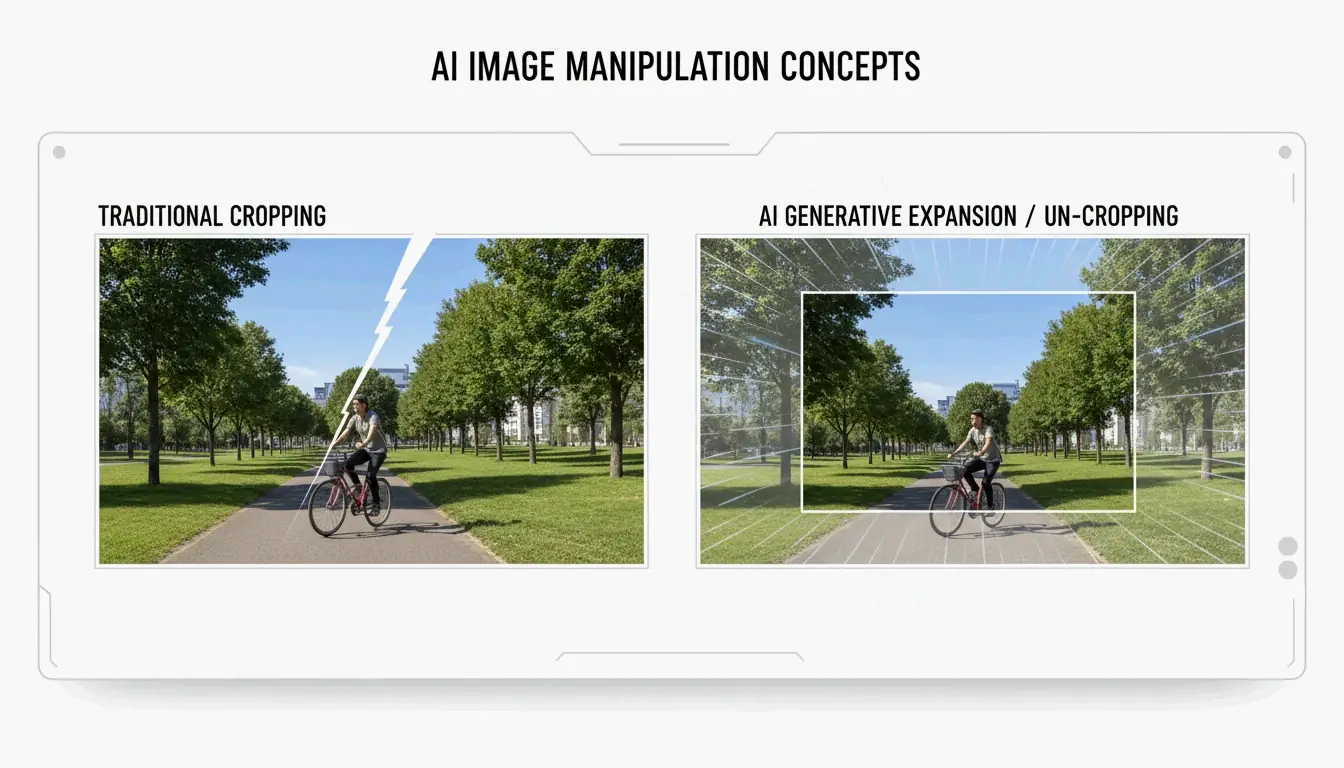
    Phone photography has advanced beyond basic manual editing. Modern AI tools do not just cut edges — they understand photo content and can even “un-crop” or expand the background.

    A comparison of traditional cropping vs AI generative expansion

    Using Google Photos AI to Auto-Frame Your Shots

    Following the April 2026 rollout reported by ZDNET, the AI Enhance button in Google Photos has become a standard feature. When tapped, the app analyzes the main subject and suggests three framing options while simultaneously adjusting lighting and sharpness.

    Note that AI can sometimes be too aggressive, cutting out background details you actually wanted to preserve. Always review the suggested crop before accepting it.

    Batch Cropping for Social Media: 2026 Aspect Ratio Cheat Sheet

    If you are preparing dozens of photos, batch cropping applies the same dimensions to an entire folder at once. This is the most efficient way to keep an Instagram grid or portfolio visually consistent.

    The 2026 Social Media Dimension Guide

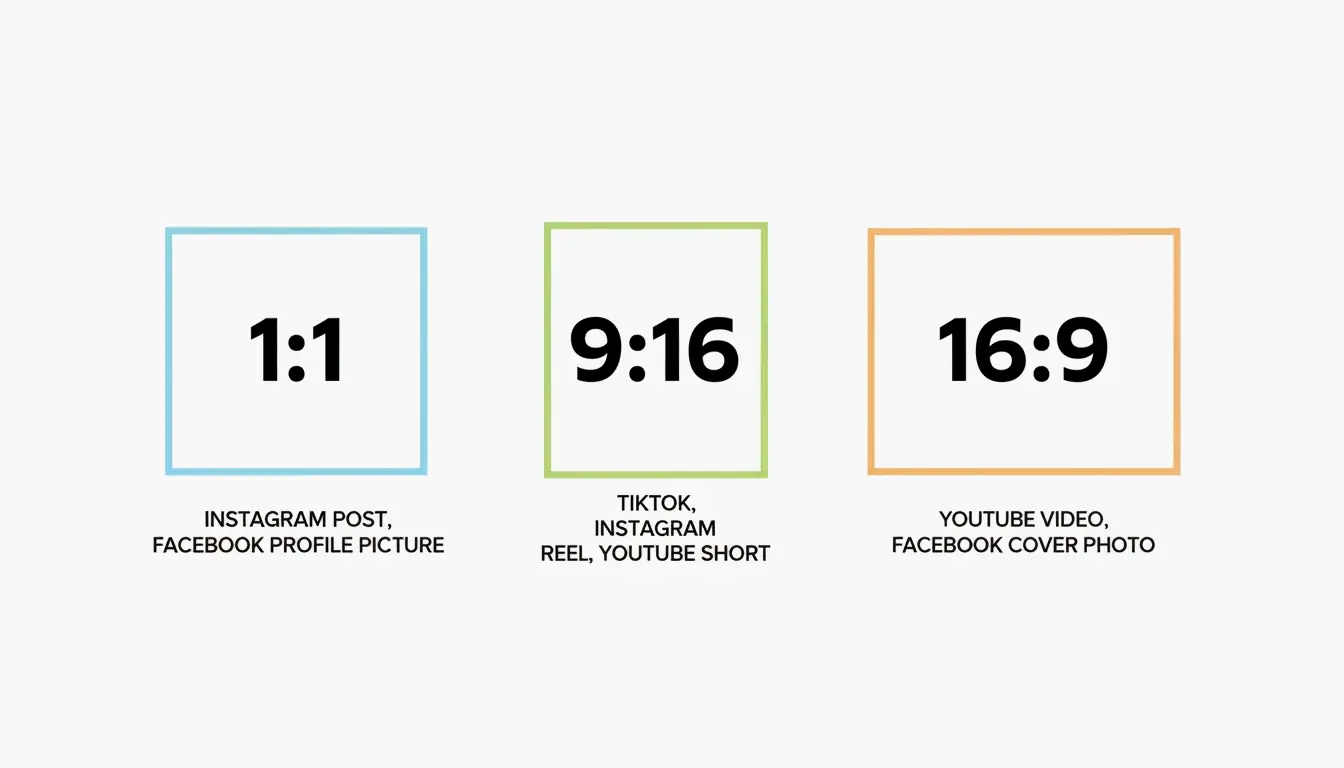
    Use a tool like BIRME or Private Convert to lock in these standard ratios:

    Ratio Platform / Use Case Pixel Dimensions
    1:1 Instagram Posts, Profile Pictures 1080 x 1080
    9:16 TikTok Covers, Instagram Stories 1080 x 1920
    16:9 YouTube Thumbnails, LinkedIn Banners 1920 x 1080
    4:5 Instagram Portrait Posts 1080 x 1350
    1.91:1 Facebook Open Graph (Link Previews) 1200 x 630

    A visual guide of common aspect ratios (1:1, 9:16, 16:9)

    Why Browser-Based Tools Are Now Safer Than Ever

    Modern tools like BIRME use Client-side processing (WASM/Canvas). The actual work happens inside your browser’s memory, and your photos never leave your hard drive. For web exports, setting quality to 80% is typically optimal — the image stays sharp while the file size remains small enough for fast loading.

    Advanced Techniques: ImageMagick for Power Users

    For developers or anyone managing thousands of files, ImageMagick is the professional standard for command-line editing. A single command crops with pixel-perfect precision:

    convert input.jpg -crop 800x600+50+100 output.jpg
    

    This syntax specifies width (800), height (600), X offset (50), and Y offset (100). Automating with ImageMagick turns hours of manual work into seconds of processing.

    Conclusion

    In 2026, cropping is about choosing the right tool for the job. For a quick one-off edit, the app already on your computer or phone works well. For smart, generative framing, Google Photos AI offers automated suggestions. For bulk social media prep, a dedicated batch editor like BIRME saves time and keeps your data private with client-side processing.

    FAQ

    Does cropping an image reduce its quality?

    Cropping itself does not lower quality, but it reduces the total pixel count. Aggressive cropping can make an image look pixelated if it is later enlarged beyond its new dimensions. Always save your crop as a copy to preserve the original high-resolution file.

    How can I crop a photo to exact pixel dimensions (e.g., 1200×630)?

    Use a tool like BIRME or Pixotter where you can manually input fixed dimensions. Set the width to 1200 and the height to 630. These tools allow you to adjust the focal point within that specific box before saving, ensuring the most important part of the image is captured.

    Can I batch crop photos without uploading them to a server?

    Yes. Browser-based tools like BIRME use client-side processing via WebAssembly and Canvas. All cropping happens in your browser’s memory — no files leave your device. This is both faster and more private than server-based alternatives.

  • Fast Online Image Resizer: Resize JPG, PNG, and WebP Without Quality Loss (2026)

    Fast Online Image Resizer: Resize JPG, PNG, and WebP Without Quality Loss (2026)

    Resizing images in 2026 is a browser-based operation. Upload your file to a client-side image resizer, set the pixel dimensions, lock the Aspect Ratio to prevent distortion, and download the result. Modern tools process images locally on your device for full privacy and support next-gen formats like AVIF and iPhone HEIC without requiring an account.

    How to Use an Image Resizer Without Losing Quality

    Getting a sharp, professional result depends on precision and where the processing happens. According to FreeImageResizer.net, a platform that has processed over 2.3 million images as of April 2026, the recommended approach is using tools that work directly in your browser. Client-side processing means your files never reach a third-party server, delivering zero lag and total privacy.

    Developer Masroor Alam notes that modern utilities aim to “eliminate the complexity of professional editing.” These tools handle the difficult parts — complex scaling, compression, and format conversion — on your own device.

    Step 1: Choose Your Dimensions or Percentage

    Most quality resizers offer two input modes: exact pixel values (such as 1920×1080) or a percentage slider. For a high-res photo destined for a blog, scaling down to 50% is often more reliable than guessing the width. For government forms or e-commerce listings, exact pixels ensure compliance with strict upload requirements.

    Step 2: Why Lock Aspect Ratio is Non-Negotiable

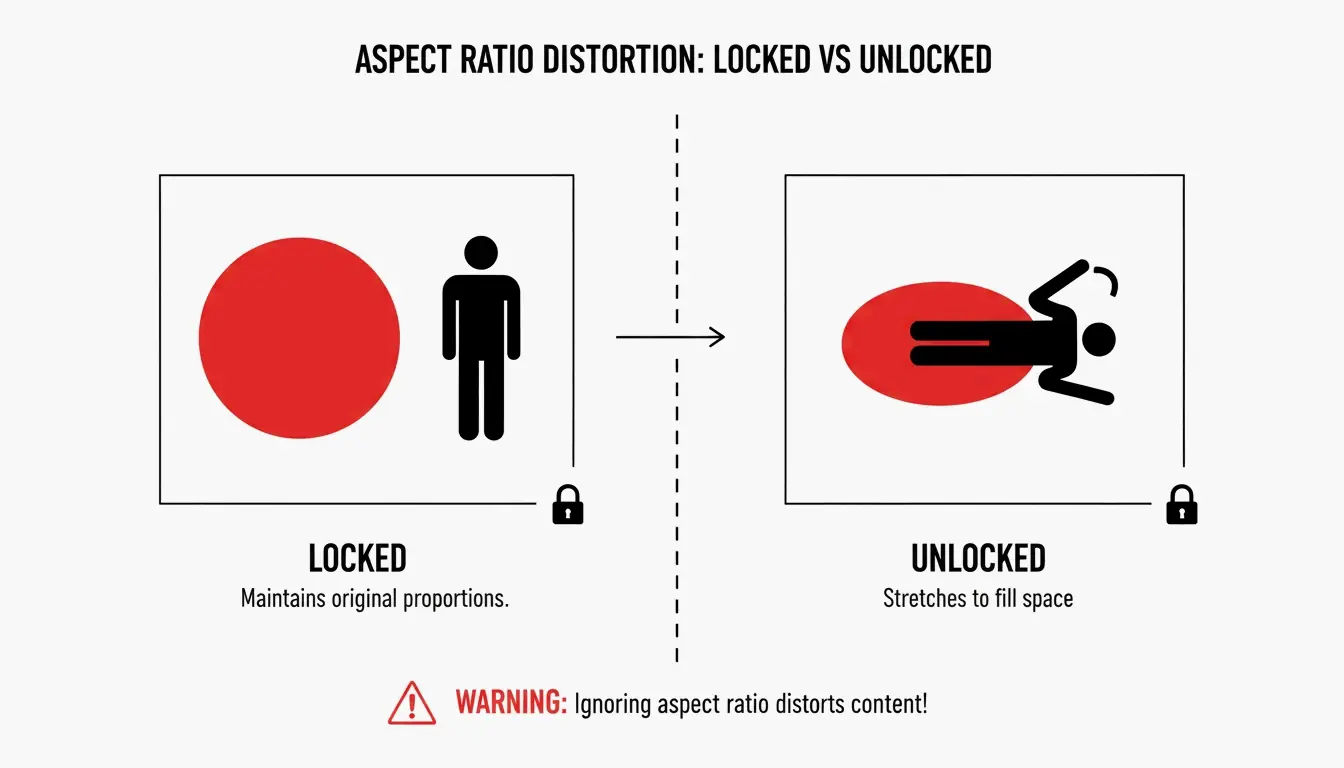
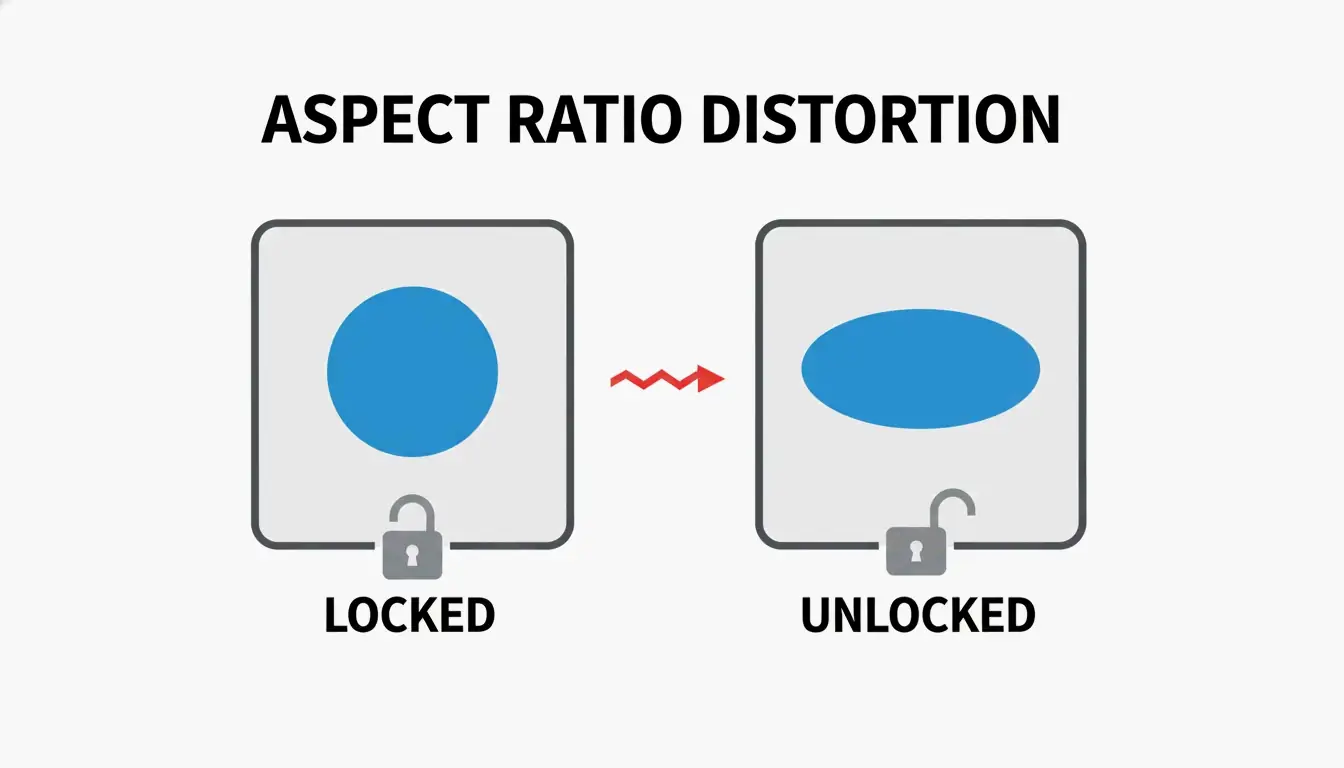
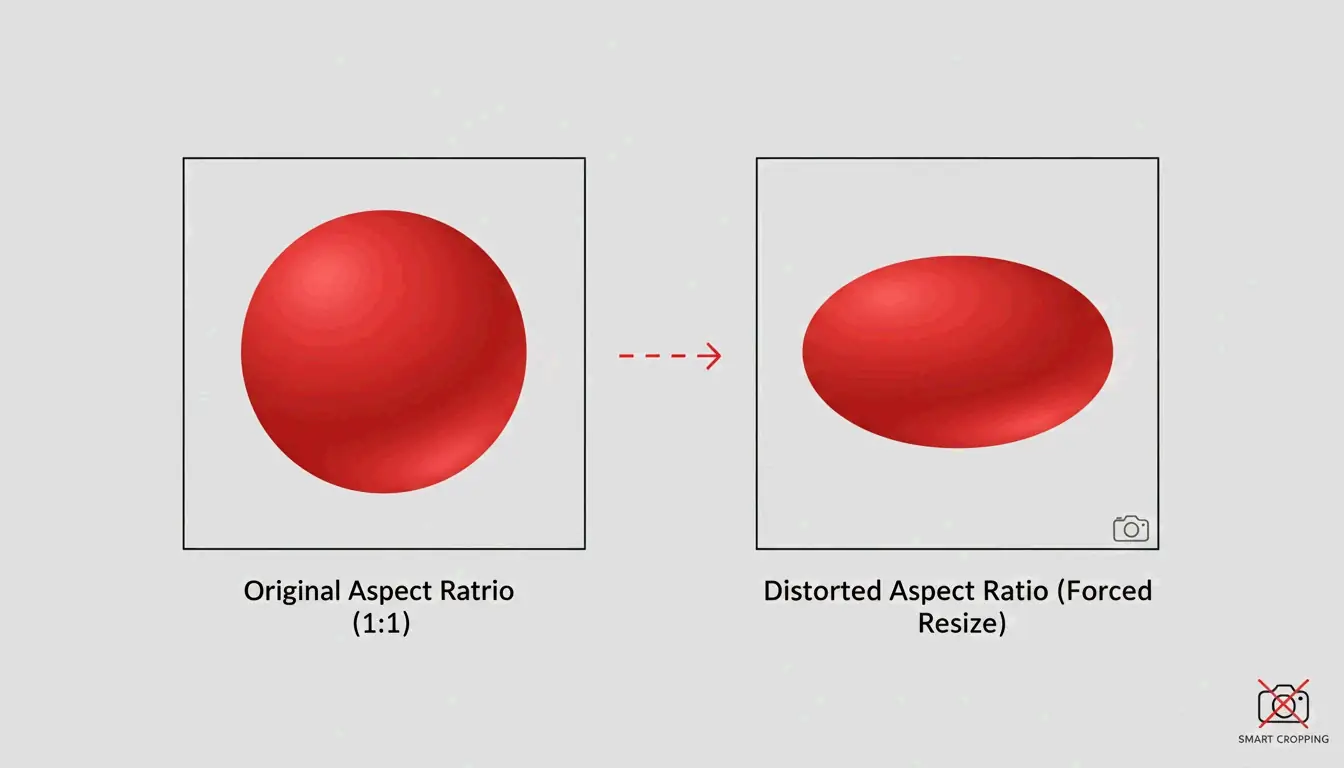
    The Lock Aspect Ratio setting prevents distortion. When enabled, changing the width automatically adjusts the height so proportions stay consistent. Without this lock, images end up stretched or squashed.

    Comparison of Locked vs. Unlocked Aspect Ratio

    This was the exact problem BIRME was built to solve after its creator observed too many WordPress sites with poorly cropped uploads.

    The 2026 Standard: Resizing AVIF, HEIC, and Modern Image Formats

    By 2026, the web has shifted toward faster next-gen formats. AVIF is the top choice for performance, compressing files significantly more effectively than WebP or JPEG while preserving detail. Tools like FreeConverto let you resize and convert directly into AVIF to help websites load faster.

    The iPhone HEIC challenge remains relevant. iPhones capture photos in HEIF/HEIC format, which often fail to open on Windows or older applications. Modern resizers now include built-in HEIC support, allowing you to drop an iPhone photo into your browser and save it as a standard JPG or WebP within seconds.

    Target File Sizes: Passport Apps, Shopify, and Email Limits

    Sometimes file size (KB) matters more than dimensions. Here is a quick reference for common targets:

    Use Case Size Requirement Recommended Approach
    Passport / Visa Applications Under 50-100 KB Resize to exact pixel spec, then compress at 80% quality
    Shopify / Amazon Product Pages High res (2048px+), optimized file Resize to 2048px width, convert to WebP
    Email Attachments Under 20-25 MB per message Batch resize entire folder to 1000px width

    Efficiency at Scale: How to Handle Batch Resizing

    For content creators and online shop managers, resizing photos one by one is impractical. Batch processing lets you load 20 to 100 images into a tool at once. BIRME, which serves over 50,000 users per month with bulk tasks, recommends combining resizing with Smart Cropping for maximum efficiency.

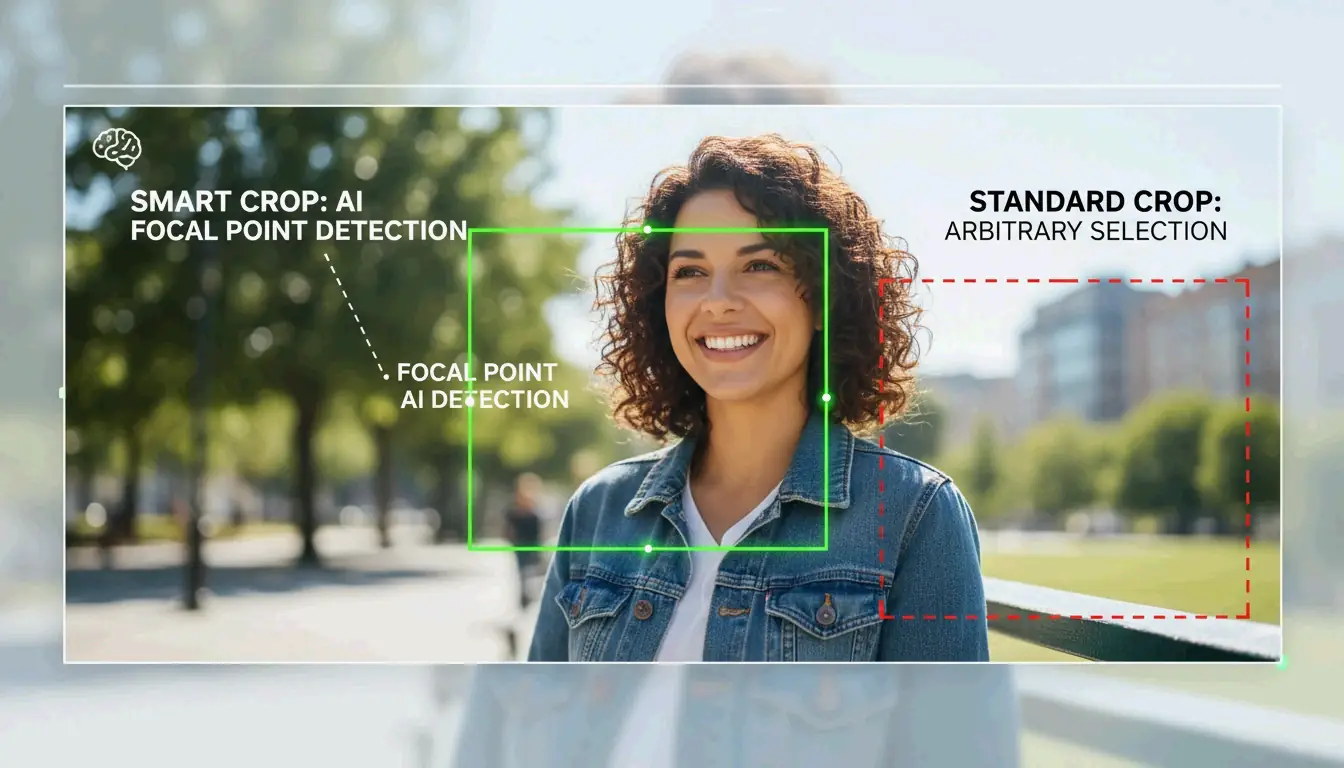
    Smart Cropping: Focal point detection vs. standard center crop

    Smart Cropping uses auto focal point detection to identify the most important part of a photo — a person’s face, a specific texture, or a product. The tool then centers the crop on that point. This ensures that when a wide photo is converted to a square, the key subject stays in frame.

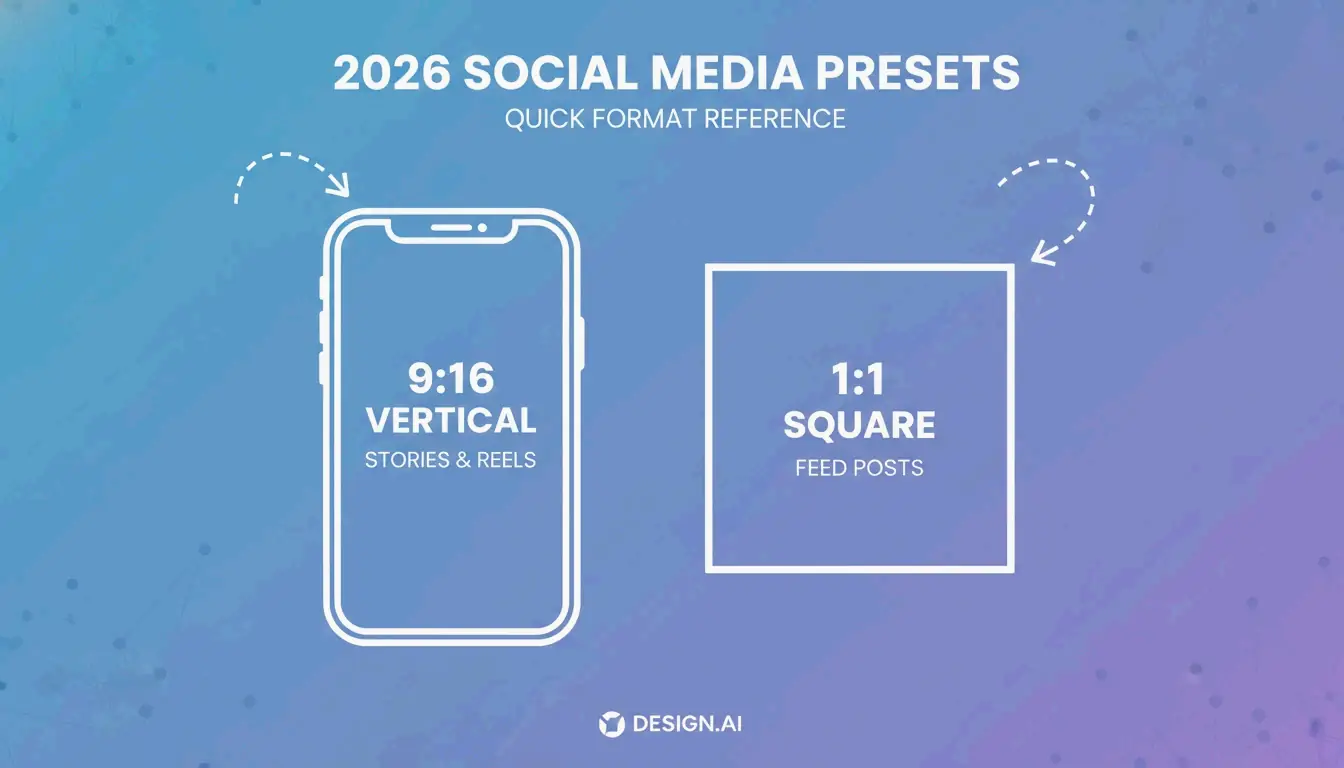
    Social Media Presets: Quick Reference Dimensions (2026)

    Matching the platform’s preferred size prevents blurry uploads. If an image is too small, the platform stretches it (interpolation), causing pixelation. If it is too large, aggressive platform compression can degrade quality.

    Platform Usage Dimensions (Pixels) Aspect Ratio
    Instagram Square Post 1080 x 1080 1:1
    Instagram Story / Reels 1080 x 1920 9:16
    Facebook Shared Post 1200 x 630 1.91:1
    YouTube Video Thumbnail 1280 x 720 16:9
    LinkedIn Profile Banner 1584 x 396 4:1

    Conclusion

    Modern image resizers do more than change pixel counts. In 2026, the best tools are browser-based, privacy-first utilities that process everything locally. Whether you are optimizing bulk product shots for Shopify, converting iPhone HEIC files for Windows, or adopting AVIF for performance, the workflow is straightforward: always lock your Aspect Ratio and use smart cropping to keep the subject centered. For the sharpest results, start with the highest-quality original available and use social media presets to maintain a professional feed.

    FAQ

    Is it safe to use an online image resizer without my photos being uploaded to a server?

    Yes. Look for tools labeled as “browser-based” or “client-side.” These utilities use JavaScript to process images directly on your device’s hardware. Because the data never leaves your computer or phone, your privacy is fully protected and there is no risk of your photos being stored on a third-party server.

    What is the difference between Auto Fit, Fill and Crop, and Stretch modes?

    Auto Fit shrinks the image to fit within your target dimensions while adding padding (letterboxing) to keep the entire image visible. Fill and Crop scales the image to cover the entire area, cutting off edges if the proportions do not match. Stretch forces the image to the new dimensions regardless of its original shape, which usually produces a distorted or squashed appearance.

    Why do my photos look pixelated or blurry after I increase their size?

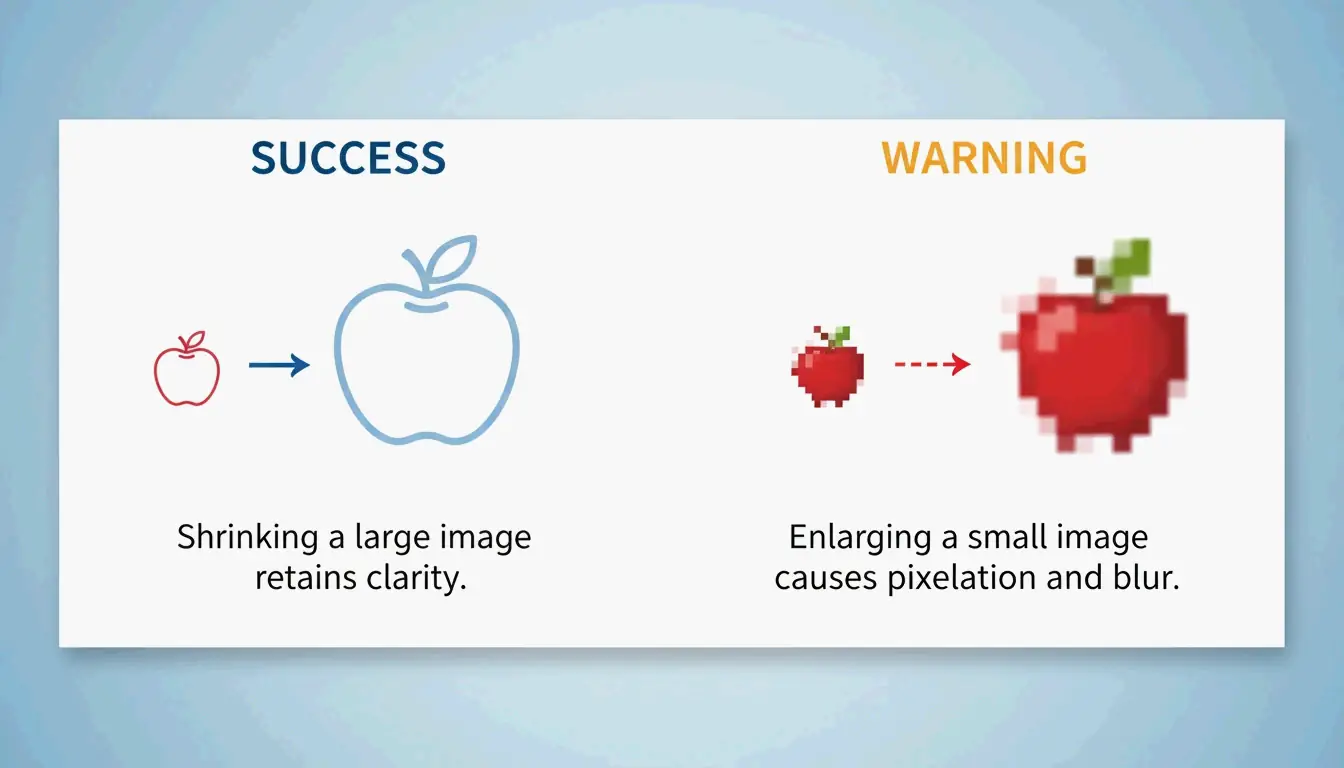
    Resizing an image upward requires interpolation, where the software attempts to create new pixels to fill gaps. Standard resizers cannot add detail that was not captured in the original photo. For significant enlargement, use an AI Upscaler, as standard resizing will always result in a loss of sharpness when upscaling.

  • Free Online Photo Pixel Resizer: Resize Images Without Losing Quality (2026)

    Free Online Photo Pixel Resizer: Resize Images Without Losing Quality (2026)

    Upload, set dimensions, lock aspect ratio, download. A browser-based photo pixel resizer like BIRME or WebToolTrix completes this in milliseconds using client-side processing — your photos never leave your device.

    4-Step Workflow: Upload → Set → Lock → Download

    1. Upload — Drag and drop files into the resizer.
    2. Set dimensions — Enter target width/height (e.g., 1920×1080).
    3. Lock aspect ratio — Ensures proportional scaling, no distortion.
    4. Download — Export as JPG, PNG, or WebP.

    As FastTool notes: “An image displayed at 400px wide but delivered at 2000px wastes 96% of the downloaded pixels.” Resizing to actual display dimensions eliminates this waste.

    Aspect Ratio Lock: The Critical Setting

    Locked vs. unlocked aspect ratio comparison

    When you change width from 1920px to 800px with aspect ratio locked, height auto-adjusts to 450px. Unlocking the chain icon causes stretching and distortion.

    Client-Side Privacy

    Modern resizers use the HTML5 Canvas API for in-browser processing. As FreeConverto confirms, this means sensitive images (ID photos, personal portraits) never leave your device — zero server-side data risk.

    2026 Social Media Dimension Presets

    Platform Format Dimensions (px) Aspect Ratio
    Instagram Square Post 1080 × 1080 1:1
    Instagram Story / Reels 1080 × 1920 9:16
    TikTok Video Cover 1080 × 1920 9:16
    YouTube Thumbnail 1280 × 720 16:9
    Facebook Shared Post 1200 × 630 1.91:1
    LinkedIn Profile Banner 1584 × 396 4:1

    Common social media aspect ratios

    Using platform-native dimensions prevents auto-cropping and compression artifacts.

    Format Selection

    Format Best For Size vs. JPEG
    WebP Web performance, transparency 25-35% smaller
    PNG Logos, text graphics (lossless) Larger, but pixel-perfect
    JPEG Universal compatibility Baseline
    AVIF Maximum compression Up to 50% smaller

    Batch / Bulk Resizing

    BIRME (50,000+ monthly users) applies one set of dimensions to an entire folder, then bundles results into a single ZIP download.

    Downscaling vs. Upscaling

    Direction Method Result
    Downscaling (larger → smaller) Data removal Sharp, clean output
    Upscaling (smaller → larger) Interpolation (Lanczos, Bicubic) Often blurry or pixelated

    Downscaling (sharp) vs. upscaling (blurry)

    For upscaling, use a dedicated AI upscaler — standard resizers are not designed for enlargement.

    KB Target Mode and Print DPI

    Government Portal KB Limits

    Many portals require images under 20KB or 50KB. Tools like WebToolTrix adjust dimensions and compression iteratively until hitting the exact target.

    Print DPI

    Use Case DPI A4 Pixel Dimensions
    Screen/Web 72-96 DPI N/A
    Professional print 300 DPI 2480 × 3508 px

    Modern resizers also support HEIC/HEIF decoding — upload iPhone photos directly and convert for web.

    Conclusion

    Resize photos by pixels using the Upload → Set → Lock → Download workflow. Lock aspect ratio to prevent distortion. Use social media presets for platform-native dimensions. For bulk work, use BIRME with ZIP batch download. For KB-limited uploads, use tools with target mode. Export as WebP for web, PNG for logos, and JPEG for universal compatibility.

    FAQ

    What is the difference between resizing and cropping?

    Resizing changes the overall pixel dimensions while preserving the entire image. Cropping removes portions of the image to change the framing or aspect ratio. Resizing a 4000px image to 1200px keeps all content but at lower resolution.

    Can I enlarge a small photo without losing quality?

    Standard resizers use interpolation (Lanczos, Bicubic) which produces blurry results when upscaling. For quality enlargement, use AI-powered upscalers that reconstruct detail using machine learning models rather than mathematical interpolation.

    How do I resize a photo to a specific file size (e.g., under 20KB)?

    Use a resizer with KB/MB target mode. The tool iteratively adjusts dimensions and compression quality until the output meets your exact size requirement. This is essential for government portals and job applications with strict upload limits.

  • How to Shrink Pictures Without Quality Loss: 2026 Resizing Guide

    How to Shrink Pictures Without Quality Loss: 2026 Resizing Guide

    Shrink a 6MB smartphone photo to 300-700KB by resizing to 1200px width and saving at 80-85% JPEG quality. For maximum compression, convert to AVIF or WebP. Built-in tools (Preview, Photos) handle single files; BIRME or ImageMagick handle bulk batches.

    Built-in Tools: Mac, Windows, and Mobile

    Mac: Preview

    1. Open image in Preview.
    2. ToolsAdjust Size.
    3. Ensure “Scale proportionally” is checked.
    4. Set target width (e.g., 1200px). Height adjusts automatically.

    Windows: Photos App

    1. Open image in Photos.
    2. Click three-dot menu (…) → Resize image.
    3. Select a preset or enter custom dimensions.

    Microsoft Paint alternative: HomeResize → switch to “Pixels” → set width.

    iPhone: HEIC High Efficiency Mode

    Switch to Settings → Camera → Formats → High Efficiency. Photos save as HEIC — roughly 50% smaller than JPEG with no quality loss. Per Wondershare UniConverter, this is the single biggest space saver for iCloud Photos.

    Resizing vs. Compressing: What’s the Difference?

    Action What Changes Example
    Resizing Pixel dimensions (width × height) 4000px → 1200px
    Compressing File size (MB/KB) 6MB → 400KB

    Resizing removes pixels. Compressing re-encodes data more efficiently. Both reduce file size, but resizing delivers the largest savings.

    Bulk / Batch Resize Tools

    For hundreds of photos, use browser-based or command-line tools:

    Tool Platform Batch Support Privacy Command
    BIRME Browser Yes Local (JS) Drag-and-drop GUI
    Private Convert Browser Yes Local (JS) Upload interface
    ImageMagick CLI Yes Full offline magick mogrify -resize 1200x *.jpg
    sips (macOS) CLI Yes Full offline sips -Z 1200 *.jpg

    BIRME also offers Smart Cropping — AI detects the focal point and keeps it centered while trimming edges to fit new dimensions.

    Maintaining Aspect Ratio

    Always resize proportionally. Forcing a rectangular image into a square without cropping causes visible stretching. Lock the aspect ratio, or use tools that auto-detect and preserve it.

    Correct aspect ratio vs. distorted stretching

    Format Decision Guide for 2026

    JPEG vs AVIF file size comparison

    Goal Format Why
    iPhone/Mac local storage HEIC 50% smaller than JPEG, native Apple support
    Website performance AVIF or WebP Up to 50% smaller than JPEG, 97%+ browser support
    Maximum compatibility JPEG (80%) Opens on any device, any OS

    Per Private Convert, AVIF offers 50% better compression than JPEG at equivalent visual quality.

    Social Media Dimensions: Pre-Resize to Avoid Auto-Shrink Blur

    Platforms like Instagram and TikTok apply aggressive auto-compression. Uploading 4K files often produces worse results than uploading at the platform’s native resolution.

    Platform Recommended Size Format
    Instagram/TikTok Reels 1080 × 1920 px JPEG or WebP
    Instagram Square Posts 1080 × 1080 px JPEG or WebP
    YouTube Thumbnails 1280 × 720 px JPEG

    Per the TikTok Creator Community, 1080p uploads often look sharper than 4K because the platform’s compression engine handles smaller files more cleanly.

    Conclusion

    Shrink pictures in three steps: resize to target dimensions using built-in tools or batch processors, maintain aspect ratio, and save in a modern format. For iPhone storage, switch to HEIC. For web, convert to AVIF or WebP at 80% quality. For social media, pre-resize to platform-native dimensions to avoid auto-shrink artifacts.

    FAQ

    What is the difference between resizing and compressing?

    Resizing changes pixel dimensions (4000px → 1200px). Compressing reduces file size by re-encoding data, often without changing dimensions. Both reduce file size, but resizing provides the largest reduction.

    Why do pictures look blurry after shrinking?

    Shrinking removes pixels. If you later enlarge the image, the computer must interpolate missing pixels, producing softness. Blurriness from compression occurs when quality drops below 60%, creating blocky artifacts.

    How do I resize images on my phone without installing an app?

    iPhone: Use the Shortcuts app to create a “Resize Image” shortcut that works from the Photos share sheet. Android: Open a browser-based tool like Private Convert in Chrome — resize in the browser without installing anything.

  • How to Compress HEIC Files Without Losing Quality (2026 Guide)

    How to Compress HEIC Files Without Losing Quality (2026 Guide)

    To compress HEIC files in 2026, you can use browser-based tools like ConvertMinify or Adobe Express, or use the native “Quick Actions” feature on macOS. By setting the quality slider to 80-85%, you can shrink file sizes by up to 80% while keeping visual clarity and EXIF metadata intact. This ensures your iPhone photos meet upload limits without looking blurry.

    The Fastest Ways to Compress HEIC Online and Offline

    High-resolution photography is great, but it creates a constant battle between image quality and storage space. While the High Efficiency Image Container (HEIC) is built to be lean, modern hardware like the iPhone 15 Pro produces 48MP images. According to ConvertMinify, these files typically range from 5–8 MB, which can easily trigger email attachment limits or slow down a website.

    Option 1: Privacy-First Browser Tools (No Upload Required)

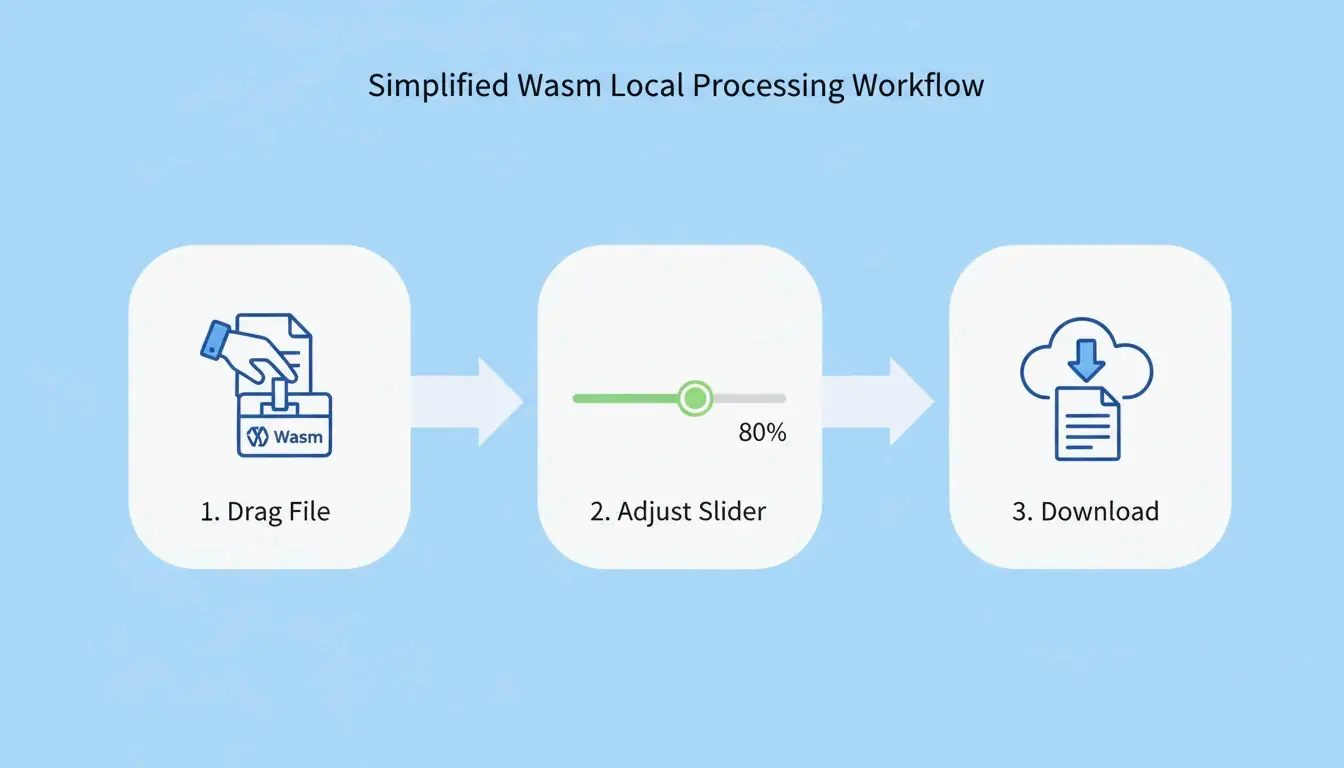
    You no longer need to “upload” files to a mysterious server to shrink them. Modern web standards now allow your browser to do the heavy lifting locally. Tools using WebAssembly (Wasm) and HTML5 Canvas, such as FreeToolio, process images right on your device.

    1. Pick Your Tool: Open a Wasm-based site like ConvertMinify or FreeToolio.
    2. Find the “Sweet Spot”: Move the quality slider to 80-85%. This is the standard setting to keep 10-bit color depth while significantly cutting the file size.
    3. Process Locally: Drag and drop your HEIC files. Because the logic runs via Wasm, your photos stay on your computer, ensuring 100% privacy.
    4. Save: Download your optimized files immediately.

    Simple 3-step local compression process

    Option 2: Native macOS & Windows Methods

    If you prefer to stay away from the browser entirely, your computer already has built-in tools that don’t require any new software.

    • macOS Quick Actions: Highlight your HEIC files in Finder, right-click, and go to Quick Actions > Convert Image. Choosing Small, Medium, or Large will trigger an instant local compression.
    • Windows Photos App: Windows users will need the “HEIF Image Extensions” from the Microsoft Store first. Once installed, open an image in the Photos app, select “Save As,” and use the quality slider to reduce the size.
    • Dedicated Local Apps: For pros handling hundreds of photos at once, native apps like ClearCut or Zipic offer offline processing. These allow for specific CRF (Constant Rate Factor) controls that can shrink files by as much as 90%.

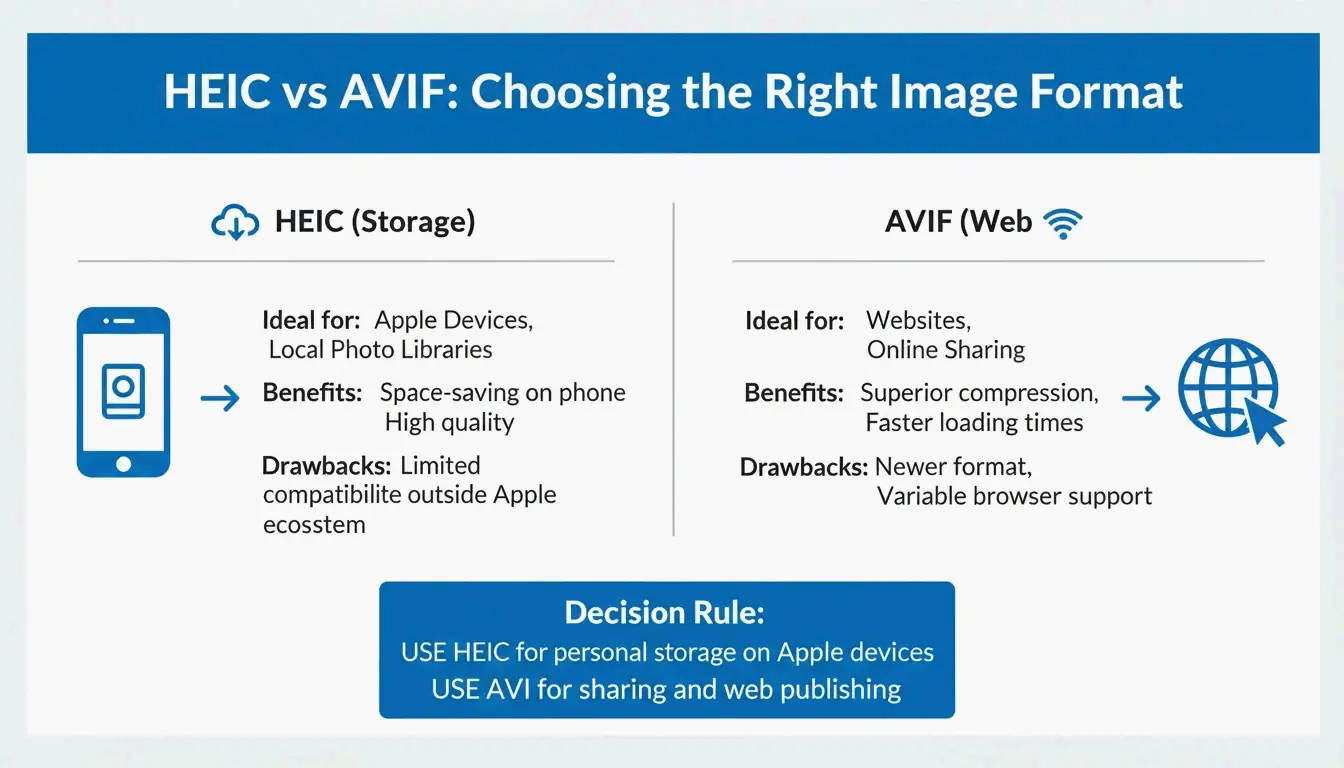
    Modern 2026 Workflow: HEIC for Storage vs. AVIF for Web

    Choosing the right format depends on where the photo is going. HEIC is still the best “master” format for Apple users (iOS 11+) because it supports Live Photos and non-destructive editing.

    However, for sharing on the web, AVIF (AV1 Image File Format) is the new standard. DEV Community notes that AVIF reached about 93% global browser support by 2026. While HEIC is perfect for your phone’s storage, it still isn’t natively supported by browsers like Chrome or Firefox, making it a poor choice for direct web uploads.

    Simple comparison: HEIC for Storage vs AVIF for Web

    The main downside to AVIF is speed. Data from Pixotter shows that AVIF encoding can be 47x slower than WebP or JPEG. For high-traffic sites, the wait is usually worth it because of the massive bandwidth savings and better performance scores.

    How Does HEIC Compression Work?

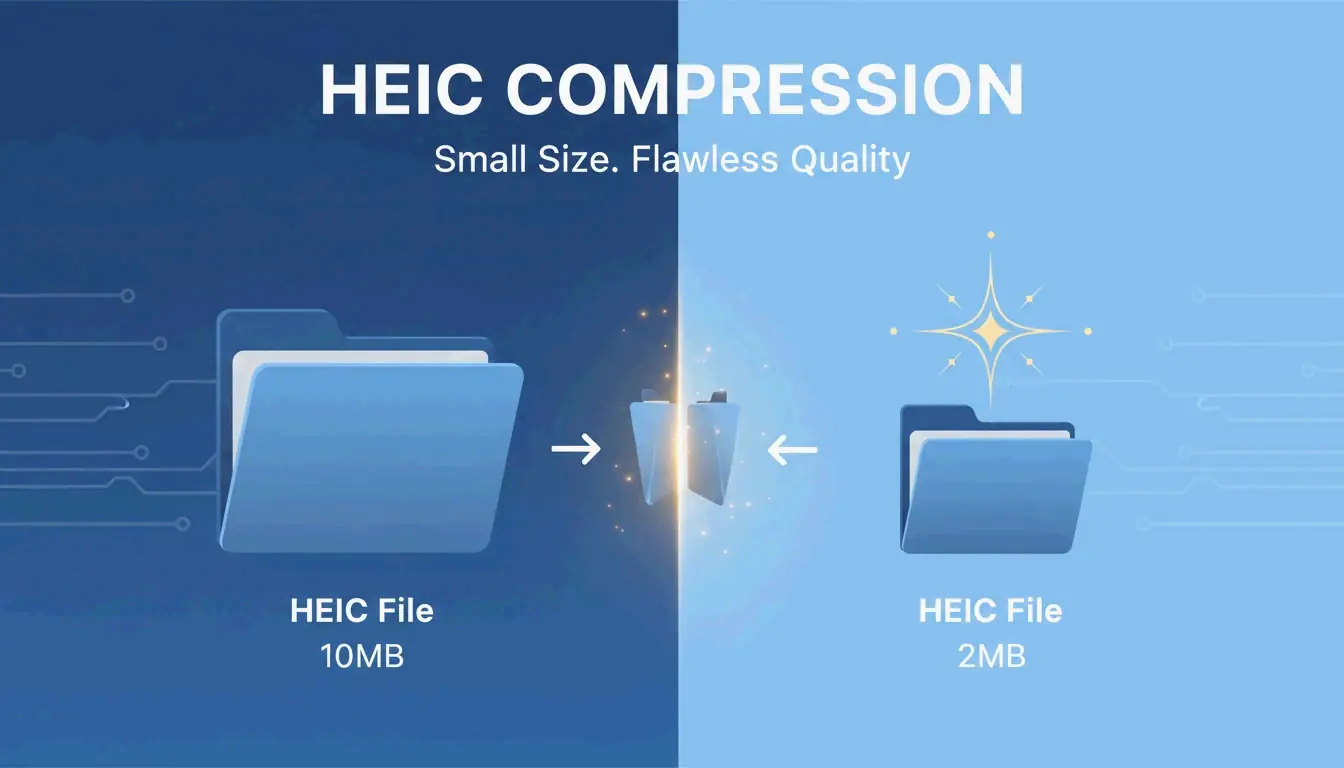
    HEIC is based on the HEVC (H.265) video standard. As Utilko points out, it is 50% more efficient than JPEG at the same quality level. This allows it to hold 10-bit color and HDR data in a file half the size of an old 8-bit JPEG.

    Understanding Lossy vs. Lossless Compression

    • Lossy Compression: This is the default for iPhone photos. It uses “intra-frame prediction” to remove data the human eye can’t actually see.
    • Lossless Compression: Reserved for archives or medical imaging where every pixel must be perfect. These files are larger than lossy versions but still smaller than TIFF or BMP files.

    Does Compressing HEIC Remove GPS and EXIF Data?

    Compression itself doesn’t delete metadata, but many “lite” online tools strip EXIF data (like your camera settings, GPS, and timestamps) to shave off an extra 50-200 KB. Professional tools like Zipic give you a toggle to keep or remove this info. If you’re posting a photo publicly, stripping the GPS data is actually a smart privacy move.

    Professional Privacy Checklist: Is Your Compressor Safe?

    When you compress HEIC files, security is the most important factor. In 2026, the best practice is to keep everything local.

    1. The Offline Test: Open the tool, then turn off your Wi-Fi. If it still works, it’s using Wasm or HTML5 Canvas and is safe to use.
    2. Cloud vs. Local: Be careful with tools that “upload” your files unless they have a clear, verified policy for deleting them. Native apps like ClearCut are 100% local and don’t even require an account.
    3. Core Web Vitals: For developers, make sure your compressor doesn’t strip color profiles. If it does, images can look “washed out,” which hurts the user experience and your site’s metrics.

    Visual metaphor for local/offline data security

    Conclusion

    Compressing HEIC is a necessity for managing high-res iPhone storage. By 2026, tools have advanced enough to let you do this right in your browser without any privacy risks. Whether you’re trying to fit a photo into an email or optimizing a portfolio, you can reduce the file size without losing the 10-bit depth that makes HEIC so good. For the best results, stick to a Wasm-based compressor at about 82% quality to get the best balance of size and clarity.

    FAQ

    Why are my iPhone HEIC photos so large even though they are ‘High Efficiency’?

    High-resolution sensors, such as the 48MP lenses on the latest iPhones, generate massive amounts of raw data. Additionally, the inclusion of HDR data and 10-bit color depth increases file complexity. According to ConvertMinify, these factors can result in individual files reaching 8 MB despite the efficient codec.

    Can I compress HEIC files on Windows without installing third-party software?

    Yes. You can use the built-in Windows Photos app to “Save As” or “Resize” the image, though you must first ensure the “HEIF Image Extensions” are installed from the Microsoft Store. Alternatively, use a browser-based tool like FreeToolio that processes the file locally using your browser’s resources.

    Does compressing HEIC images remove GPS and EXIF metadata?

    It depends entirely on the tool you select. Most native macOS and iOS compression methods preserve metadata by default. However, many third-party web tools provide a toggle to strip EXIF data to further reduce file size or protect user privacy before social media uploads.

  • How to Compress PNG Files: 2026 Guide to Faster Web Performance

    How to Compress PNG Files: 2026 Guide to Faster Web Performance

    To compress PNG files effectively in 2026, use browser-based tools to apply lossless recompression or lossy quantization. By stripping metadata and optimizing the color palette via tools like pngquant, you can reduce file sizes by 40-80% while maintaining transparency and visual fidelity for web and mobile applications.

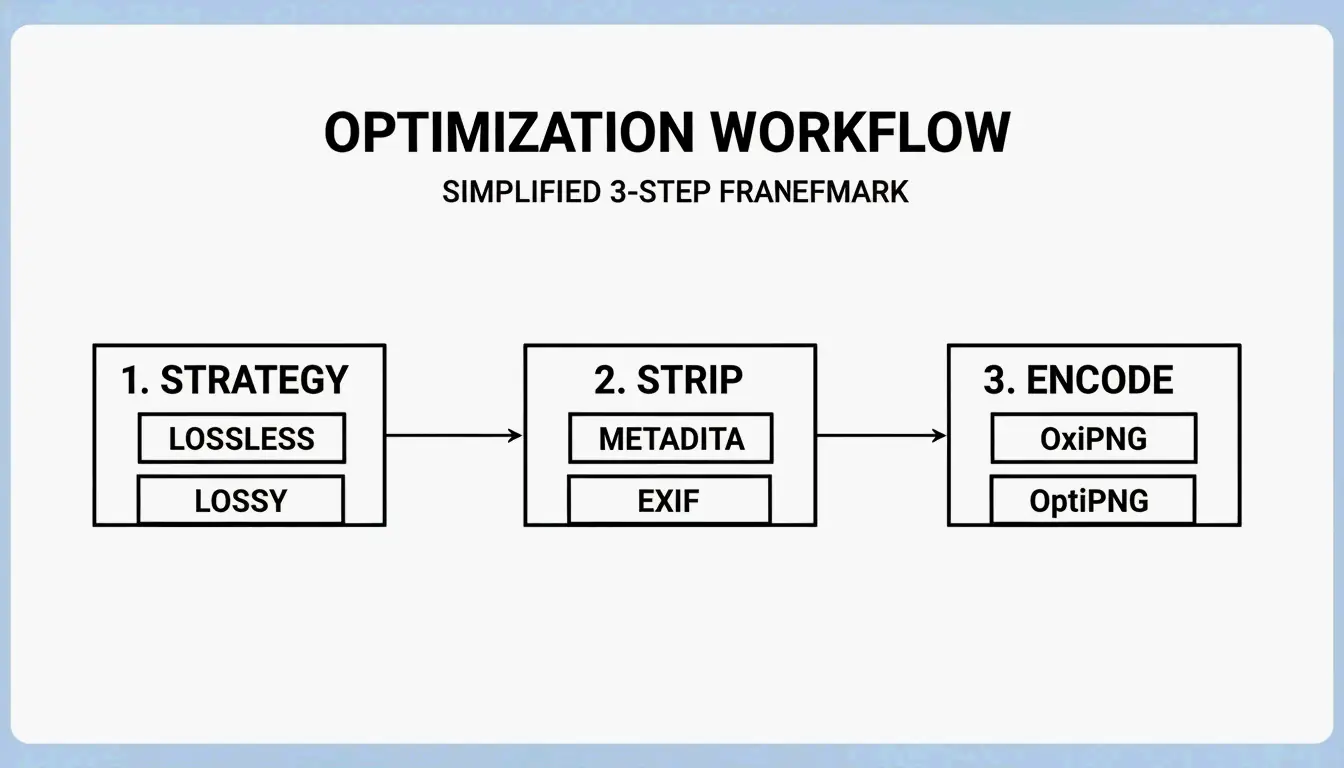
    How to Compress PNG Without Quality Loss: A 3-Step Framework

    Optimizing PNGs for the modern web means finding the balance between mathematical precision and perceptual quality. According to Pixotter, PNG files often carry “hidden weight” — embedded ICC profiles and EXIF data that can add 50-500KB to a single image without improving its appearance.

    Step-by-Step Process

    1. Choose Your Compression Strategy
    2. Lossless recompression: Preserves every pixel exactly; ideal for brand assets like logos.
    3. Lossy quantization: Reduces the color palette for significantly larger savings; best for screenshots or complex web graphics.

    4. Strip Unnecessary Metadata
      Remove non-essential “chunks” within the file. Deleting EXIF data and ICC profiles cuts file size without touching actual pixel data.

    5. Export Using Modern Algorithms
      Use high-performance encoders like OxiPNG (Rust-based, faster and more efficient) or OptiPNG. These test multiple filtering strategies to find the smallest possible lossless encoding.

    3-step PNG optimization workflow

    Lossless vs. Lossy: Which Compression Method to Choose?

    Method Tool Example Size Reduction Quality Impact Best For
    Lossless OxiPNG, OptiPNG 10-30% Zero pixel change Logos, brand assets
    Lossy (Quantization) pngquant 60-80% Color palette reduction Screenshots, complex graphics

    According to ToolTea, lossless compression typically shrinks a file by 10-30% without changing the image at all. Lossy compression via quantization reduces color depth from 24-bit or 32-bit to 8-bit (256 colors), which can shrink files by 60-80% while keeping the alpha channel (transparency) intact.

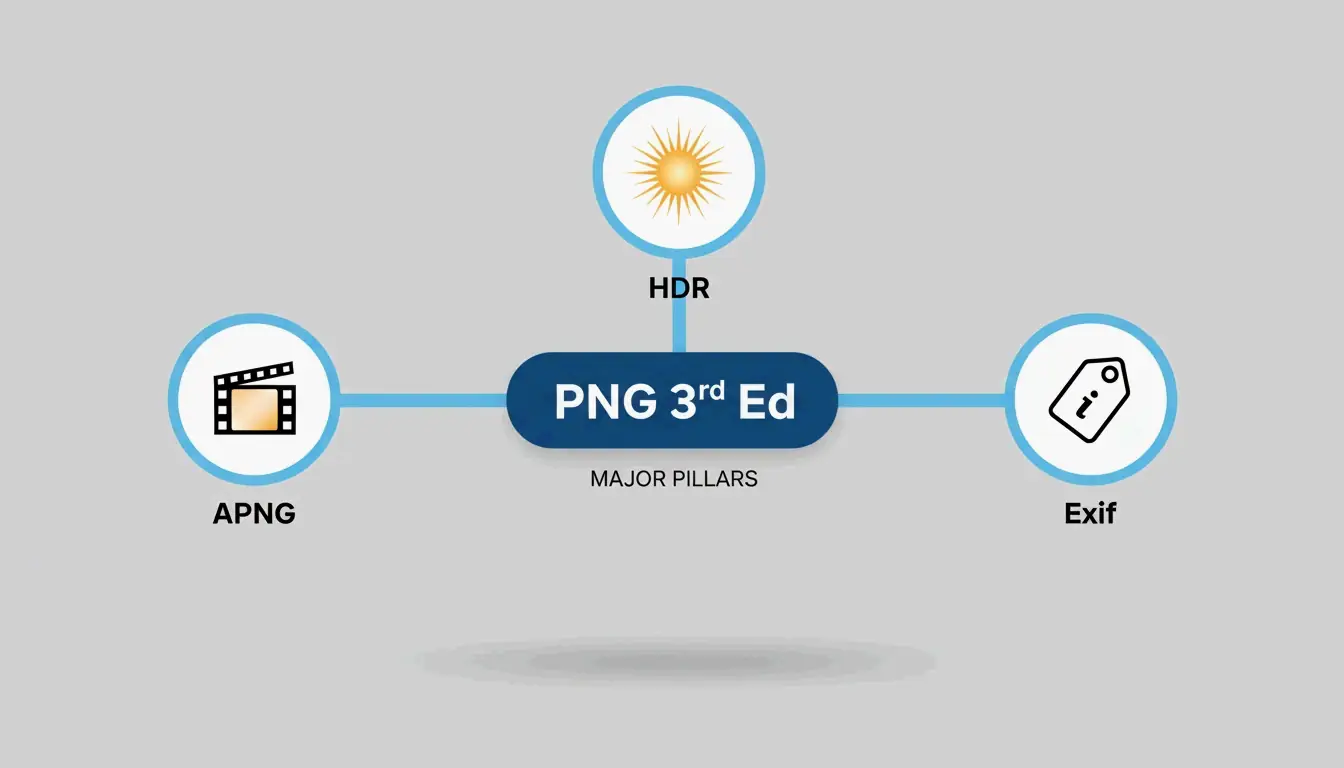
    The 2026 PNG Standard: What’s New in the W3C 3rd Edition

    As of April 2026, the PNG format has received its first major update in years. The PNG 3rd Edition, which became a W3C Recommendation on June 24, 2025, modernized the format for the contemporary web. According to Wikipedia, this update formalized popular but previously “unofficial” extensions.

    Feature Before 3rd Edition After 3rd Edition
    APNG (Animated PNG) Third-party add-on Core spec component
    HDR Support Limited Native support for modern monitors
    EXIF Metadata Unofficial handling Native support via chunk structure

    Key features of the PNG 3rd Edition update

    Why APNG Is Now a Native Standard for Web Animation

    With the 2025 W3C Recommendation, APNG has become the preferred format for high-quality transparent animations. Unlike GIF, which is limited to 256 colors and binary transparency, APNG supports full 24-bit color and smooth 8-bit alpha channels. As a native part of the PNG 3rd Edition, browsers render APNG animations more efficiently, reducing CPU overhead.

    Advanced PNG Optimization: pngquant and PNG-8 Strategy

    For professional workflows, pngquant remains the most effective tool for lossy PNG optimization. It converts 24-bit or 32-bit PNGs into significantly smaller 8-bit indexed images (PNG-8). According to Pixotter, this can shrink UI screenshots by up to 60% with negligible visual difference.

    A real-world case study from iCompressImg demonstrates the potential: a text-based logo was reduced from 156KB to 24KB — an 85% reduction in file weight.

    Feature PNG-24 (Truecolor) PNG-8 (Indexed)
    Colors 16.7 million Up to 256
    Transparency Full alpha channel Alpha or binary
    File Size Large Small (60-80% reduction)
    Best For Complex gradients Logos, icons, UI elements

    Developer Tip: Automating Compression in CI/CD Pipelines

    For scalable web projects, automated image compression prevents unoptimized assets from reaching production. The Sharp library in Node.js, powered by libvips, handles high-speed PNG processing. By integrating a compression script into your CI/CD pipeline, every PNG asset is automatically optimized and metadata-stripped before deployment.

    Should You Convert PNG to WebP for Better Performance?

    For photographic content, WebP often delivers superior results. WebP handles both lossy and lossless compression and supports transparency like PNG. According to 2026 benchmarks from Pixotter, a WebP file at 80% quality is typically 20-35% smaller than a lossy-quantized PNG at equivalent quality.

    Comparison of PNG vs. WebP for different use cases

    However, PNG remains the better choice in these scenarios:

    • Pixel art or sharp edges: PNG’s DEFLATE algorithm handles high-contrast, flat-color edges better than WebP.
    • High-fidelity source assets: If further editing is planned, keep the image as a lossless PNG to avoid generation loss.
    • Maximum compatibility: Some legacy email clients and enterprise tools still require standard PNGs.

    Conclusion

    Compressing PNGs effectively requires matching the right tool to the task. Using the 2025/2026 W3C standards and tools like pngquant, you can achieve significant page load improvements without sacrificing visual quality.

    Recommended workflow:

    1. Start with OxiPNG for lossless metadata stripping and structural optimization.
    2. If the file remains too large, apply pngquant for 8-bit quantization.
    3. For non-critical photographic content, convert to WebP for the 60-85% reduction needed for modern Core Web Vitals compliance.

    FAQ

    Does PNG compression lose image transparency?

    No. Standard lossless compression preserves the alpha channel perfectly. Even lossy tools like pngquant are designed to maintain transparency boundaries, though they may slightly reduce the number of colors within semi-transparent areas to achieve a smaller file size.

    What is the difference between lossless and lossy PNG compression?

    Lossless compression (e.g., OxiPNG, OptiPNG) optimizes the file’s internal structure and removes metadata without changing any pixels. Lossy compression (e.g., pngquant) reduces the total number of colors in the image, which significantly shrinks file size but technically alters the original pixel data.

    Can I compress a PNG to a specific file size like 100KB?

    Directly targeting a specific file size is difficult for PNG because compression efficiency depends on image complexity. However, you can approach a target size by iteratively reducing the color palette (quantization) or by resizing the image dimensions to reduce the total pixel count.

    Why is my PNG file still large after compression?

    The file may contain significant hidden metadata such as large ICC color profiles or EXIF data that some tools do not remove by default. Additionally, images with complex gradients or “noise” compress poorly with the DEFLATE algorithm because there are fewer repeating patterns to exploit.

  • How to Compress JPG Files: The 2026 Guide to Faster Loading and High Quality

    How to Compress JPG Files: The 2026 Guide to Faster Loading and High Quality

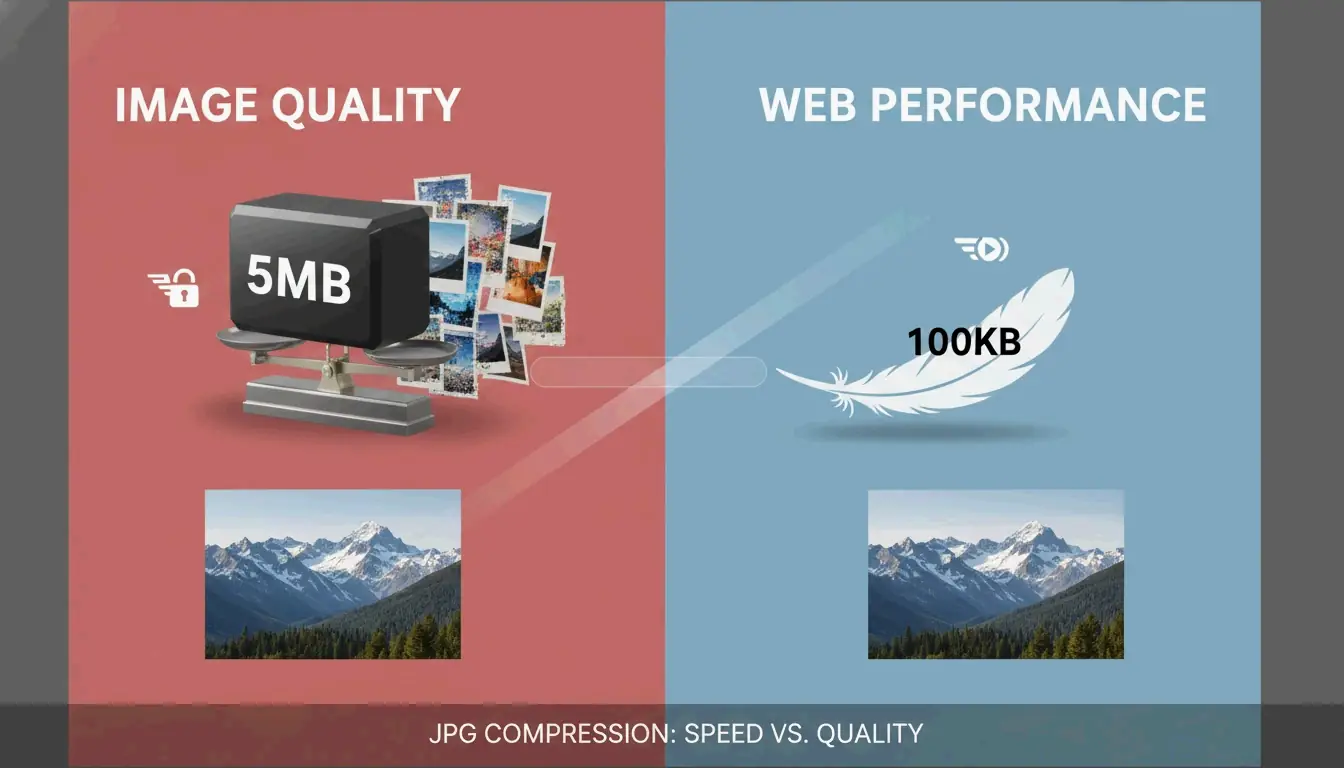
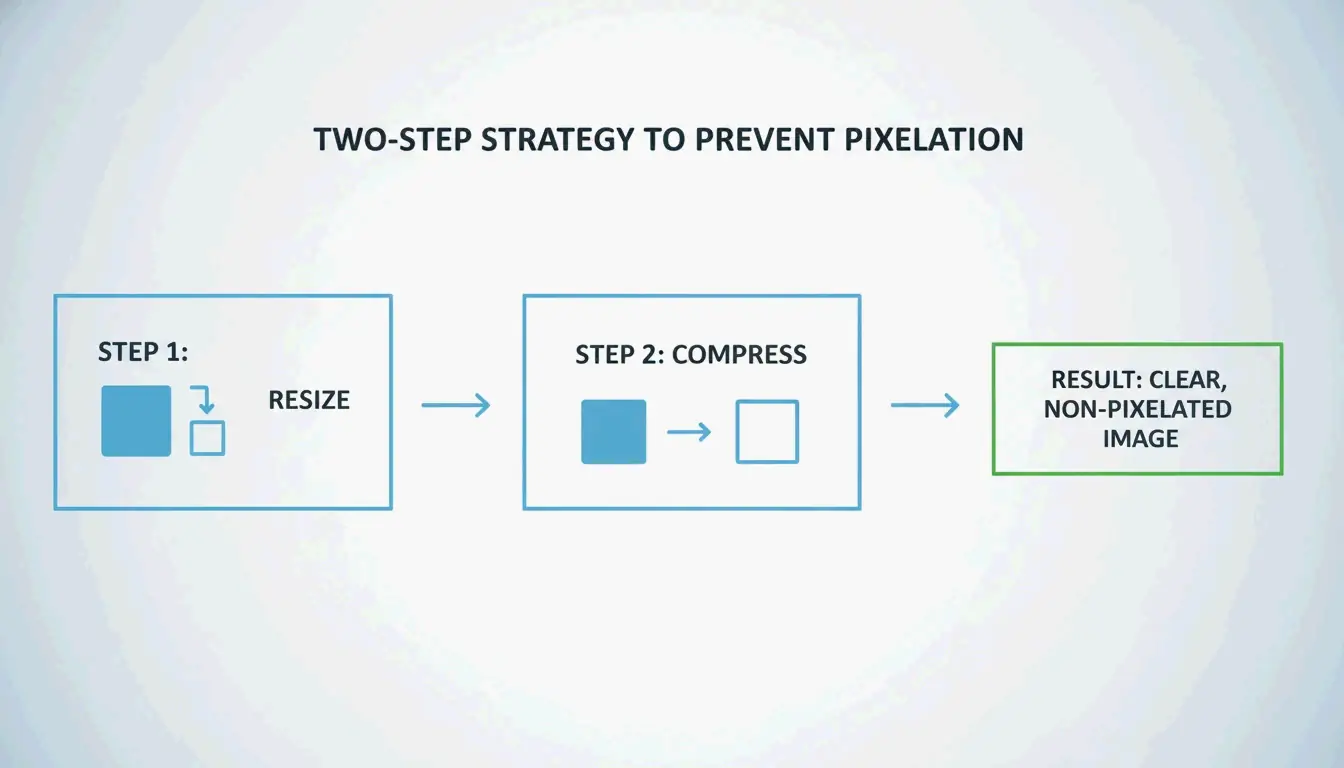
    The most effective way to compress JPG files in 2026 is a two-step approach: first resize to display dimensions, then apply lossy compression at 75-85% quality. This “double-punch” method typically reduces file sizes by 40-70% while keeping the image visually indistinguishable from the original. Online tools like TinyIMG and native apps like Mac Preview handle this efficiently for any workflow.

    The “Double-Punch” Workflow: How to Compress JPG for Maximum Results

    High-resolution photos from modern smartphones and professional cameras typically range from 5MB to 10MB. Simply hitting “compress” on these files is rarely sufficient for web optimization. To reach a target size like 100KB without introducing blur or artifacts, a two-step strategy is required.

    According to ShortPixel, forcing a 2000px wide image into a 100KB file without resizing first produces visibly pixelated results. The “Double-Punch” method solves this by addressing dimensions before data.

    The 2-step process: Resize then Compress

    Step 1: Resize to Display Dimensions

    Before compressing, set the pixel dimensions to match the actual display size on your site. Common targets:

    Use Case Recommended Width
    Blog hero images 1200px – 2000px
    Thumbnails 400px – 600px
    Profile pictures 200px – 400px

    Shrinking dimensions is the fastest way to reduce file weight.

    Step 2: Apply Lossy Compression

    Once the image is at the correct size, use lossy compression to strip unnecessary data. This process modifies the image’s underlying code to remove details invisible to the human eye. ShortPixel demonstrates that combining a resize to 1200px with smart compression can shrink a 5MB photo to under 100KB — a 98% reduction — while maintaining crispness.

    Finding the Sweet Spot: The 75-85% Quality Rule

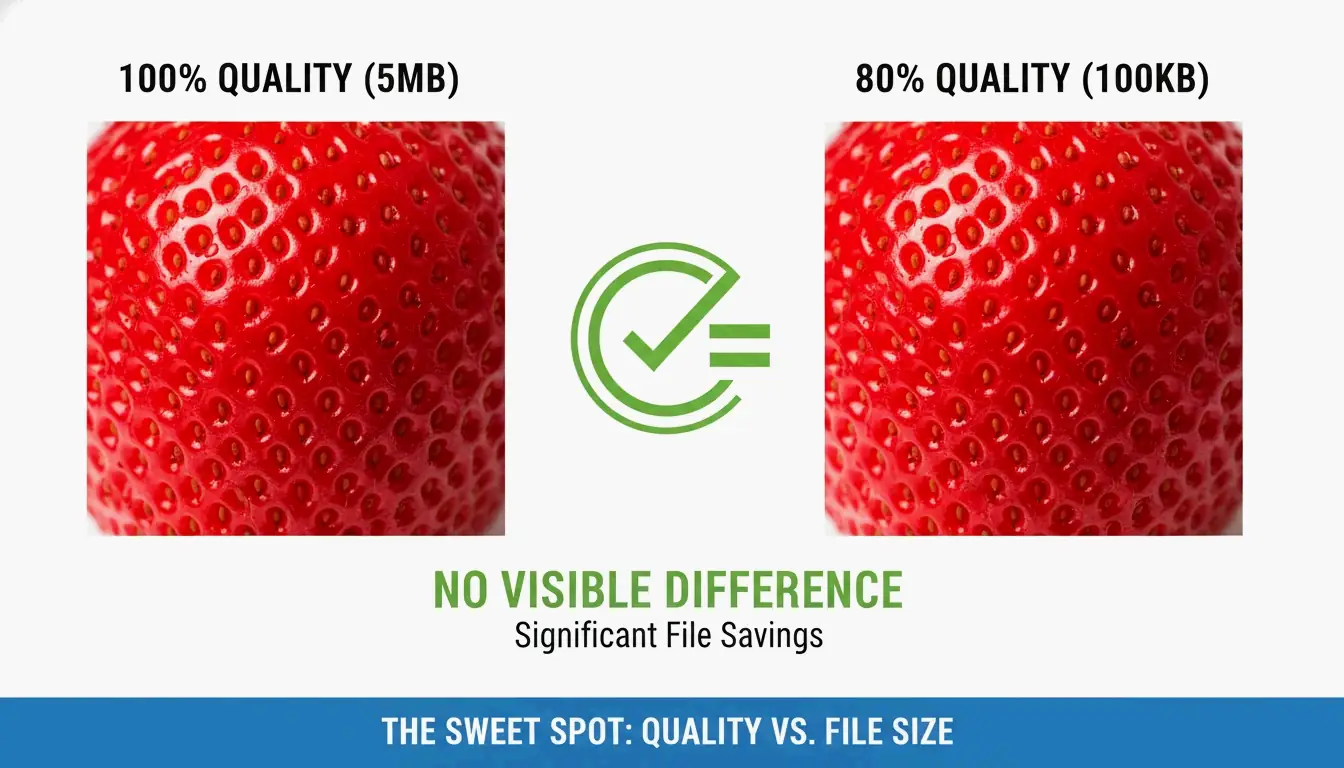
    Technical guides from GWAA identify the 75-85% quality range as the professional “sweet spot.” Within this range, file savings reach 40-70% with no perceptible difference from the original in side-by-side comparison.

    Side-by-side comparison of 100% vs. 80% quality

    Best Tools to Compress JPG Online: Comparing the Options

    The right tool depends on your priorities: privacy, speed, or batch capacity.

    Tool Processing Location Best For Privacy Level
    TinyIMG Server-side Bulk SEO optimization for Shopify/e-commerce Server-processed, then deleted
    TinyJPG Server-side Quick single-image compression Server-processed, then deleted
    CodeItBro Browser-side (HTML5 Canvas) Privacy-sensitive images Files never leave your device
    FreeToolio Browser-side (HTML5 Canvas) Local-only processing Files never leave your device
    Adobe Express Server-side Manual single-image control Standard cloud policy
    GWAA Server-side Quick web compression Secure servers, auto-delete

    GWAA processes images on secure servers and deletes them after processing. For maximum privacy, browser-side tools like CodeItBro and FreeToolio use HTML5 Canvas to compress images directly on your device.

    How to Compress JPG on Windows and Mac (No Software Needed)

    Both major operating systems include built-in compression tools that require no additional software.

    Windows Photos App

    1. Open your JPG in the Windows Photos app.
    2. Click the three-dot menu and select Resize image.
    3. Adjust the Quality slider to reduce file size.
    4. Save the new version. Windows Paint also offers percentage-based and pixel-based resizing via the “Resize” button.

    Mac Preview

    1. Open the image in Mac Preview.
    2. Navigate to Tools > Adjust Size to change dimensions.
    3. Go to File > Export to access compression options.
    4. Move the Quality slider to see the predicted file size update in real-time.

    Stripping EXIF Metadata

    A significant portion of a JPG’s file size comes from EXIF metadata — hidden information including camera settings, GPS location, and timestamps. Tools like ImageOptim for Mac or the settings within ShortPixel strip this data, saving additional kilobytes without modifying a single pixel of the actual image.

    Beyond JPEG: Should You Use WebP or AVIF in 2026?

    JPG remains the universal standard, but newer formats deliver substantially better efficiency for modern web applications.

    Format Size vs. JPEG Key Features Browser Support (2026)
    AVIF 50-60% smaller HDR support, transparency ~93%
    WebP 25-34% smaller Wide compatibility, transparency ~97%
    JPEG Baseline Universal compatibility 100%

    According to Graviton (2026), AVIF is currently the most efficient format available. WebP offers a balance of compression and compatibility, with roughly 25-34% smaller sizes than JPEG based on Google Developers research cited by TinyIMG.

    Switching to these formats directly improves Core Web Vitals, specifically the Largest Contentful Paint (LCP) score. For full compatibility in 2026, developers use the picture element to serve AVIF to modern browsers with a JPG fallback.

    Comparison of JPG vs. WebP vs. AVIF file efficiency

    The Science of Lossy Compression and Generation Loss

    Understanding compression mechanics leads to better results. JPEG uses the Discrete Cosine Transform (DCT) process, which breaks image data into frequency components. The “lossy” operation occurs during quantization, where the algorithm discards high-frequency details that human vision cannot easily detect. GWAA notes that your quality setting (1-100) directly controls these quantization tables.

    Critical warning: Avoid recompressing already-compressed files. This causes Generation Loss — a compounding degradation where each save cycle adds new blurry artifacts and muddy textures. Always start from your original, uncompressed source file.

    Conclusion

    Mastering JPG compression in 2026 requires balancing dimensions with modern lossy algorithms. By maintaining the 75-85% quality range, resizing for your specific display requirements, and stripping hidden EXIF metadata, you can achieve fast-loading pages without sacrificing visual quality.

    Recommended workflow: Resize first, then use a tool like TinyIMG or ShortPixel for final compression and format conversion before uploading.

    FAQ

    Is 50 KB considered a small image file size for web use?

    Yes, 50 KB is an excellent target for standard blog images, thumbnails, or UI elements. Hero images can safely range between 150-200 KB. Keeping smaller assets at 50 KB ensures rapid loading and optimal Core Web Vitals performance for mobile users.

    Does compressing a JPG file multiple times destroy image quality?

    Yes. This phenomenon is known as “Generation Loss.” Because JPEG uses lossy compression, each save cycle causes the Discrete Cosine Transform (DCT) algorithm to discard additional data. Repeatedly compressing the same file will eventually produce visible artifacts, blurring, and color distortion.

    Can I compress a 5MB high-resolution photo to under 100KB without it looking blurry?

    Yes, but only if you resize the dimensions first. A 4000px image forced into a 100KB limit will appear extremely blurry due to aggressive data stripping. If you first resize to 1200px wide, a 100KB export will remain crisp and clear for web viewing.

  • How to Compress HEIC Files Without Losing Quality (2026 Guide)

    How to Compress HEIC Files Without Losing Quality (2026 Guide)

    To compress HEIC files in 2026, set the quality slider to 80–85% — the sweet spot that typically cuts file sizes by 40–50% with no visible quality loss. Use browser-based tools like ConvertMinify that process images locally via WebAssembly, keeping your photos private. For broader compatibility, convert to WebP or the resurgent JPEG XL, which is approximately 20% more efficient than standard JPEG.

    The 80–85% Sweet Spot: Why It Works

    HEIC has been Apple’s default since iOS 11 (2017) and is roughly 50% more efficient than JPEG — storing twice the photos in the same space, according to ConvertMinify. But as phone cameras push past 48MP, even HEIC files balloon to 5–8MB.

    Quality Setting File Size Reduction Visual Impact
    90–100% Minimal (10–20%) No visible difference
    80–85% 40–50% Indistinguishable to the naked eye
    60–79% 50–70% Slight softening in fine details
    Below 60% 70%+ Visible artifacts

    Data from ConvertMinify confirms that the 80–85% range consistently halves file size while preserving visual fidelity.

    A simple comparison showing the 80-85% quality "Sweet Spot" balance

    Step-by-Step: Compress HEIC Locally in Your Browser

    1. Pick a local toolConvertMinify or FreeToolio process everything in-browser via WebAssembly; your files never leave your device
    2. Upload — Drag HEIC files into the tool; it shows current dimensions and size
    3. Set quality to 80–85% — Optionally resize (2048px width is a common social media standard)
    4. Strip EXIF metadata — Saves an additional 50–100KB per photo and removes GPS coordinates
    5. Download — Save optimized files locally

    HEVC (H.265) and 10-Bit Color: The Technical Edge

    HEIC’s performance comes from the HEVC (H.265) video codec, which uses spatial prediction and flexible block sizes to organize image data far more efficiently than JPEG.

    Property HEIC JPEG
    Color depth 10-bit (1 billion+ colors) 8-bit (16.7 million colors)
    Typical iPhone 15 Pro 48MP 5–8 MB 12–20 MB
    Efficiency vs. JPEG ~50% smaller Baseline

    When compressing or converting HEIC to an 8-bit format, you lose those smooth gradients captured by high-end sensors. To preserve them, use tools that support high-depth output or choose JPEG XL as your target format.

    Format Comparison: HEIC vs. WebP vs. AVIF vs. JPEG XL

    Format Compression Efficiency Transparency Browser Support (2026) Best For
    HEIC 50% smaller than JPEG No Limited (native on Apple) iPhone photo storage
    WebP 25–34% smaller than JPEG Yes 97%+ General web images
    AVIF ~50% smaller than JPEG Yes 92%+ Maximum compression
    JPEG XL ~20% better than HEIC Yes Chromium v145+ High-quality archives, HDR
    JPEG Baseline No Universal Maximum compatibility

    The 2026 story is JPEG XL’s comeback. Added to Chromium v145 in late 2025, it outperforms HEIC, AVIF, and WebP in both speed and quality — making it the new gold standard for archives.

    Compatibility Warning

    HEIC caused real problems when the College Board rejected HEIC uploads from iPhones during AP exam submissions. Converting to a web-standard format is often a necessary step.

    Optimal Dimensions for Common Use Cases

    Use Case Recommended Dimensions Target File Size
    Instagram Post 1080 × 1350 px 200–500 KB
    Website Hero 1920 × 1080 px 300–800 KB
    Email Attachment 1600 × 1200 px 200–600 KB
    Full Archive Original resolution 1.5–3.0 MB

    Windows and Android: Solving HEIC Compatibility

    Windows often shows blank icons for HEIC files. The fix:

    1. Install HEIF Image Extensions (free, from Microsoft Store)
    2. Install HEVC Video Extensions (may require a small licensing fee)

    For batch processing, tools like Zipic (Mac) or browser-based batch converters handle hundreds of files at once.

    To stop using HEIC on iPhone: Settings → Camera → Formats → “Most Compatible” forces all new photos to save as JPEG.

    A simple 3-step path to change iPhone camera format settings

    Conclusion

    Compressing HEIC at 80–85% quality cuts files by 40–50% with no visible loss. Use privacy-first browser tools that process locally. For web use, convert to WebP or JPEG XL for maximum efficiency. On Windows, install the HEIF extensions or use free third-party viewers. Always strip EXIF data before sharing publicly.

    FAQ

    Does compressing HEIC to JPEG result in quality loss?

    Yes — it is a lossy-to-lossy conversion. You lose 10-bit color depth and may introduce compression artifacts. ConvertIMG recommends keeping JPEG quality at 80% or higher during conversion to minimize visible degradation.

    How can I strip GPS metadata from HEIC files?

    Use compression tools with “EXIF-stripping” or “Metadata removal” toggles. This saves 50–100KB per file. ConvertMinify considers this essential for privacy when sharing photos on social media or public forums.

    Why does Windows require a paid extension for HEIC?

    The HEVC (H.265) codec has licensing fees. Microsoft provides HEIF Image Extensions for free, but the HEVC decoder is often a paid add-on. iformat.io recommends free alternatives like VLC or browser-based compressors to avoid these fees.