Need a QR code? You’re closer than you think. Open a free generator like QR Code Generator or Adobe Express, paste your link, tweak the design if you want, and download it as a PNG or SVG. In 2026, you can even create one straight from Chrome or Safari’s built-in Share menu — no extra tools required.
Whether you’re putting a QR code on a business card, a restaurant menu, or a conference banner, this guide walks through every method, helps you pick the right type (static vs. dynamic), and shows you how to make sure it actually scans every time.
The Fastest Way to Make a QR Code (Step-by-Step)
Creating a QR code has become a basic digital skill. According to Wikipedia, 89 million US users scanned a QR code in 2022 — a 26% increase from 2020 — mostly to open digital menus or make payments.
Method 1: Online Generators (Best for Customization)
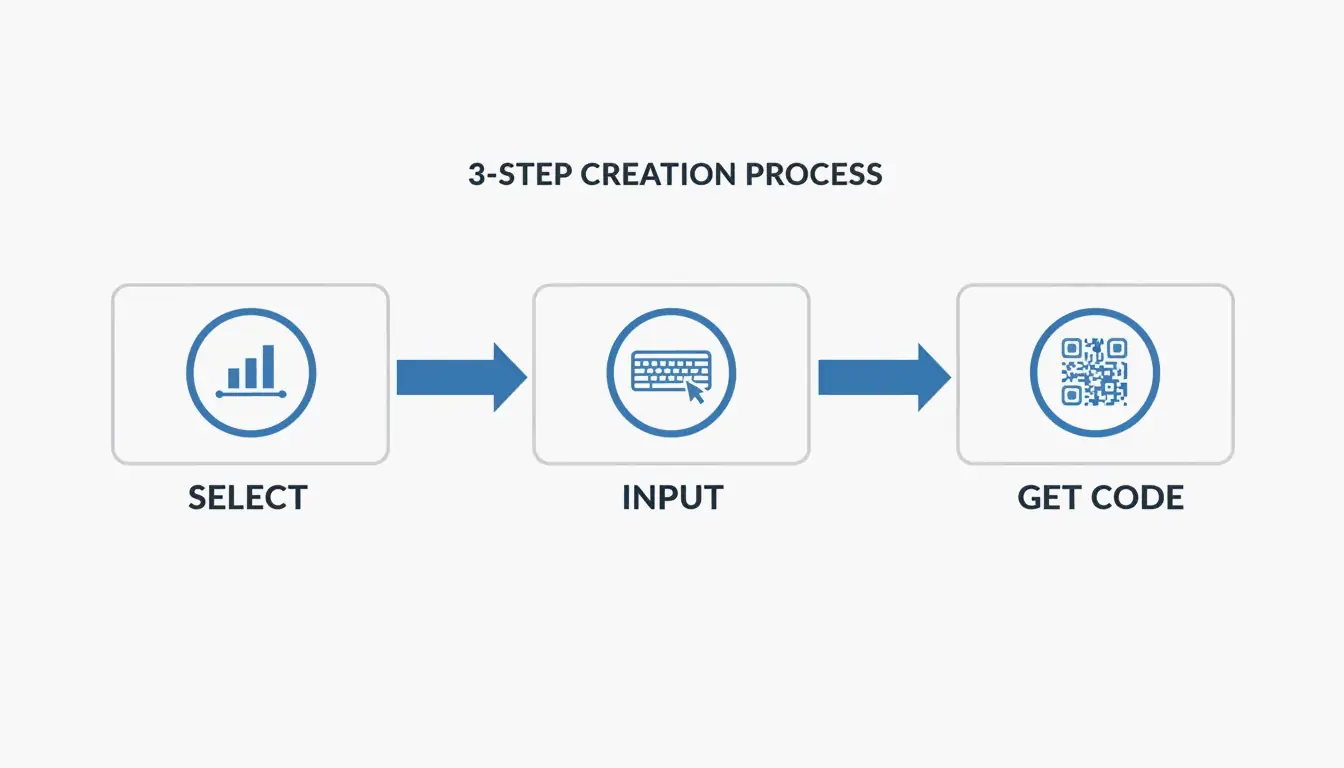
Online tools give you the most control over branding, format, and image quality. According to QR Code Generator, the standard workflow is three steps:
- Select the data type — Choose what you want to share: a URL, vCard (contact info), plain text, or WiFi credentials.
- Enter your information — Paste your link or type your text. If your URL is very long, Freetool24 recommends using a URL shortener first. Shorter URLs produce simpler patterns that are easier for older phones to scan.
- Customize and download — Adjust colors, add a frame, or choose your format. Use PNG for digital use (emails, social media) and SVG for anything that will be printed — vector files stay sharp at any size.
Pro tip: Always test the scan on your screen before you finalize. If it takes more than two seconds to register, try increasing the contrast or simplifying the design.
Method 2: Built-in Browser Tools (Chrome & Safari)
If you just need a quick code for a webpage, your browser already has this built in:
- Chrome (Desktop): Go to the page → three-dot menu → “Cast, Save, and Share” → “Create QR Code.”
- Chrome / Safari (Mobile): Tap the Share icon in the address bar → “Create a QR Code.”
This is the fastest option for instant sharing, though customization is limited to the standard black-and-white pattern (plus the occasional Chrome dinosaur logo).
Static vs. Dynamic QR Codes: Which Should You Choose?
This is the most important decision for any QR code you plan to use long-term.
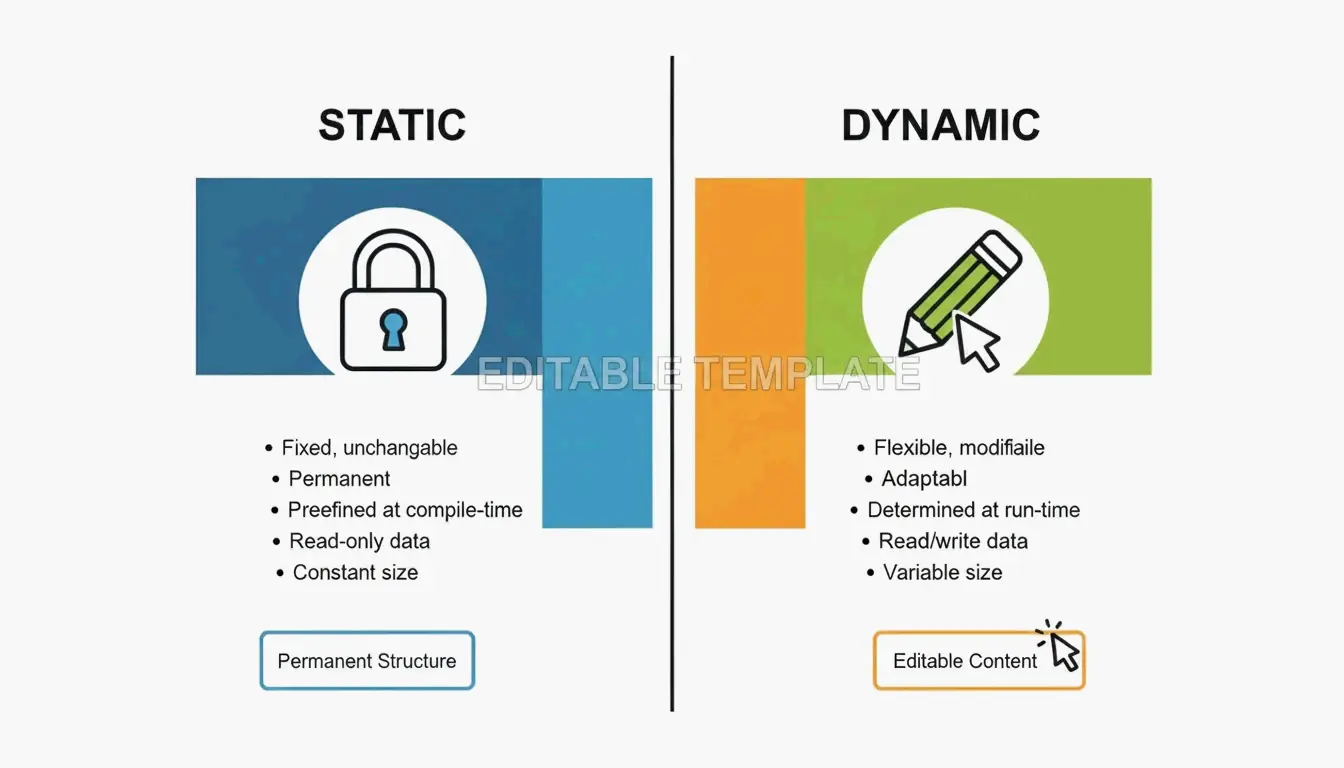
| Feature | Static QR Code | Dynamic QR Code |
|---|---|---|
| Data storage | Baked directly into the pattern | Uses a redirect short link |
| Can change the URL later? | No — permanent once printed | Yes — update anytime |
| Expires? | Never | Only if subscription ends |
| Scan analytics | Not available | Location, time, device type |
| Cost | Free | Typically requires paid plan |
According to QR Code AI, custom-branded codes can produce a +30% marketing engagement lift over plain black-and-white designs. That said, be aware of “quishing” (QR phishing). By 2026, security best practices recommend using dynamic links from reputable providers that offer encrypted, GDPR-compliant redirection to prevent malicious link swaps.
Optimizing for Scannability: The 10:1 Rule and Error Correction
A QR code that looks great but doesn’t scan is wasted space. Most scanning failures come down to two things: size and error correction.
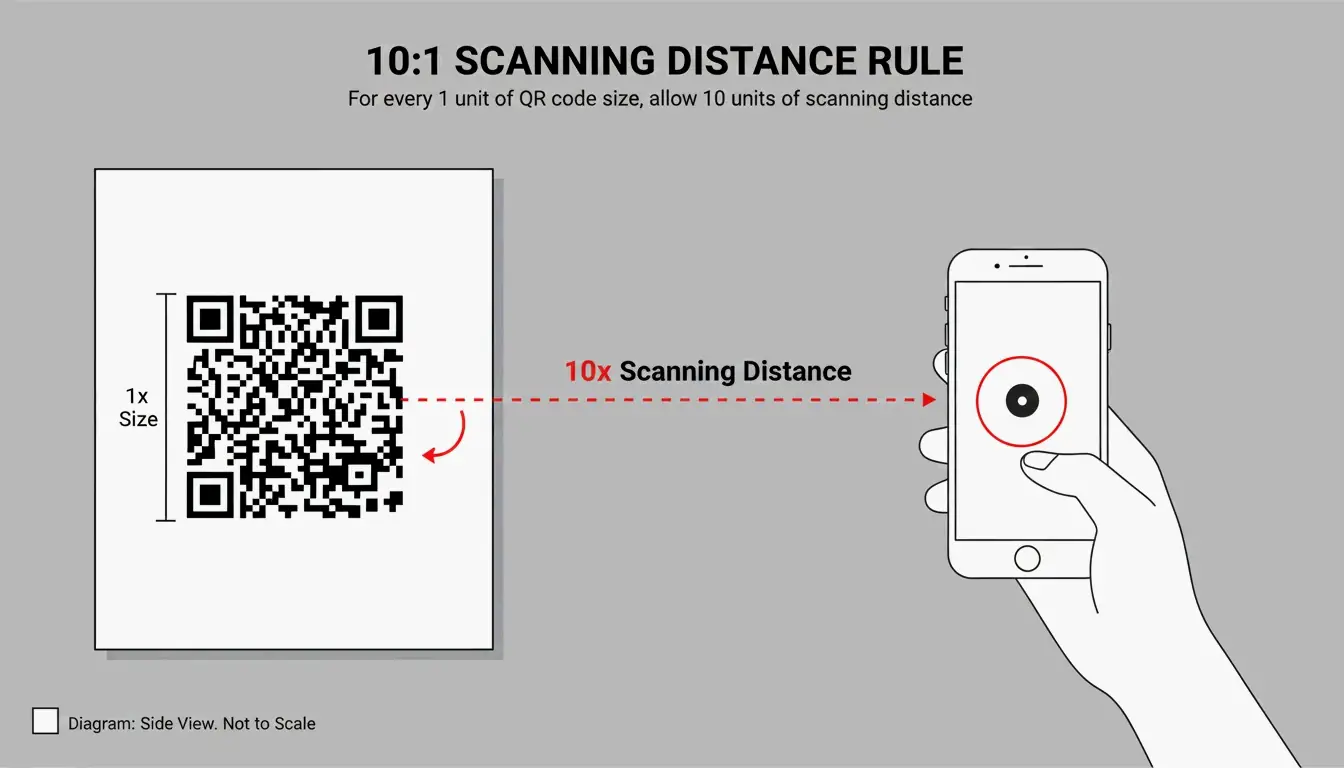
The 10:1 Distance Rule
Your QR code’s physical size should be about 1/10th of the expected scanning distance:
| Use Case | Scanning Distance | Minimum QR Code Size |
|---|---|---|
| Business card | ~20 cm | 2 × 2 cm |
| Table tent / menu | ~50 cm | 5 × 5 cm |
| Poster on a wall | ~1 meter | 10 × 10 cm |
| Billboard | ~5 meters | 50 × 50 cm |
Error Correction Levels (L, M, Q, H)
QR codes use Reed-Solomon error correction, which acts as a built-in backup system. The code remains scannable even when partially damaged or covered.
| Level | Damage Tolerance | Best For |
|---|---|---|
| L | 7% | Digital screens — always clear, no damage risk |
| M | 15% | General marketing materials (default choice) |
| Q | 25% | Adding a small logo in the center of the code |
| H | 30% | Heavy customization, outdoor signage, harsh environments |
If you’re adding a logo overlay, use Level Q or H to compensate for the data area you’re covering.
Advanced Use Cases: vCards, WiFi, and Design Integration
QR codes aren’t limited to URLs — they can trigger specific actions on a smartphone:
vCard / Digital Business Card
Instead of a link, encode your name, phone, and email. When scanned, the phone prompts “Add to Contacts.” SkyToolz recommends the vCard 3.0 format for the best cross-platform compatibility between iPhones and Androids.
WiFi Credentials
Let guests join your network without typing a password. Use this format:
WIFI:S:NetworkName;T:WPA;P:Password;;
Scan it and the phone connects automatically.
Design Integration
Tools like Canva and Adobe Express now let you generate QR codes directly inside your design project. This makes it easy to match the code’s colors to your brand while keeping the Quiet Zone (the required white border) intact.
The global reach of QR technology is remarkable — Wikipedia notes that China had an 83% QR payment adoption rate as far back as 2018.
Conclusion
Making a QR code comes down to three steps: choose your data, generate the pattern, and download the file. The key decisions are:
- Static vs. Dynamic — Use static for simple, permanent links; use dynamic if you need to track scans or update the URL later.
- PNG vs. SVG — PNG for digital, SVG for print.
- Size it right — Follow the 10:1 distance rule and test before you print.
With the right generator and a basic understanding of error correction, anyone can create a professional, reliable QR code in under a minute.
FAQ
Do QR codes expire?
Static QR codes never expire — the data is hardcoded into the pattern. They’ll work as long as the destination (your website) stays online. Dynamic QR codes may stop working if your subscription to the generator service ends or if the provider deletes the redirect link from their database.
Why is my QR code not scanning?
The most common culprits: low contrast (light-colored code on a light background), the code being too small for the scanning distance, or a missing Quiet Zone (the white border around the code). For print, always use SVG files — pixelation from raster images is a leading cause of scan failures.
Can I track QR code scans for free?
Most free generators only track scans for dynamic codes, which typically require a paid plan. A practical workaround for static codes: use a free URL shortener with built-in analytics (like Bitly) as your destination link. You won’t track the QR scan itself, but you’ll see every click that came through it.
Leave a Reply