A QR code on a flyer, business card, or storefront window is a direct bridge from the physical world to your website. In 2026, the process is straightforward: copy your URL, paste it into a generator like Bitly or Adobe Express, customize the look, and download an SVG for print.
But doing it well — with proper tracking, brand consistency, and security — takes a bit more thought. This guide walks through the full process: from preparing your URL and choosing between static and dynamic codes, to preventing quishing attacks and getting the print size right.
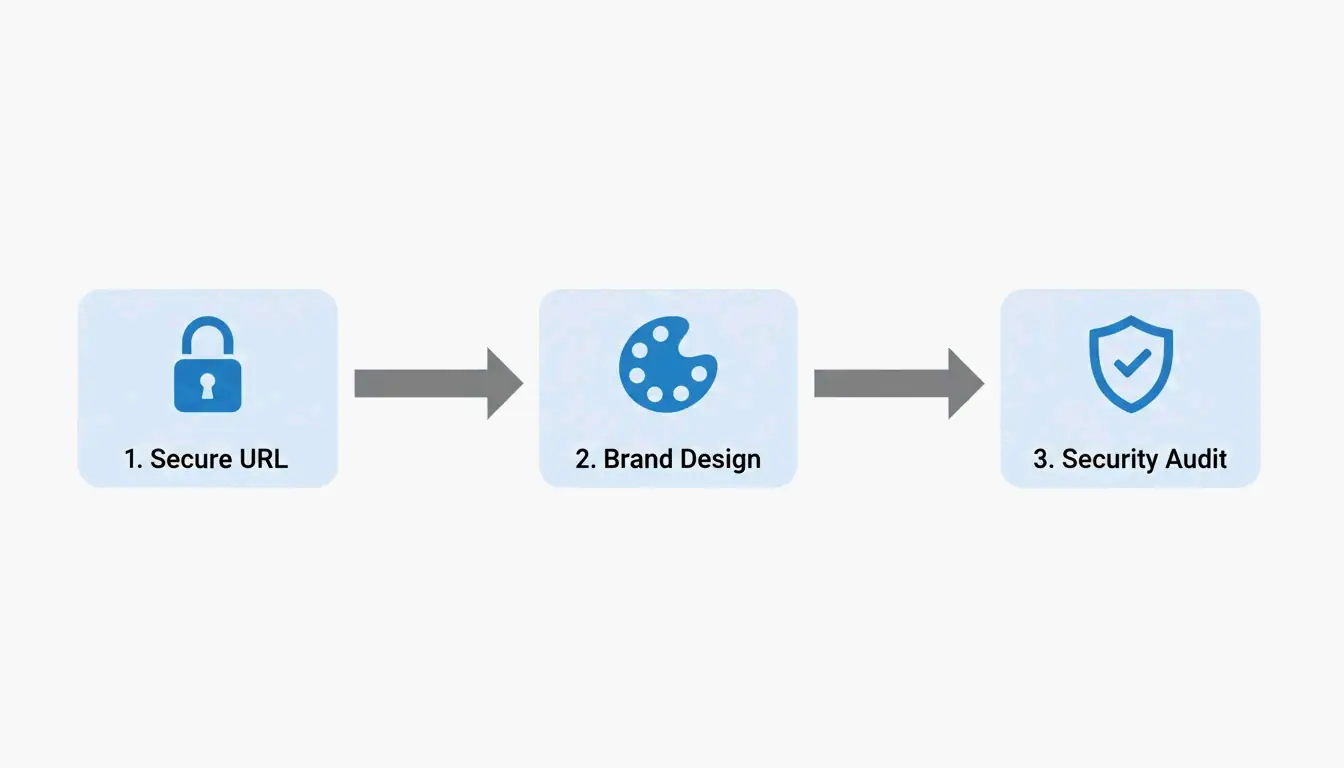
The 2026 Framework: 4 Steps to a Professional Website QR Code
Data from QR Code AI 2026 shows that custom-branded QR codes get up to 30% more scans than plain black-and-white ones. Here’s how to get there.
Step 1: URL Preparation and UTM Tagging
Before you generate anything, prepare your destination URL:
- Use HTTPS — Always. An HTTP link will trigger browser security warnings that scare users away.
- Add UTM parameters — Append tags like
?utm_source=flyer&utm_campaign=spring_saleto track exactly which QR code drove the traffic in Google Analytics. - Shorten long URLs — For static codes, a shorter URL produces a simpler, faster-scanning pattern. Use a URL shortener before generating the code.
Step 2: Customize for Brand Identity
Modern generators (Canva, Bitly, Adobe Express) go well beyond the basic black-and-white grid. You can:
- Add your brand colors to the foreground modules
- Place a logo in the center of the code
- Include a Call to Action frame like “Scan to Order” or “Scan for Menu”
- Use AI-powered tools to blend the QR pattern with artistic brand imagery
The key is making the code feel like part of your design, not an afterthought bolted onto the corner.
Step 3: Pre-Print Security Audit
Don’t send anything to print until you’ve verified:
- The destination URL is live and loading correctly
- Any redirects are functioning as expected
- The code is not vulnerable to quishing (QR phishing — where scammers swap your code for a malicious one)
- The exported file is SVG format, which stays sharp at any print size
Step 4: Choose Your Format (Static or Dynamic)
This decision shapes everything else — see the detailed comparison below.
Static vs. Dynamic QR Codes: Which Should You Choose?
As the DoItQR Industry Guide puts it, “A URL is invisible on a printed surface” — which is why the flexibility of your format matters so much.
| Feature | Static QR Code | Dynamic QR Code |
|---|---|---|
| Data storage | Baked into the pattern | Uses a redirect link |
| Change URL after printing? | No — permanent | Yes — anytime |
| Scan tracking | Not available | Time, location, device |
| Pattern complexity | Depends on URL length | Always clean (short redirect) |
| Cost | Free | Typically paid plan |
| Best for | Permanent links (“About Us” page) | Campaigns, menus, promotions |
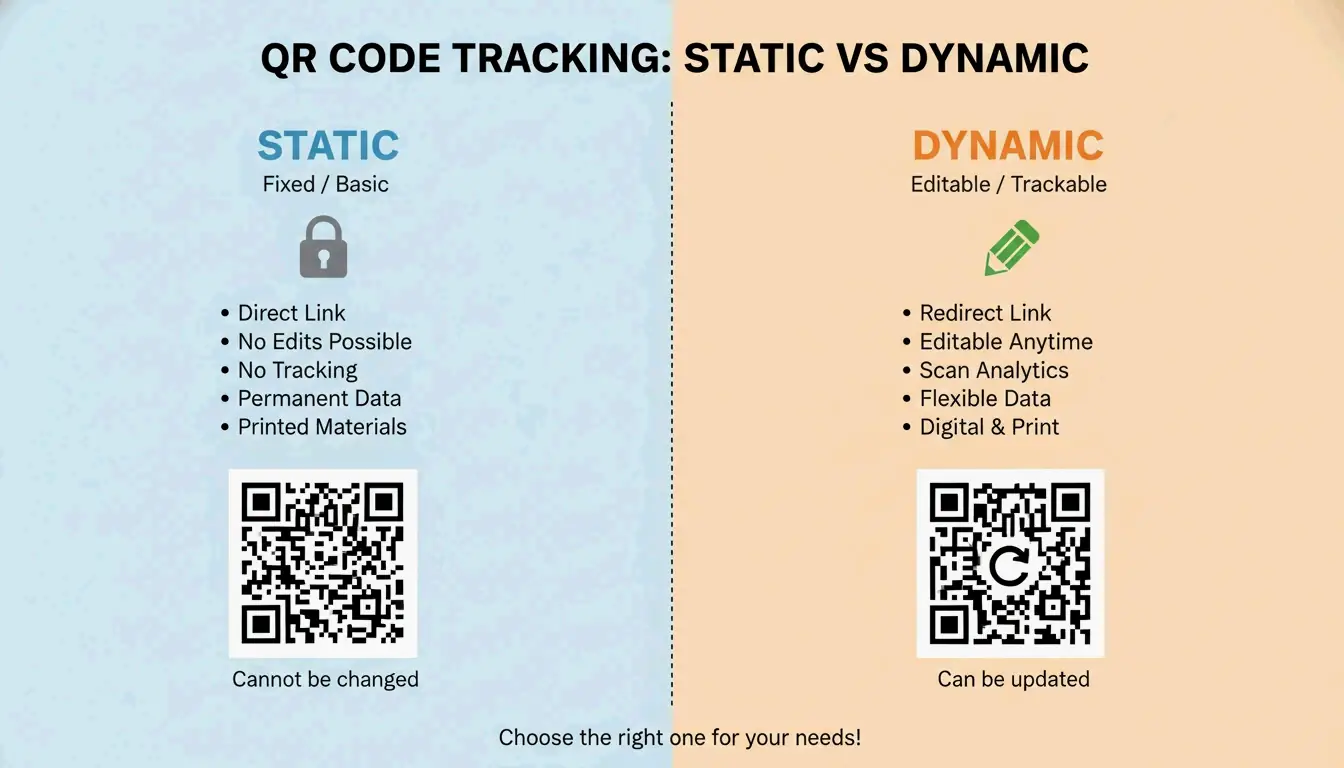
In 2026, most professional creators default to dynamic codes for the flexibility and analytics — unless the use case is truly permanent and doesn’t need tracking.
Advanced Design: Error Correction, Logos, and the Quiet Zone
Good QR code design is a balance between looking great and actually scanning. Statista reported nearly 100 million US users scanning codes by 2025 — your design needs to work on every device.
Error Correction and Logo Placement
QR codes use Reed-Solomon error correction, which allows the code to remain readable even when partially covered or damaged — up to 30% in the highest setting.
| Level | Tolerance | When to Use |
|---|---|---|
| L | 7% | Digital screens only |
| M | 15% | Standard marketing (default) |
| Q | 25% | Small logo in center |
| H | 30% | Logo overlay or heavy customization |
If you’re placing a logo in the center, you must use Level H to ensure scanners can still read the data hidden behind the logo.
The Quiet Zone and Sizing Rules
Two physical requirements that trip people up:
- Quiet Zone — Every QR code needs a blank white border on all sides (at least 4 module widths). Without it, scanners can’t find the code’s edges.
- The 10:1 distance rule — The code’s size should be roughly 1/10th of the scanning distance.
| Use Case | Scanning Distance | Minimum Code Size |
|---|---|---|
| Business card | ~8 in (20 cm) | 0.8 × 0.8 in (2 × 2 cm) |
| Table tent | ~20 in (50 cm) | 2 × 2 in (5 × 5 cm) |
| Poster | ~40 in (1 m) | 4 × 4 in (10 × 10 cm) |
Never go smaller than 0.8 × 0.8 inches (2 × 2 cm) on a business card — anything smaller and older phone cameras will struggle.
2026 Security: Preventing Quishing (QR Phishing)
With the global QR market projected to hit $33 billion by 2030 (DoItQR), security is no longer optional. Quishing — QR phishing — happens when fraudsters replace legitimate codes with malicious ones that steal data or install malware.
Three rules for 2026:
- Enforce HTTPS everywhere — Never link to an unencrypted (HTTP) page.
- Use preview-capable generators — Tools that show a safety preview or diagnostic report before the user reaches the destination add a trust layer.
- Automate with controlled platforms — For bulk projects, use tools like Zapier to generate unique, trackable codes in a controlled environment rather than creating them manually across multiple services.
Conclusion
Making a QR code for a website is simple. Making one that’s professional, trackable, and secure takes a bit more work — but it’s worth it. Follow the four-step framework:
- Prepare your URL — HTTPS + UTM tags + shorten if needed
- Customize the design — Brand colors, logo, CTA frame
- Audit security — Verify the link, check for quishing risks
- Pick the right format — Dynamic for campaigns, static for permanent links
Start with a dynamic QR code, set error correction to Level H if you’re adding a logo, and always test on multiple phones before printing.
FAQ
Do QR codes for websites ever expire?
Static QR codes never expire — the data is hardcoded into the pattern. They only become useless if the destination URL is deleted. Dynamic QR codes don’t technically expire either, but the redirect will stop working if your subscription to the generator service ends.
Can I change the destination URL after printing?
Only with dynamic QR codes. Static codes embed the URL directly into the pixel pattern — if the URL changes, you need to generate and reprint a completely new code.
Why is my QR code not scanning correctly?
The usual culprits: low contrast between code and background, a missing Quiet Zone (white border), or — for static codes — a URL that’s too long, making the pattern too dense for older phone cameras to resolve.
Is it possible to track website QR scans for free?
Yes — add UTM parameters to your URL and monitor the traffic in Google Analytics. While some free generators offer basic scan counts, detailed analytics (device type, location, time) typically require a premium dynamic plan.
Leave a Reply