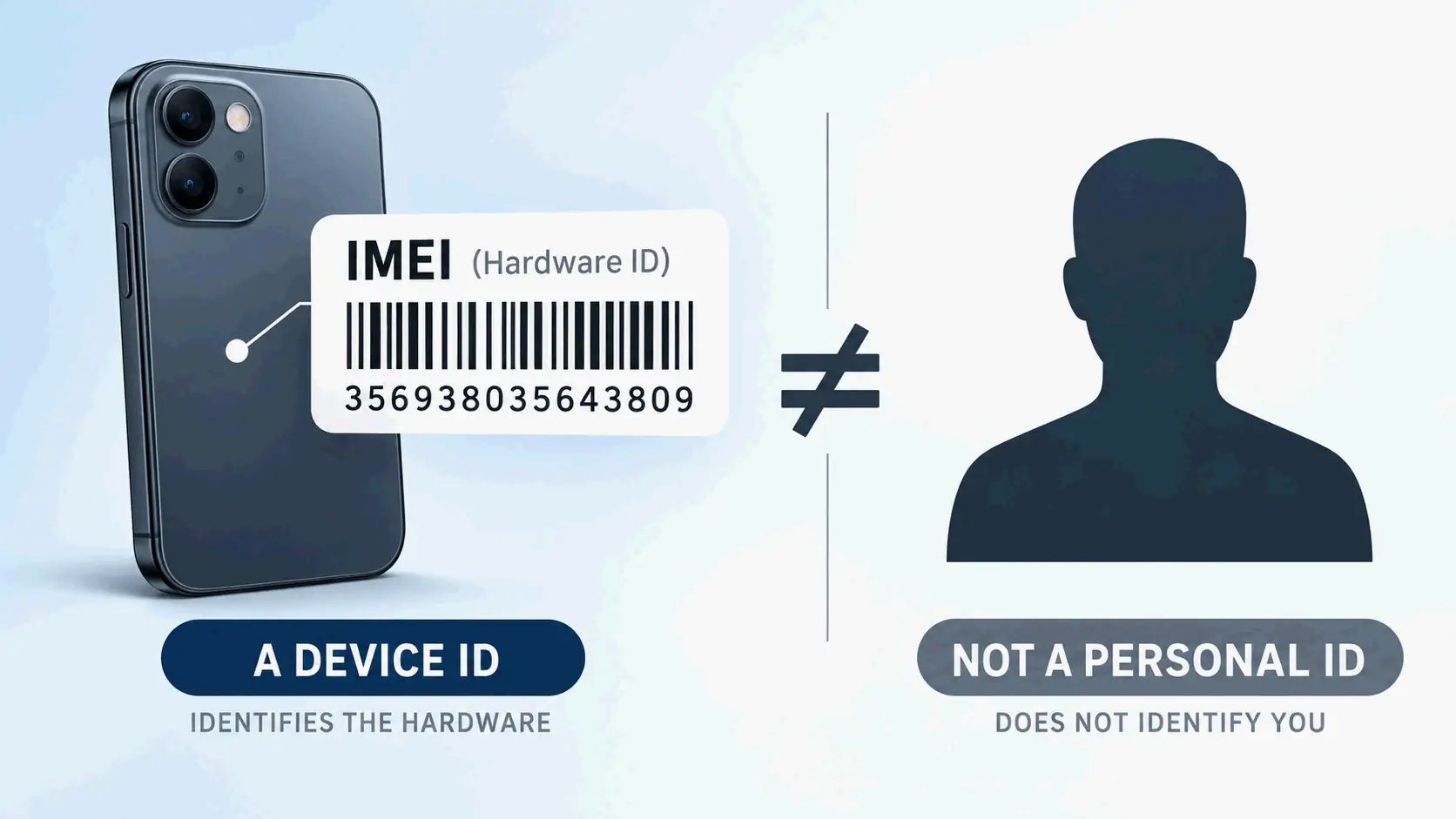
An IMEI (International Mobile Equipment Identity) is a 15-digit number that identifies a specific cellular device — not its owner and not its phone number. Networks use it to authorize hardware, and U.S. carriers can blocklist a stolen IMEI. To find yours, dial *#06# or check your Settings.
What Is an IMEI Number?
IMEI stands for International Mobile Equipment Identity. It’s a numeric identifier, usually unique, assigned to 3GPP and iDEN mobile phones, and it also appears on some satellite phones (Wikipedia). A standard IMEI has 15 digits. The numbering space is managed under rules published by the GSMA, the industry association that defines how IMEI ranges are allocated to device makers.
The identifier is tied to the hardware, not to an account. Swapping a SIM card, switching carriers, changing your phone number, or performing a factory reset does not produce a new IMEI. Only replacing the device itself gets you a different one.
Almost anything that connects to a cellular network carries an IMEI: smartphones, cellular tablets, cellular smartwatches, some laptop cellular modules, and satellite terminals. The Broadband Global Area Network (BGAN), Iridium, and Thuraya satellite networks all use IMEIs on their transceiver units, and the Iridium 9601 modem relies solely on its IMEI for identification with no SIM card at all (Wikipedia).
A GSM network reads the IMEI when a device first attaches. It uses that number to decide whether the specific piece of hardware is allowed to access the network. A phone reports the number when the network asks for it, and operators may request it to check whether a device is damaged, reported stolen, or associated with fraud or faults (Phone Scoop).
What an IMEI does not contain: no name, no address, no billing details, no phone number. That absence is exactly what separates it from the identifiers most people confuse it with.
What Does an IMEI Number Identify — the Device or Its Owner?
It identifies the device — and only the device. An IMEI does not point to a person, an account, or a phone number. It identifies the physical radio hardware.
That distinction matters because several different identifiers can appear on the same phone at the same time. Each one answers a different question.
| Identifier | What it identifies | Where it lives | Does it change? |
|---|---|---|---|
| IMEI | The cellular device | In the device firmware/hardware | No — survives SIM swaps, carrier changes, and factory resets |
| IMSI | The subscriber | On the SIM card or eSIM profile | Yes — it belongs to the SIM, not the phone |
| Phone number (MSISDN) | The subscription line | Carrier network and account records | Yes — it changes with a new line or a port |
| SIM card | The subscription module itself | Physical SIM or eSIM chip | Yes — replacing the SIM replaces this identity |
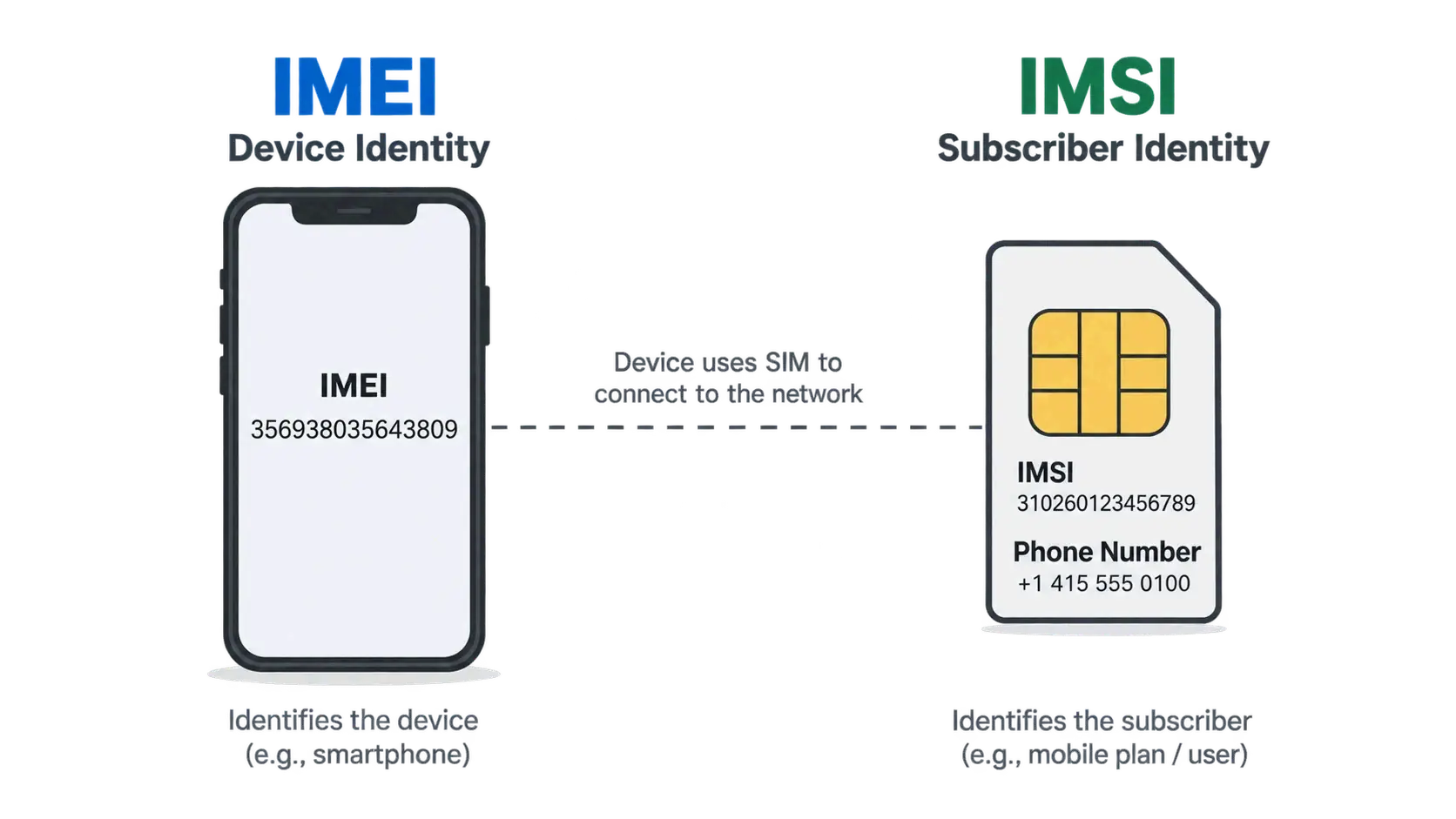
Because the IMEI lives in the hardware, it stays the same no matter whose SIM is inside. The phone identifies the subscriber separately by transmitting the International Mobile Subscriber Identity (IMSI), which is stored on the SIM card and can in theory be moved to any handset (Wikipedia). That’s why a carrier can recognize a device without knowing who is using it, and recognize a subscriber without caring which handset they inserted the SIM into.
IMEI vs. IMSI: Device Identity vs. Subscriber Identity
The IMEI is a hardware label; the IMSI is a subscription label. A network authenticates the IMSI, not the IMEI — the SIM proves who the subscriber is, while the IMEI simply declares what the device is.
In practice, the two can be separated. Move a SIM from one phone to another, and the IMSI stays the same while the IMEI changes completely. Leave the SIM in place and swap the phone number on your account, and the IMEI is untouched. The two systems are designed to describe different things, and they are not interchangeable in any carrier support conversation.
Why an IMEI Is an Unauthenticated Identifier
An IMEI is an unauthenticated mobile identifier, in contrast to the IMSI, which home and serving networks routinely authenticate (Wikipedia). The device reports it, and the network generally takes that report at face value rather than cryptographically proving it.
Two consequences follow. First, an IMEI can be spoofed or cloned, which is why it cannot serve as an identity credential on its own. Second, and more useful in daily life, blocklisting targets the hardware itself: a thief who pulls the SIM out of a stolen phone and puts it into a different handset still cannot use the stolen device on any participating network, because the blocked hardware is the thing being refused.
The identifier also cuts both ways. Saudi Arabian government agencies have reportedly used IMEI numbers taken from cell phone packaging to locate and detain women who fled the country (Business Insider, 2019). The IMEI itself carried no personal data — it was combined with other information to become a tracking pivot.
The 15-Digit IMEI Format: TAC, Serial Number, and Check Digit
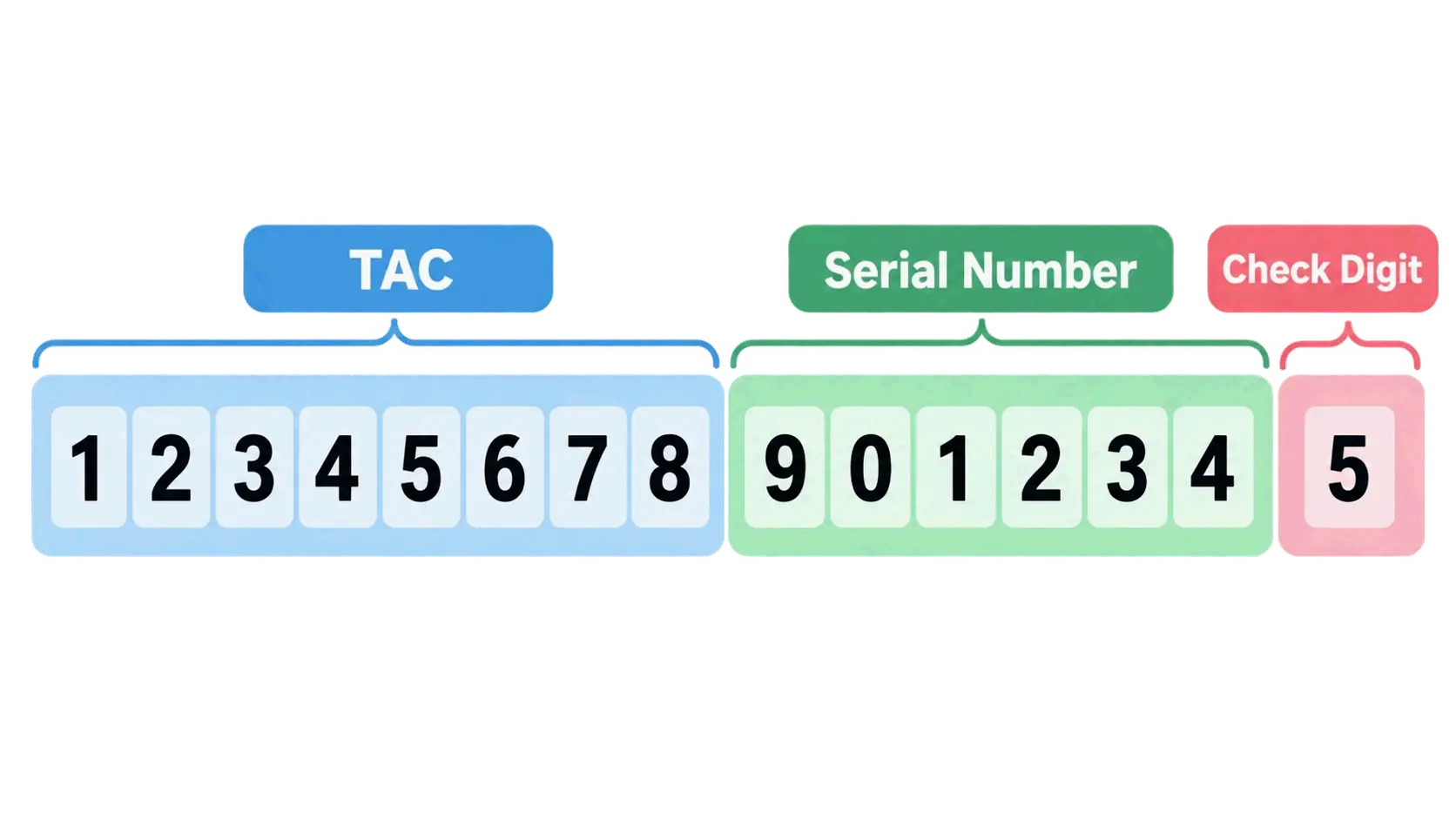
A standard IMEI is 15 decimal digits, and the structure is formally specified in 3GPP TS 23.003. The number is not random: it breaks into three parts that together describe the allocation, the individual unit, and a mathematical validity check. The display format is often written as AA-BBBBBB-CCCCCC-D, though devices frequently show it as one unbroken string.
Digits 1–8: The Type Allocation Code (TAC) and RBI
The first eight digits form the Type Allocation Code (TAC), which is tied to the origin and model of the device. The TAC is allocated by the GSMA to the brand owner for an approved device type, and phones in the same model family can share a TAC while differing in the digits that follow.
Within those eight digits, the first two are the Reporting Body Identifier (RBI). The RBI identifies which GSMA-approved group allocated the TAC, and RBI numbers themselves are assigned by the Global Decimal Administrator (Wikipedia). An older-style IMEI such as 35-209900-176148-1 shows RBI code 35 — issued by BABT — with allocation number 2099.
Digits 9–14: The Device Serial Number
Digits 9 through 14 are the serial number portion, chosen by the TAC holder to distinguish one unit from another within that allocation (Aikon). This is not the same thing as the manufacturer’s device serial number printed elsewhere on the phone or the box, even though both use the word “serial.” Six digits give roughly a million individual units under a single TAC before a new allocation is needed.
Digit 15: The Luhn Check Digit
The fifteenth digit is a check digit calculated with the Luhn algorithm, the same checksum used on payment card numbers under ISO/IEC 7812. Its purpose is narrow but useful: it guards against incorrect entries into Equipment Identity Register and Central Equipment Identity Register systems (Wikipedia). The check digit is not transmitted over the radio interface and is not stored in the EIR database.
The arithmetic is straightforward. Take the first 14 digits, double every second digit starting from position 2, subtract 9 from any doubled value greater than 9, add everything up, and the check digit is whatever you must add to reach the next multiple of ten. Worked through for the base 35316105214284:
| Position | 1 | 2 | 3 | 4 | 5 | 6 | 7 | 8 | 9 | 10 | 11 | 12 | 13 | 14 |
|---|---|---|---|---|---|---|---|---|---|---|---|---|---|---|
| Digit | 3 | 5 | 3 | 1 | 6 | 1 | 0 | 5 | 2 | 1 | 4 | 2 | 8 | 4 |
| Value added | 3 | 1 | 3 | 2 | 6 | 2 | 0 | 1 | 2 | 2 | 4 | 4 | 8 | 8 |
The sum is 46, the next multiple of ten is 50, so the check digit is 4 and the complete IMEI is 353161052142844 (Aikon). Change any single digit and the total stops being a multiple of ten, which is precisely what the checksum is designed to catch.
What the check digit cannot do is prove that a device exists, that it belongs to the seller, or that it has a clean network status. It validates format, not truth.
IMEISV: When an IMEI Shows 16 Digits
If you see 16 digits, you are most likely looking at an IMEISV — International Mobile Equipment Identity and Software Version. The IMEISV keeps the 8-digit TAC and 6-digit serial but replaces the Luhn check digit with a two-digit Software Version Number, giving the format AA-BBBBBB-CCCCCC-EE (Wikipedia). A software version of 99 is reserved.
IMEISVs show up in diagnostic screens and in exports from repair systems. If a lookup service asks specifically for an IMEI and you paste a 16-digit IMEISV, the result may be rejected or simply wrong.
How the IMEI Format Changed (and Why the Year Matters)
The current 8-digit TAC is a post-2004 standard, and older references still describe the previous layout. Before 2002, the TAC was six digits followed by a two-digit Final Assembly Code (FAC), a manufacturer-specific code indicating where the device was assembled. From January 1, 2003 until April 1, 2004, the FAC for all phones was 00, marking the transition period. After April 1, 2004, the FAC ceased to exist and the TAC grew to eight digits (Wikipedia).
Separately, the link between regulatory approval and IMEI allocation was removed in April 2000 with the introduction of the European R&TTE Directive. Since then, having a formally allocated IMEI range has not meant a device is approved or compliant — a point worth remembering when a listing claims an IMEI “proves” regulatory certification.
How to Find Your IMEI Number on Any Device
There are five reliable places to find an IMEI, and they are not equally useful in every situation. The fastest works only if the phone turns on. The slowest works when the phone is gone.
Dial *#06# — the Fastest Method
Open the phone dialer and enter *#06#. The IMEI appears on screen immediately, and on many devices this works even from the lock screen. On a dual-SIM phone you will typically see IMEI 1 and IMEI 2 displayed together, so you can capture both in one step (imeichanger.net). No app, no menu navigation, no account login.
Android and iPhone Settings Paths
If the dialer code is blocked or you prefer a menu, both major platforms expose the number:
- Android: Settings → About Phone (the exact wording varies by manufacturer — Samsung, Google Pixel, Xiaomi, Motorola, and OnePlus all label this section slightly differently).
- iPhone: Settings → General → About.
On both platforms the IMEI appears alongside other identifiers, including the serial number and, on eSIM-capable models, the EID. Read the label next to each value rather than assuming the longest number is the IMEI.
When the Phone Won’t Turn On: Box, Invoice, and Carrier Records
A dead, damaged, or stolen phone cannot display anything, so the IMEI has to come from outside the device. The available sources are the original retail packaging or label, the purchase invoice or receipt, carrier account records, insurance documents, and previous repair documentation.
Reliability differs sharply here. The box is convenient but not trustworthy on its own — packaging can be counterfeited or swapped between devices. Whenever the phone still powers on, compare the printed number against what *#06# displays. If the two disagree, treat that as a serious warning sign rather than a clerical error.
One habit is worth building now: write your IMEI down and store it somewhere other than the phone itself — a cloud note, a password manager, or a paper record. Storing it only inside the device defeats the purpose the moment the device is locked or gone.
Why a Dual-SIM Phone Shows Two IMEI Numbers
Two IMEIs on one phone is normal, not a defect. Dual-SIM phones normally carry two IMEI numbers because each cellular connection needs its own device identifier (Wikipedia). IMEI 1 and IMEI 2 correspond to the two separate cellular interfaces inside the same physical handset.
The practical implication is easy to miss: when reporting a phone lost or stolen, provide both numbers so carriers and law enforcement can blocklist both connections. When checking a used phone, do not verify only one IMEI and assume the result covers the whole device.
Apple Watch, eSIM-Only Devices, and Other Exceptions
Not every connected device has an IMEI, and the exceptions trip people up. Wi-Fi-only tablets, laptops, and other non-cellular hardware have no IMEI at all. For Apple Watch, IMEI is available on GPS + Cellular models only (Apple Support, updated September 14, 2026); a GPS-only Apple Watch carries a serial number but no IMEI.
Devices that use eSIM instead of a physical SIM tray usually still have an IMEI, and they typically have an EID as well. The two numbers identify different pieces of hardware: the IMEI covers the device, the EID covers the eSIM chip. Apple Watch owners can read either value on the watch under Settings → General → About, or on a paired iPhone through the Apple Watch app under My Watch → General → About (Apple Support).
What an IMEI Number Is Actually Used For
Beyond simply naming a device, the IMEI supports several practical processes that all depend on one property: it distinguishes this specific unit from every other unit of the same model, color, and storage size.
- Carrier activation and network authorization. When a device first joins a network, its IMEI is registered so the carrier can determine whether that hardware is permitted on the network.
- Warranty and repair verification. Official and third-party repair points use the IMEI to confirm the model, the parts involved, and the warranty status of the exact unit on the bench.
- Device insurance claims. Insurers use the IMEI as the unique identifier for the item being claimed, which is why the number belongs on your policy documents.
- Network troubleshooting. A carrier can use the IMEI to check whether a device has recently registered successfully with a cell site, which helps separate a device problem from a coverage or account problem.
- Second-hand transaction verification. Buyers compare the IMEI shown by the device against the seller’s number and check reported status before paying.
- Law enforcement investigation. Device identifiers can survive physical destruction, making them a durable investigative lead.
Note what is missing from that list: none of these uses require the IMEI to reveal who owns the phone.
How Law Enforcement Uses IMEI Numbers
An IMEI can serve as an investigative starting point even when the device itself is destroyed. An IMEI recovered from the remnants of a Nokia 5110 was used to trace and identify the perpetrators of the 2002 Bali bombings (ABC News). Because the number is tied to hardware rather than to a SIM, it can remain recoverable and meaningful after the components around it are gone.
The same capability explains why the IMEI shows up in debates about surveillance. Law enforcement and intelligence services can use an IMEI as an input for tracking devices that locate a cell phone with accuracy of a few meters (Wikipedia) — a capability that exists on the network side, not in any consumer tool.
Lost, Stolen, or Blocked: How IMEI Blocklisting Works
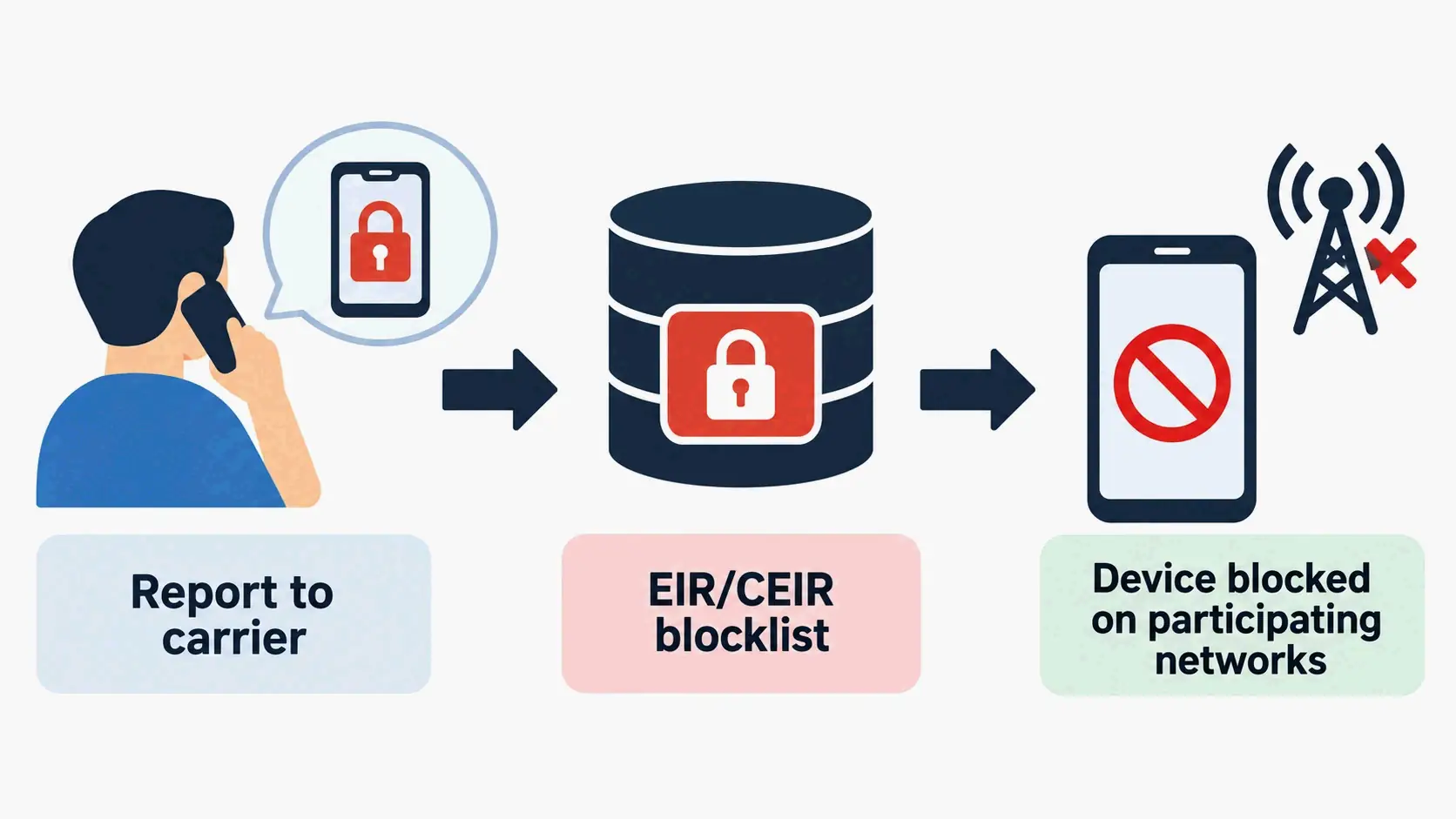
Blocklisting is the mechanism that turns an IMEI into a theft deterrent. When a device is lost or stolen, the owner can ask their service provider to block the phone from the network. If the local operator maintains an Equipment Identity Register (EIR), it adds the device IMEI to that register. Optionally, it also adds the IMEI to a shared registry such as the Central Equipment Identity Register (CEIR), which blocklists the device with every other operator using that system (Wikipedia).
The result is that the handset becomes unusable on any operator connected to the CEIR, which removes most of the value from phone theft — apart from reselling the parts.
What Happens the Moment a Carrier Blocklists an IMEI
The cellular identity of the device stops working. Calls and mobile data are refused on participating networks, and the block follows the hardware rather than the SIM, so inserting a new SIM does not restore service.
Two limits are worth stating plainly. First, Wi-Fi still works: a blocklisted phone can still run apps, browse, and make VoIP calls over a wireless network. Second, a blocklisted phone retains value as parts. Blocklisting also depends on the IMEI being difficult to change, and in practice a phone’s IMEI may be changeable with special tools (Wikipedia) — this is exactly why the IMEI is described as unauthenticated. In some jurisdictions, an IMEI can also be removed from a blocklist under local arrangements, typically by quoting a password chosen when the block was placed.
There is a broader caveat about effectiveness: it remains unclear whether local barring produces a net positive effect, since it may simply push stolen phones into international smuggling channels (Wikipedia).
EIR and CEIR: How Blacklists Travel Between Networks
An EIR is a carrier-side database. A CEIR is the shared layer that lets one operator’s block reach other operators’ networks. Without that shared layer, blocklisting would only work on the network that recorded it, and a thief could move a stolen handset to a competitor.
Cross-border coordination has been in place for a long time. Australia was the first nation to implement IMEI blocking across all GSM networks, in 2003. In the UK, a voluntary charter operated by the mobile networks ensures that any operator’s blocklisting of a handset is communicated to the CEIR and then to all other networks, making the handset unusable for calls within at most 48 hours (Wikipedia).
Blocklists are also used for compatibility rather than theft. After Australia’s 3G network shutdown, all 4G and 5G devices not approved for use in Australia by the carriers are IMEI- and/or TAC-blocked, and users cannot request removal even if they can demonstrate the device is technically compatible (Wikipedia). That is a TAC-level block, which affects an entire model range rather than a single unit.
How to Report a Lost or Stolen Phone Step by Step
Move through these three steps in order, because each one produces a record the next one needs.
- Contact your carrier. Ask them to blocklist the IMEI on your account. Provide both IMEI 1 and IMEI 2 if the phone is dual-SIM.
- File a police report and get a case number. The case number is what insurance companies and carriers typically ask for, and it creates an official record of the theft.
- Notify your insurer. Your policy documents should already contain the IMEI; if they do not, supply it now.
If you are in the United States and want to confirm a device’s reported status before or after any of this, the CTIA refers consumers to stolenphonechecker.org and to the GSMA device check, where you can check whether a smartphone has been reported lost or stolen to member carriers (Wikipedia).
The U.S. Context: Blocklists, Not Whitelists
The United States runs a blocklist model, not a whitelist model. Under a blocklist, a device is presumed usable unless someone has reported it; under a whitelist, a device must be registered in the country before it can access local networks at all. Chile, Turkey, Tunisia, Azerbaijan, Colombia, Nepal, and Egypt are among the countries using allowlists, with various exceptions for international roaming and registration grace periods, and India, Pakistan, Indonesia, Cambodia, Thailand, Iran, Nigeria, Ecuador, Ukraine, Lebanon, and Kenya have adopted some form of mandatory IMEI registration (Wikipedia).
The U.S. mechanism has a specific starting date. GSM carriers AT&T and T-Mobile began blocking newly reported IMEIs in November 2012; thefts reported before that date were not added to the database (Wikipedia). That cutoff explains a common frustration: an older stolen handset may never appear in a lookup simply because the report predates the system.
A frequent error in older articles is describing Sprint’s approach as the American norm. Before its merger with T-Mobile, Sprint used an allowlist under which users had to register their IMEI and SIM card before an LTE-capable device could be used, despite no U.S. law requiring it — and had to re-register whenever they changed devices. T-Mobile, by contrast, uses a blocklist, including for former Sprint customers and select Sprint-sold devices. Treating Sprint’s old allowlist as a current U.S. rule is wrong.
For consumers, the available public entry points are the CTIA stolen phone checker and the GSMA device check. Both report only what has already been reported to participating carriers. As of 2026, the United States has no nationwide, consumer-facing IMEI registry that returns real-time device status or owner information — a clean result from a public checker means “not reported,” not “verified.”
How to Check an IMEI Before Buying a Used Phone
Before anything else, separate two things that are routinely conflated: an IMEI lookup and a blacklist check. An IMEI lookup decodes the number and returns information tied to the device type. A blacklist check queries reported or restricted status in relevant databases. A lookup that returns a model name says nothing about whether the phone was reported stolen.
What an IMEI Lookup Actually Returns
A lookup can surface the manufacturer, device model, device type, and blacklist-related information, alongside other technical details — but there is no universal database that guarantees identical results for every phone (imeichanger.net). Results depend on the country, the carrier, the device model, the database being queried, the service provider, the age of the device, and what information is actually available to that service.
One limitation is worth stating precisely. The Luhn check digit confirms only that a number is structurally self-consistent. It cannot establish that the device exists, that it belongs to the person selling it, or that it has a clean history. Format validity and device cleanliness are different claims, and a fabricated number can be built to pass the checksum. A 15-digit number can look perfectly normal while being the wrong number for the phone being sold.
The Pre-Purchase IMEI Checklist
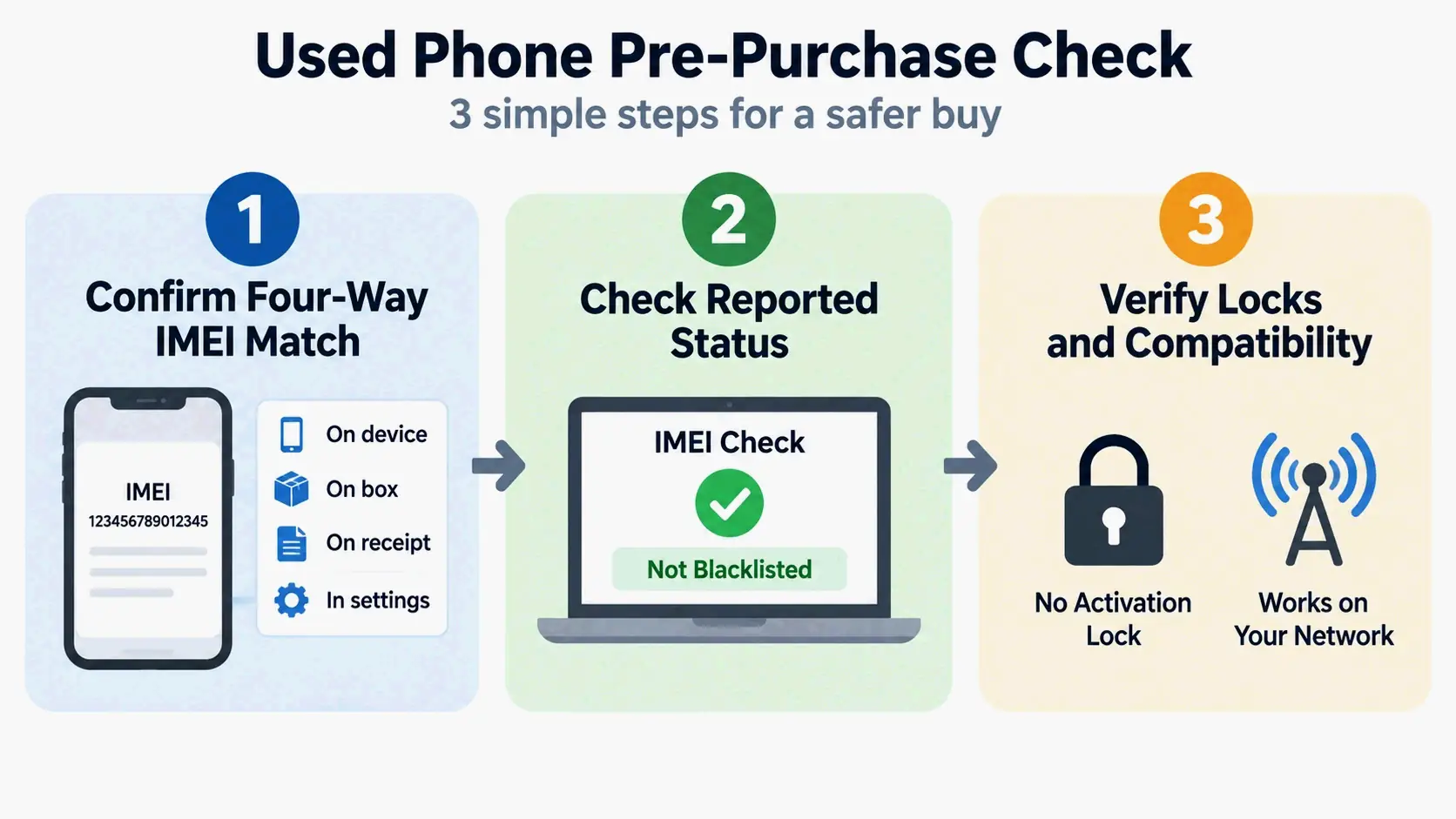
Work through this list before money changes hands. Each item catches something the others miss.
- Confirm the four-way match. The IMEI shown on the device via
*#06#, the IMEI the seller quoted, the IMEI on the box, and the IMEI on the invoice or documentation must all agree. Any mismatch ends the conversation. - Check reported status yourself. Run the number through the CTIA stolen phone checker or the GSMA device check rather than trusting a screenshot from the seller. Screenshots are trivially edited.
- Confirm activation locks are off. Verify that Find My (Apple) or the corresponding Google account lock has been removed, and that the device can be set up from scratch.
- Verify carrier and band compatibility. Confirm the model works on your carrier’s network, particularly for voice over LTE, before you buy.
- Ask for proof of ownership. An original receipt or a written transfer record matters more than any single lookup result.
Finally, be clear about what the IMEI check does not replace. A clean IMEI does not mean the phone is free of debt, free of an activation lock, or free of internal damage. It is one input among several, not a guarantee.
IMEI vs. Serial Number, Phone Number, MEID/ESN, and EID
Four identifiers get mixed up with the IMEI constantly. The differences are structural, not cosmetic.
IMEI vs. Serial Number
The IMEI is a network-side identity used to authorize a cellular device on a network. The serial number is a manufacturer’s asset tag used for warranty, service, inventory, and technical support (imeichanger.net). A smartphone commonly has both, plus a model number.
Apple Watch illustrates the split cleanly. On GPS + Cellular models, Apple Support lists both a serial number and an IMEI; on models without cellular, only the serial number appears (Apple Support). Do not paste a serial number into a field that asks for an IMEI — the formats and the databases behind them differ.
MEID and ESN: The CDMA Legacy in the U.S.
Older CDMA phones used an ESN (Electronic Serial Number) and later a MEID (Mobile Equipment Identifier) rather than an IMEI (Phone Scoop). The MEID uses the same basic format as the IMEI but allows more flexibility in allocation sizes and usage, and it is hexadecimal rather than decimal — a MEID always begins with 0xA0 or a larger hexadecimal value, which is one quick way to tell the two apart (Wikipedia).
In the U.S., these identifiers still appear in older documentation and in the records of devices from the CDMA era. As carriers migrated to LTE, IMEI became the dominant device identifier, and MEID and ESN gradually receded. Seeing a MEID today usually means you are dealing with an older device or an older record.
eSIM and EID
An EID identifies an eSIM chip. It is not an alternative to the IMEI and does not replace it — an eSIM-capable phone typically displays both, because the two numbers describe different hardware. The IMEI identifies the device; the EID identifies the embedded SIM.
The simple way to keep four identifiers straight: IMEI and MEID identify the device, IMSI and EID relate to subscriber-side identity, and the serial number identifies the manufacturer’s asset.
Two Things an IMEI Cannot Do
Two persistent myths generate more confusion than any other IMEI topic. Both are worth correcting directly.
Myth 1: Can an IMEI Track Your Phone in Real Time?
No. An IMEI is a device identifier, not a positioning system. It contains no GPS capability and no location data, and an ordinary IMEI lookup will never return live coordinates. Any website promising that a 15-digit IMEI alone will show a phone’s exact current location should be treated as a red flag.
What is true is narrower. A carrier can tell, on the network side, roughly which cell site a device is attached to, and law enforcement and intelligence services can use an IMEI as an input for tracking systems with accuracy of a few meters (Wikipedia). That is an internal network and investigative capability, not a consumer tool. To locate your own lost phone, use the official device-location service for your platform and contact your carrier.
Myth 2: Is Changing an IMEI Legal in the United States?
Changing an IMEI is not an “unlock trick,” and tools marketed as IMEI generators are not the same thing. A generator built for QA work produces random but format-valid numbers using a real 8-digit TAC, a 6-digit serial, and a computed check digit, and its own documentation states the generated numbers are intended strictly for testing and educational purposes and should not be used to alter or clone real device identifiers (TestMu AI). It exists so testers can simulate devices without touching real hardware — the same reason QA teams use random phone number generators for SMS-verification testing.
On the law, the United States is different from the UK. Under the UK’s Mobile Telephones (Re-programming) Act 2002, changing the IMEI of a phone — or possessing equipment capable of changing it — is an offense under some circumstances (Wikipedia). In the United States, a bill introduced by Senator Chuck Schumer in 2012 would have made changing an IMEI unlawful, but it was not enacted. There is therefore no dedicated federal IMEI-rewriting statute, though rewriting typically accompanies fraud, and fraud and telecommunications laws can still apply. IMEI modification should never be treated as a way to defeat a blocklist.
Conclusion
An IMEI identifies the hardware in your hand — never the person holding it — and that single distinction drives everything from carrier activation to theft blocklisting.
Take thirty seconds now to record yours. Dial *#06# and screenshot it, or copy the number off the box or invoice, then store it somewhere outside the device: a cloud note, a password manager, a paper record. If your phone is lost, stolen, or simply won’t power on, that 15-digit number is the only thing that proves which device is yours when you call your carrier, file a police report, or submit an insurance claim. Before buying a used phone, run its IMEI through the CTIA or GSMA official checker first.
FAQ
Can an IMEI number track my phone’s location or show where a lost phone is?
No. An IMEI is not a positioning system and carries no GPS data. A free IMEI lookup returns model and TAC information, not a live location. Carriers can judge roughly which cell site a device is attached to, but that is an internal network capability that consumers cannot access. Use your platform’s official device-location service instead.
Can I find my IMEI if my phone is lost, stolen, or won’t turn on?
Yes, but only from sources outside the device: the original packaging, the purchase invoice, carrier account records, and insurance documents. iPhone users can find it in the device list on their iCloud account, and Android users can check their Google account’s device page. Recording your IMEI in advance shortens the reporting process considerably, so save a screenshot somewhere other than the phone.
Why does my phone show two IMEI numbers?
Because it is a dual-SIM device, and each SIM slot has its own independent hardware identity. IMEI 1 and IMEI 2 correspond to the two cellular connections, and dialing *#06# displays both at once. Some models that support eSIM show two physical-slot IMEIs plus an additional IMEI associated with the eSIM profile.
Does changing my SIM card or phone number change my IMEI?
No. The IMEI is bound to the hardware, while the SIM card and phone number are bound to the subscription. Swapping SIM cards, changing your number, switching carriers, and performing a factory reset all leave the IMEI untouched. Only replacing the device itself gets you a new IMEI.
Is it legal to change an IMEI in the United States?
There is no dedicated federal ban — the 2012 bill that would have prohibited it was not enacted. However, rewriting an IMEI usually accompanies fraudulent intent, which can trigger telecommunications fraud and related laws. By comparison, the UK’s Mobile Telephones (Re-programming) Act 2002 explicitly makes changing an IMEI a criminal offense in certain circumstances.
Which devices don’t have an IMEI at all?
Wi-Fi-only tablets, laptops, and other non-cellular devices have no IMEI. Apple Watch provides an IMEI only on GPS + Cellular models; the non-cellular version has just a serial number. Devices that rely on eSIM typically carry both an IMEI and an EID, since the two numbers identify different hardware components.