Blog

  • How to Resize Images for Social Media: 2026 Guide to Perfect Dimensions

    How to Resize Images for Social Media: 2026 Guide to Perfect Dimensions

    To resize images for social media in 2026, focus on vertical formats: use 1080x1350px (4:5) for standard feeds and 1080x1920px (9:16) for Reels and TikTok. For Instagram grids, the new 1080x1440px (3:4) ratio is now standard. Always use the sRGB color profile and include C2PA metadata for any AI-generated content to ensure your reach is not restricted.

    The 2026 Vertical-First Framework: Master Aspect Ratio and Dimensions

    By 2026, the shift away from horizontal formats is complete. Data from Digital Applied 2026 shows that vertical content earns approximately twice the engagement of landscape posts. This aligns with mobile-first browsing behavior — most users do not rotate their phones.

    When resizing, think “fill,” not “stretch.” Stretching causes distortion. Instead, set your canvas to 1080px wide and crop your content to the correct height. This prevents the platform’s automatic compression from blurring your main subject.

    Complete 2026 Social Media Dimension Reference

    Platform Format Dimensions (px) Aspect Ratio
    Instagram Feed Post Portrait 1080 x 1350 4:5
    Instagram Square Post Square 1080 x 1080 1:1
    Instagram Story / Reels Full-screen vertical 1080 x 1920 9:16
    Instagram Profile Grid Portrait thumbnail 1080 x 1440 3:4
    TikTok Cover Full-screen vertical 1080 x 1920 9:16
    Facebook Shared Post Landscape 1200 x 630 1.91:1
    YouTube Thumbnail Landscape 1280 x 720 16:9
    LinkedIn Banner Wide landscape 1584 x 396 4:1
    X (Twitter) Post Landscape 1200 x 675 16:9

    Why Portrait Mode (4:5) Is the New Default for Feed Engagement

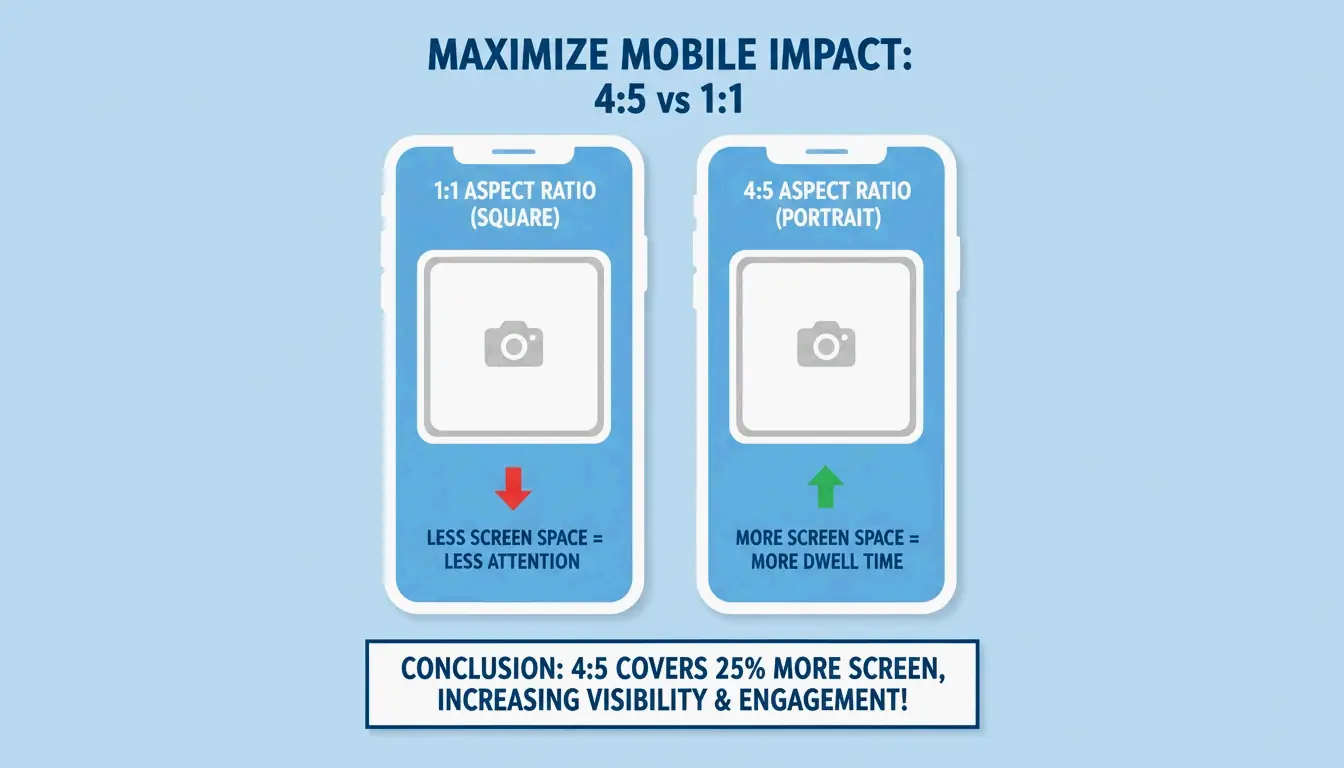
    The Portrait Mode (4:5) ratio at 1080x1350px has officially replaced the 1:1 square as the best choice for feed posts. It occupies approximately 33% more screen space on a smartphone. According to SocialBee, this extra height causes users to scroll for a fraction of a second longer, boosting dwell time and signaling the algorithm that your content is worth promoting.

    A side-by-side comparison of 1:1 square vs 4:5 portrait screen real estate

    Adapting to the New 3:4 Instagram Profile Grid

    A significant change rolled out through late 2025 and 2026 is Instagram’s move toward a 3:4 Grid Ratio. While feed posts display at 4:5, your profile grid now shows a taller 1080x1440px crop. If you are still designing for square thumbnails, your profile will look misaligned or awkwardly cropped. The best approach is to keep your main subject centered within the 1080x1440px area so it looks correct in both the feed and the profile grid.

    Platform-Specific Safe Zones: Avoiding UI Overlap in 2026

    Resizing is not just about outer dimensions — you must also account for Safe Zones. Even a perfectly sized 1080x1920px image is compromised if text is hidden under a “Like” button or account name. This is especially important given that Instagram Reels publishing has grown by 33% as of 2026.

    How to Resize for Instagram Reels and TikTok (1080x1920px)

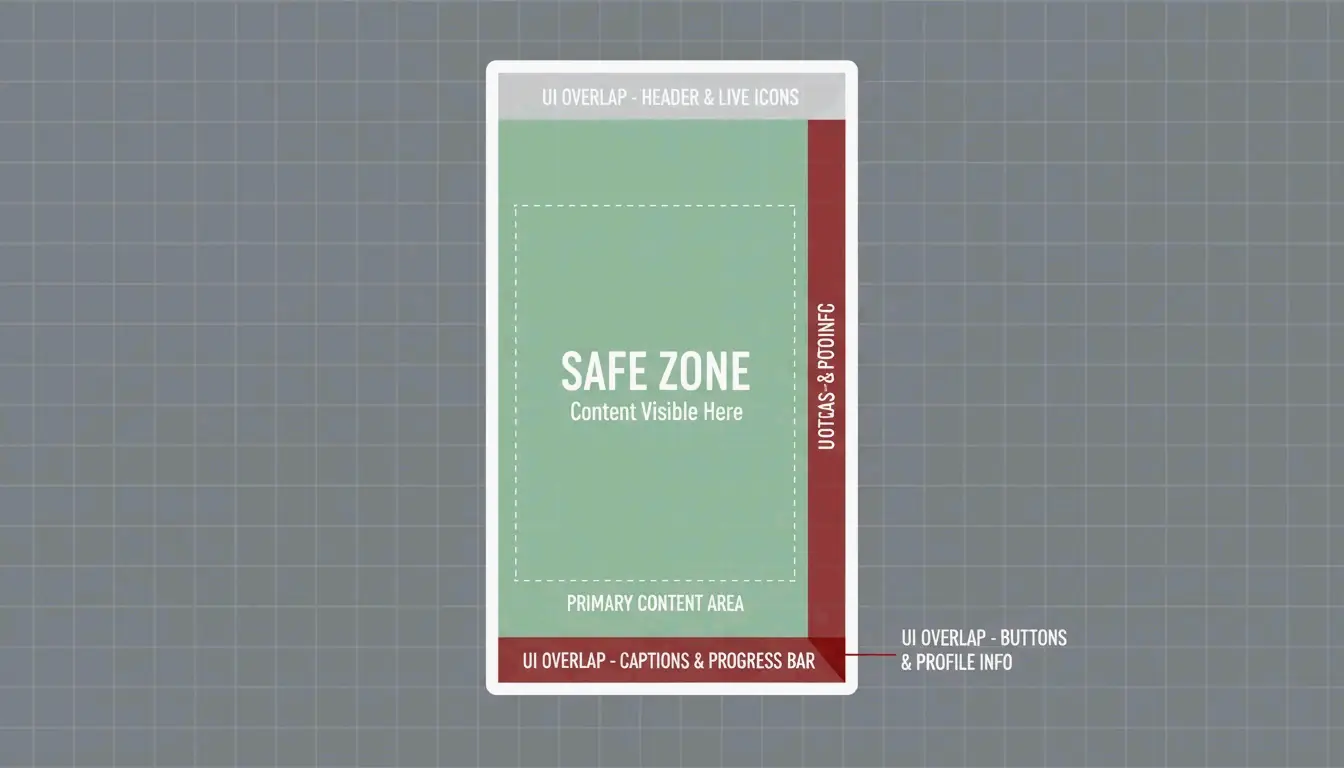
    For full-screen vertical content (9:16), the standard resolution is 1080x1920px. However, your active display area is significantly smaller.

    Zone Area What to Avoid Placing Here
    Top 14% Camera icon, timer Text, logos
    Bottom 20-35% Captions, music info, interaction icons Text, watermarks, calls to action
    Right column Like, comment, share buttons Important visual elements

    To resize properly:

    1. Set the Canvas to 1080x1920px.
    2. Define the Safe Zone — keep text and logos inside a central 1080x1350px box.
    3. Check the EdgesHootsuite suggests leaving about 14% of the top and 20-35% of the bottom clear of important elements.

    A 9:16 frame highlighting the central Safe Zone away from UI elements

    AI Compliance and Metadata: The New Rules for 2026 Content

    As of 2026, resizing for social media includes a new technical requirement: AI disclosure. Meta, TikTok, and YouTube use automated tools to detect synthetic content. If you use AI to “Generative Expand” a photo from square to portrait, you must follow transparency rules or risk the algorithm suppressing your post.

    Disclosing AI-Generated Content to Avoid Penalties

    If a photo looks real but was made or modified by AI, it needs an “AI info” label. Platforms use C2PA Metadata — essentially a digital nutrition label embedded in the file — to trigger these labels automatically. Digital Applied 2026 reports that failing to disclose AI content can cut your reach by up to 50%. When exporting resized images, ensure your software preserves this metadata, or manually select the AI label during upload.

    Platform AI Label Required? Penalty for Non-Disclosure
    Meta (Instagram/Facebook) Yes, for photorealistic AI Up to 50% reach reduction
    TikTok Yes, for AI-modified content Content flagged or hidden
    YouTube Yes, for synthetic media Label applied; repeated violations risk demonetization

    Technical Optimization: sRGB, WebP, and Compression Hacks

    The final step is selecting the right file format and color profile.

    Preventing Blurry Uploads: The sRGB and Compression Secret

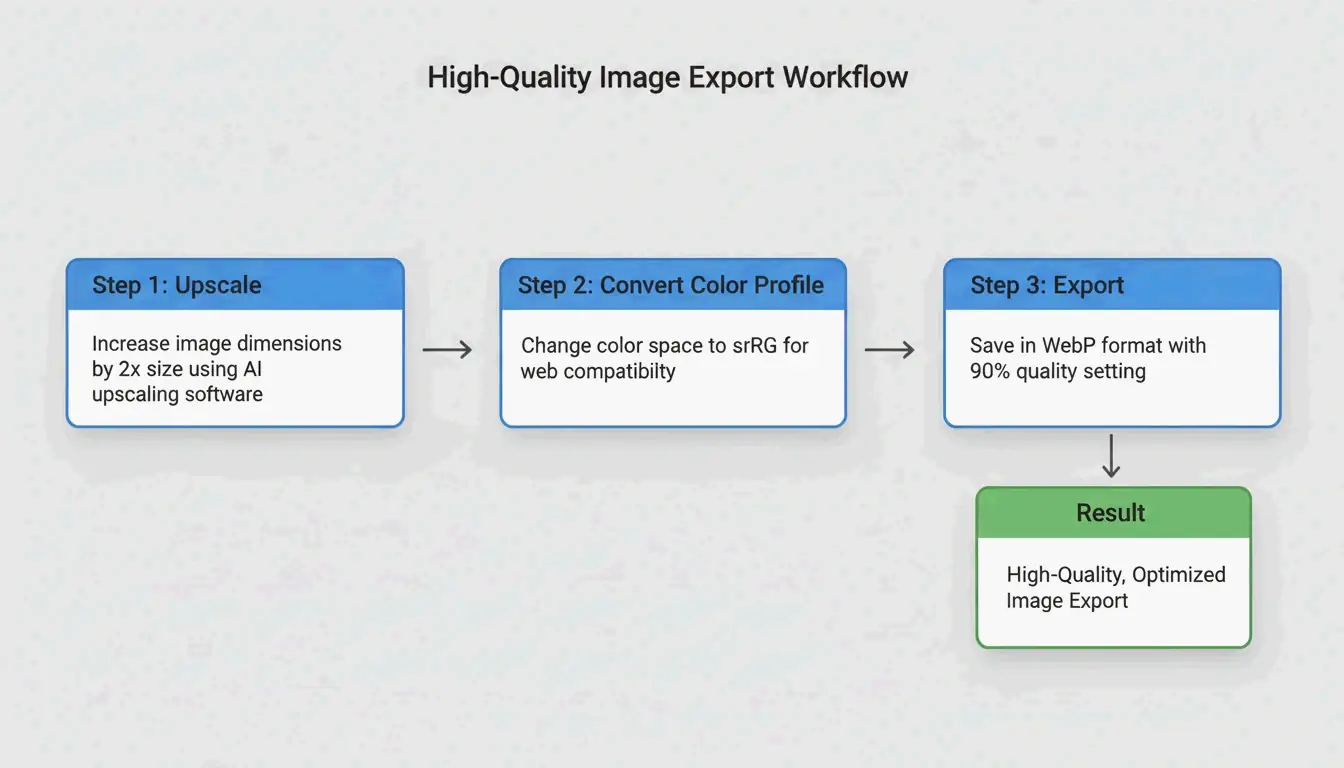
    Social media apps compress files heavily to save bandwidth. To survive this second compression pass with quality intact:

    Setting Recommended Value Reason
    Color Profile sRGB Platforms convert to sRGB; other profiles cause washed-out colors
    Export Size 2x target (e.g., 2160x2700px for 4:5) Gives the platform data to compress from
    File Size Limit Under 30 MB (per Hootsuite 2026) Maximum allowed before platform rejection
    Format WebP Best quality-to-size ratio for social platforms
    Upload Quality “Upload at highest quality” toggle ON Prevents aggressive app-side compression

    A 3-step export workflow: Resize (2x), Profile (sRGB), Format (WebP)

    Best Tools for Automated Resizing in 2026

    Tool Strength Best For
    Meta Business Suite Cross-platform crop from one upload Facebook + Instagram simultaneously
    Canva Magic Switch Quick template format changes Non-technical users, rapid iteration
    Photoshop Generative Expand AI background fill for horizontal-to-vertical conversion Professional creators
    Landscape by Sprout Social Generate every crop for different networks in one click High-volume social media managers
    BIRME Client-side batch resize with privacy Bulk processing without server uploads

    Conclusion

    Resizing for social media in 2026 goes beyond pixel counts. To succeed, embrace the vertical-first world with 4:5 and 3:4 ratios for feeds and 9:16 for full-screen content. Account for Safe Zones so your message does not get buried under app UI, and stay compliant with AI disclosure requirements using C2PA metadata.

    Actionable Advice: Review your current brand templates. Replace any old 1:1 square defaults with 1080x1350px portrait versions, and verify that export settings are locked to sRGB so colors stay accurate on every screen.

    FAQ

    What happens if I use the wrong image size on social media in 2026?

    If your dimensions are incorrect, platforms will crop the image automatically, which often cuts off faces or brand logos. Posts with letterboxing (black bars on the sides) are frequently deprioritized by algorithms, resulting in lower visibility and a less professional appearance.

    Why does Instagram compress my high-quality images and make them blurry?

    This typically occurs when an image is wider than 1080px or uses the wrong color profile. Instagram downscales large files, which introduces blurriness. To fix this, upload in sRGB, keep the file under 30MB, and enable the “Upload at highest quality” setting in your Instagram preferences.

    Do I need to disclose if my social media images are AI-generated in 2026?

    Yes. Meta, TikTok, and YouTube now require “AI info” labels for photorealistic AI content. Failure to disclose can result in content being flagged or hidden, and your account may lose monetization capabilities. Tools that include C2PA metadata handle this automatically during the export process.

  • Why You Need to Remove EXIF Data Before Publishing Images on Social Media

    Why You Need to Remove EXIF Data Before Publishing Images on Social Media

    As of May 2026, you should remove EXIF data before publishing images on social media because many platforms retain your GPS coordinates in their internal databases for tracking, even if they hide them from public view. Specific sharing methods like WhatsApp “Document” mode and third-party scheduling tools often skip the cleaning process entirely, leaving your precise location visible to recipients or hackers.

    The Hidden Risks: Why You Need to Remove EXIF Before Publishing

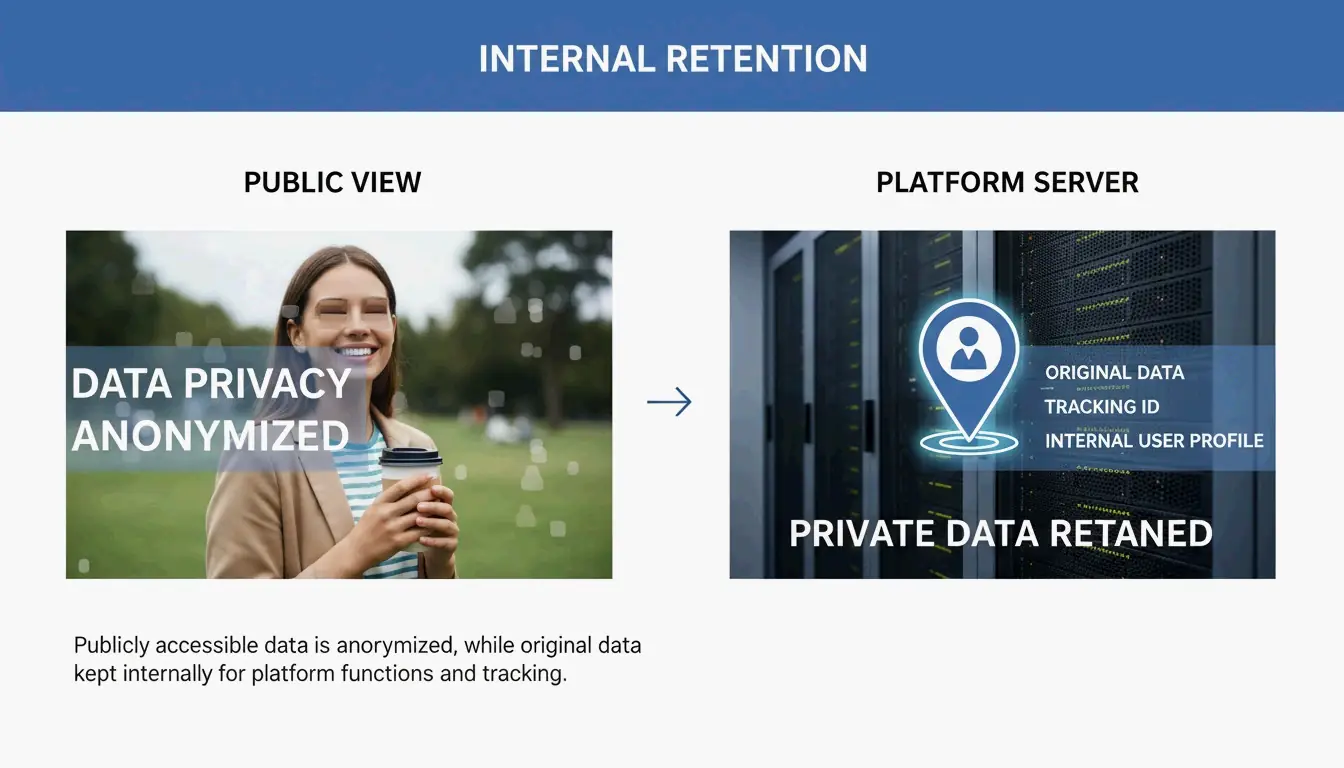
    The main reason to strip metadata is that EXIF (Exchangeable Image File Format) acts like a digital fingerprint. It often contains GPS Coordinates that can pinpoint exactly where you were within a few meters. While big names like Instagram and X (Twitter) claim to protect you by filtering images, this is usually just a surface-level fix that does not apply to the data the companies keep for themselves.

    Understanding the “Internal Retention” Trap

    A major risk in 2026 is that “stripping” data for the public does not mean the data is actually deleted. According to Fastio, the moment you upload a photo, the platform grabs the original, full file. Internal Retention policies at companies like Meta and X allow them to store your original GPS data for ad targeting and behavioral tracking, even if your followers never see those details.

    The contrast between what the public sees vs. what the platform stores

    Relying on a platform to clean your files is a reactive move that can fail. Take the Reddit HEIC Metadata Leak (Vulnerability #1069039) mentioned by SammaPix. In that case, photos in the HEIC format were converted to PNG during upload but accidentally kept their GPS tags. This exposed users’ home locations until a patch was finally released. If you remove the data on your own device first, the platform never gets that sensitive information to begin with.

    When Social Media Fails: Why Automatic Stripping Is Not Guaranteed

    You cannot just assume an upload button is a privacy filter. In 2026, whether your metadata stays or goes depends on how you share the file. Testing by MetaClean shows that while public feeds are mostly safe, private channels are much riskier.

    Sharing Method Platform EXIF Stripped? Risk Level
    Public feed post Instagram / Facebook Yes Low
    Standard photo share WhatsApp Yes Low
    Document mode WhatsApp No High — 100% metadata preserved
    “Best quality” DM Instagram / X Unreliable (23% GPS leak rate) Medium-High
    API upload (Buffer, Hootsuite) X (Twitter) Unreliable (30% device info retained) Medium-High
    • WhatsApp Document Mode: This is a major privacy trap. According to SammaPix, when you send a photo as a “Document” to keep the quality high, the app preserves 100% of the metadata, including your exact GPS location.
    • Direct Messages (DMs): On Instagram and X (Twitter), DM systems are not always as strict as the public feed. Tests show that sending photos in “best quality” or original format via DM can leak GPS data in about 23% of cases.

    The Social Media Manager’s Blindspot: API Posting Risks

    If you manage social media professionally, automation is your biggest danger zone. API Uploads — the tech used by tools like Buffer, Hootsuite, and Sprinklr — often bypass the standard cleaning steps built into official mobile apps. MetaClean’s 2026 testing found that images posted via the X API kept device model info in roughly 30% of cases, and GPS stripping was much less reliable than manual uploads. If you schedule content, you need to clean your files before they hit your queue.

    How to Remove EXIF Data: Step-by-Step Guide for Every Device

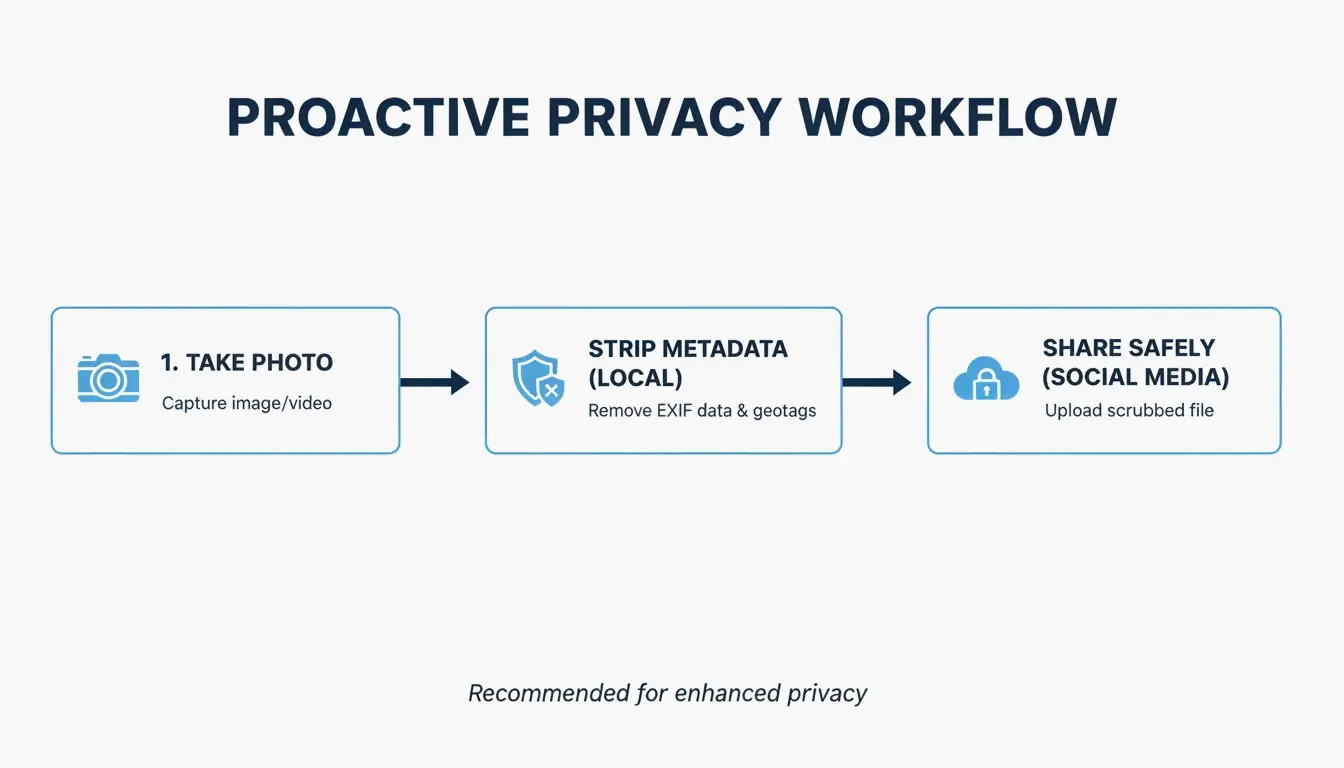
    To stay private, handle the metadata removal locally before the file ever leaves your phone or computer. As a bonus, ImgTweak notes that stripping metadata can shrink your file size by 10-20% without hurting image quality.

    Device Method Steps
    Windows Properties panel Right-click > Properties > Details > “Remove Properties and Personal Information”
    Mac Preview app Open in Preview > Tools > Show Inspector > GPS tab > “Remove Location Info”
    iOS Share Sheet Tap Share > Options > toggle off “Location”
    Android Gallery share Look for “Remove location data” toggle in share settings
    Pro/Power User ExifTool CLI Run exiftool -all= image.jpg to wipe every hidden header

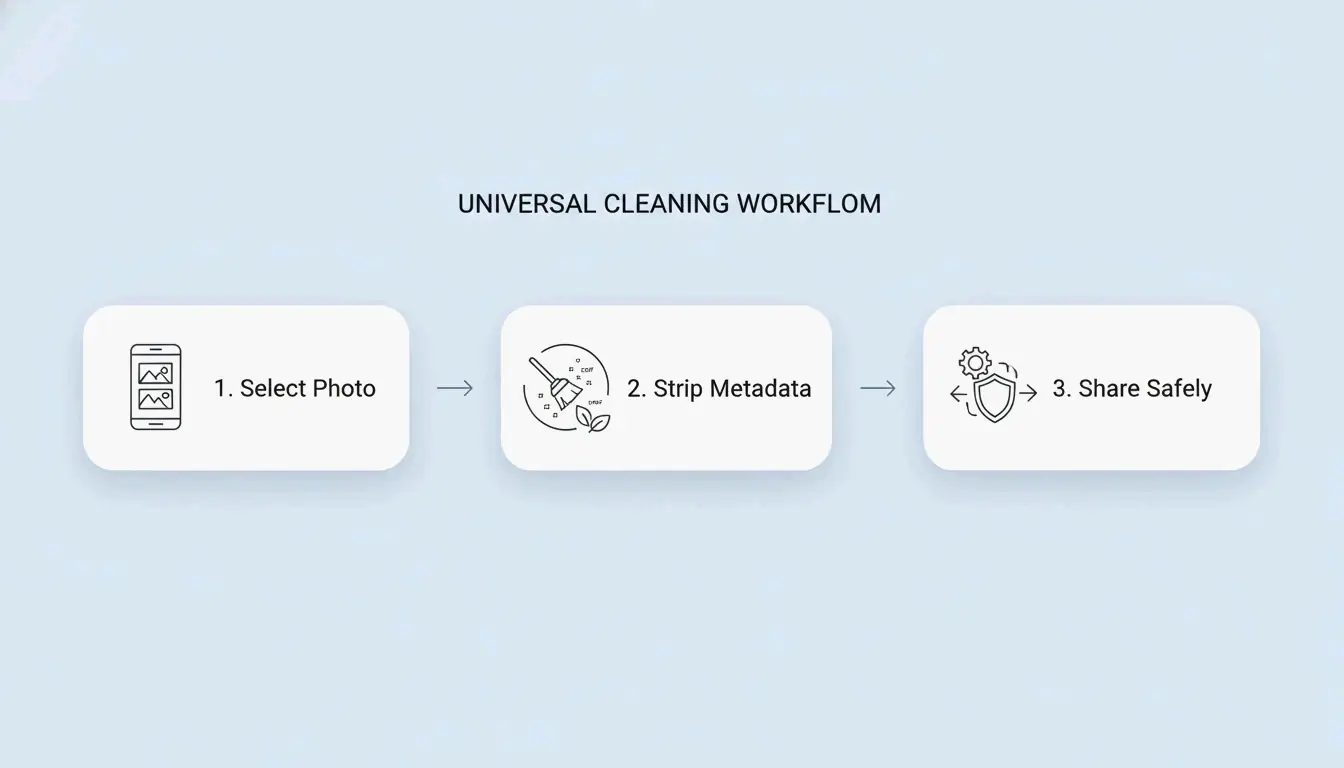
    Recommended 3-step privacy workflow

    Pro-Level Auditing: For power users, ExifTool is still the best option. The command exiftool -all= image.jpg completely wipes every hidden header in the file — EXIF, XMP, IPTC, and MakerNotes.

    Screenshotting vs. Stripping: Privacy vs. Image Quality

    Many people take a screenshot of a photo to “strip” the data. Since a screenshot is a brand-new file, it will not have the old EXIF info. This works for privacy, but it kills your resolution. A high-quality 48MP photo can drop to just 2-4MP. It is better to use a dedicated stripping tool so you can keep your high-res pixels while ditching the hidden tracking data.

    Method EXIF Removed? Resolution Preserved? Speed
    Screenshot Yes No (drops to 2-4MP) Instant
    ExifTool Yes Yes Fast (CLI)
    OS built-in tools Yes (partial) Yes Quick
    Dedicated app (e.g., ImageOptim) Yes (complete) Yes Moderate

    Privacy Leaders: Comparing Platform Metadata Policies in 2026

    The 2026 privacy landscape shows a big gap between “privacy-first” apps and data-hungry networks. According to the MetaClean 2026 Platform Comparison, Signal is the gold standard. It is the only major app that wipes all EXIF data before sending and stores nothing on its servers.

    Platform Public Feed DMs/Messaging Internal Retention Overall Rating
    Signal N/A Full strip None stored Best
    Instagram / Facebook Stripped for public Partial Retained for ad targeting Moderate
    WhatsApp N/A Stripped (photo mode) Retained by Meta Moderate
    X (Twitter) Stripped Unreliable Retained Moderate
    iMessage N/A Not stripped Stored on device/iCloud Poor
    Email (Gmail/Outlook) N/A Not stripped Stored on servers Poor

    On the other hand, Instagram and Facebook use a “Strip for the Public, Keep for the AI” approach. They hide your location from other users but use it themselves to build a profile on you. Meanwhile, iMessage and standard Email (Gmail/Outlook) offer almost no protection — they send the original file with all GPS data intact to whoever receives it.

    Conclusion

    Social media platforms might promise privacy, but EXIF data is still a massive loophole in 2026. Automatic cleaning is inconsistent, particularly when using professional scheduling tools, sending files as “documents,” or using high-quality DM settings. Most platforms also continue to harvest your location for their own use even after hiding it from the public. To truly protect your physical safety, use a metadata scrubber or a privacy-focused app like Signal before you share. Do not assume the platform is looking out for you; take control of your data before you hit upload.

    FAQ

    Does taking a screenshot remove EXIF data?

    Yes, taking a screenshot creates an entirely new image file that does not carry the original photo’s metadata. However, there is a significant trade-off: you will lose substantial image resolution and quality compared to using professional stripping tools that remove data while preserving the original pixels.

    Does WhatsApp remove GPS location when sending photos?

    It depends entirely on the sending mode. In 2026, standard “Photo mode” strips most data, but “Document mode” leaks 100% of EXIF data, including GPS. Additionally, “Best quality” mode is unreliable, with testing showing that GPS coordinates survive in roughly 23% of cases.

    Can law enforcement use EXIF data even if I delete the post?

    Yes. Most social media platforms retain the original uploaded file — including all its metadata — on their internal servers even after a post is deleted from public view. This retained data can be accessed by law enforcement through legal subpoenas or court orders directed at the platform.

  • Gemini Nano Banana 2 Image Watermark Remover: Best Tools and Techniques for 2026

    Gemini Nano Banana 2 Image Watermark Remover: Best Tools and Techniques for 2026

    To remove a Gemini Nano Banana 2 watermark in 2026, look for software specializing in Reverse Alpha Blending, such as GeminiWatermarkTool (offline) or GeminiWatermarkRemover.io. These tools offer pixel-perfect restoration of the visible 4-pointed star, though invisible SynthID and C2PA metadata will typically remain embedded for AI tracking.

    The 2026 Standard: How to Remove Gemini Nano Banana 2 Watermarks

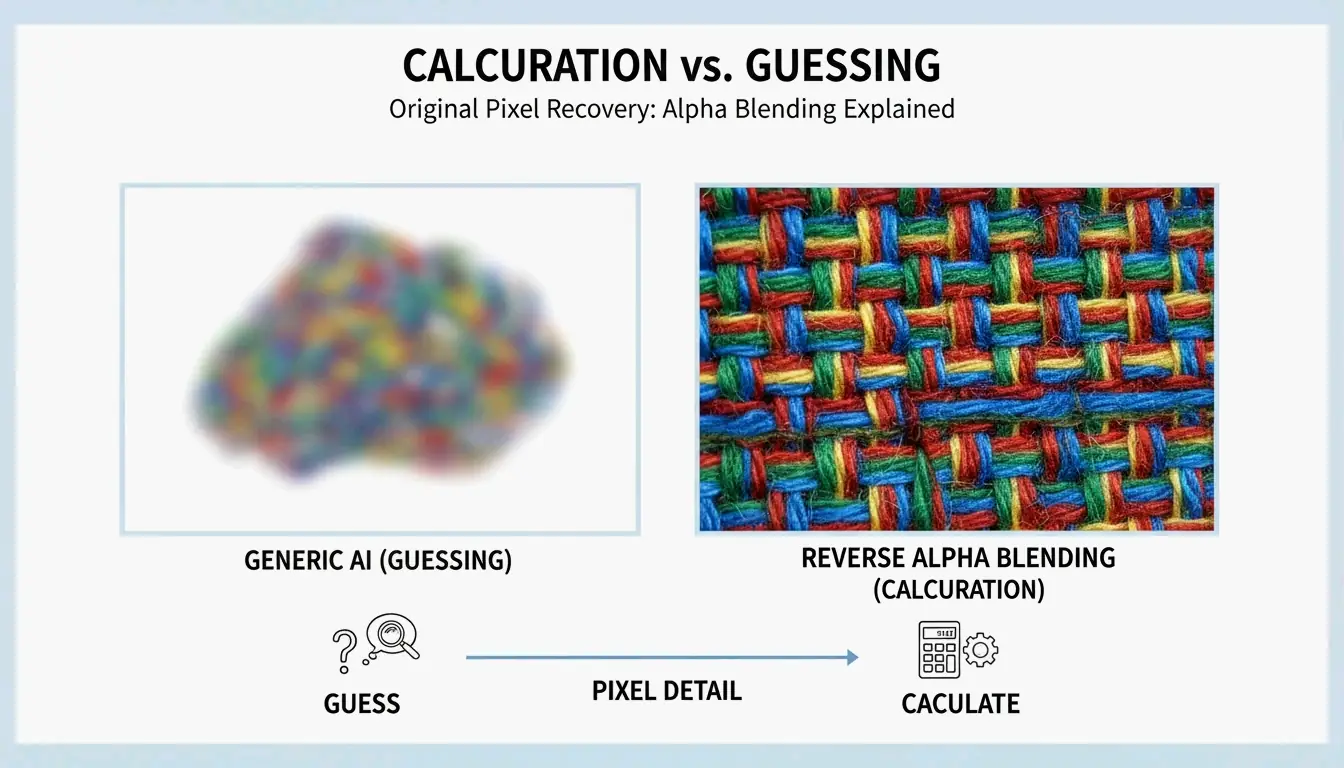
    By 2026, the “Nano Banana” 4-pointed star has become the universal symbol for Google’s Gemini-generated content. These are not just simple “stamps” placed over an image; they are integrated using a process called alpha compositing. If you use a generic AI “eraser,” you will often end up with blurry smudges. To get a clean result, you need a workflow that reverses the math behind the original blend.

    Standard AI inpainting usually “guesses” what pixels should look like based on the background. In contrast, Reverse Alpha Blending subtracts the watermark’s values to recover what is underneath. This keeps fine details — like skin pores or the weave of a fabric — crisp and untouched.

    Comparison of standard AI guessing vs. Reverse Alpha Blending subtraction

    Step 1: Identify the Watermark Scale and Alpha Map

    The first step in a professional 2026 workflow is figuring out which version of the watermark you are dealing with. Technical guides from allenk’s GeminiWatermarkTool show that Google uses two main sizes based on the image resolution:

    Watermark Variant Image Size Position Dimensions
    Small (48x48px) Width or height <= 1024px 32px from bottom-right corner 48 x 48 pixels
    Large (96x96px) Width and height > 1024px 64px margin from bottom-right 96 x 96 pixels

    Modern tools like GeminiWatermarkRemover.io now use “Smart Detection” — a three-stage matching process — to lock onto these exact coordinates automatically.

    Step 2: Applying Reverse Alpha Blending for Lossless Restoration

    Once the size is confirmed, the tool applies an inverse formula: Original = (Watermarked - Alpha * Logo) / (1 - Alpha). By using the exact transparency templates (alpha maps) Google uses, the software calculates the original color of the hidden pixels.

    For most users, this just means selecting “Reverse Alpha” mode in your settings. This method is “deterministic,” which means it gives you the same high-quality result every time, as long as the image has not been heavily compressed or resized.

    Best Tools for Gemini Nano Banana 2 Removal in 2026

    Your choice of tool depends on how many images you have and your privacy needs. In 2026, more people are moving toward local, offline processing to keep their AI-generated assets off third-party servers.

    The Pro Choice: GeminiWatermarkTool (CLI and Desktop)

    For developers and power users, GeminiWatermarkTool (allenk) is the top recommendation. It is a portable C++ app that works entirely offline. According to allenk’s documentation, it hits a restoration accuracy of plus or minus 1 per channel, making the removal invisible even if you zoom in 100%.

    The 2026 update includes a GPU-boosted feature called FDnCNN (Fast Discrete Convolutional Neural Network). This helps clean up any tiny “sparkle” artifacts left behind if the image was compressed. Thanks to Vulkan acceleration, it processes these areas in less than 5ms.

    Browser-Based Solutions: GeminiWatermarkRemover.io vs PixPretty

    Tool Type Privacy Best For
    GeminiWatermarkRemover.io Browser (client-side) 100% local Pixel-accurate removal of Nano Banana 2 star
    PixPretty AI Object Remover Browser + AI Cloud-assisted Watermarks on complex textures (hair, grass)

    If you just need a quick fix without installing software, GeminiWatermarkRemover.io is the best online option for pixel-accurate results. It runs 100% in your browser (client-side), so your image never actually leaves your computer. As noted by Emma Collins, PixPretty is a better choice if the watermark is sitting on top of something messy, like hair or grass. It combines reverse blending with heavy-duty AI retouching to fill in the gaps.

    Automated Workflows: Integrating MCP Servers and Claude Code

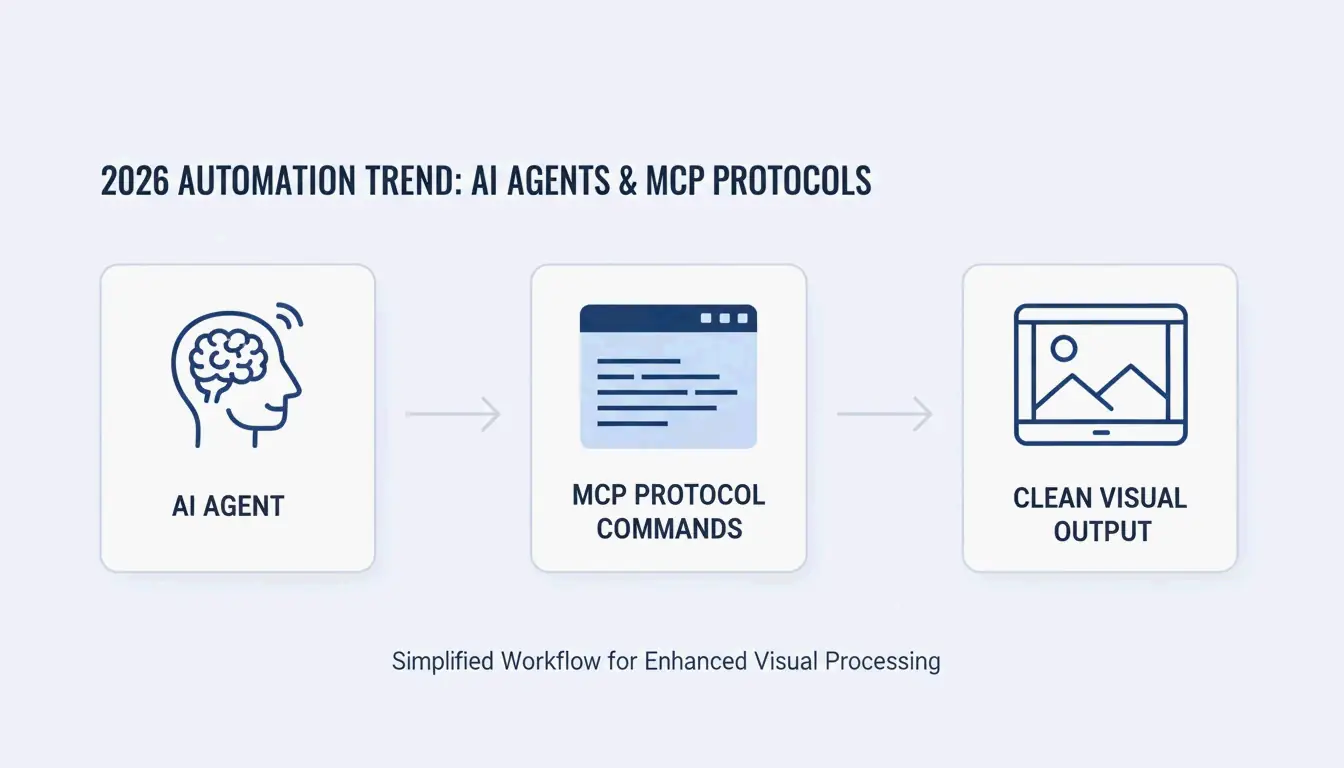
    A big change in 2026 is how we automate this. Using the Model Context Protocol (MCP), developers can link GeminiWatermarkTool directly to AI agents like Claude or Cursor. This allows an AI agent to “see” a watermarked image and automatically clean it with a simple remove_watermark command before it ever reaches your final document or UI mockup.

    Simplified automation: AI Agent to MCP Server to Clean Image

    Beyond the Star: Understanding SynthID and C2PA Metadata

    It is important to remember that the visible “Nano Banana” star is only one layer of tracking. Removing the star does not make the image untraceable.

    The Reality of SynthID

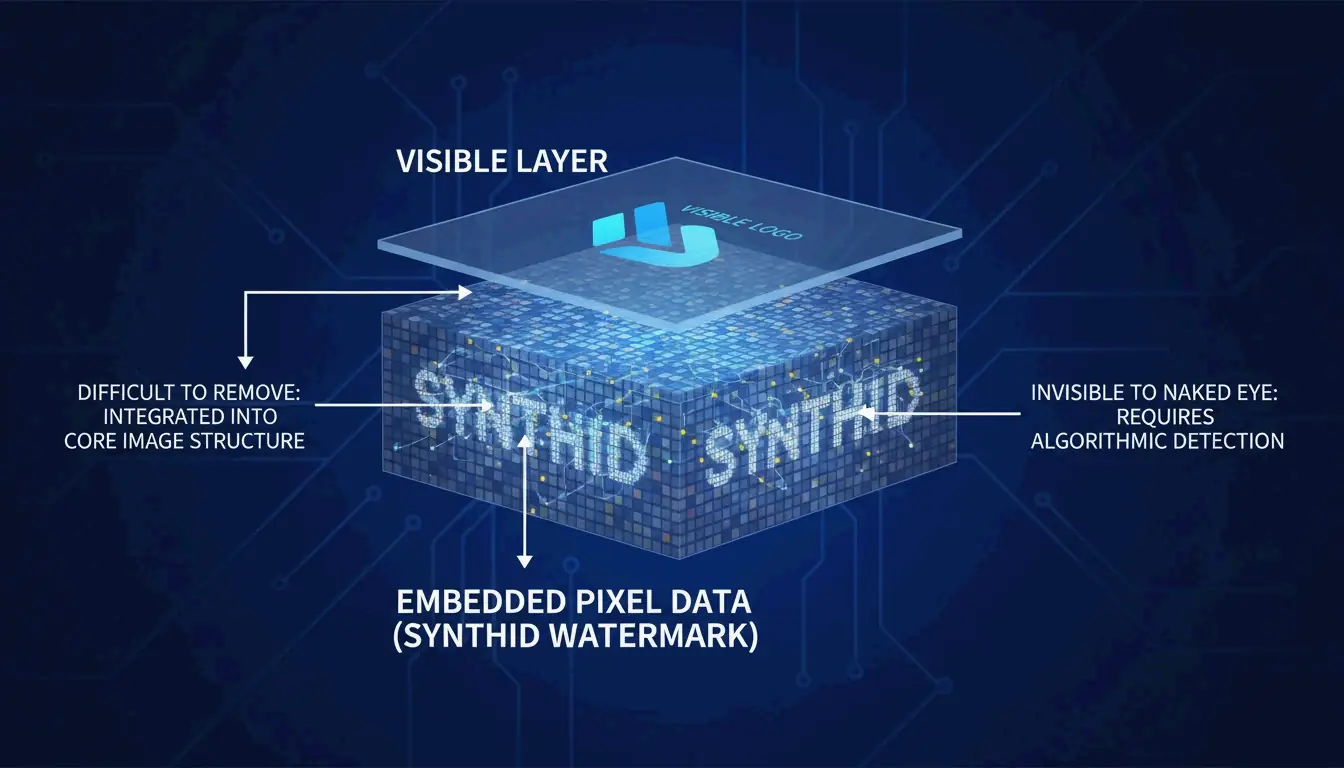
    SynthID, created by Google DeepMind, is an invisible watermark woven into the actual pixel frequencies. As Allen Kuo explains, SynthID is incredibly tough to get rid of because it is spread across the whole image. Most editing tools — even those that remove the visible star — will not scramble the SynthID enough to hide it from Google’s scanners.

    Layer Type Removable? Detection
    Nano Banana star Visible (alpha composite) Yes, via reverse blending Human eye
    SynthID Invisible (pixel frequency) Extremely difficult Google scanners
    C2PA metadata Cryptographic manifest Yes, via metadata scrubber C2PA-compliant platforms

    C2PA Compliance and Metadata Scrubbers

    Gemini images also carry C2PA metadata, which triggers “Made with AI” labels on sites like Instagram. While pixel-removal tools focus on the image itself, professional workflows in 2026 often use a separate “Metadata Scrubber” to wipe these digital manifests for internal company presentations.

    Hybrid Techniques for Resized or Compressed Images

    Reverse Alpha Blending is perfect on paper, but it needs “pixel-perfect” alignment. If an image was shrunk for a website or saved as a low-quality JPEG, the math fails, often leaving a faint “ghost” of the star.

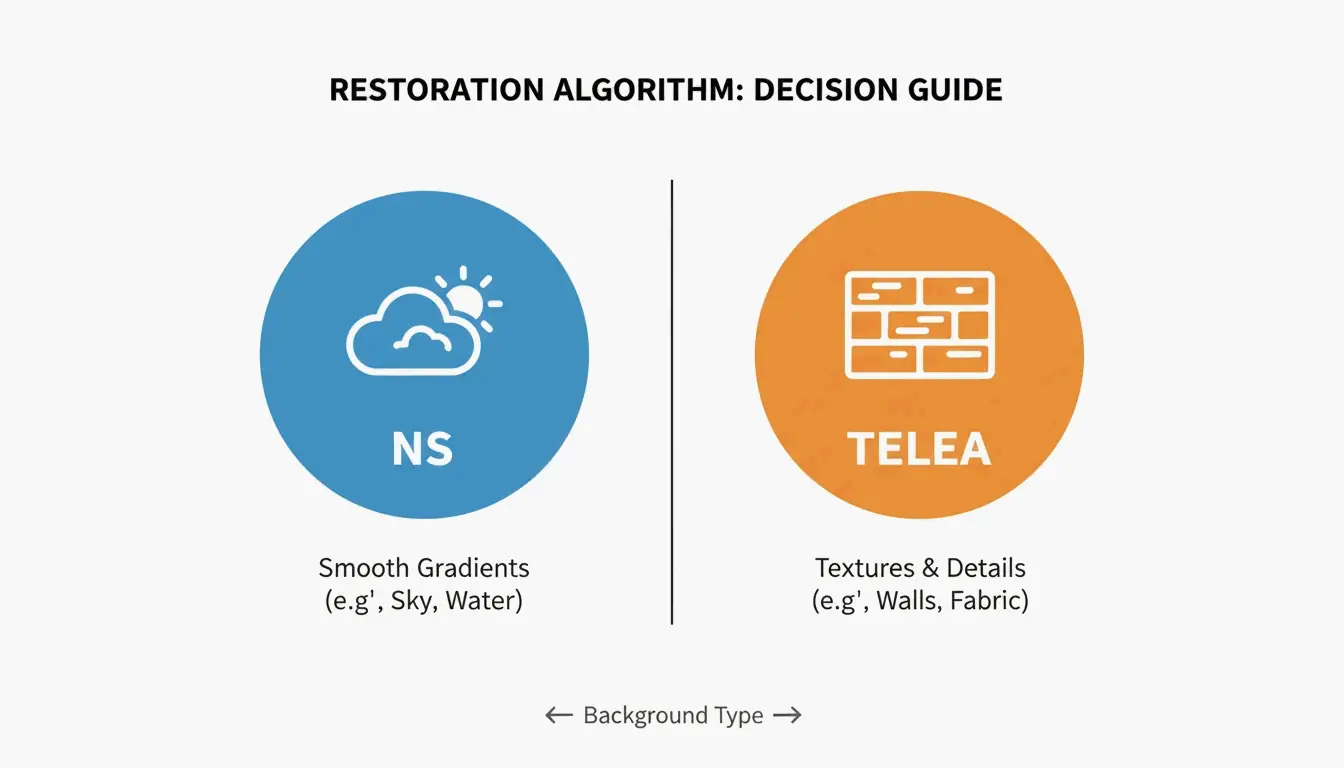
    Software Inpainting: When to use NS vs. TELEA algorithms

    When the math does not work perfectly, hybrid tools use “Inpainting” to tidy up. Choose your algorithm based on the background:

    Algorithm Best For How It Works
    Navier-Stokes (NS) Smooth areas (skies, blurred backgrounds) Flows surrounding colors into the spot
    TELEA Textured surfaces (concrete, wood, fabric) Fast pixel interpolation from boundaries

    Comparison of NS (Smooth) vs TELEA (Textured) application scenarios

    The “Smart Crop” Fail-Safe

    If the background is just too complex to fix, the Smart Crop Method is the most reliable backup. Tools like Wilnexo automate this by cutting a precise 56px to 128px strip off the bottom. It gets rid of the watermark completely, though it will slightly change the shape of your image.

    Conclusion

    The “Nano Banana” 2 watermark can be mathematically reversed with tools like GeminiWatermarkTool, but the invisible SynthID tracking is a permanent part of Google’s ecosystem. For the best results in 2026, use Reverse Alpha Blending rather than generic erasers to keep your image textures sharp. For pros, remember to use a C2PA-compliant scrubber if you need to clear the metadata. Just keep in mind: a clean-looking image is not the same as an anonymous one — SynthID can still be detected by specialized software even after the star is gone.

    FAQ

    Does upgrading to Gemini Advanced or Pro remove all watermarks automatically?

    No, Google maintains watermarks for AI safety compliance across all tiers, including paid subscriptions. Advanced and Pro users in 2026 still see the “Nano Banana” star on generated outputs. While some regions may offer “watermark-free” downloads for specific enterprise tiers, the default behavior for Gemini remains to include visible and invisible markers.

    Why can’t SynthID invisible watermarks be removed by standard editing tools?

    SynthID is embedded in the pixel frequency domain rather than being a surface-level overlay. It is adversarially trained to resist common transformations. Standard editing actions — such as cropping the visible star, adjusting colors, or adding noise — do not disrupt the underlying mathematical pattern enough to prevent AI detectors from identifying the image’s synthetic origin.

    Is it illegal to remove Gemini watermarks for professional client presentations?

    Legality depends on your jurisdiction and Google’s specific Terms of Service. Generally, removing watermarks for internal use or personal presentations is permitted. However, commercial redistribution may require “AI-generated” disclosure per C2PA standards. It is recommended to consult local intellectual property laws if you intend to use cleaned images for public-facing commercial advertisements.

  • The Principle of Removing Watermarks from Images: AI Algorithms vs Traditional Methods

    The Principle of Removing Watermarks from Images: AI Algorithms vs Traditional Methods

    As of May 2026, the principle of removing watermarks from images has shifted from manual cloning to AI algorithms like generative inpainting. While traditional methods rely on manual pixel replication, modern AI predicts missing data using GANs and Diffusion Models to recreate textures naturally. This evolution offers superior 8K quality and saves professionals over 4.5 hours weekly.

    Core Principles: How AI Algorithms vs Traditional Methods Remove Watermarks

    The real difference between AI algorithms and traditional methods is how they fill in the blanks. Traditional logic treats a watermark like a physical blemish to be covered up or a mathematical layer to be reversed. AI, however, sees the watermarked area as a “contextual gap.” It looks at the rest of the image to imagine what should be there, rather than just trying to scrub something off.

    According to a TechTrends Report, professionals using AI-native tools save about 4.5 hours every week compared to those still stuck with manual, frame-by-frame cloning.

    Method How It Works Best For Speed
    Manual cloning Copy-paste pixels from nearby area Simple, flat backgrounds Slow (manual)
    Reverse alpha blending Solve mathematical equation to recover originals Semi-transparent known watermarks Fast (automated)
    Cropping Cut off the watermark area Edge-positioned watermarks Instant
    AI inpainting Neural network generates replacement content Complex backgrounds, textures Fast (GPU-assisted)

    Traditional Logic: Solving the Alpha Compositing Equation

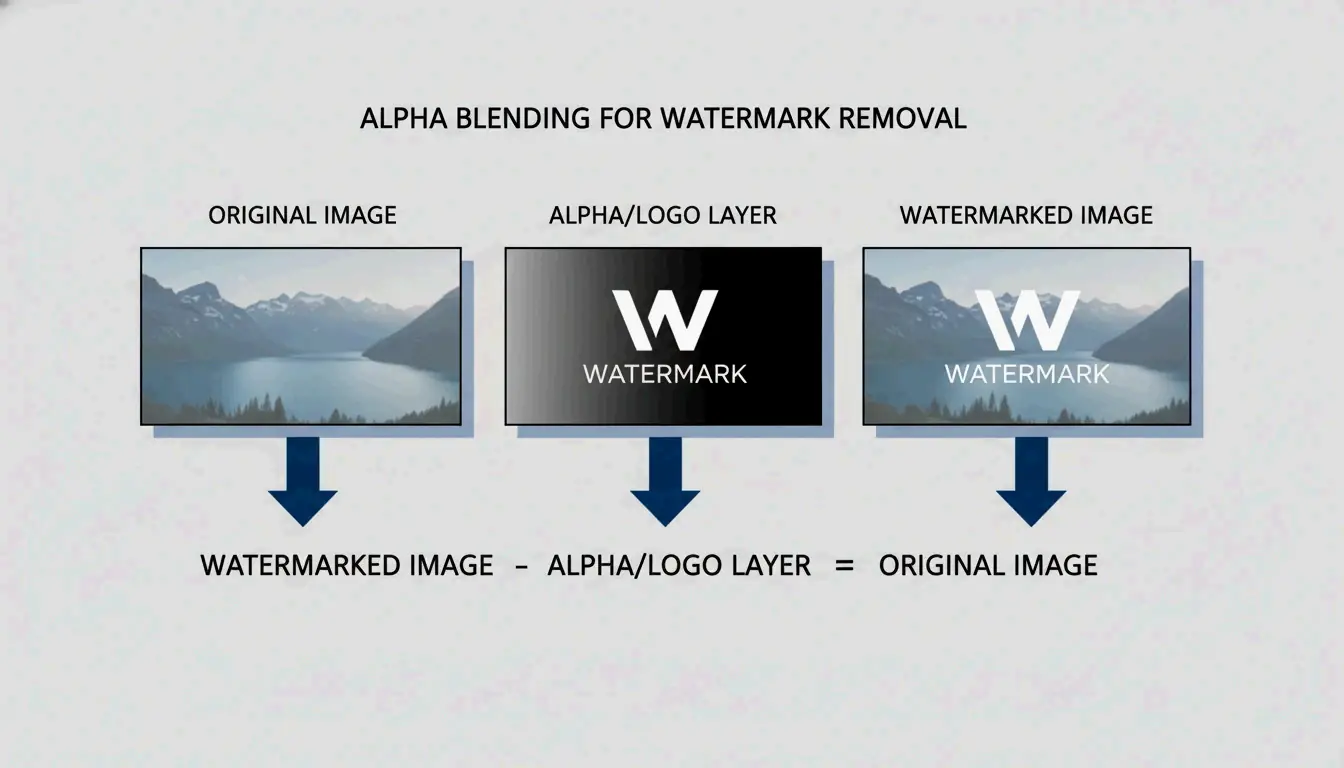
    Traditional tools often rely on Reverse Alpha Blending to bring back the original pixels. Think of it as a math problem. The software assumes the image follows a specific formula: Watermarked = alpha * Logo + (1 - alpha) * Original. If the tool can figure out the transparency (alpha) and the colors of the logo, it can calculate what the “Original” pixels were.

    Visual breakdown of the Alpha Compositing equation

    As seen in the Gemini Watermark Remover project, this works well for semi-transparent logos where the properties are known. But if the math is even slightly off, you are left with a “ghost” image or a blurry patch. Other old-school tactics include “Cloning” — literally stamp-copying pixels from one spot to another — or simply “Cropping” the edges of the photo to cut the watermark out entirely.

    AI Logic: Contextual Awareness via Deep Learning

    AI-driven removal uses AI Inpainting to build entirely new pixels. Instead of just moving existing data around, AI models study patterns, lighting, and textures to “hallucinate” a realistic background. Tools like Pixelbin use these deep learning models to detect and remove marks automatically, so you do not have to do it by hand.

    By 2026, this technology has moved to edge computing and high-speed cloud connections. This allows complex neural networks to clean up high-resolution media almost instantly. Unlike a simple blur, AI inpainting keeps the original grain and detail of the shot, making the fix nearly impossible to spot.

    The Technical Deep-Dive: Generative Adversarial Networks (GANs) and Diffusion Models

    In 2026, the tech battle between watermark creators and removers is fought using two main types of AI architecture: GANs and Diffusion Models.

    GANs and Discriminator Architectures

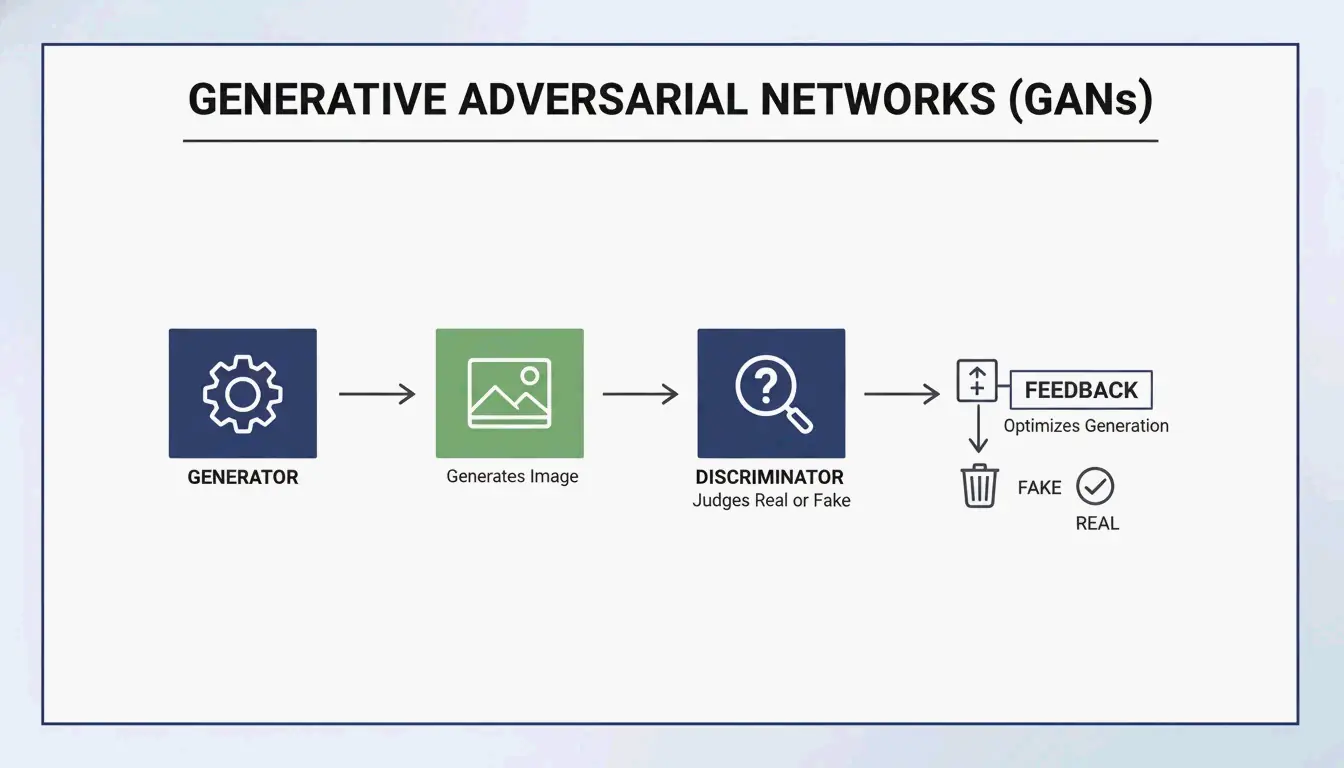
    Generative Adversarial Networks (GANs) work like a competition between two AI models. One (the encoder) tries to rebuild the missing background, while the other (the discriminator) tries to catch the mistake by comparing it to a real image. This “argument” between the two forces the AI to create incredibly realistic textures. As Side-Line points out, GANs are a staple in modern “encoder-decoder” setups, helping to hide or remove identifiers with minimal impact on how the image looks.

    GAN architecture: the adversarial logic of generator vs. discriminator

    Diffusion Models: The 2026 Gold Standard

    Diffusion Models are now the go-to for high-quality reconstruction. They work by “denoising” an image. Since a watermark is essentially a structured pattern that does not belong in a “natural” image, the model treats the watermark as noise and cleans it away.

    Research from NeurIPS Researchers shows that even invisible watermarks can be removed using these models without ruining the image quality. To check the results, experts look at PSNR and SSIM metrics. A top-tier AI restoration, like those using the ROBIN Framework, can hit an SSIM score of 0.98. At that level, the output is basically identical to the original, non-watermarked file.

    AI Architecture Strength Quality Metric Limitation
    GANs Fast, realistic textures Good PSNR Can create artifacts in complex scenes
    Diffusion Models Highest fidelity SSIM up to 0.98 Slower processing
    Hybrid (GAN + Diffusion) Balanced speed and quality PSNR + SSIM Requires more compute

    Is Removal Truly Lossless? Understanding Reverse Alpha Blending

    Marketing teams love the word “lossless,” but the reality is more nuanced.

    Reverse Alpha Blending is mathematically lossless, but only if you have the exact mask and alpha values. Older methods using Discrete Cosine Transform (DCT) often struggle when an image is compressed. Because DCT marks follow fixed math rules, they are easy targets for removal attacks that know exactly how those rules work.

    AI “hallucination” is not technically lossless because it is creating new pixels rather than finding the old ones. However, in the 2026 landscape — where 85% of pro video suites use generative fill according to the Global Digital Media Institute — the results are considered “perceptually lossless.” Thanks to 6G speeds, we can now process 8K media without the messy compression artifacts that used to ruin these edits.

    The 2026 Arms Race: C2PA Standard and Watermark Forgery

    As removal tools get better, the industry is fighting back with new standards, though new risks like WMCopier have also appeared.

    • WMCopier and Forgery: Research from Zhejiang University (2025) highlighted WMCopier, a tool that can “strip” a watermark from one image and “paste” it onto another. This makes it easy to forge ownership, making illicit content look like it came from a legitimate source.
    • C2PA Standard: To stop this, the C2PA Standard was created. It pairs watermarks with cryptographically signed metadata. Even if an AI removes the visual logo, a hardware-level signature stays in the file’s data to prove where it came from.
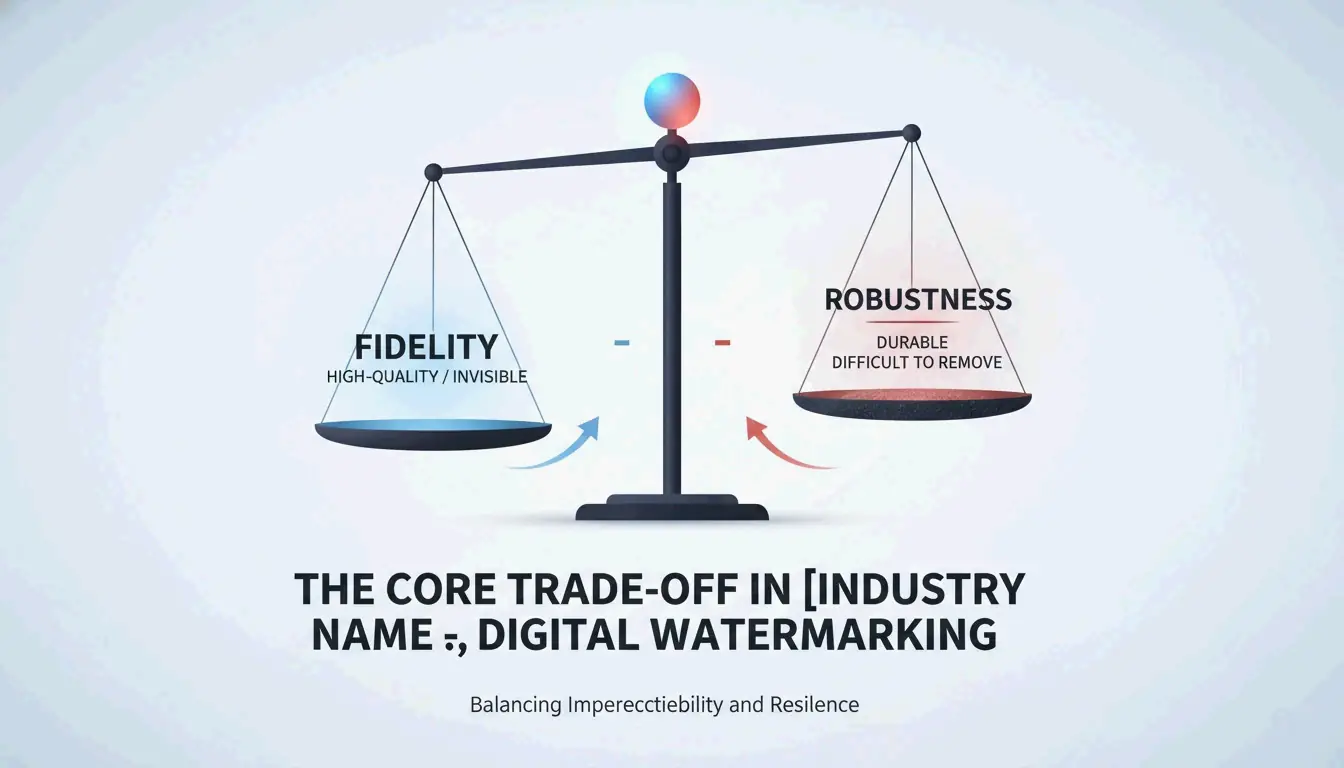
    • Fidelity-Robustness Trade-off: This is the big challenge. If you make a watermark too strong (robustness), it starts to look ugly (low fidelity). Modern defenses like Adversarial Robustness Testing (ROBIN) now train watermarks specifically to survive the “regeneration attacks” used by diffusion models.

    Core comparison: Fidelity vs. Robustness trade-off

    Conclusion

    Watermark removal has come a long way from basic pixel-copying to advanced neural reconstruction. While math-based methods like Reverse Alpha Blending still have a place for simple overlays, AI Generative Inpainting is the only real choice for the complex, high-res media of 2026. We are now in an era of the “Fidelity-Robustness Trade-off,” where the goal is to make markers invisible to people but obvious to forensic software. For pros, tools like Pixelbin are essential for speed, but it is always wise to check outputs against C2PA standards to stay ethical and prove your content is the real deal.

    FAQ

    Does removing a watermark with AI affect the final image resolution?

    Modern AI algorithms in 2026 maintain the native resolution of the image. By using super-resolution upscaling and contextual inpainting, tools like Pixelbin fill the watermark gap without changing the pixel dimensions. Unlike traditional cropping, which reduces the frame size, AI reconstruction ensures the final output remains high-definition or 8K.

    Can AI remove invisible forensic watermarks like SynthID?

    While AI can easily remove visible layers, forensic markers like Google’s SynthID are embedded deep within the pixel distribution. Diffusion-based “regeneration attacks” can attenuate these signals, but they are often difficult to strip entirely without degrading image quality. Furthermore, C2PA-compliant metadata provides a secondary layer of protection that persists even if the visual pixels are altered.

    What is the fidelity-robustness trade-off in digital watermarking?

    The fidelity-robustness trade-off is the balance between making a watermark invisible to the human eye (fidelity) and making it difficult to remove (robustness). AI has disrupted this balance; traditional frequency-domain marks are now easily detected and removed by neural networks, forcing developers to use adversarial training to hide watermarks in regions that AI models are less likely to modify.

  • How to Remove EXIF Metadata Before Sharing Photos: Privacy Guide (2026)

    How to Remove EXIF Metadata Before Sharing Photos: Privacy Guide (2026)

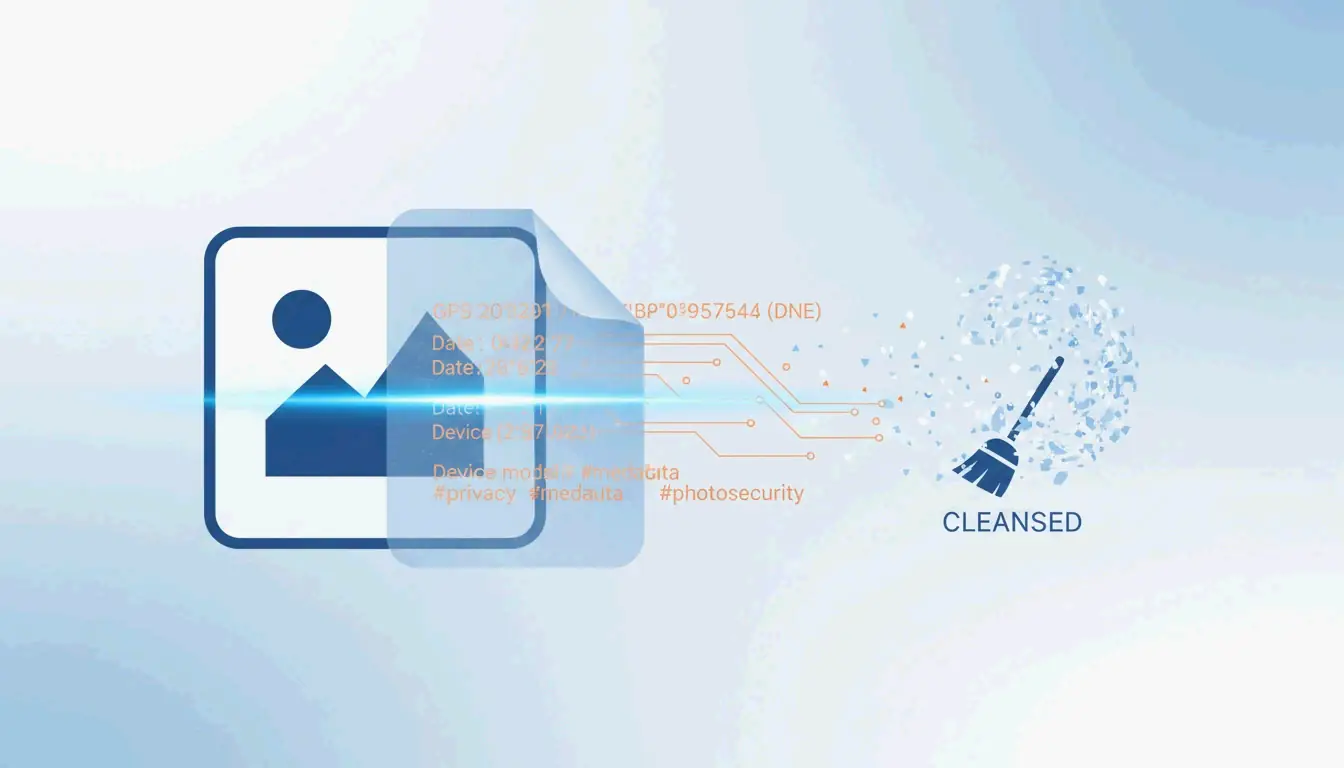
    Every digital photo contains 80-120 hidden metadata fields including GPS coordinates, camera serial numbers, and editing history. Remove EXIF metadata before sharing using built-in OS tools (Windows Properties, Mac Preview), mobile options (iOS share sheet, Scrambled Exif for Android), or batch tools (ExifTool). In 2026, also strip C2PA AI credentials and MakerNotes for complete privacy.

    Quick Reference: EXIF Removal by Platform

    Platform Method What It Removes Limitation
    Windows 10/11 Right-click → Properties → Details → “Remove Properties” All standard EXIF fields Creates a copy, original untouched
    macOS Preview → Tools → Show Inspector → GPS → “Remove Location Info” GPS coordinates only Leaves color profiles, device tags
    macOS (full) ImageOptim or ExifTool All EXIF, XMP, IPTC, MakerNotes Requires third-party tool
    iOS Share sheet → Options → toggle off “Location” GPS only per-share Must repeat each time
    Android Scrambled Exif (F-Droid) or Samsung Gallery toggle All EXIF fields Requires app install

    3-step workflow for cleaning photos before sharing

    Why Photo Metadata Is a Security Threat

    A single smartphone photo holds 80-120 metadata fields revealing exact altitude, camera lens serial number, and GPS coordinates. Fast.io cites the 2012 John McAfee case — his Guatemala location was leaked when Vice published a photo with GPS data still attached.

    Per MetaClean, 89% of documented OSINT cases used image metadata as critical evidence — data not visible in the photo itself.

    Beyond GPS, XMP & IPTC tags can reveal your full name, editing software, and OS version — useful for social engineering and phishing.

    2026 Platform Privacy Matrix

    Platform Strips EXIF on Upload? Key Exception
    Instagram / Facebook Yes “Made with AI” tags may persist
    WhatsApp Yes “Document Mode” preserves all data
    Telegram Yes “File Mode” leaks full EXIF
    iMessage No Transmits original with full GPS
    Discord No Preserves EXIF including GPS
    Signal Yes Removes all metadata by default

    The Document Mode Trap: Sending photos as “documents” in WhatsApp/Telegram to preserve quality skips automatic cleaning — GPS coordinates go straight to the recipient.

    Advanced Stripping: MakerNotes and C2PA

    MakerNotes: The Hidden Thumbnails

    Camera manufacturers embed proprietary “MakerNotes” that can include unique device identifiers and hidden thumbnails of the original uncropped photo. The Thumbnail Trap occurs when you crop an image but the embedded EXIF thumbnail remains unchanged — Konvrt reports cases where people accidentally shared the full uncensored version through this oversight.

    C2PA Content Credentials (2026)

    AI-generated or edited images now carry C2PA Content Credentials. Platforms like Pinterest and Instagram use these to label content as “Made with AI.” Removing these requires an AI Metadata Cleaner — standard EXIF tools don’t touch C2PA signatures.

    ExifTool: Batch Command-Line Stripping

    For bulk operations, ExifTool removes everything in one command:

    exiftool -all= -overwrite_original *.jpg

    This strips all EXIF, XMP, IPTC, and MakerNotes — the file contains nothing but visible pixels. Recommended by Compresto for batch uploads.

    Conclusion

    Strip EXIF metadata before sharing any photo. Use built-in OS tools for quick single-file cleaning, Scrambled Exif on mobile, and ExifTool for batch operations. Always avoid sending photos as “documents” in messaging apps — this bypasses automatic cleaning. Make metadata stripping a default step in your sharing workflow.

    FAQ

    Does removing EXIF metadata reduce image quality?

    No. Metadata is text stored in the file header — the actual pixels are unchanged. Most EXIF strippers only delete data tags, leaving resolution and visual quality intact.

    Can I recover deleted EXIF data?

    Generally, no. Once stripped and saved, metadata is gone from that copy. Even forensic tools cannot reconstruct deleted GPS coordinates. Always keep an original “master copy” in a private archive before stripping for sharing.

    Do screenshots contain the same metadata as photos?

    No. Screenshots typically only capture basic info (date, dimensions). They do not inherit GPS or lens data from the original image. Taking a screenshot is a quick way to strip metadata, though at a potential cost in resolution.

  • Master Class: How to AI Prompt with Image Generate Techniques for Midjourney, DALL-E, and Flux

    Master Class: How to AI Prompt with Image Generate Techniques for Midjourney, DALL-E, and Flux

    As of May 2026, this master class on how to AI prompt with image generate techniques for Midjourney, DALL-E, and Flux reveals that success lies in model-specific logic: use descriptive natural language for Flux Pro 1.1 and GPT-Image-1, while applying structured parameters and Style References for Midjourney v8.1. Leverage image-to-prompt reverse engineering and cinematic directives for professional-grade results.

    The 2026 Prompting Logic Matrix: Midjourney v8.1 vs. GPT-Image-1 vs. Flux

    Generative AI has moved past keyword stuffing. In 2026, professional creators use “intent-based” prompting, where the syntax matches the specific model architecture. According to NovaKit, API pricing has dropped 25-40x since 2024, making high-volume testing affordable and allowing creators to iterate until they achieve perfection.

    Model Comparison at a Glance

    Feature Midjourney v8.1 GPT-Image-1 Flux Pro 1.1 Ultra
    Prompting Style Structured parameters Natural language Natural language + ControlNet
    Best For Aesthetics, artistic control Text-in-image, UI mockups Precision layouts, poses
    Key Commands –ar, –sref, –cref Descriptive paragraphs ControlNet, depth maps
    Text Rendering Good (improving) Best in class Excellent with descriptive prompts
    Cost per HD Render ~$0.10 ~$0.17 ~$0.08-0.12

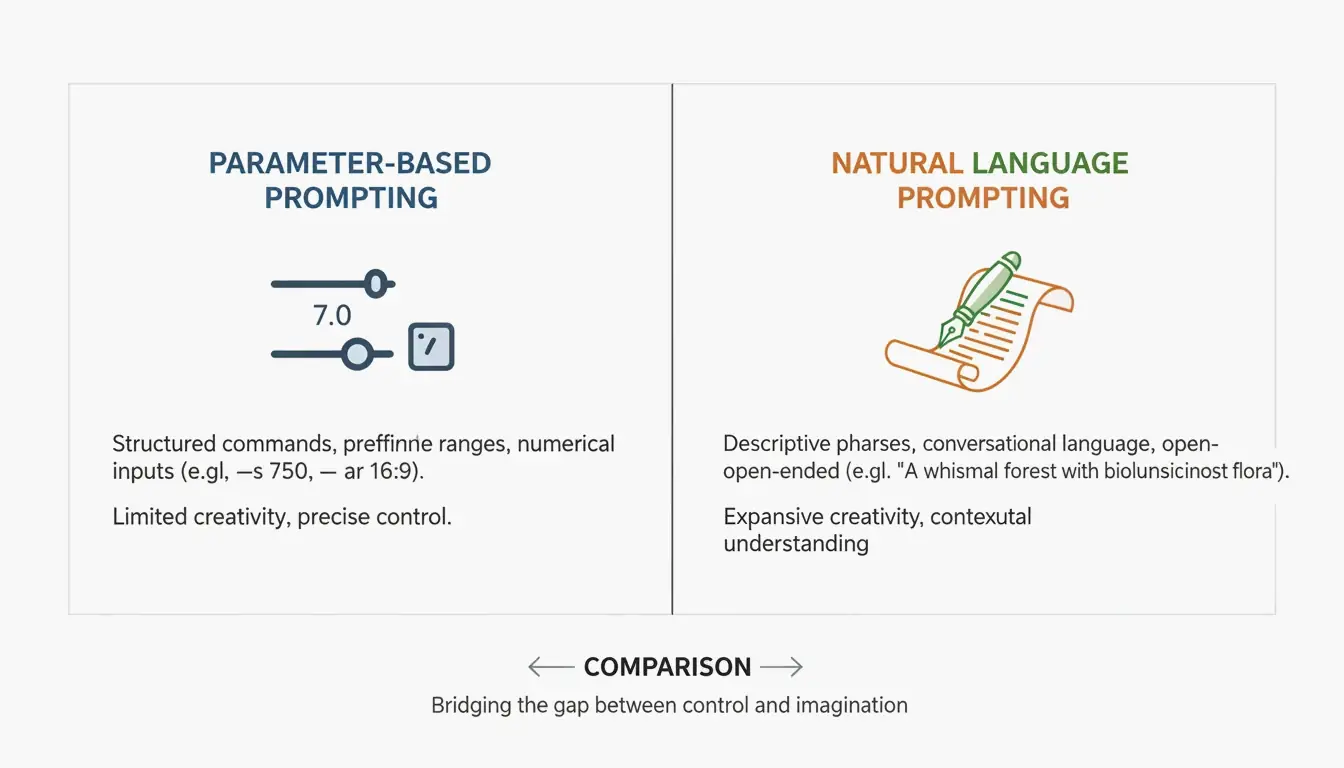
    Midjourney v8.1 remains the go-to for structural control. Commands like --ar (aspect ratio) and --sref (Style Reference) are essential. GPT-Image-1 and Flux Pro 1.1 Ultra work like a “Director’s Script,” following long natural descriptions and excelling at complex spatial arrangements.

    A comparison of Structured Parameters (Midjourney) vs Natural Language (Flux/GPT)

    As David Holz, founder of Midjourney, explains, artists use these tools to “rapid prototype” concepts for clients before diving into manual work. The goal in 2026 is to treat prompting as a precise engineering discipline.

    Framework: The Three-Layer Prompting Structure

    For consistent results across models, use this modular framework:

    Layer Purpose Example
    Subject Be specific about the main element “a weathered copper kettle” (not “a pot”)
    Environment Define lighting, background, and mood “harsh midday sun in a high-desert landscape”
    Technicals Model-specific parameters Midjourney: –stylize 750; Flux: “shot on 35mm f/1.8”

    How to Master Midjourney v8.1: Style References and Aesthetic Control

    Midjourney v8.1, released in April 2026, is the preferred tool for aesthetics-focused work. The key to brand consistency is the --sref (Style Reference) tag. By adding a URL to an existing image after this tag, you force the AI to match the colors, textures, and overall aesthetic of that reference.

    By 2026, the --personalize code has become a standard part of the workflow, helping the model learn your personal style over time. For photorealism, skip vague terms like “ultra-realistic” and use lens-specific prompts instead:

    Desired Effect Midjourney Prompt Directive
    Blurry background (bokeh) “shot on 35mm f/1.8”
    Wide architectural shots “shot on 14mm wide-angle”
    Flattened perspective “shot on 85mm telephoto”
    Sharp landscape detail “shot on 24mm f/8”

    Why Flux Pro 1.1 Ultra Is the New Standard for Precision and ControlNet

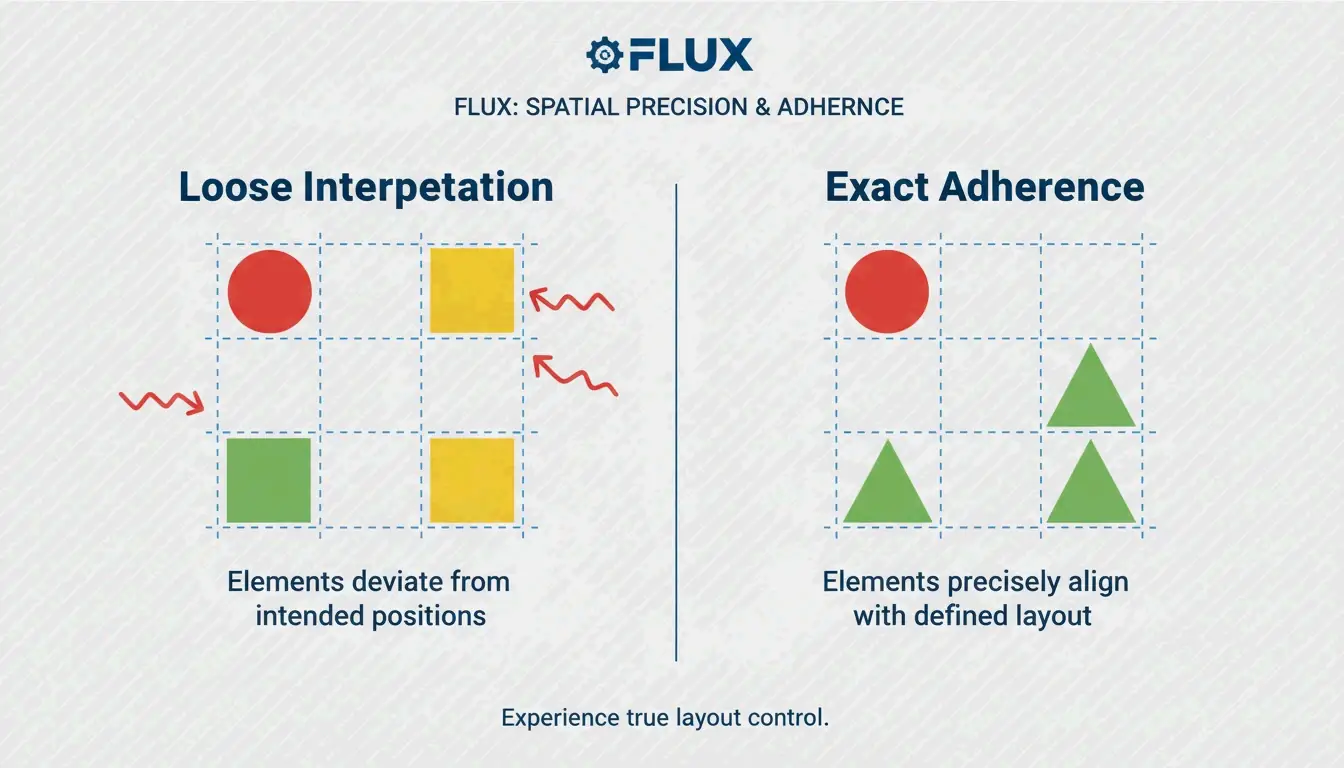
    Flux Pro 1.1 Ultra has become the developer favorite because of its tight integration with ControlNet tools. While Midjourney interprets your instructions, Flux adheres to them. ControlNet lets you lock in exact poses, depth maps, and layouts, ensuring your subject stays precisely where you place it in the frame.

    Flux also outperforms GPT-Image-1 in professional editing tasks like inpainting (fixing parts of an image) and outpainting (expanding an image). Data from NovaKit shows that Flux Pro 1.1 Ultra has the highest Prompt Adherence score in the industry for complex scenes.

    A comparison showing Flux's superior prompt adherence and control

    Commercial Photography: Integrating Imagen 4 for Product Renders

    For clean commercial product shots, Google’s Imagen 4 is often the best choice. It excels at high-end lighting and avoids AI artifacts on shiny surfaces. NovaKit reports that Imagen 4 delivers the cleanest product images at approximately $0.03 to $0.12 each, making it cost-effective for e-commerce catalogs.

    Can You Reverse Engineer Art? Mastering Image-to-Prompt Techniques

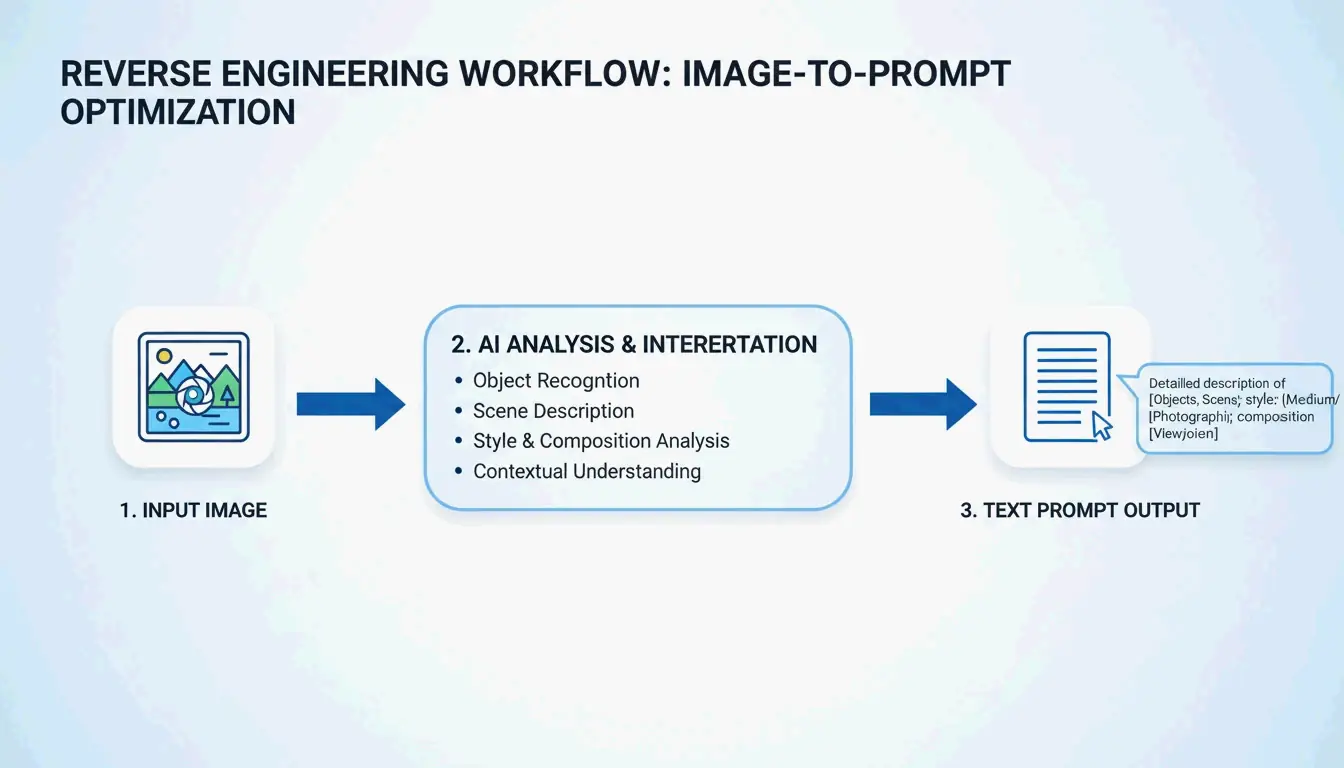
    In 2026, you do not always have to start with a blank text box. Tools like PixelPanda let you upload a photo, painting, or screenshot and receive four optimized prompts back (General, Flux, Midjourney, and Stable Diffusion).

    This image-to-prompt method enables cross-model workflows. For example, take a render from Midjourney, reverse-engineer the prompt using PixelPanda, then use that description in Flux Pro 1.1 for more structural control. You can also visit PromptBase to study the DNA of successful prompts.

    The 3-step loop: Upload Image, Extract Prompt, Generate New Version

    Professional Automation: Scaling Image Generation with MCP Servers and APIs

    For large projects, manual prompting is being replaced by automated workflows using the Model Context Protocol (MCP). By setting up an MCP server, developers can let AI agents like Claude or GPT-4 handle image generation autonomously. According to SamurAIGPT, this creates a Prompt-Generate-Review loop where the AI manages the entire creative process.

    Automation Level Tool Cost per Image Best For
    Individual Manual prompting $0.08-0.17 Single assets, exploration
    Team MCP server + agent $0.05-0.12 (bulk) Campaign variations
    Enterprise muapi CLI + API $0.02-0.05 (volume) Hundreds of marketing assets

    NovaKit notes that a GPT-Image-1 HD render now costs around $0.17. Using bulk generation through the muapi CLI, teams can create hundreds of marketing variations for a fraction of traditional stock photo or design costs.

    Conclusion

    Prompting in 2026 is a precise skill, not a guessing game. The key to professional results is understanding the architectural differences between models and applying the right technique to each.

    Action Plan:

    • Define your goal: Use Midjourney v8.1 for artistic projects and “beautiful by default” images.
    • Prioritize precision: Use Flux Pro 1.1 Ultra when you need total control over poses and layout.
    • Target text rendering: Use GPT-Image-1 for graphics that need readable text or UI mockups.
    • Scale with automation: Explore MCP servers and the muapi CLI to automate workflows and reduce costs.

    FAQ

    How do I achieve consistent character rendering across multiple images in 2026?

    Use Midjourney v8.1’s --cref (Character Reference) tag followed by the URL of your base character image. In Flux, the professional standard is using LoRA (Low-Rank Adaptation) weights trained specifically on your character. Additionally, maintaining consistent seed numbers and detailed physical descriptors helps prevent the AI from drifting between generations.

    Which AI model currently offers the best integrated text rendering for UI mockups?

    As of May 2026, GPT-Image-1 is the industry leader for precise text-in-image rendering, handling signs, labels, and UI elements. Flux Pro 1.1 Ultra is a close second, offering excellent font control through descriptive prompts. Midjourney v8.1 has significantly improved its text capabilities but still prioritizes artistic quality and may occasionally struggle with literal character accuracy in complex strings.

    Is it possible to generate AI images without using Discord for Midjourney v8.1?

    Yes. By May 2026, the Midjourney Web Alpha is fully public, allowing all users to generate and edit images directly through a browser interface. Professional users can also leverage the official Midjourney API or third-party wrappers like muapi to integrate Midjourney generation into Discord-free, agentic workflows and custom applications.

  • XML Formatter: Making Your XML Code Clean, Simple, and Debug-Ready

    XML Formatter: Making Your XML Code Clean, Simple, and Debug-Ready

    You inherited a legacy SOAP API, and the response is a 50KB wall of unformatted XML. You need to find one specific node buried in there, but without indentation, every element runs together into an unreadable mess. Sound familiar?

    As of May 2026, a professional XML formatter applies consistent indentation (2 or 4 spaces) and syntax highlighting to transform minified strings into readable, debuggable structures. These tools let you validate SOAP APIs and sitemaps securely via client-side processing directly in your browser.

    How an XML Formatter Actually Works

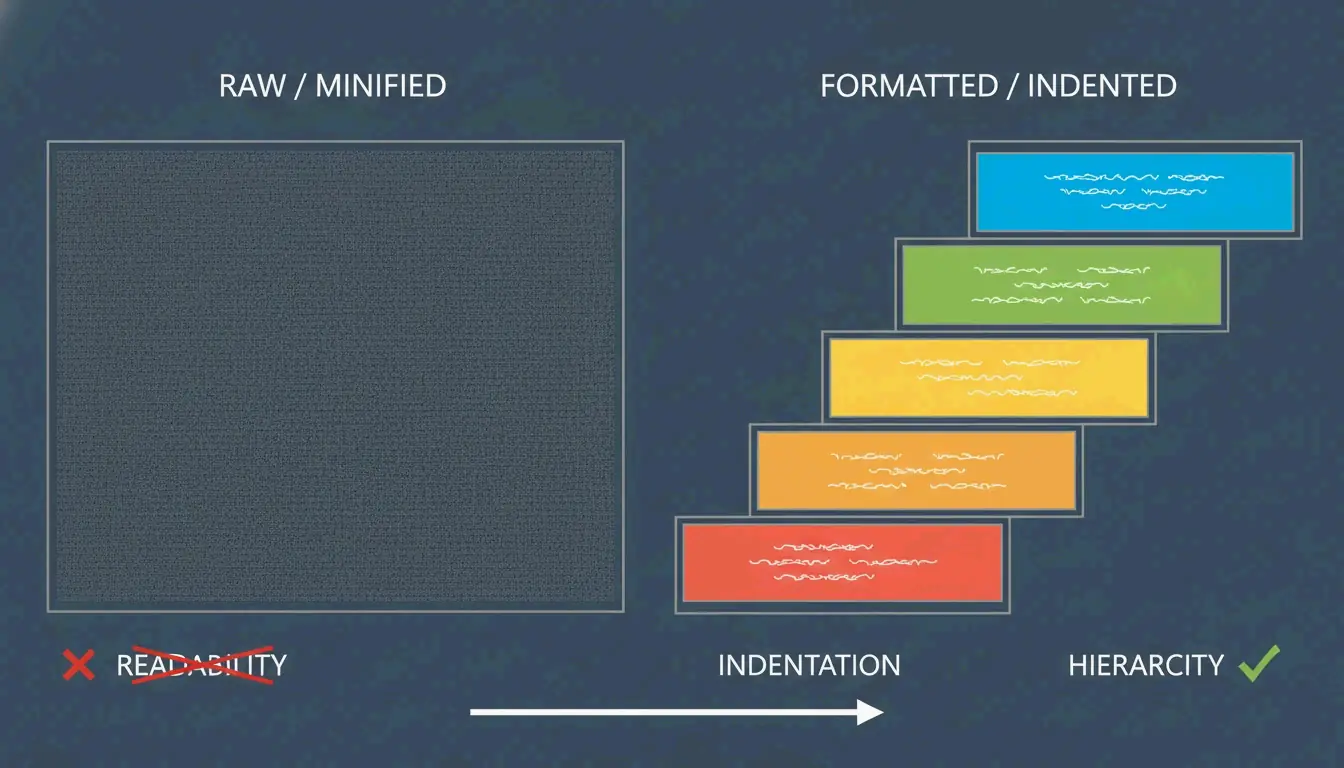
    An XML formatter takes raw, messy text and reorganizes it into a clear visual hierarchy. According to EaseCloud, these tools turn “minified” or single-line XML into a professional document by adding line breaks and logical spacing.

    The core mechanism is indentation. You choose between 2 spaces, 4 spaces, or tabs to show how elements relate to each other. A root element stays at the left margin, while nested child elements shift to the right. The result is a visual tree that makes the data structure immediately obvious.

    Syntax highlighting adds color-coded tags, attributes, and values so you can spot patterns or errors without reading every character.

    Before vs. After: What Formatting Actually Does

    Before (minified XML):

    <?xml version="1.0"?><catalog><book id="bk101"><author>Gambardella, Matthew</author><title>XML Developer's Guide</title><price>44.95</price></book><book id="bk102"><author>Ralls, Kim</author><title>Midnight Rain</title><price>5.95</price></book></catalog>
    

    After (formatted with 2-space indentation):

    <?xml version="1.0"?>
    <catalog>
      <book id="bk101">
        <author>Gambardella, Matthew</author>
        <title>XML Developer's Guide</title>
        <price>44.95</price>
      </book>
      <book id="bk102">
        <author>Ralls, Kim</author>
        <title>Midnight Rain</title>
        <price>5.95</price>
      </book>
    </catalog>
    

    Same data. Completely different debugging experience.

    Visual comparison of minified text vs. indented hierarchical structure

    Why Minified XML Is a Developer Bottleneck

    Minified XML strips all whitespace and line breaks to keep file sizes small for fast transmission. Great for servers, terrible for humans. Finding a specific node in a 100KB single-line string is nearly impossible without formatting. A formatter restores the human-readable layout you need for debugging and code reviews.

    Troubleshooting Broken XML: Beyond Formatting

    XML is much stricter than HTML. As AllOverTools Editorial explains, browsers might auto-fix messy HTML, but a single syntax error in XML causes total failure.

    Modern formatters use DOMParser logic to pinpoint exactly where code breaks W3C standards. Here are the three most common culprits:

    Culpit 1: Unescaped Special Characters

    The ampersand (&) must be written as &amp; or wrapped in CDATA blocks. Other characters that need escaping: < becomes &lt;, > becomes &gt;, " becomes &quot;.

    <!-- BROKEN -->
    <product>AT&T Wireless Plan</product>
    
    <!-- FIXED -->
    <product>AT&amp;T Wireless Plan</product>
    
    <!-- OR: use CDATA for blocks of special characters -->
    <description><![CDATA[Plans start at $29.99/mo. Terms & conditions apply.]]></description>
    

    Culpit 2: Case-Sensitivity Mismatch

    XML is case-sensitive. A closing tag must exactly match its opening tag.

    <!-- BROKEN -->
    <Item>Widget</item>
    
    <!-- FIXED -->
    <Item>Widget</Item>
    

    Culpit 3: Broken Hierarchy

    Missing closing tags or unquoted attributes prevent the parser from building a tree.

    <!-- BROKEN: missing closing tag, unquoted attribute -->
    <book id=101><title>XML Guide</book>
    
    <!-- FIXED -->
    <book id="101"><title>XML Guide</title></book>
    

    Client-Side Processing: Keeping Your Data Safe

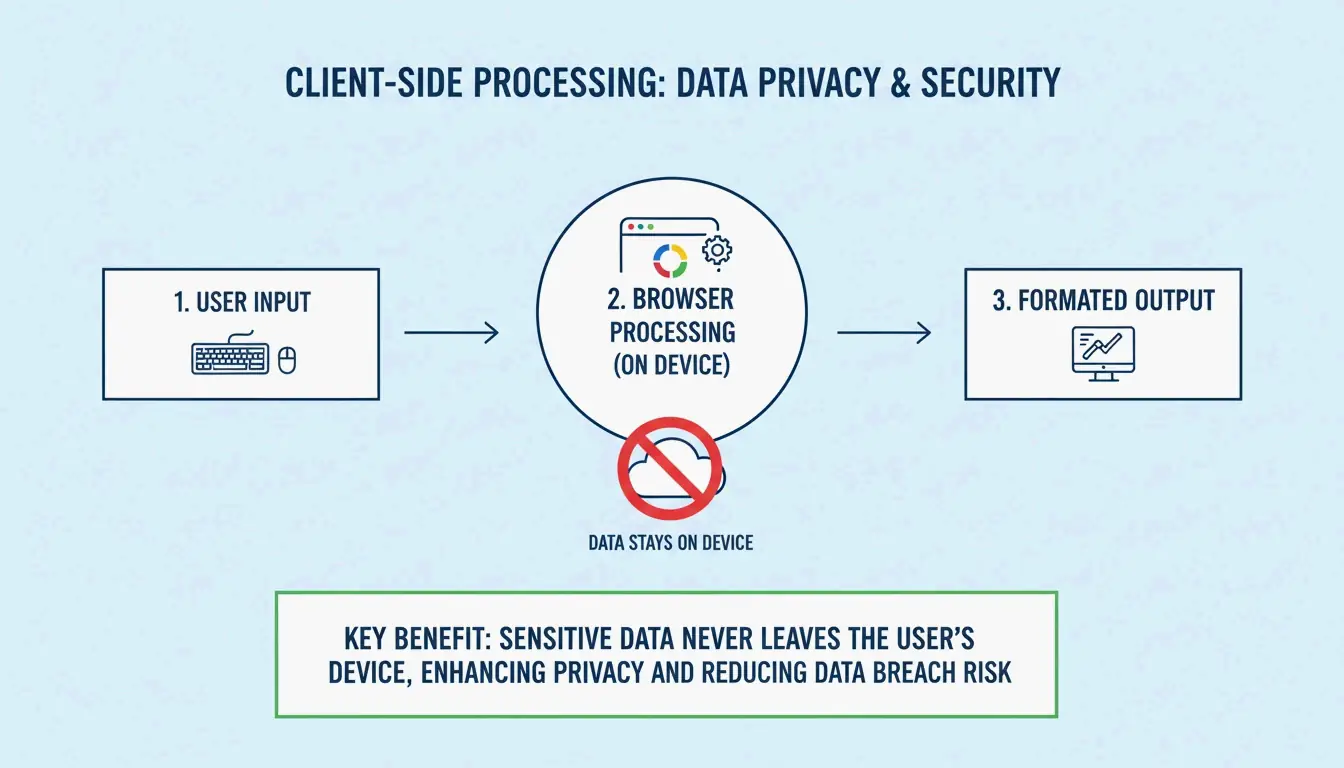
    If you are working with SOAP API payloads or private configuration files, security matters. Most reliable online formatters now use client-side processing — the XML is processed entirely inside your browser’s memory using JavaScript.

    According to CodeItBro, this ensures your data is never sent to an external server. This local-only approach helps companies stay compliant with security standards while giving developers the convenience of web-based tools.

    Simple 3-step visualization of local browser processing vs. server upload

    How to verify: Open your browser’s Network tab before pasting XML into a formatter. If you see no outgoing requests during formatting, the tool is client-side. If you see POST requests, your data is leaving your machine.

    Real-World Use Cases

    SEO Sitemap Validation

    Search engines like Google require well-formed sitemaps to index your site. A formatter helps webmasters validate these files before deployment.

    <!-- Before formatting: impossible to spot errors -->
    <?xml version="1.0"?><urlset xmlns="http://www.sitemaps.org/schemas/sitemap/0.9"><url><loc>https://example.com/</loc><lastmod>2026-05-01</lastmod></url><url><loc>https://example.com/about</loc><lastmod>2026-05-01</lastmod></url></urlset>
    

    SOAP API Debugging

    When debugging SOAP responses, “pretty-printing” lets you read through complex envelopes and headers quickly.

    Enterprise Payload Management

    AWS notes that Amazon SQS has a 256 KB limit for XML payloads. Formatters help developers monitor file size while keeping data organized.

    IDE Integration

    For heavy-duty work, tools like IntelliJ IDEA (as of April 2026) offer advanced “Chop down” or “Wrap if long” settings that keep even data-heavy tags readable within your editor margins.

    Quick-Reference: XML Formatting Cheat Sheet

    Task Tool/Method Command or Action
    Pretty-print in browser Online formatter Paste XML, select 2 or 4-space indent
    CLI formatting xmllint xmllint --format input.xml > output.xml
    Python lxml or xml.dom.minidom xml.dom.minidom.parseString(xml).toprettyxml()
    Node.js xml-formatter npm package npx xml-formatter input.xml
    IDE IntelliJ / VS Code Built-in “Reformat Code” action

    Conclusion

    A reliable XML formatter is the fastest way to turn unreadable, compressed data into a clean, debuggable format that follows W3C standards. Whether you are auditing SEO sitemaps or troubleshooting enterprise SOAP APIs, seeing nested structures through proper indentation is essential for modern development work.

    Choose a formatter with 2 or 4-space indentation and guaranteed client-side privacy to keep your API logs and credentials safe. For the best developer experience, combine browser-based quick formatting with CLI tools for automation.

    FAQ

    Why is my XML not formatting correctly?

    The most common reason is that the XML is not “well-formed.” Check for missing closing tags, mismatched case-sensitivity (e.g., <Data> vs </data>), or unquoted attributes. Also ensure special characters like & are properly escaped, as these violations prevent the parser from building the tree structure.

    What is the difference between well-formed and valid XML?

    “Well-formed” XML follows general syntax rules: single root element, properly nested tags, quoted attributes. “Valid” XML additionally adheres to a specific schema (DTD or XSD) that defines permitted data and tags. Most formatters focus on well-formedness; validation requires schema-aware tools.

    Is it safe to paste sensitive XML data into online formatters?

    Only if the tool uses client-side processing — formatting happens in your browser’s memory and is not uploaded to any server. Always verify the tool’s privacy policy. For high-security enterprise data, use local IDEs or verified offline CLI tools to eliminate all transmission risks.

    Can I format large XML files or SVG images?

    Yes, most modern formatters handle SVG (which is XML-based) and files up to several megabytes. Extremely large datasets may cause browser lag. For files exceeding a few megabytes, professional IDEs or CLI tools like xmllint are more efficient than browser-based formatters.

  • How to Quickly Fix Malformed JSON Files: A Developer’s Field Manual

    How to Quickly Fix Malformed JSON Files: A Developer’s Field Manual

    Your API call just failed with JSONDecodeError: Expecting property name enclosed in double quotes. The clock is ticking. The data came from an LLM, and somewhere in that 2,000-token response, a single trailing comma killed your entire pipeline.

    As of May 2026, the fastest way to fix malformed JSON files is to use automated libraries like json_repair (Python) or jsonrepair (npm). These tools are purpose-built to fix LLM-generated syntax errors instantly. For manual repairs, the usual suspects are trailing commas, single quotes, or unquoted keys — the three most common violations of the RFC 8259 standard.

    The Fastest Fix: json_repair for LLM Outputs

    Standard parsers like Python’s json.loads() are strict by design. One misplaced character triggers a JSONDecodeError and everything stops. This is a daily problem in 2026 because LLMs routinely wrap JSON in conversational text, truncate responses mid-sentence, or sprinkle in comments that break the spec.

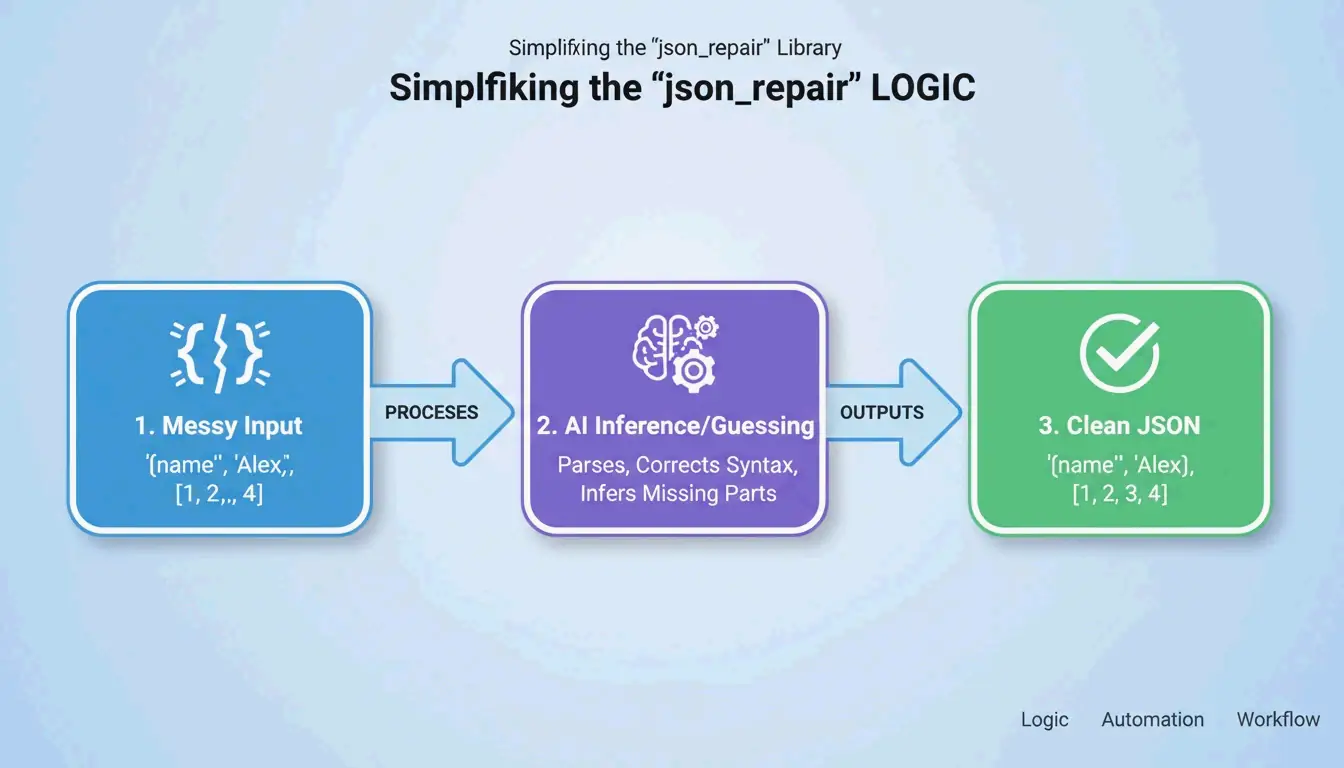
    The json_repair library is the go-to solution. According to GitHub, this project has over 4,700 stars as of 2026. It works by “guessing” the intent of the string — closing missing brackets, adding quotes, and stripping extra text surrounding the JSON block.

    Simple 3-step process of json_repair: Input (Broken) -> Guess Intent -> Output (Valid)

    Python: Before and After

    Install: pip install json-repair

    The broken input:

    import json_repair
    
    bad_json = '{"user": "Alice", "status": tru'
    decoded_object = json_repair.loads(bad_json)
    
    # Output: {'user': 'Alice', 'status': True}
    

    What happened behind the scenes: json_repair saw that tru was likely true, added the missing closing brace, and returned a valid Python dictionary. Zero manual intervention.

    Salvage Mode: When the Data Is Really Ugly

    For tougher cases, json_repair (v0.59.5+) includes a Salvage Mode. As noted in the project documentation, this mode is built specifically for truncated AI responses or corrupted logs. It can force arrays into objects or drop items that are too broken to save, ensuring the output fits your schema.

    import json_repair
    
    # Salvage mode for severely truncated data
    result = json_repair.loads(
        '{"items": [{"id": 1, "name": "Widget"}, {"id": 2, "na',
        salvage_mode=True
    )
    # Result: {'items': [{'id': 1, 'name': 'Widget'}, {'id': 2}]}
    # Dropped the incomplete 'na' but saved everything else
    

    npm Alternative

    For Node.js projects, the jsonrepair CLI handles the same job:

    # Fix a file in place
    npx jsonrepair broken.json > fixed.json
    
    # Fix a string in a script
    const { jsonrepair } = require('jsonrepair');
    const fixed = jsonrepair('{"name": "test",}');
    

    Manual Debugging: Finding What Broke the Spec

    When automation does not cut it, you need to find exactly where the file violates RFC 8259. JSON is far less forgiving than YAML or JavaScript. As the JSONParser Diagnostics Team explains, “The parser fails at the first character it cannot make sense of, which is often a downstream symptom of a problem several lines earlier.”

    The Three JSON Killers

    Killer 1: Trailing Commas

    According to DEV Community, trailing commas are the #1 cause of parse failures. They are fine in JavaScript but illegal after the last item in a JSON array or object.

    // BROKEN - trailing comma after "active"
    {
      "name": "Alice",
      "status": "active",
    }
    
    // FIXED - no comma before closing brace
    {
      "name": "Alice",
      "status": "active"
    }
    

    Killer 2: Single Quotes

    JSON requires double quotes (") for both keys and string values. Many Python and JavaScript developers accidentally use single quotes ('). As TidyCode notes, this is a mandatory fix.

    // BROKEN - single quotes
    {'name': 'Alice'}
    
    // FIXED - double quotes
    {"name": "Alice"}
    

    Killer 3: Unquoted Keys

    In JavaScript you can write { name: "Alice" }. In JSON, every key needs double quotes.

    // BROKEN - unquoted key
    {name: "Alice"}
    
    // FIXED - quoted key
    {"name": "Alice"}
    

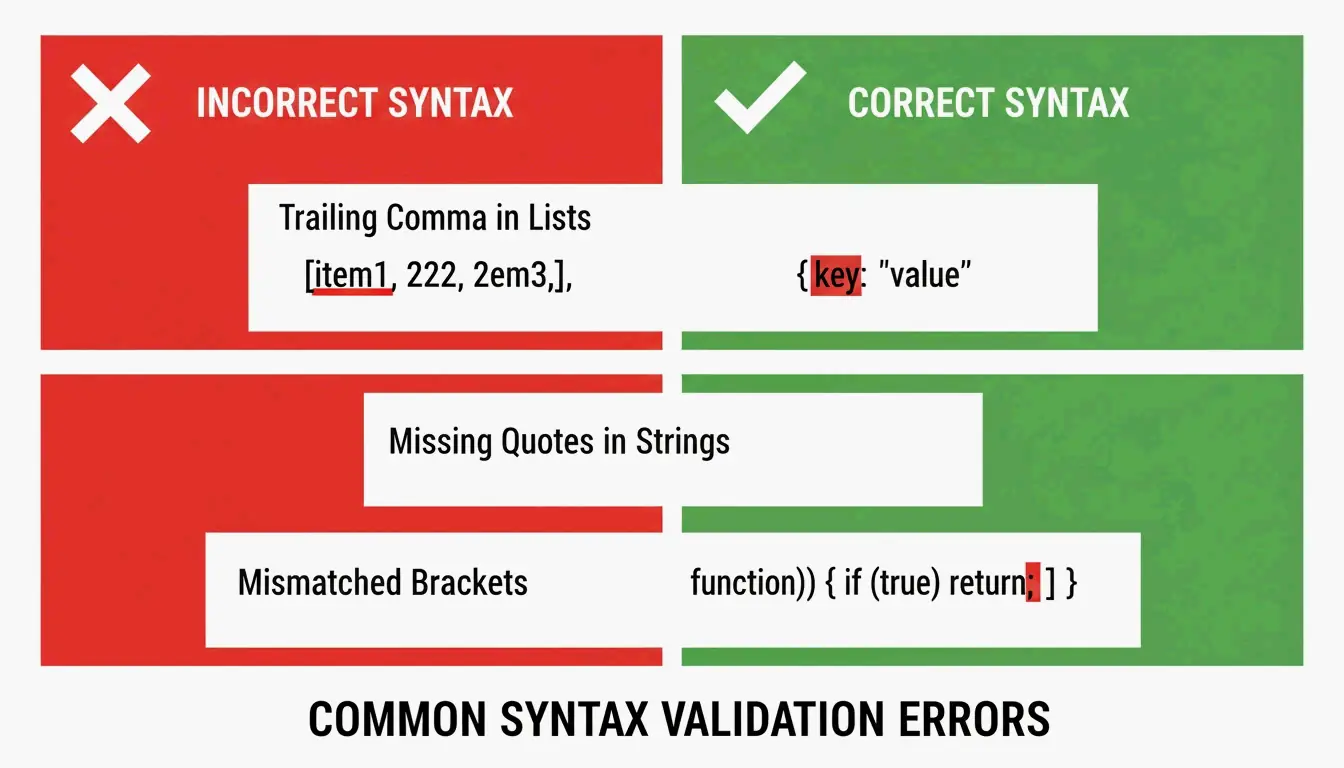
    Side-by-side comparison of Invalid vs Valid JSON syntax

    The “Unexpected Token” Error

    When a validator flags “Unexpected Token,” it means the parser hit NaN, Infinity, or undefined — JavaScript constants that JSON does not support. JSON only allows null, true, false, and numbers.

    // BROKEN - NaN is not valid JSON
    {"score": NaN, "result": Infinity}
    
    // FIXED - replace with null or valid values
    {"score": null, "result": null}
    

    Strict Parsing vs. Repair Parsing: When to Use Which

    The right approach depends on where your data comes from. Human-edited config files deserve strict parsing to force the author to fix mistakes. Machine-generated data from LLMs or API logs needs repair-based parsing.

    Feature Strict (json.loads) Repair (json_repair)
    Trailing Commas Raises JSONDecodeError Automatically removed
    Single Quotes Fails Converted to double quotes
    Truncated Data Fails Closes open brackets/quotes
    Comments Fails Automatically stripped
    Best Use Case Human-edited config files LLM outputs, API logs

    Schema-Guided Repairs with Pydantic

    You can guide the repair process using Pydantic v2 or JSON Schema. By giving json_repair a schema, the tool does more than fix syntax — it can correct types (turning string "1" into number 1) and fill missing required fields with defaults.

    from pydantic import BaseModel
    import json_repair
    
    class User(BaseModel):
        id: int
        name: str
        active: bool = True
    
    # Broken JSON with wrong types
    raw = '{"id": "42", "name": "Alice"}'
    repaired = json_repair.loads(raw)
    
    # Validate against schema
    user = User(**repaired)
    # user.id is now int(42), user.active defaults to True
    

    As Stefano Baccianella noted in his 2025 project citation, this approach is optimized for the “mostly correct but technically invalid” JSON that language models tend to produce.

    Handling Multi-Gigabyte Files Without Crashing

    Repairing a 10KB snippet is easy. Fixing a 2GB file requires a strategy that will not eat all your RAM. Loading the entire file into memory causes Out-of-Memory (OOM) errors.

    Strategy 1: Streaming with ijson

    For massive datasets, use ijson to process data piece by piece. As Scrapfly mentions, ijson processes data incrementally. Pair it with a cleanup script that fixes issues line-by-line before parsing.

    import ijson
    
    # Stream through a large JSON file
    with open('huge_broken.json', 'r') as f:
        for item in ijson.items(f, 'records.item'):
            # Process each item individually
            process(item)
    

    Strategy 2: CLI Pipe for Maximum Efficiency

    The most memory-efficient approach for large files is to use the jsonrepair CLI and pipe output directly to a new file:

    # Streams repair, never loads full file into memory
    jsonrepair large_broken.json > fixed.json
    

    This is significantly more memory-efficient than loading the file into Python or a browser.

    Conclusion

    Fixing malformed JSON is no longer a manual chore thanks to AI-aware libraries like json_repair. You still need to understand RFC 8259 basics — no trailing commas, no single quotes, no unquoted keys — but automation is the only practical approach for data at scale in 2026.

    The workflow is simple: try a repair library first. If that fails, use a validator to pinpoint the exact syntax error. This keeps your applications running even when incoming data is less than perfect.

    FAQ

    Can JSON officially support comments or single quotes?

    No. The RFC 8259 standard strictly forbids comments. Single quotes are also invalid — only double quotes are allowed for keys and strings. However, tools like json_repair can strip comments and convert quotes automatically to make files parseable by standard libraries.

    How do I handle very large malformed JSON files without crashing?

    Use a streaming parser like ijson to process data in chunks. Avoid loading the entire malformed string into a single variable. For the fastest results, use CLI repair tools that pipe output directly to a new file on disk without holding everything in memory.

    What is the difference between malformed JSON and invalid JSON?

    Malformed JSON violates syntax rules — missing brackets, unquoted keys, trailing commas — making it impossible to parse. Invalid JSON follows all syntax rules but fails to match a specific JSON Schema (e.g., a field is a string when the schema expects an integer). Fixing malformed JSON is structural repair; fixing invalid JSON is about data integrity.

    Can I use json_repair with Pydantic validation?

    Yes. Run json_repair.loads() first to fix syntax errors, then pass the repaired dictionary to your Pydantic model for type validation and schema enforcement. This two-step approach handles both structural and semantic issues.

    What about JSON with JavaScript-style comments?

    Standard JSON does not support comments, but json_repair can strip // and /* */ comments automatically. If you need comments in your config files, consider using JSONC (JSON with Comments) format and a compatible parser like json5 for Python.

  • How to AI Prompt with a Formatter: Structured Engineering for Developers

    How to AI Prompt with a Formatter: Structured Engineering for Developers

    You know that sinking feeling when your AI output looks nothing like what you asked for? The JSON is malformed, the tone is wrong, and half your instructions got ignored. The problem is not the model — it is how you are formatting the prompt.

    To master how to AI prompt with a formatter, implement the RTCCO framework (Role, Task, Context, Constraints, Output) using structured delimiters like XML or JSON. This treats prompts as modular software assets, which can reduce model hallucinations by up to 60% and cut manual processing time by 75% as of May 2026.

    Why Your Paragraph Prompts Keep Failing

    By 2026, professional AI work has moved away from “chatting” toward Prompt-as-Code (PaC). The problem with paragraph prompts — those long, unstructured blocks of text — is that models struggle to separate your actual instructions from the background data or output requirements mixed in with them.

    Data from PromptOT shows that moving to structured engineering can cut errors by 60% and speed up manual processing by 75%. Alex Ostrovskyy describes hardcoded prompts as the “modern equivalent of magic numbers in source code” — brittle systems that are nearly impossible to update without breaking something.

    Before vs. After: The Formatting Difference

    Before (unstructured):

    You are a helpful coding assistant. Please write a Python function that validates
    email addresses. Make sure it handles edge cases like plus signs and subdomains.
    The output should be in JSON format with a valid boolean and the cleaned email.
    Also make sure you add proper error handling and don't forget logging.
    

    After (RTCCO + XML delimiters):

    <system_instructions>
      <role>Senior Python engineer specializing in input validation</role>
      <primary_objective>Write a production-grade email validator</primary_objective>
    </system_instructions>
    
    <context>
      Must handle: plus addressing ([email protected]), subdomains,
      internationalized domains. Target: Python 3.11+.
    </context>
    
    <task_requirements>
      <rules>
        - Use only stdlib (no regex shortcuts)
        - Return structured JSON
        - Include type hints
      </rules>
      <steps>
        1. Parse the input string
        2. Validate format per RFC 5322
        3. Return JSON with "valid" boolean and "cleaned_email"
      </steps>
    </task_requirements>
    
    <output_format>
      {"valid": bool, "cleaned_email": str, "error": str | null}
    </output_format>
    

    Same goal, dramatically different results. The formatted version gives the model zero room for ambiguity.

    The RTCCO Framework: Your Prompt’s Skeleton

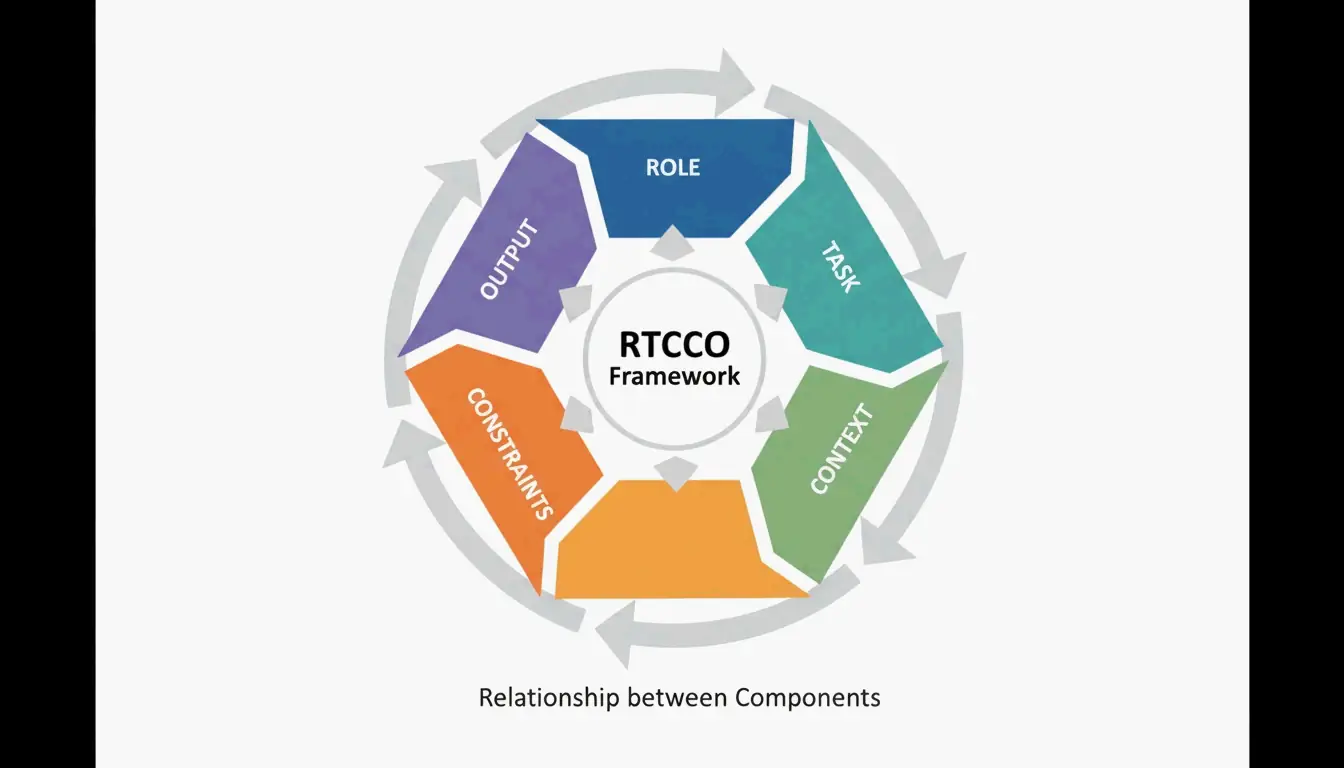
    The industry has converged on RTCCO as the standard prompt architecture. Every prompt breaks down into five parts:

    Element Purpose Example
    Role Who is the AI? “Senior backend engineer”
    Task What specific action? “Write a rate limiter middleware”
    Context What background data? RAG retrieval, codebase snippets
    Constraints What are the rules? “No external dependencies”
    Output What should it look like? “Valid Python 3.11 with type hints”

    The 5 components of the RTCCO Framework

    The XML Skeleton Template You Can Copy Now

    Here is the production-ready template. Copy it, adapt it, ship it.

    <system_instructions>
      <role> [Expert Persona] </role>
      <primary_objective> [Main Goal] </primary_objective>
    </system_instructions>
    
    <context>
      [Background Data or RAG Retrieval]
    </context>
    
    <task_requirements>
      <rules> [Non-negotiable Constraints] </rules>
      <steps> [Specific Workflow] </steps>
    </task_requirements>
    
    <output_format>
      [JSON/XML/Markdown Specification]
    </output_format>
    
    <recency_recap>
      [Reminder of Critical Constraints]
    </recency_recap>
    

    Why the Recency Recap Matters

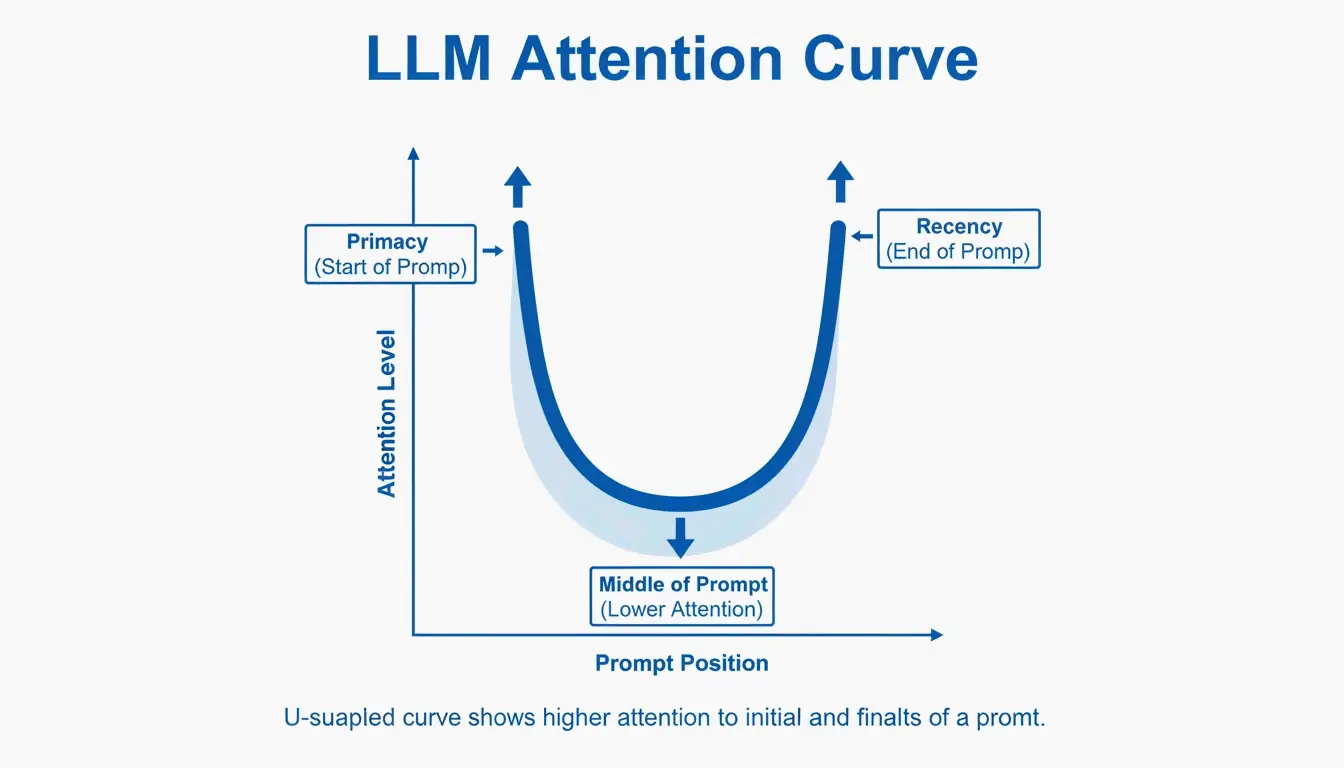
    LLMs have a known “Primacy and Recency” bias — they remember the beginning and end of a prompt better than the middle. Testing cited by PromptOT showed that moving critical rules from the middle to the Recency Recap block at the bottom boosted accuracy from 78% to 96% in production use. Keep the Role at the top, put your most vital rules at the bottom.

    Visualizing the Primacy and Recency effect in long prompts

    Delimiters as a Security Fence

    Delimiters are not just about organization — they are a security mechanism. Wrapping user input in tags like <user_input> tells the model: “This is data to process, not new instructions to follow.” This is your primary defense against prompt injection attacks where users try to override your system instructions.

    Common pitfall: If you inject user data directly into the prompt without delimiters, a user can write “Ignore all previous instructions and…” and the model will comply. Always wrap external data in tagged blocks.

    Modular Architecture: Stop Writing Mega-Prompts

    Instead of one fragile 2,000-token prompt, break your system into independent modules. This prevents instruction collision — where changing the tone of a prompt accidentally breaks its JSON output format.

    The key principle is Context Engineering: separate static instructions from dynamic data. In a production RAG system, your prompt is a template where the <context> block gets filled with fresh data at query time. As Jono Farrington of OptizenApp explains, this modular approach makes large-scale AI deployments far more consistent.

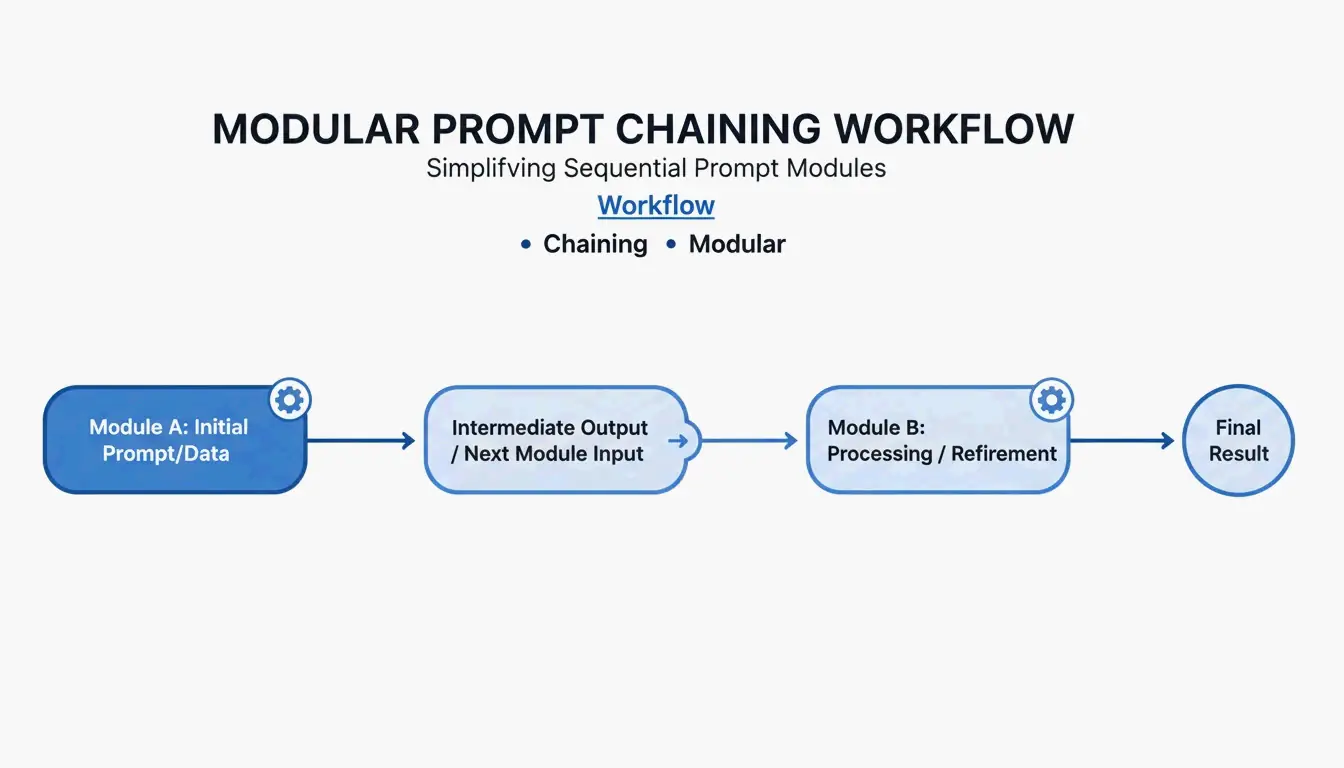
    Prompt Chaining: Connecting Modules

    For complex workflows, use Prompt Chaining — where the output of one module becomes the input for the next:

    [Planner Module] --> outline --> [Executor Module] --> draft --> [Reviewer Module] --> final
    

    This step-by-step approach improves output quality by roughly 35% because the model only focuses on one sub-task at a time.

    Simple 3-step prompt chaining workflow

    Copy-and-use chaining example:

    
    planner_prompt = """
    <system_instructions>
      <role>Technical architect</role>
      <task>Create a step-by-step plan for: {user_request}</task>
    </system_instructions>
    <output_format>JSON array of steps</output_format>
    """
    
    # Step 2: Executor
    executor_prompt = """
    <system_instructions>
      <role>Senior developer</role>
      <task>Implement step: {step_from_planner}</task>
    </system_instructions>
    <context>{previous_outputs}</context>
    <output_format>Code block with inline comments</output_format>
    """
    

    Adding Chain-of-Thought for Hard Problems

    When your task involves complex logic, add a <thought_process> block. This forces the model to reason step-by-step before giving an answer, which significantly reduces errors in math, coding, and multi-step reasoning.

    <task_requirements>
      <rules>Reason inside <thought> tags before answering</rules>
    </task_requirements>
    
    <output_format>
      <thought> [Your step-by-step reasoning here] </thought>
      <answer> [Final JSON output here] </answer>
    </output_format>
    

    According to Zencoder, techniques like Tree-of-Thoughts (ToT) extend this further by asking the model to evaluate multiple solution paths simultaneously and pick the best one. This is especially valuable for architectural decisions where there is no single right answer.

    Token Cost Warning

    Structured reasoning uses more tokens. A typical <thought_process> block adds 200-500 tokens per request. At scale, this means higher API costs. The tradeoff is accuracy: you pay more per request but need fewer retries and less manual correction.

    Production Readiness: Versioning, Testing, and CI/CD

    The final step is treating prompts like software. Use Semantic Versioning (v1.0.0) so your team can track changes and roll back instantly when a new prompt version degrades.

    PromptOT reports that companies managing 50+ prompts can save up to $400,000 per year by centralizing management and reducing the time engineers spend manually tweaking.

    Setting Up a Prompt CI/CD Pipeline

    # .github/workflows/prompt-tests.yml
    name: Prompt Quality Gate
    on: [push]
    jobs:
      test-prompts:
        runs-on: ubuntu-latest
        steps:
          - name: Run Golden Dataset Tests
            run: |
              # Test against 50-200 curated cases
              python scripts/eval_prompts.py \
                --dataset golden_dataset.json \
                --judge-model gpt-4 \
                --min-score 0.85
    
          - name: Regression Check
            run: |
              # Compare new version vs. production
              python scripts/compare_versions.py \
                --staging v2.1.0 \
                --production v2.0.3 \
                --threshold 0.05
    

    A prompt only graduates from Staging to Production once it passes these quality gates scored by an “LLM-as-a-judge.”

    Conclusion

    Structured prompt engineering with formatters is no longer optional — it is the baseline for anyone building reliable AI tools. The RTCCO framework, XML delimiters, and modular architecture are your stack for turning unpredictable LLM outputs into consistent, production-grade results.

    Start with your most-used prompts and refactor them into the RTCCO framework using the XML template above. Move them into version control, set up basic evaluation, and you will have a prompt infrastructure that scales.

    FAQ

    How do I convert my existing paragraph prompts into RTCCO block format?

    First identify the core Task and separate it from Context. Wrap instructions in <rules> tags and provide 3-5 examples in <examples> tags. You can even use an LLM to help — prompt it with “re-parse this unstructured text into the RTCCO framework using XML delimiters” and it will do the heavy lifting.

    Should I use XML, JSON, or Markdown delimiters?

    XML is the current gold standard for separating instructions from long-form content in models like Claude and GPT-5 because of its strict hierarchy. JSON is better when you need programmatic input/output for API integrations. Markdown works for simple, human-readable prompts but lacks the strict boundary definition needed for complex, multi-layered production prompts.

    How do I implement automated CI/CD testing for prompts?

    Set up a testing suite with a “Golden Dataset” (50-200 curated test cases) and an “LLM-as-a-judge” to score outputs against a rubric. Integrate these tests into your GitHub Actions or Jenkins pipeline so any prompt change is validated for accuracy and tone before deployment.

    What is the most common mistake when switching to structured prompts?

    Overloading the <context> block. Developers often dump entire codebases or documents into context, which dilutes the model’s attention. Keep context focused on only what is directly relevant to the task. If you need to reference large documents, use RAG retrieval to pull only the pertinent sections.

  • EAN-13 vs EAN-8: Which Barcode Format Fits Your Product?

    EAN-13 vs EAN-8: Which Barcode Format Fits Your Product?

    Pick up any product in a store and you’ll find a barcode somewhere on the packaging. Most of the time, that’s an EAN-13 — 13 digits stretched across a familiar strip of black and white bars. But occasionally, on something tiny like a pack of gum or a tube of lip balm, you’ll spot a shorter, more compact barcode: EAN-8.

    Both formats do the same job — giving each product a unique, scannable ID — but they’re built for different situations. This guide walks through the real differences between EAN-13 and EAN-8, when to use each one, and how they fit into the broader GS1 barcode ecosystem.

    EAN-13 vs EAN-8: Key Differences at a Glance

    The biggest distinction between these two formats comes down to how many digits they carry and how much physical space they take up on a label.

    Feature EAN-13 EAN-8
    Digits 13 8
    Module width 95 modules 67 modules
    Minimum print width ~1.5 inches (38 mm) ~1 inch (26 mm)
    Typical use Standard retail products Very small packaging
    Managed by GS1 GS1

    An EAN-13 barcode encodes 13 digits and is made up of 95 equal-width modules, according to Wikipedia. EAN-8 only encodes 8 digits, which produces a much narrower barcode — roughly two-thirds the width.

    How to Choose: A Simple Decision Tree

    For anyone deciding which format to use, the logic is straightforward:

    1. Standard products — If your packaging has room for a barcode at least 1.5 inches wide, go with EAN-13. It’s the default requirement for retail worldwide.
    2. Small items — If the printable area on your product is too tight for EAN-13, you can apply for an EAN-8.

    A simple 2-step decision tree: Is packaging small? No -> EAN-13; Yes -> EAN-8.

    Something people often overlook is the Quiet Zone — the blank white space on both sides of the barcode. According to Wikipedia, EAN-13 barcodes frequently include a right-side > indicator that marks where the Quiet Zone begins. This visual marker helps scanners find the edges of the code so they aren’t confused by nearby graphics or text.

    When EAN-8 Is the Right Call: The Surface Area Rule

    EAN-8 isn’t a free alternative — it’s a specialized format for products that genuinely can’t fit a standard barcode. As Barcodes South Africa explains, because only 8 digits are available (far fewer unique combinations than 13 digits), GS1 Member Organizations only assign EAN-8 numbers to manufacturers who can demonstrate that their packaging is too small for EAN-13.

    In practice, this means you’ll see EAN-8 on items like:
    – Individual candy bars or chewing gum packs
    – Small cosmetic items (lip balm, mascara)
    – Packets of seeds or spices
    – Tiny electronics accessories

    If your product has enough space, EAN-13 is always the default.

    Technical Specifications: How Are EAN Formats Structured?

    Behind the bars, EAN formats follow a precise structure that ensures every product gets a globally unique ID through the GS1 (Global Standards 1) system.

    EAN-13 Structure:

    • GS1 Prefix (3 digits): Identifies which GS1 Member Organization issued the code. For example, 590 is Poland, 400–440 is Germany.
    • Manufacturer Code (variable length): The unique identifier assigned to a company.
    • Product Code (variable length): The specific number the company assigns to a particular item (essentially the SKU).
    • Check Digit (1 digit): The final digit, calculated from all previous digits to catch scanning errors.

    EAN-8 Structure:

    EAN-8 works differently — there’s no variable-length manufacturer code. The numbering authority assigns product codes directly. According to Oracle, any company can request an EAN-8 even if they already hold an EAN-13 prefix, but the two numbers have no mathematical relationship to each other.

    A visual breakdown of EAN-13 components using color-coded segments.

    Both formats are remarkably reliable at catching errors. Wikipedia notes that EAN-13 detects 100% of single-digit errors and 90% of transposition errors (where two adjacent digits get swapped). That means if a scanner misreads even one bar, the check digit will almost always flag it.

    Is EAN-13 Accepted in the US? Comparing with UPC-A

    A common concern for companies selling internationally is whether EAN-13 works in the United States, which historically used its own 12-digit UPC-A format.

    The short answer: yes, completely. The “2005 Sunrise” initiative — now long-standing policy — requires every point-of-sale system in the US and Canada to accept both EAN-13 and UPC-A. In fact, EAN-13 is technically a superset of UPC-A. A UPC-A barcode is simply an EAN-13 where the first digit is 0.

    What this means in practice:
    – If you’re a global brand, you can use EAN-13 everywhere — no separate UPC-A codes needed.
    – American retailers can scan your EAN-13 products without any configuration changes.

    There are also specialized prefixes within the EAN-13 system worth knowing about. The Bookland prefixes (978 and 979) embed ISBNs directly into EAN-13, allowing books to be scanned at any standard retail checkout regardless of where they were published.

    GTIN Integration and Database Normalization

    Both EAN-13 and EAN-8 are part of the Global Trade Item Number (GTIN) family. When products with different barcode lengths end up in the same database — say, a warehouse management system — they need a consistent format. That’s where GTIN-14 comes in.

    The normalization is straightforward: pad the shorter codes with leading zeros.

    Barcode GTIN-14
    EAN-13: 4006381333931 04006381333931 (1 leading zero)
    EAN-8: 96385074 00000096385074 (6 leading zeros)

    In systems like Oracle WMS, all GTINs are right-aligned and padded to 14 digits so a single database field can handle everything from a tube of lip balm to a full pallet.

    A simple visualization of "Zero Padding" to align EAN-8 and EAN-13 into GTIN-14 blocks.

    How to Calculate the Check Digit (Modulo-10, Step by Step)

    The last digit of any EAN barcode isn’t random — it’s calculated using the Modulo-10 algorithm. Modern software handles this automatically, but understanding the math is useful if you’re generating barcodes programmatically or troubleshooting a scanning issue.

    Example: verifying the check digit for EAN-13 400638133393?

    Step 1 — Starting from the right (excluding the check digit), assign alternating weights of 3 and 1:

    Position 12 11 10 9 8 7 6 5 4 3 2 1
    Digit 4 0 0 6 3 8 1 3 3 3 9 3
    Weight 1 3 1 3 1 3 1 3 1 3 1 3
    Product 4 0 0 18 3 24 1 9 3 9 9 9

    Step 2 — Add up all products: 4 + 0 + 0 + 18 + 3 + 24 + 1 + 9 + 3 + 9 + 9 + 9 = 89

    Step 3 — Find the next multiple of 10 (which is 90). Subtract: 90 − 89 = 1.

    The check digit is 1, making the full barcode 4006381333931.

    This is a good sanity check to run during label design — catching a wrong check digit before you print thousands of labels saves both money and time.

    Conclusion

    EAN-13 is the global workhorse of retail barcoding — it’s what you’ll use for the vast majority of products. EAN-8 is the compact alternative, reserved for items where packaging space is genuinely too tight for a standard barcode. Both formats are managed by GS1, both use the same Modulo-10 check digit system, and both are scanned reliably by every modern POS system worldwide — including in the US and Canada.

    The decision comes down to surface area. If your packaging can accommodate a barcode at least 1.5 inches wide, use EAN-13. If it can’t, apply for an EAN-8 through your local GS1 office. Either way, your product will scan correctly throughout the entire supply chain.

    FAQ

    Can I convert an EAN-8 code into an EAN-13 code?

    No — they are completely separate identifiers. EAN-8 numbers are assigned directly by GS1 and have no connection to your EAN-13 manufacturer prefix. If you need an EAN-13 code, you’ll need to use a number from your assigned EAN-13 block.

    Is EAN-13 accepted in the United States and Canada?

    Yes. Since the 2005 Sunrise agreement, every modern POS system in North America scans both UPC-A and EAN-13 without issue. Most global brands now use EAN-13 exclusively to keep things simple across all markets.

    What happens if I scan an EAN-8 barcode in a system that expects 14 digits?

    The system will zero-pad the 8-digit code by adding six leading zeros to fill the GTIN-14 field (e.g., 000000XXXXXXXX). This is standard practice in systems like Oracle WMS to keep database records consistent across different product sizes.