Author: SectoJoy

  • Unlock Your Life Story: The Ultimate Birthday Facts Calculator for 2026

    Unlock Your Life Story: The Ultimate Birthday Facts Calculator for 2026

    A birthday facts calculator gives you a real-time snapshot of your life journey as of April 25, 2026. In an instant, it breaks down your exact age, identifies your Western and Chinese zodiac signs, and highlights cultural markers like your birthstone. It also looks at the stats behind your big day, calculating birthday rarity and placing you in your specific generational cohort using the latest 2026 data.

    What is Your Exact Age Breakdown? (Years, Days, and Seconds)

    To find your exact age, a birthday facts calculator counts the precise time that has passed from your birth to right now. According to Intelligent Calculator, this is done by subtracting your birth year from the current year, then adjusting by one year if your birthday hasn’t arrived yet in the current cycle.

    If you’re looking for high-precision data in 2026, modern tools go way beyond just years. You can see a live counter of every second you’ve spent on Earth. As noted by CalendarZ, someone born on December 1, 2001, has already lived through more than 769 million seconds. They are quickly approaching the “1 Billion Seconds” milestone, which usually happens around age 31 and 8 months.

    The Leap Year Factor: How We Calculate Feb 29th Birthdays

    Figuring out the age of someone born on February 29—often called Leaplings—takes a bit of extra logic. EveryFreeTool points out that the odds of being born on this day are about 1 in 1,461. During non-leap years, legal systems in places like the UK and Hong Kong officially move the birthday to March 1, while many U.S. states recognize it on February 28.

    Birthday Rarity: How Common is Your Special Day?

    Birthday rarity is mostly a result of seasonal trends and how hospitals schedule their work. Data from How Rare Is My Birthday shows that births aren’t spread evenly throughout the year. September 9 is statistically the most common birthday in the U.S., with a general peak in births from July through early October. On the flip side, holidays like December 25 (Christmas Day) and January 1 (New Year’s Day) are among the rarest because hospitals schedule fewer elective inductions or C-sections on those days.

    A simple comparison of common vs. rare birth periods

    The ‘Tuesday vs. Sunday’ Gap in Modern Hospitals

    Statistics from Caesar Cipher show that Tuesday is the most common day of the week for U.S. births, followed by Monday and Wednesday. Saturdays and Sundays see much lower numbers. This “scheduling effect” happens because modern medical practices plan fewer deliveries for the weekend.

    What is Your Zodiac Sign and Cosmic Identity?

    Your birth date is the key to your “cosmic identity,” which includes your Zodiac Sign and other traditional symbols. Western astrology uses 12 signs based on where the sun was when you were born. For example, EveryFreeTool notes that an April 25 birthday falls under Taurus (while a March 25 birthday is Aries).

    In 2026, these calculations often include:

    • Chinese Zodiac: This follows a 12-year animal cycle. As of 2026, we are under the influence of the Year of the Horse.
    • Birthstone & Birth Flower: These are tied to your birth month. GetZenQuery notes that April’s primary birthstone is the Diamond, which represents strength.

    The Meaning Behind Your Birth Month Symbols

    Birthstone traditions go back as far as the 15th century. According to EveryFreeTool, January’s Garnet is a symbol of protection, while September’s Sapphire has become the modern standard. These symbols, along with birth flowers, help build a personal story that goes beyond just numbers.

    Life Milestones: Next Birthday Countdown and Your Golden Birthday

    A birthday facts calculator also helps you track what’s coming next. The Next Birthday Countdown looks at today’s date and finds the next time your birth month and day show up; if it has already passed in 2026, the tool counts down to 2027.

    Keep an eye out for these fun milestones:

    • Golden Birthday: This is when you turn the same age as the day you were born (like turning 15 on the 15th).
    • 10,000 Days Alive: This is a popular milestone to track in 2026. Caesar Cipher estimates this happens when you are roughly 27 years and 5 months old.

    A minimalist timeline of unique life milestones

    Generational Identity: Are You Gen Z, Millennial, or Gen Alpha?

    In 2026, knowing your Generational Cohort helps you understand your place in the cultural landscape. Intelligent Calculator uses these widely accepted boundaries:

    • Millennials: Born 1981–1996 (Aged 30–45 in 2026).
    • Generation Z: Born 1997–2012 (Aged 14–29 in 2026).
    • Generation Alpha: Born 2013–present (Aged 0–13 in 2026).

    For those born in 2005 and 2008, 2026 is a big year. These individuals turn 21 and 18, respectively, marking their official entry into new stages of adulthood within Gen Z.

    On This Day: Historical Facts for Your Birthday Card

    Every birthday has its own Historical Context. If you were born on December 1, for example, you share a date with some world-changing events. CalendarZ notes that on December 1, 1955, Rosa Parks refused to give up her bus seat in Montgomery, Alabama. Back in 1913, that same date saw Ford Motor Company introduce the first moving assembly line.

    Birthday Fact Card Captions to Impress Your Friends

    You can use these calculator facts to spice up your social media captions:

    • “I’ve officially survived 1 billion seconds of Earth’s chaos!”
    • “Celebrating my Golden Birthday—the only time my age and the date actually match.”
    • “Born on a Tuesday: Statistically common, but personally one-of-a-kind.”

    Conclusion

    A birthday is much more than a box on a calendar; it’s a mix of statistics, history, and personal growth. A birthday facts calculator brings this to life by looking at birth rarity, generational markers, and even your age in seconds. It’s a great way to get a new perspective on where you fit in the world. Try out the tool to see your 2026 metrics, and maybe grab a ‘card caption’ fact to share with a friend celebrating a birthday this week.

    FAQ

    What is the rarest birthday in the United States?

    According to How Rare Is My Birthday, Christmas Day (December 25th) is statistically the rarest birthday. January 1st and February 29th are also very rare. This is mostly because hospitals schedule far fewer C-sections and inductions on major national holidays.

    How does the calculator handle leap year birthdays (February 29)?

    In non-leap years, most calculators move the date to March 1 to keep things accurate. Caesar Cipher explains that the tool accounts for the extra 0.2425 days per year. It identifies “Leapling” status and provides a countdown to the next true four-year anniversary.

    What is the ‘Birthday Paradox’?

    The Birthday Paradox is a theory of probability. It states that in a group of just 23 people, there is a 50% chance that two of them share a birthday. According to Caesar Cipher, that chance jumps to 99.9% in a group of 70, showing just how surprising probability can be.

  • Best JSON Formatter Tools for 2026: Secure, Privacy-First, and Ad-Free Options

    Best JSON Formatter Tools for 2026: Secure, Privacy-First, and Ad-Free Options

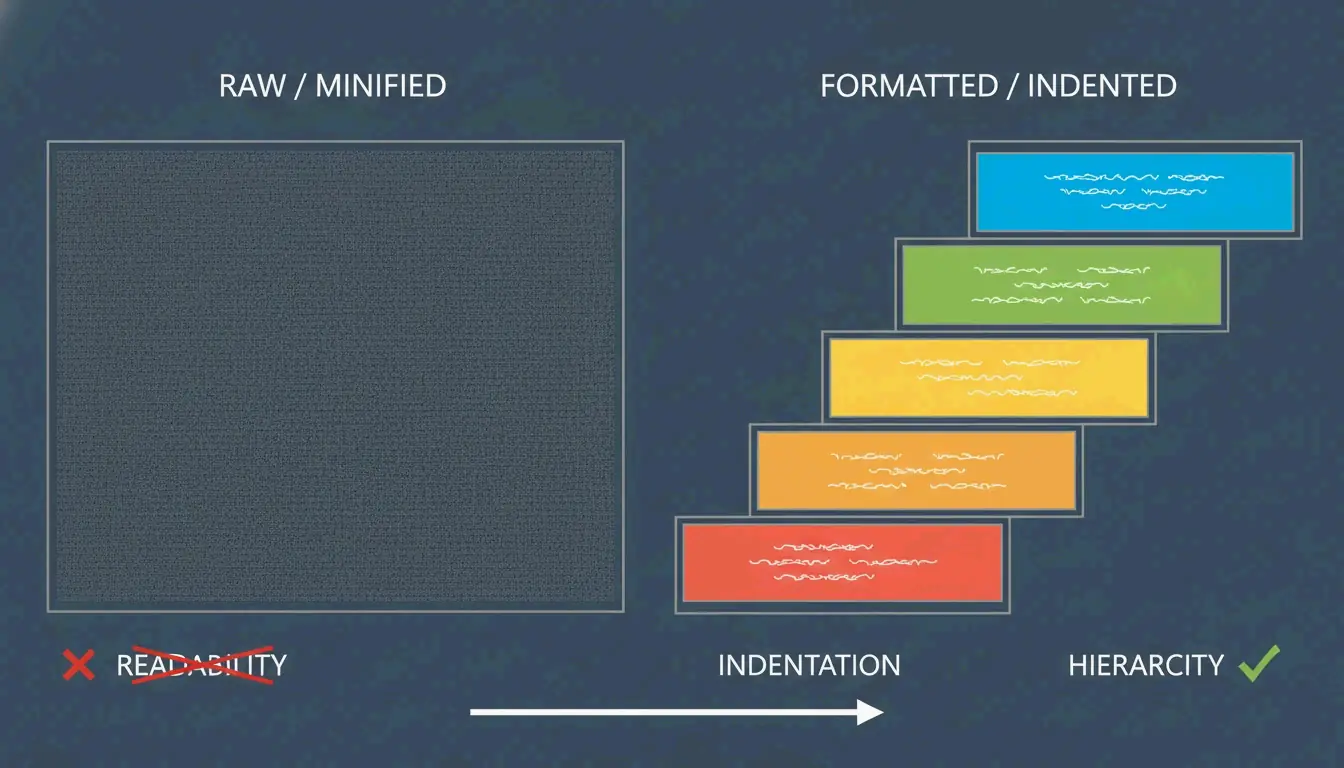
    A JSON Formatter is a developer tool used to beautify raw, minified data into a readable structure using indentation and syntax highlighting. For maximum security in 2026, prioritize client-side tools like FormatArc, terminal commands like jq, or verified open-source extensions like JSON Alexander to prevent sensitive data leaks and avoid adware tracking.

    How to Choose a Secure JSON Formatter in 2026

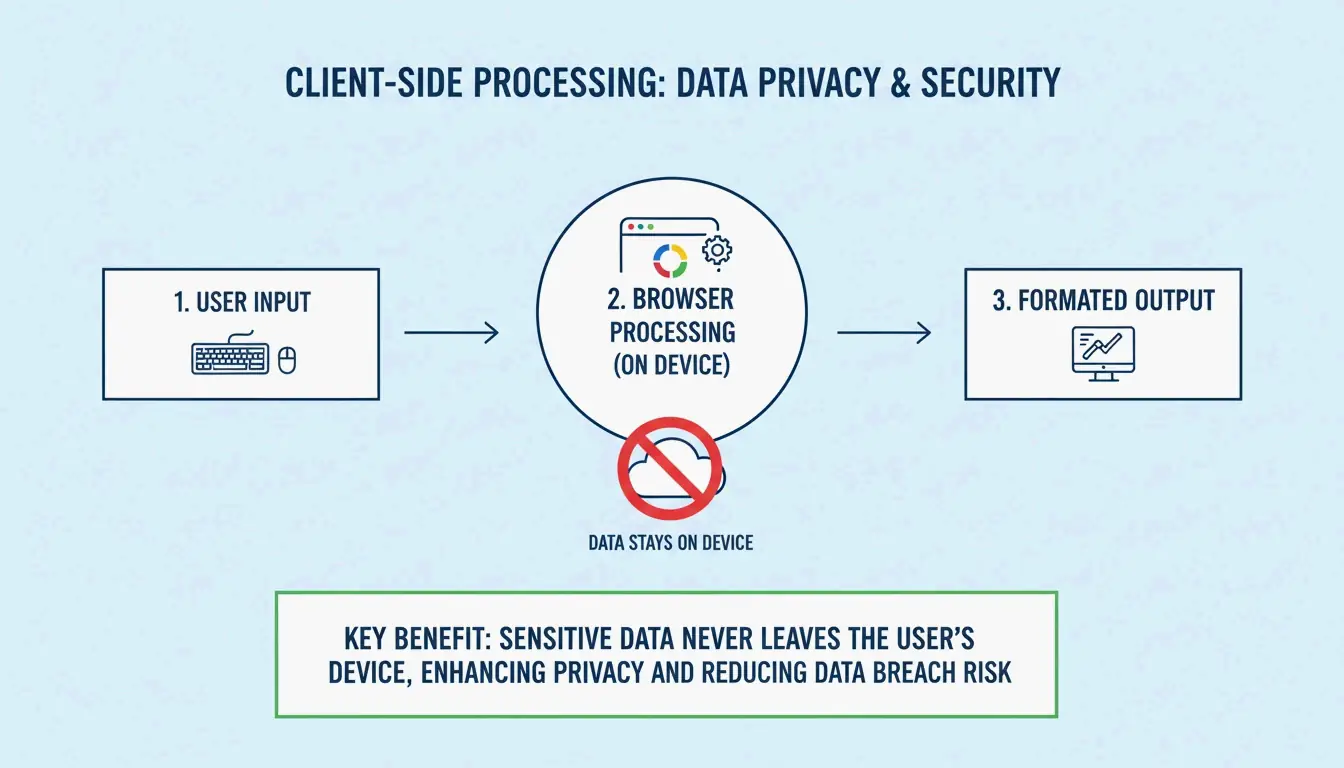
    When picking a JSON Formatter today, security isn’t just a bonus—it’s the baseline. The industry has moved toward privacy-first tools to stop data interception before it starts. The gold standard here is Client-side Processing. This means your JSON data—which often contains sensitive API keys or personal user info—stays inside your browser and never travels to an external server.

    Beyond keeping data safe, you need a tool that actually makes debugging easier. Look for these two features:

    1. Syntax Highlighting: This uses colors to distinguish data types (like green for strings or orange for numbers), so you can scan the structure at a glance.
    2. Collapsible Tree View: This lets you fold or unfold nested objects and arrays, helping you navigate deep data structures without getting lost.

    Visualizing the 'Client-side' vs 'Server-side' data flow concept.

    As noted by JSON Formatter & Viewer, most modern browser formatters have a 10 MB performance warning threshold. If your file is bigger than that, the browser tab might freeze. In those cases, professional tools will usually suggest viewing the raw text or switching to a local processor.

    The Security Audit: Why Local Processing Matters

    According to FormatArc, security is the biggest risk when you paste internal configs or API payloads into web tools. A local-only workflow ensures that clicking “Format” just runs a JavaScript function in your browser rather than sending a POST request to a remote database. You can test this yourself: open your browser’s Network tab. A secure tool won’t show any outgoing traffic while it processes your data.

    The 2026 Extension Controversy: Is Your JSON Formatter Safe?

    The developer community recently hit a major snag with browser extensions. In March 2026, several popular JSON formatters pivoted to an adware model. Reports on Hacker News revealed that one widely used extension (v2.1.14) started injecting ads into checkout pages and tracking users’ locations without permission.

    This situation highlights the risks within the Manifest V3 ecosystem. Even though Manifest V3 was supposed to improve security by limiting background tasks, it doesn’t stop extensions from using “content scripts” to mess with webpage data or pop up annoying “donation appeals” that act just like adware.

    The backlash was huge. Data from ChromeBoard and community threads suggest over 2 million users were affected. As the original developer of one compromised project mentioned in a GitHub README: “I am no longer developing JSON Formatter as an open source project. I’m moving to a closed-source, commercial model.”

    In response, JSON Alexander has become the new favorite for open-source fans. Created by Wes Bos, a well-known figure in web dev, it was designed to be a clean, lightweight alternative you can actually trust. It stays transparent and avoids the “hero to villain” path by focusing purely on formatting without hidden tracking.

    Mastering the Command Line with jq and Native Methods

    If you want total control over your data, the terminal is your best bet. jq is the industry standard for command-line JSON processing. It lets you filter, change, and beautify data without ever touching a browser. A quick command like echo '{"id":1}' | jq . gives you perfectly formatted output instantly.

    If you’re already writing JavaScript or working in Node.js, you don’t even need a tool. You can use the native JSON.stringify() method. Just add a third argument to set the indentation level:
    JSON.stringify(data, null, 2);

    Quick Guide: Formatting JSON with Python and Node.js

    If you don’t have jq handy, try these built-in alternatives:

    • Python: Run python3 -m json.tool to format any input you pipe into it.
    • Node.js: Use npx json-beautifier for a quick, local workflow that doesn’t require a permanent install.

    Problem-Solving: Fixing Common JSON Parse Errors

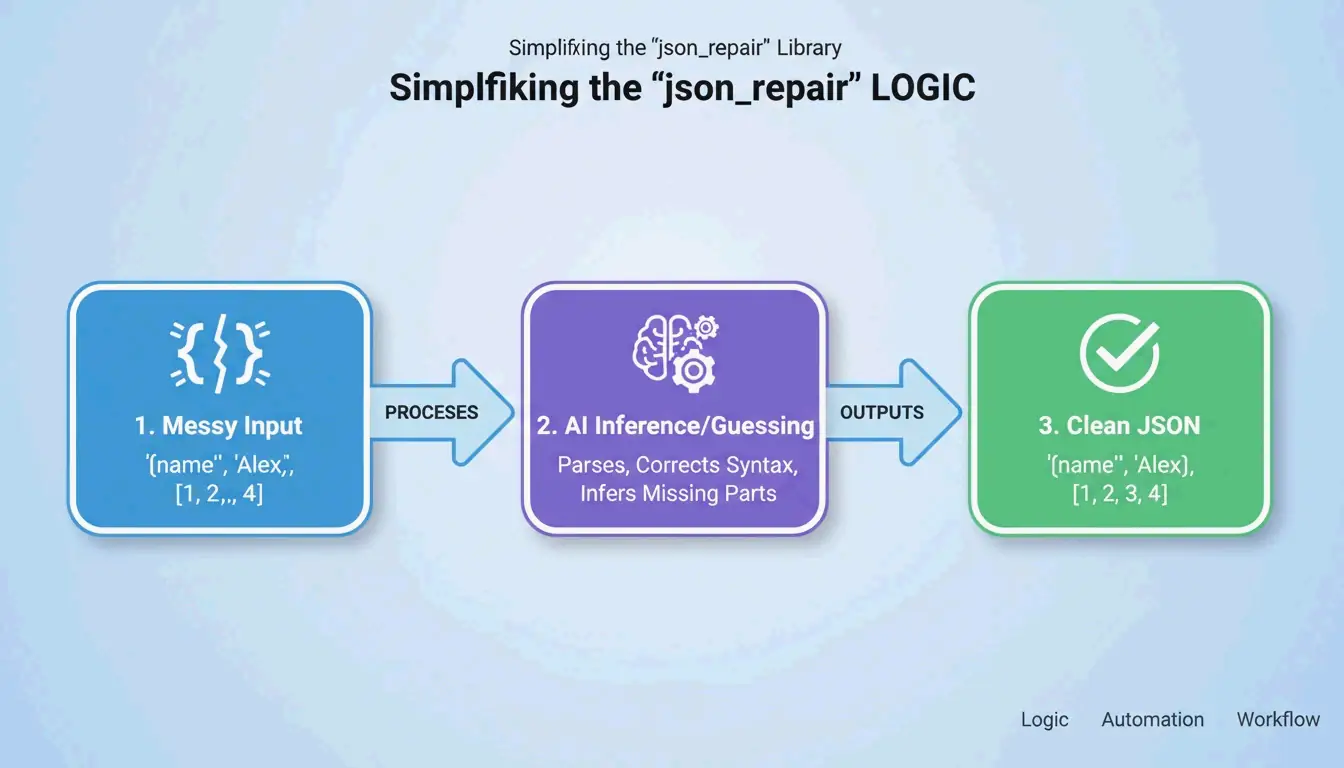
    Even the best tool won’t work if your JSON is broken. The first step to debugging is spotting “JSON Killers”—the small typos that break the format. The most common culprits are:

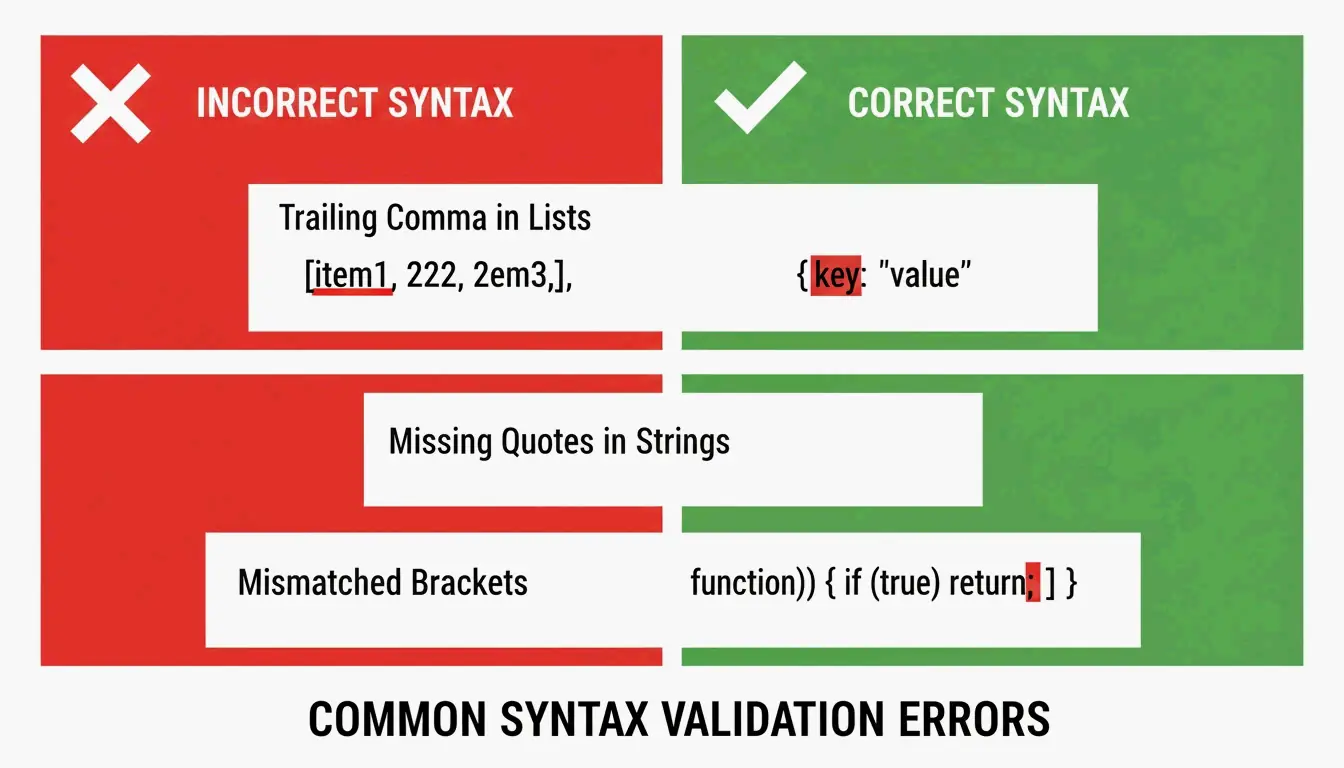
    • Trailing Commas: Unlike regular JavaScript, JSON doesn’t allow a comma after the last item in a list or object.
    • Single Quotes: The JSON spec (RFC 8259) is strict—you must use double quotes for both keys and string values.
    • Unquoted Keys: Every key must be wrapped in double quotes (e.g., "name": "value").

    A simple 'Right vs Wrong' comparison of JSON syntax rules.

    Tools like JSON Formatter Pro help by giving you clear error messages that point to the exact line and column. Once the data is valid, you might need to Minify it (strip out whitespace to save space) or convert it to formats like Parquet or CSV for data analysis.

    Debugging Checklist: Before You Hit Format

    If your data isn’t formatting, check these three things:

    1. Are there any extra commas at the end of lists?
    2. Are all single quotes replaced with double quotes?
    3. Is every key wrapped in quotes?
      If it’s still failing, use a validator that gives you a specific character position to find invisible “ghost” characters.

    Conclusion

    By 2026, choosing a JSON Formatter is a security decision. The recent trend of browser extensions turning into adware shows that “free” tools often have a hidden cost. To keep your environment safe, audit your current extensions and move toward verified, client-side options.

    Action Plan: Delete any closed-source extensions that have recently changed their privacy policies to include tracking. For daily work, stick to jq in the terminal or use community-vetted tools like JSON Alexander to keep your API data private.

    FAQ

    Is it safe to paste sensitive API data into online JSON formatters?

    It is only safe if the tool uses 100% client-side processing, meaning your data stays in the browser and is never sent to a server. You should always check the tool’s privacy policy and monitor your network logs to be certain. For high-security environments, using local CLI tools like jq is the recommended standard.

    How do I fix a ‘JSON Parse Error’ caused by trailing commas or single quotes?

    JSON standards require double quotes for all keys and string values; single quotes will always trigger an error. You must also remove any commas that appear after the last element in an array or object. Using a validator like FormatArc or JSON Formatter Pro can help by highlighting the specific line and character where the error occurs.

    What are the best command-line alternatives to GUI JSON formatters?

    The industry standard is jq, which is powerful for both beautifying and filtering data. If you don’t want to install new software, Python’s built-in json.tool module is an excellent zero-install alternative. Node.js developers can also use npx json-beautifier for quick, local formatting tasks without a graphical interface.

  • JWT Parser Guide: How to Decode, Validate, and Inspect JSON Web Tokens

    JWT Parser Guide: How to Decode, Validate, and Inspect JSON Web Tokens

    A JWT Parser is a specialized tool used to break down the three parts of a JSON Web Token: the Header, Payload, and Signature. As of April 2026, these parsers help developers read Base64URL encoded data and verify signatures using secrets or public keys to ensure the token hasn’t been tampered with, effectively blocking threats like the “alg: none” attack.

    What is a JWT Parser and How Does it Work?

    Think of a JWT parser as a translator for tokens following the RFC 7519 standard. Its main job is to take a long, messy-looking string and turn it back into readable JSON objects. This is a fundamental step for managing user identities and keeping data exchange secure in modern apps.

    Internally, the parser looks for two periods (.) that act as dividers, splitting the token into three sections:

    1. Header: This is the metadata, telling the parser which signing algorithm (like HS256 or RS256) was used.
    2. Payload: This holds the “claims”—actual data about the user or the session.
    3. Signature: This is the digital seal. It proves the sender is legitimate and the data hasn’t been changed since it was signed.

    Simplified 3-part structure of a JWT token

    The Anatomy of a Token: Decoding the Header and Payload

    The Header and Payload are encoded using Base64URL. A common trap for newer developers is thinking this encoding is the same as encryption. As JustUse.me points out, Base64URL encoding just makes JSON data safe to send through URLs and headers; it doesn’t hide anything. Anyone with the token can use a JWT parser to see the plain-text JSON inside without needing a password or key.

    Signature Verification: Ensuring Token Integrity with HS256 and RS256

    While anyone can read a token’s data, Signature Verification is what actually keeps a system secure. A reliable JWT parser doesn’t just read information; it proves where it came from. It does this by recalculating the signature using the header, payload, and a key, then checking if the result matches the signature on the token.

    Modern parsers generally handle two types of algorithms:

    • Symmetric (HS256): The sender and the parser both use the same private “secret” key.
    • Asymmetric (RS256 / ES256): The sender signs with a private key, but the parser verifies it using a public key.

    The 3-step verification logic of a JWT parser

    Security teams rely on parsers to stop “alg: none” attacks—a trick where hackers modify the header to claim no signature is needed. Stas Persiianenko, who developed the Apify JWT tool, notes that while tokens are meant to be transparent, their security depends on the parser strictly rejecting any unsigned or tampered tokens.

    Beyond Debugging: Using AI Agents and MCP for JWT Analysis

    By 2026, we’ve moved past manually copying and pasting tokens into a browser for debugging. The Model Context Protocol (MCP) now allows AI assistants like Claude Code or Cursor to talk directly to JWT tools. By setting up an MCP server, a developer can simply ask an AI to “Check all JWTs in these logs for expiration errors,” and the agent handles the parsing via the command line.

    This automation is a lifesaver for big projects. For example, data teams can decode thousands of tokens at once to check user permissions or look for sensitive data leaks. According to Apify, bulk processing costs about $11.50 per 10,000 tokens as of 2026. This setup lets AI agents find expired tokens and immediately suggest the right code fixes for the app’s security settings.

    What are the Standard JSON Web Token (JWT) Claims?

    A JWT parser pulls specific pieces of information, called “claims,” from the payload. These follow the JOSE (JSON Object Signing and Encryption) framework so different systems can understand each other. Common claims include:

    • iss (Issuer): Who issued the token.
    • sub (Subject): The user the token is about.
    • aud (Audience): Who the token is intended for.
    • exp (Expiration Time): The exact time the token becomes invalid.
    • iat (Issued At): When the token was created.

    When dealing with asymmetric signatures, many parsers use a JWK (JSON Web Key). This is a JSON structure that represents a public key, helping the parser automatically find the right key to verify a token by checking a server’s metadata.

    Programmatic JWT Parsing: Implementation for PHP, Hono, and Beyond

    In a real production environment, you’ll want to use code libraries rather than web tools. In the PHP world, lcobucci/jwt is the go-to choice. Data from Packagist shows this library has over 322 million installs as of April 2026, making it a staple for frameworks like Laravel and Symfony.

    For newer “Edge” applications built on frameworks like Hono, developers often use native Web Crypto APIs. The Hono JWT Helper offers a lightweight decode() function. It’s perfect for checking headers and payloads on serverless platforms where you want to keep things fast and avoid heavy dependencies.

    Conclusion

    A JWT Parser is more than just a tool for reading data; it’s a vital security checkpoint. It ensures tokens are authentic through signature checks and valid through claim verification. Remember: Base64URL is not encryption. While online parsers are great for a quick look during debugging, production-grade apps should rely on proven libraries like lcobucci/jwt or AI-driven MCP tools to keep their security audits automated and airtight.

    FAQ

    Is it legal to decode a JWT token I found in my browser?

    Yes, it is entirely legal to decode a JWT you possess. JWTs are designed to be transparent by nature; the header and payload are only encoded for transport, not encrypted for secrecy. Possessing the token implies you have access to the data contained within its claims, though you should always comply with local data protection laws like GDPR when tokens contain personal information.

    Why does my JWT parser show ‘isExpired: true’ for a token I just generated?

    This is usually caused by system clock drift. If the server generating the token and the parser’s system time are not synchronized (typically via UTC), the ‘exp’ (expiration) or ‘nbf’ (not before) claims may appear invalid. To fix this, ensure both systems use NTP for time synchronization or add a small “leeway” (usually 60 seconds) in your parsing library to account for minor skews.

    Can I decode a JWT without having the secret or public key?

    Yes, you can always decode and read the Header and Payload without a key because they are simply Base64URL encoded JSON. However, you cannot verify the Signature or trust that the data is authentic without the corresponding secret (for HS256) or public key (for RS256). Without the key, the data should be treated as unverified and potentially tampered with.

  • What is 11/12 Plus 3/4? Step-by-Step Guide

    What is 11/12 Plus 3/4? Step-by-Step Guide

    the sum of 11/12 plus 3/4 is 5/3, which simplifies to the mixed number 1 2/3 (approximately 1.667). To solve this, you convert 3/4 to 9/12 to find a common denominator, then add the numerators (11 + 9) to get 20/12, which reduces to 5/3.

    Step-by-Step: How to Calculate 11/12 Plus 3/4

    To add fractions like 11/12 and 3/4, you first need to deal with the different denominators (12 and 4). You can’t add them directly because they represent different-sized “slices” of a whole.

    1. Look at the Denominators: You have 12 and 4.
    2. Find the Least Common Multiple (LCM): You need the smallest number that both 4 and 12 can fit into. That number is 12, so 12 will be your Common Denominator.
    3. Convert the Fractions: 11/12 is already set. For 3/4, you need to change the 4 into a 12. Since 4 × 3 = 12, multiply both the numerator (the top) and the denominator (the bottom) by 3. This gives you 9/12.
    4. Add the Numerators: Now that the bottoms match, just add the tops: 11 + 9 = 20. Keep the denominator at 12. Your result is 20/12.

    极简三步法:异分母分数加法流程

    Why do we need a Common Denominator?

    Think of a common denominator as a way to make sure everyone is “speaking the same language.” Imagine two pies: one is cut into 12 small slices (11/12) and the other into 4 large chunks (3/4). You can’t just say you have “14 pieces” because the sizes are different. By cutting each of those 4 large chunks into 3 smaller pieces, the 3/4 pie becomes 9/12. Now that all the slices are the same size, adding them up is easy.

    饼图对比:不同大小切片的视觉化

    Simplifying the Result: From Improper Fraction to Mixed Number

    The first result we got was 20/12. This is an Improper Fraction because the top number is bigger than the bottom. To make it easier to understand, we use Simplification.

    • Reduce the Fraction: Look for the biggest number that goes into both 20 and 12. That’s 4. Divide both by 4, and you get 5/3.
    • Convert to a Mixed Number: Divide 5 by 3. It goes in once, with 2 left over. So, 5/3 becomes the Mixed Number 1 2/3.

    It’s worth noting that math shortcuts for whole numbers don’t always work here. As Expert Ah Hua from the AIGC Laboratory pointed out in April 2026, verification tricks like “Casting Out Nines” are meant for integers. Applying them to fractions or infinite decimals can lead to confusing contradictions because fractions follow a different numerical logic.

    Using a Fraction Calculator for Instant Verification?

    Manual math is great for learning, but digital tools are perfect for a quick double-check on homework or at work. Many modern “Photo Solver” apps let you snap a picture of a handwritten problem to get an instant breakdown.

    According to Impala Studios, their calculator app has over 3.2 million ratings. Users often rely on these AI Math Solvers to handle complex equations and verify simplification steps, ensuring that the jump from an improper fraction to a mixed number is error-free.

    Conclusion

    Adding 11/12 and 3/4 comes down to one main step: getting both fractions to a common denominator of 12. This gives you 20/12, which simplifies to 5/3 and finally 1 2/3. Whether you’re doing schoolwork or a technical task, always simplify your fractions to their lowest terms. If you want to be 100% sure, a fraction calculator or AI solver is a great way to catch any small arithmetic mistakes.

    FAQ

    How do you find the least common multiple (LCM) of 12 and 4?

    To find the LCM, list the multiples of each number. For 4, they are 4, 8, 12, 16… For 12, they are 12, 24, 36… The first number that appears on both lists is 12, so that is your least common multiple.

    What is the decimal value of 11/12 plus 3/4?

    The fraction 11/12 is roughly 0.9167, and 3/4 is exactly 0.75. Added together, they equal 1.6667. This matches the fraction 5/3, which is a repeating decimal (1.666…).

    Can I use a scientific calculator to solve fraction additions?

    Yes. Most scientific calculators have a fraction button—usually labeled “a b/c” or “x/y.” If you enter 11/12 + 3/4, the calculator will give you 1 2/3, and most will let you toggle to the decimal 1.666… with one click.

  • Auto Resize – Free: The Best Browser-Based Tools for Instant Image & Video Optimization

    Auto Resize – Free: The Best Browser-Based Tools for Instant Image & Video Optimization

    As of April 2026, you can auto resize – free using browser-based tools like Birme or FastTool. These platforms leverage Client-side Processing (WASM) to ensure 100% privacy and zero quality loss. Process images locally without sign-ups, watermarks, or server uploads for instant, secure results.

    How to Auto Resize – Free Using Client-side Processing

    By 2026, the way we handle image processing has changed. We no longer need to upload private files to distant servers. Instead, modern tools use Client-side Processing, which means the work happens right in your browser’s memory. According to BIRME, this privacy-first approach supports over 50,000 monthly users as of April 2026, keeping images safely on the user’s own device.

    This speed and security come from WebAssembly (WASM). As FastTool explains, WASM lets web tools perform as fast as desktop software. It uses optimized libraries to handle heavy lifting—like high-quality resampling or bulk editing—instantly on everything from powerful PCs to basic smartphones, without the lag common in older web apps.

    The 3-Step Execution Framework

    You can get professional results by following this simple workflow:

    1. Input: Drag your files (JPG, PNG, WebP, AVIF, or MP4) straight into the browser window.
    2. Configuration: Enter your desired pixel dimensions or choose a percentage. Make sure the “Aspect Ratio Lock” is on so your images don’t look stretched or squashed.
    3. Export: Hit “Resize” to start the WASM engine. Your files will be ready to download immediately, usually in a ZIP folder if you’re processing a batch.

    Simple 3-step workflow: Input, Configure, Export

    Why Modern SEO in 2026 Requires AVIF and WebP Formats?

    For anyone publishing online, resizing isn’t just about making an image fit a box; it’s about site speed. In 2026, SEO standards focus heavily on Core Web Vitals. This means moving away from old formats like JPG and PNG in favor of AVIF and WebP. AVIF is particularly effective because it keeps images looking sharp while significantly shrinking the file size.

    It’s also worth noting that dimensions impact file size more than you might think. According to Utilko, cutting an image’s dimensions in half (for example, going from 4000×3000 down to 2000×1500) can reduce the file size by about 75%. Because you are shrinking both width and height at the same time, the total data drops fast, which helps mobile pages load much quicker.

    Visual comparison of file size reduction when dimensions are halved

    Social Media Presets: One-Click Optimization for Every Platform

    Keeping your brand looking consistent across different apps means following specific Social Media Presets. Instagram, TikTok, and YouTube have strict rules for dimensions. If you don’t follow them, the platforms will compress your images automatically, often making them look blurry or cropped incorrectly. Common sizes include 1080×1080 for Instagram squares, 1080×1920 for Reels, and 1280×720 for YouTube thumbnails.

    To keep things looking right, professional tools use an Aspect Ratio Lock so that changing the width automatically fixes the height. Some advanced tools, like BIRME, even use Auto Focal Point Detection. This “smartcrop” technology finds the most important part of the photo—like a person’s face—and makes sure it isn’t cut out during the resizing process.

    This is a huge help for Shopify merchants, who often use an 800×800 square fit to keep their product grids looking neat and professional on any screen.

    Efficiency at Scale: Mastering Batch Resizing for Professional Workflows

    If you have hundreds of photos to fix, Batch Resizing is the only way to get it done quickly. Modern browser tools can now handle long queues of images at once without freezing up your computer. They do this using “dirty-row tracking” and offscreen rendering to keep the process smooth.

    The quality of your smaller images depends on the math used to shrink them. FastTool points out that Lanczos resampling is generally better for photos than standard Bilinear methods. It looks at a wider area of pixels to ensure the final result stays sharp.

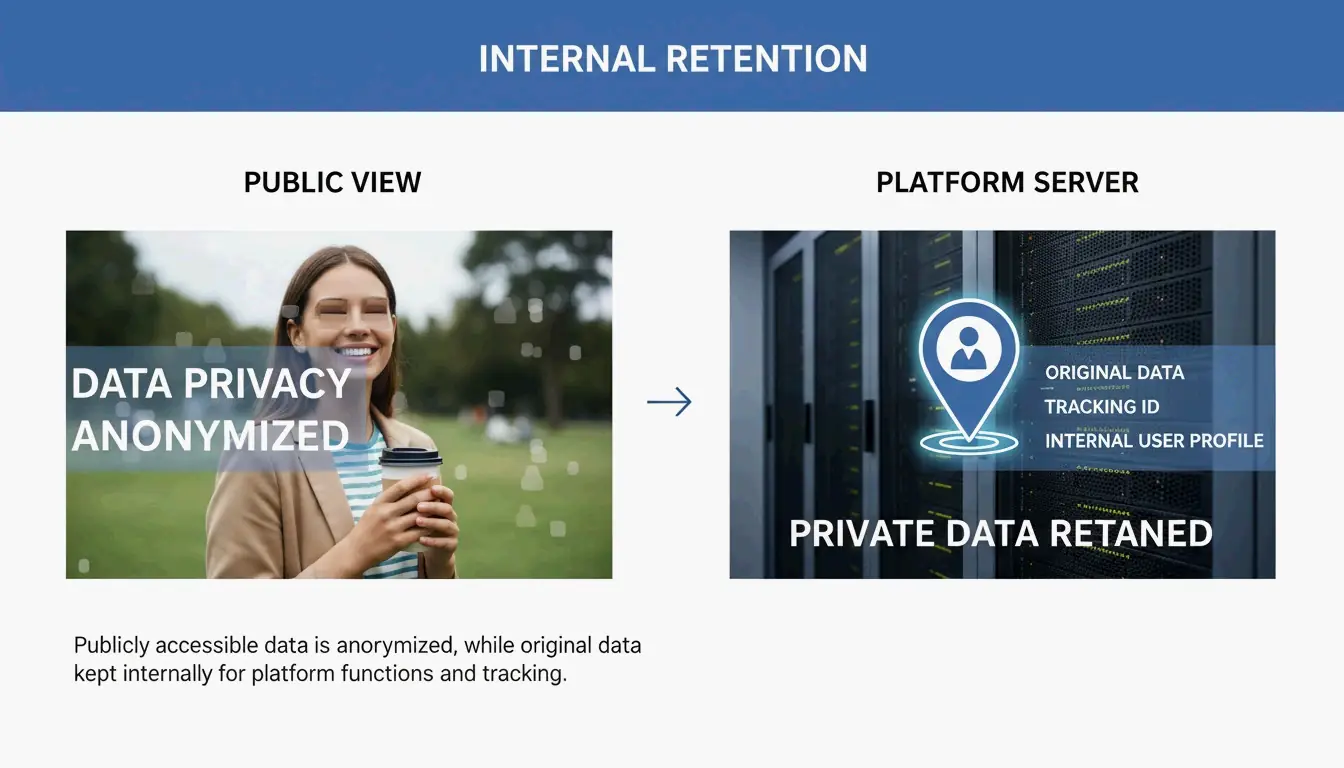
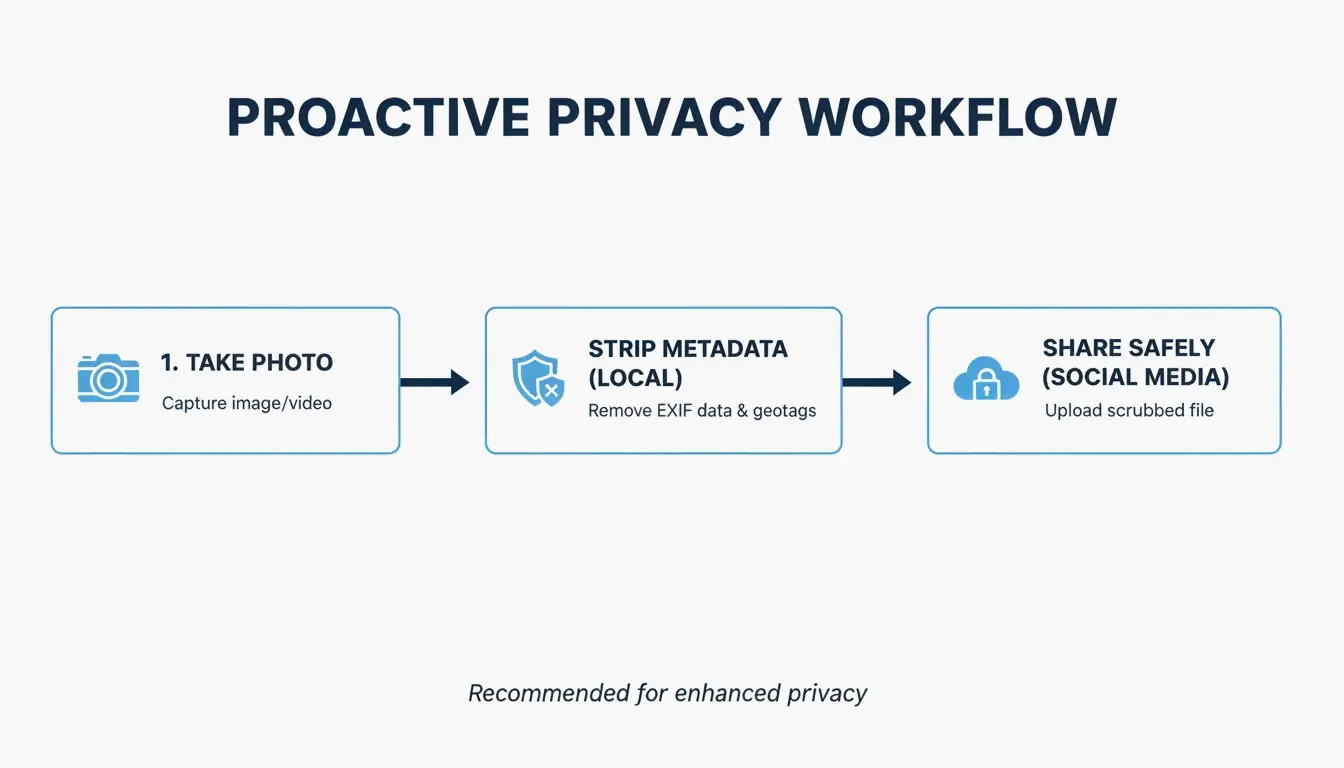
    Finally, many pros in 2026 use EXIF Metadata Scrubbing. This removes hidden data—like the GPS coordinates of where a photo was taken—before the image goes live. It’s an easy way to add a layer of security for both creators and clients.

    Conclusion

    Auto-resizing in 2026 is about more than just changing numbers; it’s about privacy, speed, and picking the right formats like AVIF. By using client-side WASM technology, you can handle sensitive files and high-res media without worrying about data leaks. For the best results, stick with a local tool like Birme or FastTool, keep your Aspect Ratio locked, and export in AVIF to give your SEO a boost. This keeps your visuals sharp, secure, and ready for the modern web.

    FAQ

    Is it safe to resize private documents or photos using online tools?

    Yes, it is safe if the tool specifically uses client-side processing (WASM or JavaScript). In this mode, your photos are processed entirely within your browser and are never uploaded to a remote server. Before using a tool, always check for “No-Upload,” “100% Client-side,” or “Local Processing” labels to ensure your data remains private.

    Why does my image look pixelated after resizing it to a larger size?

    Pixelation occurs because standard resizers use interpolation, which can only approximate new pixels and cannot create genuine new detail. While downscaling (making an image smaller) is safe and maintains clarity, upscaling (making it larger) will inevitably lead to blurriness. For professional results, you should always start with the highest resolution source possible or use specialized AI-based upscaling tools.

    How can I resize an image to a specific file size (KB) for email?

    To hit a target KB limit, first resize the pixel dimensions to a web-appropriate width (such as 800px or 1200px). Next, adjust the “Quality” slider—usually 70-80% is the sweet spot for compression. Finally, export the file in AVIF or WebP format, as these modern formats provide much better compression-to-quality ratios than traditional JPEGs.

  • How to Adjust Your Images and Resize for Any Platform (2026 Guide)

    How to Adjust Your Images and Resize for Any Platform (2026 Guide)

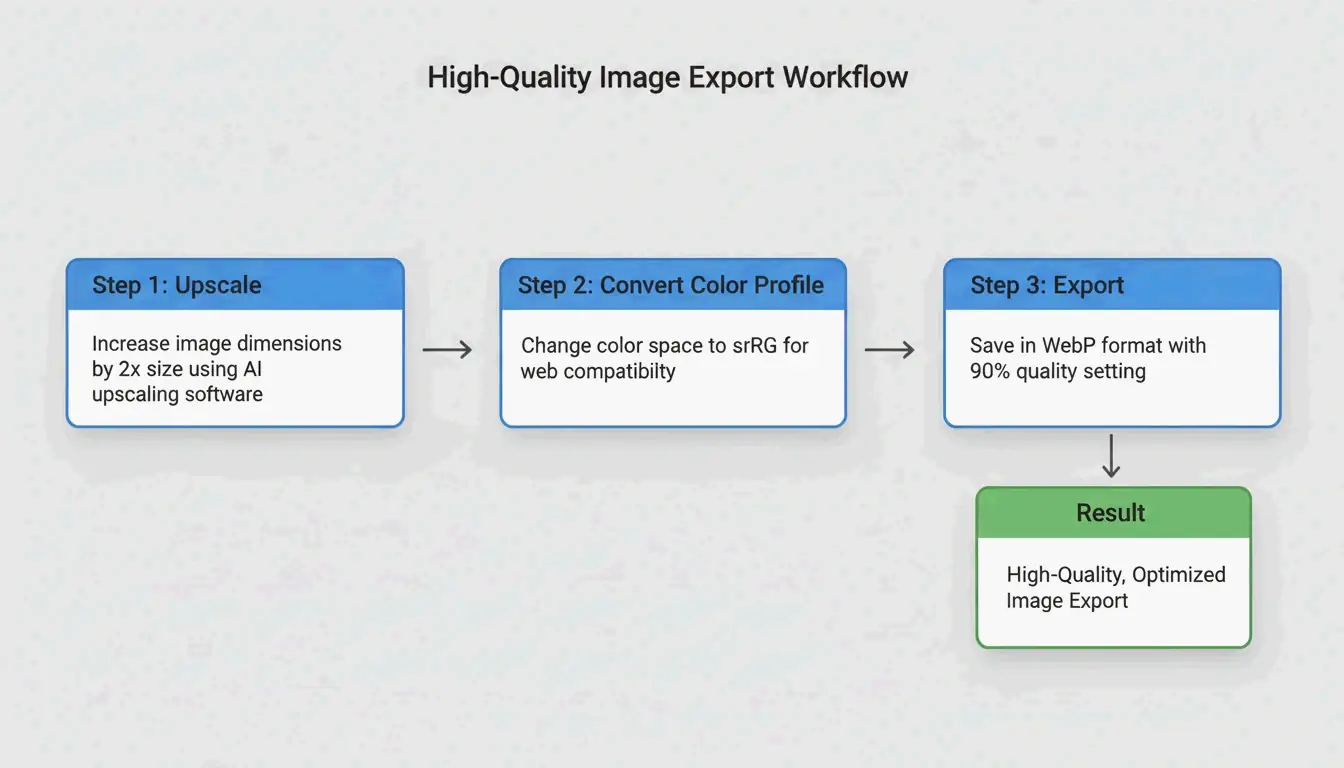
    To adjust your images and resize effectively in 2026, you can use free browser-based tools like CapCut or BIRME for instant results. For a quick offline fix, use built-in apps like Mac Preview (Tools > Adjust Size) or Windows Photos. Always remember to lock the Aspect Ratio to avoid stretching your photos, and export them as WebP or JPG to keep your website running fast.

    How to Adjust Your Images and Resize: A Step-by-Step Framework

    Before diving in, it helps to know exactly what happens when you modify a file. In digital imaging, “resizing” means changing the actual pixel dimensions—the width and height. This is different from “compression,” which shrinks the file size (MB/KB) by clearing out unneeded data without changing the physical size of the image.

    As noted by Private Convert, taking a high-resolution 4000x3000px photo (about 6MB) and resizing it to 1200px wide can drop the file size to a much leaner 300-700KB. This makes it perfect for web use without slowing down page loads.

    A simple comparison between Pixel Resizing vs. File Compression.

    Locking the Aspect Ratio: The Golden Rule

    The biggest mistake people make when they adjust your images and resize is ignoring the Aspect Ratio. This is the relationship between the width and the height. If you try to force a wide 16:9 photo into a 1:1 square without cropping it, your subject will end up looking squashed or unnaturally tall. Most tools have a small “lock” or “chain” icon. Keep this active so the software automatically calculates the height when you change the width.

    Quick Resize on Windows and macOS (No App Required)

    You don’t need fancy software for simple daily tasks.

    • On Windows (Photos App): Open the image, click the three-dot menu at the top, and pick “Resize image.” You can type in your own dimensions or use one of the presets.
    • On macOS (Mac Preview): Open your file and go to Tools > Adjust Size. Make sure “Scale proportionally” is checked, enter your new width, and hit save. If you have a lot of photos, Private Convert recommends selecting them all in Finder and opening them in Preview at once to apply the resize to the whole group.

    Beyond Stretching: Using AI Image Expansion to Fit New Dimensions

    By 2026, AI Image Expansion (often called Generative Expand or Outpainting) has fixed the old problem of fitting images into awkward spaces. In the past, you had to choose between weird stretching or losing part of the photo to a crop.

    Now, tools like Adobe Express or CapCut use AI to “fill in” the edges of a photo. If you have a vertical portrait but need a horizontal website banner, the AI looks at the background—like the sky or a studio wall—and generates new pixels to extend the scene. This “Smart Cropping” also identifies the focal point to make sure the person or object stays centered and isn’t cut off.

    A visual metaphor of 'AI Expansion' showing a photo frame growing naturally.

    Which Online Image Resizer Should You Choose for Batch Processing?

    If you’re dealing with dozens of files, a dedicated Online Image Resizer is much faster than doing them one by one. BIRME (Bulk Image Resizing Made Easy) and CapCut are the top picks for 2026. CapCut is great if you want to add filters or AI layouts, while BIRME is the go-to for speed and privacy because it processes everything right in your browser.

    The BIRME Founder explains the logic behind the tool: “Buying Photoshop just to resize images in bulk didn’t seem like the smartest option.” Most people don’t need complex software that clutters their screen with settings they’ll never use.

    How to Batch Resize for Free in Seconds

    According to BIRME, which handles over 50,000 users a month, the best workflow is:

    1. Drag and drop your folder of images into the site.
    2. Set your desired width and height.
    3. The 80% Rule: Set your image quality to 80%. This is the “sweet spot” where the image still looks sharp but the file size stays small.
    4. Download everything as a single ZIP file.

    Choosing the Right Format: JPEG/JPG vs PNG vs WebP

    The format you pick after you adjust your images and resize will change how the file performs on the web.

    • WebP: This is the current standard for SEO. It shrinks files much better than the old JPEG format.
    • JPEG/JPG: Still the best choice for detailed photography where you need a small file size.
    • PNG: Use this if you need a transparent background or have graphics with very sharp text.

    Also, keep an eye on DPI / PPI. For screens, 72 DPI is all you need. Going higher won’t make it look better on a monitor. But if you’re resizing something to print it out, Spin Numbers suggests a minimum of 300 DPI to keep the print from looking blurry.

    Developer Corner: Object-fit and Command-Line Resizing

    For developers, resizing happens in the code as well as the file. The Object-fit CSS property controls how an image fills its container. MDN Web Docs notes that cover is the most popular setting for responsive sites; it keeps the aspect ratio by clipping the edges to fit the box. Use contain if you need the whole image to be visible without any cropping.

    If you like using the terminal on macOS, the Sips (Scriptable Image Processing System) tool is already built-in. For cross-platform automation, many pros use ImageMagick. A quick command like magick mogrify -resize 1200x *.jpg can resize every single JPEG in a folder to 1200px wide in a heartbeat.

    Conclusion

    Adjusting and resizing images is all about balance: keeping the right proportions, picking a modern format like WebP, and choosing the right tool for the volume of work you have. In 2026, AI has made it much easier to expand images rather than just stretching them, which keeps your quality high. To start, check what size your platform needs, then use BIRME for bulk uploads or Adobe Express if you need AI to help change the shape of your photo.

    FAQ

    What is the difference between resizing and compressing an image?

    Resizing changes the pixel dimensions (the actual width and height of the image). Compressing reduces the file size (the MB or KB) by removing redundant data or lowering the quality setting. Most web optimization tasks require both: resizing to the correct dimensions and then compressing to ensure fast loading speeds.

    How can I resize multiple images at once (batch resize) for free?

    You can use specialized online tools like BIRME.net or BulkResizePhotos. Simply upload your folder of images, set your target dimensions, and download the resized images as a ZIP file. On a Mac, you can also use the “Quick Actions” feature in Finder to perform basic batch resizing without opening an app.

    Will resizing an image reduce its quality or resolution?

    Downscaling (making an image smaller) typically maintains sharpness but reduces the total number of pixels. However, upscaling (making an image larger) usually results in blurriness or “pixelation” because the software has to create new pixels. For best results, always start with a high-resolution original and only resize downward.

  • Understanding Aspect Ratio: The Complete 2026 Guide for Social Media, Video, and Displays

    Understanding Aspect Ratio: The Complete 2026 Guide for Social Media, Video, and Displays

    Aspect ratio is the proportional relationship between an image’s width and height, expressed as a ratio like 16:9. In 2026, while 16:9 remains the standard for TV and YouTube, 9:16 is essential for vertical social media, and 21:9 has become the industry benchmark for immersive gaming and professional multi-window workstations.

    What is Aspect Ratio? Definition and Core Principles

    At its heart, aspect ratio is about the shape of a frame, not how big it is or how many pixels it has. Think of it as a “recipe for shape.” As the Aspect Ratio Calculator puts it, we write this recipe as two numbers separated by a colon (width:height). For every X units of width, there are Y units of height. This proportion stays the same whether you’re watching on a pocket-sized smartphone or a massive cinema screen.

    It helps to clear up the confusion between resolution and aspect ratio. Aspect ratio tells you if a frame is a square, a landscape rectangle, or a tall portrait. Resolution (like 1920 × 1080) tells you the total pixel count and how sharp the image looks. Different resolutions can share the same aspect ratio. For example, both 1080p Full HD and 4K UHD are 16:9 (Widescreen), even though 4K has four times the pixel density.

    Comparison of Aspect Ratio vs. Resolution using 16:9 as a constant shape with different pixel densities.

    The 16:9 ratio won out as the universal widescreen standard because it was a clever mathematical middle ground between old 4:3 TVs and wide 2.35:1 movie screens. It’s still the king of displays in 2026; according to the Steam Hardware Survey, 16:9 is the most popular orientation, with 1080p resolution alone making up 67% of the gaming market.

    The Math: How to Calculate Aspect Ratio from Pixels

    To find the aspect ratio from a pixel count, you need to find the Greatest Common Divisor (GCD) of the width and height. The Aspect Ratio Calculator shows how this works: for a 1920 × 1080 image, the GCD is 120. If you divide 1920 by 120, you get 16. Divide 1080 by 120, and you get 9. That’s your 16:9 ratio. For a 4000 x 3000 image, the GCD is 1000, which simplifies down to 4:3.

    2026 Platform Standards: Social Media & Video Requirements

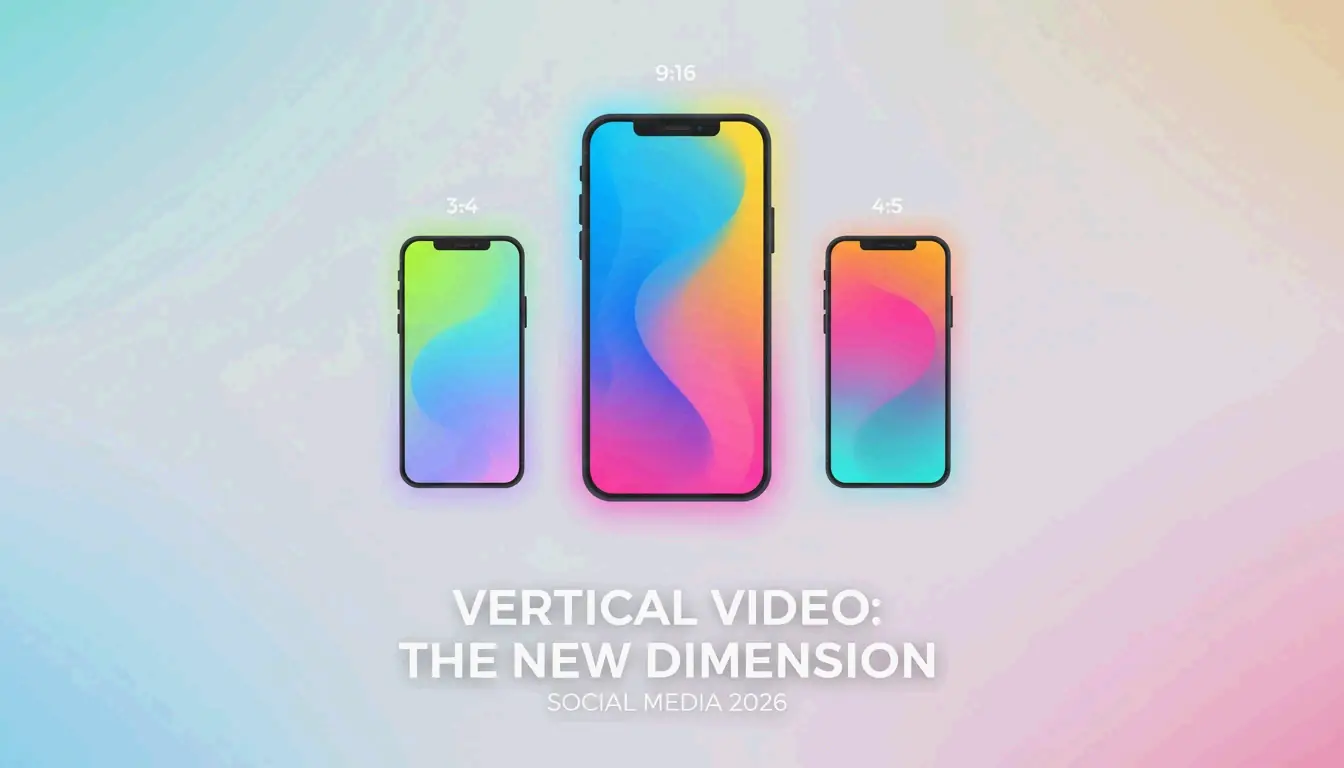
    Most of what we watch today is driven by the move toward 9:16 (Vertical) video. This format, made famous by TikTok, Instagram Stories, and YouTube Shorts, is built to fill a smartphone screen held upright. To keep your videos from having weird borders or getting cut off, Buffer suggests using a resolution of 1080 x 1920 pixels.

    Instagram Post Sizes have changed quite a bit by 2026. The app started with just square photos, but it now supports three main dimensions for your feed:

    • Square: 1080 x 1080 pixels (1:1)
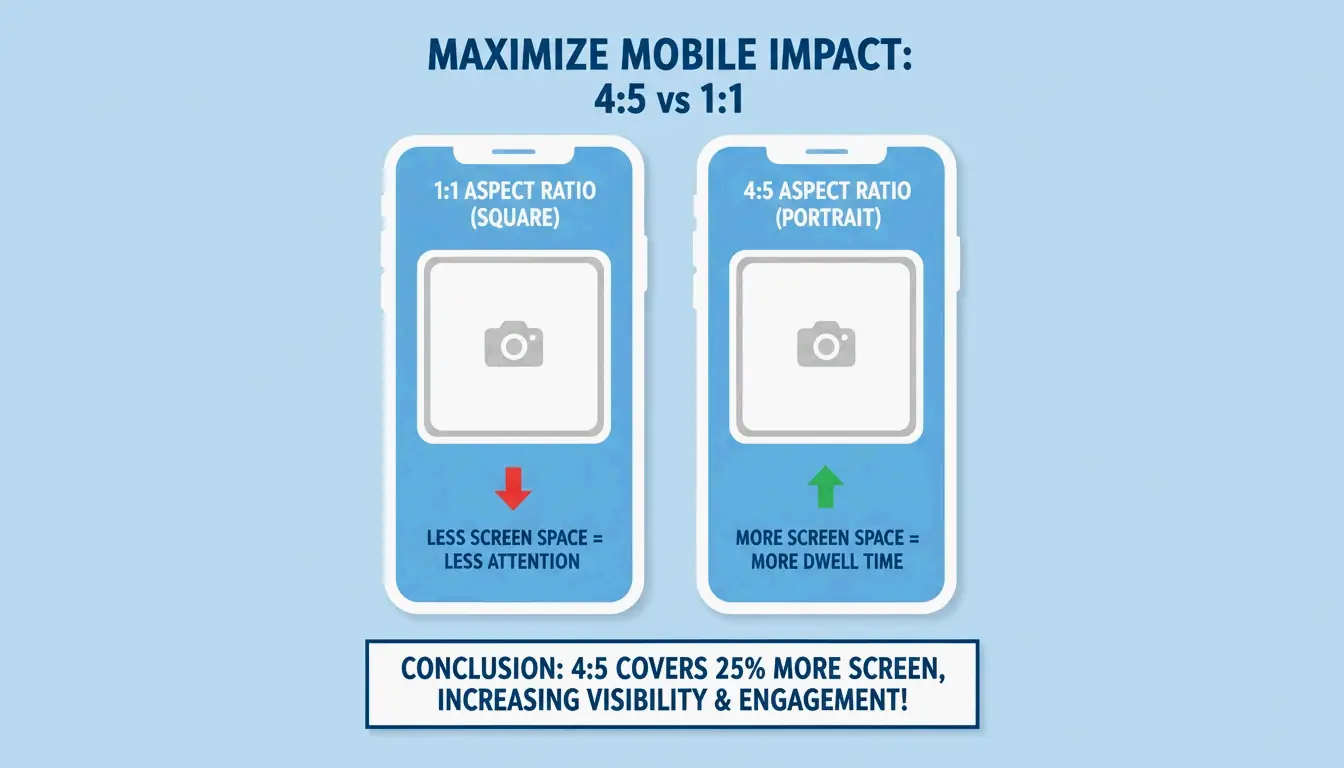
    • Portrait: 1080 x 1350 pixels (4:5)
    • Landscape: 1080 x 566 pixels (1.91:1)

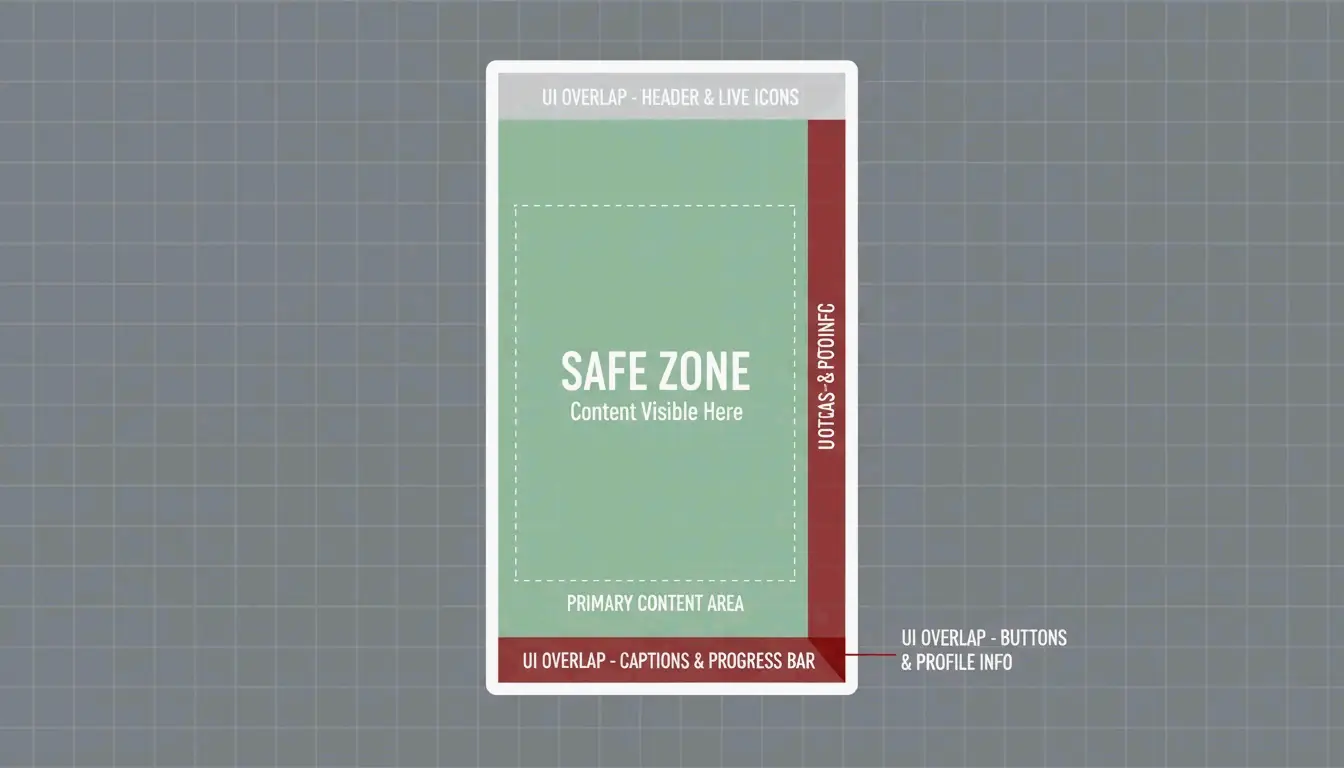
    One big change in the 2026 Instagram update is the profile grid. Data from Buffer shows that the grid now uses 3:4 previews. This is a big deal for creators: you have to make sure the most important parts of your image are centered in that 3:4 “safe zone” so they don’t get chopped off when someone visits your profile page.

    A simple visual guide of the 2026 Instagram "Safe Zone" and 3:4 profile grid preview.

    The Unified Creator Standard: Mapping Ratios Across Platforms

    To get the most views, creators usually have to turn one video into several different ratios. The standard workflow is to shoot in high-resolution 16:9 or 9:16 and keep the “safe zones” in mind for app buttons and text. On TikTok and Reels, the app puts your profile name and buttons right over the video. Buffer recommends leaving about 250 pixels of empty space at the top and bottom of a 9:16 frame so your text and logos stay readable.

    Beyond the Screen: 21:9 Ultrawide and 3:2 Photography

    While 16:9 is what most people use, 21:9 (Ultrawide) has become the go-to for serious work and high-end gaming. A Dexon Systems Analyst points out that 21:9 actually fits the human field of view more naturally than a standard widescreen. This format gives you about 33% more horizontal space, which is perfect for seeing a long video timeline or keeping multiple windows open side-by-side without a monitor bezel in the middle.

    In photography, the 3:2 Ratio is still the standard. This is the native shape for most DSLR and mirrorless cameras, a legacy from 35mm film. You’ll also see it on Microsoft Surface laptops and some MacBooks because the extra height (compared to 16:9) makes it much easier to read documents or edit photos.

    For streaming, many Netflix and Amazon Prime shows now use Univisium (2.00:1). This ratio was championed by cinematographer Vittorio Storaro as a compromise between the 2.39:1 movie theatre look and 16:9 home TVs. According to Wikipedia, it’s now a required format for many streaming originals because it feels cinematic but still fills up a modern TV screen efficiently.

    Technical Deep Dive: DAR, SAR, and PAR Explained

    Getting digital video to look right means understanding three technical ratios. Display Aspect Ratio (DAR) is the actual shape of the screen (like 16:9). Storage Aspect Ratio (SAR) is simply the ratio of the pixel width to the pixel height.

    Then there is the Pixel Aspect Ratio (PAR), which describes the shape of a single pixel. Most modern screens use square pixels (1:1 PAR), but older broadcast formats like NTSC used rectangular ones. As Wikipedia explains, the formula is: SAR × PAR = DAR. If you get these mixed up when saving a video, you’ll end up with a “stretched” or distorted image.

    Letterboxing and Pillarboxing: Fixing the Black Bars

    When your video’s shape doesn’t match the screen, the system adds black bars to keep the proportions correct. Letterboxing refers to the bars at the top and bottom (which you see when watching a wide 21:9 movie on a 16:9 TV). Pillarboxing is when the bars are on the left and right (common when watching old 4:3 shows on a modern monitor).

    Visual demonstration of Letterboxing vs. Pillarboxing on a standard screen.

    Professional Implementation: Custom LED Walls and High-End Displays

    By 2026, the popularity of custom LED walls has created new challenges for video. These walls often have odd shapes that don’t match standard monitors. A Dexon Systems case study explains that you now need professional video controllers to scale 16:9 or 21:9 footage to fit these custom shapes without stretching the picture or losing important details.

    In high-stakes environments like command centers, Super Ultrawide (32:9) displays are the new norm. These are essentially two 16:9 monitors joined together. According to Dexon Systems, these allow people to track multiple data feeds—like maps and cameras—in one seamless view that matches how we naturally see the world.

    Conclusion

    Aspect ratio is the invisible framework of digital content. It decides how we experience everything from a quick five-second ad to a three-hour movie. Choosing the right one—9:16 for social media, 16:9 for standard video, or 21:9 for productivity—is the key to making sure your work looks professional and keeps viewers engaged in 2026.

    If you’re managing content, take a moment to check your workflow and make sure you’re using the 3:4 “safe zone” for social media. For those looking to work more efficiently, moving to a 21:9 or 32:9 display can help you get more done without the clutter of a multi-monitor setup.

    FAQ

    What is the best aspect ratio for a custom-shaped LED wall in 2026?

    The best ratio depends on the physical dimensions of the wall, but most professional hardware is designed to scale from a standard 16:9 or 21:9 source. As Dexon Systems advises, you must ensure your video controller supports non-standard scaling to preserve the intended proportions of the source material and avoid visual distortion on the custom surface.

    How do I fix ‘black bars’ (letterboxing) on my video?

    To eliminate black bars, you must match your export settings in editing software to the intended display’s aspect ratio. If the source and display ratios differ, you can use “Crop to Fill” or “Center Crop” methods. This removes the bars by expanding the image to fill the screen, though it results in losing some of the image area at the edges.

    What is the difference between 16:9 and 21:9 for professional monitoring?

    16:9 is the standard format for single-task focus and general media consumption. In contrast, 21:9 provides 33% more horizontal screen real estate. According to Dexon Systems, 21:9 is ideal for professional monitoring because it matches the human field of view and allows for side-by-side windows without the interruption of monitor bezels.

  • Why OpenAI’s New Codex Just Made the Mac Interface the Only API You’ll Ever Need

    Why OpenAI’s New Codex Just Made the Mac Interface the Only API You’ll Ever Need

    If you want to see where the future of software is heading, stop looking at the code and start looking at the screen.

    When OpenAI dropped their Codex for (almost) everything update, it wasn’t just another feature release for developers. The announcement revealed something much bigger: Codex has broken out of the IDE. It’s now an autonomous agent that navigates macOS—seeing the screen, clicking buttons, and typing text with its own cursor.

    The core takeaway here is a massive paradigm shift. For decades, software automation required “Code-to-Code” translation. If you wanted two apps to talk, you needed a developer to build an Application Programming Interface (API). What Codex proves is that we are entering the “Vision-to-Action” era. The AI relies on Multimodal Computer Vision to read your desktop and interacts directly with the operating system.

    In short: The visual interface you use every day is the new API. Let’s break down how this actually works under the hood and why it’s going to change how we work.


    Decoding the Magic: How is it Actually Driving the Mac?

    If you’ve ever tried to build an automation script using traditional tools like Selenium or AppleScript, you know they are incredibly fragile. The moment a website updates its HTML or a button shifts three pixels to the left, the whole script crashes.

    The official OpenAI post explicitly states that Codex operates “by seeing, clicking, and typing,” handling tasks like “GUI-only bugs.” This confirms that they’ve solved the fragility problem by building a Large Action Model (LAM).

    Here is the reality of how the mechanics play out:

    1. Semantic Vision Over Blind Coordinates

    Codex isn’t just blindly clicking pre-programmed spots on your monitor. It uses a semantic grounding engine. When you tell it to “click the login button,” the model takes a rapid snapshot of your desktop. It visually recognizes the concept of a login button—regardless of what app it’s in or how it’s styled—and mathematically translates that visual target into an exact $(x, y)$ pixel coordinate on your specific screen.

    2. Tapping into the OS Nervous System

    So, how does a cloud AI move a cursor without a physical mouse? It bypasses the hardware and talks directly to Apple’s deepest system frameworks. The Codex desktop app almost certainly hooks into Quartz Event Services and the native Accessibility API. It synthesizes a “mouse down” or “key press” event and injects it straight into the macOS kernel. To your Mac, this fake click is entirely indistinguishable from you physically tapping your trackpad.

    3. The “Ghost Cursor” Illusion

    One of the wildest claims in the announcement is that Codex runs in the background “without taking over your computer.” To pull this off, the system likely uses virtual display buffers or targets specific background process IDs. It essentially creates a ghost environment where the AI can click through a web scraper or run a simulator test, leaving your actual physical cursor completely free so you can keep typing an email uninterrupted.

    This approach isn’t happening in a vacuum, either. It closely tracks with the industry trajectory we saw when Anthropic launched their “Computer Use” feature. The race to master the desktop is officially on.


    What This Actually Means for Our Daily Work

    This evolution of Codex from a coding assistant to a native desktop operator completely shatters the limitations of modern workflows. If an AI can use a mouse and keyboard, it doesn’t need custom integrations for Jira, Slack, or Figma. It just uses them like a human would.

    Think about how this impacts the daily grind:

    • Reviving Legacy Tech: Every company has that one ancient, clunky piece of software from 2008 that has no API and refuses to integrate with anything modern. Because Codex relies on visual recognition, you can just tell it to open the app, manually copy the data, and paste it into a modern web dashboard. No backdoor code required.
    • Bypassing the “Integration Tax”: Managing social media or running marketing automations usually means paying for expensive third-party tools just to deal with API rate limits on platforms like X (formerly Twitter) or LinkedIn. Now? Your agent simply opens Safari, writes the post, uploads the image, and physically clicks “Publish.”
    • True Cross-App Fluidity: You can finally run tasks that jump between totally disconnected apps. You could say, “Read the latest PDF in my Downloads folder, pull out the key metrics, open my presentation software, and update the slides to match.” Codex will physically open the file, read it, switch apps, and type out the changes.

    We’ve spent the last forty years forcing ourselves to learn the language of machines—memorizing shortcuts, navigating endless menus, and writing integration scripts. What the Codex announcement shows us is that the paradigm has finally flipped. The machine has learned the language of the human interface. We are officially stepping out of the role of computer operators, and into the role of computer managers.

  • Under the Hood of Codex: How OpenAI Engineered an AI to Physically Drive Your Mac

    Under the Hood of Codex: How OpenAI Engineered an AI to Physically Drive Your Mac

    When OpenAI released Codex for (almost) everything, the tech world collectively raised an eyebrow. We’ve seen AI write code and draft emails for years, but the claim that Codex can now operate macOS—”by seeing, clicking, and typing with its own cursor”—is an entirely different beast.

    As engineers, we know that bridging the gap between a cloud-based language model and a local operating system is notoriously difficult. For decades, automation meant relying on brittle Application Programming Interfaces (APIs) or writing fragile DOM-scraping scripts that break the moment a UI updates.

    So, what is the core realization here? Codex has abandoned code-level integration in favor of pixel-level execution. By combining multimodal vision with low-level kernel event injection, OpenAI has turned the Graphical User Interface (GUI) into the ultimate, universal API.

    Let’s strip away the marketing and look at the actual engineering architecture required to make Codex physically drive a Mac.


    The Architecture of a Mac-Native Agent

    To get an AI to successfully test an app or iterate on a frontend design without human intervention, it needs to master a continuous loop: Perceive, Reason, and Act. Here is the technical breakdown of how Codex likely executes this on macOS.

    1. Perception: Semantic Vision and the Grounding Engine

    Traditional automation tools like AppleScript try to read the UI accessibility tree. This is fast, but it fails on custom electron apps, web canvases, or games where UI elements aren’t properly tagged.

    OpenAI explicitly states Codex uses apps by “seeing.” This means it relies on Computer Vision. The host application running on your Mac takes high-frequency frame grabs of your desktop. A multimodal model then parses this image using semantic segmentation. It doesn’t look for HTML tags; it visually recognizes the shape and context of a “Submit” button or a “Search” bar.

    The real engineering magic here is Grounding. Once the AI decides it needs to click that button, it runs a calculation to map the semantic target to precise mathematical coordinates on your screen. It translates “Click the red close icon” into target $(x, y)$ pixels, adjusting for your specific display resolution and scaling.

    2. Action: Injecting OS-Level Events

    Knowing where to click is useless if you can’t actually pull the trigger. How does a piece of software move a mouse cursor?

    It bypasses the physical hardware entirely. To interact with macOS at a native level, Codex almost certainly taps into Apple’s deepest system frameworks, specifically Quartz Event Services and the Accessibility API.

    When Codex decides to click, it synthesizes a virtual CGEvent (like a mouseDown followed by a mouseUp) and injects it directly into the macOS system event queue. From the perspective of the operating system, this synthetic event is completely indistinguishable from you physically pressing down on your Magic Trackpad. This is why Codex can operate any app—if it can be clicked by a mouse, it can be clicked by Codex.

    3. Isolation: The “Ghost Cursor” Mechanics

    Perhaps the most technically fascinating claim in the official post is that Codex runs “in the background without taking over your computer.” If you’ve ever used a macro recorder, you know that when the script runs, your mouse is hijacked.

    To achieve this concurrent execution, the system has to isolate the AI’s inputs from the user’s physical inputs. There are two likely ways OpenAI is pulling this off:

    • Targeted Window Routing: macOS allows developers to send events directly to specific Process Identifiers (PIDs). Codex might be identifying the target window and routing its synthesized clicks directly to that application’s event loop, bypassing the global hardware cursor entirely.
    • Virtual Framebuffers: The system might spin up a headless, virtual desktop layer. Codex “sees” and operates within this invisible workspace, manipulating browsers or testing environments while you continue typing in your primary workspace undisturbed. This aligns with the mechanics we saw recently when Anthropic released their own Computer Use capability.

    The Outlook: A Post-API World

    While the technical implementation is fascinating, the downstream impact is what makes this a watershed moment.

    By solving the vision-to-action pipeline on a native OS level, OpenAI has effectively made traditional APIs optional. We are entering the era of the Large Action Model (LAM). If a piece of legacy enterprise software doesn’t have an API, Codex doesn’t care—it will just manually copy and paste the data. If a platform limits your developer access, Codex will just open the web browser and drive the interface like a human user.

    The software industry has spent decades trying to make applications talk to each other. With Codex mastering the macOS GUI, we no longer need the apps to talk to each other. We just need the AI to use them for us.

  • How to Compress Photos in 2026: The Ultimate Guide to Reducing File Size Without Losing Quality

    How to Compress Photos in 2026: The Ultimate Guide to Reducing File Size Without Losing Quality

    To compress photos in 2026, use online tools like TinyJPG or professional software like Adobe Photoshop. You can reduce file sizes by up to 90% by adopting modern formats like WebP or AVIF, setting quality sliders to the 75-85% “sweet spot,” and resizing dimensions to a standard 1000px width for web use.

    The 2026 Standard: How to Compress Photos Efficiently

    By 2026, photo compression has moved beyond simple file shrinking. Today, it’s all about AI-driven optimization. The goal is straightforward: get the smallest File Size (KB/MB) possible without losing that professional, crisp look. Modern standards now favor next-generation formats like AVIF over traditional JPEG / JPG because they pack much more visual data into a smaller footprint.

    To get professional results, follow these three core steps:

    1. Resize: Scale down the pixel dimensions to fit where the image will actually be displayed.
    2. Reformat: Switch older formats to high-efficiency types like WebP or AVIF.
    3. Compress: Use a quality reduction algorithm to strip away data the human eye won’t notice.

    A simple 3-step workflow: Resize -> Reformat -> Compress.

    A key rule for 2026 is the “Sweet Spot” principle. Setting your compression quality between 75% and 85% is the gold standard for the web. This range cuts the megabytes significantly without causing “pixelation” or blurry artifacts. As the Tech Guide Admin puts it, “Smart compression is better than aggressive compression.” In other words, it’s better to optimize intelligently than to ruin an image just to save a few extra kilobytes.

    According to Mass Image Compressor, modern utilities can now achieve a 90% reduction in size. This makes it easy to share high-resolution galleries instantly, even over mobile networks.

    Setting the Right Resolution / Dimensions for Web

    High-end cameras often take photos much larger than any digital screen can actually show. For typical web use, the UCSC web optimization standard recommends a maximum width of 1000 pixels for the longest edge. Resizing a 3000px image down to 1000px slashes the file size before you even start the actual compression process.

    Why WebP and AVIF are the New Kings of Compression?

    Image formats have evolved to keep up with mobile data limits and the need for instant loading. While JPEG / JPG is still the most compatible format, it isn’t the most efficient anymore. WebP is now the industry standard for the web, offering file sizes 25-35% smaller than JeneGs of the same quality.

    In 2026, AVIF has taken the lead for mobile-first environments. It compresses even better than WebP, often shrinking files by another 20% while keeping fine details sharp in high-contrast areas. Since most modern browsers now support AVIF, it’s the top choice for anyone looking to save on cloud storage.

    A clean comparison of file sizes between JPG, WebP, and AVIF.

    Professional Tools for Batch Compression

    If you’re working with hundreds of images, Batch Compression is a lifesaver. Professional software like Adobe Photoshop gives you total control via the “Export As” function. You can head to File > Export > Export As to adjust the quality slider and see a real-time preview of the final file size.

    Managing mobile formats is also a common hurdle. To use HEIC files from an iPhone on a Windows PC or the web, tools like Ashampoo Image Compressor (which noted an 80% size reduction capability in 2024) or Easy Photo Compressor allow you to convert them to JPEG or WebP while keeping all your important metadata intact.

    Best Free Online Compressors for Quick Gains

    If you just need to fix a few images without downloading software, these browser-based tools work great:

    • TinyJPG/TinyPNG: The go-to for automatic JPEG and PNG optimization.
    • JPG20KB: A specialized tool for shrinking images to tiny targets, like 20KB, which is often required for government forms or IDs.
    • pdfFiller: A helpful option for compressing photos to 300kb or smaller when you need to embed them in legal documents.

    Troubleshooting: How to Fix Over-Compressed Photos?

    Over-compression happens when the quality slider is pushed too low, leading to “blocking” or “banding” (those ugly blocks of color in your sky or shadows). If your photos look blurry, you’ve likely gone below the 75% quality floor.

    To fix a damaged file, you can try an AI-driven tool like 4DDiG AI Photo Enhancer. According to 4DDiG, these tools use neural networks to “fill in” the missing data. They essentially upscale the image and clean up the compression mess to bring back the original clarity.

    Conclusion

    Compressing photos in 2026 isn’t just about JPEGs; it’s about using AVIF and AI tools to reach that 80-90% reduction mark without the image looking “cheap.” High-res files from modern cameras can easily top 50MB, but with the right workflow, you can make them small enough to share anywhere. For the best results, start by converting your library to WebP or AVIF and aim for that 75-85% quality “sweet spot.” By resizing your images to 1000px wide for the web, you’ll keep your content fast, professional, and accessible on any device.

    FAQ

    What is the difference between lossy and lossless compression?

    Lossy compression, used in formats like JPEG and WebP, removes certain data to shrink file sizes significantly, making it ideal for web use and social media. Lossless compression, used in PNG and TIFF, keeps all original data for perfect quality, but results in much larger files, which is best for professional printing or high-end archival.

    How do I compress photos on an iPhone without losing quality?

    The most effective way is to use the “High Efficiency” (HEIC) format found in your Camera Settings, which captures high-quality data at half the size of a JPEG. For sharing, you can use the Shortcuts app or third-party tools like Easy Photo Compressor to resize the dimensions and convert the file to WebP.

    Which image format offers the best balance in 2026?

    AVIF is the 2026 leader for achieving maximum compression with high fidelity, especially for mobile users. However, WebP remains the most compatible high-efficiency choice across all platforms and browsers, providing a safe middle ground for web developers and casual users who need both speed and reliability.