Author: SectoJoy

  • The Ultimate Guide to Lossless Image Compression: Maximize Quality and Performance in 2026

    The Ultimate Guide to Lossless Image Compression: Maximize Quality and Performance in 2026

    As of March 2026, lossless image compression reduces file sizes by 5–30%—and up to 50% with modern formats like AVIF and WebP—by removing redundant data without losing a single pixel. Unlike lossy methods, it ensures a perfect reconstruction of the original image, making it a must-have for logos, text-heavy graphics, and professional workflows that demand high fidelity and optimized Core Web Vitals.

    What is Lossless Image Compression? Understanding the Mechanics of Perfection

    Lossless image compression is a technical standard that shrinks a digital file while allowing for bit-for-bit reconstruction of the original data. According to Wikipedia, this works by eliminating statistical redundancy instead of throwing away “unimportant” visual details.

    The real difference lies in the math. Lossy formats, such as JPEG, often use the Discrete Cosine Transform (DCT) to approximate pixel values and discard fine details. On the other hand, lossless compression keeps every R, G, B, and alpha channel value exactly as it was in the source. This is a big deal in professional settings because it prevents Generation Loss—that steady drop in quality you see when a file is opened, edited, and saved over and over in a lossy format. Convertio points out that while JPEG quality can visibly tank after just 3–5 saves, lossless files stay identical no matter how many times you hit “save.”

    A simple comparison of Lossy (data loss) vs Lossless (data preservation) after multiple saves

    The Science of DEFLATE: How PNGs Stay Sharp

    The most common way the web handles lossless images is through the DEFLATE algorithm, which is the engine behind the PNG format. As Pixotter explains, this happens in two stages: filtering and compression. Filtering turns raw pixels into “residuals” (the differences between neighboring pixels), which are then packed down using LZ77 dictionary matching and Huffman coding. This is why sharp edges and solid colors in logos stay perfectly crisp.

    Lossless WebP vs. PNG: The 2026 Standard for Web Speed

    By 2026, Lossless WebP has largely taken over from PNG as the go-to for web graphics. Benchmarks cited by MeloTools show that Lossless WebP can produce files roughly 26% smaller than PNGs while maintaining the exact same pixel-perfect quality.

    This shift is mostly about hitting Core Web Vitals targets, specifically Largest Contentful Paint (LCP). Smaller files mean hero images and UI elements load faster, which helps your search rankings. With browser support reaching 97% global compatibility in 2026, WebP is now the practical default for developers. Resizo notes that if you need transparency and sharp text, switching from PNG to Lossless WebP is the fastest way to save bandwidth without losing visual quality.

    Is AVIF the Future of Lossless Compression?

    AVIF is the next step in efficiency. It uses the advanced AV1 encoder to reach even better compression ratios. According to MeloTools, AVIF can cut total payload sizes by 50% compared to older formats. One MeloTools case study even showed a 73% drop in total page weight just by moving to modern formats like AVIF and WebP.

    There is one catch: high CPU encoding costs. While AVIF offers the best compression, it takes much longer to process than WebP or PNG. For 2026 workflows, the best move is using the <picture> element to serve AVIF to the 93–95% of browsers that support it, while keeping WebP or PNG as a backup for older systems.

    A simple bar chart comparing file size savings across PNG, WebP, and AVIF

    The Decision Matrix: When to Choose Lossless vs. Visually Lossless

    Deciding between “True Lossless” and “Visually Lossless” depends on what the image is for. True Lossless (PNG, Lossless WebP) is a requirement for archives, medical scans, and legal documents where every bit matters. Visually Lossless (Lossy WebP/AVIF at high quality) is the standard for most photos on the web.

    • Logos and UI Graphics: Stick with Lossless formats to avoid “ringing” or blurry artifacts around sharp edges.
    • Hero Photography: Use Lossy formats at a quality setting of 80–85. Convertio reports that a 36 MB raw image can drop to a 2–4 MB JPEG at quality 85 with no difference the human eye can see.
    • Metadata Stripping: No matter the format, removing EXIF data (like GPS or camera info) can shave off 10–25 KB per image without touching the image quality, as noted by MeloTools.

    The ‘80% Quality’ Sweet Spot for Mixed-Content Sites

    For most websites, setting lossy formats to “80% Quality” is the sweet spot. It looks identical to the original at a normal viewing distance but reduces the file size by 10 to 18 times.

    Local Tools and Privacy: Compressing Without Data Leaks

    In high-security fields like healthcare or law, privacy is just as important as file size. Many online compressors upload your files to their servers, which could lead to GDPR or HIPAA issues. MeloTools and Resizo recommend using browser-based local processing (WASM). With this method, the compression happens in your computer’s memory; the image never leaves your device. This “client-side” approach keeps sensitive documents private while still getting them optimized.

    3-step visualization of local vs cloud processing for privacy

    Conclusion

    In 2026, lossless image compression has moved beyond just the PNG. Using WebP and AVIF is now a requirement if you want to balance pixel-perfect quality with modern web performance. While PNG is still a reliable backup, newer formats simply do a better job of giving you the same results with less data.

    Actionable Advice: Audit your images today. Move sharp UI elements and logos to Lossless WebP to save about 26% in file size. For busy hero images, use AVIF with proper fallbacks to boost your LCP scores. Finally, make it a habit for your team to “compress before you upload” using local, browser-based tools to protect both speed and privacy.

    FAQ

    Can I convert a lossy JPEG back to a lossless PNG to restore its original quality?

    No, once data is discarded during lossy compression (JPEG), it is permanently lost. Converting a JPEG to a PNG will stop further quality loss (Generation Loss) during future saves, but it cannot repair existing artifacts or reconstruct the original pixels that were removed by the JPEG algorithm.

  • Master PromptKit iOS: From Panic’s SSH Client to AI-Powered Vibe Coding

    Master PromptKit iOS: From Panic’s SSH Client to AI-Powered Vibe Coding

    PromptKit iOS represents a dual-frontier in mobile development: the professional management of remote servers via Panic’s Prompt 3 and the revolutionary “vibe coding” workflow. Whether you’re using SSH terminals for backend control or leveraging Claude 3.5 Sonnet to generate Swift code through natural language, iOS has become a primary environment for high-speed app deployment in 2026.

    What is Prompt by Panic? The Gold Standard for iOS SSH Terminals

    Prompt by Panic (specifically version 3) is widely considered the premium terminal emulator for iPhone and iPad. It’s built for developers who need desktop-grade SSH capabilities while on the move. For “mobile-first” engineers, it serves as a critical bridge, letting them manage server infrastructures with the same fluidity they expect from a macOS environment.

    The app is optimized for performance and works deep within Apple’s hardware. According to AppsTorrent, the text engine in Prompt 3 is 10x faster than previous versions. It uses GPU acceleration to handle massive log files and complex terminal outputs without any lag. It also integrates with the iOS Secure Enclave, so you can authenticate sessions via FaceID or TouchID while keeping your private keys hardware-encrypted.

    Key features that define the Prompt 3 experience include:

    • Panic Sync: Keeps your servers, passwords, and private keys in sync across iOS and macOS.
    • Clips: A handy library for saving frequent commands (like sudo systemctl restart nginx) that you can trigger with one tap.
    • Mosh & Eternal Terminal: Support for roaming connections that stay alive even when you switch from Wi-Fi to 5G or wake your device from sleep.

    Prompt 3 vs. Termius: Which SSH Client Wins?

    Prompt 3 excels in the Apple ecosystem because of its native feel and GPU speed. However, Termius is often the go-to for DevOps teams working across multiple platforms like Windows and Linux. Termius offers broader SFTP support and a “Cloud Vault” for team-based credential sharing. But for individual developers who want the fastest, most “Mac-like” terminal on an iPad, Prompt’s 10x faster engine and Secure Enclave integration give it a clear edge in security and responsiveness.

    Comparison table between Prompt 3 and Termius

    What is Vibe Coding? Building iOS Apps with AI Prompts

    “Vibe Coding” is a shift in how we build software. Instead of writing line-by-line Swift code, creators use natural language instructions—prompts—to direct AI agents. You provide the “vibe” (the intent, design, and logic), and models like Claude 3.5 Sonnet handle the heavy lifting of implementation.

    In the current iOS landscape, Claude 3.5 Sonnet and the “Claude Code” interface are the primary tools driving this movement. Developers often start with a “Genesis Prompt”—a massive, detailed instruction—to scaffold an entire SwiftUI project in minutes. In this workflow, code is treated more like a commodity than a manual craft.

    The speed here is incredible. As one Reddit case study shows, a developer built a functional, store-ready iOS app in just 5 hours using a single, well-structured prompt. However, as Dragos Roua points out, this ease of creation changes the market: “Treat your end product like disposable inventory in a crowded market.” The real value now lies in rapid iteration and unique “vibes” rather than just the ability to write syntax.

    The ‘Dual-Prompt’ Workflow: Managing Servers and Code Simultaneously

    Modern iOS development often relies on a “Dual-Prompt” strategy: using AI prompts for the frontend and Panic’s Prompt 3 for the backend. This workflow lets you stay entirely within the iOS ecosystem while building complex, data-driven apps.

    1. AI Prompting: Use Claude 3.5 to generate your SwiftUI views, state management, and API logic.
    2. Terminal Management: Use Prompt 3 to SSH into your VPS (like DigitalOcean or AWS), set up a Node.js or Python backend, and manage your databases.

    The Dual-Prompt Workflow architecture

    By bridging the gap between AI-generated code and manual server management, you can deploy full-stack solutions directly from an iPad. You might prompt an AI to write a Swift function that fetches data from a REST API, then quickly switch to Prompt 3 to check server logs in real-time to make sure the endpoint is actually responding.

    The Ultimate Genesis Mega Prompt for iOS and StoreKit 2

    To successfully “vibe code” an app, you need a structured template so the AI doesn’t miss technical requirements. This “Genesis Mega Prompt” ensures critical components like StoreKit 2 for monetization aren’t overlooked.

    A solid Genesis Prompt should cover:

    • Project Overview: App name, core features, and target iOS version (e.g., iOS 18+).
    • Technical Stack: Be specific about using SwiftUI, MVVM architecture, and Swift Concurrency.
    • StoreKit 2 Integration: Ask for the modern Product.products(for:) and product.purchase() APIs for in-app purchases.
    • Design System: Define hex codes, typography, and spacing (like 44pt touch targets).

    When you’re integrating StoreKit 2 via AI, make sure to specify the “modern StoreKit 2 Swift API” to avoid getting stuck with legacy code. This ensures the AI implements reactive purchase buttons and entitlement checks that update your UI automatically when a user subscribes.

    Essential Developer Tools: From Expo CLI to Blink Shell

    Beyond Panic’s tools, the 2026 iOS developer toolkit includes several utilities for cross-platform and local work. Expo CLI is a standout for React Native developers; the npx expo run:ios command makes it easy to compile native directories and test apps on physical devices.

    If you need a more integrated environment, Blink Shell is a strong alternative to Prompt 3. Blink is unique because it includes a built-in VS Code (Code Server) module, so you can edit files directly on your server through a full IDE interface on your iPad.

    For managing complex environments:

    • Expo CLI: Best for rapid JS/TS mobile development and “prebuilding” native modules.
    • Blink Shell: Best if you want a VS Code interface alongside your Mosh/SSH terminal.
    • Termius: Best for syncing server lists between iOS, Android, and Windows.

    2026 iOS Developer Toolkit Summary

    Conclusion

    The evolution of PromptKit iOS—moving from high-performance SSH in Prompt 3 to AI-driven “vibe coding”—has turned the iPhone and iPad into legitimate professional workstations. By combining a 10x faster GPU-accelerated terminal for server management with Claude 3.5 Sonnet for rapid app generation, you can move from an idea to the App Store faster than ever.

    Your Move: Download Prompt 3 to secure your remote server management, and start experimenting with a Genesis Mega Prompt in Claude 3.5 to ship your next SwiftUI project this week.

    FAQ

    What is the best SSH terminal app for iPad and iPhone in 2026?

    Prompt 3 by Panic is the premier choice for users seeking raw speed and deep iOS integration, featuring a GPU-accelerated engine that is 10x faster than competitors. Termius is a better fit for teams requiring cross-platform sync (Windows/Linux), while Blink Shell is the ideal alternative for developers who need a built-in VS Code environment on their iPad.

    How do I use a ‘Genesis Prompt’ to build an iOS app with AI?

    To use a Genesis Prompt, provide an AI model like Claude 3.5 Sonnet with a high-level architectural overview, including SwiftUI requirements, MVVM patterns, and specific framework needs like StoreKit 2. The AI uses this “source of truth” to generate boilerplate code, UI components, and logic, allowing you to iterate on the “vibe” rather than the syntax.

    What is the difference between Prompt 3 and Termius for iOS developers?

    Prompt 3 is built exclusively for the Apple ecosystem, focusing on macOS/iOS depth, Secure Enclave security, and high-speed text rendering. Termius is a multi-platform tool that offers broader protocol support (SFTP, Telnet) and better features for collaborative teams who don’t solely use Apple hardware.

    How can I fix the ‘Your phone number is being used on another device’ iOS prompt?

    This is a standard Apple security notification. If it appears unexpectedly, verify your active sessions in Apple ID settings and ensure your trusted devices list is accurate. According to Apple, similar recurring prompts in beta versions are often internal errors; keeping your iOS version updated usually resolves these glitches.

  • Xbox Gamertag Character Limit 2026: Rules, Costs, and the 12-Character Rule

    Xbox Gamertag Character Limit 2026: Rules, Costs, and the 12-Character Rule

    As of April 14, 2026, the Xbox gamertag character limit is strictly 12 characters, including spaces. While legacy “Classic Gamertags” can keep their 15-character length, any new name changes or account creations must follow the modern 12-character system, which uses a numerical suffix to allow for duplicate names across the Xbox Network.

    Understanding the 12-Character Limit in 2026

    The current Xbox system sets a 12-character cap for all new IDs. According to CodeItBro, this standard replaced the old 15-character limit from the Xbox 360 days to create a more unified system for global players. This rule covers everything in the Xbox ecosystem, including Xbox Series X|S, Xbox One, and the Xbox App on PC and mobile.

    With over 120 million active users by early 2023 Wikipedia, finding a unique name is tough. To help with this, the Xbox Network supports non-Latin alphabets and scripts, though these still have to fit within that 12-character display limit.

    The Suffix System: How Duplicate Names Work

    If the name you want is already taken, the Xbox suffix system lets you use it anyway by adding a hashtag and a few numbers (like #1234). The best part is that the system assigns this suffix automatically, and it doesn’t count toward your 12-character limit. So, if you pick a full-length name like “ShadowWalker,” the added #9999 won’t make the name too long or cause it to be rejected.

    现代 Gamertag 的组成结构:名字 + 后缀

    The ‘Point of No Return’: Classic Gamertag vs. Modern System

    There is a big difference between “Classic” and “Modern” tags that you need to know before changing your name in 2026. If you have an old tag that is longer than 12 characters, any change you make will result in losing that extra length forever.

    Think of it as a “Point of No Return.” Once you switch to the modern system to update your name, you give up that legacy 15-character slot. According to Microsoft Q&A, there is no technical way to go back to a classic length once the change is confirmed.

    Why Can’t I Go Back to 15 Characters?

    The old 15-character tags belonged to a system where every single name had to be completely unique. In a case from April 2026, a user named Armonster tried to get back a 13-character legacy tag after a name change, but the system blocked it. The current infrastructure simply isn’t built to let users manually create tags longer than 12 characters anymore.

    How to Change Your Xbox Gamertag: 2026 Step-by-Step

    Updating your identity means using the current 2026 Xbox interfaces. Whether you are on your console or your phone, the system checks if your name is available in real-time.

    Changing via Console and Mobile App

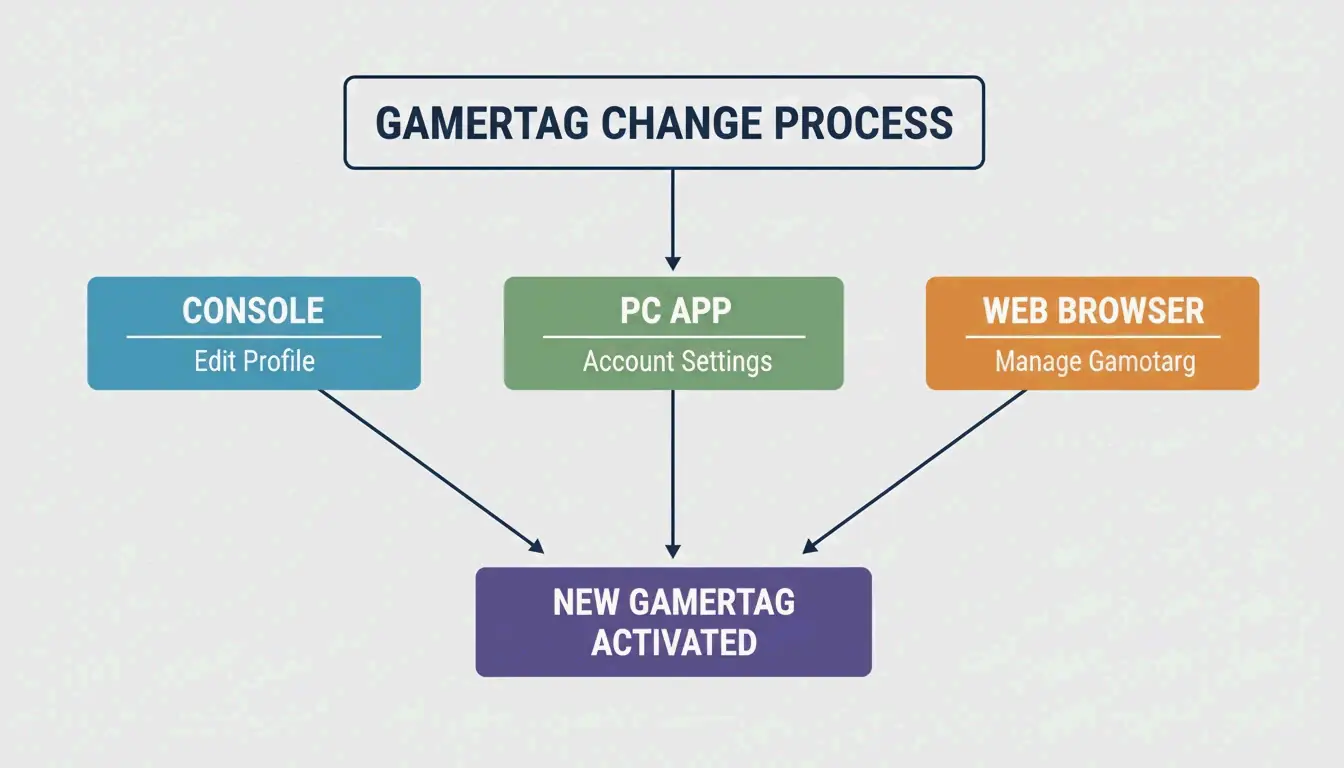
    1. On Console (Xbox Series X|S): Press the Xbox button, go to Profile & System, select your profile, and hit Customize Profile. Click your current gamertag to type in a new 12-character name.
    2. On the Xbox App: Open the app, tap your profile picture, go to Settings, and select Edit Gamertag.
    3. Verification: According to Theportablegamer, you will see a green checkmark if the name is free or a red X if it is taken. If it’s taken, the system will offer you a suffix.

    修改 Gamertag 的精简步骤

    Fixing Verification Loops in the Xbox Network

    Some players in 2026 have run into “verification loops” where the app keeps asking them to sign in over and over. To fix this, Theportablegamer suggests clearing the app cache or trying the change through a web browser at account.xbox.com. Also, check your Enforcement Status; if you have an active ban or strike, you won’t be able to change your name until the penalty is over.

    Pricing and Policies: Microsoft Points / $9.99 USD

    Microsoft still uses a “First One is Free” policy. Every new Xbox account gets one free name change. After that, you have to pay a fee, which helps stop people from constantly rebranding or abusing the system.

    In 2026, a gamertag change costs $9.99 USD (or 800 Microsoft Points). Theportablegamer notes that this price has been the same for years. Keep in mind there is also a 30-day cooldown period between paid changes, so you can’t change it more than once a month even if you have the money.

    The Rare Name Hunt: 4-Letter Gamertags and Availability

    The hunt for “Clean” 4-letter gamertags—names short enough that they don’t need a suffix—is still going strong in 2026.

    Most 4-letter dictionary words were taken a long time ago, but you can still find random alphanumeric combinations if you look hard enough. Tools like the CodeItBro Gamertag Generator even have a “Hunt 4-Letter Tags” mode to help find these short handles. If a specific 4-letter name is taken, many players just use the Suffix System. Since suffixes usually show up in a smaller font in game menus, it still looks pretty clean.

    Conclusion

    The 12-character limit is the standard for the Xbox Network in 2026. While the suffix system lets you share a display name with others, the length limit is non-negotiable for any new change. Before you commit to a new look, double-check the length. If you are currently holding onto a 15-character “Classic” tag, remember that changing it means losing those extra spaces forever. If you’re ready to switch, make sure your account is in good standing and have your $9.99 ready if you’ve already used your freebie.

    FAQ

    Can I change my 12-character modern tag back to a 15-character classic tag?

    No, once you move to the modern system, the 15-character legacy option is lost forever. The Xbox Network strictly enforces the 12-character limit for all new changes as of 2026, and there is no tool or support path to revert to the old length.

    Why do some players still have 15-character names in 2026?

    These are legacy “Classic Gamertags” created before the 2019 system update. As long as those players never change their name, they are “grandfathered” in and can keep the 15-character length. However, if they ever decide to change their tag, they will be forced into the 12-character limit.

    What are the allowed special characters for Xbox gamertags in 2026?

    Standard spaces are allowed but count as one of your 12 characters. Numbers are also permitted. However, most special symbols (such as !, @, or #) are restricted to ensure compatibility across all games in the Xbox library. The “#” symbol is reserved exclusively for the system-generated suffix.

  • How to Compress PNG Files in 2026: The Ultimate Guide to Speed and Quality

    How to Compress PNG Files in 2026: The Ultimate Guide to Speed and Quality

    To compress PNG files effectively in 2026, you can use browser-based tools like ToolTea for quick results or CLI tools like oxipng for lossless optimization. Lossless compression strips away hidden metadata, while lossy quantization cuts down the color palette to shrink files by 60-80% without noticeable quality loss—a move that significantly improves your site’s LCP performance.

    How to Compress PNG: A Step-by-Step Execution Framework

    Optimizing PNGs in 2026 is about finding the right balance between file size and image clarity. Whether you’re a designer fixing a single icon or a developer building an automated workflow, this framework helps you get the smallest file with the least amount of effort.

    Option 1: Instant Browser Compression (ToolTea & Pixotter)

    For most daily tasks, browser tools are the fastest option and keep your data private. According to ToolTea, modern web tools now process images locally using WebAssembly. This means your files stay on your computer and are never uploaded to a server.

    1. Upload: Drag your PNGs or a ZIP file directly into the browser.
    2. Choose Your Strategy: Pick “Lossless” if you need every pixel to stay exactly the same. Choose a specific color count (like 256 colors) if you want the smallest file possible.
    3. Adjust Size: If your image is huge, resize it to web-standard widths (like 1920px) to save even more space.
    4. Download: Hit “Compress All” and save your optimized files.

    Simple 3-step browser compression workflow

    Option 2: Advanced Optimization with oxipng and pngquant

    If you’re a developer or need to handle hundreds of files at once, Command Line Interface (CLI) tools offer much better control.

    • oxipng (v9.1.1): This is currently the gold standard for lossless compression. As Pixotter points out, it’s built on Rust and runs much faster than older tools. Using the command oxipng --opt 4 --strip all input.png will wipe out unnecessary metadata and color profiles that bulk up your files.
    • pngquant (v3.0): Use this for “lossy” compression. It works by converting 32-bit images into a simpler 8-bit palette, often resulting in a 60-80% size reduction. Industry benchmarks from ToolTea show that for logos and UI elements, this reduction is almost impossible for the human eye to spot.

    Lossless Compression vs. Lossy Quantization: Which Should You Choose?

    The right method depends on what the image is for and how perfect it needs to look.

    Lossless compression is like tidying up a suitcase without throwing anything away. Tools like oxipng use the DEFLATE algorithm to store pixel data more efficiently. Since it doesn’t change a single pixel, it’s the safest choice for logos, text-heavy screenshots, or icons where any blurriness would look unprofessional.

    Lossy quantization (like pngquant) actually removes data by limiting the number of unique colors. Pixotter shared a case study where a UI screenshot dropped from 1.2MB to 480KB while keeping 80% quality. This is perfect for complex illustrations or high-res photos where you don’t really need millions of colors to make the image look great.

    Side-by-side comparison of file size vs. visual quality

    One thing both methods handle well is the Alpha channel. Unlike JPEGs, PNGs keep their transparency. This means your rounded corners and drop shadows will still work perfectly even after aggressive compression.

    The 2026 Edge: PNG 3.0 and Modern Web Performance

    In 2026, image weight is a major factor in search engine rankings. Google’s Core Web Vitals focus heavily on Largest Contentful Paint (LCP). Data shows that the LCP element is an image on 70% of all web pages (Source: SammaPix). If your images are heavy, your rankings will likely suffer.

    Implementing PNG 3.0

    The technology took a leap forward with the PNG 3.0 release on June 24, 2025. This update brought several big changes:

    • HDR Support: Images can now handle a much higher dynamic range.
    • Native APNG: Animated PNGs are now an official W3C Recommendation.
    • Better Metadata: New “Exif Data Chunks” make handling photo info much cleaner.

    Decision Matrix: PNG vs. WebP or AVIF

    Even with PNG 3.0, you have to know when to use it. Stick with PNG if you need 100% pixel perfection or if you’re sending emails to old clients. However, SammaPix notes that WebP files are usually 25–34% smaller than JPEGs, and AVIF is even more efficient. If your only goal is a fast-loading website, converting PNG to WebP or AVIF is usually the better move.

    Format selection nodes: PNG vs. WebP/AVIF

    Deep Dive: How the DEFLATE Algorithm and Filtering Work

    To understand why PNGs get so large, you have to look at how they’re built. It’s a two-step process: filtering and DEFLATE.

    The DEFLATE algorithm is the engine. It uses LZ77 and Huffman coding to find repeating patterns. The problem is that DEFLATE reads data in a straight line—it doesn’t “see” that an image is 2D. To help it out, PNG uses Filtering. Before compression, the encoder uses five types of filters (Sub, Up, Average, and Paeth) to predict pixel values based on the ones next to them. This makes the data much more predictable and easier for DEFLATE to shrink.

    For better user experience, the Adam7 algorithm allows for “interlacing.” This makes a blurry version of the image appear almost instantly while the rest of the data loads, which is a lifesaver for users on slow mobile connections.

    Conclusion

    PNG compression is all about finding the sweet spot between file size and looks. By using 2026 standards like PNG 3.0 and tools like oxipng, you can cut file sizes drastically without hurting the user experience. Whether you’re chasing better Core Web Vitals or just trying to save disk space, the key is knowing when to use lossless precision and when to go for the massive savings of lossy quantization.

    Your Action Plan: Start by running your heaviest images through a tool like pngquant. If the 60-80% savings look good to you, stick with it. For professional dev environments, automate the work by adding oxipng or Sharp to your build pipeline to strip metadata and optimize every chunk of data automatically.

    FAQ

    … (Rest of FAQ content)

  • How to Compress JPG: The Ultimate 2026 Guide to Reducing File Size Without Losing Quality

    How to Compress JPG: The Ultimate 2026 Guide to Reducing File Size Without Losing Quality

    As of March 2026, the most effective way to compress JPG files is a simple two-step process: first, resize the image dimensions to match your needs, then apply lossy compression using AI-driven tools like TinyIMG or ShortPixel. This approach can cut file sizes by up to 90% while keeping quality in the 75-85% “sweet spot” required for fast page speeds and strong SEO.

    The 2-Step Protocol: How to Compress JPG for Maximum Reduction

    If you try to compress a massive 5MB photo without changing its dimensions, the results are often blurry or disappointing. Professionals avoid this “quality drama” by focusing on two things: how big the image is physically and how much data it holds.

    According to ShortPixel, forcing a 2000px wide image into a tiny 100KB limit usually makes it look pixelated. However, by resizing the width first and then applying a lossy algorithm, ShortPixel showed that a 5MB image can shrink to 100KB—a 98% reduction—while still looking crisp to the naked eye.

    Why ‘Resize Then Compress’ is the Gold Standard in 2026

    In 2026, an Online Image Compressor works best when it isn’t processing “ghost pixels.” If your website only displays an image at 1200px wide, uploading a 4000px original is just wasting bandwidth. By resizing to the actual display size first, the compression tool can focus its power on the data people actually see. This is the most efficient way to balance Visual Quality vs. File Size.

    The 2-step optimization workflow: Resize then Compress

    Understanding Lossy Compression: The Science of Small Files

    To compress JPG effectively, you need to get comfortable with Lossy Compression. This method slashes file sizes by stripping away image data that humans can’t really see, like tiny variations in color shades that our eyes ignore.

    The engine behind this is something called Discrete Cosine Transform (DCT). As explained by GWAA, this algorithm breaks an image into 8×8 pixel blocks and turns visual data into frequencies. It then rounds off the high-frequency details—basically “simplifying” the parts you won’t miss—to save space.

    Research from GWAA suggests that setting your quality between 75% and 85% is the ideal balance for the web. At this level, images usually lose 40-70% of their weight, but most people can’t tell the difference unless they’re looking at a side-by-side comparison.

    Visual Quality vs. File Size "Sweet Spot" (75-85%)

    Top Tools to Compress JPG: Online and Offline Solutions

    The right Online Image Compressor depends on whether you’re fixing one photo in your browser or running a massive website.

    • TinyIMG & ShortPixel: These are the top picks for AI-driven optimization. TinyIMG offers a Shopify app and web tools that can shrink files by up to 98%.
    • GWAA & AllImageTools: Great for privacy. These tools process images right in your browser. According to AllImageTools, this “client-side” approach is more secure because your photos are never actually uploaded to a server.
    • Windows & Mac Native Tools: You don’t always need a website. On Windows, use the Photos app’s “Resize image” feature. On Mac, use Preview under “Tools > Adjust Size” to quickly drop the resolution and quality.
    • ImageMagick: This is the go-to for developers. Bitget Academy recommends this for Batch Processing. A quick command like convert input.jpg -quality 85 output.jpg can optimize thousands of images in seconds.

    How to Strip EXIF Metadata for Extra Savings

    Almost every JPG hides “extra” data called EXIF Metadata, which includes camera settings, dates, and even GPS coordinates. While helpful for photographers, it’s dead weight for a website. Tools like ShortPixel let you uncheck the “Keep Exif” box, saving a few extra KB per image without changing a single pixel.

    Why Image Size Matters: Core Web Vitals and SEO?

    Image weight is usually the main reason a site fails the Largest Contentful Paint (LCP) test—a key Core Web Vitals / SEO metric Google uses to rank you. Large, unoptimized files make pages sluggish, which frustrates users.

    A study by AllImageTools found that 53% of mobile users will leave a site if it takes more than three seconds to load. Additionally, Google Developers noted that modern formats like WebP / AVIF are 25-34% smaller than JPEGs at the same quality. Switching to these formats is a smart move for 2026 search rankings.

    Connection between image size and page loading speed

    Troubleshooting: What to Do When Your JPG is Still Too Large

    If your file is still over a strict limit (like a 100KB cap for a government form), you have to trade a little more quality for size.

    1. Lower the Quality Slider: AllImageTools points out that you can drop the slider to 30-40% for strict upload forms. You might see some “noise,” but the file size will drop significantly.
    2. Avoid Generation Loss: Never re-compress a JPG that has already been compressed. This makes the image look “muddy” very quickly. Always go back to your original high-quality photo and start over with more aggressive settings.
    3. AI Neural Compression: Use tools like Nero AI or TinyIMG. They use “smart compression” to remove detail only in areas where the human eye is least likely to notice.

    Conclusion

    Compressing JPGs is a mix of art and science. By resizing your images first and then applying a 75-85% compression level, you can drastically reduce file size without anyone noticing a drop in quality. To stay competitive in 2026, make optimization a habit before you upload. Check your site’s speed via Google PageSpeed Insights, then use a tool like ShortPixel or TinyIMG to tackle your heaviest images. It saves storage space, keeps users happy, and gives your SEO a direct boost.

    FAQ

    Is 50 KB considered a small enough image size for most web forms?

    Yes, 50 KB is an excellent target for profile pictures and standard web use. Most government, school, or job portals set their limits between 100KB and 500KB. For large “hero” images on a website homepage, try to stay under 200KB to keep the page loading fast.

    Does compressing a JPG multiple times ruin the image quality?

    Yes, this causes “generation loss.” Since JPEG is a lossy format, every time you save or re-compress it, the algorithm runs again and deletes more data. This creates “artifacts” or digital noise. For the best results, always run your compression on the original, high-quality file.

    Why should I use JPEG instead of PNG for photographs?

    JPEG is built for photos and complex images with millions of colors; its lossy compression is great at keeping those files small. PNG is “lossless,” which is perfect for logos or text that need sharp edges and transparency, but it makes photo files massive. JPEGs are usually 5 to 10 times smaller than PNGs for the same photograph.

  • How to Compress Image Without Losing Quality: The 2026 Modern Standard

    How to Compress Image Without Losing Quality: The 2026 Modern Standard

    To compress image without losing quality in 2026, start by resizing the image dimensions to fit your actual display needs, then apply lossy compression at 80-85% quality using tools like TinyIMG or Adobe Express. For the best results, convert files to modern formats like WebP or AVIF, which can cut file sizes by up to 50% more than old JPEG or PNG formats.

    The 2026 Workflow: How to Compress Image Without Losing Quality Step-by-Step

    Optimizing images isn’t just about moving a single slider anymore. It’s a systematic three-step process designed to keep your visuals sharp while stripping away unnecessary weight.

    Step 1: Match Pixel Dimensions to Display Size

    The most effective thing you can do is follow the “Resize Before Compress” rule. Modern phones and cameras take massive photos—often 4,000 to 6,000 pixels wide—which are far too big for most websites. According to a case study by G Saunders, a retired IT instructor, simply scaling an image down from 18,000px to a standard web width of 800px resulted in a 99% reduction in file size before any actual compression happened.

    极简三步压缩工作流

    Step 2: Apply Smart Lossy Compression

    After resizing, use lossy compression and aim for the JPEG Quality Sweet Spot (75-85%). In this range, advanced encoders like MozJPEG strip out data that the human eye can’t really see anyway. As noted by Intellure, dropping the quality setting from 100% to 85% can slash the file size by 60% with almost no visible difference in clarity.

    Step 3: Strip Non-Essential Metadata

    Every digital photo hides Metadata (EXIF data), including things like GPS coordinates, camera settings, and timestamps. Photographers might need this, but it’s just extra bulk for a website. Removing this data can save between 5KB and 50KB per file. It’s a small change that helps you meet strict upload limits while also protecting user privacy.

    Why Modern Formats Like WebP & AVIF Are Essential in 2026?

    By 2026, old-school JPEGs and PNGs are taking a backseat to next-generation formats that offer much better quality at smaller sizes.

    Data from Google Developers shows that WebP images are 25-34% smaller than JPEGs of the same quality. AVIF is even more efficient; it’s the newest standard and can provide up to 50% better compression than JPEG while keeping high-detail areas looking crisp. Since over 97% of browsers now support these formats, switching to WebP or AVIF is a must for a fast-loading site.

    不同格式(JPEG vs WebP vs AVIF)的文件大小对比

    Lossy vs Lossless Compression: Which Should You Choose?

    The right choice depends on what’s in the image and where it’s going.

    When to Prioritize Lossless (PNG)

    Lossless compression shrinks the file size without throwing away a single pixel. This is the way to go for logos, icons, screenshots with text, or any graphic with sharp lines where even a little bit of “blur” would be obvious. Tools like OptiPNG and oxipng are the go-to standards here, usually saving 10-30% in file size without changing the look of the image.

    Why Lossy is the Web Standard

    Lossy compression is the best fit for photographs and complex background images. It creates huge savings (50-80%) by permanently removing data that people don’t notice. For blogs and online stores, lossy is preferred because the boost in page speed is much more valuable than the “perfect” mathematical data you lose.

    The SEO Impact: Core Web Vitals (LCP) and Speed

    Optimizing your images is a major part of technical SEO. Google uses Core Web Vitals, specifically a metric called Largest Contentful Paint (LCP), to help determine rankings. According to web.dev, images make up about 70% of all LCP elements on the web today.

    The business side is simple: research from Intellure and Google shows that 53% of mobile users will leave a page if it takes more than 3 seconds to load. By compressing your images, you improve your LCP scores, keep users on your site longer, and help your search rankings.

    2026 Quality Checklist: Verifying Your Compression

    To keep your site looking professional, you need to check the final result with your own eyes, not just look at the file size.

    Visual Artifacts to Watch For

    Zoom in to 100% and look for these three issues:

    • Banding: Do smooth areas, like a blue sky, look like they have “steps” or blocks of color?
    • Ringing: Do you see “noise” or weird halos around text or high-contrast edges?
    • Softness: Have fine details, like hair or fabric textures, turned into a blurry smudge?

    视觉质量检查:关注细节的隐喻图

    Privacy-First Tools (No-Upload Options)

    Privacy is a big deal in 2026. Many newer tools, like Pixotter and SammaPix, use WASM (WebAssembly) to process images directly in your browser. This means your photos never actually leave your computer, making them a more secure “no-upload” alternative to older cloud-based tools.

    Conclusion

    Compressing images without losing quality comes down to a simple balance: pick the right format (AVIF/WebP), resize the image to the exact size you need, and use a 75-85% quality filter. By following the “Resize first, compress second” workflow, you can cut file sizes by up to 90% while keeping them looking great. To see the impact immediately, audit your 10 most popular pages today—convert the main images to AVIF and try to keep every file under 200KB.

    FAQ

    Can I compress a PNG without losing any data at all?

    Yes, you can use lossless compression tools like OptiPNG or oxipng. These tools remove redundant metadata and optimize the internal DEFLATE algorithm without altering a single pixel. However, the file size savings are generally modest, ranging from 5% to 20%, compared to the much larger savings found in lossy methods.

    Does compressing images affect my website’s SEO rankings?

    Absolutely. Page speed is a confirmed Google ranking factor, and images are typically the heaviest elements on a page. Optimized images significantly improve your Largest Contentful Paint (LCP) scores, which is a key metric in Core Web Vitals. Better performance leads to higher search visibility, lower bounce rates, and improved conversion rates.

    Is it safe to upload sensitive or personal photos to online compression tools?

    It depends on the tool’s privacy policy. In 2026, it is best to use tools that offer client-side (WASM) processing, where the compression happens entirely within your browser and the files are never uploaded to a server. Always verify that a service deletes files immediately after processing if you choose a server-side tool.

  • 世界,您好!

    欢迎使用 WordPress。这是您的第一篇文章。编辑或删除它,然后开始写作吧!