Category: Story

  • Understanding Aspect Ratio: The Complete 2026 Guide for Social Media, Video, and Displays

    Understanding Aspect Ratio: The Complete 2026 Guide for Social Media, Video, and Displays

    Aspect ratio is the proportional relationship between an image’s width and height, expressed as a ratio like 16:9. In 2026, while 16:9 remains the standard for TV and YouTube, 9:16 is essential for vertical social media, and 21:9 has become the industry benchmark for immersive gaming and professional multi-window workstations.

    What is Aspect Ratio? Definition and Core Principles

    At its heart, aspect ratio is about the shape of a frame, not how big it is or how many pixels it has. Think of it as a “recipe for shape.” As the Aspect Ratio Calculator puts it, we write this recipe as two numbers separated by a colon (width:height). For every X units of width, there are Y units of height. This proportion stays the same whether you’re watching on a pocket-sized smartphone or a massive cinema screen.

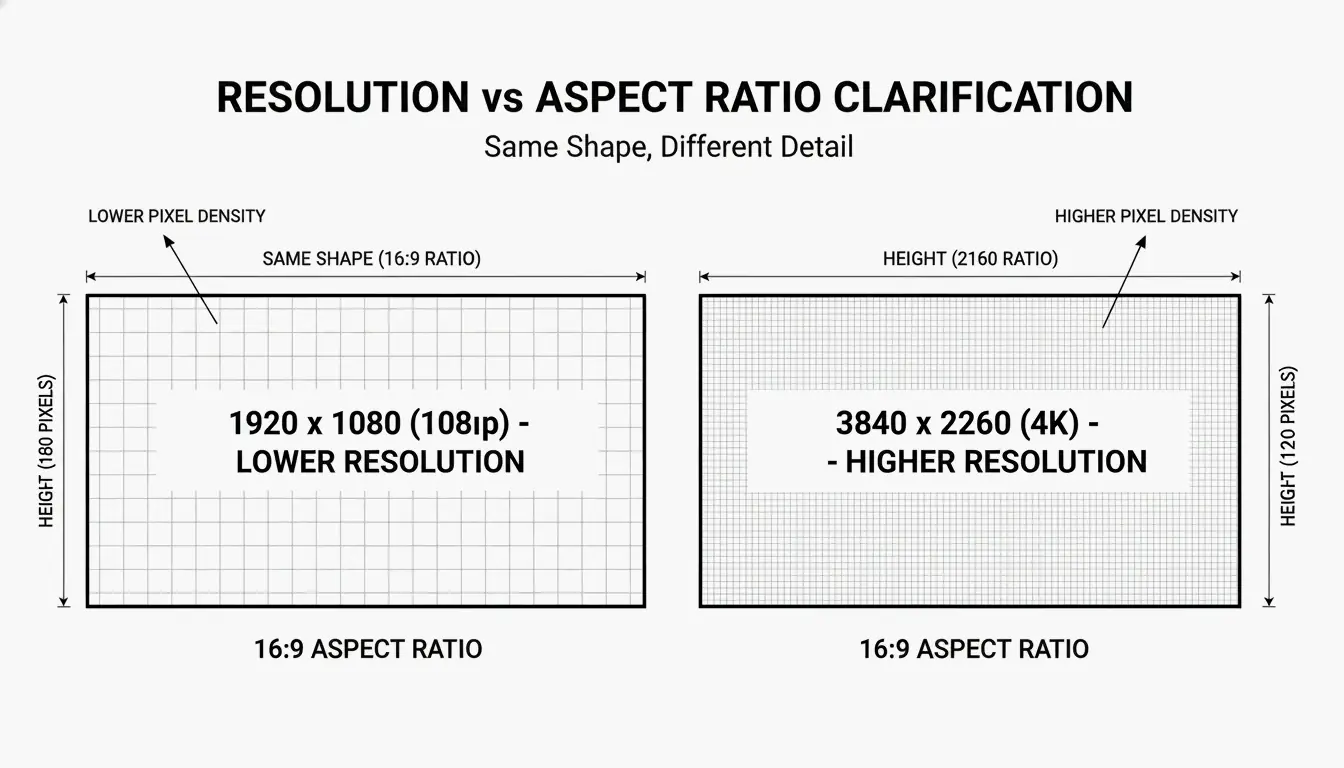
    It helps to clear up the confusion between resolution and aspect ratio. Aspect ratio tells you if a frame is a square, a landscape rectangle, or a tall portrait. Resolution (like 1920 × 1080) tells you the total pixel count and how sharp the image looks. Different resolutions can share the same aspect ratio. For example, both 1080p Full HD and 4K UHD are 16:9 (Widescreen), even though 4K has four times the pixel density.

    Comparison of Aspect Ratio vs. Resolution using 16:9 as a constant shape with different pixel densities.

    The 16:9 ratio won out as the universal widescreen standard because it was a clever mathematical middle ground between old 4:3 TVs and wide 2.35:1 movie screens. It’s still the king of displays in 2026; according to the Steam Hardware Survey, 16:9 is the most popular orientation, with 1080p resolution alone making up 67% of the gaming market.

    The Math: How to Calculate Aspect Ratio from Pixels

    To find the aspect ratio from a pixel count, you need to find the Greatest Common Divisor (GCD) of the width and height. The Aspect Ratio Calculator shows how this works: for a 1920 × 1080 image, the GCD is 120. If you divide 1920 by 120, you get 16. Divide 1080 by 120, and you get 9. That’s your 16:9 ratio. For a 4000 x 3000 image, the GCD is 1000, which simplifies down to 4:3.

    2026 Platform Standards: Social Media & Video Requirements

    Most of what we watch today is driven by the move toward 9:16 (Vertical) video. This format, made famous by TikTok, Instagram Stories, and YouTube Shorts, is built to fill a smartphone screen held upright. To keep your videos from having weird borders or getting cut off, Buffer suggests using a resolution of 1080 x 1920 pixels.

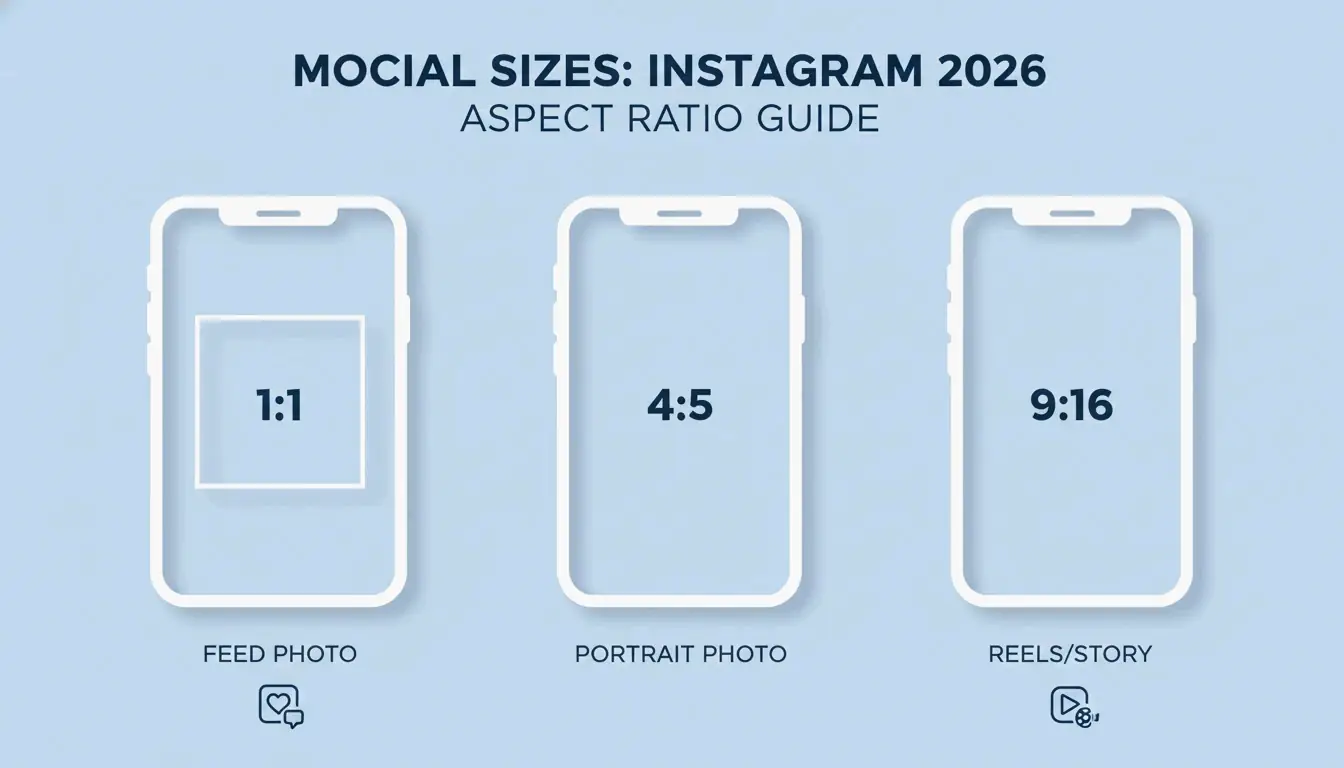
    Instagram Post Sizes have changed quite a bit by 2026. The app started with just square photos, but it now supports three main dimensions for your feed:

    • Square: 1080 x 1080 pixels (1:1)
    • Portrait: 1080 x 1350 pixels (4:5)
    • Landscape: 1080 x 566 pixels (1.91:1)

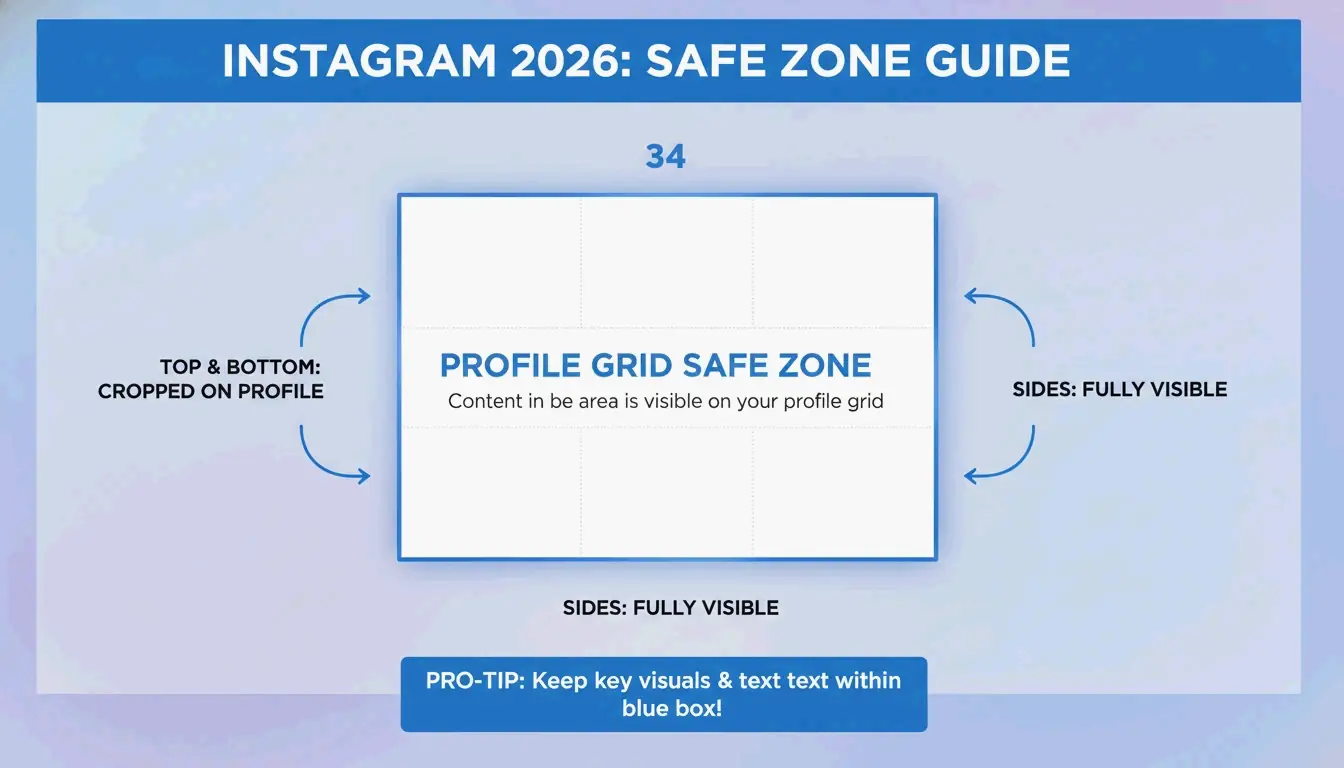
    One big change in the 2026 Instagram update is the profile grid. Data from Buffer shows that the grid now uses 3:4 previews. This is a big deal for creators: you have to make sure the most important parts of your image are centered in that 3:4 “safe zone” so they don’t get chopped off when someone visits your profile page.

    A simple visual guide of the 2026 Instagram "Safe Zone" and 3:4 profile grid preview.

    The Unified Creator Standard: Mapping Ratios Across Platforms

    To get the most views, creators usually have to turn one video into several different ratios. The standard workflow is to shoot in high-resolution 16:9 or 9:16 and keep the “safe zones” in mind for app buttons and text. On TikTok and Reels, the app puts your profile name and buttons right over the video. Buffer recommends leaving about 250 pixels of empty space at the top and bottom of a 9:16 frame so your text and logos stay readable.

    Beyond the Screen: 21:9 Ultrawide and 3:2 Photography

    While 16:9 is what most people use, 21:9 (Ultrawide) has become the go-to for serious work and high-end gaming. A Dexon Systems Analyst points out that 21:9 actually fits the human field of view more naturally than a standard widescreen. This format gives you about 33% more horizontal space, which is perfect for seeing a long video timeline or keeping multiple windows open side-by-side without a monitor bezel in the middle.

    In photography, the 3:2 Ratio is still the standard. This is the native shape for most DSLR and mirrorless cameras, a legacy from 35mm film. You’ll also see it on Microsoft Surface laptops and some MacBooks because the extra height (compared to 16:9) makes it much easier to read documents or edit photos.

    For streaming, many Netflix and Amazon Prime shows now use Univisium (2.00:1). This ratio was championed by cinematographer Vittorio Storaro as a compromise between the 2.39:1 movie theatre look and 16:9 home TVs. According to Wikipedia, it’s now a required format for many streaming originals because it feels cinematic but still fills up a modern TV screen efficiently.

    Technical Deep Dive: DAR, SAR, and PAR Explained

    Getting digital video to look right means understanding three technical ratios. Display Aspect Ratio (DAR) is the actual shape of the screen (like 16:9). Storage Aspect Ratio (SAR) is simply the ratio of the pixel width to the pixel height.

    Then there is the Pixel Aspect Ratio (PAR), which describes the shape of a single pixel. Most modern screens use square pixels (1:1 PAR), but older broadcast formats like NTSC used rectangular ones. As Wikipedia explains, the formula is: SAR × PAR = DAR. If you get these mixed up when saving a video, you’ll end up with a “stretched” or distorted image.

    Letterboxing and Pillarboxing: Fixing the Black Bars

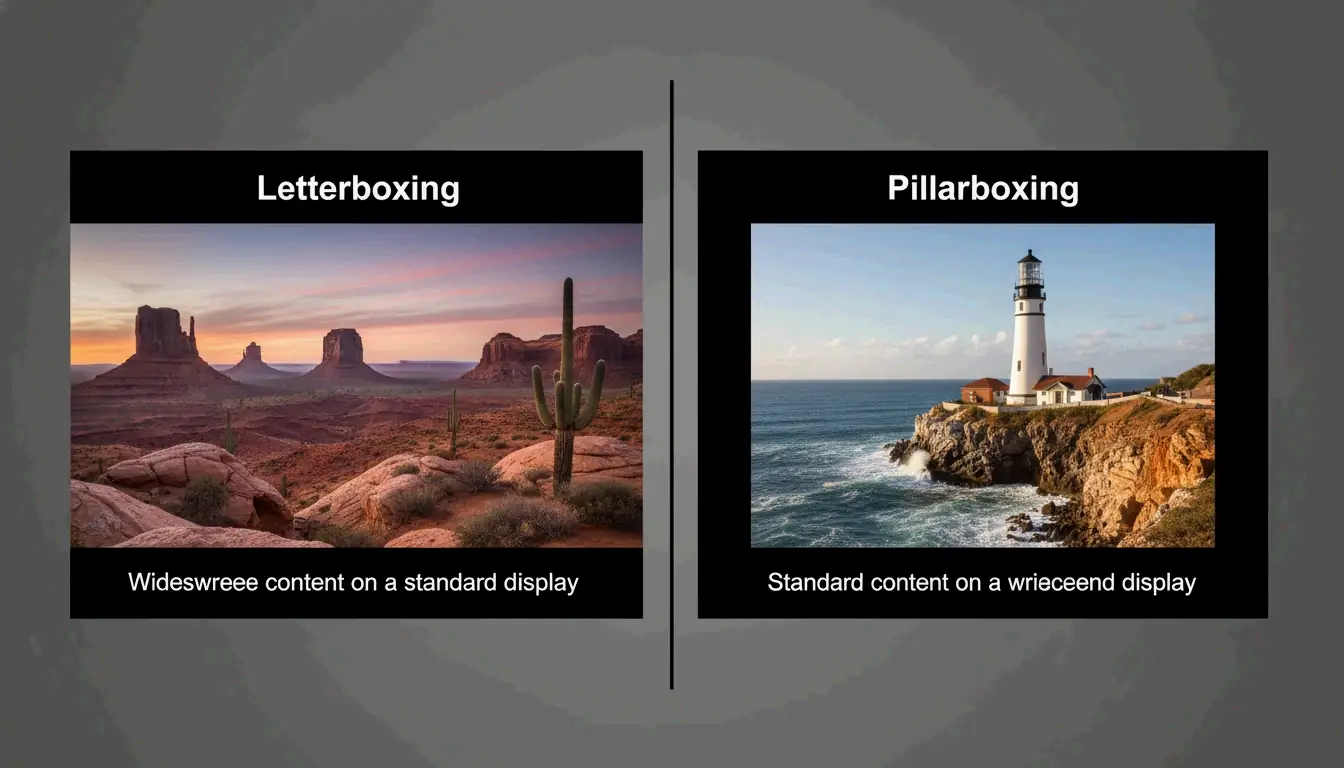
    When your video’s shape doesn’t match the screen, the system adds black bars to keep the proportions correct. Letterboxing refers to the bars at the top and bottom (which you see when watching a wide 21:9 movie on a 16:9 TV). Pillarboxing is when the bars are on the left and right (common when watching old 4:3 shows on a modern monitor).

    Visual demonstration of Letterboxing vs. Pillarboxing on a standard screen.

    Professional Implementation: Custom LED Walls and High-End Displays

    By 2026, the popularity of custom LED walls has created new challenges for video. These walls often have odd shapes that don’t match standard monitors. A Dexon Systems case study explains that you now need professional video controllers to scale 16:9 or 21:9 footage to fit these custom shapes without stretching the picture or losing important details.

    In high-stakes environments like command centers, Super Ultrawide (32:9) displays are the new norm. These are essentially two 16:9 monitors joined together. According to Dexon Systems, these allow people to track multiple data feeds—like maps and cameras—in one seamless view that matches how we naturally see the world.

    Conclusion

    Aspect ratio is the invisible framework of digital content. It decides how we experience everything from a quick five-second ad to a three-hour movie. Choosing the right one—9:16 for social media, 16:9 for standard video, or 21:9 for productivity—is the key to making sure your work looks professional and keeps viewers engaged in 2026.

    If you’re managing content, take a moment to check your workflow and make sure you’re using the 3:4 “safe zone” for social media. For those looking to work more efficiently, moving to a 21:9 or 32:9 display can help you get more done without the clutter of a multi-monitor setup.

    FAQ

    What is the best aspect ratio for a custom-shaped LED wall in 2026?

    The best ratio depends on the physical dimensions of the wall, but most professional hardware is designed to scale from a standard 16:9 or 21:9 source. As Dexon Systems advises, you must ensure your video controller supports non-standard scaling to preserve the intended proportions of the source material and avoid visual distortion on the custom surface.

    How do I fix ‘black bars’ (letterboxing) on my video?

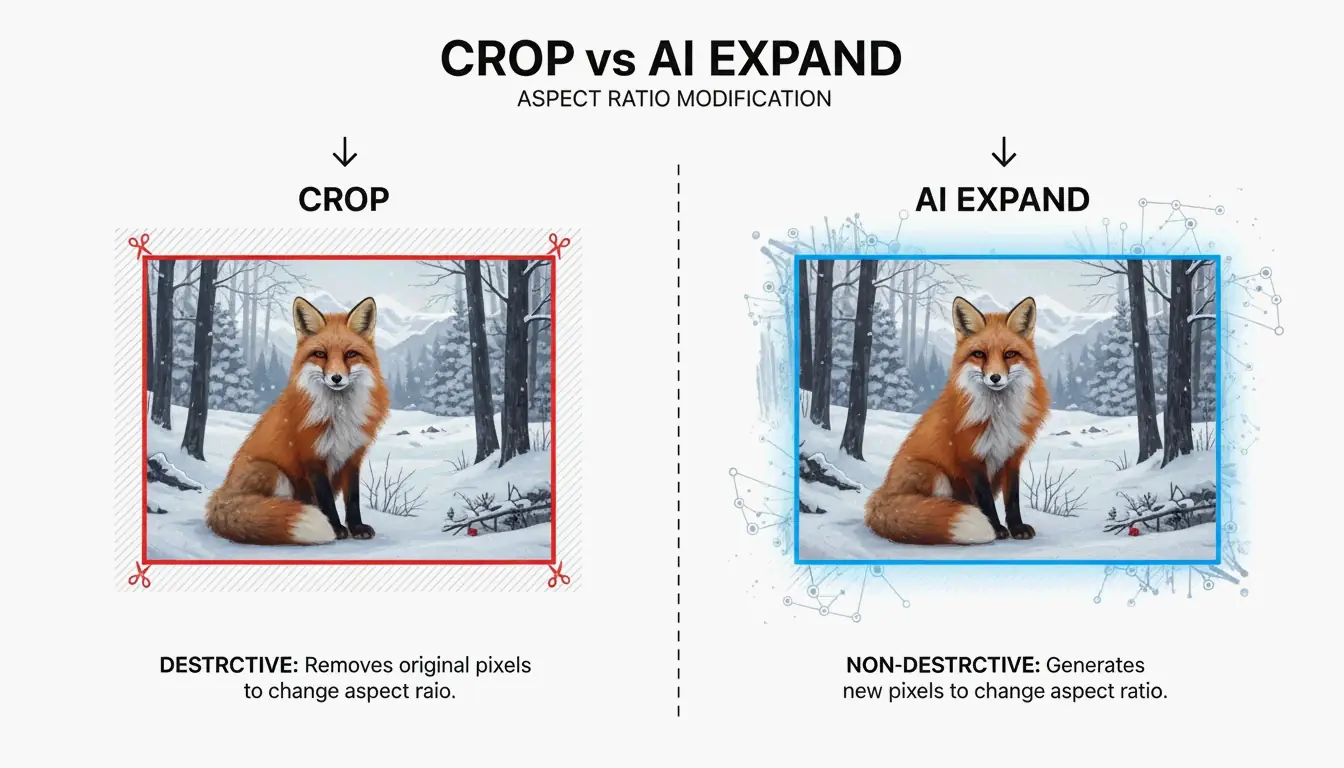
    To eliminate black bars, you must match your export settings in editing software to the intended display’s aspect ratio. If the source and display ratios differ, you can use “Crop to Fill” or “Center Crop” methods. This removes the bars by expanding the image to fill the screen, though it results in losing some of the image area at the edges.

    What is the difference between 16:9 and 21:9 for professional monitoring?

    16:9 is the standard format for single-task focus and general media consumption. In contrast, 21:9 provides 33% more horizontal screen real estate. According to Dexon Systems, 21:9 is ideal for professional monitoring because it matches the human field of view and allows for side-by-side windows without the interruption of monitor bezels.

  • How to Compress HEIC Files Without Losing Quality (2026 Guide)

    How to Compress HEIC Files Without Losing Quality (2026 Guide)

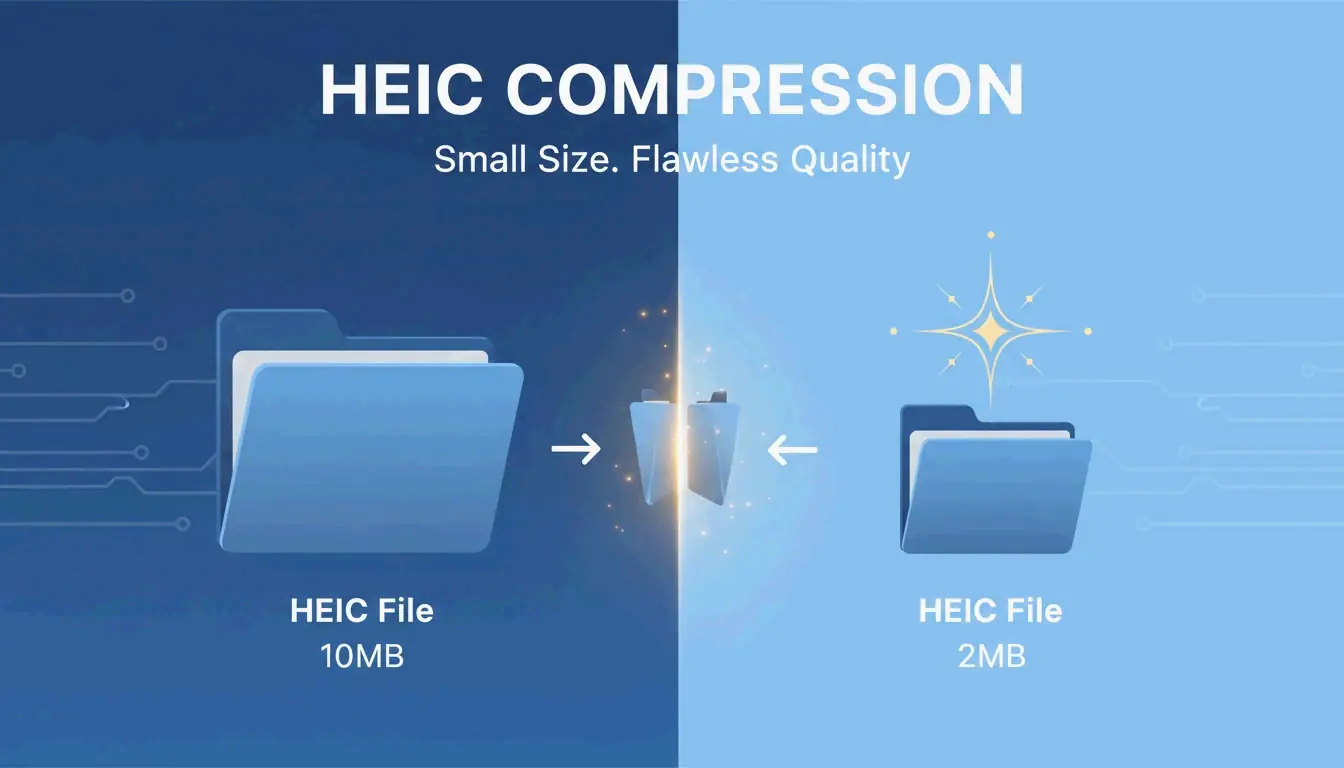
    To compress HEIC files in 2026, you can use browser-based tools like ConvertMinify or Adobe Express, or use the native “Quick Actions” feature on macOS. By setting the quality slider to 80-85%, you can shrink file sizes by up to 80% while keeping visual clarity and EXIF metadata intact. This ensures your iPhone photos meet upload limits without looking blurry.

    The Fastest Ways to Compress HEIC Online and Offline

    High-resolution photography is great, but it creates a constant battle between image quality and storage space. While the High Efficiency Image Container (HEIC) is built to be lean, modern hardware like the iPhone 15 Pro produces 48MP images. According to ConvertMinify, these files typically range from 5–8 MB, which can easily trigger email attachment limits or slow down a website.

    Option 1: Privacy-First Browser Tools (No Upload Required)

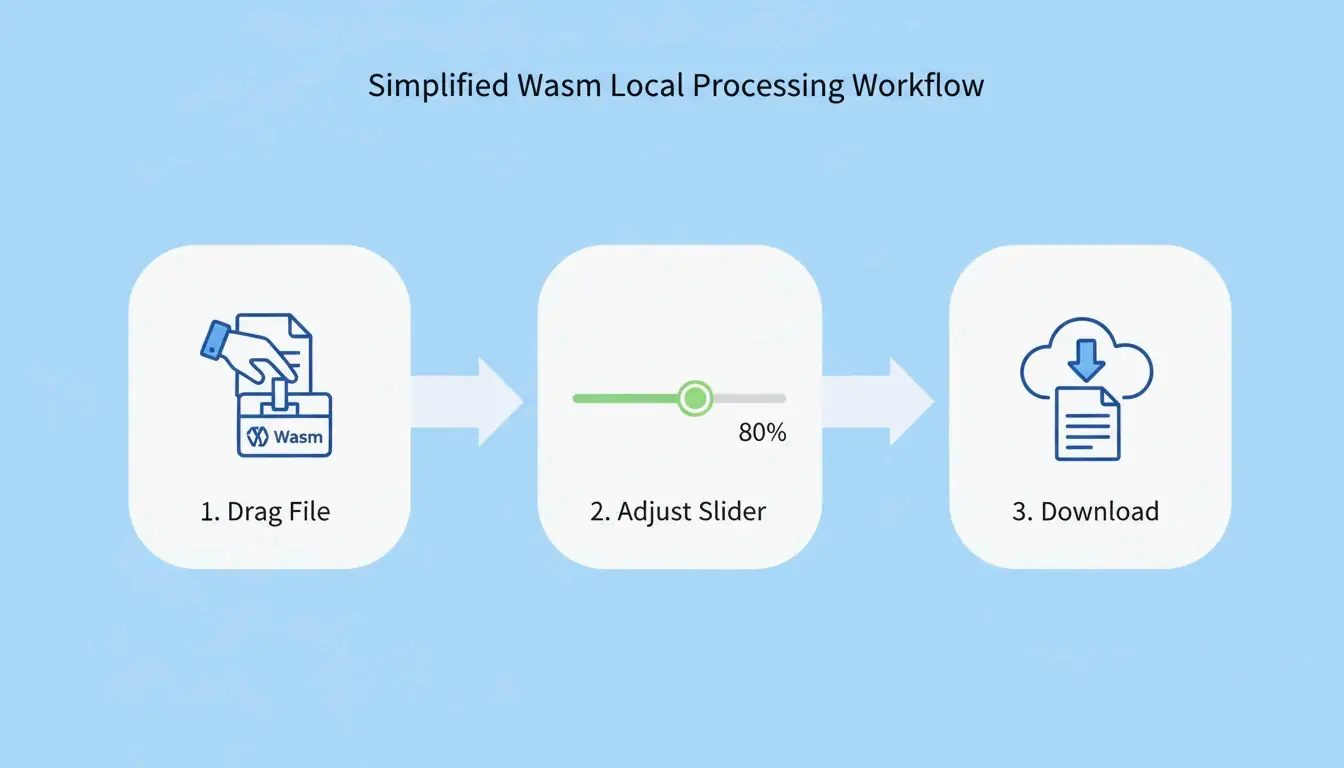
    You no longer need to “upload” files to a mysterious server to shrink them. Modern web standards now allow your browser to do the heavy lifting locally. Tools using WebAssembly (Wasm) and HTML5 Canvas, such as FreeToolio, process images right on your device.

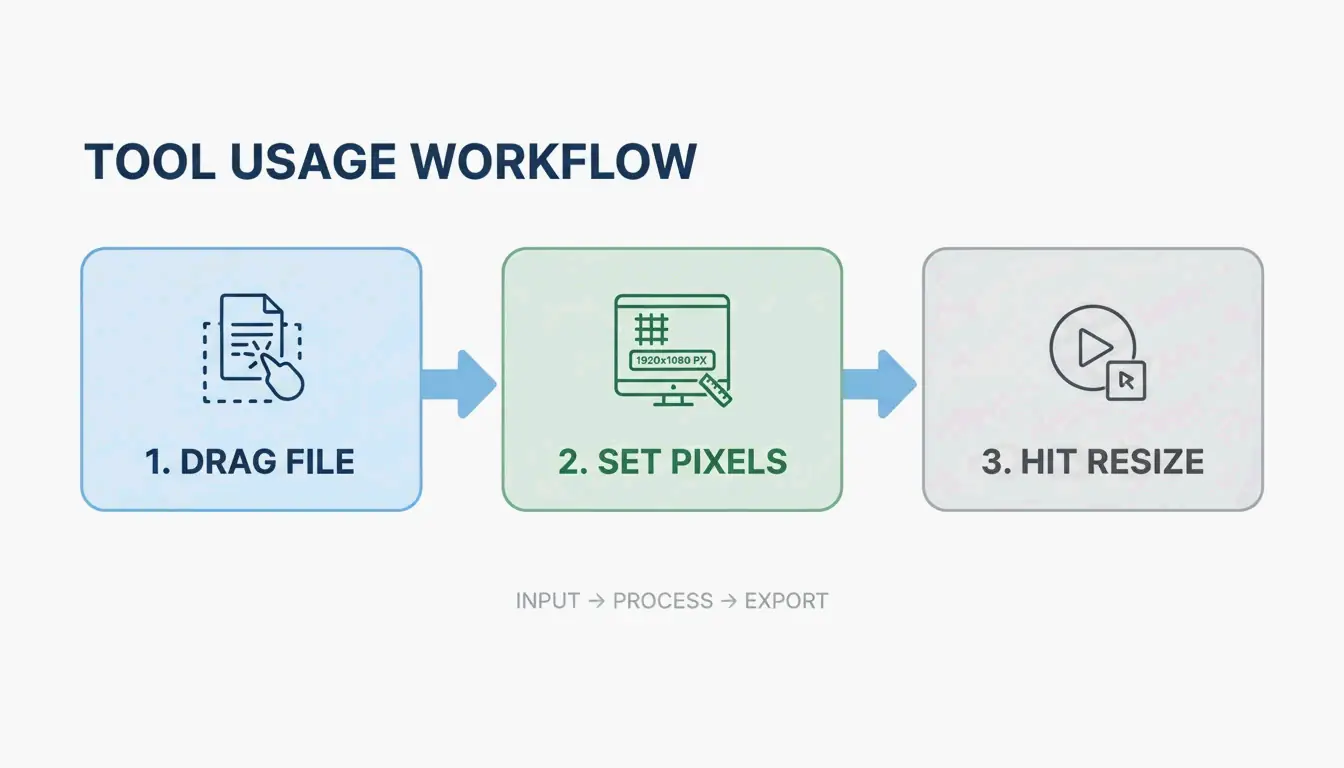
    1. Pick Your Tool: Open a Wasm-based site like ConvertMinify or FreeToolio.
    2. Find the “Sweet Spot”: Move the quality slider to 80-85%. This is the standard setting to keep 10-bit color depth while significantly cutting the file size.
    3. Process Locally: Drag and drop your HEIC files. Because the logic runs via Wasm, your photos stay on your computer, ensuring 100% privacy.
    4. Save: Download your optimized files immediately.

    Simple 3-step local compression process

    Option 2: Native macOS & Windows Methods

    If you prefer to stay away from the browser entirely, your computer already has built-in tools that don’t require any new software.

    • macOS Quick Actions: Highlight your HEIC files in Finder, right-click, and go to Quick Actions > Convert Image. Choosing Small, Medium, or Large will trigger an instant local compression.
    • Windows Photos App: Windows users will need the “HEIF Image Extensions” from the Microsoft Store first. Once installed, open an image in the Photos app, select “Save As,” and use the quality slider to reduce the size.
    • Dedicated Local Apps: For pros handling hundreds of photos at once, native apps like ClearCut or Zipic offer offline processing. These allow for specific CRF (Constant Rate Factor) controls that can shrink files by as much as 90%.

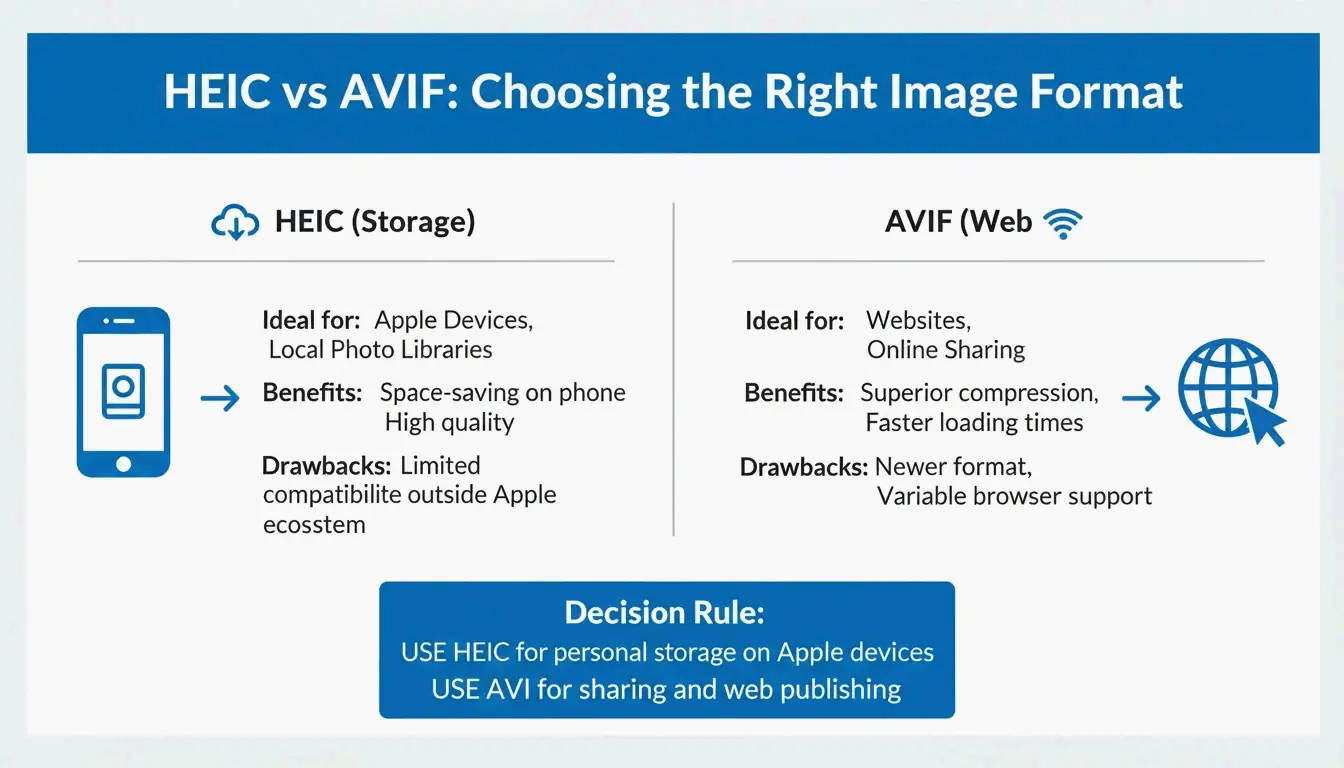
    Modern 2026 Workflow: HEIC for Storage vs. AVIF for Web

    Choosing the right format depends on where the photo is going. HEIC is still the best “master” format for Apple users (iOS 11+) because it supports Live Photos and non-destructive editing.

    However, for sharing on the web, AVIF (AV1 Image File Format) is the new standard. DEV Community notes that AVIF reached about 93% global browser support by 2026. While HEIC is perfect for your phone’s storage, it still isn’t natively supported by browsers like Chrome or Firefox, making it a poor choice for direct web uploads.

    Simple comparison: HEIC for Storage vs AVIF for Web

    The main downside to AVIF is speed. Data from Pixotter shows that AVIF encoding can be 47x slower than WebP or JPEG. For high-traffic sites, the wait is usually worth it because of the massive bandwidth savings and better performance scores.

    How Does HEIC Compression Work?

    HEIC is based on the HEVC (H.265) video standard. As Utilko points out, it is 50% more efficient than JPEG at the same quality level. This allows it to hold 10-bit color and HDR data in a file half the size of an old 8-bit JPEG.

    Understanding Lossy vs. Lossless Compression

    • Lossy Compression: This is the default for iPhone photos. It uses “intra-frame prediction” to remove data the human eye can’t actually see.
    • Lossless Compression: Reserved for archives or medical imaging where every pixel must be perfect. These files are larger than lossy versions but still smaller than TIFF or BMP files.

    Does Compressing HEIC Remove GPS and EXIF Data?

    Compression itself doesn’t delete metadata, but many “lite” online tools strip EXIF data (like your camera settings, GPS, and timestamps) to shave off an extra 50-200 KB. Professional tools like Zipic give you a toggle to keep or remove this info. If you’re posting a photo publicly, stripping the GPS data is actually a smart privacy move.

    Professional Privacy Checklist: Is Your Compressor Safe?

    When you compress HEIC files, security is the most important factor. In 2026, the best practice is to keep everything local.

    1. The Offline Test: Open the tool, then turn off your Wi-Fi. If it still works, it’s using Wasm or HTML5 Canvas and is safe to use.
    2. Cloud vs. Local: Be careful with tools that “upload” your files unless they have a clear, verified policy for deleting them. Native apps like ClearCut are 100% local and don’t even require an account.
    3. Core Web Vitals: For developers, make sure your compressor doesn’t strip color profiles. If it does, images can look “washed out,” which hurts the user experience and your site’s metrics.

    Visual metaphor for local/offline data security

    Conclusion

    Compressing HEIC is a necessity for managing high-res iPhone storage. By 2026, tools have advanced enough to let you do this right in your browser without any privacy risks. Whether you’re trying to fit a photo into an email or optimizing a portfolio, you can reduce the file size without losing the 10-bit depth that makes HEIC so good. For the best results, stick to a Wasm-based compressor at about 82% quality to get the best balance of size and clarity.

    FAQ

    Why are my iPhone HEIC photos so large even though they are ‘High Efficiency’?

    High-resolution sensors, such as the 48MP lenses on the latest iPhones, generate massive amounts of raw data. Additionally, the inclusion of HDR data and 10-bit color depth increases file complexity. According to ConvertMinify, these factors can result in individual files reaching 8 MB despite the efficient codec.

    Can I compress HEIC files on Windows without installing third-party software?

    Yes. You can use the built-in Windows Photos app to “Save As” or “Resize” the image, though you must first ensure the “HEIF Image Extensions” are installed from the Microsoft Store. Alternatively, use a browser-based tool like FreeToolio that processes the file locally using your browser’s resources.

    Does compressing HEIC images remove GPS and EXIF metadata?

    It depends entirely on the tool you select. Most native macOS and iOS compression methods preserve metadata by default. However, many third-party web tools provide a toggle to strip EXIF data to further reduce file size or protect user privacy before social media uploads.

  • How to Compress PNG Files: 2026 Guide to Faster Web Performance

    How to Compress PNG Files: 2026 Guide to Faster Web Performance

    To compress PNG files in 2026, use browser-based tools to apply lossless recompression or lossy quantization. By stripping metadata and optimizing the color palette via tools like pngquant, you can reduce file sizes by 40-80% while maintaining transparency and professional visual fidelity for web and mobile applications.

    How to Compress PNG Without Quality Loss: A 3-Step Framework

    Optimizing PNGs for the modern web is about finding the sweet spot between mathematical perfection and what the human eye actually sees. According to Pixotter, PNG files often carry “hidden weight”—things like embedded ICC profiles and Exif data. This extra data can add 50-500KB to a single image without making it look any better to your users.

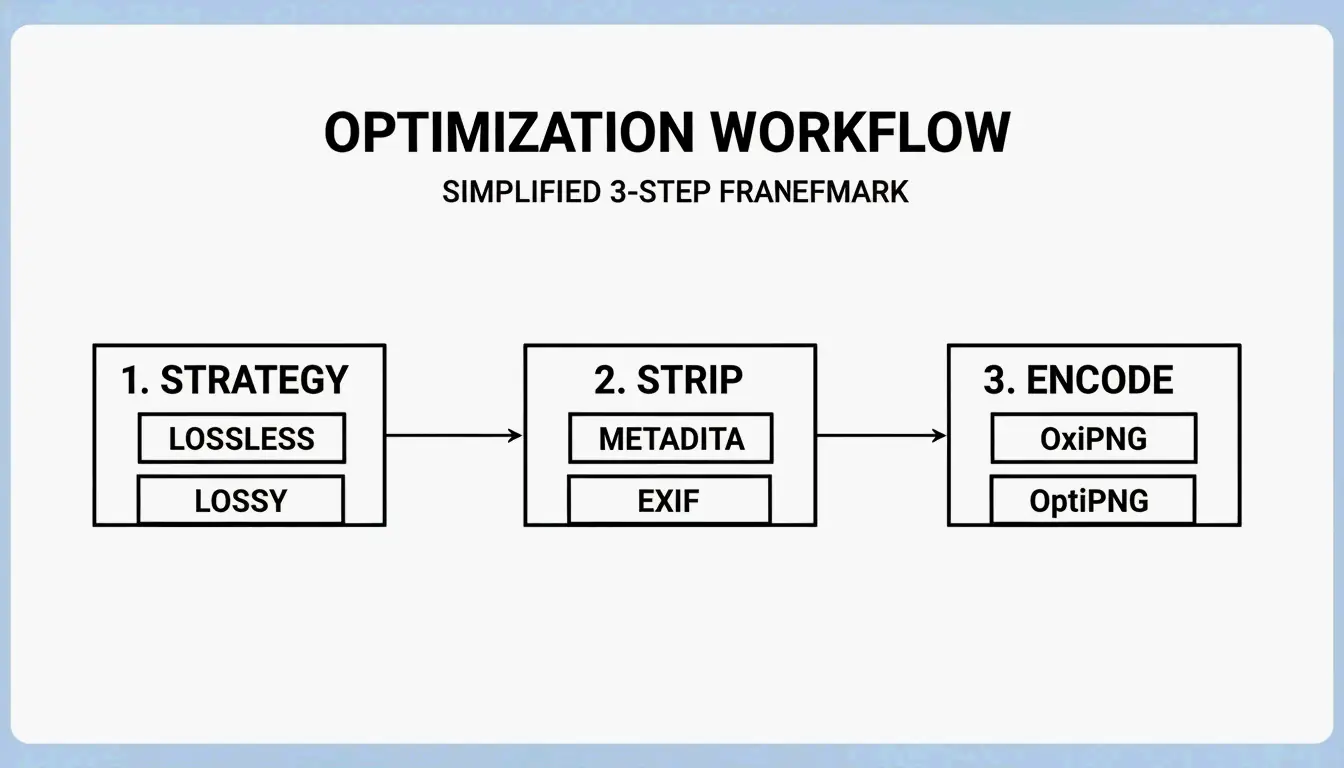
    To get the best results, follow this three-step process:

    1. Choose Your Compression Strategy: You have two main options. Lossless recompression keeps every single pixel identical to the original; it’s best for brand assets like logos. Lossy quantization reduces the color palette and offers much bigger savings, making it ideal for screenshots or complex web graphics.
    2. Strip Unnecessary Metadata: Use a tool to wipe out non-essential “chunks” within the file. Removing EXIF data and ICC profiles is an easy way to cut size without touching the actual pixels.
    3. Export Using Modern Algorithms: Use high-performance encoders like OxiPNG or OptiPNG. OxiPNG is a Rust-based optimizer that is generally faster and more efficient. It tests multiple filtering strategies to find the smallest possible lossless encoding for your file.

    3-step PNG optimization workflow

    Lossless vs Lossy: Which Compression Method to Choose?

    The right choice depends on how much detail you need to keep. Lossless compression (using tools like OptiPNG) simply tidies up the internal data structure and applies maximum DEFLATE compression. According to ToolTea, this usually shrinks a file by 10-30% without changing the image at all.

    On the other hand, Lossy compression (via quantization) cuts down the color depth. It often moves an image from a massive 24-bit or 32-bit palette down to an 8-bit (256 color) palette. This is the most effective way to boost web performance, as it can shrink files by 60-80% while keeping the alpha channel (transparency) intact.

    The 2026 PNG Standard: What’s New in the W3C 3rd Edition?

    As of April 2026, the PNG format has received its first major update in years. The PNG 3rd Edition, which became a W3C Recommendation on June 24, 2025, modernized the format for today’s web. According to Wikipedia, this update was necessary to turn popular but “unofficial” extensions into official standards.

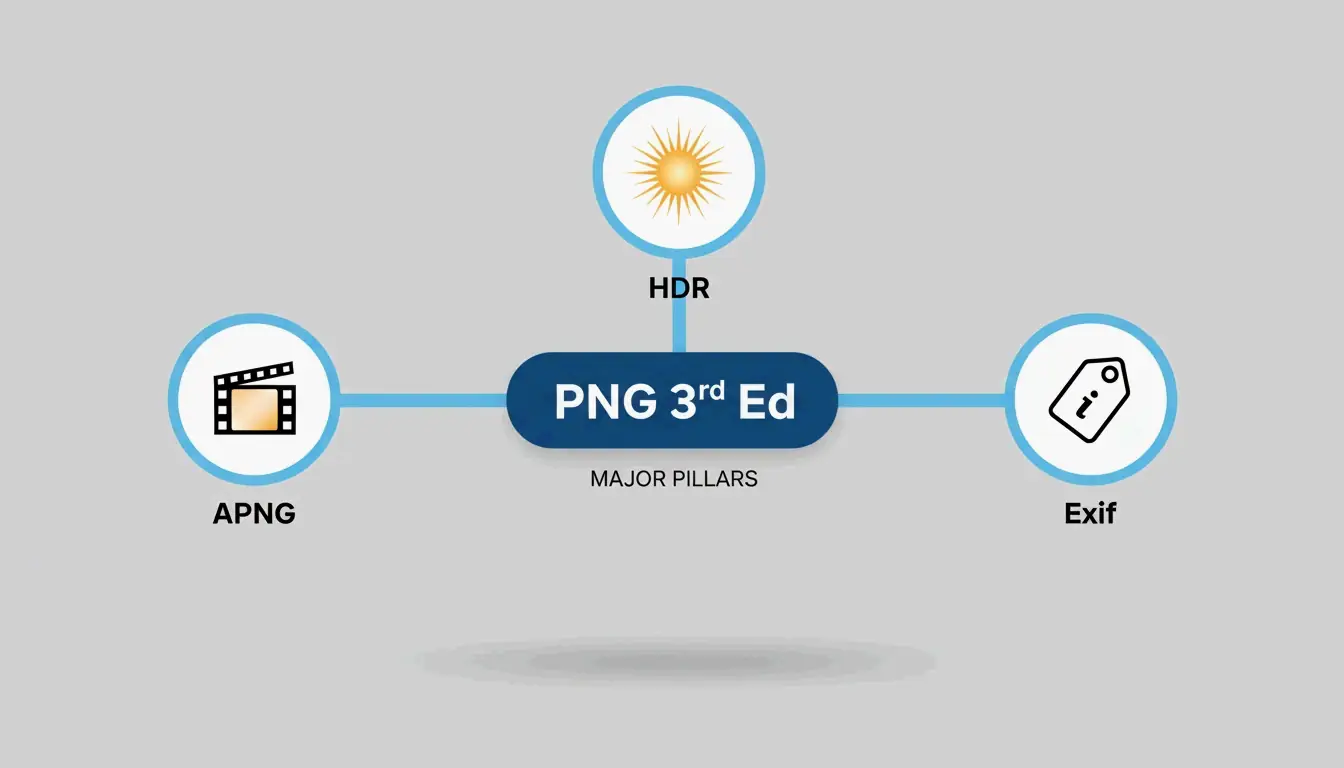
    The 3rd Edition now officially includes:

    • APNG (Animated PNG): This is now a core part of the spec, not just a third-party add-on.
    • High Dynamic Range (HDR): Better support for modern monitors that handle higher brightness and wider color ranges.
    • Native Exif Support: Improved handling of metadata within the file’s “chunk” structure.

    Key features of the PNG 3rd Edition update

    As noted by the W3C, PNG was first built as a free replacement for GIF. These 2025/2026 updates ensure it stays competitive as an open standard for high-quality web graphics.

    Why APNG is Now a Native Standard for Web Animation

    With the 2025 W3C Recommendation, APNG has become the go-to for high-quality, transparent animations. Unlike the old GIF format, which is stuck with 256 colors and “all-or-nothing” transparency, APNG supports full 24-bit color and smooth 8-bit alpha channels. Since it’s now a native part of the PNG 3rd Edition, browsers can render these animations more efficiently, which saves on CPU power.

    Advanced PNG Optimization: pngquant and PNG-8 Strategy

    For pros, the most effective tool for “lossy” PNG optimization is still pngquant. It uses a smart algorithm to turn 24-bit or 32-bit PNGs into much smaller 8-bit indexed images (PNG-8). According to Pixotter, this can shrink UI screenshots by up to 60% with almost no visible difference to the eye.

    A real-world case study from iCompressImg shows what’s possible: a logo containing text was reduced from 156KB down to 24KB—an 85% reduction in file weight.

    Feature PNG-24 (Truecolor) PNG-8 (Indexed)
    Colors 16.7 Million Up to 256
    Transparency Full Alpha Channel Alpha or Binary
    File Size Large Small (60-80% reduction)
    Best For Complex gradients Logos, Icons, UI Elements

    Developer Tip: Integrating Compression into CI/CD Pipelines

    To keep a site fast as it grows, you should automate your image compression. Using the Sharp library in Node.js is the standard approach in 2026. Sharp uses the libvips library for high-speed processing. By adding a script to your CI/CD pipeline, every PNG asset is automatically optimized and stripped of metadata before it ever goes live, preventing heavy, unoptimized files from slowing down your production server.

    Should I Convert PNG to WebP for Better Performance?

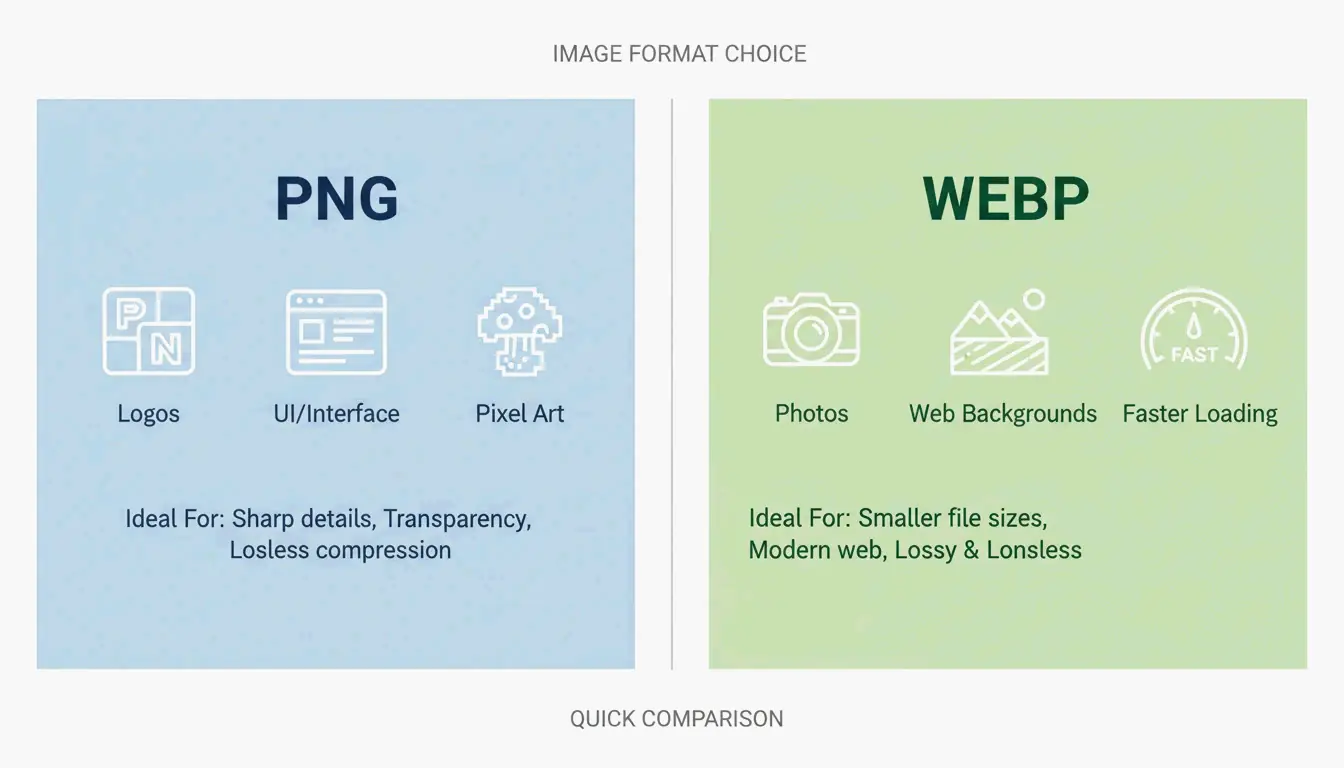
    Compressing PNGs works well, but for photographic content, WebP is often the better choice. WebP handles both lossy and lossless compression and supports transparency just like PNG. According to 2026 benchmarks from Pixotter, a WebP file at 80% quality is usually 20-35% smaller than a lossy-quantized PNG of the same quality.

    Comparison of PNG vs WebP for different use cases

    However, stick with PNG in these cases:

    • Pixel Art or Sharp Edges: PNG’s DEFLATE algorithm is better at handling high-contrast, flat-color edges than WebP.
    • High-Fidelity Source Assets: If you need to edit the image again later, keep it as a lossless PNG to avoid “generation loss” (quality dropping every time you save).
    • Maximum Compatibility: Almost all modern browsers support WebP, but some old email clients or specific enterprise tools still need standard PNGs.

    Conclusion

    Compressing PNGs isn’t just about making files smaller; it’s about choosing the right tool for the job. By using the 2025/2026 W3C standards and tools like pngquant, you can speed up your page loads significantly without losing visual quality.

    Actionable Advice: Start with a lossless tool like OxiPNG to clear out metadata. If the file is still too big, use pngquant for 8-bit quantization. For photos that aren’t “mission-critical,” consider converting to WebP to get that 60-85% reduction needed for modern Core Web Vitals.

    FAQ

    Does PNG compression lose image transparency?

    No, standard lossless compression preserves the alpha channel perfectly. Even lossy tools like pngquant are designed to maintain transparency boundaries, though they may slightly reduce the number of colors within the semi-transparent areas to achieve a smaller file size.

    What is the difference between lossless and lossy PNG compression?

    Lossless compression (e.g., OxiPNG, OptiPNG) optimizes the file’s internal structure and removes metadata without changing a single pixel. Lossy compression (e.g., pngquant) reduces the total number of colors in the image, which significantly shrinks the file size but technically alters the original pixel data.

    Can I compress a PNG to a specific file size like 100KB?

    Directly targeting a specific file size is difficult for PNG because its compression depends on image complexity. However, you can achieve a target size by iteratively reducing the color palette (quantization) or by resizing the image dimensions to reduce the total pixel count.

    Why is my PNG file still large after compression?

    Your file may contain significant amounts of hidden metadata, such as large ICC color profiles or EXIF data, which some tools do not remove by default. Additionally, images with complex gradients or “noise” do not compress well with the DEFLATE algorithm, as there are fewer repeating patterns to exploit.

  • How to Compress JPG Files: The 2026 Guide to Faster Loading and High Quality

    How to Compress JPG Files: The 2026 Guide to Faster Loading and High Quality

    As of April 2026, the most effective way to compress JPG files is by using online tools like TinyIMG or native apps like Mac Preview. For the best web performance, aim for a quality setting of 75-85%; this usually cuts file size by 40-70% while keeping the image looking just as sharp as the original.

    The ‘Double-Punch’ Workflow: How to Compress JPG for Maximum Results

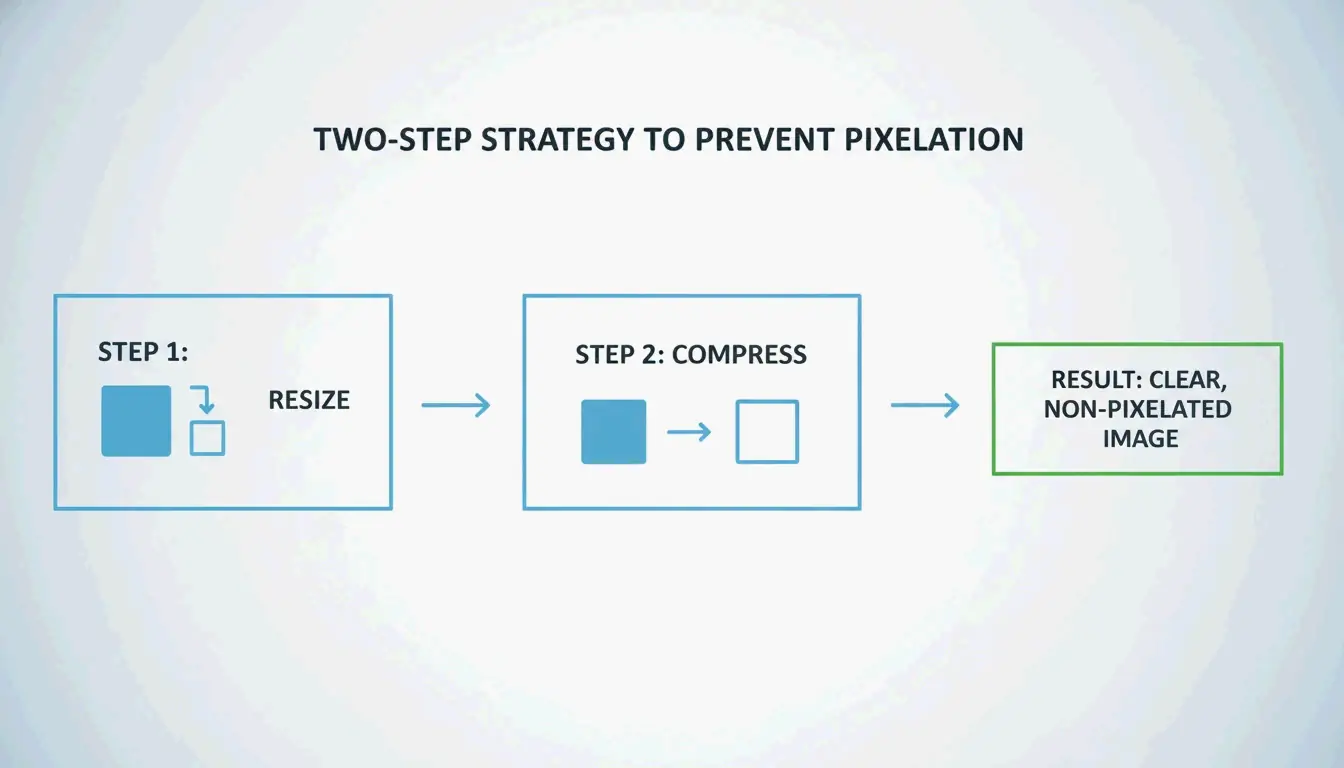
    High-resolution photos from modern smartphones or pro cameras often land between 5MB and 10MB. Simply hitting “compress” on these giant files usually isn’t enough for the web. To get down to a target size like 100KB without making the image look blurry or “muddy,” you need a two-step strategy.

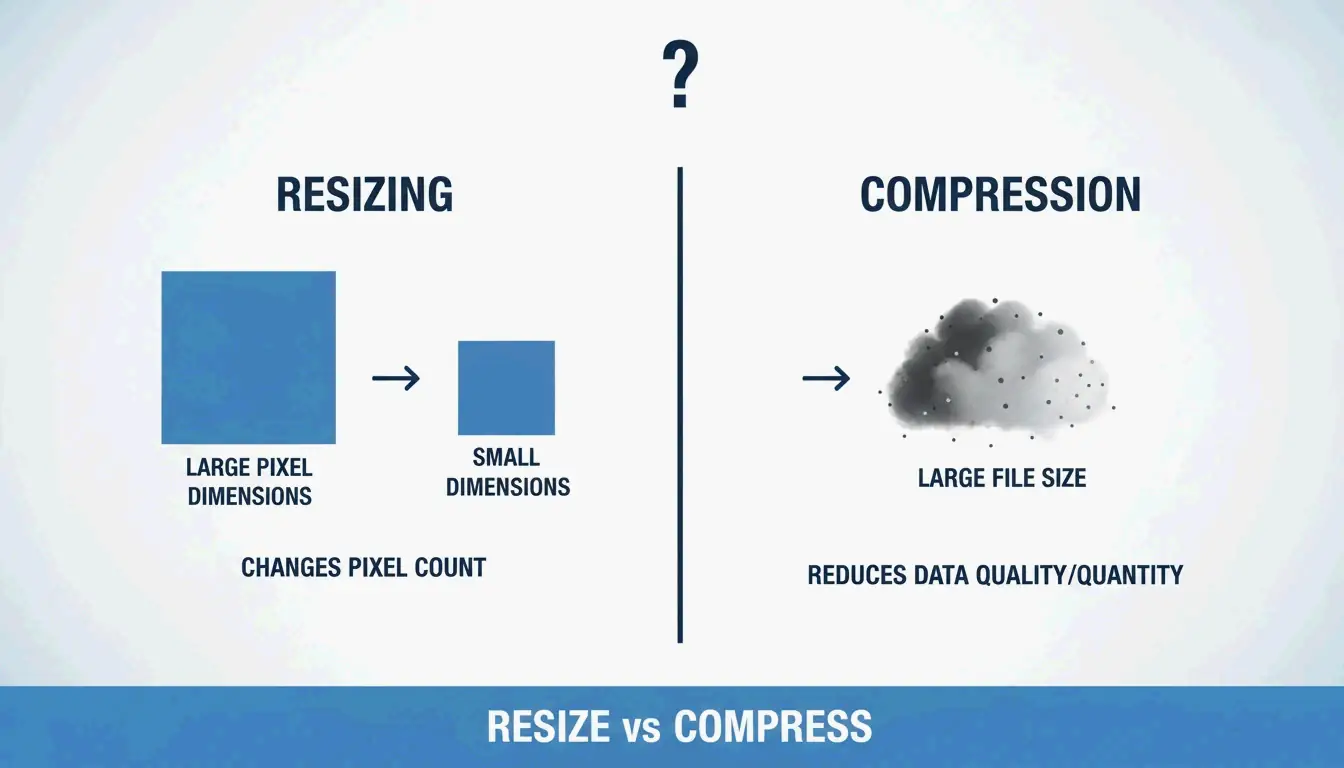
    According to ShortPixel, forcing a 2000px wide image into a 100KB file without resizing first results in pixelated visuals. The “Double-Punch” method fixes this by handling the dimensions before the data.

    The 2-step process: Resize then Compress

    Step 1: Resize to Display Dimensions
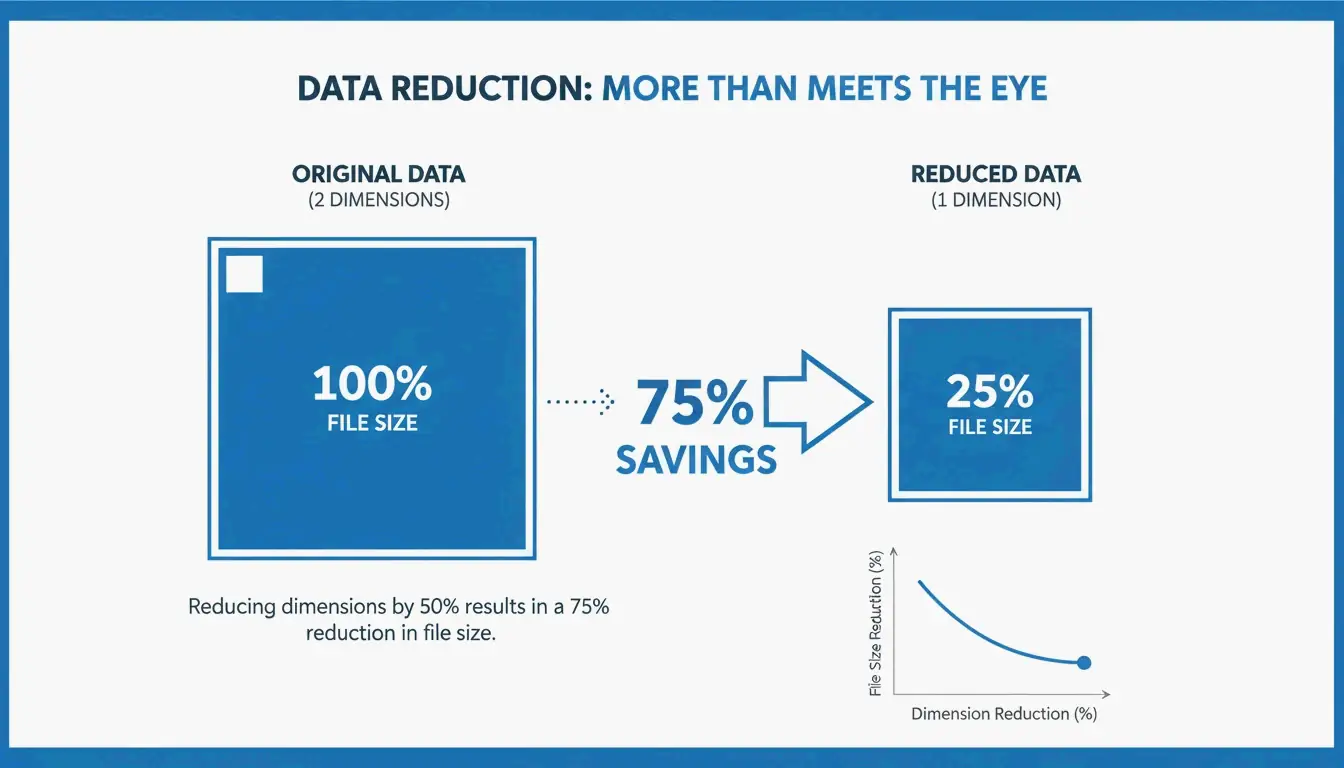
    Before you compress, change the pixel dimensions to match how the image actually appears on your site. For most blog hero images, a width of 1200px to 2000px is plenty. For thumbnails or profile pictures, you rarely need more than 500px to 800px. Shrinking the dimensions is the fastest way to drop the bulk of a file’s “weight.”

    Step 2: Apply Lossy Compression
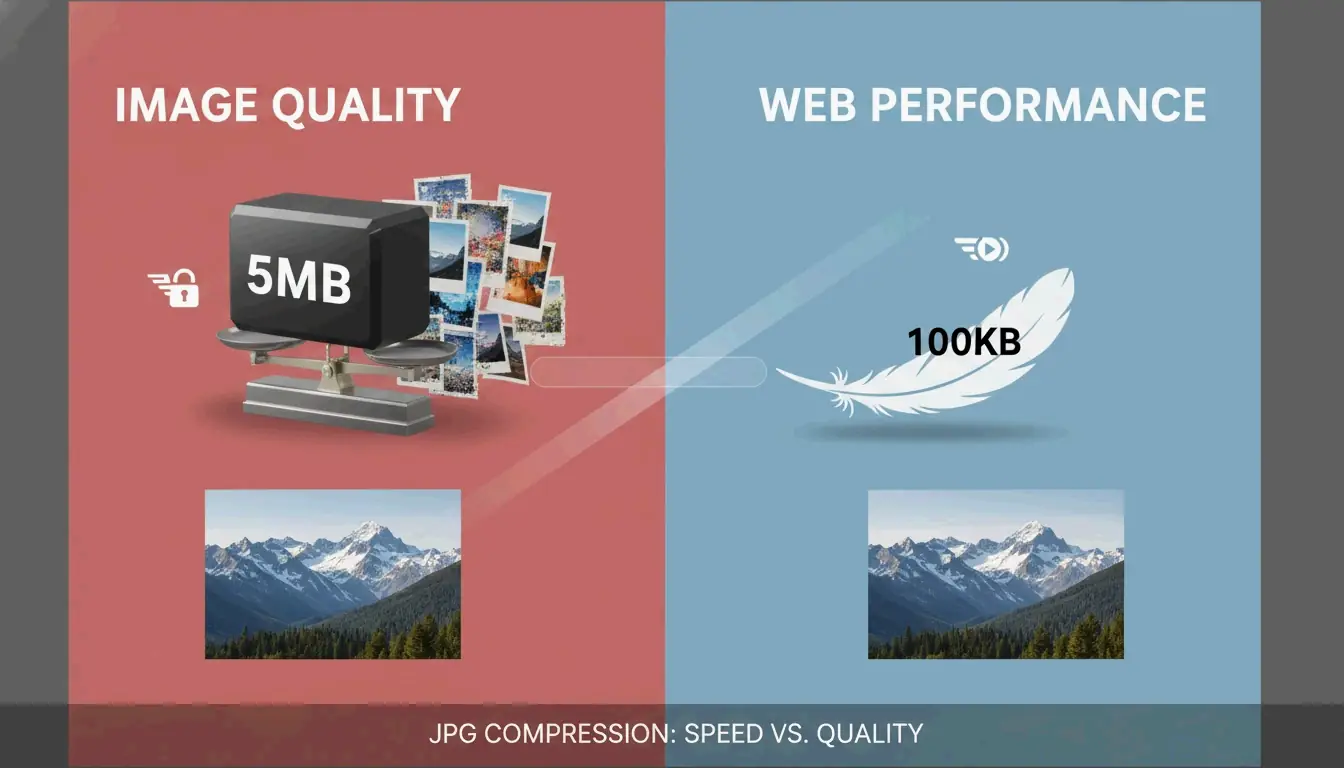
    Once the image is the right size, use lossy compression to strip out unnecessary data. This process tweaks the image’s underlying code to remove details the human eye can’t actually see. ShortPixel shows that by combining a resize (down to 1200px) with smart compression, a 5MB photo can shrink to under 100KB—a 98% reduction—while staying crisp.

    Finding the ‘Sweet Spot’: 75-85% Quality Rule

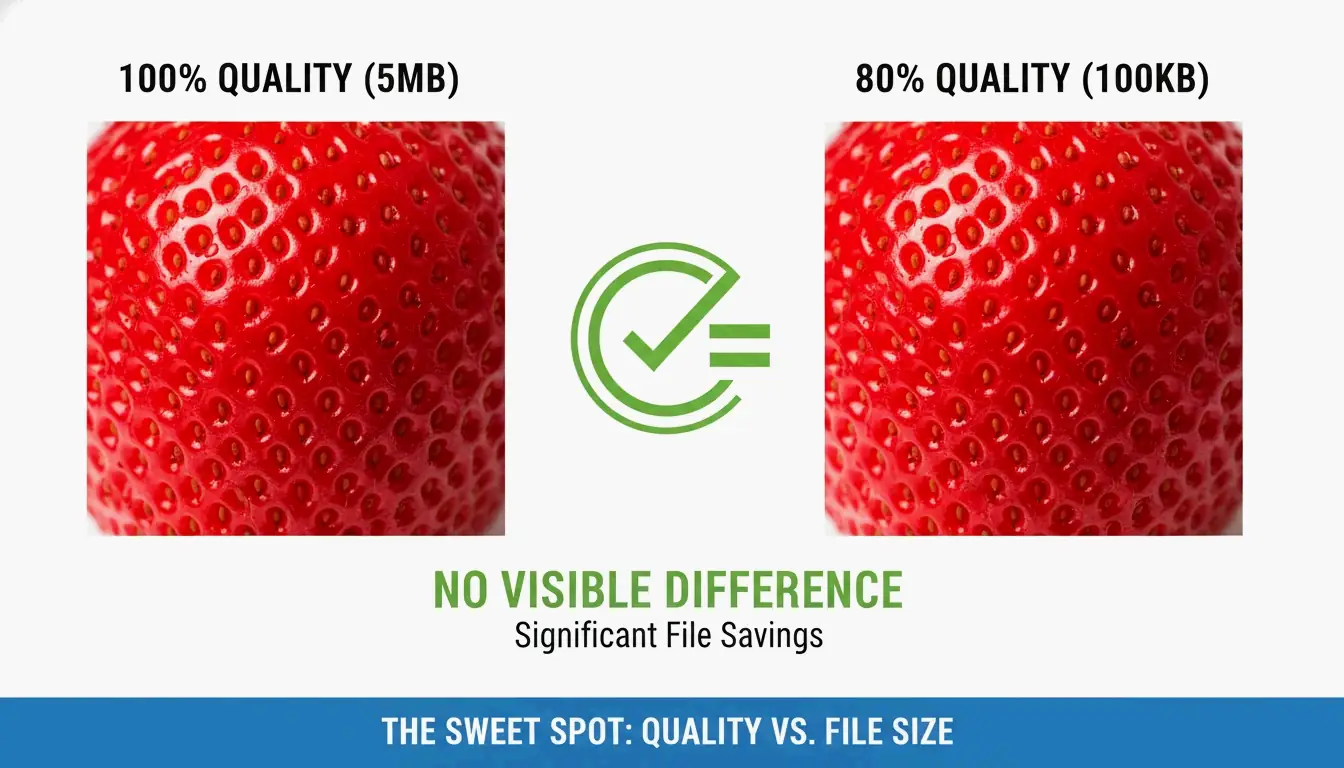
    The secret to professional optimization is staying within the 75-85% quality range. Technical guides from GWAA call this the “sweet spot.” It’s where you get the biggest file savings (40-70%) without anyone being able to tell the difference between the compressed version and the original in a side-by-side test.

    Side-by-side comparison of 100% vs 80% quality

    Best Tools to Compress JPG Online: Is TinyIMG or TinyJPG Better?

    The right tool depends on what you value most: privacy, speed, or how many images you have to process at once.

    TinyIMG / TinyJPG and Web Optimizers
    Tools like TinyIMG and TinyJPG are industry standards because they use smart algorithms to find the best compression level automatically. TinyIMG is a go-to for Shopify and E-commerce owners who need to bulk-optimize product catalogs to boost site speed and SEO.

    Browser-side vs. Server-side Compression
    In 2026, it matters where your image is processed.

    • Server-side Tools: Sites like GWAA process images on secure servers and then delete them.
    • Browser-side (Client-side) Tools: Tools like CodeItBro and FreeToolio use HTML5 Canvas to compress images directly on your device. This is better for privacy since your photos never actually leave your computer.

    Adobe Express
    If you need total control over a single image, Adobe Express has a great interface for manual adjustments, though it isn’t quite as fast for bulk SEO work as dedicated tools.

    How to Compress JPG on Windows and Mac (No Software Needed)

    You don’t always need an internet connection or extra software to shrink your files. Both Windows and macOS have solid tools built right in.

    Using Windows Photos

    1. Open your JPG in the Windows Photos app.
    2. Click the three dots (…) and select Resize image.
    3. Adjust the Quality slider. As TinyIMG points out, lowering this slider directly reduces the file size.
    4. Save the new version. You can also use Windows Paint to resize by percentage or pixels via the “Resize” button.

    Using Mac Preview

    1. Open the image in Mac Preview.
    2. Go to Tools > Adjust Size to change the dimensions.
    3. To compress, go to File > Export.
    4. Move the Quality slider to see the predicted file size change in real-time.

    Stripping EXIF Metadata
    A surprising amount of a JPG’s size comes from EXIF metadata—hidden info like camera settings, GPS location, and timestamps. Tools like ImageOptim for Mac or the settings within ShortPixel let you strip this data. You can save extra kilobytes without changing a single pixel of the actual image.

    Beyond JPEG: Should You Use WebP or AVIF in 2026?

    JPG is still the universal standard, but newer formats are much more efficient for the modern web.

    The Rise of AVIF
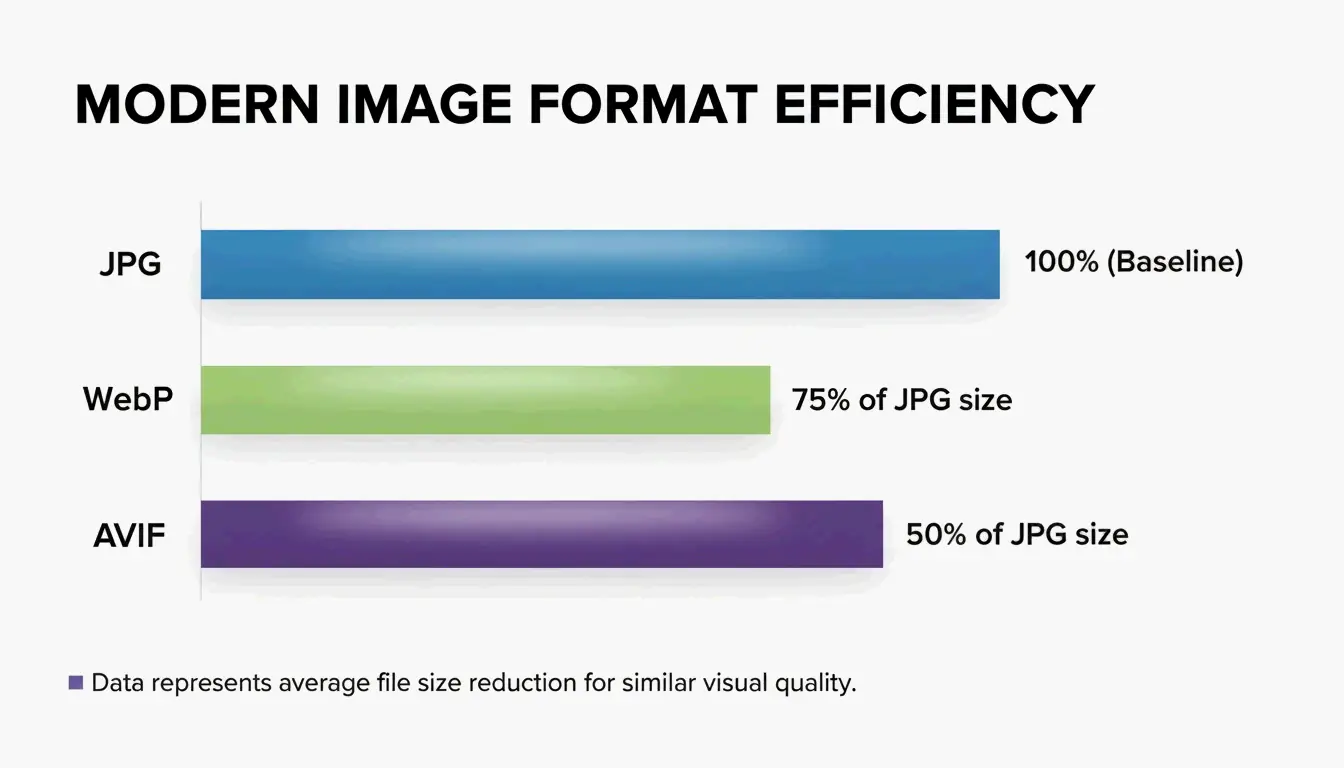
    According to Graviton (2026), AVIF is currently the most efficient format available. Tests show that AVIF files are usually 50-60% smaller than JPEGs at the same visual quality. It also supports HDR and transparency, making it a strong successor to both JPG and PNG.

    Comparison of JPG vs WebP vs AVIF file efficiency

    WebP and Compatibility
    WebP is a highly compatible alternative that offers roughly 25-34% smaller sizes than JPEG, based on Google Developers research cited by TinyIMG.

    Impact on Core Web Vitals
    Switching to these formats helps your Core Web Vitals, specifically the Largest Contentful Paint (LCP) score. To keep things 100% compatible in 2026, developers often use the <picture> element to serve AVIF to modern browsers while keeping a JPG fallback for older ones.

    The Science of Lossy Compression and Generation Loss

    Understanding how compression works can help you get better results. JPEG uses a process called Discrete Cosine Transform (DCT).

    Understanding DCT and Quantization
    The DCT process breaks image data down into frequency components. The “lossy” part happens during quantization, where the algorithm throws away high-frequency details that our eyes aren’t good at seeing. GWAA notes that your quality setting (1-100) is what controls these quantization tables.

    The Danger of Generation Loss
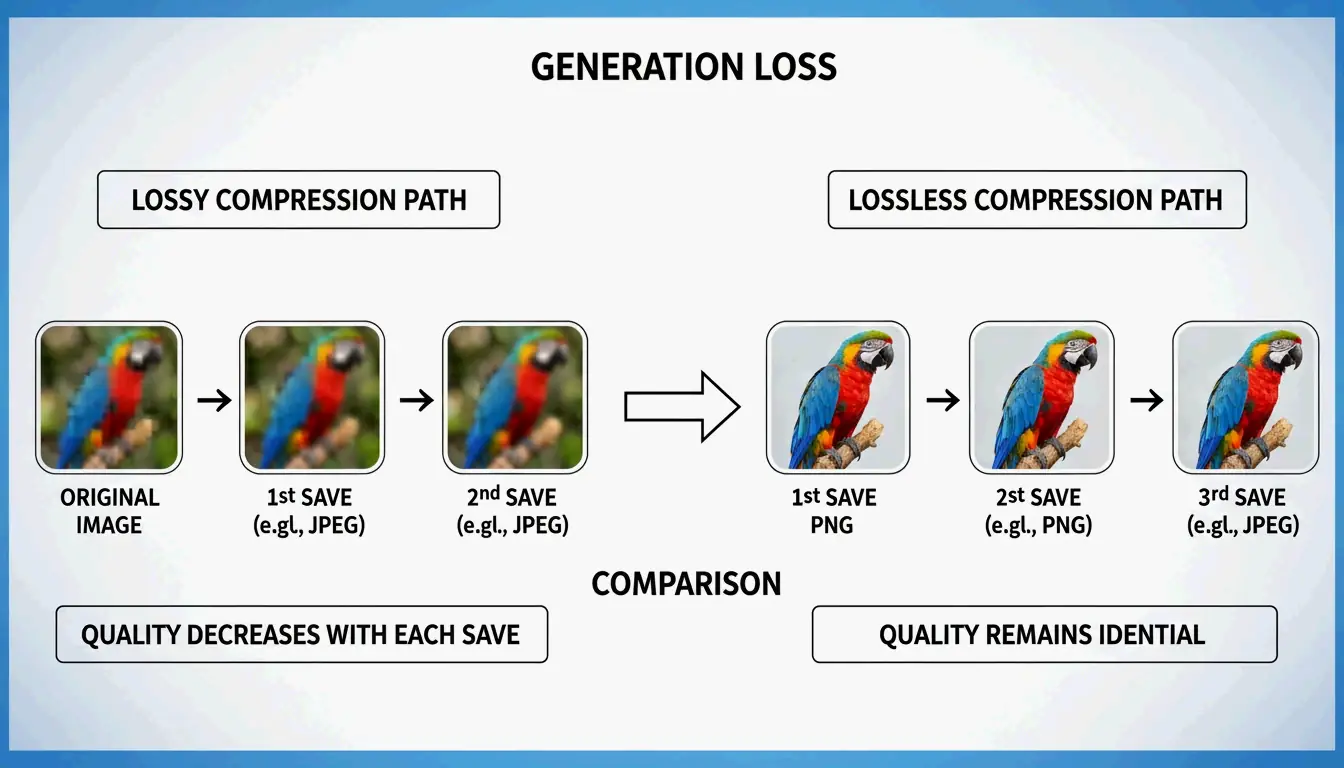
    Try to avoid compressing a file that has already been compressed. This causes “Generation Loss”—a downward spiral where every save adds new blurry artifacts and muddy textures. For the best look, always start with your original, uncompressed source file.

    Conclusion

    Mastering JPG compression in 2026 is all about balancing dimensions with modern lossy algorithms. By sticking to the 75-85% quality range, resizing for your specific display needs, and stripping out hidden EXIF metadata, you can keep your site fast without sacrificing quality.

    For the best results, resize your image first, then use a tool like TinyIMG or ShortPixel to handle the final compression and format conversion before you upload.

    FAQ

    Is 50 KB considered a small image file size for web use?

    Yes, 50 KB is an excellent target for standard blog images, thumbnails, or UI elements. While hero images can safely range between 150-200 KB, keeping smaller assets at 50 KB ensures rapid loading and optimal Core Web Vitals performance for mobile users.

    Does compressing a JPG file multiple times destroy the image quality?

    Yes, this is a phenomenon known as “Generation Loss.” Because JPEG uses lossy compression, every time you save the file, the Discrete Cosine Transform (DCT) algorithm discards more data. Repeatedly compressing the same file will eventually lead to visible artifacts, blurring, and color distortion.

    Can I compress a 5MB high-resolution photo to under 100KB without it looking blurry?

    You can, but only if you resize the dimensions first. A 4000px image forced into a 100KB limit will look extremely blurry due to aggressive data stripping. However, if you first resize that image to 1200px wide, a 100KB file will remain crisp and clear for web viewing.

  • The Ultimate Guide to Lossless Image Compression: Maximize Quality and Performance in 2026

    The Ultimate Guide to Lossless Image Compression: Maximize Quality and Performance in 2026

    As of March 2026, lossless image compression reduces file sizes by 5–30%—and up to 50% with modern formats like AVIF and WebP—by removing redundant data without losing a single pixel. Unlike lossy methods, it ensures a perfect reconstruction of the original image, making it a must-have for logos, text-heavy graphics, and professional workflows that demand high fidelity and optimized Core Web Vitals.

    What is Lossless Image Compression? Understanding the Mechanics of Perfection

    Lossless image compression is a technical standard that shrinks a digital file while allowing for bit-for-bit reconstruction of the original data. According to Wikipedia, this works by eliminating statistical redundancy instead of throwing away “unimportant” visual details.

    The real difference lies in the math. Lossy formats, such as JPEG, often use the Discrete Cosine Transform (DCT) to approximate pixel values and discard fine details. On the other hand, lossless compression keeps every R, G, B, and alpha channel value exactly as it was in the source. This is a big deal in professional settings because it prevents Generation Loss—that steady drop in quality you see when a file is opened, edited, and saved over and over in a lossy format. Convertio points out that while JPEG quality can visibly tank after just 3–5 saves, lossless files stay identical no matter how many times you hit “save.”

    A simple comparison of Lossy (data loss) vs Lossless (data preservation) after multiple saves

    The Science of DEFLATE: How PNGs Stay Sharp

    The most common way the web handles lossless images is through the DEFLATE algorithm, which is the engine behind the PNG format. As Pixotter explains, this happens in two stages: filtering and compression. Filtering turns raw pixels into “residuals” (the differences between neighboring pixels), which are then packed down using LZ77 dictionary matching and Huffman coding. This is why sharp edges and solid colors in logos stay perfectly crisp.

    Lossless WebP vs. PNG: The 2026 Standard for Web Speed

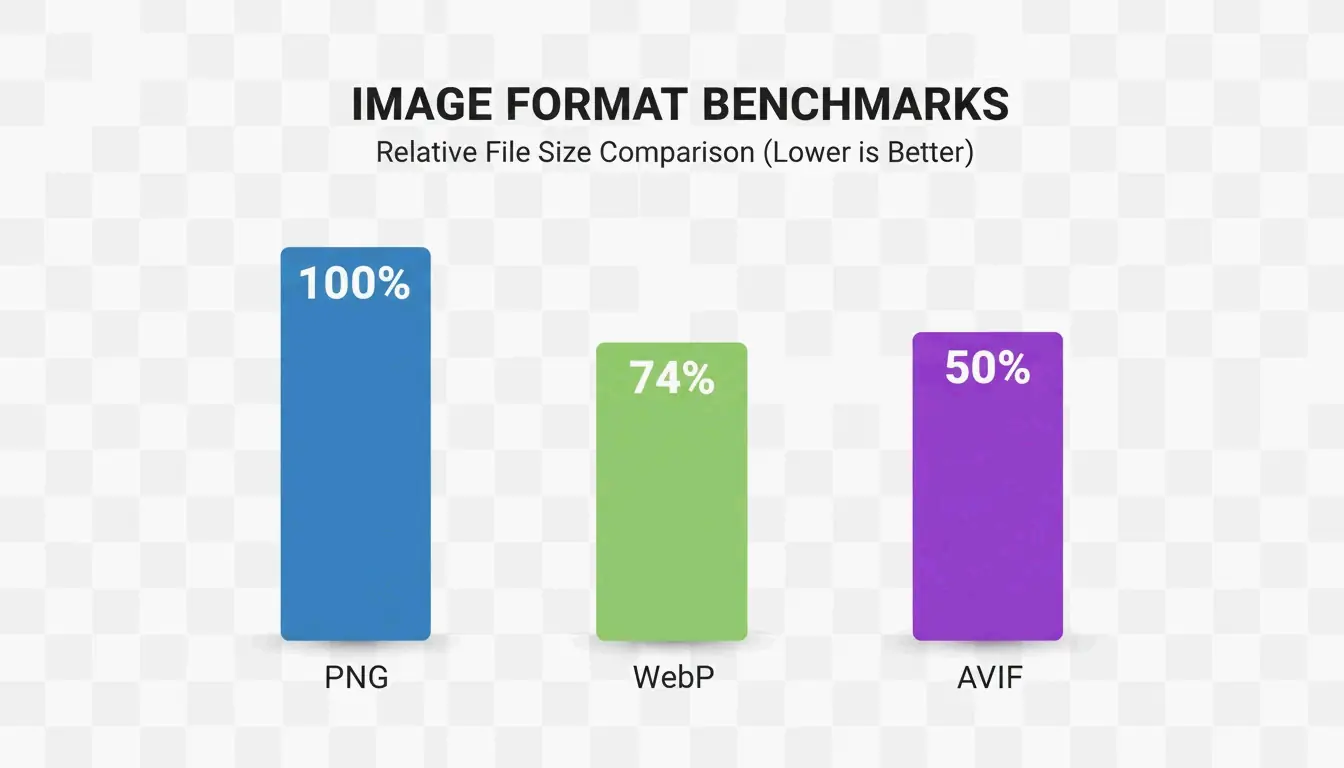
    By 2026, Lossless WebP has largely taken over from PNG as the go-to for web graphics. Benchmarks cited by MeloTools show that Lossless WebP can produce files roughly 26% smaller than PNGs while maintaining the exact same pixel-perfect quality.

    This shift is mostly about hitting Core Web Vitals targets, specifically Largest Contentful Paint (LCP). Smaller files mean hero images and UI elements load faster, which helps your search rankings. With browser support reaching 97% global compatibility in 2026, WebP is now the practical default for developers. Resizo notes that if you need transparency and sharp text, switching from PNG to Lossless WebP is the fastest way to save bandwidth without losing visual quality.

    Is AVIF the Future of Lossless Compression?

    AVIF is the next step in efficiency. It uses the advanced AV1 encoder to reach even better compression ratios. According to MeloTools, AVIF can cut total payload sizes by 50% compared to older formats. One MeloTools case study even showed a 73% drop in total page weight just by moving to modern formats like AVIF and WebP.

    There is one catch: high CPU encoding costs. While AVIF offers the best compression, it takes much longer to process than WebP or PNG. For 2026 workflows, the best move is using the <picture> element to serve AVIF to the 93–95% of browsers that support it, while keeping WebP or PNG as a backup for older systems.

    A simple bar chart comparing file size savings across PNG, WebP, and AVIF

    The Decision Matrix: When to Choose Lossless vs. Visually Lossless

    Deciding between “True Lossless” and “Visually Lossless” depends on what the image is for. True Lossless (PNG, Lossless WebP) is a requirement for archives, medical scans, and legal documents where every bit matters. Visually Lossless (Lossy WebP/AVIF at high quality) is the standard for most photos on the web.

    • Logos and UI Graphics: Stick with Lossless formats to avoid “ringing” or blurry artifacts around sharp edges.
    • Hero Photography: Use Lossy formats at a quality setting of 80–85. Convertio reports that a 36 MB raw image can drop to a 2–4 MB JPEG at quality 85 with no difference the human eye can see.
    • Metadata Stripping: No matter the format, removing EXIF data (like GPS or camera info) can shave off 10–25 KB per image without touching the image quality, as noted by MeloTools.

    The ‘80% Quality’ Sweet Spot for Mixed-Content Sites

    For most websites, setting lossy formats to “80% Quality” is the sweet spot. It looks identical to the original at a normal viewing distance but reduces the file size by 10 to 18 times.

    Local Tools and Privacy: Compressing Without Data Leaks

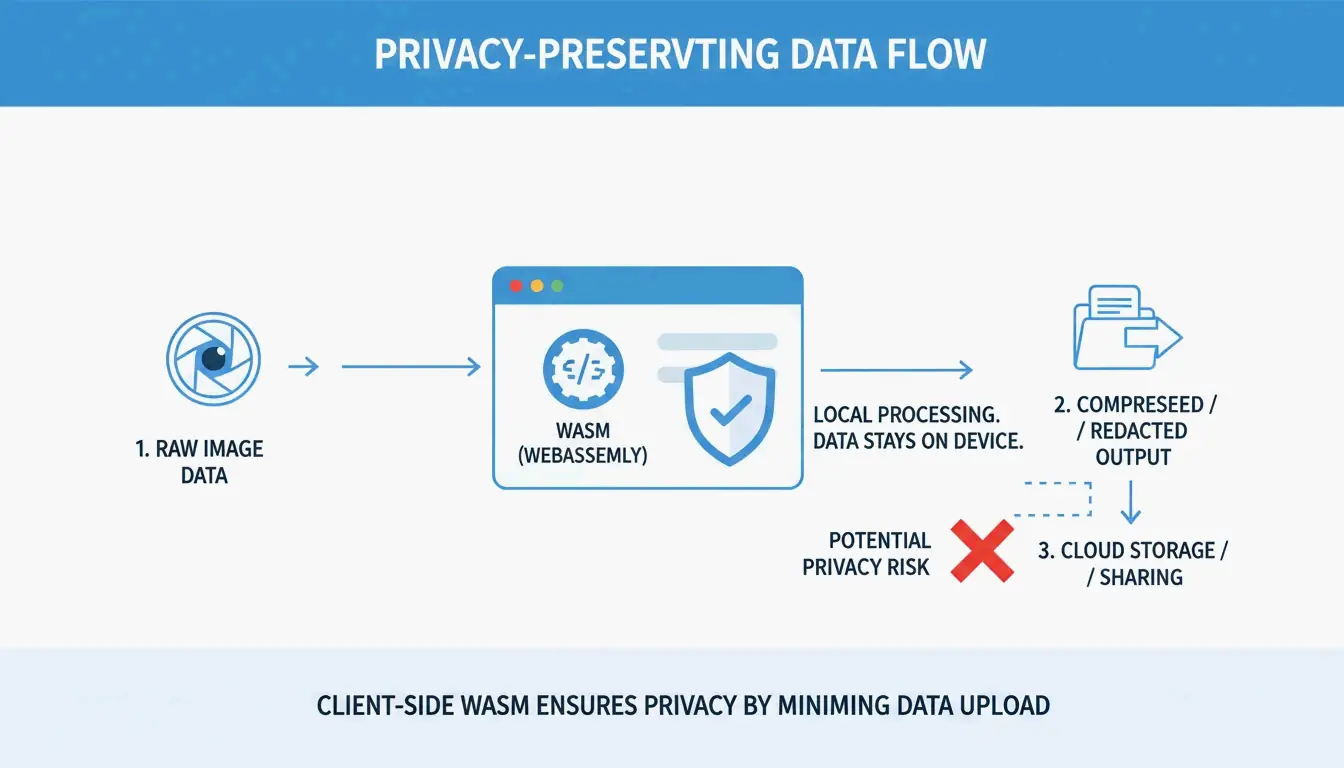
    In high-security fields like healthcare or law, privacy is just as important as file size. Many online compressors upload your files to their servers, which could lead to GDPR or HIPAA issues. MeloTools and Resizo recommend using browser-based local processing (WASM). With this method, the compression happens in your computer’s memory; the image never leaves your device. This “client-side” approach keeps sensitive documents private while still getting them optimized.

    3-step visualization of local vs cloud processing for privacy

    Conclusion

    In 2026, lossless image compression has moved beyond just the PNG. Using WebP and AVIF is now a requirement if you want to balance pixel-perfect quality with modern web performance. While PNG is still a reliable backup, newer formats simply do a better job of giving you the same results with less data.

    Actionable Advice: Audit your images today. Move sharp UI elements and logos to Lossless WebP to save about 26% in file size. For busy hero images, use AVIF with proper fallbacks to boost your LCP scores. Finally, make it a habit for your team to “compress before you upload” using local, browser-based tools to protect both speed and privacy.

    FAQ

    Can I convert a lossy JPEG back to a lossless PNG to restore its original quality?

    No, once data is discarded during lossy compression (JPEG), it is permanently lost. Converting a JPEG to a PNG will stop further quality loss (Generation Loss) during future saves, but it cannot repair existing artifacts or reconstruct the original pixels that were removed by the JPEG algorithm.