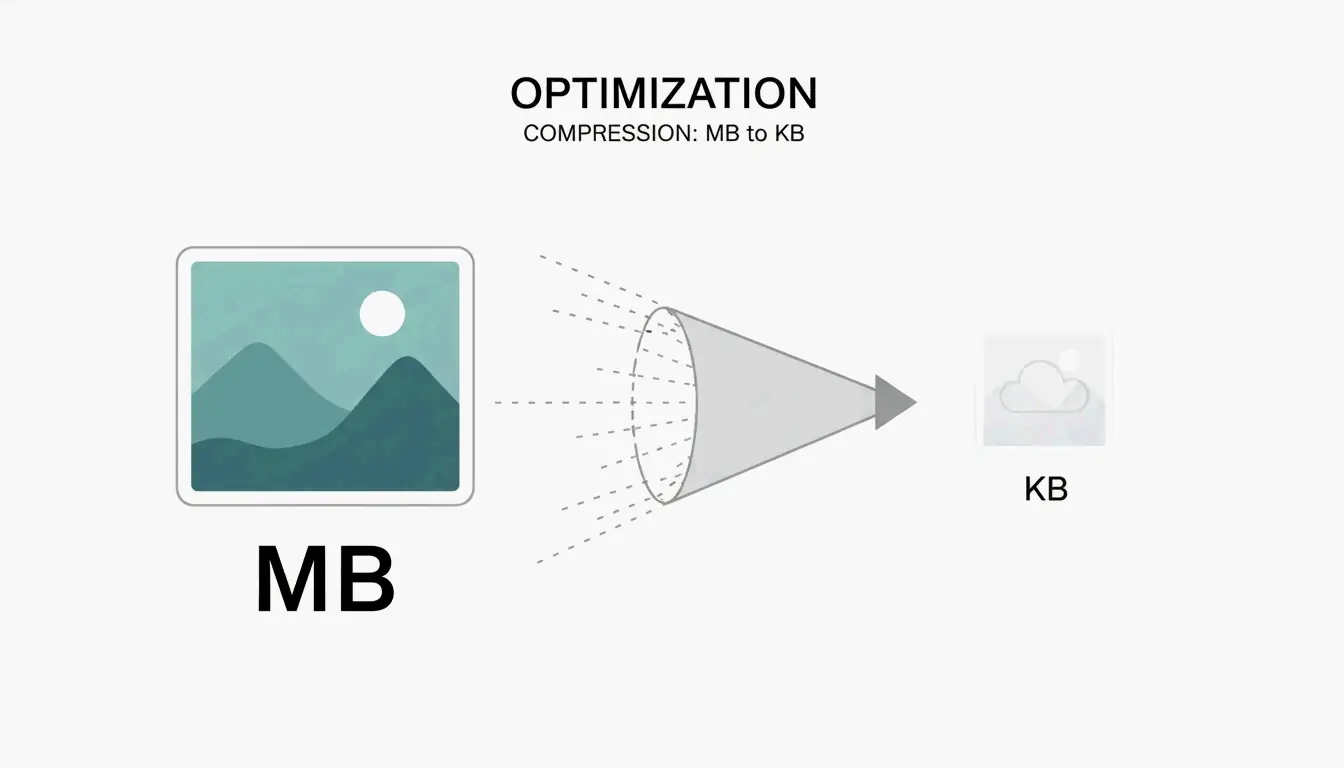
Category: Story

  • How to Convert and Compress Photos Format: 2026 Guide to Faster Web Performance

    How to Convert and Compress Photos Format: 2026 Guide to Faster Web Performance

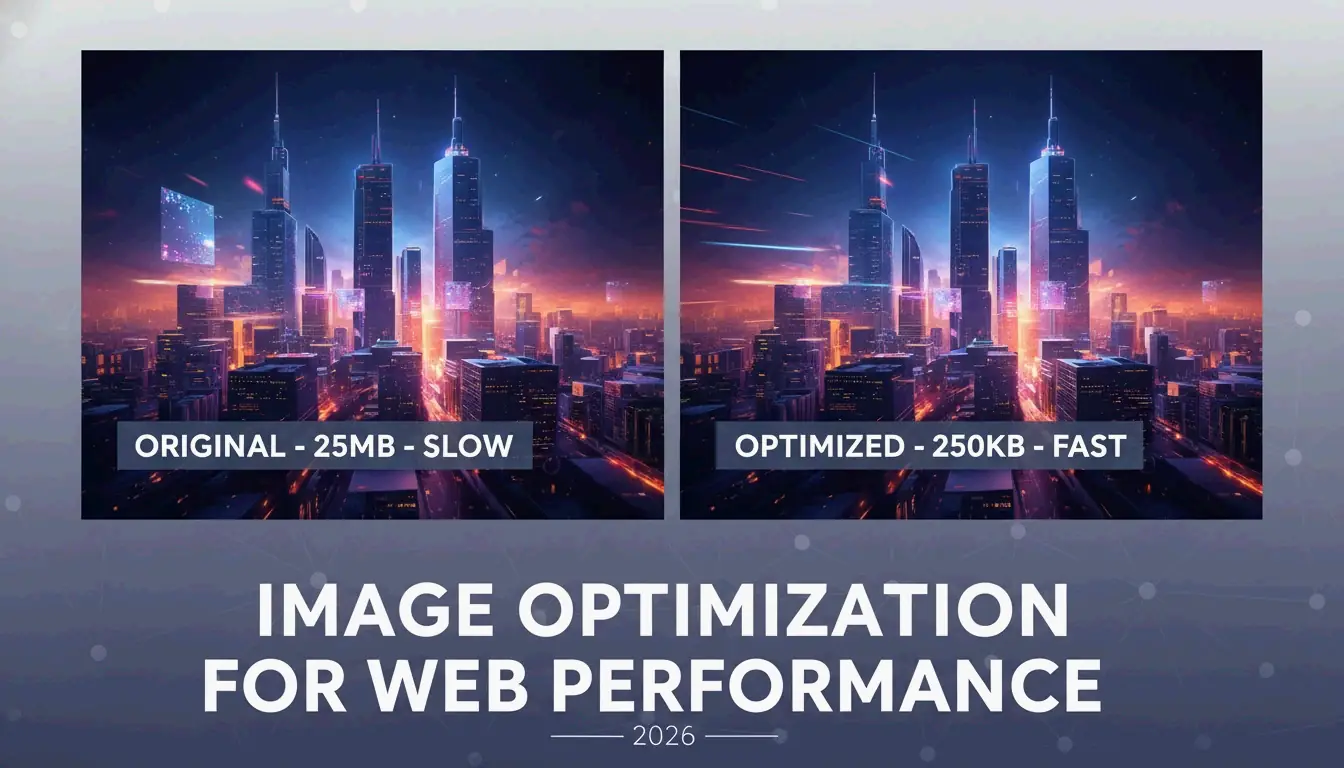
    To convert and compress photos format in 2026, use browser-native tools like PixConvert or professional software like Adobe Photoshop. Simply upload your images, select a next-gen format such as AVIF or WebP, and set the quality slider to 70-80%. This process shrinks file sizes to meet Core Web Vitals standards while keeping your visuals sharp for professional use.

    How to Convert and Compress Photos Format: The 3-Step Workflow

    Optimizing digital images is all about finding the “sweet spot” between a small file size and a clear picture. It’s a business necessity, too: according to Salsify 2025, 42% of shoppers will walk away from a purchase if product images are missing or low-quality.

    Step 1: Choosing Your Conversion Tool (Local vs. Online)

    First, decide where you want to process your files. If you’re handling sensitive documents, local software like Adobe Photoshop or even Microsoft Paint keeps everything on your hard drive for maximum security. However, if you prefer the convenience of the web, tools like PixConvert and ToolPix now use WebAssembly technology. This means they process images directly in your browser’s RAM—your photos are never actually uploaded to a cloud server.

    Step 2: Selecting Lossy vs. Lossless Compression

    Understanding the difference between these two methods helps you maintain professional standards:

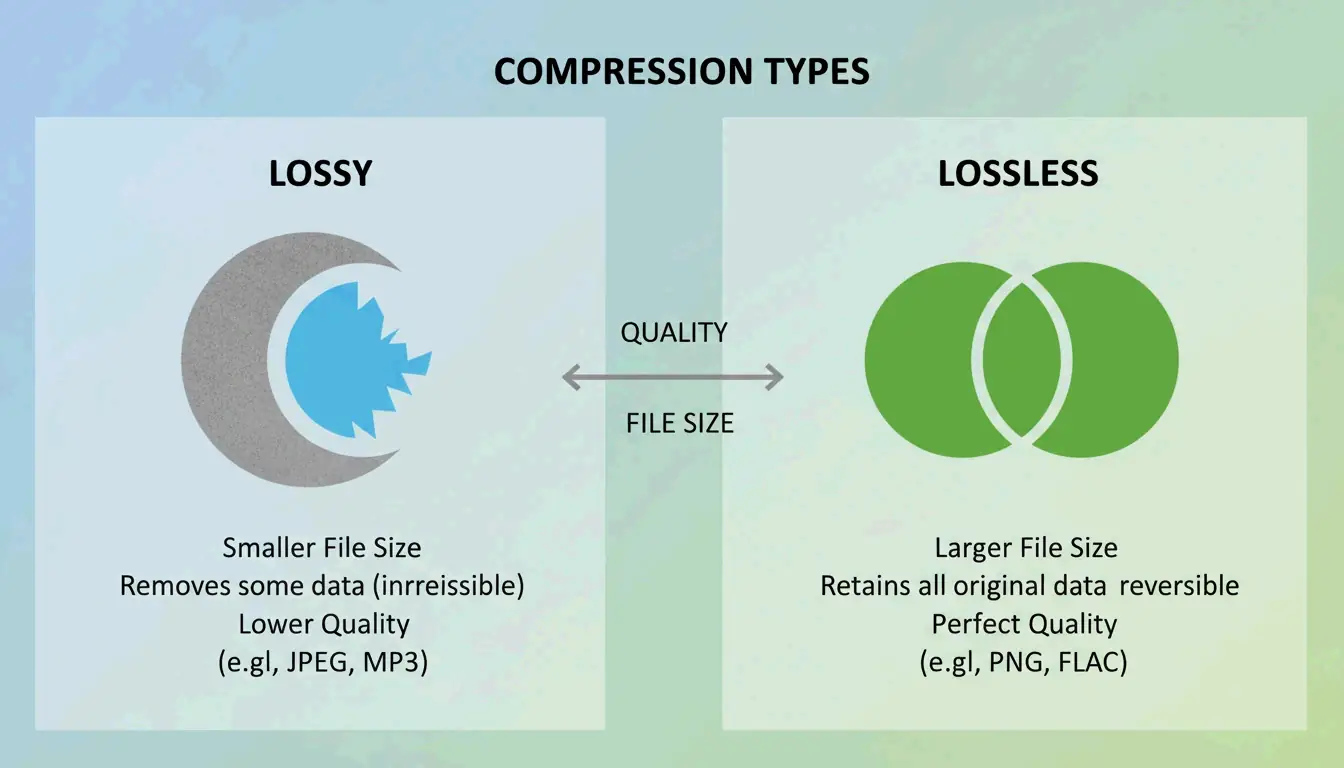
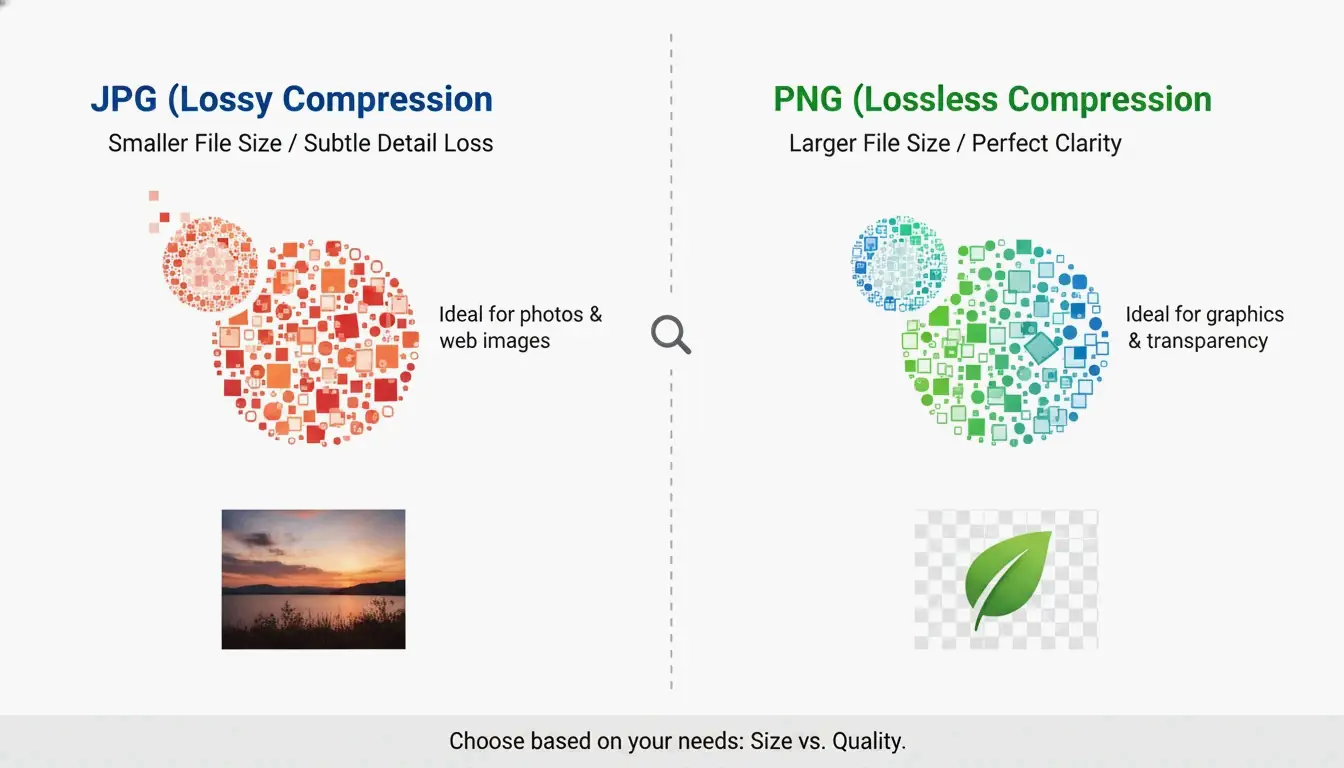
    • Lossy Compression: This strips away pixel data that the human eye can’t really see. It results in much smaller files and is the standard for JPEG/JPG and next-gen formats.
    • Lossless Compression: This shrinks the file without removing any data at all. It’s the best choice for logos or images you plan to edit again later.
    • The 70-80% Rule: For most websites, setting your quality between 70% and 80% is ideal. If you drop below 60%, you’ll likely start seeing “artifacts”—those ugly blurs or grainy patches in the image.

    A simple comparison of Lossy vs. Lossless compression

    Why WebP and AVIF are Essential for 2026 SEO?

    By 2026, search engine rankings are tied closely to how users experience your site. Google’s Core Web Vitals (LCP) require your main content to load within 2.5 seconds. Since heavy images are usually what slow a page down, switching to next-gen formats is one of the fastest ways to hit that speed target.

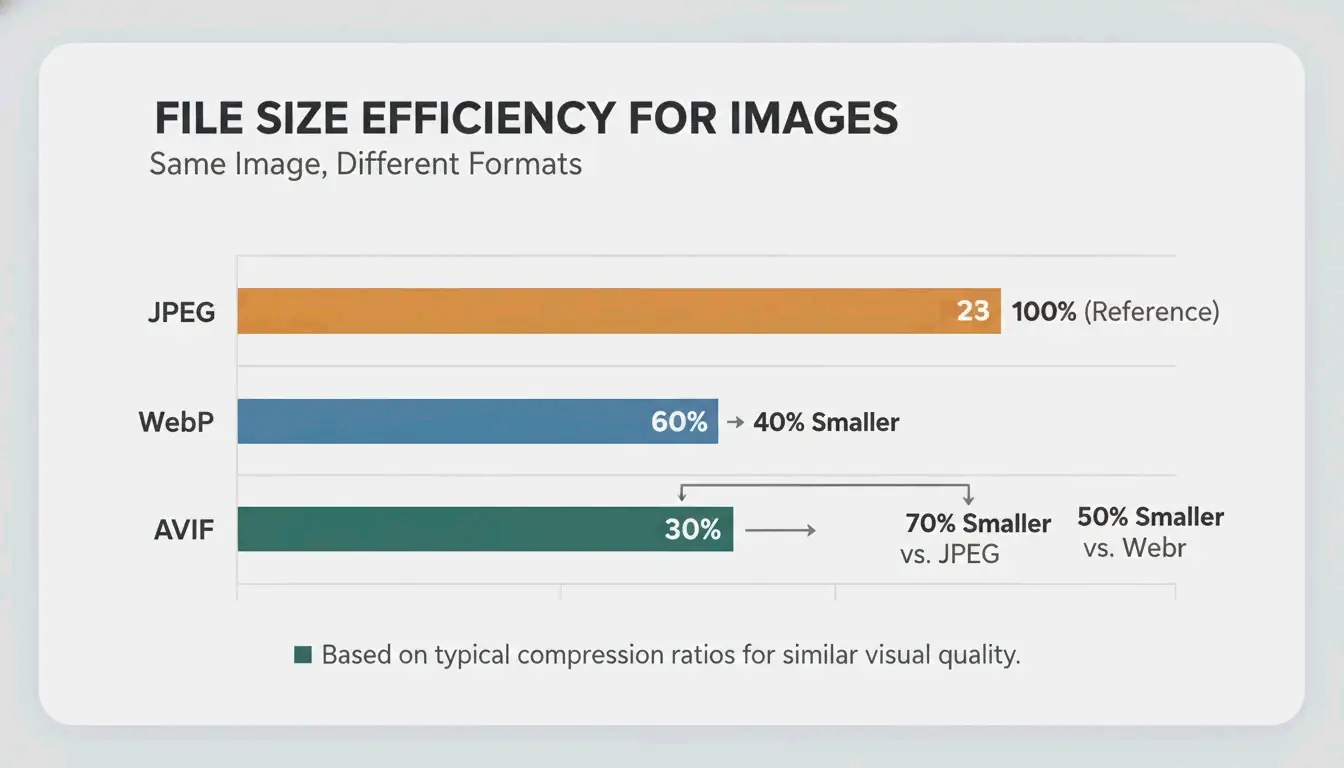
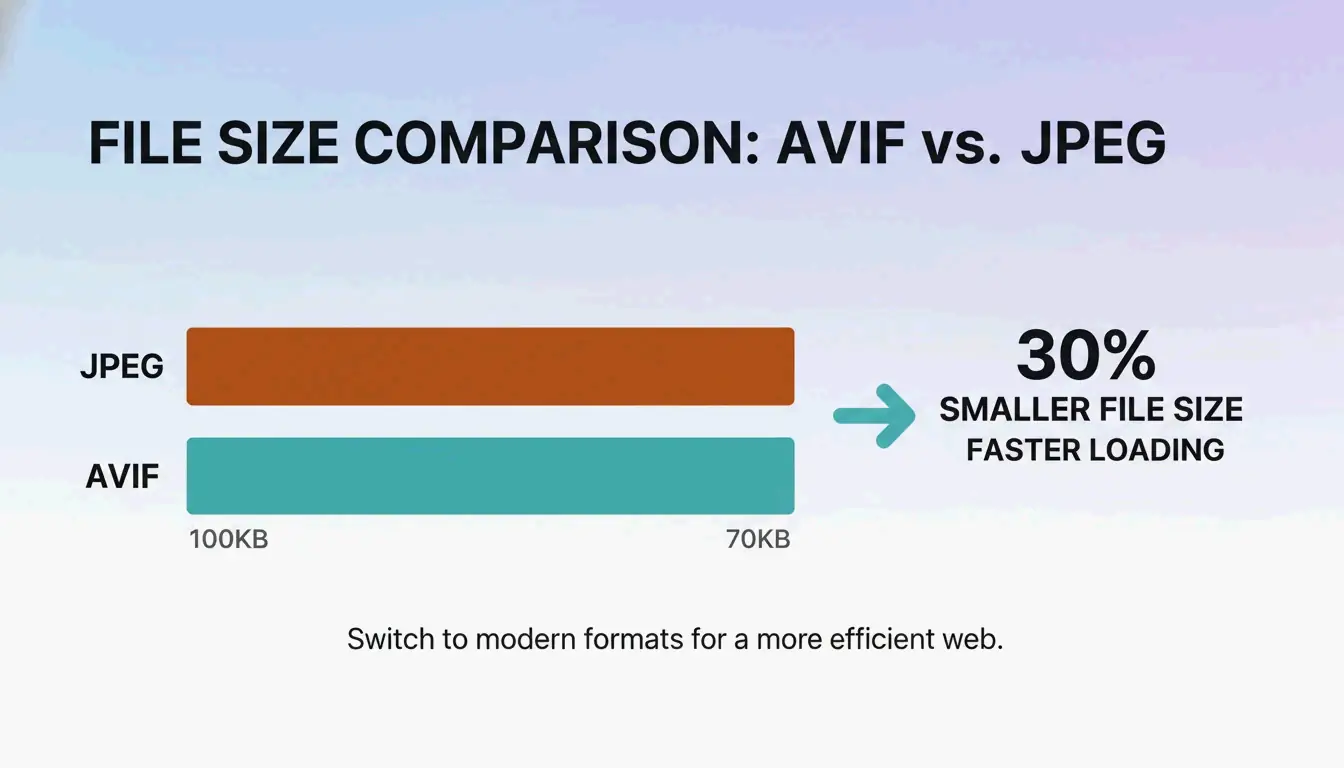
    AVIF has become the top choice in 2026. It compresses files much better than WebP or the old-school JPEG. While WebP is still a great upgrade, AVIF can often shave off an extra 20-30% in file size without making the photo look worse.

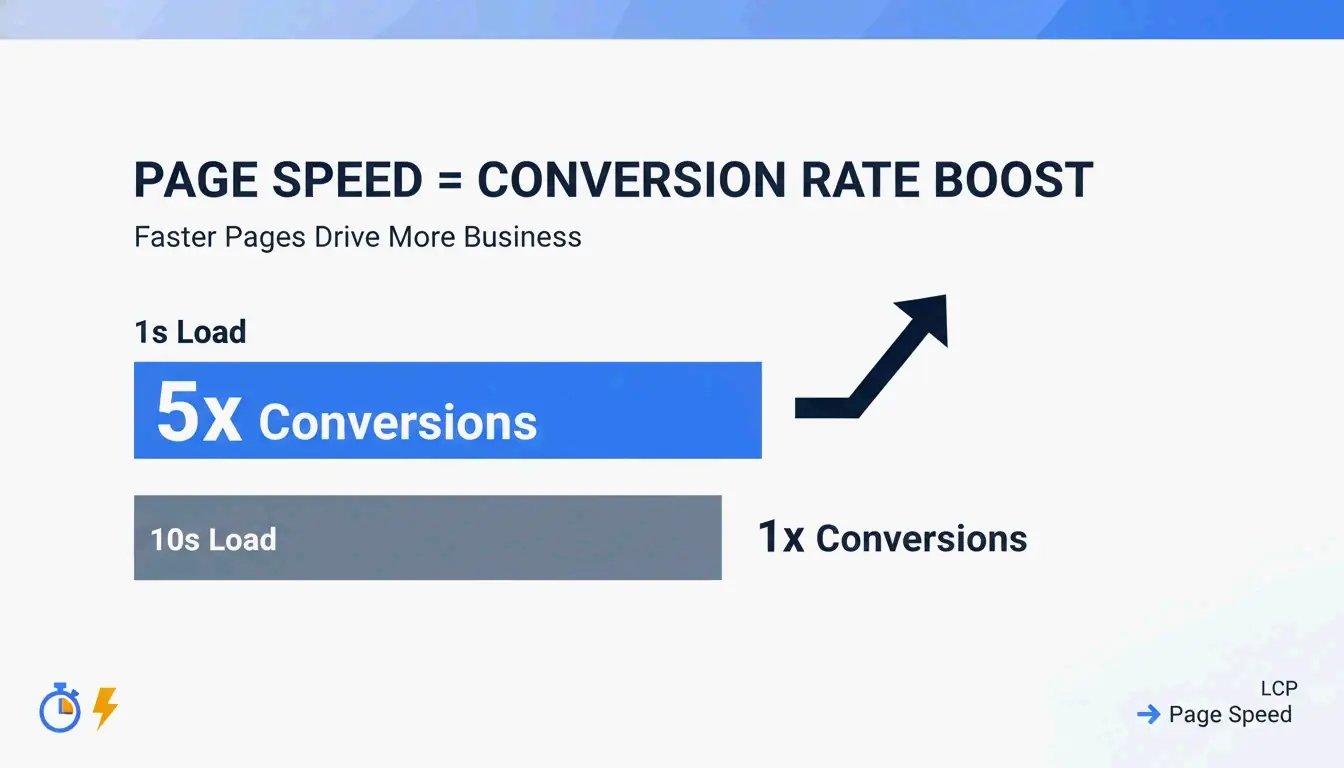
    The payoff for these technical tweaks is real. Illustrate Digital’s 2023 Global Page Speed Report found that a B2B site loading in one second has a conversion rate five times higher than a site taking 10 seconds. Today, almost every browser supports AVIF and WebP, though WordPress users might still want a plugin like Imagify to handle “fallbacks” for very old browser versions.

    A simple visualization of AVIF vs. JPEG file size efficiency

    Batch Processing: Converting Thousands of Images Simultaneously

    If you’re an e-commerce manager or a photographer, you don’t have time to click through images one by one. Modern tools now use your computer’s CPU and GPU to handle heavy workloads fast.

    Data from HitPaw shows that professional converters can batch process 200-333 images per minute. This means you can optimize a library of over 1,000 photos in less than five minutes. For webmasters, the Imagify plugin automates this by optimizing images the moment you upload them to your media library, letting the server do the heavy lifting in the background.

    Professional Tools: Adobe Photoshop vs. WebAssembly Solutions

    Your workflow usually comes down to a choice between heavy-duty desktop software and fast, privacy-focused web tools.

    Adobe Photoshop remains the gold standard for total control. By using the “Export As” function, you can tweak the DPI (Dots Per Inch)—standardized at 72 DPI for web and 300 DPI for print—and watch the estimated file size change in real-time as you move the quality slider.

    On the other hand, WebAssembly tools like PixConvert offer speed without the monthly subscription. Many of these tools include a “Target File Size” feature: you tell the tool you need a 50KB file, and its engine automatically figures out the best dimensions and quality to get you there.

    Target Size Cheat Sheet: Amazon, Shopify, and Government Portals

    Platform Recommended Format Size Constraint Key Action
    Shopify / Amazon WebP / AVIF Under 200 KB Prioritize LCP speed
    Gov Portals (e.g., SSC/UPSC) JPG 20 KB – 50 KB Use “Target Size” tool
    Professional Print TIFF / JPG 300 DPI Disable lossy compression

    Conclusion

    Switching to next-gen formats like AVIF while keeping a sensible compression ratio is the best move for both SEO and user experience in 2026. Moving away from old JPEGs helps you satisfy Google’s Core Web Vitals and hit that 2.5-second loading goal. To get started, check your current site speed, then use a batch processor or a WebAssembly tool to convert your library to AVIF at 75% quality. This simple change can go a long way in keeping visitors on your site and boosting your conversions.

    FAQ

    What is the best compression level to maintain image quality?

    For most web images, 70-80% is the “sweet spot.” This range reduces file size significantly while keeping visual artifacts invisible to the human eye. If you go below 60%, you will likely see banding or noise. When using AVIF, you can often drop to 50-60% and still achieve better visual results than a high-quality JPG.

    How can I compress a photo to a specific size, like 50KB?

    You should use a tool with a “Target File Size” feature, such as IMG Size Reducer. These tools use binary search logic to automatically adjust the quality slider until the file meets your exact KB requirement. If the quality becomes too poor at 50KB, try reducing the pixel dimensions (width and height) before applying further compression.

    Are online image compressors safe for private documents?

    Standard cloud-based tools that upload your files to a server may pose a privacy risk. For sensitive data, look for “Client-Side” or WebAssembly-powered tools like PixConvert or ToolPix, which process images locally in your browser RAM. Alternatively, use local software like Adobe Photoshop or Microsoft Paint to ensure your files never leave your device.

  • How to Compress Image Size in KB & MB: 2026 Guide to Fast & Lossless Optimization

    How to Compress Image Size in KB & MB: 2026 Guide to Fast & Lossless Optimization

    As of May 2026, the quickest way to compress image size in KB & MB is by using WASM-based online tools like ImResizer or pdfFiller. These platforms process your files directly in your browser, which keeps your data private and secure. Simply upload your JPG or PNG, enter your target size (like 50KB), and download the result. For large batches of photos, offline software remains the best choice for maintaining consistent quality.

    Quick Steps: How to Compress Image Size in KB & MB for Instant Uploads

    If you need to shrink a file from several megabytes down to a few kilobytes, you need a tool with “target-size” settings. Most modern web compressors now use WebAssembly (WASM) technology. This means the actual compression happens on your own computer rather than a distant server, making the process both faster and safer.

    The Standard Compression Workflow

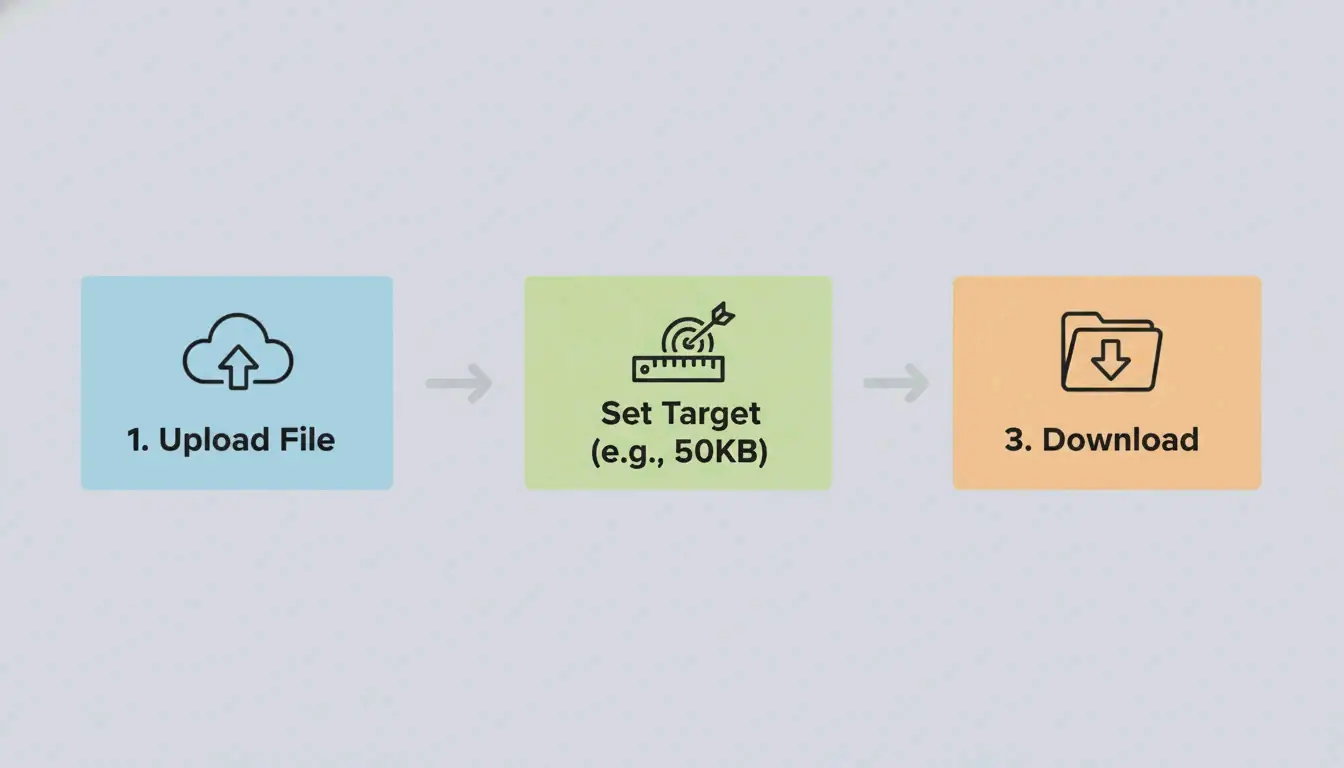
    1. Pick Your Tool: Use a platform like ImResizer or pdfFiller that lets you set specific KB or MB goals.
    2. Upload and Set Limits: Select your JPG / JPEG or PNG file. Keep in mind the standard conversion: 1 MB = 1024 KB, as noted by SmartToolsWala. If you have a 2MB file but the upload limit is 100KB, set that as your target.
    3. Process and Download: Hit the “Target Size” button. The algorithm will automatically tweak the quality and dimensions to meet your exact limit.

    3-step visualization of the compression process

    The ‘Final Inch’ Checklist: Why Your File is Still 1KB Over

    Government websites and exam portals are often very strict, usually requiring files between 20KB and 200KB. If your image is still just over the limit, check for hidden metadata. Removing thumbnails and preview data can often shave off those last few bytes you need to hit a 50KB or 100KB threshold.

    Online vs Offline Tools: Which Should You Choose in 2026?

    Deciding between a browser tool and desktop software depends on how many photos you have and how much privacy you need. In 2026, browser-based tools are almost as fast as desktop ones because they process files locally.

    Online Tools for Speed and Accessibility

    Sites like pdfFiller, which has over 12,500 verified reviews, are great for quick, one-off jobs. Many of these tools now respect GPC (Global Privacy Control) signals, so your session isn’t tracked. They are the go-to option if you’re on a phone or a public computer and need to fix a JPG / JPEG for a visa form or job application.

    Offline Software for Batch Processing and Privacy

    If you’re a professional dealing with thousands of images, offline software like Batch Picture Resizer is a better bet. It uses your computer’s full processing power to finish bulk tasks in minutes. Because it works without an internet connection, it’s the safest way to handle sensitive company files.

    How to Maintain Image Quality & Resolution During Compression?

    Keeping your Image Quality / Resolution sharp while shrinking the file size is all about choosing the right method: Lossy or Lossless.

    Lossy (JPG) vs. Lossless (PNG)

    • JPG / JPEG: This uses “lossy” compression. It throws away data that the human eye can’t really see to make the file much smaller. It’s perfect for standard photos.
    • PNG: This uses “lossless” compression, meaning it keeps every bit of original data. The image stays perfectly clear, but the file size will be much larger than a JPG.

    Simple visual comparison of JPG vs PNG file size and clarity

    The 2026 Shift: Adopting WebP

    By 2026, WebP has become the new standard. ImResizer reports that WebP can make files 30% smaller than JPEGs without losing visual quality. Most browsers and websites now accept this format without any issues.

    The ‘Upscaling’ Myth

    It is a technical reality that you can’t really turn a tiny KB file back into a high-quality MB file. As ImResizer points out, while tools can “inflate” a file size by adding empty data, they can’t bring back lost detail. Always keep your original high-resolution photos safe before you start compressing.

    Advanced Tactics: Stripping EXIF Data to Save Extra Space

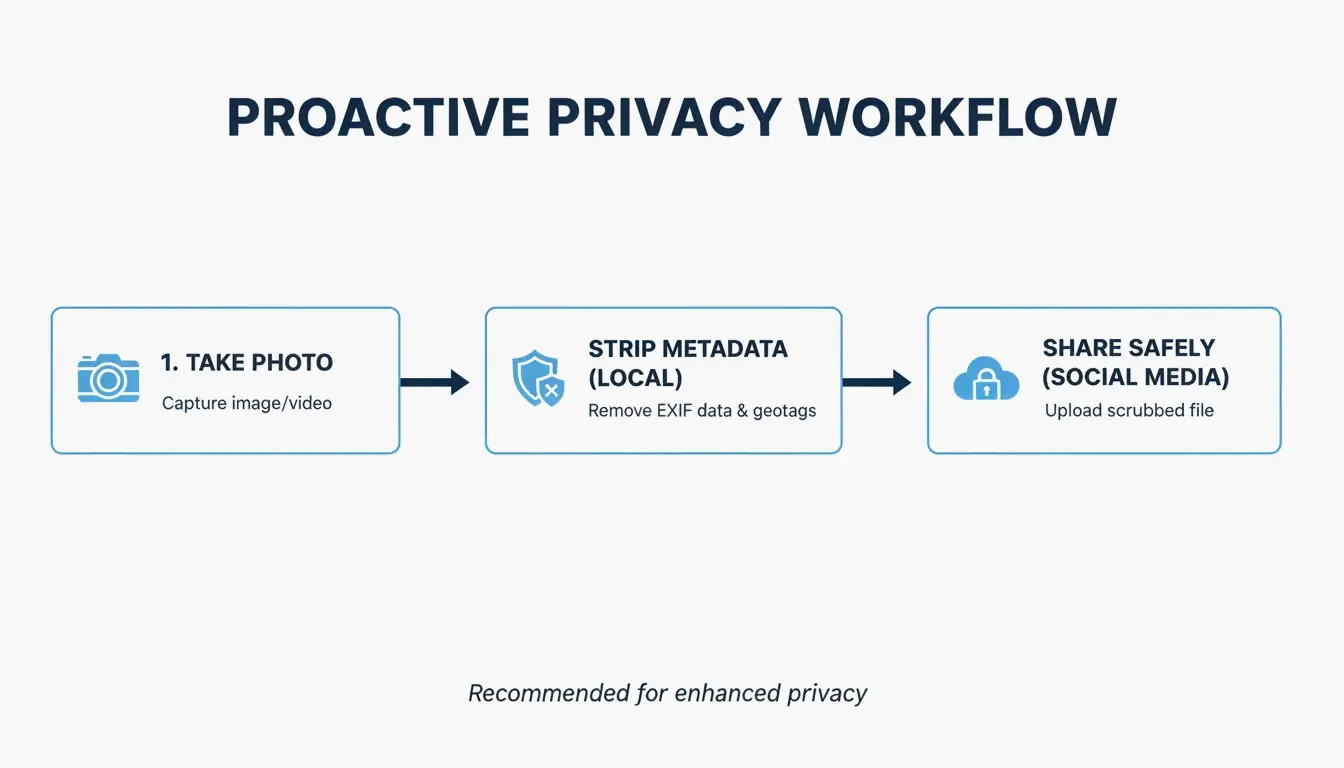
    Images often hide “extra” info called EXIF Data, which includes things like camera settings, GPS location, and the date the photo was taken. This can add 5KB to 50KB to your file size.

    Tools like the EclixTech Photo Compressor give you the option to strip this data. Removing it helps with two things:

    1. Privacy: No one can see exactly where or when you took the photo.
    2. Size Limits: If you are struggling to meet a tiny 20KB limit for a government form, cutting 10KB of metadata can make the difference.

    Conclusion

    To successfully compress image size in KB & MB, you just need to pick the right format (like WebP or JPG) and the right tool for the job. For a quick government upload or a social media post, WASM-based tools like ImResizer or pdfFiller are fast, secure, and don’t require an account. If you are a professional photographer or a business owner who needs to process huge batches of files, investing in offline software is the best way to keep your quality standards high.

    FAQ

    Is it safe to upload my private photos to online compressors?

    Most reputable tools now use SSL encryption to protect data during transfer. Furthermore, a major 2026 update in web technology means many top-tier tools now use WASM (WebAssembly) for local browser processing. This means your photo is processed on your own device and never actually reaches a remote server, providing maximum privacy.

    Can I increase an image size back to MB after compressing it to KB?

    Technically, you can increase the file size by adding “padding” data or upscaling the dimensions, but you cannot restore the visual detail lost during the initial compression. To avoid blurry results, always perform your edits on the original high-resolution file rather than trying to upscale a previously compressed version.

    What is the difference between lossy and lossless image compression?

    Lossy compression (used in JPG files) removes certain bits of data to shrink the file size significantly, which may lead to a slight loss in quality. Lossless compression (used in PNG and some WebP files) keeps all original data intact, ensuring the image looks exactly like the original, though the resulting file size will be larger than a lossy version.

  • How to Compress Photos and Save Space: The 2026 Ultimate Guide to Storage Optimization

    How to Compress Photos and Save Space: The 2026 Ultimate Guide to Storage Optimization

    To compress photos and save space in 2026, use built-in settings like iPhone’s HEIC format or Google Photos’ Storage Saver. For maximum efficiency, leverage AI-powered tools to convert images to WebP or AVIF, applying lossy compression at 75-85% quality to reduce file sizes by up to 80% while maintaining crisp visual clarity.

    Quick Wins: How to Compress Photos and Save Space on Any Device

    Shrinking your digital library starts with changing how your devices capture and store files in the first place. According to Business.com, modern compression tools can cut the size of standard JPEGs by 40-60% without any obvious drop in quality. By tweaking a few system-level settings, you can stop storage bloat before it even starts.

    Mobile: Enabling High Efficiency Formats

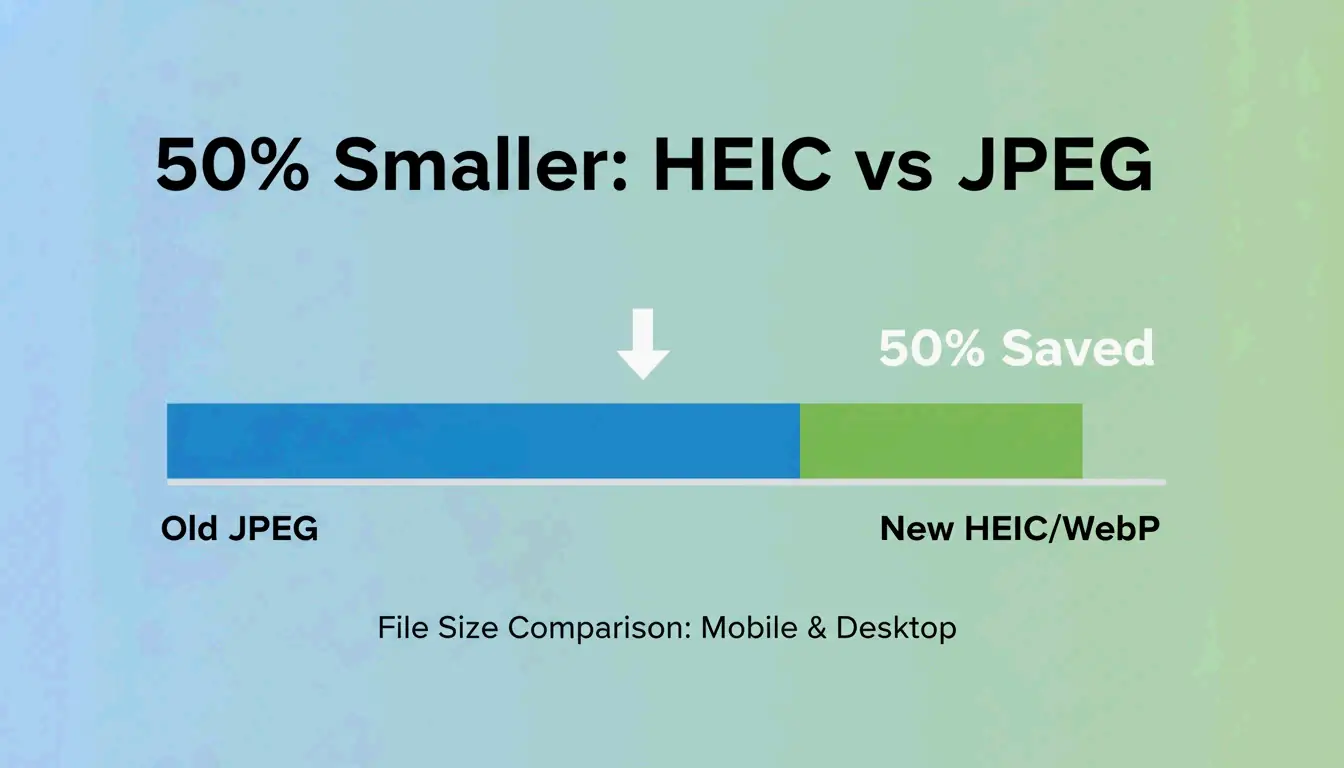
    For iPhone users, the easiest “set and forget” strategy is switching to the High Efficiency Image Container (HEIC). Go to Settings > Camera > Formats and pick High Efficiency. As Popular Outdoor Sports points out, HEIC files are about 50% smaller than traditional JPEGs but look exactly the same.

    Android users can save space by using Google Photos Storage Saver. When you turn this on in the app settings, Google automatically compresses high-resolution uploads to a “High Quality” level that balances clear details with low storage use. You can also check your Android camera app’s “Advanced Picture Options” to see if there’s a toggle for high-efficiency formats.

    Desktop: Quick Resizing without Extra Apps

    You don’t need fancy professional software to shrink photos on a PC or Mac.

    • Windows: Open an image in Microsoft Paint, click “Resize,” and lower the percentage or pixel count. Saving it as a JPEG gives you another chance to compress the file further.
    • macOS: Use the Preview app. Open the photo, go to Tools > Adjust Size, and scale down the dimensions. When you go to File > Export, move the quality slider to the left to see the file size drop before you save.

    A simple side-by-side comparison of file size reduction (e.g., JPEG vs HEIC).

    Smart Storage Cleanup: Downgrade Your Cloud Subscription Tier

    Cleaning up your current library can help you move from a pricey 2TB cloud plan down to a much cheaper 200GB tier. The trick is finding “bloat” photos—things like screenshots, accidental burst shots, and duplicates that you don’t really need to keep. Alice at Popular Outdoor Sports notes that managing these bulky files is becoming a necessity as cloud storage gets more expensive.

    To clean things up quickly, use the “Review and Delete” tools in Google Photos or iCloud to find blurry shots and large video files first. Once you’ve cleared the junk, you can run a batch compression on what’s left. Tools like Ashampoo Image Compressor let you drag and drop thousands of images at once, cutting their total size by up to 80%. This ensures you’re only paying for storage that holds your actual memories.

    Lossy vs. Lossless: Which Compression Method Should You Choose?

    Knowing how data is actually removed helps you keep your library looking professional.

    • Lossy Compression: This method gets rid of data the human eye usually can’t see. It’s the standard for JPEGs and HEIC files. PDFFlare reports that lossy settings can save 50-80% of your space, which is perfect for social media and cloud backups.
    • Lossless Compression: This keeps every single pixel of the original data. These files are larger, but you’ll need this for logos or graphics that contain text (like PNG or TIFF files).

    Finding the right balance matters for how people see your work. Salsify’s 2025 Consumer Research Report found that 42% of shoppers will walk away from a purchase if images are missing or look low-quality. In 2026, WebP and AVIF are the top choices, offering much better compression-to-quality ratios than the old JPEG format.

    AI-Enhanced Compression: The 2026 Tech Revolution

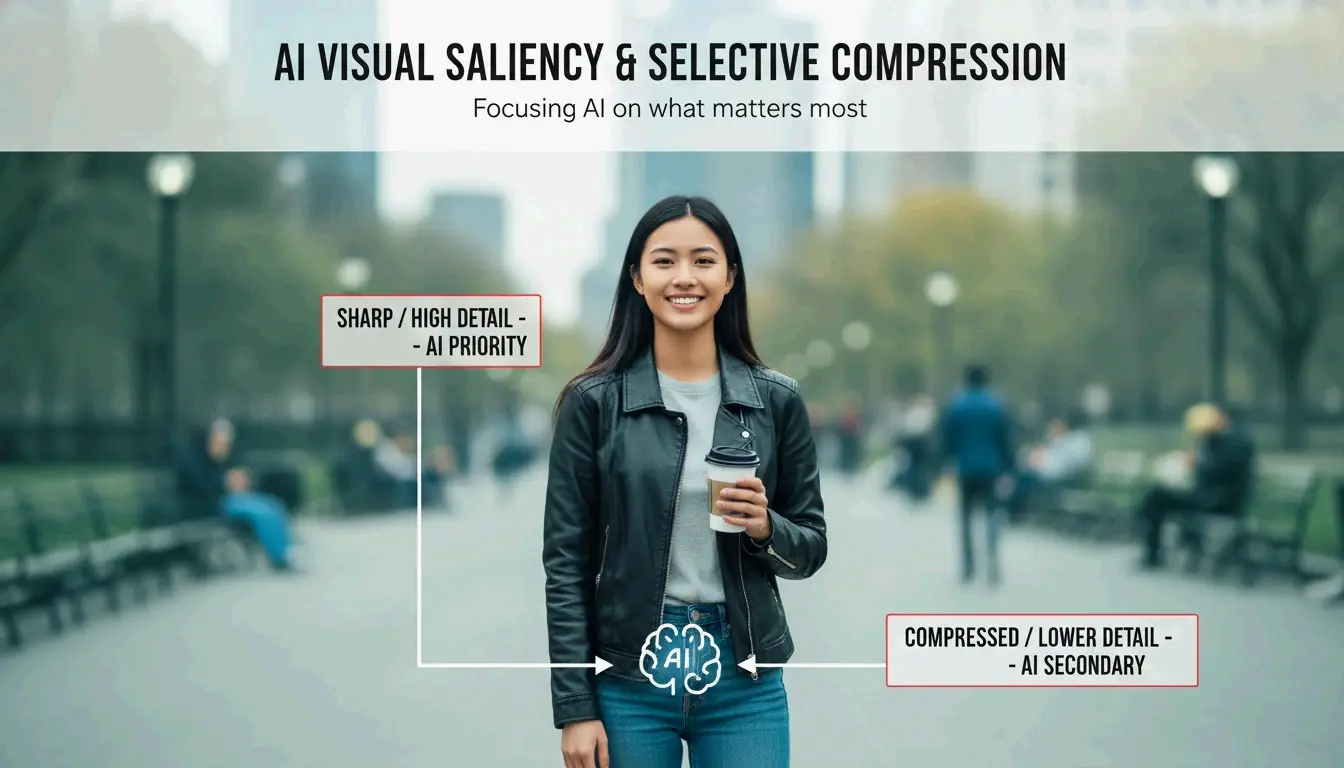
    The big shift in 2026 is “Visual Saliency” AI. Old-school algorithms compressed the whole image the same way, but AI tools now identify the most important parts—like a person’s face or a subject in the foreground. It keeps those areas sharp while more aggressively compressing the background where you won’t notice it.

    AI "Visual Saliency" concept: focus on subject vs background compression.

    Adobe Photoshop now has these features built into its neural filters, making it easy to optimize web files with high precision. For your personal collection, specialized tools like Ashampoo Image Compressor (as of 2026) offer a simple way to process huge DSLR photos. These can often be 50-75 MB each, but AI can shrink them to a fraction of that size while keeping the “hero” elements of the shot looking crisp.

    Compressing for Specific Needs: Web, Email, and Forms

    Different platforms have their own rules, so you’ll need to adjust your strategy.

    • Web SEO: To meet Google’s Core Web Vitals (LCP) standards, images have to load fast. Illustrate Digital mentions that a one-second load time on B2B sites can lead to conversion rates five times higher than sites taking 10 seconds to load.
    • Government Forms: Official sites often have strict limits. For instance, IRCC Canada guidelines usually require files to be under 2MB. They often suggest scanning or saving documents at 96 DPI (Dots Per Inch) to make sure the upload system accepts them.

    When emailing photos, try to keep the quality around 70-80%. This usually keeps individual images under 1 MB, so you don’t hit that common 25 MB attachment limit.

    Conclusion

    Compressing photos doesn’t mean you have to choose between quality and size anymore. Modern formats like HEIC and AI-based tools let you have both. By switching to newer standards like WebP and AVIF, you can cut your storage needs by up to 80% without losing visual detail. Start by checking your phone’s camera settings for ‘High Efficiency’ and consider using an AI batch compressor to audit your cloud storage. Making these small changes can save you money on monthly subscriptions and ensure you always have room for new photos.

    FAQ

    Does compressing a photo reduce its print quality?

    Yes, if you use aggressive lossy compression. For physical prints, it is vital to maintain a high resolution, typically at least 300 DPI. For the best results, use lossless compression or high-quality JPEG settings (90%+) to ensure the printed image remains sharp and free of pixelation artifacts.

    How do I batch compress multiple photos on a Mac?

    You can use the native Quick Actions feature in Finder. Select all the photos you wish to shrink, right-click, and navigate to Quick Actions > Convert Image. From there, you can select the “Small” or “Medium” size and choose your preferred format to save significant space instantly without opening a separate app.

    What is the difference between HEIC and JPEG for storage?

    HEIC (High Efficiency Image Format) uses advanced HEVC encoding to produce file sizes that are roughly 50% smaller than JPEGs of the same visual quality. While JPEG is more universally compatible with older software, HEIC is the preferred standard for modern Apple and Android ecosystems to maximize storage efficiency.

  • How to Compress and Resize Images for Web and Social Media (2026 Guide)

    How to Compress and Resize Images for Web and Social Media (2026 Guide)

    To compress and resize images effectively in 2026, use tools like Adobe Photoshop, Microsoft PowerToys, or browser-based platforms like Imgresizer.io. Adjust pixel dimensions for your target platform and set JPEG quality to 70-80%, or switch to the AVIF format to reduce file weight without losing visual clarity.

    Mastering the Balance: How to Compress and Resize Images Without Quality Loss

    Optimizing visuals for today’s web is a two-step process: first, you adjust the physical dimensions (resizing), and then you reduce the data density (compression). According to Business.com, standard JPEG compression usually cuts file size by 40% to 60%. This hits a sweet spot, keeping the quality high enough for professional use while making the file much lighter.

    Step 1: Adjusting Pixel Dimensions (Resizing)

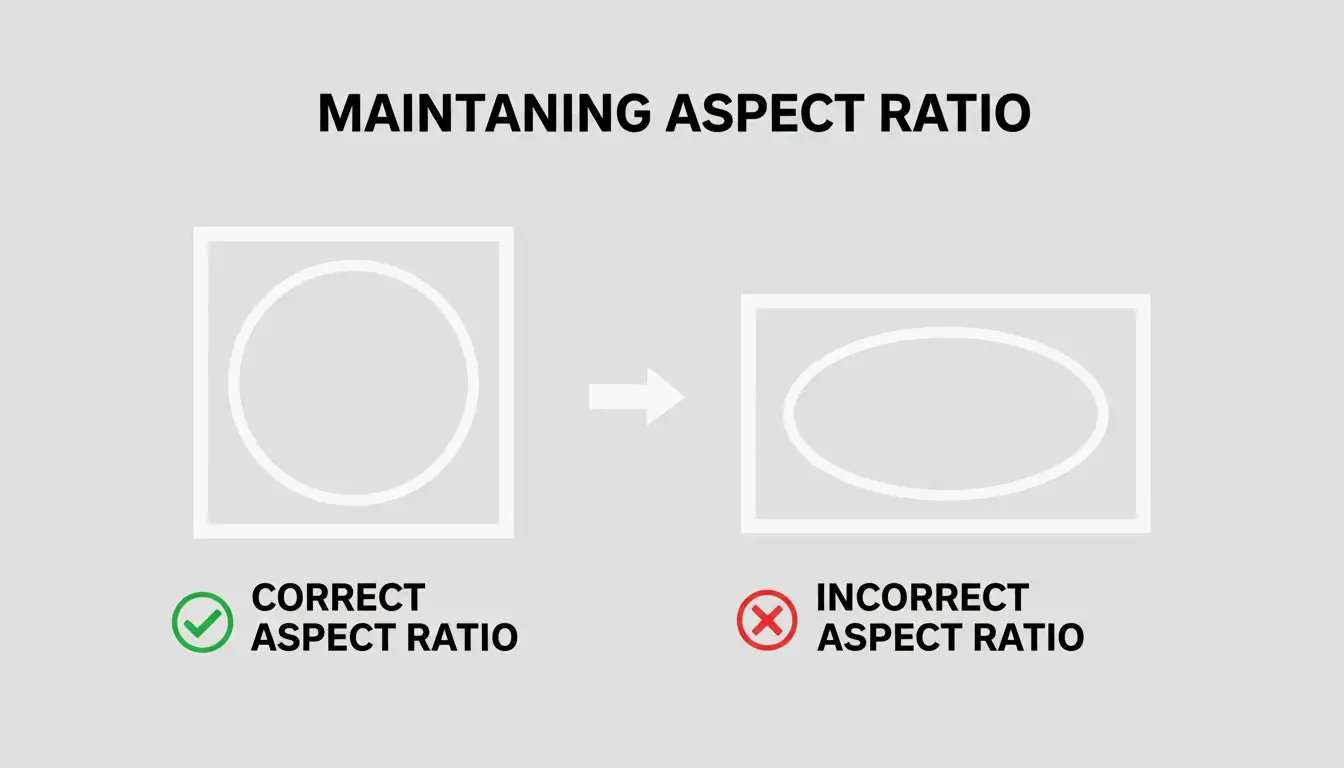
    Resizing is about changing the total number of pixels to fit where the image will actually live. For example, if your website’s hero banner is 1200px wide, uploading a 4000px original is just a waste of bandwidth. When you resize, always lock the Aspect Ratio. If you don’t, your image will end up looking stretched or squashed. Tools like EverydayTools make this easy by letting you set the width while it automatically handles the height to keep your design looking right.

    A simple visual metaphor for aspect ratio: a frame maintaining its proportions vs. one that is distorted.

    Step 2: Applying Compression Algorithms

    Once your dimensions are set, compression shrinks the file size even further. In 2026, the standard for JPEG / JPG files is still a quality setting between 70% and 80%. This uses Lossy compression to strip out “high-frequency” data—fine details the human eye can’t really see anyway—without creating ugly blurs or artifacts. If you need to keep every single detail for an archive, use Lossless compression, though these files are usually too heavy for fast-loading web pages.

    Why Image Optimization is Critical for Core Web Vitals (LCP)?

    In the 2026 digital market, optimizing images is a basic requirement for Search Engine Optimization (SEO). Google’s Core Web Vitals use a metric called Largest Contentful Paint (LCP) to measure how long it takes for the biggest visual on your page—like a hero image—to show up. Large, unoptimized images are the biggest reason for slow LCP scores, which can drag down your search rankings.

    The impact on your bottom line is real. Research from Illustrate Digital shows that a B2B site that loads in one second has a conversion rate five times higher than a site taking 10 seconds. Even so, a 2026 report from the Baymard Institute found that 62% of e-commerce sites still struggle with slow visuals, leading to frustrated users and high bounce rates.

    A minimalist comparison showing the direct correlation between page load speed and conversion rates.

    AVIF vs. WebP: Which Format Should You Choose in 2026?

    WebP was the go-to for years, but AVIF has become the preferred next-gen format for SEO in 2026. AVIF is about 25-30% more efficient than WebP and does a much better job of keeping high-detail areas sharp. Most modern browsers support AVIF now, but many developers still use a “fallback” system—serving AVIF when possible and switching to WebP or JPEG for older browsers to keep the experience smooth for everyone.

    Best Tools to Compress and Resize Images: From Pro to Privacy-First

    The right tool depends on how many images you have and how much you care about privacy. Quality is a major factor; Salsify’s 2025 Consumer Research Report found that 42% of shoppers will walk away from a purchase if product images are missing or look low-quality.

    Offline & Bulk Processing for Windows/Mac

    For professional work, Adobe Photoshop is still the top choice because it gives you total control over color profiles and batch exports. However, if you’re on Windows and need to move fast, Microsoft PowerToys is a lifesaver. It adds a shortcut to your File Explorer so you can right-click and resize hundreds of images at once using “Fit,” “Fill,” or “Stretch” presets.

    Zero-Upload Web Tools for Maximum Privacy

    If you’re working with sensitive client assets, privacy is the priority. Tools like Imgresizer.io and EverydayTools use the HTML Canvas API. This means the image is processed entirely inside your browser’s memory. Since nothing is uploaded to a server, these “Zero-Upload” tools are the safest way to handle compression and format changes without your data ever leaving your computer.

    Automation & AI: Using MCP and Code for Image Processing

    Image optimization is moving toward automation. Developers can now build custom resizers using HTML Canvas and JavaScript. By drawing an image onto a canvas at specific sizes and using toDataURL or toBlob methods, you can script exactly how you want the quality and format to turn out.

    The AI Workflow: Resizing via Chat Prompts

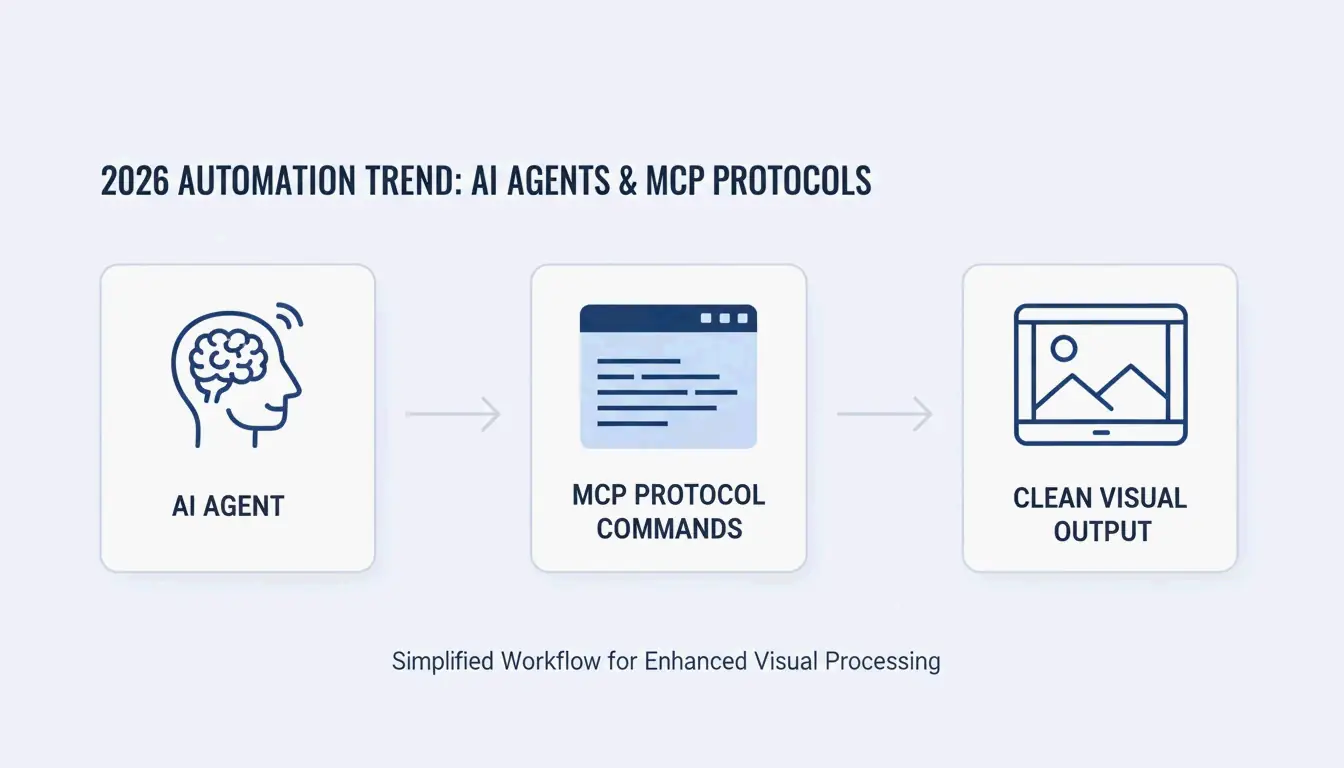
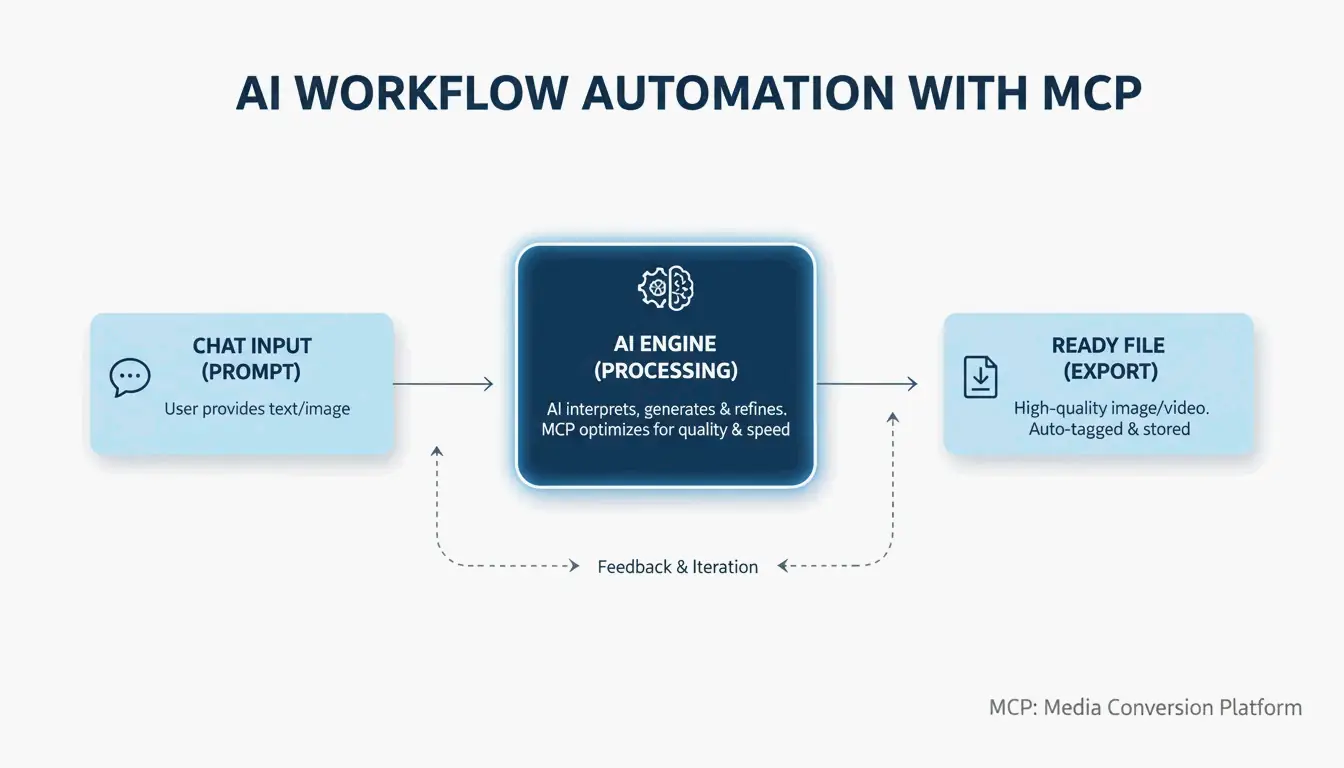
    A big trend in 2026 is using the Model Context Protocol (MCP). As noted by Iteration Layer, MCP lets AI assistants like Claude or Cursor connect directly to image tools. Instead of opening a separate app, you can just tell the AI: “Resize this PNG to 800×600, convert it to WebP, and keep it under 200KB.” The AI does the math and the conversion for you, so you never have to leave your code editor.

    A simple 3-step AI-driven workflow: User Prompt -> AI Processing -> Optimized Image.

    Conclusion

    Optimizing images is a two-part job: resizing the dimensions and compressing the data. In 2026, using next-gen formats like AVIF and local-processing tools is the best way to protect user privacy and boost SEO. To stay ahead, check your site’s LCP on PageSpeed Insights, then use a bulk tool like Microsoft PowerToys or an AI-driven MCP workflow to swap out heavy JPEGs for lean, fast AVIF files.

    FAQ

    How can I resize an image without uploading it to a server for privacy?

    To maintain maximum privacy, use browser-based tools that utilize the HTML Canvas API, such as Imgresizer.io. These tools process the image locally in your browser’s memory, meaning the file never leaves your device. Alternatively, use offline software like Microsoft PowerToys or Adobe Photoshop to handle all processing on your local hard drive.

    What is the difference between Lossy and Lossless compression for JPEGs?

    Lossy compression permanently removes subtle data to significantly reduce the file size, which is ideal for web performance where speed is a priority; a 75% quality setting is generally the “sweet spot.” Lossless compression reduces size without removing any data, allowing the image to be restored to its original state, which is better for professional archiving but results in larger files.

    What are the recommended dimensions for social media in 2026?

    Standard dimensions for 2026 include: Instagram feed posts at 1080x1080px (Square) or 1080x1350px (Portrait); Facebook Cover photos at 820x312px; and LinkedIn Company Pages at 1128x191px. For high-DPI or Retina displays, it is recommended to export images at 2x these dimensions (e.g., 2160x2160px for Instagram) to ensure the visuals remain sharp on modern mobile screens.

  • How to Change Photos Size Fast: 2026 Guide for Web, iOS, and Android

    How to Change Photos Size Fast: 2026 Guide for Web, iOS, and Android

    To change photos size in 2026, use free web-based tools like BIRME or Img2Go for bulk processing, or use the updated native “Preview” tool on iOS and “Google Photos” on Android. Simply upload your image, set your target pixels or percentage, lock the aspect ratio to avoid stretching the image, and download your optimized file.

    Quick Ways to Change Photos Size Without Quality Loss

    When you need to change photos size, you first need to decide between Pixels vs. Percentage. Resizing by pixels is best when you need to meet exact dimensions for web forms or social media headers. On the other hand, scaling by percentage is a faster way to shrink large files while keeping everything proportional.

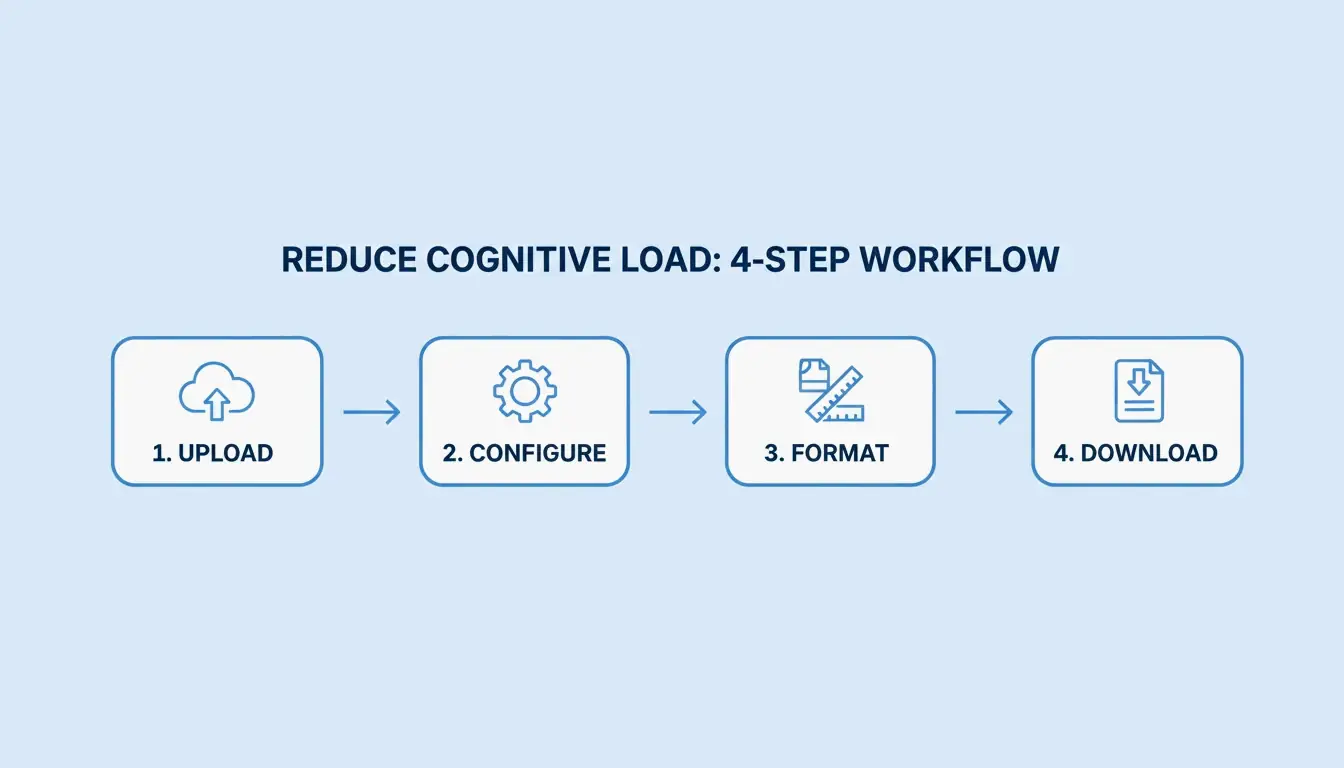
    Most high-quality resizing follows a simple four-step process:

    1. Upload: Pick your source file (JPG, PNG, WebP, or AVIF).
    2. Define Constraints: Enter the width and height you want, or choose a scale.
    3. Format Selection: Pick a modern format like WebP to get better compression.
    4. Download: Save your optimized file.

    Simple 4-step resizing workflow

    If you are optimizing for the web, you have to balance image clarity with loading speed. BIRME suggests an 80% quality balance (2026) as the “golden rule.” This setting cuts down the file size significantly, but the image still looks great to the human eye. This helps pages load faster and perform better on mobile devices.

    Why Maintaining Aspect Ratio is Non-Negotiable

    Locking the Aspect Ratio is vital. It ensures that when you change the width, the height adjusts automatically (and vice versa). Without this lock, your images will look “squashed” or unnaturally stretched. Modern tools like Toolnox include an aspect ratio lock by default to keep your proportions intact.

    How to Batch Resize Multiple Images Efficiently?

    If you have a lot of work to do, Batch Resize / Bulk Resizing tools are the way to go. BIRME, which is used by over 50,000 monthly users (2026), lets you process hundreds of images at once. By setting one rule for the whole batch, you can make sure every image has a consistent size—something that is essential for online stores or professional portfolios.

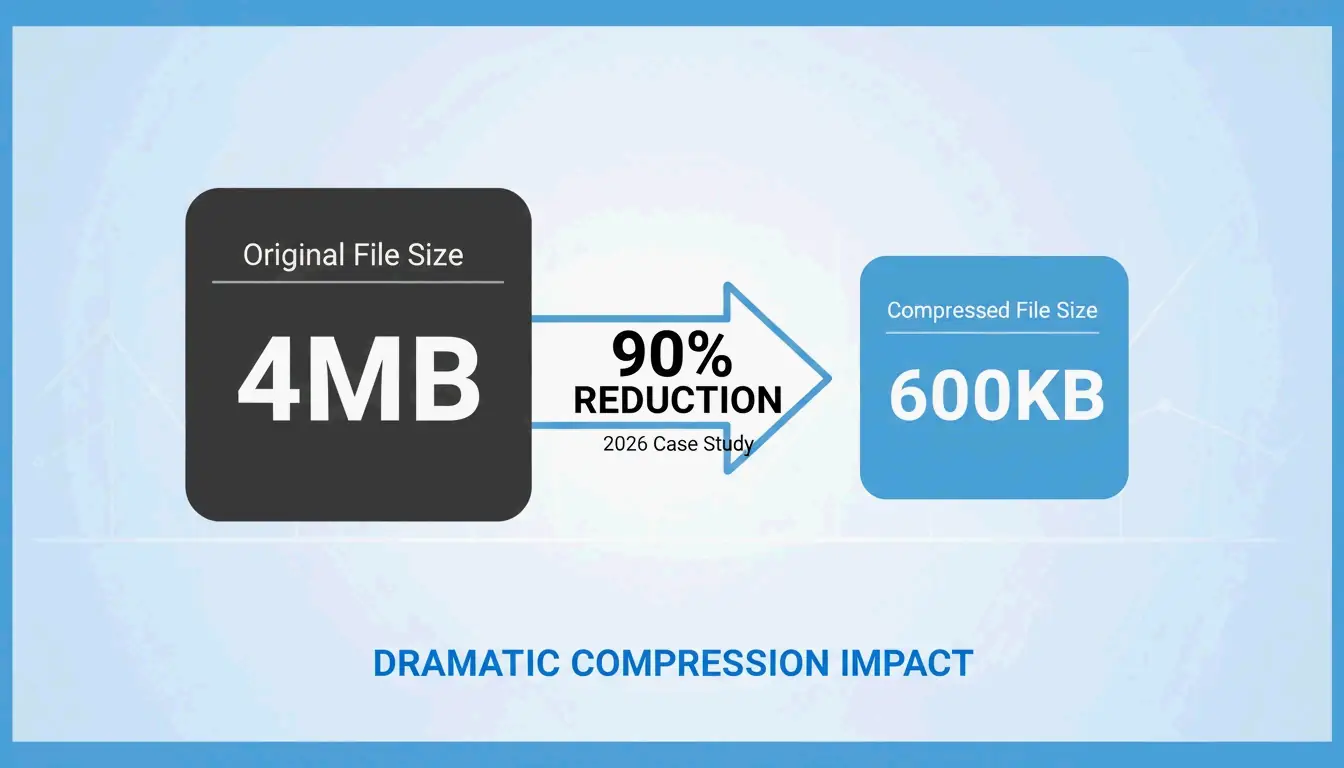
    Image Compression usually happens alongside resizing to help manage File Size (KB/MB). In a 2026 case study, users of the Photo & Picture Resizer app managed a 90% file size reduction. They successfully shrank 4MB high-res photos down to about 400KB. This is a huge help when you’re trying to stay under the 5MB attachment limits used by most email services.

    File size reduction comparison: 4MB vs 400KB

    Native 2026 Methods: Resizing on iOS and Android

    Mobile phones have improved quite a bit and can now handle resizing without needing extra apps. New for 2026, the iOS Preview app (now built into the Files app) supports direct resizing. You no longer have to email a photo to yourself just to trigger a size prompt. Now, you can just select an image in Files, tap “Quick Actions,” and pick your new dimensions.

    On Android, Google Photos uses AI to help manage image sizes. While you can still crop manually, the app now features “AI Enhance” and “Auto Frame” to help recompose your shots. When you save your work, it’s best to choose “Save as copy” so you don’t lose your original high-res version. You should also consider your Exif Data; apps like Image Size – Photo Resizer let you choose whether to keep or remove metadata like GPS location and camera settings to protect your privacy.

    Does Google Photos Preserve Quality?

    Google Photos keeps visual quality high by using smart compression. Just remember that hitting “Save” will overwrite your original file, while “Save as copy” creates a new one. In 2026, the “AI Enhance” feature (currently available in the US) can even suggest different versions of a resized photo so you can pick the clearest one.

    2026 Image Dimension Cheat Sheet for Social & E-commerce

    To keep your content looking professional, your images need to fit the specific requirements of each platform. High-res cameras often take photos that are much larger than necessary, which can lead to slow uploads or bad automatic cropping.
    • Amazon & eBay: Product photos usually need a square 1:1 ratio.
    • Instagram & TikTok: Vertical 9:16 is the standard for Reels, while 1080×1080 is still the go-to for standard posts.
    • YouTube Banners: The 2048×1152 pixel standard is still the rule for 2026.

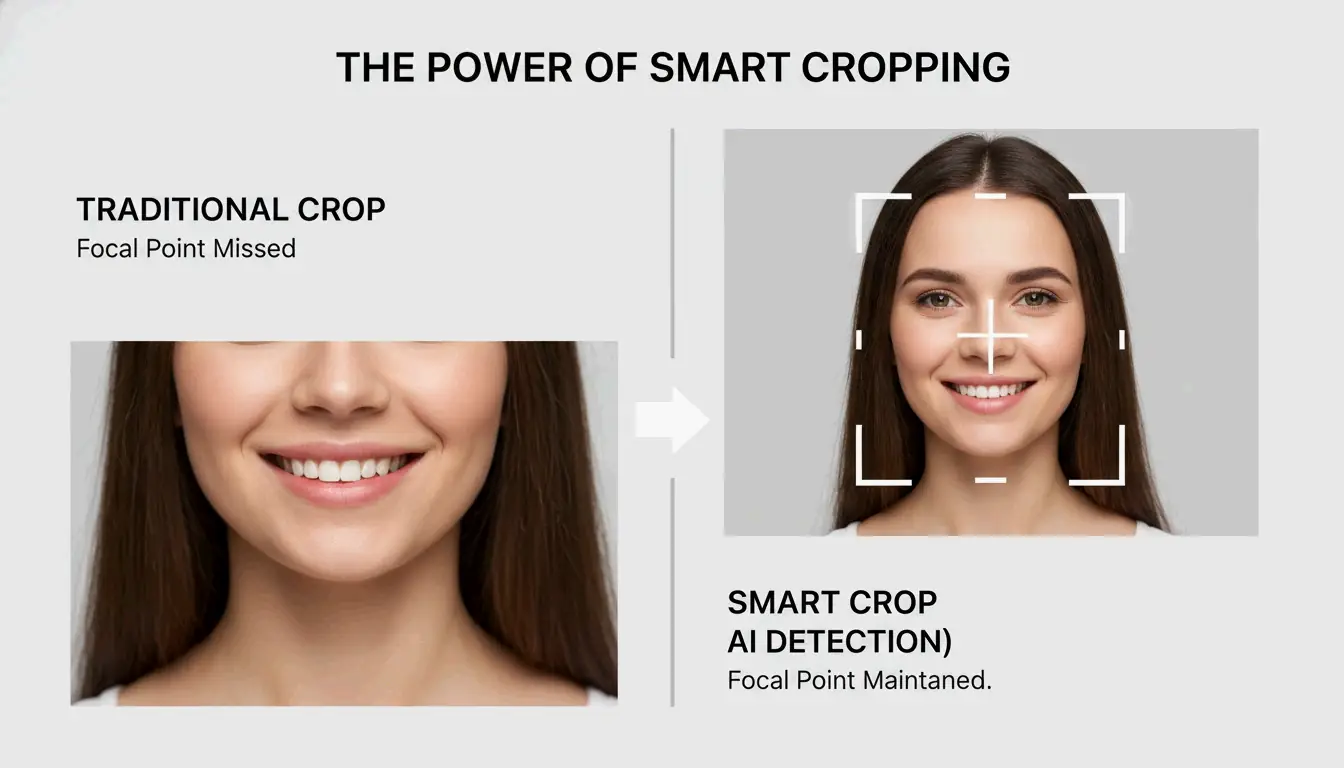
    Modern tools now use Smart Cropping / Auto Focal Point tech. As BIRME explains, this uses “smartcrop” libraries to find the most important parts of a photo—like faces or textures—and keeps them centered while trimming away the less important edges.

    AI Upscaling vs. Traditional Resizing: When to Use What?

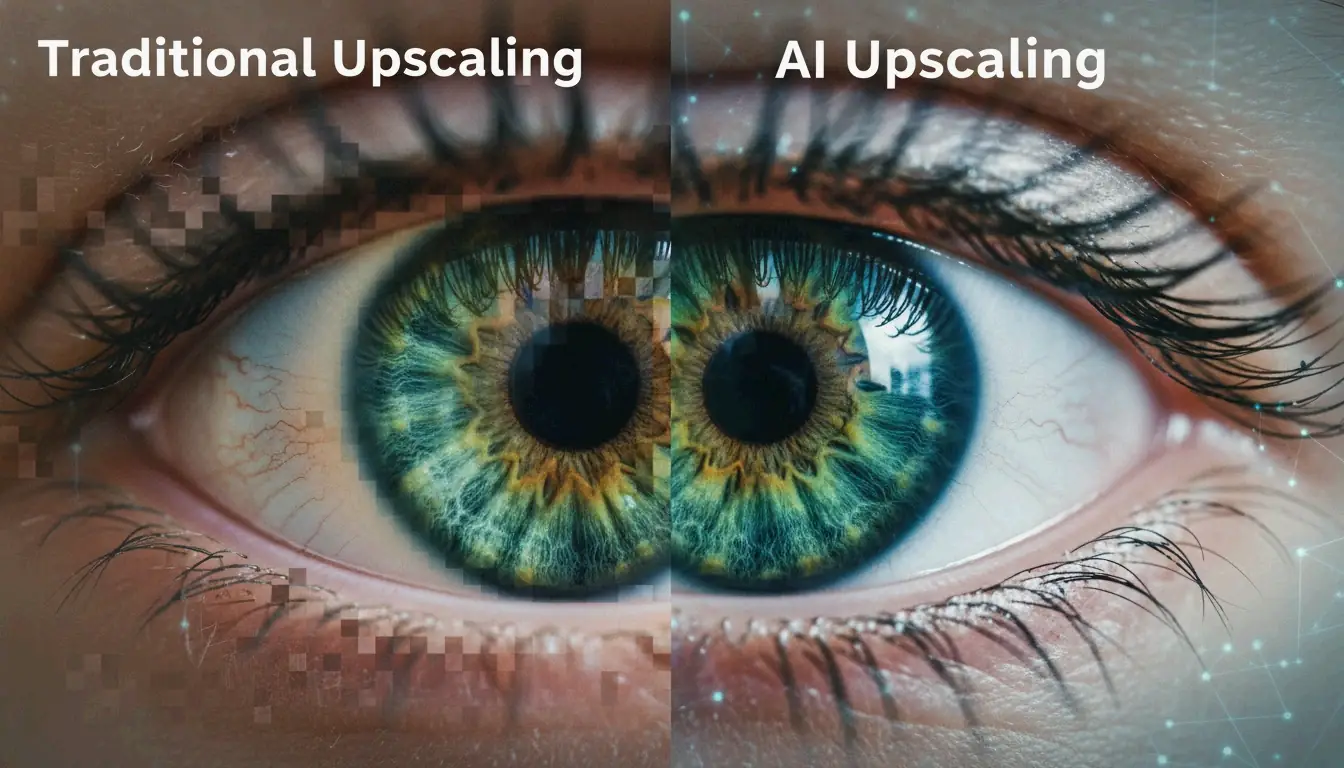
    Standard resizing is great for making images smaller, but making them larger usually makes them look pixelated. Traditional tools just stretch the existing pixels, which creates a blurry effect known as “interpolation artifacts.”

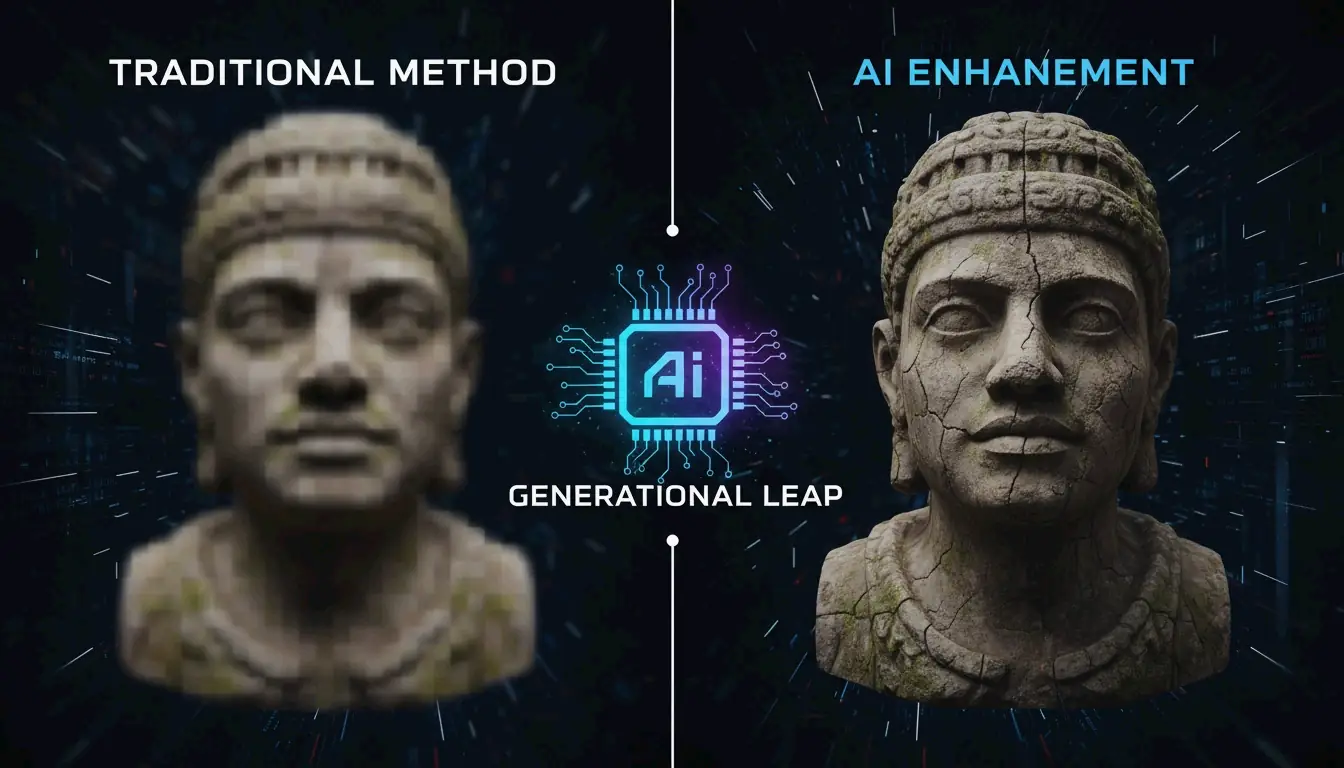
    By 2026, the industry has moved toward Generative Fill and AI Uncrop. These tools don’t just stretch pixels; they actually “fill in” new data to expand borders or boost resolution. As the BIRME Developer points out, if your photos look blurry after you enlarge them, you probably need an AI “superpixel” tool. Tools like Airbrush can even turn a portrait photo into a wide landscape by generating a realistic background that matches the original scene.

    Visualizing AI generative fill vs pixel stretching

    Conclusion

    Changing photo size in 2026 comes down to three things: keeping the right aspect ratio, using modern formats like WebP or AVIF, and picking the right tool for your device. Whether you use the new iOS Preview features, the AI tools in Google Photos, or a bulk web processor like BIRME, the goal is to make the file lighter without losing visual quality.

    For web developers, sticking to the 80% quality rule is the best way to keep your site fast. For mobile users, the 2026 native updates make it easy to save space without downloading extra apps. By matching your dimensions to current social and e-commerce standards, your content will stay sharp and professional on every screen.

    FAQ

    How do I resize photos on iPhone without installing a third-party app?

    In 2026, you can use the built-in Files app. Open the app, find your image, and long-press it to see “Quick Actions.” Select “Resize” to choose from Small, Medium, or Large presets, or enter your own pixel dimensions. You can also use the Shortcuts app to create an automated resizing tool for your entire Photos library.

    What is the recommended image quality (JPG/WebP) for fast website loading?

    For most websites, a quality setting of 80% offers the best balance between looks and speed. Use WebP or AVIF formats because they offer better compression. Try to keep large hero images under 200KB and small thumbnails under 30KB to ensure your site stays fast and mobile-friendly.

    Why do my photos look pixelated or blurry after I increase their size?

    Standard resizing cannot create new image data; it just stretches the pixels you already have, which leads to “interpolation artifacts.” This is very noticeable if you try to make an image larger than its original size. To enlarge images without losing clarity, you need to use AI Super-resolution or upscaling tools that use generative AI to “fill in” the missing details.

  • Best Change Image Size App Options for 2026: Resize Pixels and KB Instantly

    Best Change Image Size App Options for 2026: Resize Pixels and KB Instantly

    To change image size in 2026, the most reliable methods are using the “Image Size” app on iOS/Android for pixel-perfect adjustments or BIRME.net for bulk processing. Just upload your photo, set your new dimensions while keeping the aspect ratio locked, and save. For official document uploads, aim for 96-150 DPI to keep file sizes under 2MB.

    How to Use a Change Image Size App: The 3-Step Framework

    Choosing the right change image size app usually comes down to what device you’re using and how many photos you have. If you’re on your phone, dedicated apps like “Image Size — Photo Resizer” (iOS and Android) give you exact control over pixels, millimeters, or inches. If you’re on a computer, browser-based tools like BIRME are often faster because they process images locally, which also keeps your data private.

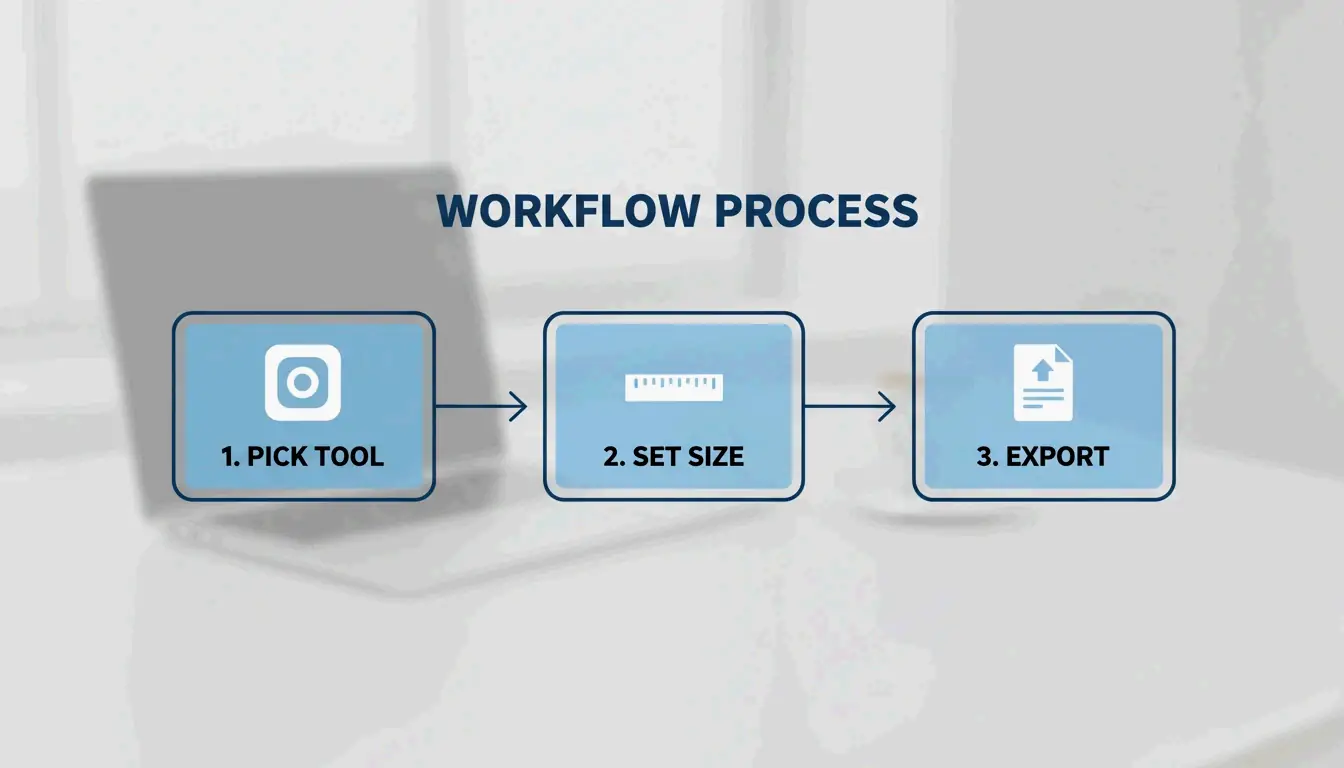
    The process usually follows these three steps:

    1. Pick Your Tool: Use a mobile app for a quick single edit, or a web-based batch tool if you have dozens of photos to resize at once.
    2. Set Your Dimensions: Type in the width or height you need. Make sure the aspect ratio—often shown as a small chain link icon—is locked. This prevents your image from looking stretched or “squashed.”
    3. Choose the Format: Pick your output file type. JPEG, JPG, and PNG are still the standard go-tos, but WebP is becoming the favorite for websites because it makes files much smaller without losing quality.

    Simple 3-step process: Tool -> Dimensions -> Format

    The developer of BIRME points out that finding the right balance between clarity and file size is key. An 80% quality setting is usually the “sweet spot” for web use; you rarely need to go above 90% unless you need perfect high-fidelity prints.

    Maintaining Aspect Ratio to Prevent Distortion

    To keep your photos looking right, always lock the aspect ratio before you touch the dimensions. In the “Image Size” app, tapping the chain icon between the width and height boxes ensures that if you change one number, the other adjusts automatically. If you skip this, you might end up with distorted images—a frequent headache noted by the creator of BIRME when users upload “squeezed” photos to WordPress sites.

    The Decision Matrix: Resize Pixels vs. Compress KB/MB

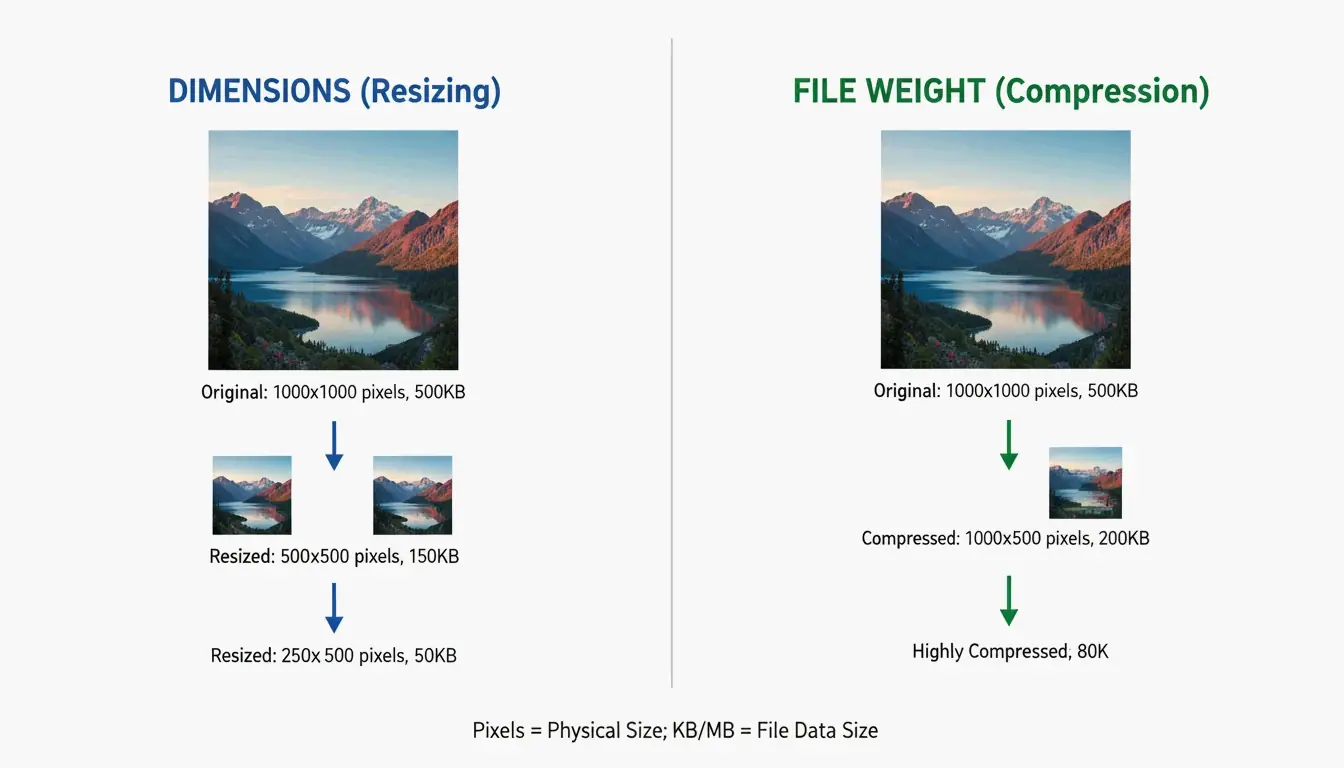
    Knowing whether to change the physical dimensions (pixels) or the file weight (KB/MB) is important for meeting specific upload rules. You should resize pixels when you’re prepping images for social media or app designs so they fit the layout perfectly. On the other hand, you’ll need to focus on the KB/MB target size for things like email attachments or government portals that have strict file size limits.

    Side-by-side comparison: Dimension Resizing vs. File Compression

    Your Resolution (DPI) also affects the final file size. According to Canada IRCC, official document uploads often have a 2MB limit. They suggest scanning documents at a lower resolution, like 96 DPI or 150 DPI. This keeps the file small enough to upload while ensuring the text stays clear and readable.

    Why Batch Processing is Essential for Efficiency?

    When you have hundreds of images to deal with, Batch Processing is a lifesaver. Tools like BIRME (which handles over 50,000 users a month according to BIRME.net) let you drop an entire folder of photos into your browser and apply the same settings to all of them at once.

    Modern batch tools now use Smart Cropping (or Auto Focal detection). This technology uses libraries like “smartcrop” to scan an image for important details like faces, lines, or curves. It identifies the “focal point” so that when the image is resized or cropped to a new shape, the most important part of the photo stays centered and doesn’t get cut off.

    No-App Methods: Resizing on iOS 26 and Android Native Tools

    By 2026, you can often resize images without downloading a separate change image size app by using the tools already on your phone. On iOS 26, the Shortcuts app is a powerful built-in option. You can set up a “Resize Image” shortcut to process files directly from your photo gallery’s share menu.

    Android’s native Gallery and the iOS “Preview” tool also offer basic resizing. However, many people still prefer dedicated apps because native tools sometimes lack the ability to set a specific KB target or handle 50 photos at once. A classic “Mail app trick” still works too: email a photo to yourself, and your phone will ask if you want to send it as “Small, Medium, or Large,” which shrinks the file size instantly.

    Next-Gen Formats: Support for WebP and AVIF

    The way we save images is changing. While JPEG, JPG, and PNG work everywhere, WebP and AVIF are the new standards for high performance. AVIF is particularly impressive, offering much smaller file sizes than JPEG while looking just as sharp. Most top-rated resizing apps in 2026 now let you convert old files into these next-gen formats to help websites load faster and save space on your phone.

    Conclusion

    The best change image size app for you depends on what you’re trying to do: do you need exact pixel dimensions, bulk processing, or a tiny file for a document upload? For a quick edit on your phone, a dedicated tool like the “Image Size” app offers the best precision for pixels and aspect ratio. For professional web work or large batches, a tool like BIRME.net is the most efficient choice—it’s fast, keeps your files private, and doesn’t require uploading anything to a server. Just remember to start with your highest-quality original and keep your quality settings around 80% for the best results.

    FAQ

    Why do my photos look pixelated after resizing?

    Pixelation usually happens when you try to “upscale” a small image (making it bigger than it originally was). The software has to “guess” where to put new pixels, which creates a blurry or blocky look. According to BIRME, setting the quality too low—well below 80%—can also ruin the fine details. To avoid this, always try to start with the highest-resolution original file you have.

    Is it safe to use online image resizers for private photos?

    It is safe as long as you use “client-side” or “local” tools like BIRME. On these sites, your images never actually leave your computer; the resizing happens right inside your browser using JavaScript. You should avoid sites that force you to upload your files to a remote server, especially if you are handling IDs or sensitive documents.

    How can I resize an image on iPhone without downloading a third-party app?

    The easiest way is to use the “Mail” app: email the photo to yourself and choose a smaller size (Small, Medium, or Large) when the prompt appears. You can also use the “Shortcuts” app to build a custom “Resize Image” tool. Another quick trick is to use the “Print” preview—if you pinch out on the print preview screen, you can save that version as a new, often smaller, PDF or image.

  • How to Bulk Resize Photos and Videos in 2026: A Privacy-First Guide

    How to Bulk Resize Photos and Videos in 2026: A Privacy-First Guide

    To bulk resize photos and videos in 2026, the most efficient method is using browser-based tools like BIRME or FastTool for images, and local API platforms for video files. Simply upload your batch, set your dimensions while locking the Aspect Ratio, adjust Compression Quality to 80-90%, and download the optimized results as a ZIP file—all without your data ever leaving your device.

    The 2026 Standard for Bulk Resizing Photos and Videos

    By 2026, media processing has moved toward a “local-first” approach. Instead of sending your private files to a distant server, your computer does the work right inside the browser. This is made possible by the Canvas API and HTML5 Canvas, which allow modern browsers to handle heavy image editing at speeds that feel like native software.

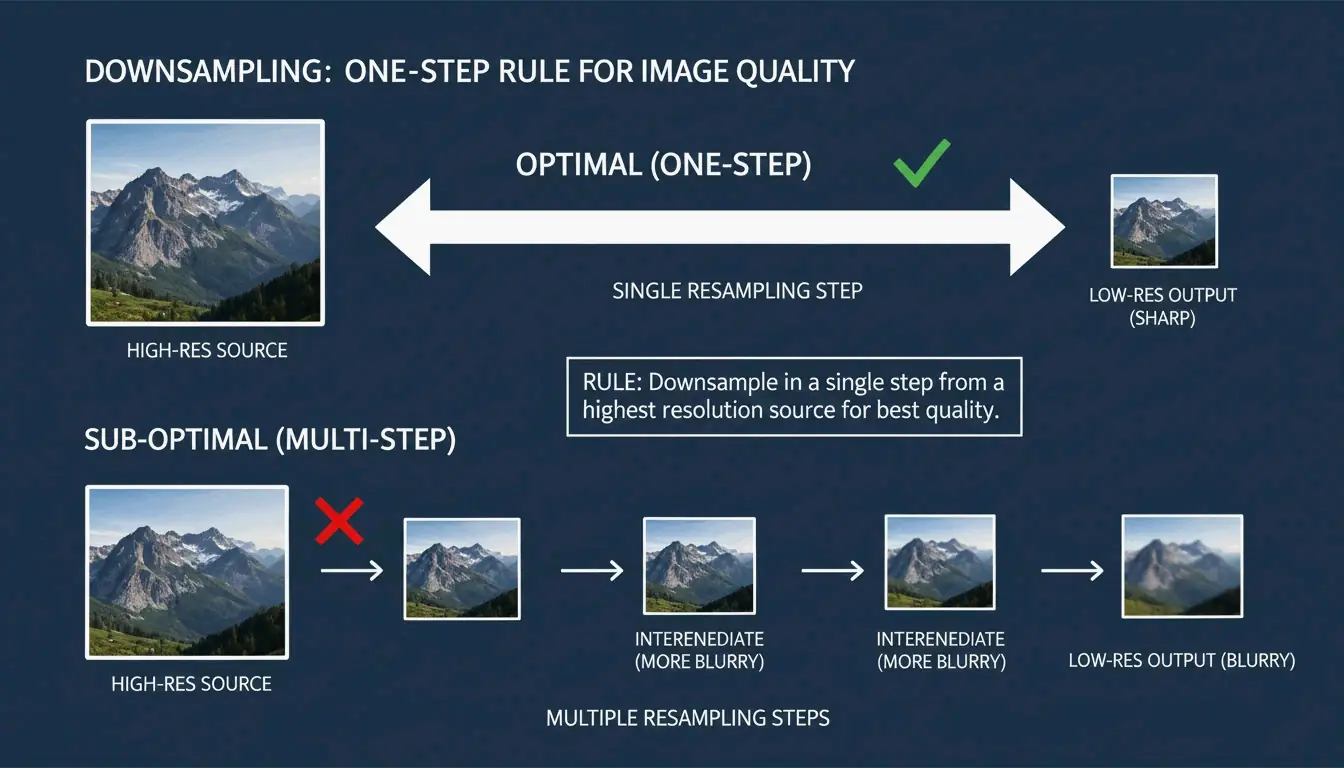
    The FastTool Engineering Team points out a key rule for keeping images sharp: always downsample in one go. If you need to take a 2048px image down to 512px, doing it in a single step creates a much cleaner result than resizing it multiple times (like going from 2048 to 1024, then finally to 512), which often causes “ringing” or blurry artifacts.

    Comparison of single-step vs. multi-step resizing quality

    Step 1: Selecting Your Batch Processing Tool

    Your choice depends on how many files you have and how much you care about privacy. For total security, use “browser-local” tools like BIRME or FastTool. These ensure your photos stay on your hard drive. If you’re dealing with massive batches—think hundreds of high-res files—server-side tools like ConvertFT are better. They use high-performance C++ engines to prevent your browser from freezing up under the load.

    Step 2: Defining Constraints to Maintain Aspect Ratio

    Nobody wants “squashed” or stretched photos. To avoid this, always keep the Aspect Ratio locked. Most tools in 2026 let you set a fixed width (like 1200px) and will automatically calculate the correct height for you. If you’re prepping images for a specific shape, like a square Instagram post, look for “Smart Cropping.” This feature finds the focal point of the photo so you don’t accidentally cut off someone’s head.

    Step 3: Instant Local Export

    After you hit go, the browser uses canvas.toBlob to re-encode your media. The standard in 2026 is to export everything as a single ZIP file. This is a clever workaround for browser limits that usually block you from downloading dozens of individual files at once, letting you save your entire library with one click.

    Video vs. Photo: Bridging the Gap in Bulk Workflows

    Batch processing photos is mostly about pixels and dimensions, but video adds another layer: bitrate management. A video’s file size depends more on its bitrate (the amount of data processed per second) than its actual resolution. When resizing videos in bulk, your tool needs to adjust the encoding to match the new size. If it doesn’t, you might end up with a tiny 480p video that still has a massive, unnecessary file size.

    Resolution vs. Bitrate: What Video Resizing Actually Means

    Shrinking a video from 4K to 1080p won’t actually help your website load faster if the bitrate stays the same. Modern apps like Resize Now! let you choose specific Output Formats and aspect ratios (like 9:16 for TikTok) while managing these background settings. Whether you’re working with MP4, MOV, or WebM, the goal is to get a consistent resolution that fits where you’re posting it.

    Modern Standards: Adopting AVIF and HEVC for 2026

    In 2026, old-school JPEGs are taking a backseat to more efficient formats. FastTool notes that WebP and AVIF formats are usually 25-35% smaller than JPEGs or PNGs of the same quality. When you’re resizing your library, converting to AVIF (for images) or HEVC (for videos) ensures your content loads instantly on the latest phones and high-speed networks.

    File size comparison between JPEG and AVIF/WebP

    Optimizing Compression Quality without Losing Sharpness

    Finding the “sweet spot” for Compression Quality is the secret to professional-looking files. For most websites, a setting between 80% and 90% is perfect. The BIRME guidelines mention that going above 90% rarely looks better to the human eye, but it makes the file size jump up significantly.

    To keep things crisp when shrinking images, 2026 tools use advanced math like Lanczos and Bicubic Resampling. These algorithms are much smarter than basic scaling; they calculate new pixel data in a way that prevents the “soft” or blurry edges you see in cheap editors.

    Case Study: Shopify Store Speed Optimization

    The results of bulk optimization are easy to see. In one case from FastTool, a clothing store owner had 240 product photos shot at 24 megapixels. By bulk resizing them to 2048px wide at 85% JPEG quality, the store’s load time dropped from 4.8 seconds to just 1.9 seconds. That speed boost led to more sales in the very next quarter.

    Advanced Features: Focal Point Detection and Metadata

    Handling a mix of portrait and landscape shots in one batch used to be a headache. Modern tools now use Focal Point Detection to fix this.

    Solving the Mixed Orientation Problem

    Instead of just cropping the center of every image—which might cut out the product or a person’s face—2026 tools use the Smartcrop library. This tech analyzes the image for interesting shapes and lines to figure out the most important part of the photo, then centers the crop there automatically.

    Visual demonstration of Smart Cropping vs. Center Cropping

    Privacy First: Handling EXIF Metadata in 2026

    Every smartphone photo contains EXIF Metadata, which is essentially a digital footprint including your GPS location, the time the photo was taken, and your phone model.

    • When to strip it: For social media or public galleries, removing this data is a smart privacy move.
    • When to keep it: Pro photographers often keep EXIF data to protect their copyright or keep track of their camera settings.

    Modern resizers usually give you a simple toggle to either “Strip Metadata” for privacy or “Preserve EXIF” for professional work.

    Conclusion

    By 2026, bulk resizing has evolved. It’s no longer just about changing numbers; it’s about balancing privacy, using modern formats like AVIF, and using smart detection to make sure your quality stays high on every screen. By sticking to browser-local processing, you can handle sensitive media without worrying about data leaks on a remote server.

    Action Plan: Start by checking your current files to see which ones are slowing you down. Use a browser-local tool to test a few samples and find your best compression-to-quality ratio (usually 80-85%) before you update your whole library. It’s a small step that makes a huge difference for your SEO and your visitors.

    FAQ

    Why do my photos look pixelated after resizing?

    Pixelation usually occurs if you attempt to upscale an image beyond its original dimensions. It can also be caused by using incorrect resampling algorithms. For the best results, always downsize rather than enlarge, and ensure your tool uses Lanczos or Bicubic filtering rather than simple linear scaling.

    Is it safe to upload sensitive client photos to an online resizer?

    It depends on the tool’s architecture. To ensure maximum safety, look for “Serverless” or “Local-only” tools (like BIRME or FastTool) that use the Canvas API. These tools process images entirely within your browser, meaning your files never leave your device and are never stored on a remote server.

  • Best Photo Resize Tools and Methods for 2026: Maintain Quality with AI & Bulk Processing

    Best Photo Resize Tools and Methods for 2026: Maintain Quality with AI & Bulk Processing

    To get the best photo resize results in 2026, you need tools that balance speed and image integrity. Use Birme for fast, bulk resizing in your browser, Overchat AI to expand aspect ratios without cropping, and iLoveIMG for cloud-based tasks. For mobile users, the Image Size app remains the top choice for precise pixel control.

    How to Choose the Best Photo Resize Method for Your Needs

    The right resizing method usually comes down to three things: how fast you need it done, the final image quality, and how private you want your data to be. In 2026, professional photos are all about specific Pixel Dimensions (Width/Height) designed for high-density screens, so being precise is more important than ever.

    Traditional resizing is still the standard for making images smaller—like turning a 4000px photo into an 800px version for a blog post. This method is quick and keeps the image sharp as it shrinks. However, if you need to make a photo larger or change its shape, standard tools often fall short. Data from Birme, which serves over 50,000 users monthly, shows that Privacy/Browser-based Processing is a huge deal for creators today. By using client-side JavaScript, your sensitive photos never actually leave your computer.

    The Decision Matrix: Traditional Pixel Control vs. AI Expansion

    Your choice depends on your end goal. Stick with traditional pixel control (like ImageResizer.com) if you have a specific resolution in mind and don’t want to change the actual content of the photo. On the other hand, AI expansion is better when your target aspect ratio is different from the original. While traditional cropping just cuts off the edges to make a photo fit, AI generative fill “imagines” and draws new pixels to extend the scene, so you don’t lose the main subject.

    Comparison between traditional cropping vs. AI generative expansion

    Best Photo Resize Tools for Bulk Processing and Privacy

    If you’re dealing with a lot of content, Bulk/Batch Resizing is a lifesaver. Resizing hundreds of photos one by one is a waste of time and leads to mistakes. Tools like Birme let you set a single aspect ratio and apply it to an entire gallery at once.

    For batch work, picking the right format is key for website speed. In 2026, JPEG, PNG, WebP, and AVIF are the main formats supported by browsers. Birme suggests aiming for an 80%-90% quality balance for WebP or JPEG exports. This is the “sweet spot” where the photo looks great but the file size stays small enough for fast page loads.

    How to Batch Resize Without Losing Quality?

    To keep your images looking sharp, always resize downward from a high-resolution original. If you absolutely have to upscale, use a tool with a “High Quality Resize Method” or an AI engine to prevent that blurry, pixelated look. For most web use, an 80% quality setting is plenty. If you use cloud storage, iLoveIMG connects directly with Google Drive and Dropbox, so you can pull, resize, and save everything back to the cloud in one go.

    AI Aspect Ratio Expansion: Resizing Beyond the Frame

    The biggest change in 2026 is the AI Image Resizer/Extender, which allows for “uncropping.” Instead of cutting off the edges, AI models reconstruct the scene to fit new sizes. This is perfect for turning a vertical 9:16 smartphone photo into a wide 16:9 cinematic header for a website or YouTube.

    Andrew Dyuzhov, a technology writer at AI Hub, explains it this way: “AI image resizers differ from traditional ones by generating new content to extend images, rather than cropping or stretching—allowing aspect ratio changes without losing any original content.” Modern tools like Overchat AI, which uses the Seedream 5.0 model, can rebuild backgrounds so accurately that you can’t tell where the original photo ends and the AI begins.

    The ‘Uncrop’ Revolution: How AI Fills the Gaps

    The “Uncrop” process uses Smart Cropping and generative fill to figure out the focal point of a photo. If you change a horizontal photo to a vertical one, traditional cropping might lose 80% of the scene. AI avoids this by “imagining” what should be outside the frame based on the existing textures and lighting. The Seedream 5.0 engine supports over 10 different aspect ratios, letting you take one photo and resize it for Instagram, LinkedIn, and ultrawide monitors without ruining the composition.

    2026 Social Media Cheat Sheet: What Are the Correct Instagram Image Sizes?

    Social media platforms have strict rules. If you don’t follow them, the app will compress your photo automatically, often making it look blurry. Stick to these Instagram Image Sizes for 2026 to keep your content sharp:

    • Instagram Feed (Portrait): 1080 x 1350 px (4:5 ratio) – Best for taking up more screen space.
    • Instagram Feed (Square): 1080 x 1080 px (1:1 ratio).
    • Instagram Stories & Reels: 1080 x 1920 px (9:16 ratio).
    • LinkedIn Banners: 1128 x 191 px.

    Visual guide to 2026 social media aspect ratios

    With AVIF support becoming standard for web optimization in 2026, many pros are using it for social media to get better colors at smaller file sizes. Also, if you’re printing your photos, remember that DPI (Dots Per Inch) is what matters. You need 300 DPI for high-quality prints, while 72-96 DPI is fine for screens.

    Conclusion

    The best resizing strategy in 2026 is a mix of two things: traditional local tools for fast bulk work, and AI tools for creative layout changes. For daily social media posts or private photos, use a browser-based tool like Birme since it processes images on your device. For professional work where you need to change a photo’s shape without losing the edges, AI extenders like Overchat AI are the way to go. By picking the right tool for the job—whether you need exact pixel control or AI expansion—you’ll keep your visuals looking professional everywhere.

    FAQ

    What is the difference between resizing and cropping?

    Resizing changes the total pixel count or the physical scale of the image, effectively making the file smaller or larger while keeping the entire scene intact. Cropping, however, involves removing the outer parts of the image to change the focus or the aspect ratio. While resizing preserves all original content, cropping intentionally discards pixels to fit a specific shape.

    How can I resize a photo for Instagram without losing quality?

    To maintain the highest quality, use a 4:5 aspect ratio (1080×1350 pixels) for feed posts, as this occupies the most screen space. Always export your final file at 80-90% JPEG quality. This “sweet spot” prevents Instagram’s aggressive server-side algorithms from over-compressing your image, which is the primary cause of blurriness after uploading.

    Is it safe to use online image resizers for private photos?

    It is safe only if the tool utilizes “client-side” or “browser-based” processing. Tools like Birme use JavaScript to process images directly on your computer; your photos are never uploaded to a server. You should avoid uploading sensitive data to platforms that require a “cloud upload” unless they provide a clear, verifiable policy regarding immediate data deletion.

    Why do my photos look pixelated or blurry after resizing?

    Pixelation typically occurs when you upscale a small image beyond its original resolution, forcing the software to “guess” missing data. To avoid this, keep the new dimensions within 150% of the original size. If you must go larger, use an AI Upscaler, which uses machine learning to reconstruct details rather than simply stretching existing pixels.

  • Auto Resize – Free: The Best Browser-Based Tools for Instant Image & Video Optimization

    Auto Resize – Free: The Best Browser-Based Tools for Instant Image & Video Optimization

    As of April 2026, you can auto resize – free using browser-based tools like Birme or FastTool. These platforms leverage Client-side Processing (WASM) to ensure 100% privacy and zero quality loss. Process images locally without sign-ups, watermarks, or server uploads for instant, secure results.

    How to Auto Resize – Free Using Client-side Processing

    By 2026, the way we handle image processing has changed. We no longer need to upload private files to distant servers. Instead, modern tools use Client-side Processing, which means the work happens right in your browser’s memory. According to BIRME, this privacy-first approach supports over 50,000 monthly users as of April 2026, keeping images safely on the user’s own device.

    This speed and security come from WebAssembly (WASM). As FastTool explains, WASM lets web tools perform as fast as desktop software. It uses optimized libraries to handle heavy lifting—like high-quality resampling or bulk editing—instantly on everything from powerful PCs to basic smartphones, without the lag common in older web apps.

    The 3-Step Execution Framework

    You can get professional results by following this simple workflow:

    1. Input: Drag your files (JPG, PNG, WebP, AVIF, or MP4) straight into the browser window.
    2. Configuration: Enter your desired pixel dimensions or choose a percentage. Make sure the “Aspect Ratio Lock” is on so your images don’t look stretched or squashed.
    3. Export: Hit “Resize” to start the WASM engine. Your files will be ready to download immediately, usually in a ZIP folder if you’re processing a batch.

    Simple 3-step workflow: Input, Configure, Export

    Why Modern SEO in 2026 Requires AVIF and WebP Formats?

    For anyone publishing online, resizing isn’t just about making an image fit a box; it’s about site speed. In 2026, SEO standards focus heavily on Core Web Vitals. This means moving away from old formats like JPG and PNG in favor of AVIF and WebP. AVIF is particularly effective because it keeps images looking sharp while significantly shrinking the file size.

    It’s also worth noting that dimensions impact file size more than you might think. According to Utilko, cutting an image’s dimensions in half (for example, going from 4000×3000 down to 2000×1500) can reduce the file size by about 75%. Because you are shrinking both width and height at the same time, the total data drops fast, which helps mobile pages load much quicker.

    Visual comparison of file size reduction when dimensions are halved

    Social Media Presets: One-Click Optimization for Every Platform

    Keeping your brand looking consistent across different apps means following specific Social Media Presets. Instagram, TikTok, and YouTube have strict rules for dimensions. If you don’t follow them, the platforms will compress your images automatically, often making them look blurry or cropped incorrectly. Common sizes include 1080×1080 for Instagram squares, 1080×1920 for Reels, and 1280×720 for YouTube thumbnails.

    To keep things looking right, professional tools use an Aspect Ratio Lock so that changing the width automatically fixes the height. Some advanced tools, like BIRME, even use Auto Focal Point Detection. This “smartcrop” technology finds the most important part of the photo—like a person’s face—and makes sure it isn’t cut out during the resizing process.

    This is a huge help for Shopify merchants, who often use an 800×800 square fit to keep their product grids looking neat and professional on any screen.

    Efficiency at Scale: Mastering Batch Resizing for Professional Workflows

    If you have hundreds of photos to fix, Batch Resizing is the only way to get it done quickly. Modern browser tools can now handle long queues of images at once without freezing up your computer. They do this using “dirty-row tracking” and offscreen rendering to keep the process smooth.

    The quality of your smaller images depends on the math used to shrink them. FastTool points out that Lanczos resampling is generally better for photos than standard Bilinear methods. It looks at a wider area of pixels to ensure the final result stays sharp.

    Finally, many pros in 2026 use EXIF Metadata Scrubbing. This removes hidden data—like the GPS coordinates of where a photo was taken—before the image goes live. It’s an easy way to add a layer of security for both creators and clients.

    Conclusion

    Auto-resizing in 2026 is about more than just changing numbers; it’s about privacy, speed, and picking the right formats like AVIF. By using client-side WASM technology, you can handle sensitive files and high-res media without worrying about data leaks. For the best results, stick with a local tool like Birme or FastTool, keep your Aspect Ratio locked, and export in AVIF to give your SEO a boost. This keeps your visuals sharp, secure, and ready for the modern web.

    FAQ

    Is it safe to resize private documents or photos using online tools?

    Yes, it is safe if the tool specifically uses client-side processing (WASM or JavaScript). In this mode, your photos are processed entirely within your browser and are never uploaded to a remote server. Before using a tool, always check for “No-Upload,” “100% Client-side,” or “Local Processing” labels to ensure your data remains private.

    Why does my image look pixelated after resizing it to a larger size?

    Pixelation occurs because standard resizers use interpolation, which can only approximate new pixels and cannot create genuine new detail. While downscaling (making an image smaller) is safe and maintains clarity, upscaling (making it larger) will inevitably lead to blurriness. For professional results, you should always start with the highest resolution source possible or use specialized AI-based upscaling tools.

    How can I resize an image to a specific file size (KB) for email?

    To hit a target KB limit, first resize the pixel dimensions to a web-appropriate width (such as 800px or 1200px). Next, adjust the “Quality” slider—usually 70-80% is the sweet spot for compression. Finally, export the file in AVIF or WebP format, as these modern formats provide much better compression-to-quality ratios than traditional JPEGs.

  • How to Adjust Your Images and Resize for Any Platform (2026 Guide)

    How to Adjust Your Images and Resize for Any Platform (2026 Guide)

    To adjust your images and resize effectively in 2026, you can use free browser-based tools like CapCut or BIRME for instant results. For a quick offline fix, use built-in apps like Mac Preview (Tools > Adjust Size) or Windows Photos. Always remember to lock the Aspect Ratio to avoid stretching your photos, and export them as WebP or JPG to keep your website running fast.

    How to Adjust Your Images and Resize: A Step-by-Step Framework

    Before diving in, it helps to know exactly what happens when you modify a file. In digital imaging, “resizing” means changing the actual pixel dimensions—the width and height. This is different from “compression,” which shrinks the file size (MB/KB) by clearing out unneeded data without changing the physical size of the image.

    As noted by Private Convert, taking a high-resolution 4000x3000px photo (about 6MB) and resizing it to 1200px wide can drop the file size to a much leaner 300-700KB. This makes it perfect for web use without slowing down page loads.

    A simple comparison between Pixel Resizing vs. File Compression.

    Locking the Aspect Ratio: The Golden Rule

    The biggest mistake people make when they adjust your images and resize is ignoring the Aspect Ratio. This is the relationship between the width and the height. If you try to force a wide 16:9 photo into a 1:1 square without cropping it, your subject will end up looking squashed or unnaturally tall. Most tools have a small “lock” or “chain” icon. Keep this active so the software automatically calculates the height when you change the width.

    Quick Resize on Windows and macOS (No App Required)

    You don’t need fancy software for simple daily tasks.

    • On Windows (Photos App): Open the image, click the three-dot menu at the top, and pick “Resize image.” You can type in your own dimensions or use one of the presets.
    • On macOS (Mac Preview): Open your file and go to Tools > Adjust Size. Make sure “Scale proportionally” is checked, enter your new width, and hit save. If you have a lot of photos, Private Convert recommends selecting them all in Finder and opening them in Preview at once to apply the resize to the whole group.

    Beyond Stretching: Using AI Image Expansion to Fit New Dimensions

    By 2026, AI Image Expansion (often called Generative Expand or Outpainting) has fixed the old problem of fitting images into awkward spaces. In the past, you had to choose between weird stretching or losing part of the photo to a crop.

    Now, tools like Adobe Express or CapCut use AI to “fill in” the edges of a photo. If you have a vertical portrait but need a horizontal website banner, the AI looks at the background—like the sky or a studio wall—and generates new pixels to extend the scene. This “Smart Cropping” also identifies the focal point to make sure the person or object stays centered and isn’t cut off.

    A visual metaphor of 'AI Expansion' showing a photo frame growing naturally.

    Which Online Image Resizer Should You Choose for Batch Processing?

    If you’re dealing with dozens of files, a dedicated Online Image Resizer is much faster than doing them one by one. BIRME (Bulk Image Resizing Made Easy) and CapCut are the top picks for 2026. CapCut is great if you want to add filters or AI layouts, while BIRME is the go-to for speed and privacy because it processes everything right in your browser.

    The BIRME Founder explains the logic behind the tool: “Buying Photoshop just to resize images in bulk didn’t seem like the smartest option.” Most people don’t need complex software that clutters their screen with settings they’ll never use.

    How to Batch Resize for Free in Seconds

    According to BIRME, which handles over 50,000 users a month, the best workflow is:

    1. Drag and drop your folder of images into the site.
    2. Set your desired width and height.
    3. The 80% Rule: Set your image quality to 80%. This is the “sweet spot” where the image still looks sharp but the file size stays small.
    4. Download everything as a single ZIP file.

    Choosing the Right Format: JPEG/JPG vs PNG vs WebP

    The format you pick after you adjust your images and resize will change how the file performs on the web.

    • WebP: This is the current standard for SEO. It shrinks files much better than the old JPEG format.
    • JPEG/JPG: Still the best choice for detailed photography where you need a small file size.
    • PNG: Use this if you need a transparent background or have graphics with very sharp text.

    Also, keep an eye on DPI / PPI. For screens, 72 DPI is all you need. Going higher won’t make it look better on a monitor. But if you’re resizing something to print it out, Spin Numbers suggests a minimum of 300 DPI to keep the print from looking blurry.

    Developer Corner: Object-fit and Command-Line Resizing

    For developers, resizing happens in the code as well as the file. The Object-fit CSS property controls how an image fills its container. MDN Web Docs notes that cover is the most popular setting for responsive sites; it keeps the aspect ratio by clipping the edges to fit the box. Use contain if you need the whole image to be visible without any cropping.

    If you like using the terminal on macOS, the Sips (Scriptable Image Processing System) tool is already built-in. For cross-platform automation, many pros use ImageMagick. A quick command like magick mogrify -resize 1200x *.jpg can resize every single JPEG in a folder to 1200px wide in a heartbeat.

    Conclusion

    Adjusting and resizing images is all about balance: keeping the right proportions, picking a modern format like WebP, and choosing the right tool for the volume of work you have. In 2026, AI has made it much easier to expand images rather than just stretching them, which keeps your quality high. To start, check what size your platform needs, then use BIRME for bulk uploads or Adobe Express if you need AI to help change the shape of your photo.

    FAQ

    What is the difference between resizing and compressing an image?

    Resizing changes the pixel dimensions (the actual width and height of the image). Compressing reduces the file size (the MB or KB) by removing redundant data or lowering the quality setting. Most web optimization tasks require both: resizing to the correct dimensions and then compressing to ensure fast loading speeds.

    How can I resize multiple images at once (batch resize) for free?

    You can use specialized online tools like BIRME.net or BulkResizePhotos. Simply upload your folder of images, set your target dimensions, and download the resized images as a ZIP file. On a Mac, you can also use the “Quick Actions” feature in Finder to perform basic batch resizing without opening an app.

    Will resizing an image reduce its quality or resolution?

    Downscaling (making an image smaller) typically maintains sharpness but reduces the total number of pixels. However, upscaling (making an image larger) usually results in blurriness or “pixelation” because the software has to create new pixels. For best results, always start with a high-resolution original and only resize downward.