Category: Productivity

  • How to Compress a Picture: File Size Targets, Formats, and Quality Settings (2026)

    How to Compress a Picture: File Size Targets, Formats, and Quality Settings (2026)

    Set JPEG quality to 70-80%, convert to WebP for up to 95% size reduction, and resize to target dimensions before compressing. For government portals, cap at 96 DPI and 2MB. These three steps handle the vast majority of image compression needs in 2026.

    A high-quality visual metaphor for image compression: balancing speed and clarity

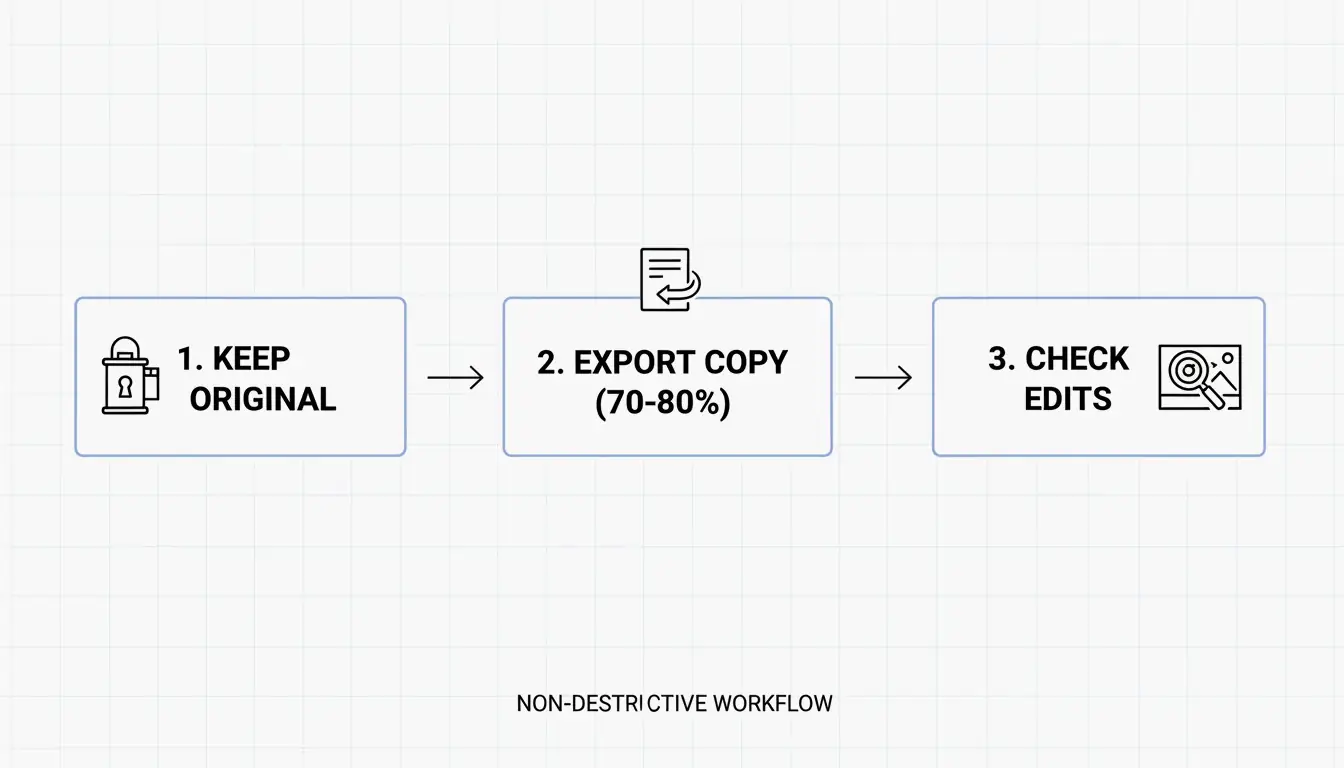
    Compression Workflow: Resize → Format → Quality

    The order matters. Always resize first, then choose format, then apply quality compression.

    Step Action Why First
    1. Resize Scale to target width (e.g., 1200px for web) Reduces pixel count — largest size savings
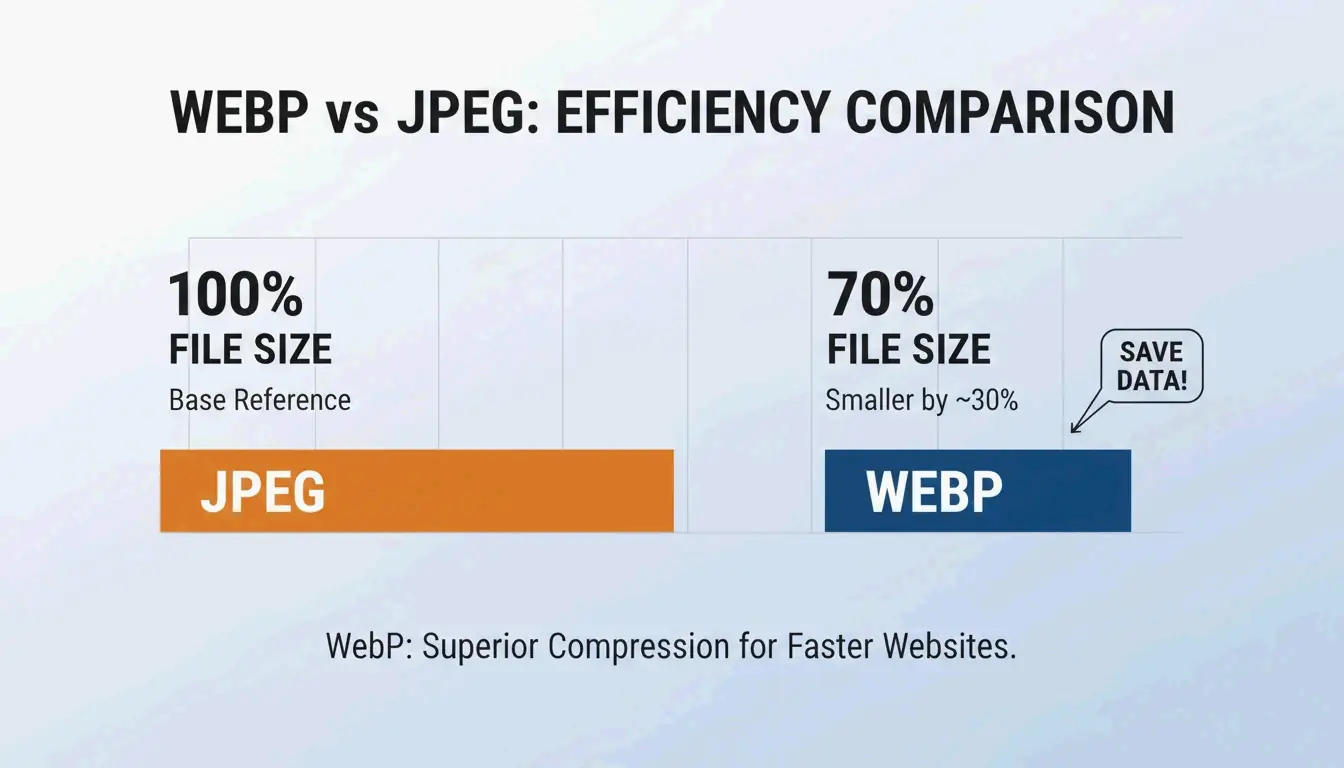
    2. Format Convert to WebP (or AVIF) 25-35% smaller than JPEG at same quality
    3. Quality Set to 70-80% Removes data invisible to the human eye

    Resolution and Dimensions

    For web use, set DPI to 72-96. 300 DPI is for print — it adds no visual benefit on screens but inflates file size. Resize before compressing: a 4000px smartphone photo should be scaled to 1200px (blog) or 1080px (social media). This gives the compression algorithm a manageable base.

    The 70-80% Quality Rule

    Data from Business.com confirms that 70-80% quality (on a 100-point scale) is the sweet spot — significant size reduction with virtually no visible quality loss.

    Visual comparison of the "Sweet Spot" (70-80% quality) vs. Original

    Quality Setting File Size Reduction Visual Impact
    90-100% Minimal (10-20%) Visually identical to original
    70-80% 40-60% (JPEG) Indistinguishable to human eye
    50-60% 60-75% Slight artifacts visible on close inspection
    Below 50% 75%+ Visible pixelation — not recommended

    This directly impacts SEO. Google’s Core Web Vitals (specifically LCP — Largest Contentful Paint) often flags unoptimized images as the primary cause of slow sites. Illustrate Digital (2023) found that a 1-second load time yields 5× higher conversion rates than a 10-second load time for B2B sites.

    WebP vs. JPEG vs. AVIF: Format Comparison

    Format Compression vs. JPEG Browser Support (2026) Best For
    WebP 25-35% smaller 97%+ General web use
    AVIF 50% smaller 92%+ Maximum compression
    JPEG Baseline 100% Universal compatibility
    PNG 2-5× larger than JPEG 100% Transparency, sharp edges

    A SkyToolz Benchmark converted an 8.2MB smartphone JPEG to a 420KB WebP at 80% quality — a 95% size reduction with no visible quality loss.

    Tool Comparison: Free vs. Professional

    Tool Cost Best For Key Feature
    ImageLean Free Quick browser-based compression “Compress to Target Size” for exact file size limits
    Adobe Photoshop Paid Precise manual control Quality slider with live preview in “Export As”
    TinyPNG Free (20 images) Batch processing 60-80% reduction, auto-optimized per image

    Salsify’s 2025 Consumer Research Report found that 42% of shoppers abandon purchases when product images are missing or low-quality — making compression accuracy a revenue concern.

    Photoshop “Export As” Workflow

    1. FileExportExport As
    2. Select format: JPG or WebP
    3. Set quality slider to 70-80
    4. Check estimated file size in the preview window
    5. Export

    3-step Photoshop export workflow

    TinyPNG Batch Processing

    Drag and drop up to 20 images. TinyPNG analyzes each file and applies optimal compression automatically — no manual configuration required.

    Platform-Specific Target Specifications

    Platform Format Max File Size Max Width DPI
    Web blog post WebP < 200 KB 1200px 72-96
    Government portal (e.g., IRCC) JPG / PDF < 2 MB Variable 96
    Email attachment JPG < 1 MB 1000px 72
    Social media (Instagram) JPG / PNG < 500 KB 1080px 72

    For government portals like IRCC, resize to 1200-1500px width and set DPI to 96 before compressing. Tools like ImageLean’s “Compress to Target Size” function hit these limits directly.

    For social media, pre-compress to 1080px width to control quality yourself rather than letting the platform’s algorithm recompress.

    Conclusion

    Compress pictures in three steps: resize to target dimensions, convert to WebP, and set quality to 70-80%. For government uploads, add the 96 DPI constraint. Check your site’s LCP score — if images are the bottleneck, switching to WebP alone can reduce total image weight by 60-80% without visible quality loss.

    FAQ

    How do I compress an image without losing any quality?

    Use lossless compression (PNG-24, OptiPNG) which removes metadata without altering pixels. WebP also maintains near-lossless visual fidelity at file sizes 25-35% smaller than JPEG — appearing “lossless” to the human eye even at lossy settings.

    What is the best JPEG quality setting for website performance?

    70-80 out of 100. This range delivers 40-60% file size reduction with no perceptible quality loss. Below 50, visible pixelation and compression artifacts appear, damaging user trust and brand perception.

    How do I batch compress photos on Windows 10/11?

    For small batches, use the built-in Photos app “Resize” feature. For professional volumes, use Adobe Photoshop’s “Batch Action,” PowerToys Image Resizer, or TinyPNG (up to 20 images per batch, free).

    Why is my compressed image still too large for government portal uploads?

    The pixel dimensions are too high. A 4000px-wide image cannot compress below 500KB with quality settings alone. Per IRCC guidelines, resize to 1200-1500px width and set resolution to 96 DPI before applying compression.

  • Timezone Converter: Accurate Global Time Scheduling with UTC and DST Handling

    Timezone Converter: Accurate Global Time Scheduling with UTC and DST Handling

    A professional timezone converter must sync with the IANA Time Zone Database (400+ zones), apply Daylight Saving Time (DST) automatically, and calculate UTC offsets down to the minute—including non-standard offsets like UTC+5:30 (India) and UTC+5:45 (Nepal). Tools like Time.now pair this data with visual meeting planners for reliable cross-timezone scheduling.

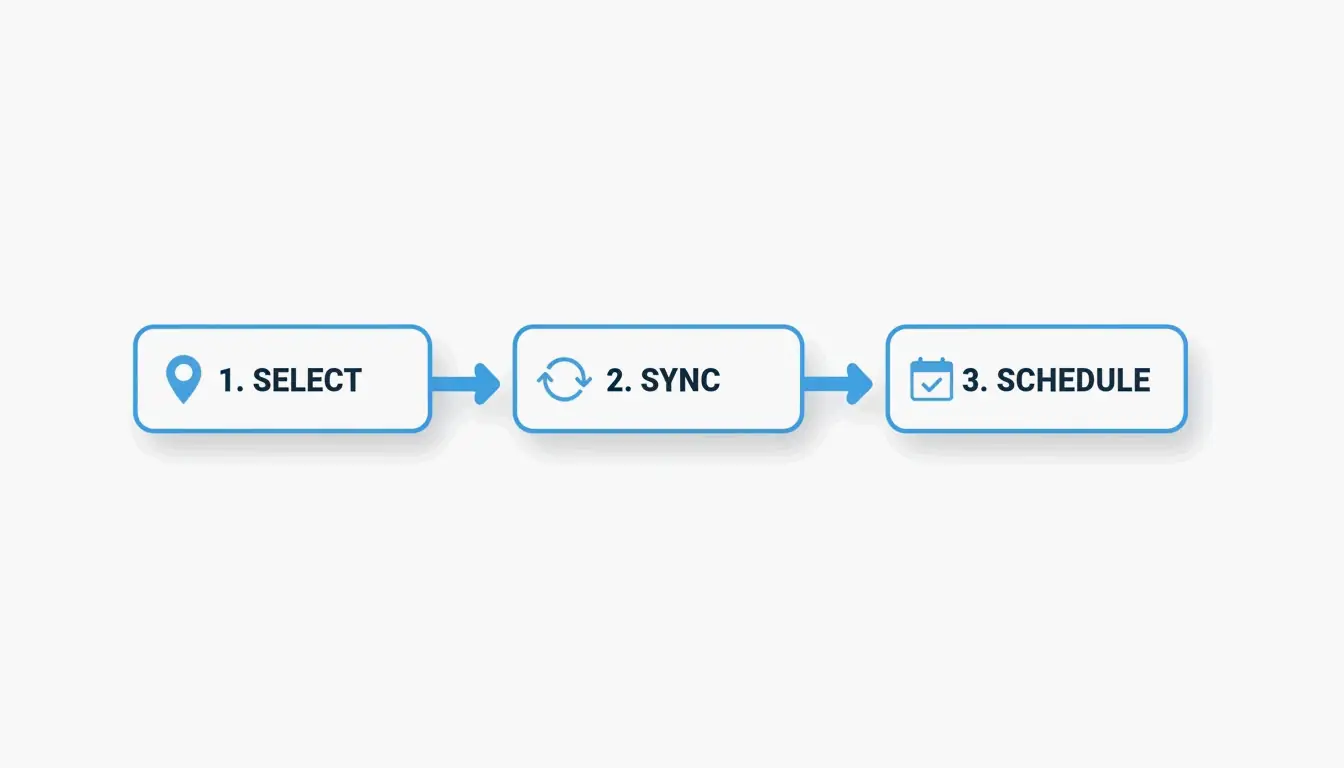
    3-Step Workflow: Select, Sync, Schedule

    The 3-step workflow: Select, Sync, Schedule.

    Step Action Why It Matters
    Select Choose source and target timezones IANA database tracks 400+ zones worldwide
    Sync Apply UTC offset + current DST status 62 locations observe DST as of May 2026
    Schedule Find overlapping “Golden Hours” Avoids midnight meetings and zoom fatigue

    Step 1: Establish the UTC Baseline

    UTC (Coordinated Universal Time) never shifts for DST. Use it as your anchor: Local Time = UTC + Offset + DST Adjustment. This formula stays correct even when local laws change clock rules.

    Step 2: Automate DST Adjustments

    As of May 7, 2026, Time and Date confirms 62 locations are observing DST. A reliable converter handles these shifts automatically—London switches between GMT (UTC+0) and BST (UTC+1) without manual intervention.

    Step 3: Find Golden Hours

    “Golden Hours” are overlapping windows where all participants are within working hours. For teams spanning EST (New York), PST (California), IST (India), and JST (Japan), visual grid planners highlight these slots instantly.

    UTC vs. GMT: Technical Distinction

    Property UTC GMT
    Definition Atomic time standard Time zone for UK/Europe/Africa
    Precision Millisecond-level Second-level
    DST affected Never Yes (UK switches to BST in summer)
    Required for Aviation, finance, servers General scheduling in UK/Africa

    As 24TimeZones notes, UTC and GMT are functionally identical for casual use. For technical logs, financial trades, and Unix systems, UTC is the required standard. Unix Time counts seconds since January 1, 1970 (Epoch), giving servers a timezone-independent reference.

    DST Status in 2026: What Still Changes

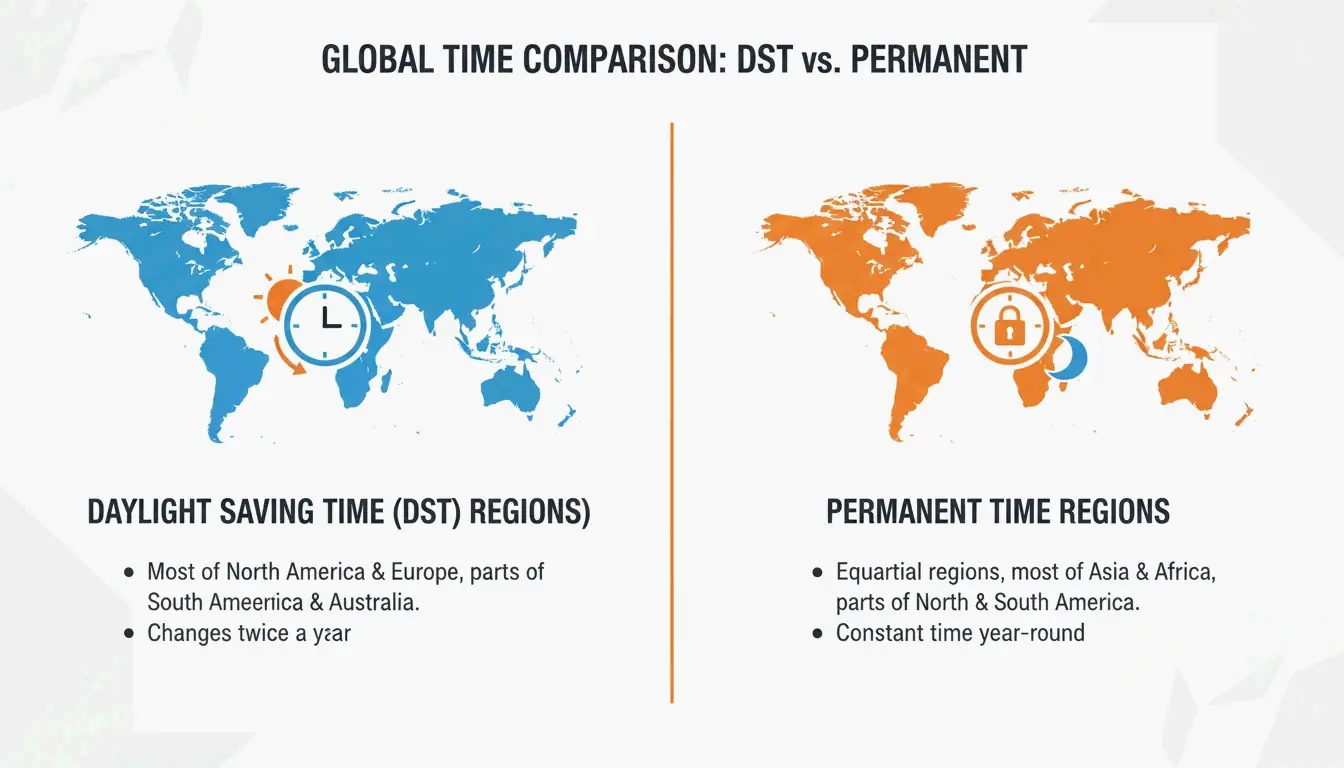
    Despite legislative efforts like the U.S. Sunshine Protection Act and EU proposals to end biannual clock changes, DST remains active in many regions.

    Visual contrast between DST-observing regions and Permanent Time regions.

    Category Regions DST Status (May 2026)
    DST active US, Canada, EU, parts of Australia +1 hour offset applied
    Permanent Time Arizona (US), China, India, Japan, most of Africa/Africa No seasonal shift

    When using a converter, look for a “Permanent Time” label to confirm a location does not shift clocks.

    Non-Standard Timezone Offsets

    Not all timezones shift by whole hours. Common non-standard offsets:

    Offset Region Note
    UTC+5:30 India (IST) 30-minute offset
    UTC+5:45 Nepal (NPT) 45-minute offset
    UTC+9:30 Australia (ACST) Northern Territory, South Australia
    UTC+3:30 Iran (IRST) 30-minute offset

    Always verify these zones when scheduling “on the hour” — a meeting set for 9:00 AM in New York is 6:30 PM in Mumbai, not 7:00 PM.

    AI-Powered Timezone Workflows

    Modern teams use AI Time Assistants to eliminate manual conversion:

    • Natural language scheduling: “Schedule a 30-minute sync with Tokyo and London for next Tuesday morning” — the AI checks IANA data and finds the best overlap automatically.
    • Slack/Teams integration: Auto-update your status based on local time and working hours.
    • Offline sync: Apps like World Clock: Timezone Converter cache timezone data for use without Wi-Fi.

    For high-stakes coordination — like the Hubble 36th Anniversary scientific event — synchronized time standards are non-negotiable across global observatories.

    Conclusion

    Use an IANA-backed timezone converter that applies UTC offsets and DST adjustments automatically. For team scheduling, a visual “Golden Hours” planner outperforms a basic converter by showing overlapping working windows. For the highest throughput, integrate an AI Time Assistant into your existing Slack or Teams workflow. Always double-check non-standard offsets (UTC+5:30, UTC+5:45) before confirming meeting times.

    FAQ

    What is the difference between GMT and UTC?

    UTC is an atomic time standard with millisecond precision, used globally by technology and science. GMT is a specific timezone used by the UK (in winter) and parts of Africa. For scheduling, they are functionally identical. For aviation, finance, and server logs, UTC is the required standard.

    Which countries do not observe DST?

    Most of Asia (China, India, Japan), Africa, and South America do not observe DST. In the US, Arizona (except the Navajo Nation) stays on standard time year-round. Look for a “Permanent Time” label in your converter to confirm.

    How do 30-minute and 45-minute timezone offsets work?

    Regions like India (UTC+5:30) and Nepal (UTC+5:45) use fractional offsets. Modern converters using the IANA database handle these automatically. When scheduling across these zones, double-check the exact local time — a one-hour scheduling assumption can put you 30 minutes late.

  • How to AI Prompt with BeConverter: Reverse Engineer Any Visual in 4 Steps

    How to AI Prompt with BeConverter: Reverse Engineer Any Visual in 4 Steps

    Upload an image to BeConverter, let its Vision-Language Model (VLM) decompose the visual into style tokens, then paste the extracted prompt into Midjourney, Stable Diffusion, or FLUX. That is the complete workflow for turning any visual into a reproducible AI prompt—no guesswork required.

    What Is Reverse Prompting and How Does BeConverter Work?

    Reverse prompting converts pixels back into text a generative model can understand. Instead of writing a prompt from scratch and hoping the output matches a reference, you start with the finished image and extract the exact keywords, lighting conditions, and aesthetic tags that define its look.

    BeConverter uses a Vision-Language Model (VLM) to analyze an image’s artistic properties. The model compares your photo against its training data to classify attributes like rendering style (3D vs. oil painting), lighting setup (volumetric vs. ambient), and composition. The result is a structured text prompt you can feed into any image generator.

    VLM vs. OCR: Why Standard Scanning Cannot Read Art

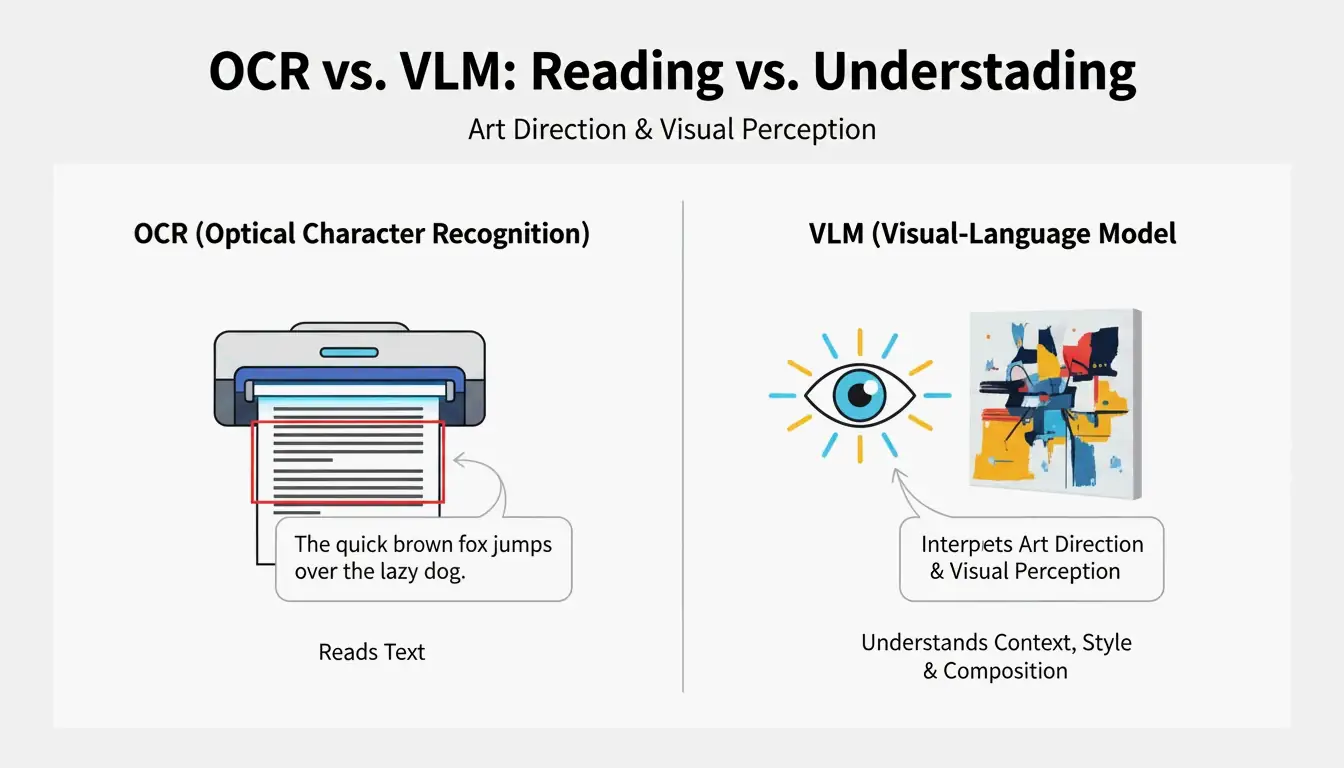
    Optical Character Recognition (OCR) reads text—letters, numbers, receipts. A VLM reads art direction. As PromptsEra explains, where OCR sees the word “STOP” on a sign, a VLM detects the octagonal shape, the faded red paint, the depth of field, and the angle of the sun—details essential for visual reproduction.

    Simple comparison between OCR (text focus) and VLM (artistic focus)

    Capability OCR VLM
    Reads text Yes Limited
    Identifies lighting No Yes
    Detects composition style No Yes
    Extracts color grading No Yes
    Outputs prompt-ready text No Yes

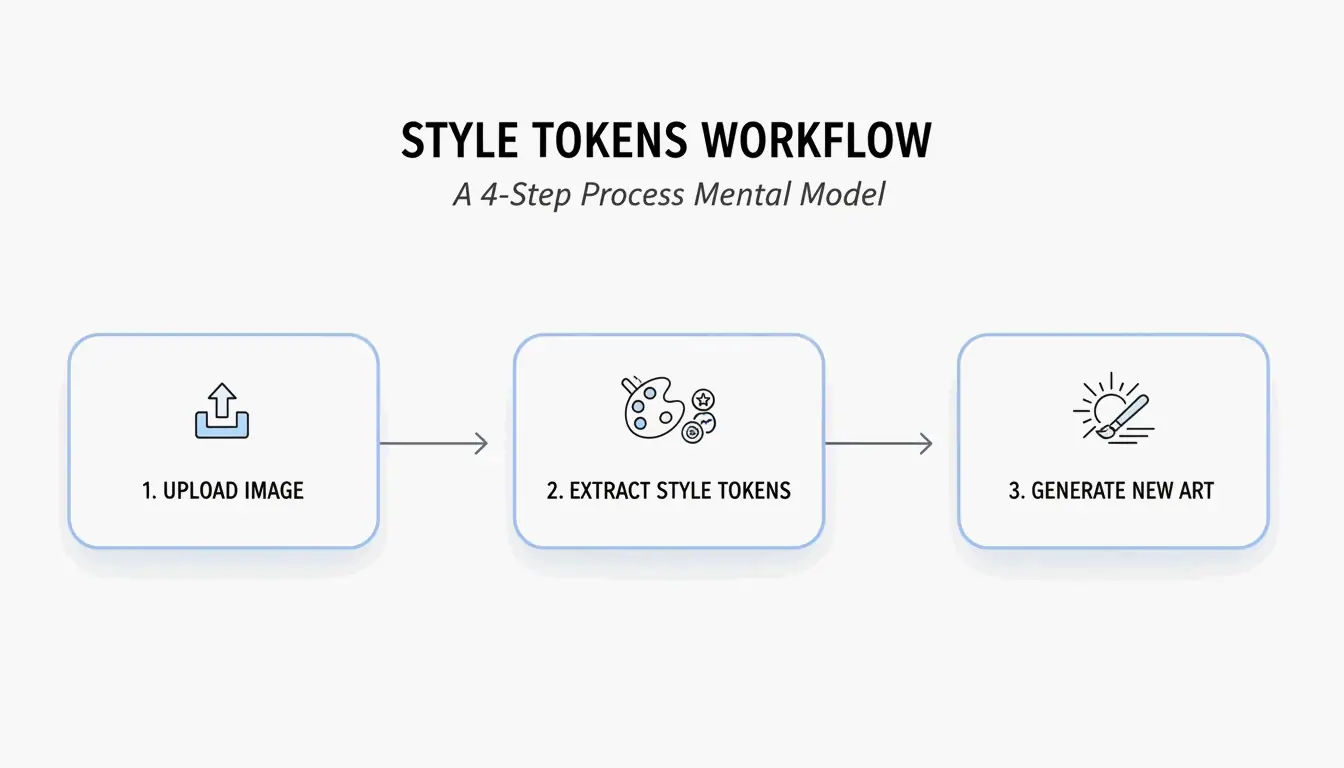
    4-Step Workflow: How to AI Prompt with BeConverter

    Based on the Style Token Isolation Strategy from PromptsEra, follow this sequence:

    1. Upload your source image — Use a high-resolution file. The VLM needs clear pixels to detect subtle attributes like “volumetric lighting” or “35mm lens grain.”
    2. Choose your interrogator — Select CLIP Interrogator for descriptive, poetic prompts (ideal for Midjourney) or DeepDanbooru for comma-separated tags (ideal for Stable Diffusion).
    3. Isolate style tokens — Delete the subject tokens (e.g., “a cat”) and retain only the style markers (e.g., “cyberpunk, neon rim lighting, 8k, cinematic depth of field”).
    4. Paste into your generator — Copy the cleaned tokens into Midjourney v7, Stable Diffusion, or FLUX and generate.

    3-step core workflow: Upload -> Extract Tokens -> Generate New

    Adapting Prompts for 2026 Models: FLUX vs. Midjourney

    Each model interprets prompts differently. PromptsEra notes that abstract descriptions like “melancholy atmosphere” work well in Midjourney but fail in FLUX, which requires literal spatial descriptions like “dark room with rain hitting the window, overhead fluorescent light casting long shadows.”

    Prompt Style Midjourney v7 FLUX Stable Diffusion
    Abstract/poetic Strong Weak Moderate
    Literal/spatial Moderate Strong Moderate
    Comma-separated tags Moderate Moderate Strong
    Negative prompts Supported (--no) Supported Supported

    The Frankenstein Strategy: Merging Styles from Multiple Images

    The most effective reverse engineering technique combines style tokens from different sources. Use BeConverter to extract lighting from Image A and subject rendering from Image B, then merge them into a single prompt.

    Key controls for consistent merging:

    • Aspect Ratio — Set explicitly (e.g., --ar 16:9 for Midjourney) since reverse tools cannot infer your intended canvas.
    • Negative Prompts — Always add exclusions like “blurry, deformed, low quality.” Reverse tools only detect what is present; they cannot identify what should be absent.

    As Andrew Lo, Director of MIT’s Laboratory for Financial Engineering, advises: “Always ask the LLM, what are you uncertain about? What information are you missing?” Apply the same principle—identify the gaps in your reconstructed prompt before generating.

    BeConverter vs. Zemith vs. PromptShot: Tool Comparison (2026)

    Feature BeConverter Zemith PromptShot AI
    Interrogator modes CLIP + DeepDanbooru Multi-model (25+) Single-pass
    Daily free credits Yes 100 Unlimited
    Sign-up required No Yes No
    Best for Token isolation All-in-one workflow Quick extractions
    Output format Descriptive + tags Model-specific Prompt string

    Additional options worth noting:

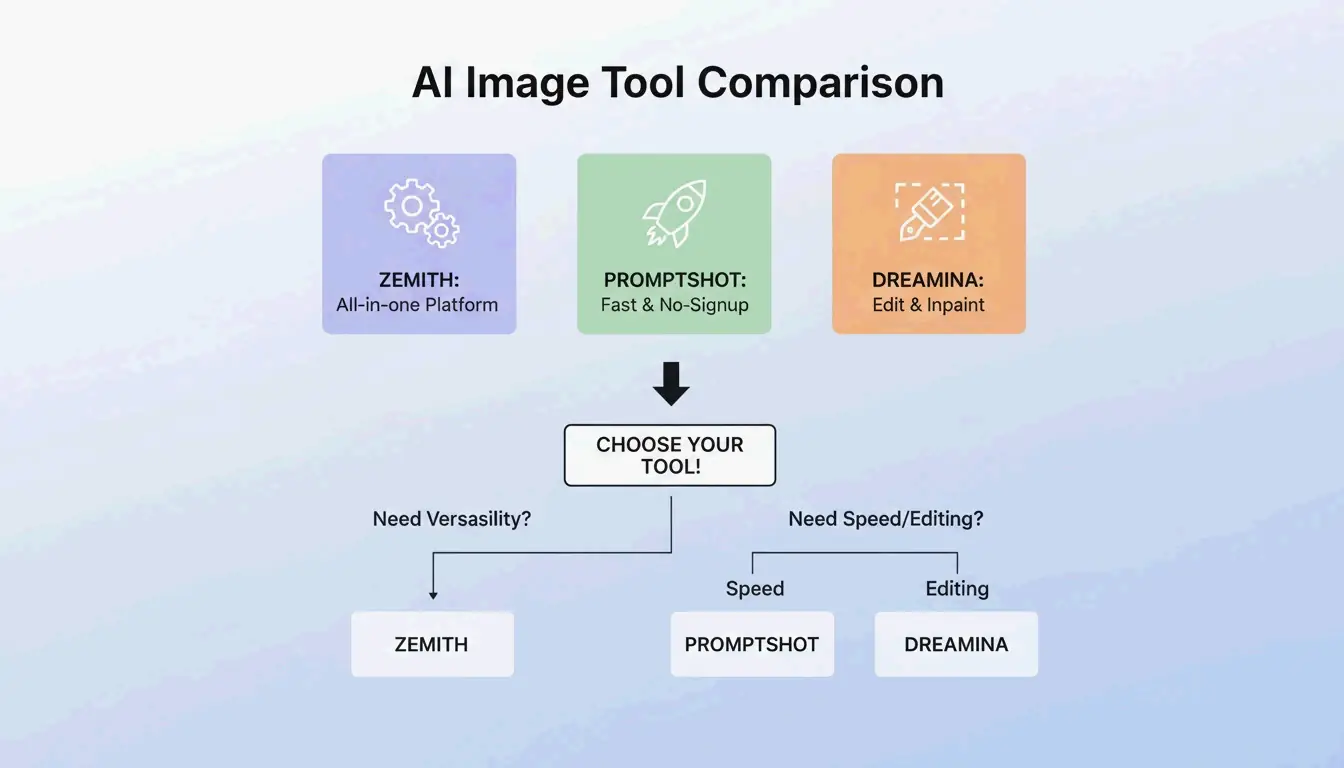
    • Zemith — Over 30,000 users as of 2026. According to Zemith, it supports 25+ models including GPT-5.5 with 100 daily credits.
    • PromptShot AI — No account needed. PromptShot AI offers a 5-step process designed for creators who need to “recreate and improve” AI art quickly.
    • Dreamina (GPT Image 2) — Generate and edit in one window. According to Dailyhunt, the GPT Image 2 model supports inpainting and lighting adjustments directly after prompt generation.

    Key highlights/strengths of the three mentioned tools

    Conclusion

    Reverse prompting with BeConverter converts any reference image into a structured, reusable AI prompt in seconds. Upload your image, extract style tokens with CLIP or DeepDanbooru, isolate the artistic attributes, and paste into your generator of choice. For best results, adapt the prompt format to your target model—abstract for Midjourney, literal for FLUX, tag-based for Stable Diffusion—and always include negative prompts to maintain output quality.

    FAQ

    Can reverse prompting recover the exact original prompt used by another creator?

    No. It reconstructs a descriptive approximation based on visual analysis. Different VLM models prioritize different attributes, so the output is a high-quality reconstruction—not hidden metadata or keystroke recovery.

    Does image-to-prompt technology work on real smartphone photographs?

    Yes. PromptsEra notes that VLMs can identify real-world attributes like “golden hour lighting” or specific camera lenses and translate those textures into prompts for artistic reinterpretation.

    Is it legal to use prompts extracted from copyrighted artwork?

    Prompts are short text strings and are not typically covered by copyright. The ethical approach is to extract style tokens to inform your own original work. As PromptsEra points out, attempting to exactly replicate a protected character can create legal issues—use these tools to learn techniques, not to copy.

  • How to Listen to Articles: 7 Best Ways to Hear the Web in 2026

    How to Listen to Articles: 7 Best Ways to Hear the Web in 2026

    To listen to articles in 2026, use AI-driven tools like Speechify (1,000+ voices, 4.5x speed) or built-in browser TTS like Edge Read Aloud (free, natural-sounding). Modern neural TTS makes articles sound like professional podcasts, with conversational AI features for real-time Q&A.

    7 Methods Compared

    # Tool/Method Cost Best For Max Speed
    1 Speechify Freemium Professional productivity, multi-format 4.5x
    2 Noa (News Over Audio) Subscription Curated journalism (FT, Bloomberg, NYT) 2x
    3 Podcast Conversion Varies PDFs, long documents, students 2–3x
    4 Edge Read Aloud Free Quick browser listening, best free voices 2x
    5 Chrome “Listen to this Page” Free Mobile web browsing 2x
    6 News in Levels Free English learners (3 difficulty levels) Adjustable
    7 Pocket / Instapaper Freemium Save-for-later with audio sync 2x

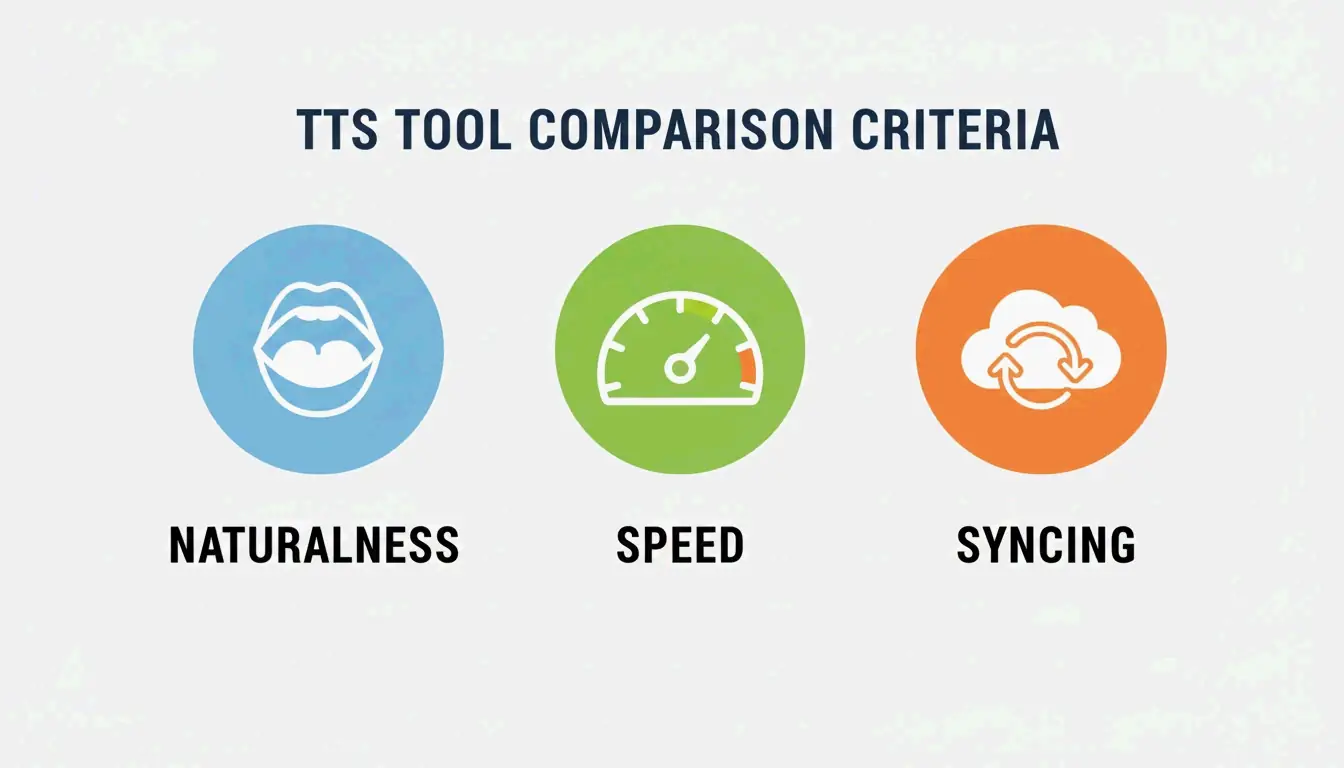
    A clean comparison of the three core evaluation pillars: Naturalness, Speed, and Syncing.

    Evaluation Criteria

    Factor What to Look For Why
    Voice naturalness Neural models with emotion and rhythm Handles jargon, sounds like a podcast
    Speed range Up to 4.5x without distortion Productivity expert Ali Abdaal advocates speed listening for efficient learning
    Cross-device sync Desktop ↔ mobile progress tracking Seamless transition between devices

    Method 1: Speechify — The Leader

    Per Speechify: 55 million users, 1,000+ voices, 60+ languages.

    Feature Detail
    Platforms iOS, Android, Mac, Windows, Chrome
    Input formats PDFs, emails, web articles, photos of text
    Celebrity voices Snoop Dogg, Gwyneth Paltrow, and others
    2026 additions Voice Typing (dictate while listening), Fast Answers (AI quizzes)
    Speed Up to 4.5x with clear articulation

    Method 2: Noa — Curated Journalism

    Noa provides human-narrated articles from premium publishers.

    Feature Detail
    Sources Financial Times, Bloomberg, The Economist, NYT
    Curation Human editors create themed “Series” (e.g., “The State of AI in 2026”)
    Best for Deep-dive journalism, multi-angle topic coverage

    Method 3: Podcast Conversion

    Turn long documents into structured audio with intro, summary, and host narration.

    Feature Detail
    Input 50-page legal briefs, medical journals, research papers
    Output MP3 or private RSS feed for podcast players
    Voice cloning Record seconds of your voice → use as narrator
    Accessibility Helps dyslexia and visual impairment with familiar voices

    Build a Daily Audio Briefing (Pro Workflow)

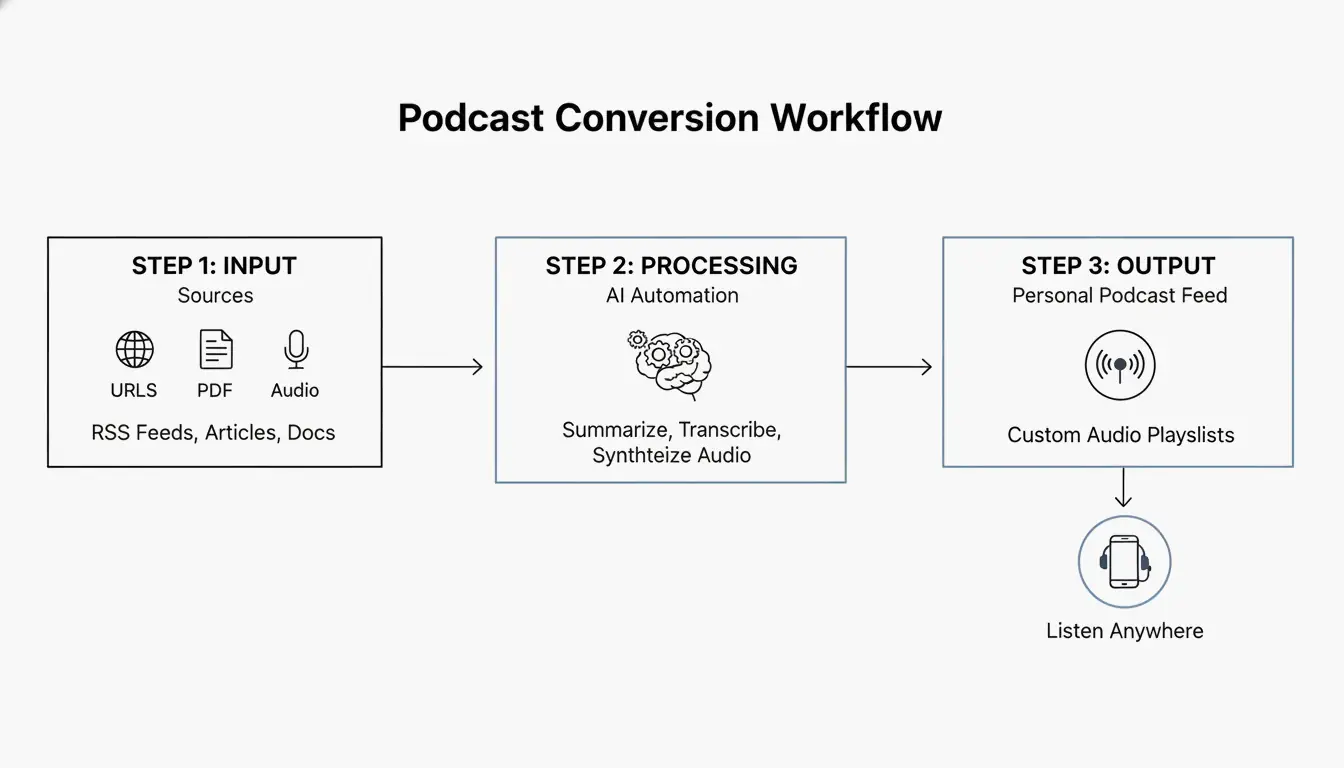
    A 3-step workflow: Content Collection -> AI Processing/Summarization -> Audio Stream.

    1. Collect — RSS feeds, newsletters, saved links into one queue
    2. Summarize — AI generates 5-minute executive summary (like The Washington Post’s ‘The 7’ — 10-minute daily briefing)
    3. Listen — Private audio feed plays like a custom radio station
    4. Ask — “Ask While Listening” feature: interrupt for context, then resume

    Free Options: Built-in Browser TTS

    Browser Feature Voices Offline
    Microsoft Edge Read Aloud Natural voices (free) With language packs
    Google Chrome (mobile) “Listen to this page” Multiple regional accents Requires connection
    macOS/iOS Spoken Content (Accessibility) System voices Yes
    Android Select to Speak Google TTS voices With language packs

    Conclusion

    For maximum productivity, use Speechify at 4.5x speed. For curated journalism, use Noa. For free listening, Edge Read Aloud offers the best natural voices. Start by installing a browser extension and turn your next commute into a learning session.

    FAQ

    Can I listen to articles offline?

    Yes — Speechify and Noa support offline downloads via Wi-Fi. Browser TTS (Edge, Chrome) typically requires an active connection unless you download local language packs through OS settings.

    How do I turn a PDF into a podcast?

    Upload the PDF to Speechify or a podcast converter → use AI to generate a summary script → select “Export to Podcast” or “Create Audio File” → get an MP3 or private RSS feed for any podcast player.

    Are there free natural-sounding AI voices?

    Yes. Microsoft Edge “Read Aloud” offers free Natural voices comparable to paid services. Chrome mobile’s “Listen to this page” also provides high-quality narration. For technical users, open-source TTS models on Hugging Face generate quality audio without subscriptions.

  • Creating Electronic Resumes: How to Perfectly Convert Word to PDF (2026)

    Creating Electronic Resumes: How to Perfectly Convert Word to PDF (2026)

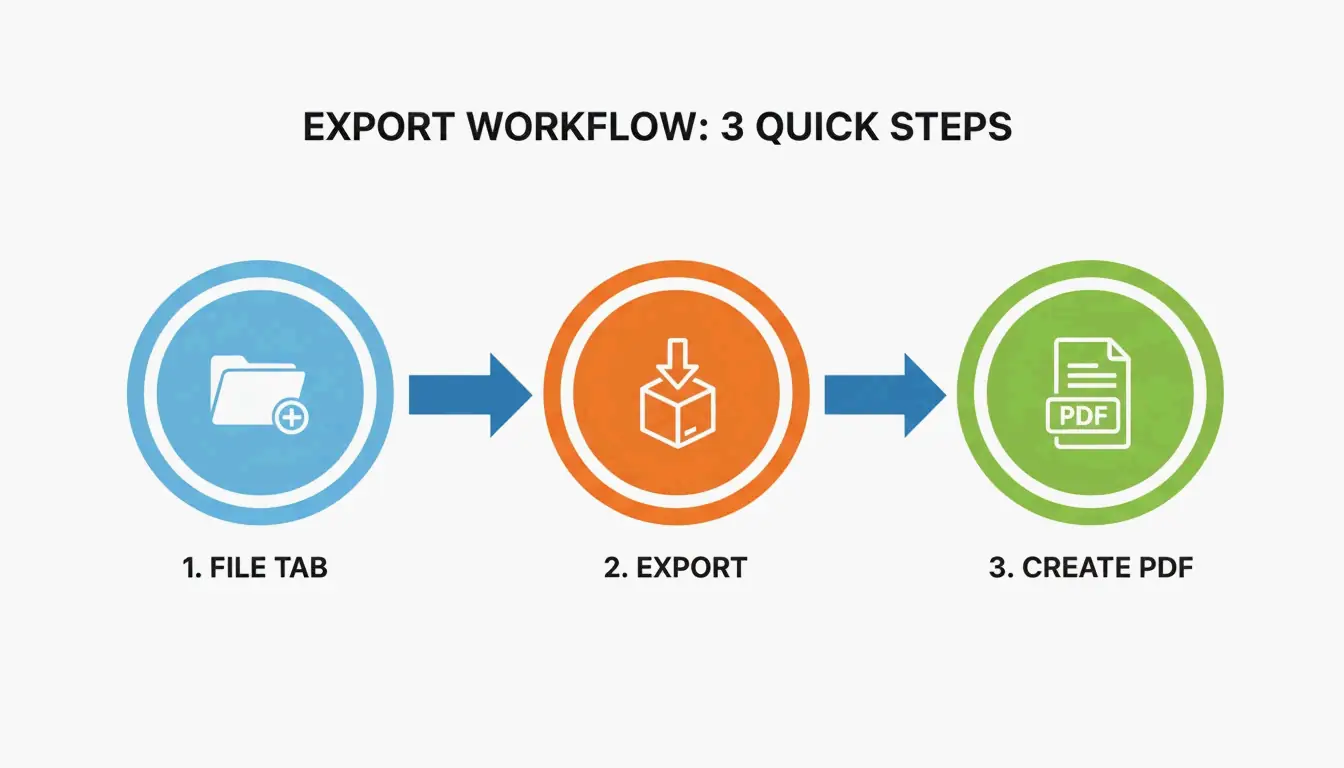
    To convert a Word resume to PDF, open the document in Microsoft Word → File → Export → Create PDF/XPS. Select “Standard (publishing online and printing)” for best quality. This preserves formatting, keeps hyperlinks active, and ensures ATS readability.

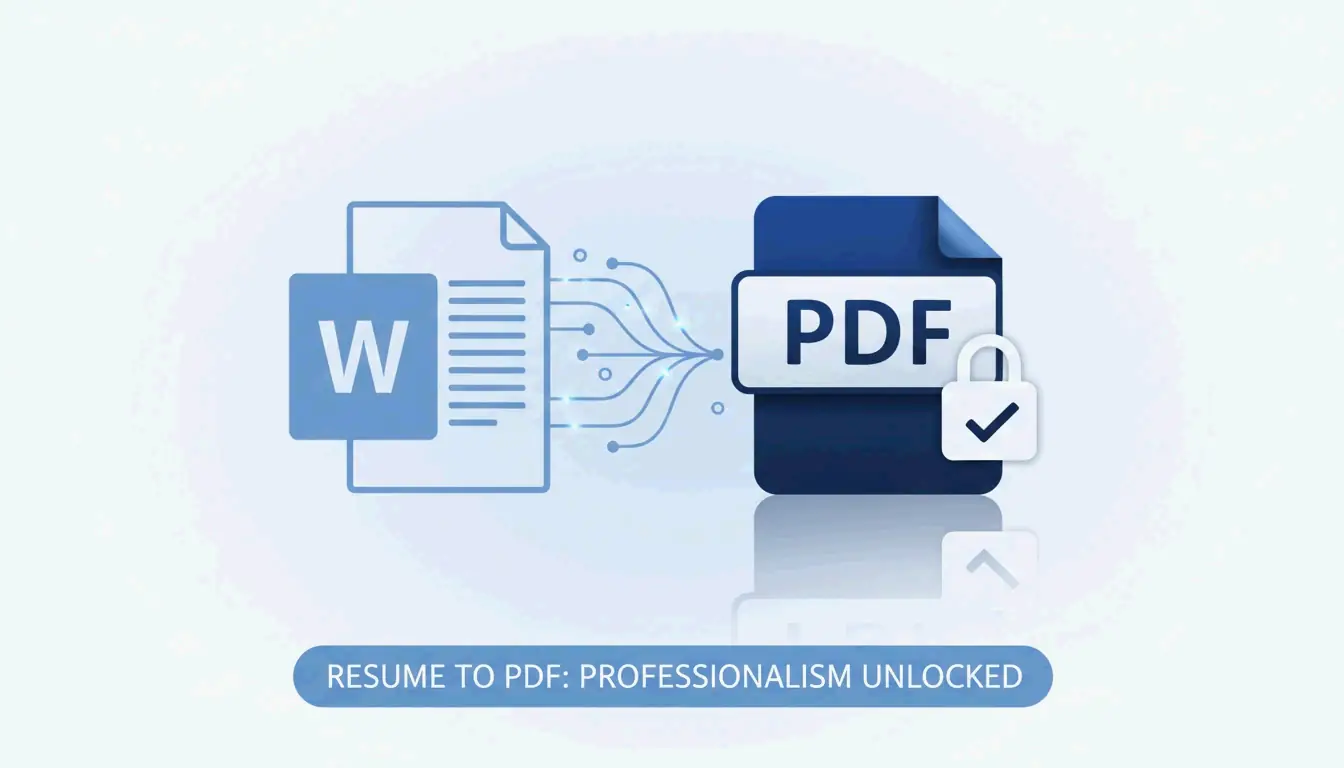
    Word to PDF: 6-Step Export

    Step Action Why
    1 Open final draft in Microsoft Word Use your master .docx file
    2 Click File tab Top-left corner
    3 Select Export (or Save As) Both paths work
    4 Choose PDF (*.pdf) format From dropdown
    5 Select “Standard” optimization Preserves metadata + hyperlinks
    6 Click Publish Done

    A simple 3-step visualization of the Word-to-PDF export process.

    Critical: Use Export or Save As — never “Print to PDF”, which flattens hyperlinks and can alter layout.

    Why PDF Over DOCX for Resumes

    Factor DOCX PDF
    Formatting consistency Varies by device/software Locked — identical everywhere
    Font rendering Depends on installed fonts Embedded in file
    Spell-check lines Red/blue squiggles visible Removed — clean output
    Hyperlinks Active Active (via Export)
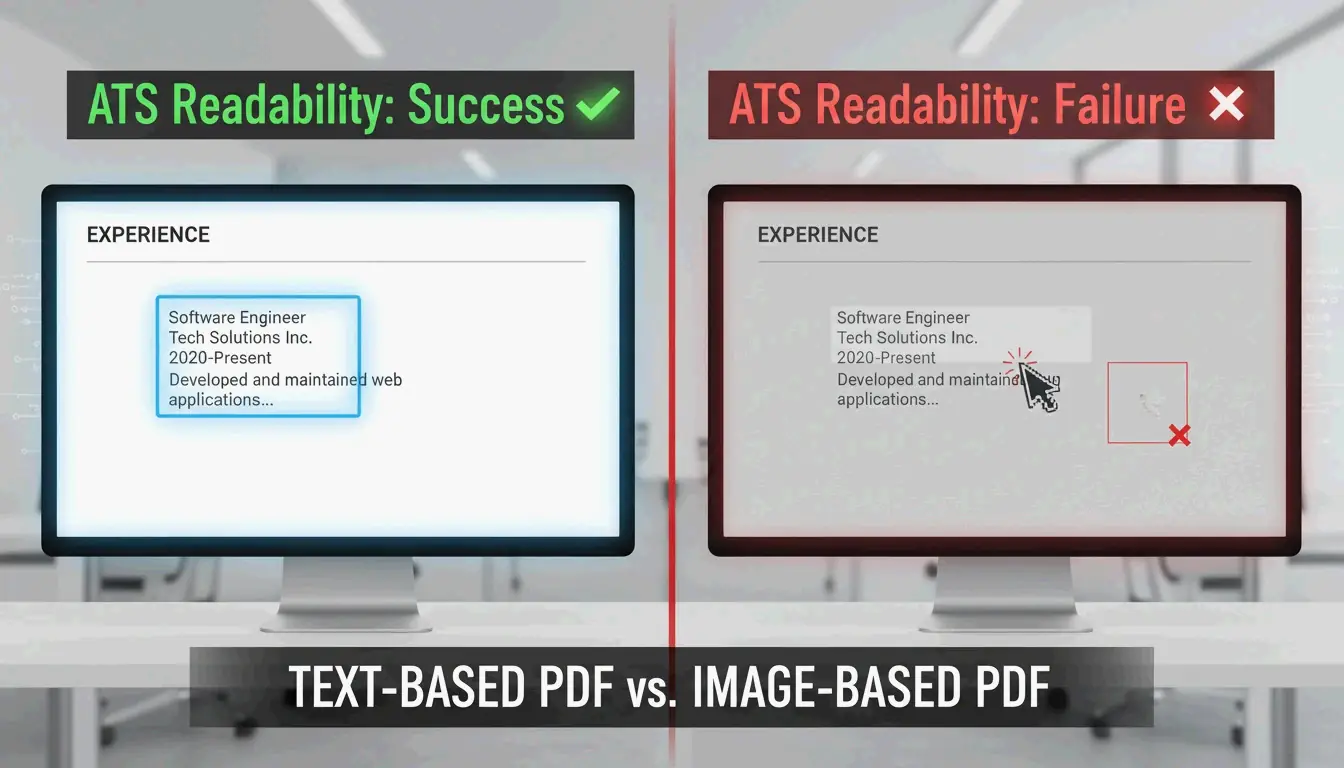
    ATS readability Good Good (if text-based)
    File tampering Easy to edit Locked

    Doroteya Vasileva, CPRW at Enhancv confirms PDFs eliminate formatting drift and spell-check artifacts.

    ATS Compatibility: The 5-Second Test

    Modern ATS reads text-based PDFs without issue. Verify with this quick test:

    1. Open your PDF
    2. Highlight a sentence with your mouse
    3. Copy the text
    4. Paste into Notepad (Windows) or TextEdit (Mac)
    Result Meaning ATS Status
    Readable text Text-based PDF Pass — ATS-friendly
    Gibberish / symbols Encoding issues Fail — fix source document
    Can’t select text Image-based PDF Fail — ATS will reject

    Per Enhancv, keep margins at 0.5–1.0 inch to prevent ATS from clipping edge text.

    A visual metaphor for 'Readability'—comparing clear text vs. unreadable image data.

    Export Method Comparison

    Method Hyperlinks Layout Accuracy ATS Readable
    File → Export Preserved High Yes
    File → Save As PDF Preserved High Yes
    Print to PDF Lost May shift Possibly
    Online converter Varies Varies Varies

    Always use Export or Save As — never Print to PDF.

    Alternative Tools

    Tool Best For Limitation
    Microsoft Word (desktop) Full control, hyperlinks Requires license
    Google Docs (File → Download → PDF) Free, basic resumes Complex layouts may break per IBTimes UK
    pdfFiller Batch conversion, eSignatures 12,500+ G2/Capterra reviews
    Adobe Acrobat DC PDF editing, password protection Paid

    Mobile Rendering Check

    Recruiters often scan resumes on phones. Before submitting:

    1. Email the PDF to yourself
    2. Open on your phone in Adobe Acrobat DC or default viewer
    3. Verify: font readable, text boxes intact, no layout collapse
    4. Test hyperlinks: LinkedIn, portfolio links still clickable

    Resume Formatting Best Practices

    Setting Recommendation
    Margins 0.5–1.0 inch (prevents ATS clipping)
    Fonts Standard system fonts (Arial, Calibri, Times New Roman)
    Text boxes Avoid floating — may not convert cleanly
    Images Avoid — ATS can’t read text inside images
    File name FirstName_LastName_Resume.pdf
    File size Under 1 MB for email/portal uploads

    Conclusion

    File → Export → PDF in Microsoft Word preserves formatting, hyperlinks, and ATS readability. Always run the 5-second Notepad test to verify text-based output. Check mobile rendering before submitting. Keep your master .docx for future edits, but always send the PDF.

    FAQ

    What if my layout changes after converting to PDF?

    Use standard system fonts (Arial, Calibri) that embed correctly. Avoid floating text boxes and complex graphics. Per Enhancv, stick to 0.5–1.0 inch margins to prevent content clipping during conversion.

    Are hyperlinks still clickable after saving as PDF?

    Yes — if you use Export or Save As. “Print to PDF” flattens the document and strips all hyperlinks. Always test links in a PDF viewer before submitting.

    Should I submit PDF or DOCX for ATS?

    PDF is preferred — it protects your visual branding. Only use DOCX if the job description explicitly requires it. Modern ATS handles both formats well, but always verify PDF readability with the Notepad test.

  • How to Embed Images into HTML Code Base64 Quickly (2026)

    How to Embed Images into HTML Code Base64 Quickly (2026)

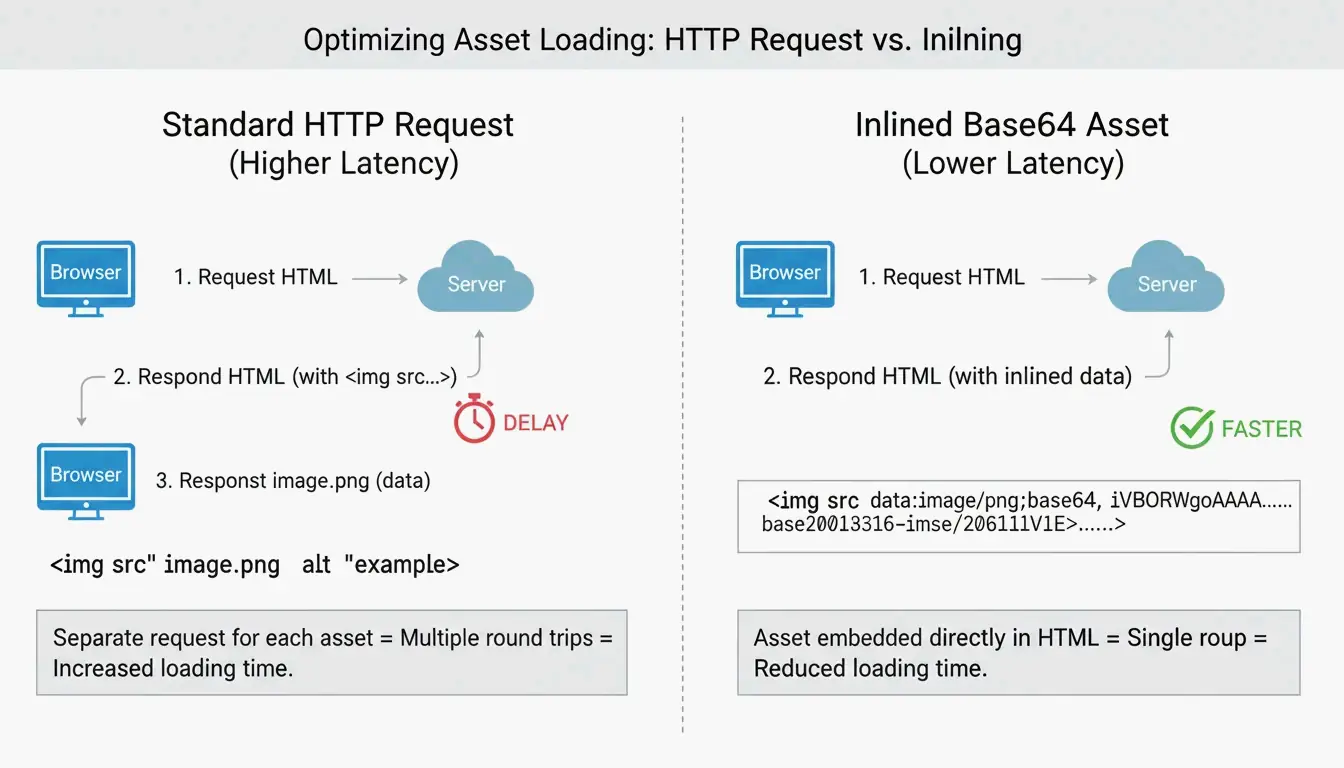
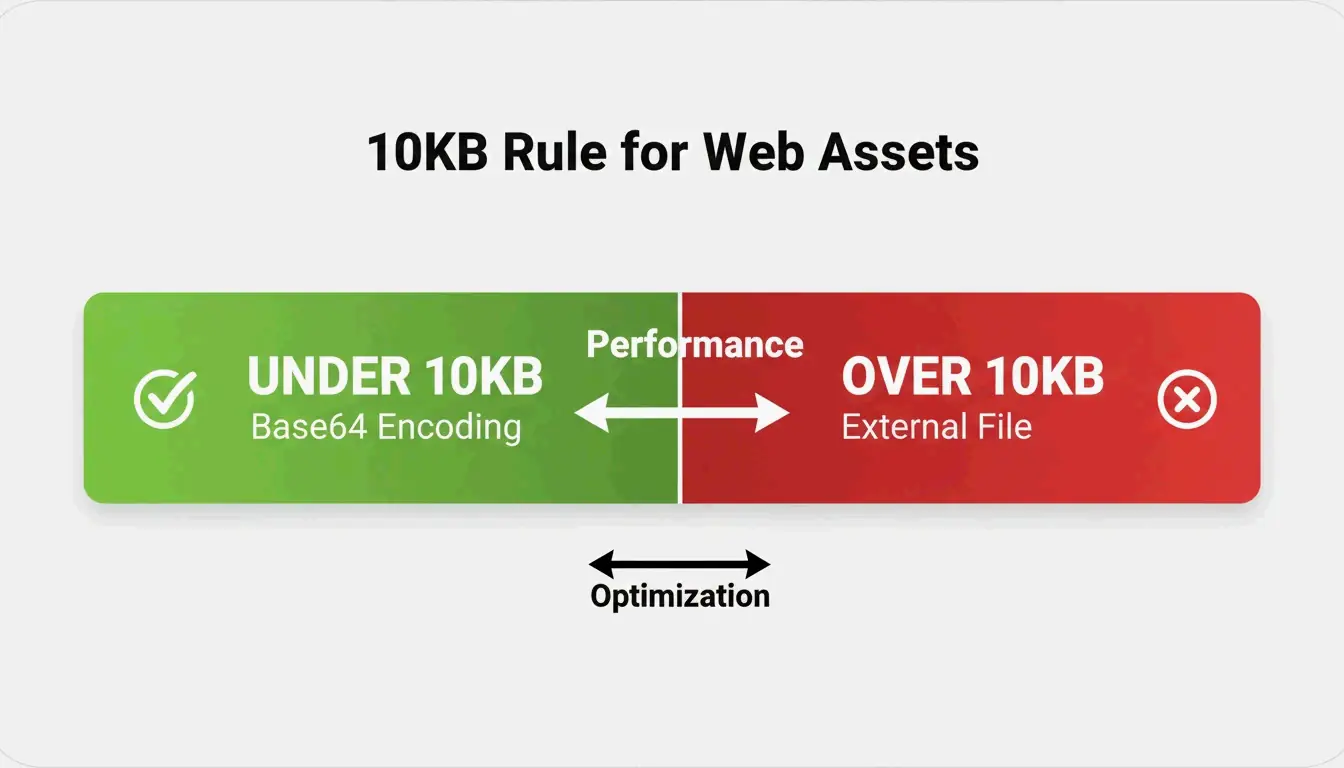
    To embed images in HTML using Base64, convert the image to a Data URI string and place it in the <img> src attribute or CSS background-image property. This eliminates HTTP requests but adds a 33% size overhead — only use for assets under 10 KB.

    Two Methods: HTML and CSS

    Method 1: HTML <img> Tag

    Per DebugBear, the standard format:

    data:image/[format];base64,[encoded_string]
    

    Best for: small logos, above-the-fold icons that must render instantly.

    Method 2: CSS background-image

    background-image: url(data:image/png;base64,PHN2ZyB4bWxucz...);
    

    Per FreeConverto, this works well for navigation icons and buttons — they render the moment CSS is parsed.

    Format Prefixes

    Image Format Data URI Prefix
    PNG data:image/png;base64,
    JPEG data:image/jpeg;base64,
    WebP data:image/webp;base64,
    SVG data:image/svg+xml;base64,
    GIF data:image/gif;base64,
    AVIF data:image/avif;base64,

    Comparison of traditional HTTP request vs. Base64 inlining

    The 33% Size Overhead

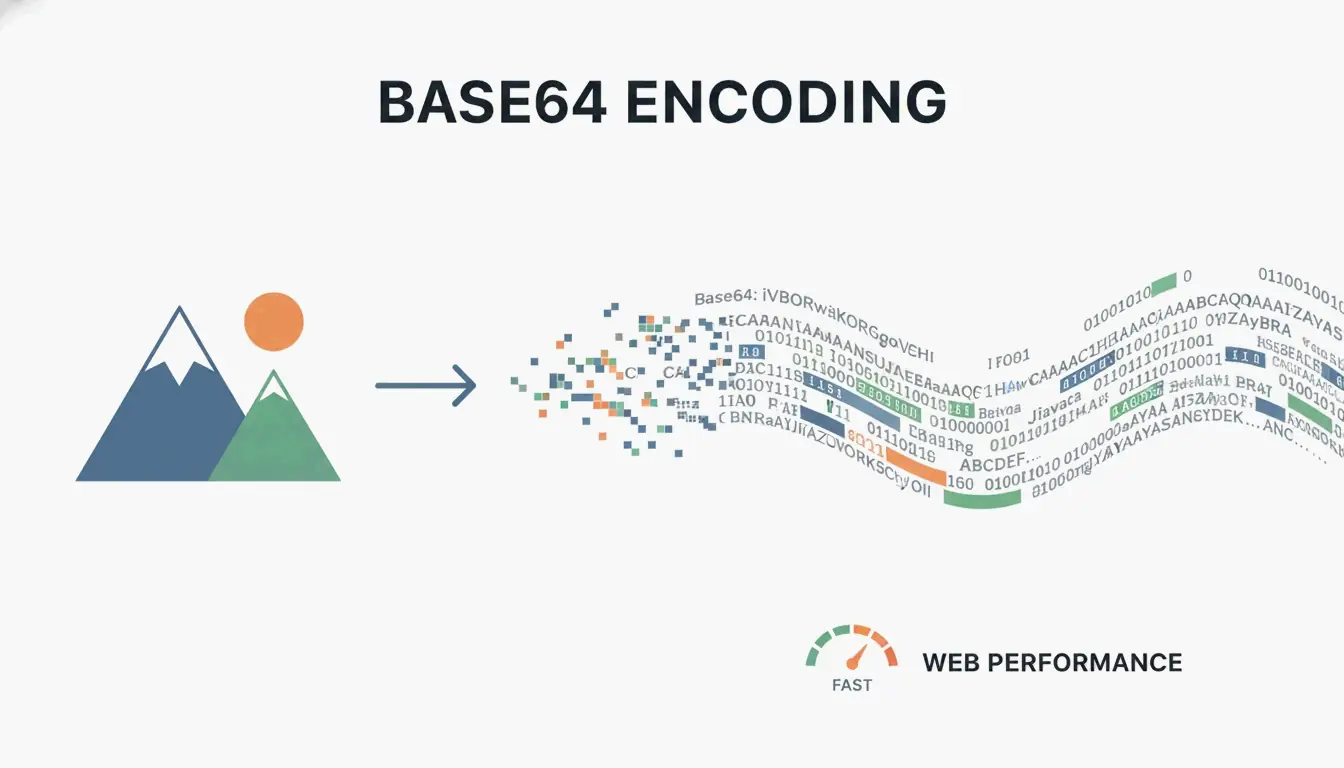
    Per Wikipedia, Base64 encoding increases file size by ~33% because it represents binary data using only 64 ASCII characters.

    Original File Base64 Size Overhead
    1 KB ~1.33 KB +0.33 KB
    5 KB ~6.67 KB +1.67 KB
    10 KB ~13.3 KB +3.3 KB
    50 KB ~66.7 KB +16.7 KB
    100 KB ~133 KB +33 KB
    500 KB ~667 KB +167 KB

    The 10KB Rule

    Per FreeConverto, keep Base64 assets under 5–10 KB. Above 10 KB, the size overhead hurts performance more than the saved HTTP request helps.

    Impact on Core Web Vitals

    A DebugBear analysis showed that HTML files exceeding 1 MB from embedded images cause browser parsing delays, hurting Largest Contentful Paint (LCP).

    The 10KB decision threshold for Base64

    Efficiency Tip: Convert to WebP First

    Per FreeConverto, convert images to WebP before Base64 encoding. WebP is more compressed than PNG/JPEG, producing a shorter Base64 string.

    Format Original Size Base64 Size
    PNG icon 8 KB ~10.7 KB
    WebP (same icon) 4 KB ~5.3 KB

    WebP + Base64 = half the string length of PNG + Base64.

    Automation Tools

    Tool Method Security
    VS Code Extension (“Image to Base64”) Right-click → copy Base64 string Local
    FreeConverto Browser-based FileReader API Files never leave your device
    Node.js script CI/CD build process automation Local/server

    When to Use vs. Avoid Base64

    Use Base64 When Avoid Base64 When
    Small UI icons (< 10 KB) Large photos (> 10 KB)
    Above-the-fold critical assets Images repeated across multiple pages
    Email HTML templates (blocked external images) Assets that benefit from browser caching
    Single-use decorative elements SVGs (use raw XML instead — smaller + compressible)

    Per JustUse.me, Base64 is particularly valuable for email templates where many clients block external images by default.

    Conclusion

    Use Base64 embedding for small UI assets under 10 KB — convert to WebP first for the shortest strings. Keep large photos and shared assets as external files for caching. For email templates, Base64 ensures images display without user interaction.

    FAQ

    Why is Base64 code so long?

    Base64 represents binary data using only 64 ASCII characters — less efficient than binary storage. Every pixel and color value translates into multiple text characters, adding ~33% overhead. High-resolution images produce massive strings.

    Does Base64 provide security or encryption?

    No. Base64 is encoding, not encryption. Per FreeConverto, it’s easily reversible — anyone with the string can decode it instantly without a key. Never rely on it for protecting image content.

    Can I use Base64 for large photographs?

    Highly discouraged. Large Base64 strings bloat HTML/CSS, delay rendering, and hurt SEO. Per DebugBear, they block critical resource loading. Use external files with caching and lazy loading instead.

  • How to Convert Square Meters to Acres & Hectares: US Buyer’s Guide (2026)

    How to Convert Square Meters to Acres & Hectares: US Buyer’s Guide (2026)

    To convert square meters to acres, multiply by 0.000247105 (or divide by 4,046.86). One hectare = exactly 10,000 m²2.471 acres. These constants are locked by the 1959 International Yard and Pound Agreement for global real estate and precision farming.

    Conversion Formulas

    Conversion Formula Example
    m² → acres m² × 0.000247105 10,000 m² = 2.471 ac
    m² → hectares m² ÷ 10,000 10,000 m² = 1 ha
    acres → m² acres × 4,046.8564 1 ac = 4,046.86 m²
    hectares → acres ha × 2.47105 1 ha = 2.471 ac
    acres → hectares acres × 0.404686 1 ac = 0.4047 ha
    acres → sq ft acres × 43,560 1 ac = 43,560 ft²

    For legal documents, Intelligent Calculator recommends the 8-decimal constant: 0.0002471054.

    Quick Reference Table

    Square Meters Hectares Acres Visual Comparison
    250 m² 0.025 ha 0.062 ac Standard UK garden allotment per Pro Calculator UK
    1,000 m² 0.1 ha 0.247 ac
    4,047 m² 0.4047 ha 1.0 ac 208.7 ft × 208.7 ft square
    5,350 m² 0.535 ha 1.32 ac American football field (with end zones)
    10,000 m² 1.0 ha 2.471 ac 100 m × 100 m square
    40,469 m² 4.047 ha 10 ac Small farm plot
    100,000 m² 10 ha 24.71 ac
    3,410,000 m² 341 ha 843 ac Central Park, New York

    A simple visual comparison showing the scale difference between 1 Hectare and 1 Acre

    Precision Warning: Rounding Costs Money

    Error Impact At $50,000/acre (CA vineyard)
    0.001 ha rounding 10 m² lost ~$124 error
    Using 0.000247 vs 0.0002471054 0.1 m² per acre Compounds across large parcels
    Omitting decimal entirely Catastrophic Property line disputes

    Intelligent Calculator notes that 0.001 hectares = 10 m² — the size of a small bathroom. In California vineyard country at $50,000+ per acre, precision matters.

    GIS Workflow: ArcGIS Pro Batch Conversion

    Esri Support recommends the “Calculate Field” tool:

    1. Open Attribute Table → add field of type Double
    2. Right-click field → Calculate Field
    3. Set Expression Type to Python 3
    4. Enter: !Shape_Area! * 0.0002471054

    3-step GIS workflow for batch area conversion

    Alternative: use Calculate Geometry tool and select “International Acres” from the menu — ArcGIS handles coordinate systems and geodesic corrections automatically.

    Agriculture: Unit Choice Affects Yield and Cost

    Region Yield Unit Fertilizer Unit
    Global / Metric Tonnes per hectare kg per hectare
    United States Bushels per acre lbs per acre

    Critical: 4 kg/hectare ≠ 4 kg/acre. Applying the wrong rate causes over-application (wasted money) or under-application (lost yield).

    Metric Value
    US farmland average (2026 USDA NASS) $4,170 per acre
    CA vineyard land $50,000+ per acre
    Square feet per acre 43,560 ft² per FuturisticMath

    Conclusion

    m² × 0.000247105 = acres. m² ÷ 10,000 = hectares. For legal land transactions, use the 8-decimal constant. For GIS work, automate with ArcGIS Pro’s Calculate Field. For agriculture, verify your unit system before applying fertilizer or reporting yields.

    FAQ

    How many square feet are in one acre?

    43,560 ft² exactly. This is roughly a 208.71 ft × 208.71 ft square.

    Which is larger, a hectare or an acre?

    A hectare is significantly larger. 1 ha = 2.471 acres. An acre is only ~40% of a hectare.

    What is the difference between international acre and US survey acre?

    The international acre = exactly 0.40468564 hectares (standard for modern real estate). The US survey acre is ~2 ppm larger. The difference matters in large federal land surveys but is negligible for small lots.

    How do I calculate acreage from irregular property?

    Break the area into triangles/rectangles, calculate each in square meters, sum them, then multiply the total by 0.000247105.

  • CM to Inches: Complete Guide to Formulas, Height Conversion & Standards

    CM to Inches: Complete Guide to Formulas, Height Conversion & Standards

    To convert cm to inches, divide by 2.54. Formula: inches = cm ÷ 2.54. For quick estimates, multiply by 0.39. This ratio is fixed by the NIST and the 1959 International Yard and Pound Agreement — it applies to every conversion, from height tracking to CNC machining.

    Conversion Methods

    Method Formula Example (30 cm) Precision
    Exact cm ÷ 2.54 30 ÷ 2.54 = 11.811 in Full
    Multiply cm × 0.3937 30 × 0.3937 = 11.811 in Full
    Mental estimate cm × 0.39 30 × 0.39 ≈ 11.7 in ~1% error
    Halve & subtract 20% (cm ÷ 2) × 0.8 50 cm → 25 → 20 in ~1.5% error

    Go Tools confirms a standard 30 cm ruler = 11.81 inches.

    A 3-step visualization of the 'halve and subtract 20%' mental math shortcut

    Quick Conversion Table

    Centimeters Inches (exact) Feet + Inches
    1 cm 0.394 in
    10 cm 3.937 in 3′ 15/16″
    30 cm 11.811 in 11′ 13/16″
    50 cm 19.685 in 1′ 7 11/16″
    100 cm 39.370 in 3′ 3 3/8″
    150 cm 59.055 in 4′ 11 1/16″
    159 cm 62.598 in 5′ 3″ (avg woman)
    171 cm 67.323 in 5′ 7″ (avg man)
    178 cm 70.079 in 5′ 10″

    Height averages per Best Calculators.

    Height Conversion: cm to Feet + Inches

    Critical: Decimal feet ≠ feet + inches. 5.8 feet is 5 feet + 9.6 inches, NOT 5 feet 8 inches.

    Two-Step Method

    1. Total inches: cm ÷ 2.54 (e.g., 171 ÷ 2.54 = 67.32 in)
    2. Split: ÷ 12 for feet, remainder is inches (67.32 ÷ 12 = 5 ft, 7.32 in → 5’7″)

    Comparison showing why 5.8 feet is not 5'8"

    Best Calculators and the WHO recommend recording height in centimeters for medical accuracy.

    Standards: NIST and the 1959 Agreement

    Standard Definition Status (2026)
    International inch Exactly 2.54 cm (25.4 mm) Active
    International foot Exactly 0.3048 m Active
    US Survey Foot 1 m = 39.37 in (slightly different) Retired Jan 1, 2023 per NIST

    All professional mapping and engineering in 2026 must use the international foot (0.3048 m).

    Precision Warning

    Using 0.39 instead of 0.3937 creates a 0.7 mm error per meter — exceeding the ±0.05 mm tolerance for precision CNC machining, per Go Tools.

    Practical Applications

    Screen Diagonals

    Screen Size Diagonal (cm) Approximate Width (cm)
    55-inch TV 139.7 cm ~121.8 cm
    27-inch monitor 68.6 cm ~59.8 cm
    13-inch laptop 33.0 cm ~28.6 cm

    Go Tools notes screen width is always less than the diagonal measurement.

    Paper Sizes

    Standard Size In Inches
    US Letter 21.59 × 27.94 cm 8.5 × 11 in
    A4 21.0 × 29.7 cm 8.27 × 11.69 in

    A4 is 0.6 cm narrower but 1.76 cm taller than US Letter. Incorrect scaling between these standards ruins print layouts.

    Developer Implementation

    // Exact factor per 1959 Agreement
    const CM_PER_INCH = 2.54;
    const cmToInches = (cm) => cm / CM_PER_INCH;
    
    
    def cm_to_inches(cm):
        inches = cm / 2.54
        assert abs(inches * 2.54 - cm) < 1e-10
        return inches
    

    Excel: =CONVERT(A1, "cm", "in") — uses official international standards.

    Conclusion

    cm ÷ 2.54 = inches. For casual use, the 0.39 shortcut works. For engineering, medical, or construction work, always use the exact 2.54 factor — small rounding errors compound over distance. As of 2026, the international foot (0.3048 m) is the only legal standard for professional work.

    FAQ

    Why is 1 inch exactly 2.54 cm?

    The 1959 International Yard and Pound Agreement unified US and British imperial systems with the metric system. The international yard was set at exactly 0.9144 meters, making 1 inch = 25.4 mm = 2.54 cm.

    How do I convert cm to fractional inches for woodworking?

    1. Divide cm by 2.54 to get decimal inches
    2. Take the decimal portion and multiply by your desired denominator (e.g., 16 for 1/16ths)
    3. Round to nearest whole number for the fraction

    Is a centimeter larger than an inch?

    No. 1 inch = 2.54 cm. A centimeter is roughly fingernail width; an inch is closer to adult thumb width.

    How to use Excel for cm to inches conversion?

    Use =CONVERT(number, "cm", "in") — this uses NIST international standards and is the most accurate method for bulk spreadsheet conversions.

  • How to Convert Centimeters to Kilometers: Formula, Examples & Visual Guide

    How to Convert Centimeters to Kilometers: Formula, Examples & Visual Guide

    To convert centimeters (cm) to kilometers (km), divide by 100,000. The formula is km = cm ÷ 100,000 (or equivalently, km = cm × 0.00001). For example, 250,000 cm = 2.5 km. Per NIST, the conversion factor is exactly 10⁻⁵.

    The Conversion Formula

    Method Formula Example
    Division km = cm ÷ 100,000 500,000 cm = 5 km
    Multiplication km = cm × 0.00001 500,000 cm = 5 km
    Decimal shift Move decimal 5 places left 250,000 → 2.5 km

    Two-Stage Method (via Meters)

    1. cm → m: Divide by 100 (e.g., 100,000 cm = 1,000 m)
    2. m → km: Divide by 1,000 (e.g., 1,000 m = 1 km)

    A simple 3-step transition from cm to m to km

    Step-by-Step: Manual Conversion

    1. Identify the value — e.g., 250,000 cm
    2. Find the decimal point — 250,000.0
    3. Shift 5 places left — 2.50000 → 2.5 km

    Quick Conversion Table

    Centimeters Kilometers Scientific Notation
    1 cm 0.00001 km 1 × 10⁻⁵ km
    100 cm 0.001 km 1 × 10⁻³ km
    1,000 cm 0.01 km 1 × 10⁻² km
    10,000 cm 0.1 km 1 × 10⁻¹ km
    45,000 cm 0.45 km 4.5 × 10⁻¹ km
    100,000 cm 1 km 1 × 10⁰ km
    250,000 cm 2.5 km 2.5 × 10⁰ km
    1,000,000 cm 10 km 1 × 10¹ km

    As CoolConversion notes, describing a distance as 0.45 km is far more practical than 45,000 cm.

    Why the Metric System Uses This Scale

    The metric system is decimal-based, governed by ISO 80000-3 for length units. A centimeter measures small objects (button width, pencil thickness). A kilometer measures geographic distances (road lengths, city-to-city). The 100,000:1 ratio keeps both scales manageable.

    Visualizing the Scale

    Object Measurement Scale
    Paperclip thickness ~1 cm Hand-held
    Pencil width ~0.7 cm Hand-held
    10-minute brisk walk ~1 km Navigational
    1.5 km road segment 150,000 cm Navigational

    A clean side-by-side comparison of a paperclip and a long path

    Per CoolConversion, 0.001 cm is thinner than pencil lead (microscopic), while 150,000 cm represents a 1.5 km road segment.

    Speed Conversion: cm/s to km/h

    To convert centimeters per second (cm/s) to kilometers per hour (km/h), multiply by 0.036.

    Formula Derivation
    km/h = cm/s × 0.036 (cm ÷ 100,000) × 3,600 seconds
    cm/s km/h
    1 cm/s 0.036 km/h
    100 cm/s 3.6 km/h
    1,000 cm/s 36 km/h
    10,000 cm/s 360 km/h
    100,000 cm/s 3,600 km/h

    Per Tradukka, this conversion is essential for drone altitude tracking, conveyor belt rates, and robotics.

    Scientific Notation Reference

    Per CoolConversion, 90,000 cm = 9 × 10⁴ cm = 0.9 km. For extremely small values, 0.01 cm = 1 × 10⁻⁷ km.

    Precision Level Format Example
    Everyday Decimal 2.5 km
    Engineering Scientific notation 2.5 × 10⁰ km
    Standards compliance NIST factor 250,000 cm × 10⁻⁵

    Conclusion

    cm to km = divide by 100,000 (decimal shift 5 places left). For speed, multiply cm/s by 0.036 to get km/h. For professional or scientific work, verify against NIST and ISO 80000-3 standards.

    FAQ

    How many kilometers are in 1 centimeter?

    0.00001 km (1 × 10⁻⁵ km). This is an exact metric conversion per NIST.

    What is the conversion factor between cm and km?

    1/100,000 = 0.00001. Multiply cm by 0.00001 or divide by 100,000.

    How do I convert cm/s to km/h?

    Multiply cm/s by 0.036. Formula: (cm ÷ 100,000) × 3,600 = km/h.

    Is this different from imperial system conversions?

    Yes. cm-to-km is purely metric (SI), based on powers of ten. Imperial units (inches, feet, miles) use non-decimal factors and require entirely different conversion formulas.