The best free HEIC to JPG converter for Windows in 2026 depends on your priority: Picovert for private browser-based conversion, iMazing HEIC Converter for offline batch processing, or the built-in Windows Photos app for occasional one-off files. All five methods compared below.
Selection Criteria: What Makes a Top HEIC Converter in 2026?
A professional-grade converter must satisfy three requirements:
| Criterion | What to Look For | Why It Matters |
|---|---|---|
| Batch speed | Process 100+ images in under 30 seconds | Modern photo libraries contain thousands of files |
| EXIF preservation | GPS, timestamps, camera settings retained | Essential for photo organization and legal metadata |
| Privacy | Client-side (browser-local) processing | Prevents personal photos from reaching third-party servers |
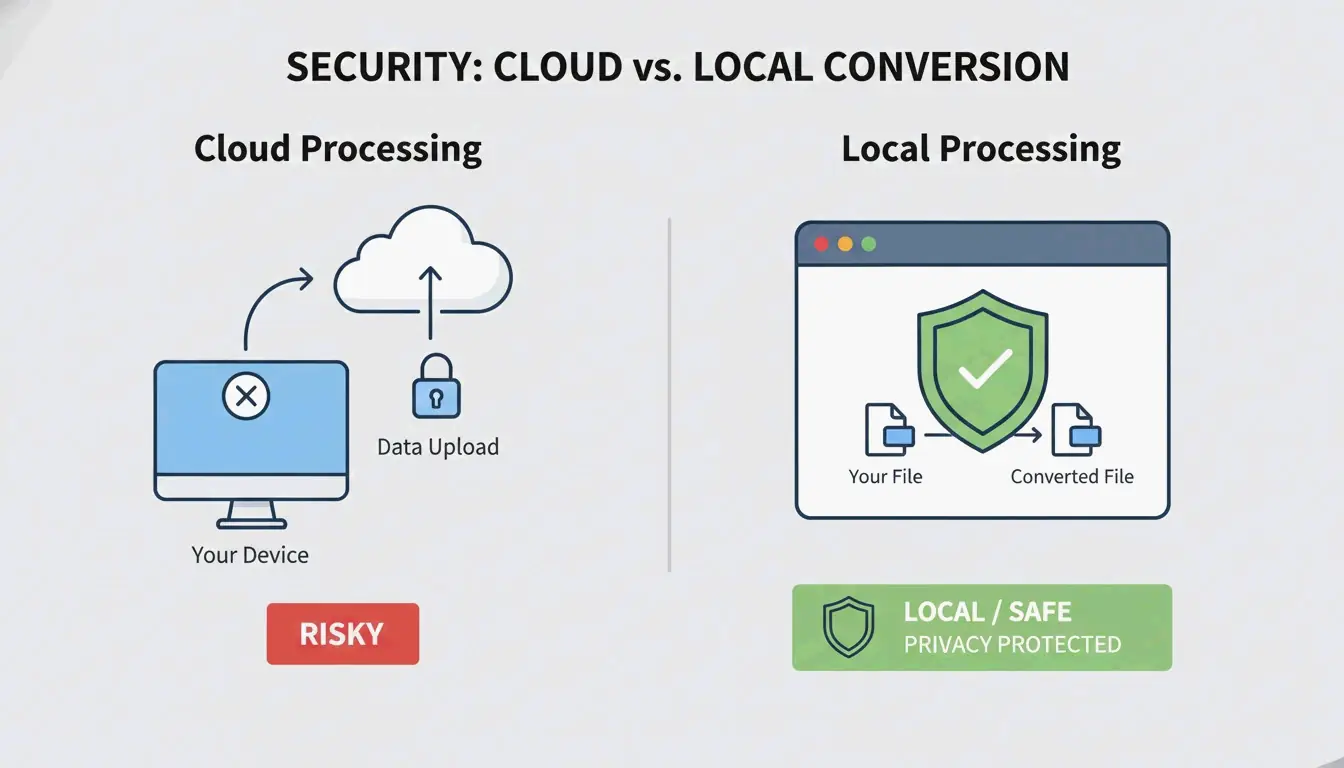
As Arpit Kuzo notes: “Stop uploading private photos to shady servers! Learn how to batch convert HEIC to JPG locally in your browser.” Modern tools use WebAssembly to run the conversion entirely in your browser tab—no upload required.
Method 1: Picovert — Secure Local Browser Conversion
Picovert handles conversion entirely in your browser’s memory using WebAssembly. Files never leave your device.
Steps (Windows 11, Chrome 105+ / Edge):
- Open the Picovert HEIC converter.
- Drag
.heicfiles into the browser window. - Set quality to 90% — the optimal balance between visual fidelity and file size.
- Click “Convert” — JPGs download instantly.
Other tools using the same local-processing approach include Warpbin and SafeHEICtoJPEG.
Method 2: iMazing HEIC Converter — Best Desktop Batch Tool
For large offline archives, iMazing remains the benchmark. In a FileHulk Lab Test (April 2026), iMazing converted 30 iPhone photos in 11 seconds with a 100% success rate.
Its key advantage is full EXIF metadata preservation — date taken, GPS coordinates, and camera settings survive the conversion. This is critical for photographers who rely on searchable, organized libraries.
Method 3: Windows Photos App — Native HEIC Support
Windows 11 can convert HEIC natively if you install two extensions:
| Extension | Cost | Purpose |
|---|---|---|
| HEIF Image Extensions | Free | Thumbnail preview and basic HEIC rendering |
| HEVC Video Extensions | $0.99 | Decode Apple’s specific compression codec |
Steps:
- Open the HEIC file in the Windows Photos app.
- Click the three-dot menu (…).
- Select “Save As” → “JPEG.”
According to FileHulk, this works for approximately 93% of files. The main limitation: HDR color mapping can produce slightly washed-out results in some exports.
Method 4: 4DDiG File Repair — Professional Batch with Repair
4DDiG File Repair includes an AI-enhanced image format converter designed for high-throughput workflows. Its distinguishing feature is structural validation during conversion — it can often repair corrupted HEIC files that browser tools simply reject. Supports one-click bulk processing for thousands of images.
Method 5: ImageMagick — Command-Line Power
For developers and automation pipelines, ImageMagick offers the highest throughput. Install on Windows, then convert an entire folder:
magick mogrify -format jpg *.heic
No GUI, no click-through — just raw volume processing. Best suited for users comfortable with the command line.
5 Methods at a Glance
| Method | Privacy | Batch Speed | EXIF Preserved | Best For |
|---|---|---|---|---|
| Picovert | Local (browser) | Fast | Yes | Quick, private conversion |
| iMazing | Full offline | 30 photos/11s | Yes | Large photo archives |
| Windows Photos | Offline | Slow (one-by-one) | Partial | Occasional single files |
| 4DDiG | Desktop | Very fast | Yes | Corrupted files + bulk |
| ImageMagick | Full offline | Fastest | Configurable | Developers, automation |
Should You Switch iPhone to ‘Most Compatible’?
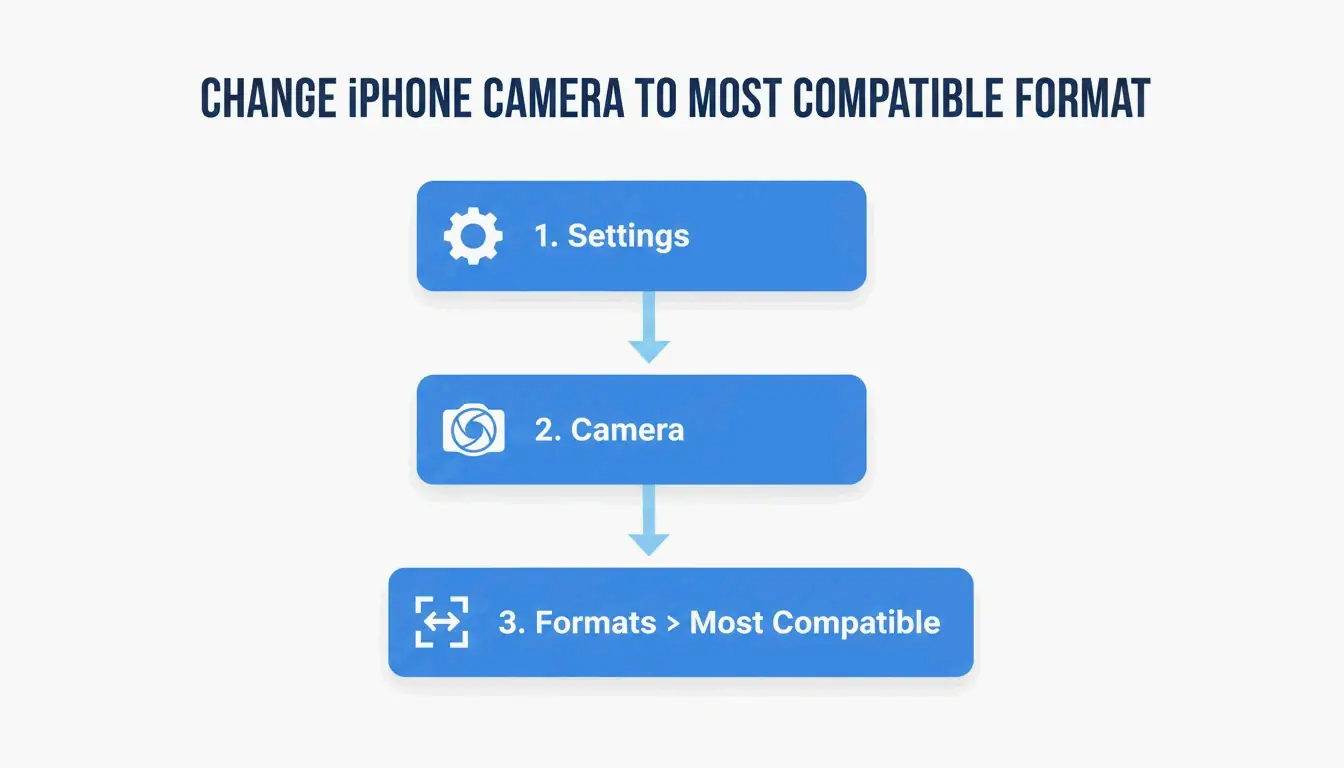
If you want to eliminate HEIC entirely, change your iPhone camera settings:
- Settings → Camera → Formats
- Tap Most Compatible
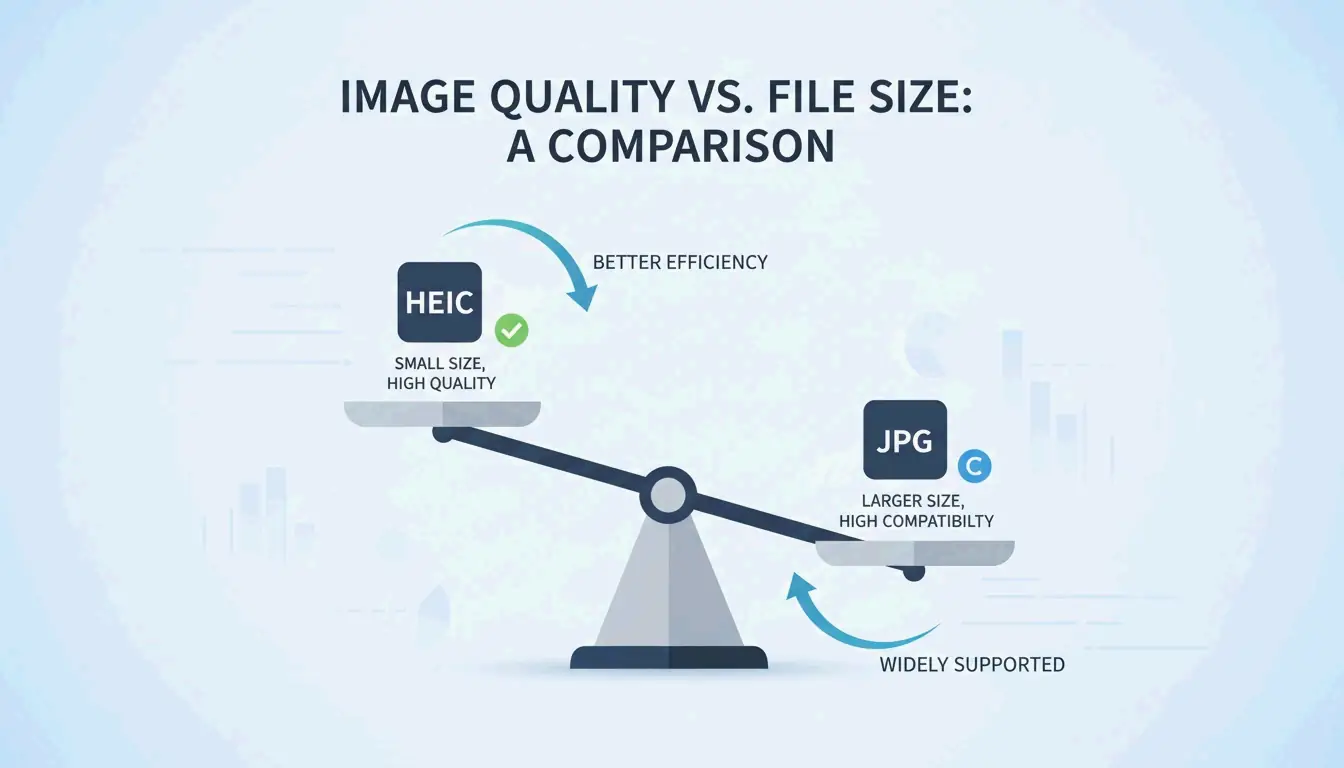
Trade-off: A 2MB HEIC file becomes approximately 5MB as JPG, according to Freetoolonline. You lose roughly 50% storage efficiency but gain universal compatibility across all Windows devices and websites.
Conclusion
For most Windows users in 2026, the optimal setup is: use Picovert for quick, private conversions without installing software; use iMazing for batch-processing large photo libraries offline. If HEIC incompatibility is a recurring headache, switching your iPhone to “Most Compatible” mode is the simplest long-term fix — at the cost of 50% more storage per photo.
FAQ
Does converting HEIC to JPG reduce image quality?
Yes — JPG is a lossy format, so some data is discarded during re-encoding. However, at 90%+ quality settings, the visual difference is imperceptible to the human eye. The trade-off is file size: the resulting JPG will be approximately 2× larger than the original HEIC.
How do I preserve EXIF metadata during bulk conversion?
Use iMazing HEIC Converter or Picovert — both offer explicit “Keep Metadata” or “Include EXIF” options. The Windows Photos “Save As” method typically retains the date but may strip GPS tags and HDR color data depending on your system configuration.
Can I convert HEIC to JPG on Windows 11 without third-party software?
Yes, using the built-in Photos app with the HEIF Image Extensions installed from the Microsoft Store. Open the image, use “Save As” and select JPEG. This method is slower for batching since files must be saved individually.
Leave a Reply