Category: Story

  • No Photoshop? Compress TIFF Files in 1 Second with Web Tools (2026)

    No Photoshop? Compress TIFF Files in 1 Second with Web Tools (2026)

    To compress TIFF files without Photoshop, use browser-based tools that apply LZW (lossless, for color/grayscale) or CCITT Group 4 (for black-and-white documents). These web tools reduce TIFF file sizes by up to 80% in under a second, with no desktop software required.

    Quick Comparison: TIFF Compression Methods

    Method Type Best For Typical Reduction
    LZW Lossless Color photos, digital art, medical scans 40–60%
    CCITT Group 4 Lossless (bitonal) Text documents, invoices, legal contracts 70–90%
    PackBits Lossless (RLE) Simple graphics, screenshots 10–30%
    JPEG-in-TIFF Lossy Photos where some quality loss is acceptable 80–95%
    Uncompressed None When no compatibility risk is tolerated 0%

    The 3-Step Compression Workflow

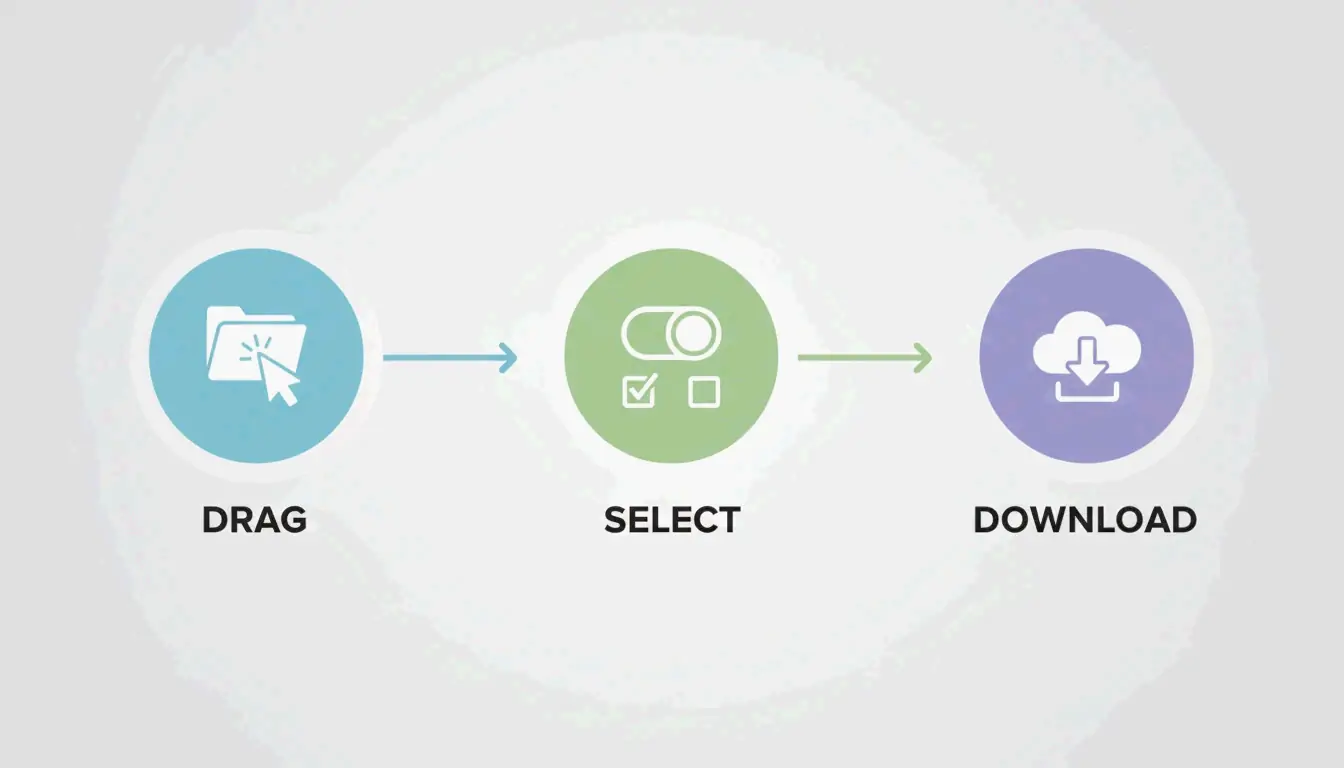
    Simple 3-step workflow: Upload, Process, Download

    1. Upload — Drag TIFF files into the browser. HitPaw supports batch processing for dozens of files at once.
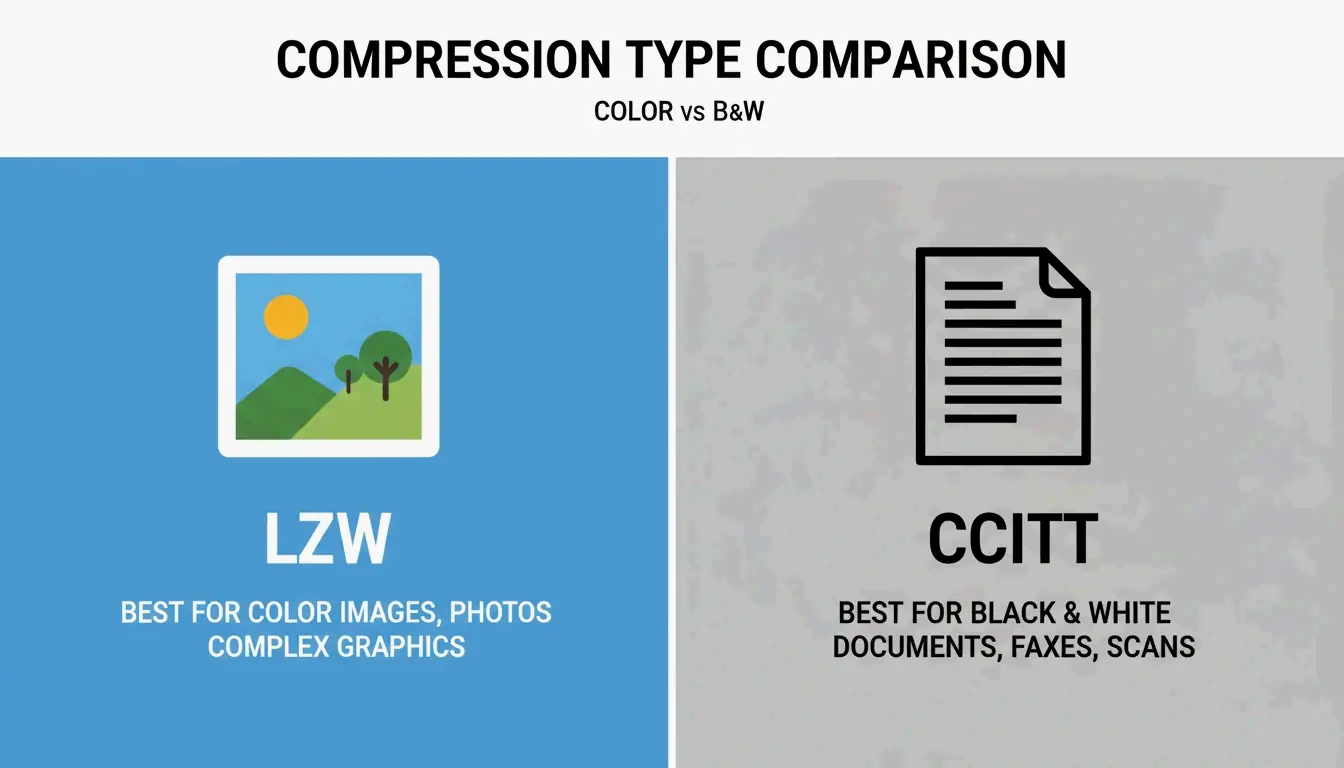
    2. Select Compression — Choose LZW for color images or CCITT Group 4 for black-and-white documents.
    3. Download — Hit “Compress” and save. Aspose notes processing typically takes under 1 second after upload completes.

    Online-Convert, which has processed over 1.9 billion files, confirms browser-based TIFF compression has replaced desktop software for most workflows.

    LZW vs. CCITT Group 4: When to Use Each

    LZW — Lossless Color Compression

    LZW (Lempel–Ziv–Welch) finds repeating data patterns without discarding any information. The image stays 100% pixel-identical to the original.

    Attribute Detail
    Type Lossless
    Best For Color photos, grayscale scans, digital art, medical imaging
    Fidelity Bit-identical to original
    Industry Use Medical and scientific imaging per Aspose — every pixel must remain for analysis

    CCITT Group 4 — Maximum Compression for Text

    Originally built for fax transmission, CCITT Group 4 is optimized for bitonal (pure black and white) images. It compresses text-heavy documents far more efficiently than LZW.

    Attribute Detail
    Type Lossless (bitonal only)
    Best For Invoices, legal contracts, historical records, scanned text
    Efficiency Much higher than LZW on monochrome content
    Technical Note reaConverter confirms Group 4 converts images to bitonal format, ideal for archiving thousands of documents

    Side-by-side comparison: LZW (Color) vs CCITT (B&W)

    Decision Guide

    Your Image Type Recommended Method Why
    Color photo or scan LZW Preserves all color data losslessly
    Grayscale X-ray / medical LZW Every pixel matters for diagnosis
    Black-and-white text document CCITT Group 4 Highest compression for bitonal
    Mixed content (text + images) LZW Group 4 would destroy color information

    Security: Client-Side vs. Server-Side Processing

    Model How It Works Privacy Level Tools
    Client-Side (WASM) Compression runs in your browser’s RAM Highest — file never leaves your device ToolsFlow
    Server-Side (SSL) File travels to remote server via encrypted connection High — files auto-deleted within 24 hours Aspose, Online-Convert

    For medical records, legal documents, or corporate data, prefer client-side tools. For general use, reputable server-side tools with SSL encryption and auto-deletion are safe.

    Technical Standards: TIFF 6.0 and BigTIFF

    Wikipedia documents TIFF as a flexible format supporting everything from simple scans to deep-color images.

    Standard Max File Size Use Case
    Baseline TIFF 6.0 4 GB Standard documents, photos, scans
    BigTIFF (64-bit offsets) 18 exabytes Geographic maps, scientific datasets

    Aspose.Imaging for .NET gives developers programmatic control over TIFF tags like StripOffsets to ensure files meet TIFF 6.0 specs for maximum compatibility.

    Web Tools for TIFF Compression

    Tool Method Batch Security Model
    HitPaw Smart auto-detect Yes Server-side
    Aspose LZW, CCITT, JPEG Yes Server-side (SSL + auto-delete)
    Online-Convert Multiple codecs Yes Server-side
    ToolsFlow Browser-based Yes Client-side (never uploads)

    Conclusion

    For color/grayscale TIFFs, use LZW compression — lossless and pixel-perfect. For black-and-white documents, use CCITT Group 4 — maximum compression for text. Both are available in browser-based tools that process files in under a second. For sensitive documents, choose client-side (WASM) tools where files never leave your device.

    FAQ

    Is it safe to compress sensitive TIFF documents online?

    Yes, with the right tool. Client-side tools process files in your browser’s memory — data never leaves your device. Server-side tools like Aspose use SSL encryption and auto-delete files within 24 hours. For medical or legal data, prefer client-side processing.

    What is the difference between LZW and CCITT Group 4?

    LZW is a lossless algorithm for color and grayscale images — preserves all pixels. CCITT Group 4 is designed for bitonal (black-and-white) images — achieves much higher compression on text documents but destroys color information.

    Can I compress TIFF files on mobile?

    Yes. All modern browser-based compression tools work on mobile via Safari or Chrome. Upload from phone storage or cloud drives. Processing speed remains under 1 second on 5G or Wi-Fi.

    What is BigTIFF and when do I need it?

    Standard TIFF uses 32-bit offsets with a 4 GB file size limit. BigTIFF uses 64-bit offsets, supporting files up to 18 exabytes. Only needed for massive geographic or scientific datasets exceeding 4 GB.
  • Compress PNG: Shrink Images Fast Without Losing Quality (2026)

    Compress PNG: Shrink Images Fast Without Losing Quality (2026)

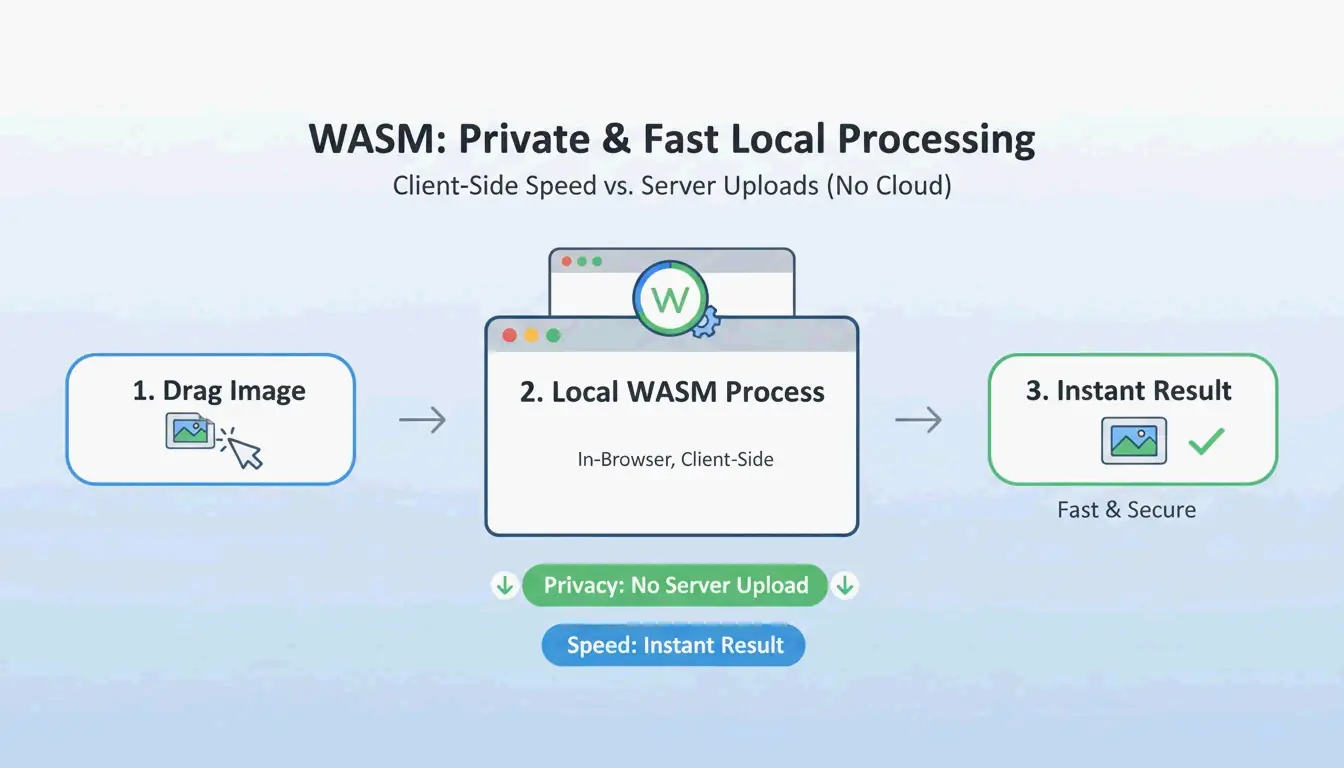
    To compress PNG files without losing quality, use lossless DEFLATE optimization (bit-identical output) or 8-bit quantization (70–85% smaller, visually identical). Modern WASM-based tools process everything locally in your browser — no upload, no privacy risk, instant results.

    Compression Method Comparison

    Method Reduction Quality Best For
    Lossless DEFLATE 10–30% Bit-identical (SHA-256 verifiable) Archives, re-editable assets
    8-bit Quantization 70–85% Visually identical UI elements, logos, screenshots
    Metadata Stripping 50–200 KB per file No pixel change All PNGs (privacy + size)
    WebP Conversion 25–35% smaller than lossless PNG Identical Web delivery
    AVIF Conversion 50%+ smaller than PNG Near-identical Modern browsers only

    Why PNG Compression Matters for SEO

    SammaPix reports that images are the Largest Contentful Paint (LCP) element on 70% of web pages. Slow-loading PNGs directly hurt Core Web Vitals and search rankings.

    Simple 3-step local processing workflow (Drag -> WASM Process -> Download)

    Method 1: Lossless DEFLATE Optimization

    Lossless compression repacks pixel data using the DEFLATE algorithm — no pixels change. As Let Compress describes it: “tidying up a suitcase without throwing anything away.”

    When to use: Professional archives, images you plan to re-edit, legal documents requiring bit-exact preservation.

    Verify with SHA-256

    To confirm a lossless tool truly preserves pixels, compare the SHA-256 hash of raw pixel data between original and compressed files. Use hash.ikit.app to run this check privately in your browser.

    Method 2: 8-Bit Quantization (70–85% Reduction)

    PNG-24 holds millions of colors, but most UI designs and logos use fewer than 256 unique shades. Converting to an 8-bit indexed palette slashes file size with no visible difference at 1:1 zoom.

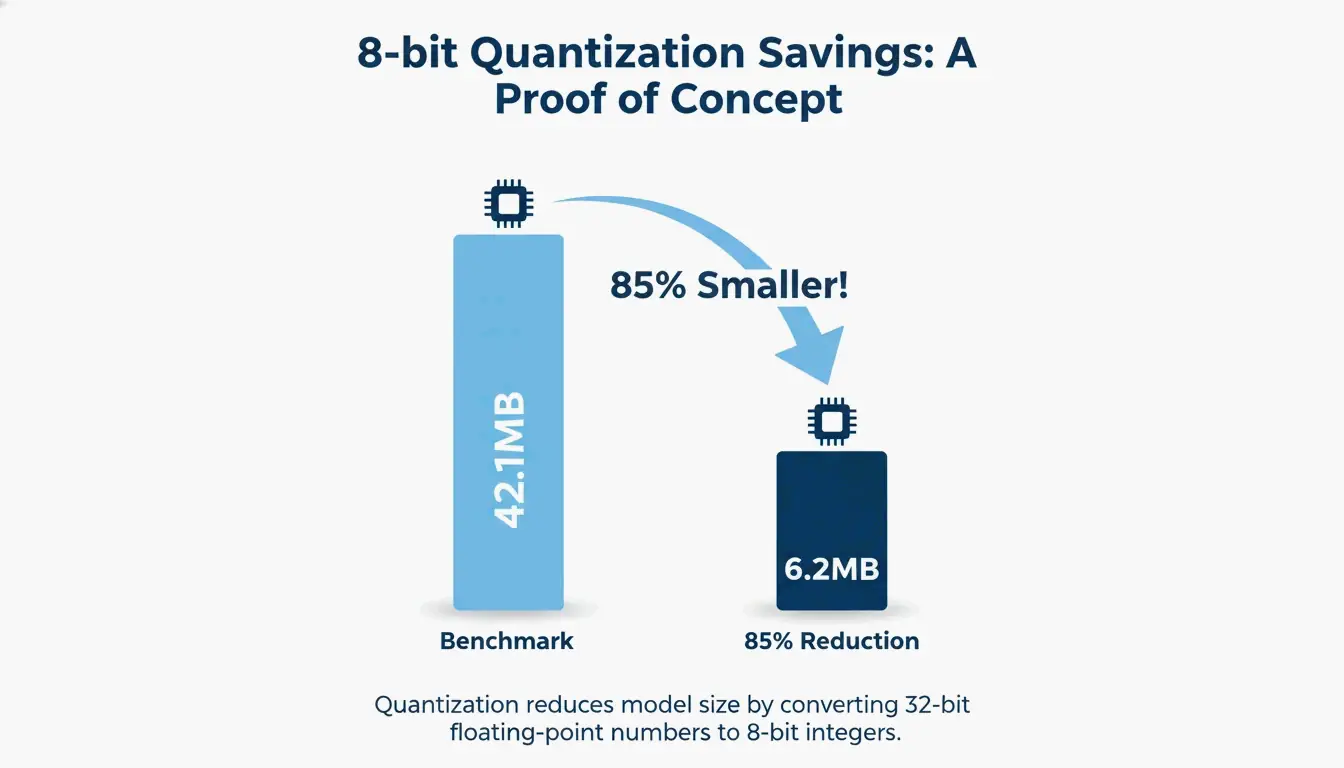
    iKit benchmark: a batch of UI screenshots reduced from 42.1 MB to 6.2 MB — an 85% reduction — while looking identical.

    A simple 1:1 comparison showing massive file size reduction with identical visual quality

    When to use: Website UI assets, logos, icons, screenshots — anything that doesn’t need millions of colors.

    Metadata Stripping: Free Size Reduction

    Design apps embed ICC color profiles, GPS data, timestamps, and creation metadata inside PNG files. iKit notes that stripping this data saves 50–200 KB per file with zero visual impact.

    Metadata Type Typical Size Privacy Risk
    ICC Color Profile 2–50 KB Low
    EXIF / GPS Data 0.5–5 KB High — exposes location
    Creation Timestamp 0.2–1 KB Medium
    Software Generator Tag 0.1–0.5 KB Low
    Thumbnail 5–50 KB Low

    Stripping EXIF is also a privacy best practice — it prevents accidental location sharing from screenshots.

    CLI Tools for Batch Processing

    Tool Language Method Command
    oxipng Rust Lossless DEFLATE oxipng --opt 4 --strip all *.png
    pngquant C Lossy 8-bit quantization pngquant --quality=65-80 *.png

    CI/CD Integration

    
    - name: Optimize PNGs
      run: |
        npm install -g oxipng
        find ./src -name "*.png" -exec oxipng --opt 4 --strip all {} \;
    

    Industry benchmarks show pngquant consistently achieves 60–80% reduction on UI assets.

    When to Use WebP or AVIF Instead

    Even optimized PNGs can’t match next-gen formats for web delivery.

    Format vs PNG Lossless Transparency Browser Support (2026)
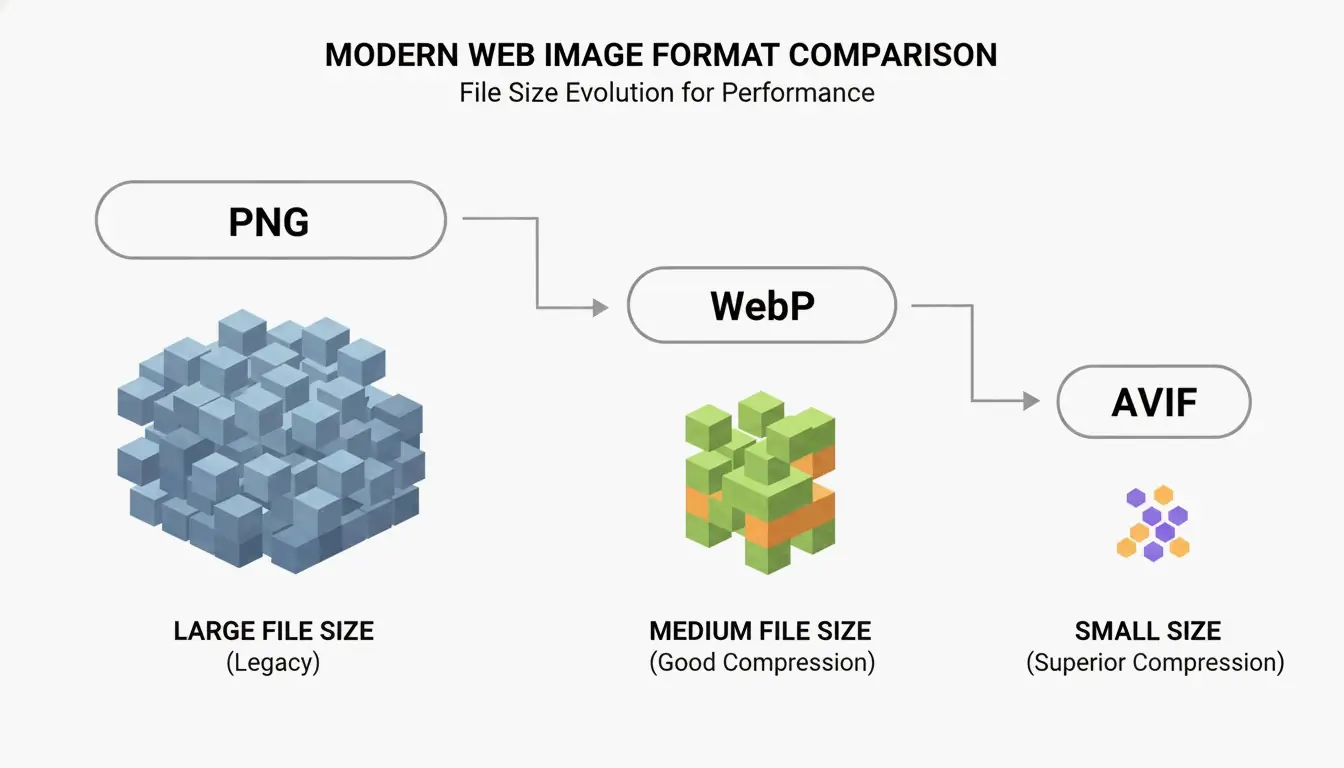
    WebP 25–35% smaller Yes 97%+
    AVIF 50%+ smaller Yes 92%+

    A Google study confirmed WebP matches PNG’s lossless quality at significantly smaller sizes.

    Simple comparison of PNG vs WebP/AVIF file containers/sizes

    Best Strategy: Next-Gen Fallback

    Use the <picture> element with AVIF and WebP sources, falling back to PNG for older browsers. This pattern serves the smallest compatible format automatically.

    Serve AVIF/WebP to modern browsers, fallback to compressed PNG for older ones.

    PNG 3.0 (June 2025 Update)

    The PNG 3.0 specification added HDR image support and elevated Animated PNG (APNG) to a formal W3C Recommendation. For 2026 workflows, PNG 3.0 handles high-contrast visuals better while preserving the transparency features essential for UI design.

    Conclusion

    For maximum PNG compression: use 8-bit quantization for UI assets (70–85% smaller), lossless DEFLATE for archives, and strip metadata on all files. For web delivery, convert to WebP or AVIF with a <picture> fallback. Always verify lossless output with SHA-256 hash comparison.

    FAQ

    Does compressing a PNG make the image blurry?

    No. Lossless compression is bit-identical. 8-bit quantization uses a 256-color palette that remains perceptually identical for UI elements and logos. Blurriness only occurs with low-quality general lossy algorithms not designed for sharp edges.

    Why is my compressed PNG still too large?

    Three causes: (1) Oversized pixel dimensions — resize to actual display width (e.g., 1920px). (2) Complex noise/gradients that DEFLATE can’t simplify. (3) Heavy embedded metadata — enable “Strip Metadata” in your tool settings.

    Is it safe to use online PNG compressors?

    Only if the tool uses WebAssembly (WASM) for local browser processing — files never leave your device. Avoid upload-based compressors for sensitive documents, as files are processed on remote servers.

    What is the difference between oxipng and pngquant?

    oxipng performs lossless optimization — tests every filter combination for the smallest bit-identical file. pngquant performs lossy 8-bit quantization — converts 32-bit RGBA to 8-bit palette for 60–80% reduction. Use oxipng for archives, pngquant for web assets.

  • Resize Image: Quick Photo Size Guide for Web & Social Media (2026)

    Resize Image: Quick Photo Size Guide for Web & Social Media (2026)

    To resize images without quality loss, lock the aspect ratio, set the correct pixel dimensions for your target platform (e.g., 1080×1350px for Instagram), and export as WebP for web or JPEG at 80% quality for photos. Proper resizing can shrink a 4MB photo to 200KB — an 80% reduction — with no visible difference on screen.

    The 3-Step Professional Workflow

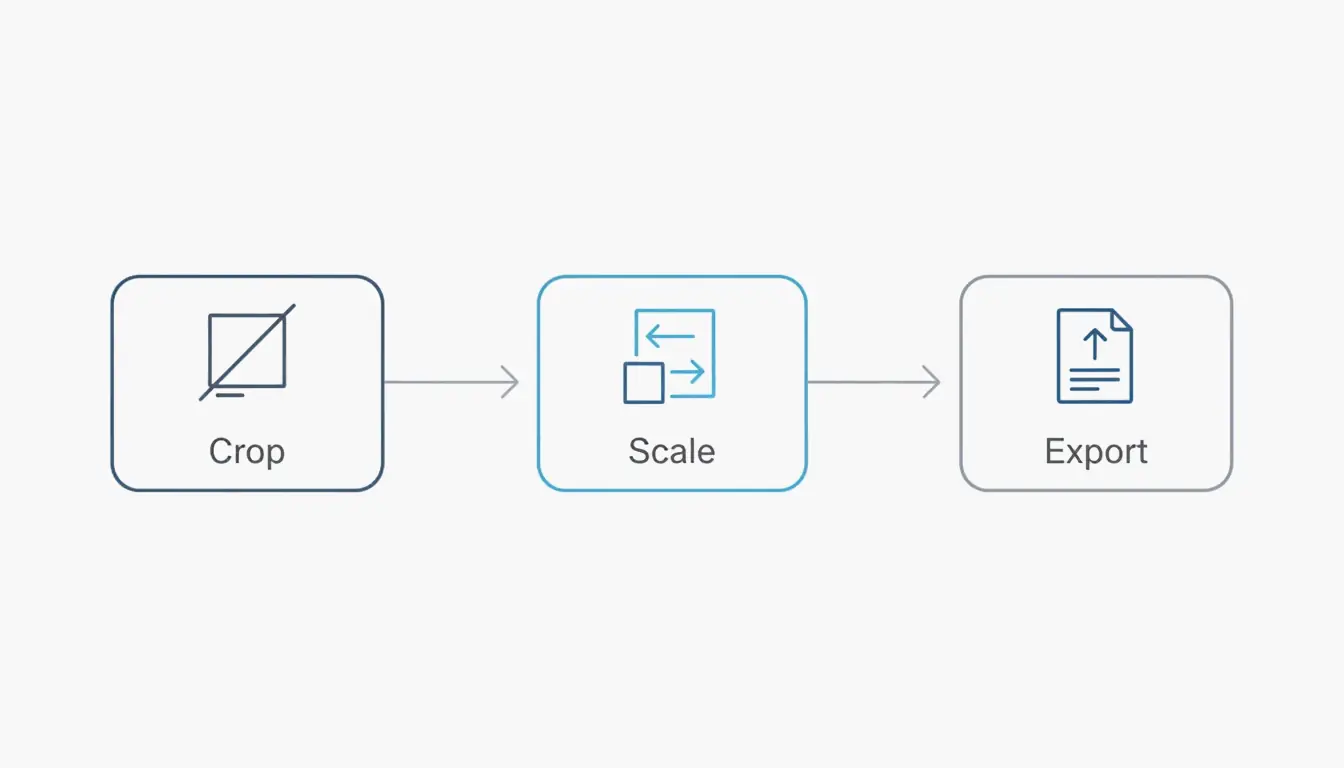
    Step Action Why
    1. Crop Trim to target aspect ratio Prevents stretching later
    2. Scale Resize to exact pixel dimensions Matches platform requirements
    3. Export Save in optimal format Minimizes file size

    The 3-step professional workflow: Crop > Scale > Export.

    O’Brien Media reports that proper resizing achieves 80% file size reduction — turning a 4MB photo into a lean 200KB file.

    2026 Standard Pixel Dimensions

    Platform Dimensions Aspect Ratio Notes
    Instagram Feed 1080 × 1350 px 4:5 Portrait Maximum screen real estate in feeds
    Instagram Square 1080 × 1080 px 1:1 Classic format
    TikTok / Reels 1080 × 1920 px 9:16 Vertical full-screen
    LinkedIn Profile 400 × 400 px 1:1 Headshot
    YouTube Thumbnail 1280 × 720 px 16:9 Click-through driver
    Web Hero Banner 1920 × 1080 px 16:9 Full-width desktop
    Blog Image 1200 px wide varies Sweet spot for performance
    Email Header 600 px wide varies Email client safe width

    Picssizer data shows the 4:5 Portrait (1080×1350) format drives the most engagement because it occupies maximum screen space in mobile feeds.

    The Safe-Zone Strategy for Vertical Content

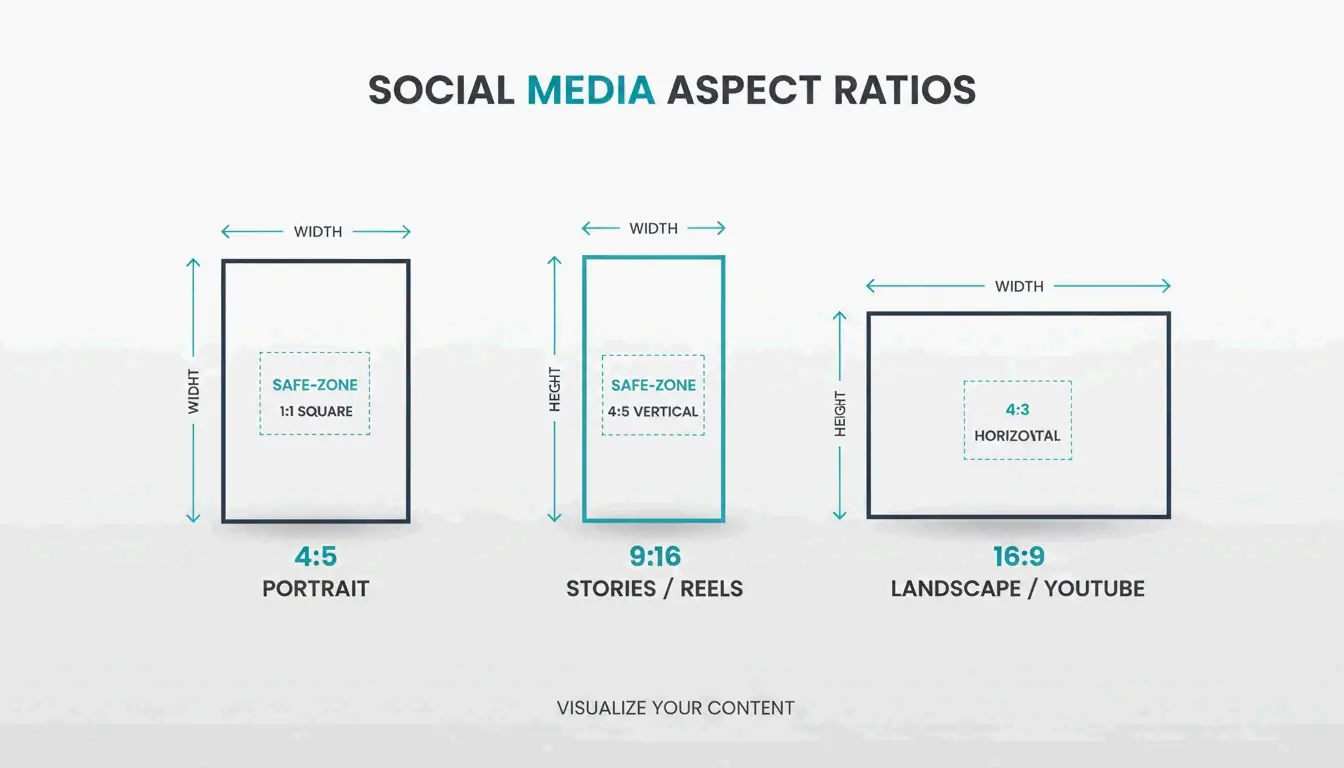
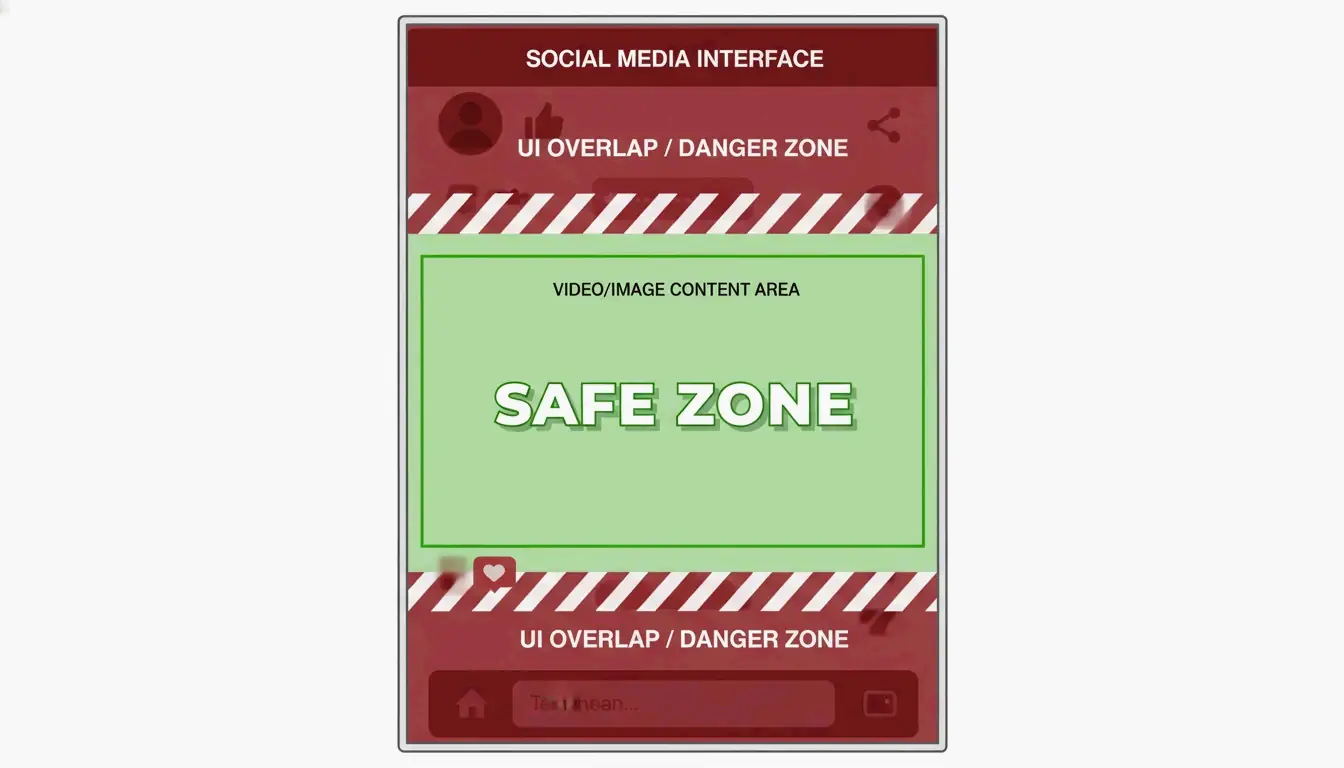
    For Reels and Stories (1080×1920), keep text and faces in the center 1080×1420 px area. The edges get covered by UI buttons, captions, and profile icons.

    A simple visual comparison of 4:5 Portrait vs 9:16 Vertical vs 16:9 Landscape.

    Format Comparison: JPEG vs PNG vs WebP vs AVIF

    Format Best For Transparency Typical Size vs JPEG Browser Support
    JPEG Photography No Baseline Universal
    PNG Logos, graphics Yes 2–3× larger than JPEG Universal
    WebP Web photos + graphics Yes 30% smaller than JPEG 97%+ (2026)
    AVIF Maximum compression Yes 50% smaller than JPEG 92%+ (2026)

    Recommended Export Settings

    Use Case Format Quality Dimensions
    Blog photos WebP or JPEG 80% 1200px wide
    Instagram JPEG 85% 1080×1350 px
    Logo / icon PNG or WebP Lossless Exact size needed
    Email attachment JPEG 70% 600–800px wide

    A case study found resizing a 5MB photo to 400KB (10:1 reduction) eliminates “message too large” email errors entirely.

    DPI: Web vs Print

    Target DPI Why
    Web / Screen 72 DPI Screens display at fixed resolution; higher DPI only inflates file size
    Print 300 DPI Required for sharp physical output

    Never use 300 DPI for web images — it quadruples file size with zero visual improvement on screen.

    Batch Resize Tools

    Processing images one by one is inefficient. Batch tools handle 100+ images in seconds.

    Tool Platform Method
    Adobe Express Browser Drag-and-drop, preset sizes
    Photo & Picture Resizer Android Quick Actions before sharing
    iOS Shortcuts iPhone Custom “Resize” automation to set width
    Quick Photo Resizer Desktop Folder drag-and-drop

    iOS Shortcut for Instant Resize

    In iOS 26, create a Shortcut: Photos → “Resize Image” → set width to 1080px → Save. Select photos from gallery and resize instantly without any app.

    Interpolation: Why Downscaling Looks Good but Upscaling Doesn’t

    Downscaling uses algorithms like Bicubic Sharper to cleanly remove pixels while recalculating remaining data — edges stay crisp. Upscaling forces software to invent new pixels, causing blurriness. Only AI-based generative upscalers can produce acceptable results when enlarging.

    Direction Quality Impact Recommendation
    Downscale Lossless appearance Safe at any ratio
    Upscale (standard) Pixelation, blur Avoid
    Upscale (AI) Acceptable with AI tools Use as last resort

    Conclusion

    Resize images to match your target platform’s exact pixel dimensions — 1080×1350 for Instagram, 1200px wide for blog images, 1920×1080 for hero banners. Always lock aspect ratio, export as WebP (or JPEG at 80%), and use batch tools for efficiency. Any image over 2MB on your website should be resized immediately for SEO and user experience.

    FAQ

    Why do my images look blurry after uploading to Instagram?

    Instagram compresses any image wider than 1080px. Resize to exactly 1080px wide before uploading, use 4:5 or 1:1 ratio to avoid cropping, and enable “High-quality uploads” in Instagram settings.

    What is the difference between resizing and cropping?

    Resizing changes total pixel count while keeping all content. Cropping removes outer edges to change composition or ratio. Best practice: crop to the correct ratio first, then resize to target dimensions.

    Can I enlarge an image without losing quality?

    Standard upscaling causes pixelation. In 2026, AI generative upscalers can recreate missing details, but the best practice is always to start from the highest-resolution source file and downsize.

    How do I resize photos on iPhone without a third-party app?

    Use the Shortcuts app to create a resize action, or email the photo to yourself — iOS prompts you to choose Small, Medium, or Large, effectively resizing the file.

  • SVG Compression Principle: How Vector Images Shrink Smartly (2026)

    SVG Compression Principle: How Vector Images Shrink Smartly (2026)

    SVG compression works because SVGs are text files (XML), not pixel grids. The principle is simple: strip redundant XML metadata, simplify path data precision, then apply server-level Brotli/Gzip encoding. Combined, these steps achieve 70–93% total size reduction with zero visual quality loss.

    How SVG Compression Works: 3 Layers

    Layer What Happens Typical Reduction
    1. Metadata removal Strip editor artifacts, comments, hidden layers 40–80%
    2. Path simplification Reduce coordinate precision, convert to relative deltas 10–30% additional
    3. Transfer encoding Brotli/Gzip compresses the text during delivery 15–20% beyond Gzip

    According to DEV Community, a typical icon exported from Adobe Illustrator starts at 45 KB and drops to 8 KB after optimization — an 82% reduction.

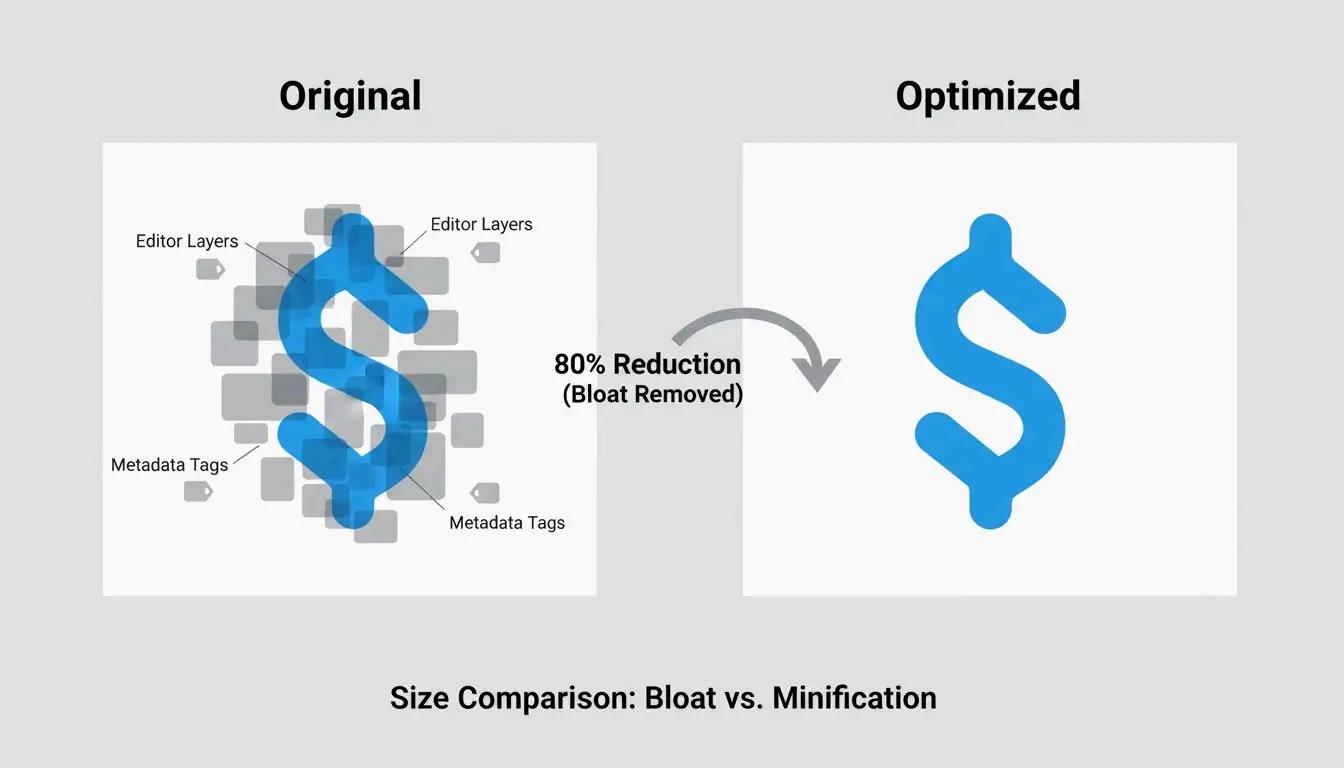
    A simple comparison showing a 'Bloated SVG' (many layers/metadata) vs. a 'Clean SVG' (only core paths).

    Layer 1: Remove XML Metadata Bloat

    Design tools (Illustrator, Figma, Inkscape) embed proprietary metadata so designers can re-edit layers. This includes layer names, generator comments, workspace settings — all dead weight on the web.

    ToolPix highlights that cleaning these tags can cut file size by up to 80% while also reducing DOM footprint for faster browser rendering.

    What gets removed:

    Element Example Safe to Remove?
    Editor metadata <metadata> blocks Yes
    Generator comments <!-- Created with Illustrator --> Yes
    Hidden layers display="none" groups Yes
    Empty definitions Unused <defs> entries Yes
    Element IDs (unused) id="Layer_x0020_1" Only if not referenced by CSS/JS

    Layer 2: Simplify Path Data (the d Attribute)

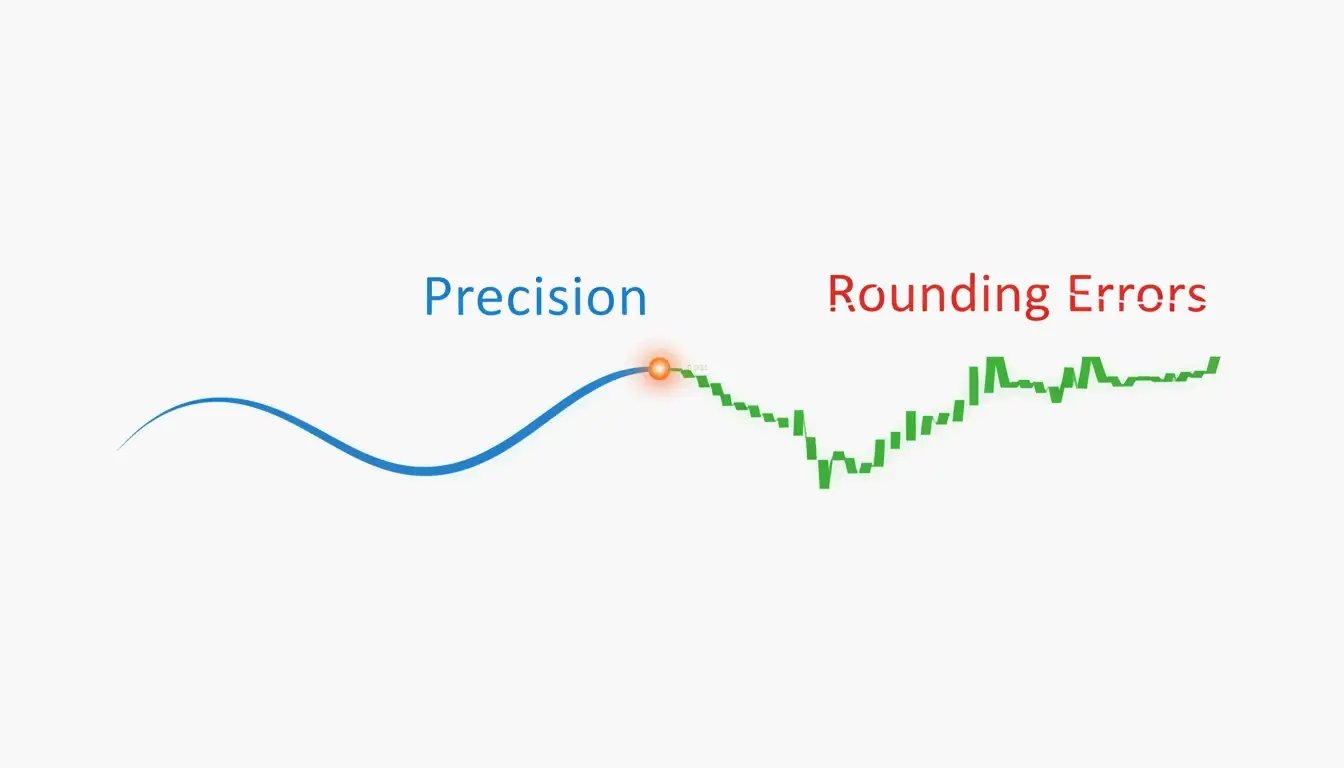
    The most effective optimization targets the path d attribute — the coordinate string defining shapes. These coordinates often carry 8 decimal places (e.g., 12.003906). Rounding to 2–3 decimals produces no visible change even on Retina displays but removes significant text.

    floatPrecision Settings by Use Case

    floatPrecision Best For Visible Impact
    1 Rarely recommended Gaps or jagged edges on curves
    2 Icons, logos, simple shapes None on standard screens
    3 Complex illustrations Safe for all displays
    4+ Technical/architectural drawings Preserves every decimal

    According to DEV Community, the two key techniques are rounding coordinates and converting absolute positions to relative deltas (shorter text).

    A visual metaphor of 'Precision vs. Quality' showing a smooth curve becoming jagged when decimals are removed.

    SVGO: The Standard Optimization Tool

    SVGO (SVG Optimizer) v3.3.2 is the industry standard for applying the SVG compression principle. It runs on Node.js v22+ and powers nearly every modern optimization workflow.

    Key SVGO Settings

    Setting Recommended Value Why
    multipass true Runs repeatedly until no more bytes to shave
    floatPrecision 2 (icons) / 3 (illustrations) Balance of size vs. quality
    removeViewBox false Preserves responsive scaling
    cleanupIDs true Removes unused IDs (skip if CSS/JS references them)
    removeScriptElements true Security: strips XSS vectors

    A case study on a UI icon set achieved 93.3% total reduction using SVGO combined with Brotli.

    SVGO Quick Start

    
    npm install -g svgo
    
    # Optimize a single file
    svgo input.svg -o output.svg
    
    # Optimize entire directory
    svgo -f ./src/icons -o ./dist/icons
    

    For a visual interface, SVGOMG (web-based SVGO playground) lets you toggle plugins and preview changes in real time.

    Layer 3: Brotli and Gzip Transfer Encoding

    SVGO cleans the file itself, but the final size reduction happens at the server level. Because SVGs are text, standard compression algorithms work exceptionally well.

    Algorithm SVG Reduction Notes
    Gzip 50–80% of original Long-standing standard
    Brotli 15–20% smaller than Gzip 2026 web standard for image/svg+xml

    Wikipedia notes that Gzip alone can shrink SVG to 20–50% of original size. Brotli consistently beats it by an additional 15–20%.

    Nginx Configuration

    # Enable Brotli for SVG
    brotli on;
    brotli_types image/svg+xml;
    brotli_comp_level 6;
    
    # Fallback Gzip
    gzip on;
    gzip_types image/svg+xml;
    

    DEV Community reports: an icon set of 50 files totaling 450 KB drops to under 30 KB with SVGO + Brotli combined.

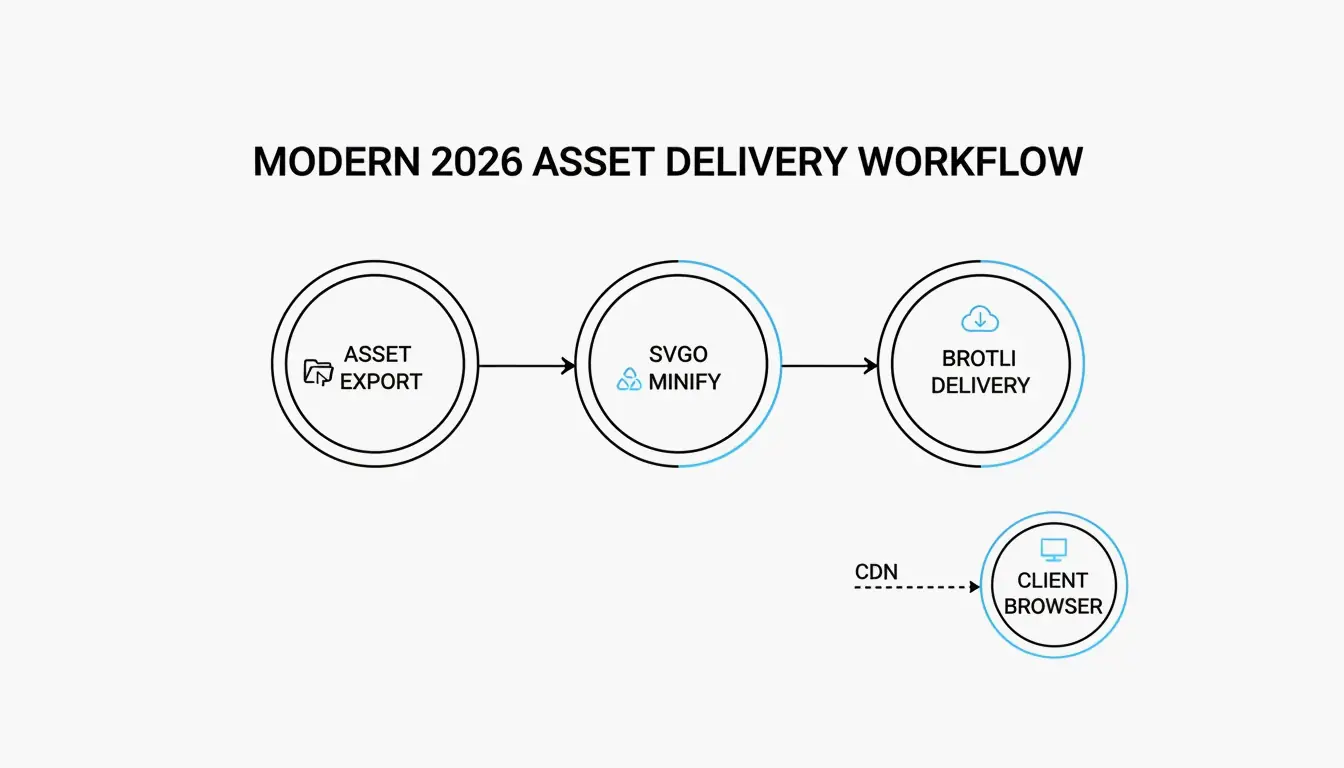
    The 2-step delivery process: Source SVG -> SVGO (Minify) -> Server (Brotli) -> Browser.

    Critical: Preserve the viewBox Attribute

    The viewBox attribute is the coordinate system that enables responsive scaling. If your optimizer strips it, the SVG defaults to fixed pixel dimensions and breaks your layout.

    Always set removeViewBox: false in SVGO. This is the single most important setting — it keeps your images scalable across all screen sizes.

    SVG Compression as a Security Layer

    SVGs are XML documents and can contain malicious <script> tags or foreignObject elements for XSS attacks. MDN Web Docs warns that SVGs can execute scripts when loaded directly in the browser.

    SVGO’s removeScriptElements plugin strips these vectors automatically. Optimization isn’t just about speed — it’s a sanitization step.

    Conclusion

    SVG compression is a two-part process: code minification (metadata + path simplification via SVGO) and server-side encoding (Brotli/Gzip). Start with SVGO v3.3.2 at floatPrecision: 2, keep viewBox intact, and enable Brotli on your server. This layered approach achieves 70–93% total reduction without visual quality loss.

    FAQ

    Does SVG compression reduce visual quality?

    No. Removing metadata and comments is fully lossless. Only reducing floatPrecision below 2 can cause visible rounding errors (jagged curves). Keep it at 2 or higher for all production assets.

    Why is my exported SVG larger than a PNG?

    Design tools embed proprietary XML data, thumbnails, and hidden layers. If your SVG also contains thousands of path nodes or embedded raster images, it can exceed an equivalent PNG. Run it through SVGO to strip the bloat.

    When should I avoid SVG path simplification?

    Skip heavy simplification for technical illustrations or architectural plans where every decimal matters. Also preserve element IDs if your SVG is manipulated by external CSS or JavaScript — removing them breaks code references.

    What does viewBox do in SVG compression?

    The viewBox attribute defines the SVG’s internal coordinate system for responsive scaling. Removing it locks the image to fixed pixel dimensions. Always set removeViewBox: false in your optimizer config.

  • Compress PNG: Shrink Images Fast Without Losing Quality (2026)

    Compress PNG: Shrink Images Fast Without Losing Quality (2026)

    To compress PNG files fast in 2026, use browser-native WebAssembly (Wasm) tools like iKit for private local processing. For maximum savings, apply lossy quantization (8-bit color palette, up to 85% reduction) or oxipng for lossless optimization that strips metadata and optimizes DEFLATE filters without changing a single pixel.

    The 3-Step Fast Compression Workflow

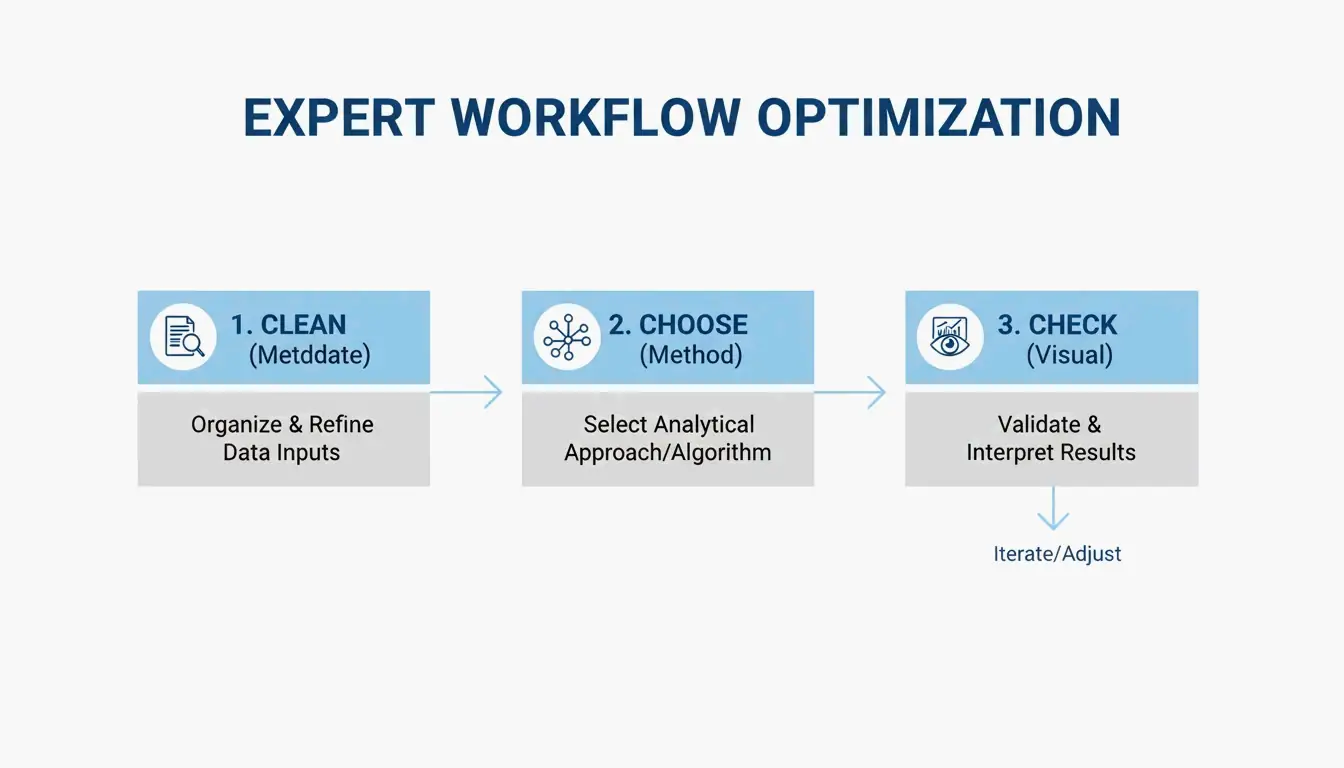
    1. Strip metadata — Delete hidden EXIF data and unnecessary color profiles (quick win: up to 200KB savings per file)
    2. Choose your method — Lossless (pixel-perfect) or lossy quantization (visually identical, much smaller)
    3. Visual check — Use side-by-side comparison before publishing

    3-step workflow: Clean, Choose, Check

    The ‘No-Upload’ Workflow: Wasm-Based Local Processing

    Modern tools like iKit and ToolTea use WebAssembly to process images entirely in your browser’s RAM. Your files never leave your device — faster processing and complete privacy.

    iKit notes that Photoshop metadata alone can add up to 200KB of bloat — data that does nothing for web viewers.

    Lossless vs. Lossy Quantization

    Method How It Works Typical Savings Quality Impact
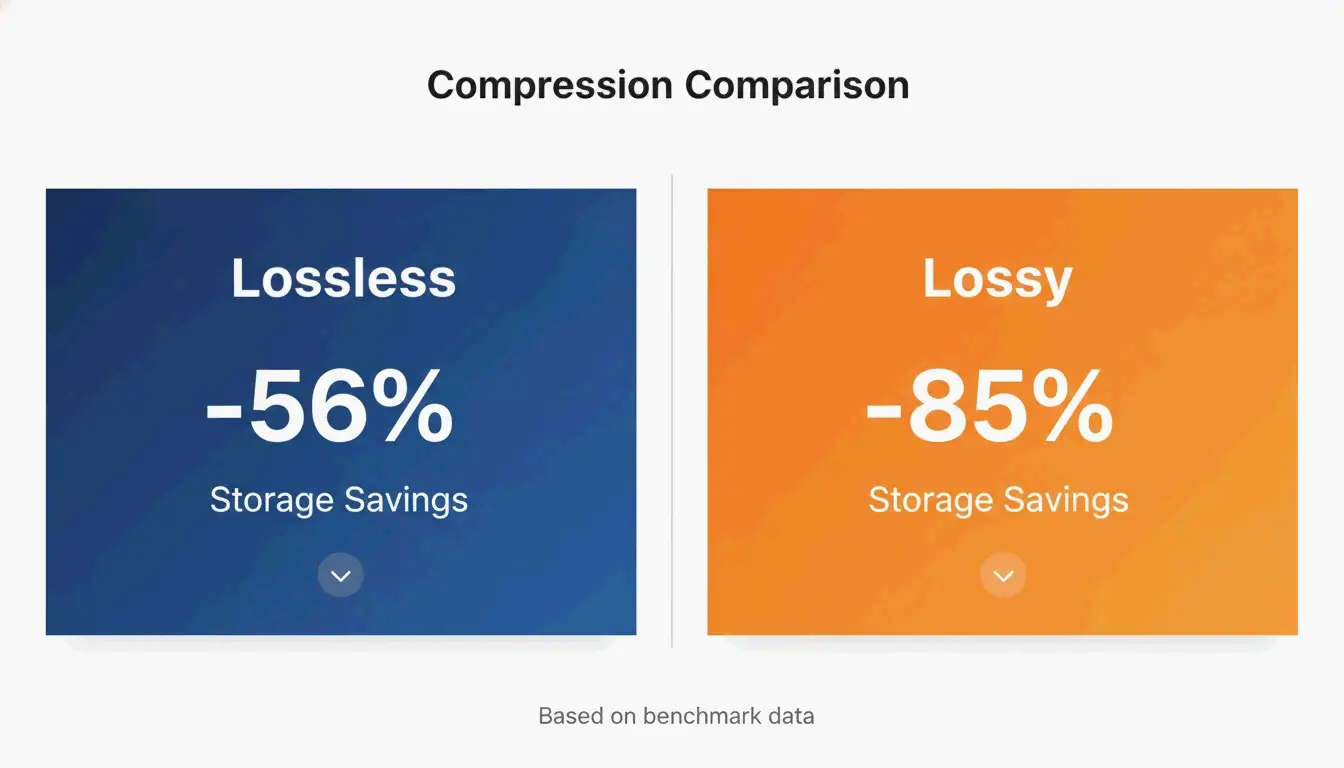
    Lossless (oxipng) Optimizes DEFLATE filters + strips metadata ~56% on UI screenshots Zero — every pixel unchanged
    Lossy Quantization (pngquant) Reduces 24/32-bit → 8-bit (256-color palette) ~85% on UI screenshots Visually identical to the naked eye

    iKit benchmarks confirm that lossy quantization achieves 85% reduction on UI screenshots with no visible difference, compared to 56% for lossless.

    Core comparison: Lossless (56% savings) vs Lossy (85% savings)

    Visual Artifact Guide

    Artifact Type Cause Where to Check
    Banding Aggressive color palette reduction Smooth gradients (blue skies, blurred backgrounds)
    Color bleeding Insufficient chroma subsampling Thin colored lines (use 4:4:4 to prevent)
    Edge softness Rare in PNG — mostly a JPEG issue Text and icon borders stay sharp in PNG

    Key advantage: Unlike JPEG compression, PNG quantization keeps text edges and icon borders perfectly crisp.

    When to Switch: PNG vs. WebP vs. AVIF

    Format vs. PNG Size Transparency Browser Support Best For
    PNG Baseline Yes Universal Logos, icons, pixel-perfect UI
    WebP 25–35% smaller Yes 97%+ General web images
    AVIF 50–70% smaller Yes 92%+ Maximum compression, photos

    SammaPix notes that WebP is 25–35% smaller than PNG at equivalent quality. AVIF beats WebP by another 20–30%. For pure web performance, consider converting.

    PNG 3.0 Update (June 2025)

    PNG is not standing still:

    Feature Impact
    HDR support High dynamic range for modern displays
    Official APNG Animated PNGs now a W3C Recommendation
    Improved Exif chunks Cleaner metadata handling

    CLI Batch Processing for Developers

    oxipng (v9.1.1) — Lossless Batch

    Built in Rust, significantly faster than older tools:

    
    oxipng -o max --strip safe *.png
    
    # Integrate into build pipeline
    find ./assets -name "*.png" -exec oxipng -o 4 --strip all {} \;
    

    pngquant (v3.0) — Lossy Batch

    Converts 32-bit PNGs to 8-bit palettes in bulk:

    # Batch compress to 256 colors
    pngquant --force --quality=65-80 --ext .png *.png
    
    # Target specific speed
    pngquant --speed 1 --quality=70-85 --output ./optimized/ *.png
    

    iKit recommends integrating these into your design system or CI pipeline so no unoptimized image reaches production.

    SEO Impact: Why PNG Compression Matters

    SammaPix reports that the LCP element is an image on 70% of all web pages. Heavy PNG files slow down LCP, hurting both user experience and search rankings.

    Action plan:
    1. Strip metadata for an instant win (up to 200KB per file)
    2. Use oxipng for logos and text graphics where every pixel matters
    3. Use pngquant for UI screenshots and illustrations (85% savings)
    4. For maximum web performance, convert to WebP or AVIF

    Conclusion

    PNG compression in 2026 means choosing the right algorithm: oxipng for lossless precision, pngquant for aggressive savings, and Wasm browser tools for private, fast processing. PNG 3.0 brings modern features, but WebP/AVIF remain superior for pure web performance. Integrate CLI tools into your build pipeline to ensure no unoptimized images reach production.

    FAQ

    Does compressing a PNG make it blurry?

    Lossless compression never causes blurriness — pixels are unchanged. Lossy quantization may cause “banding” in smooth gradients if the color palette is reduced too aggressively, but keeps text and icon edges perfectly sharp (unlike JPEG artifacts).

    How do I compress a PNG to exactly 20KB or 100KB?

    Use tools with a “target size” mode or quality slider. If lossless compression isn’t enough, resize pixel dimensions first (e.g., to 400×400px) then apply 8-bit quantization per Combine JPG.

    Is it safe to use online compressors for private images?

    Only if the tool uses local WebAssembly processing (e.g., iKit or ToolPix). These process in your browser’s RAM — files are never uploaded. Avoid any tool requiring a server upload for sensitive content.

  • Resize Image: Quick Photo Size Guide for Social Media, Web & Email (2026)

    Resize Image: Quick Photo Size Guide for Social Media, Web & Email (2026)

    To resize images correctly in 2026, upload to a tool like Adobe Express, set your target pixel dimensions (e.g., 1080×1350 for Instagram portraits), lock the aspect ratio to prevent distortion, and export as JPEG for photos or WebP for web. Resizing to exact display dimensions can cut file sizes by 80%+ per O’Brien Media.

    3-Step Universal Resizing Workflow

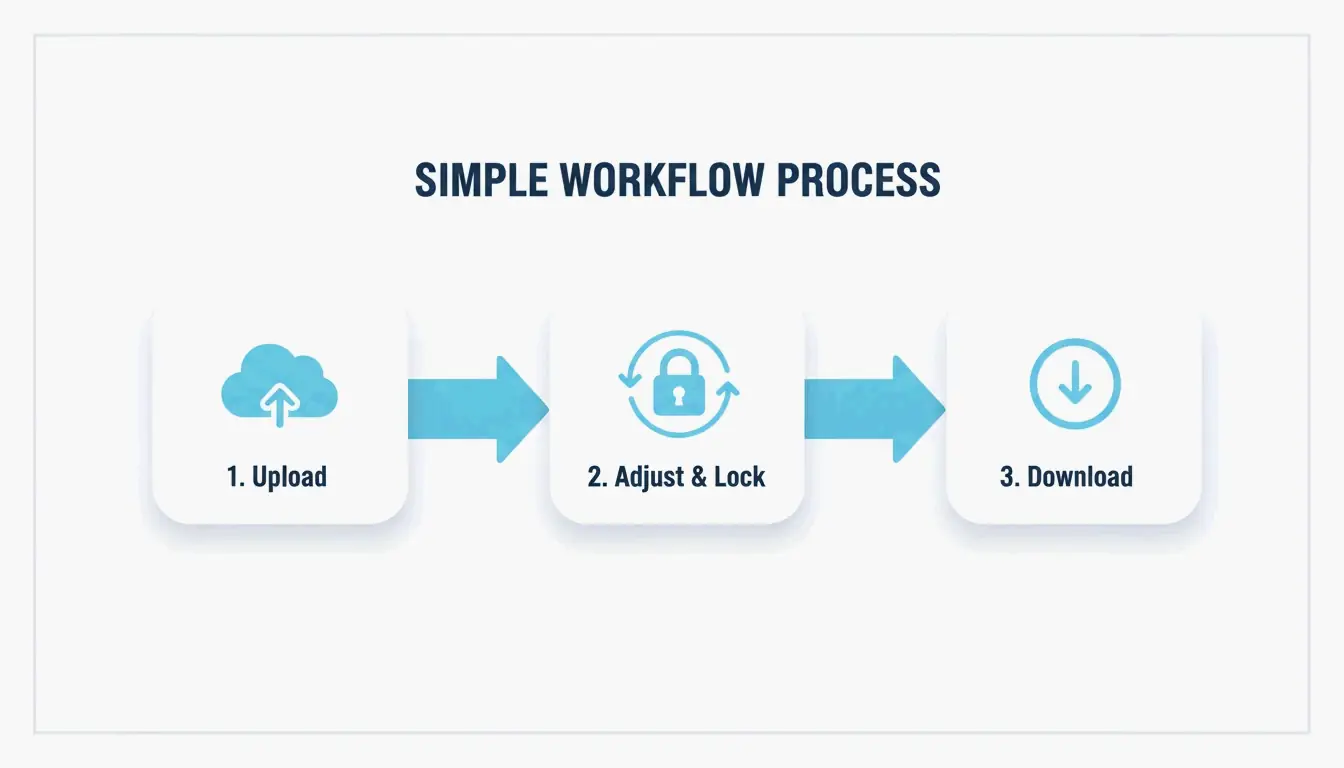
    1. Upload — Drag your JPG, PNG, or WebP into a browser tool like Adobe Express
    2. Set dimensions and lock aspect ratio — Type your target width or height; the other adjusts automatically to prevent stretching
    3. Download — Save to a new file so your original stays intact

    3-step workflow: Upload -> Adjust (Lock Ratio) -> Download

    2026 Social Media Image Size Reference

    Instagram

    Format Dimensions Aspect Ratio Notes
    Portrait Feed 1080 × 1350 px 4:5 Best for engagement — takes up more screen space
    Square Feed 1080 × 1080 px 1:1 Classic grid format
    Landscape Feed 1080 × 608 px 16:9 Wider format
    Stories & Reels 1080 × 1920 px 9:16 Full-screen vertical
    Profile Photo 320 × 320 px 1:1 Displayed as circle

    Picssizer recommends the Portrait (4:5) format for feed posts — it occupies more vertical space, driving higher engagement.

    Safe Zones: Avoiding UI Overlap

    For Stories and Reels (1080×1920), keep critical content in the center safe zone (approximately 1080×1420 px). Leave at least 250px clear at top and bottom to avoid UI elements (buttons, captions, profile info) covering your content.

    A visual representation of the 'Safe Zone' within a mobile screen frame

    Other Platforms

    Platform Recommended Size Format
    Facebook Cover 820 × 312 px JPEG
    Twitter/X Header 1500 × 500 px JPEG
    LinkedIn Post 1200 × 627 px PNG/JPEG
    YouTube Thumbnail 1280 × 720 px JPEG
    Email Header 600 × 200 px JPEG

    Format Selection: JPEG vs. PNG vs. WebP

    Format Best For Compression Transparency File Size
    JPEG Photography, social media Lossy No Small
    PNG Logos, text, screenshots Lossless Yes Large
    WebP Website images, SEO Lossy or lossless Yes 25–34% smaller than JPEG

    Recommendation: Use JPEG for social media posts (80–90% quality). Use PNG for logos and transparent graphics. Use WebP for websites to maximize SEO and page speed.

    Batch Resizing: Processing Multiple Photos at Once

    Doing one image at a time is a waste of time. In 2026, batch resizing handles entire galleries:

    Platform Tool Key Feature
    Windows Image Resizer Right-click batch resize in Explorer
    macOS Shortcuts app / Preview Built-in automation
    Android Photo & Picture Resizer 4MB → 400KB at 800×600

    Photo & Picture Resizer shrinks a 4MB photo to ~400KB at 800×600 resolution — ideal for email attachments.

    Resizing vs. Cropping: What’s the Difference?

    Action What It Does Quality Impact
    Resizing Changes total pixel count; entire image scaled Downsizing is lossless; upsizing may blur
    Cropping Removes outer edges; changes composition No quality change; some content discarded

    Always resize from the original high-resolution file — never from an already-resized or compressed version.

    Conclusion

    Effective image resizing means matching pixel dimensions to your target platform, locking aspect ratios, and choosing the right export format. Use the Instagram/social media size tables above, keep safe zones clear for Stories, and batch-process large galleries. For web, convert to WebP for maximum SEO benefit.

    FAQ

    What is the difference between resizing and cropping?

    Resizing changes the total pixel count of the entire image — everything stays, just at a different scale. Cropping removes the outer edges to change composition or aspect ratio — some original content is discarded.

    How can I resize without losing quality?

    Downsizing is generally lossless — you are reducing pixel count, which removes redundant data without degrading visible quality. Upsizing (enlarging) requires AI-assisted interpolation to avoid blurriness. Always downsize from the original file.

    Does resizing reduce file size?

    Yes. Reducing pixel dimensions directly removes data, lowering the MB count. Combining a resize with a WebP conversion delivers the most effective compression for web and mobile in 2026.

  • How to Compress HEIC Files Without Losing Quality (2026 Guide)

    How to Compress HEIC Files Without Losing Quality (2026 Guide)

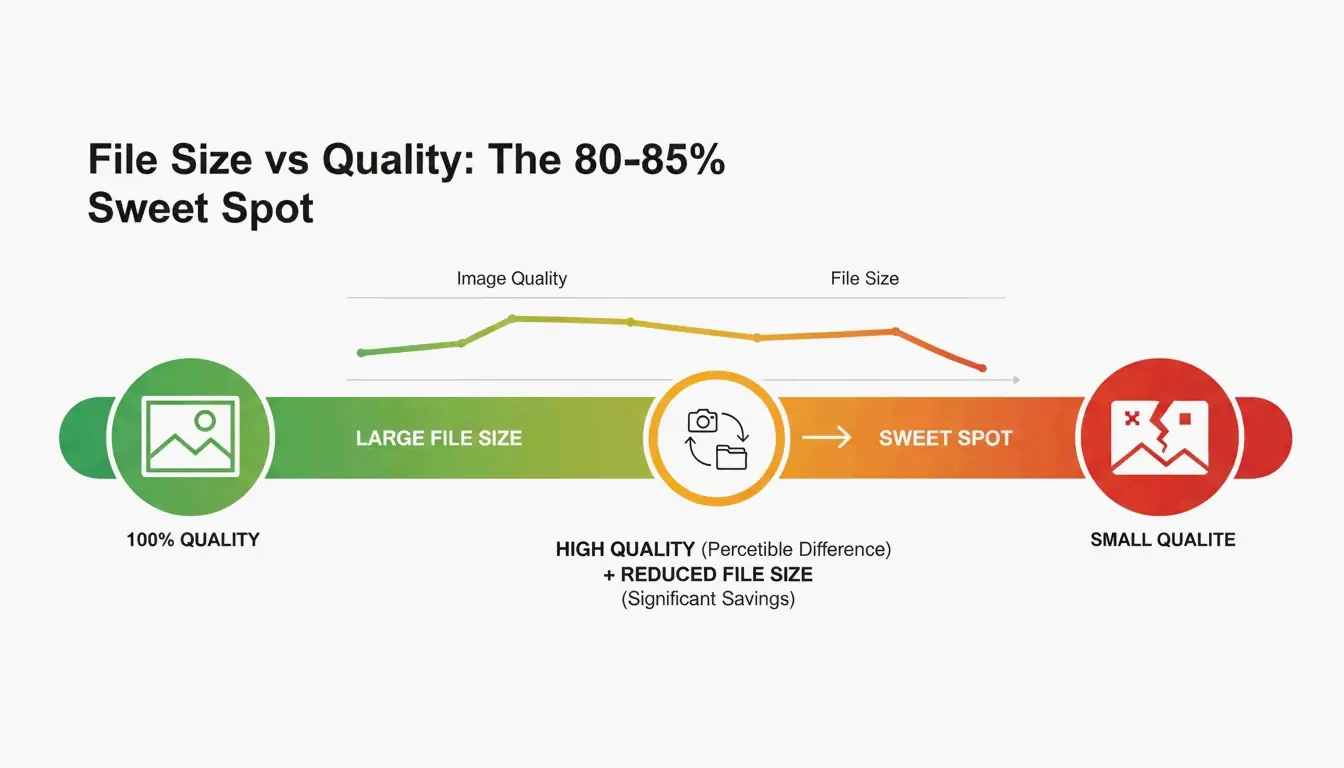
    To compress HEIC files in 2026, set the quality slider to 80–85% — the sweet spot that typically cuts file sizes by 40–50% with no visible quality loss. Use browser-based tools like ConvertMinify that process images locally via WebAssembly, keeping your photos private. For broader compatibility, convert to WebP or the resurgent JPEG XL, which is approximately 20% more efficient than standard JPEG.

    The 80–85% Sweet Spot: Why It Works

    HEIC has been Apple’s default since iOS 11 (2017) and is roughly 50% more efficient than JPEG — storing twice the photos in the same space, according to ConvertMinify. But as phone cameras push past 48MP, even HEIC files balloon to 5–8MB.

    Quality Setting File Size Reduction Visual Impact
    90–100% Minimal (10–20%) No visible difference
    80–85% 40–50% Indistinguishable to the naked eye
    60–79% 50–70% Slight softening in fine details
    Below 60% 70%+ Visible artifacts

    Data from ConvertMinify confirms that the 80–85% range consistently halves file size while preserving visual fidelity.

    A simple comparison showing the 80-85% quality "Sweet Spot" balance

    Step-by-Step: Compress HEIC Locally in Your Browser

    1. Pick a local toolConvertMinify or FreeToolio process everything in-browser via WebAssembly; your files never leave your device
    2. Upload — Drag HEIC files into the tool; it shows current dimensions and size
    3. Set quality to 80–85% — Optionally resize (2048px width is a common social media standard)
    4. Strip EXIF metadata — Saves an additional 50–100KB per photo and removes GPS coordinates
    5. Download — Save optimized files locally

    HEVC (H.265) and 10-Bit Color: The Technical Edge

    HEIC’s performance comes from the HEVC (H.265) video codec, which uses spatial prediction and flexible block sizes to organize image data far more efficiently than JPEG.

    Property HEIC JPEG
    Color depth 10-bit (1 billion+ colors) 8-bit (16.7 million colors)
    Typical iPhone 15 Pro 48MP 5–8 MB 12–20 MB
    Efficiency vs. JPEG ~50% smaller Baseline

    When compressing or converting HEIC to an 8-bit format, you lose those smooth gradients captured by high-end sensors. To preserve them, use tools that support high-depth output or choose JPEG XL as your target format.

    Format Comparison: HEIC vs. WebP vs. AVIF vs. JPEG XL

    Format Compression Efficiency Transparency Browser Support (2026) Best For
    HEIC 50% smaller than JPEG No Limited (native on Apple) iPhone photo storage
    WebP 25–34% smaller than JPEG Yes 97%+ General web images
    AVIF ~50% smaller than JPEG Yes 92%+ Maximum compression
    JPEG XL ~20% better than HEIC Yes Chromium v145+ High-quality archives, HDR
    JPEG Baseline No Universal Maximum compatibility

    The 2026 story is JPEG XL’s comeback. Added to Chromium v145 in late 2025, it outperforms HEIC, AVIF, and WebP in both speed and quality — making it the new gold standard for archives.

    Compatibility Warning

    HEIC caused real problems when the College Board rejected HEIC uploads from iPhones during AP exam submissions. Converting to a web-standard format is often a necessary step.

    Optimal Dimensions for Common Use Cases

    Use Case Recommended Dimensions Target File Size
    Instagram Post 1080 × 1350 px 200–500 KB
    Website Hero 1920 × 1080 px 300–800 KB
    Email Attachment 1600 × 1200 px 200–600 KB
    Full Archive Original resolution 1.5–3.0 MB

    Windows and Android: Solving HEIC Compatibility

    Windows often shows blank icons for HEIC files. The fix:

    1. Install HEIF Image Extensions (free, from Microsoft Store)
    2. Install HEVC Video Extensions (may require a small licensing fee)

    For batch processing, tools like Zipic (Mac) or browser-based batch converters handle hundreds of files at once.

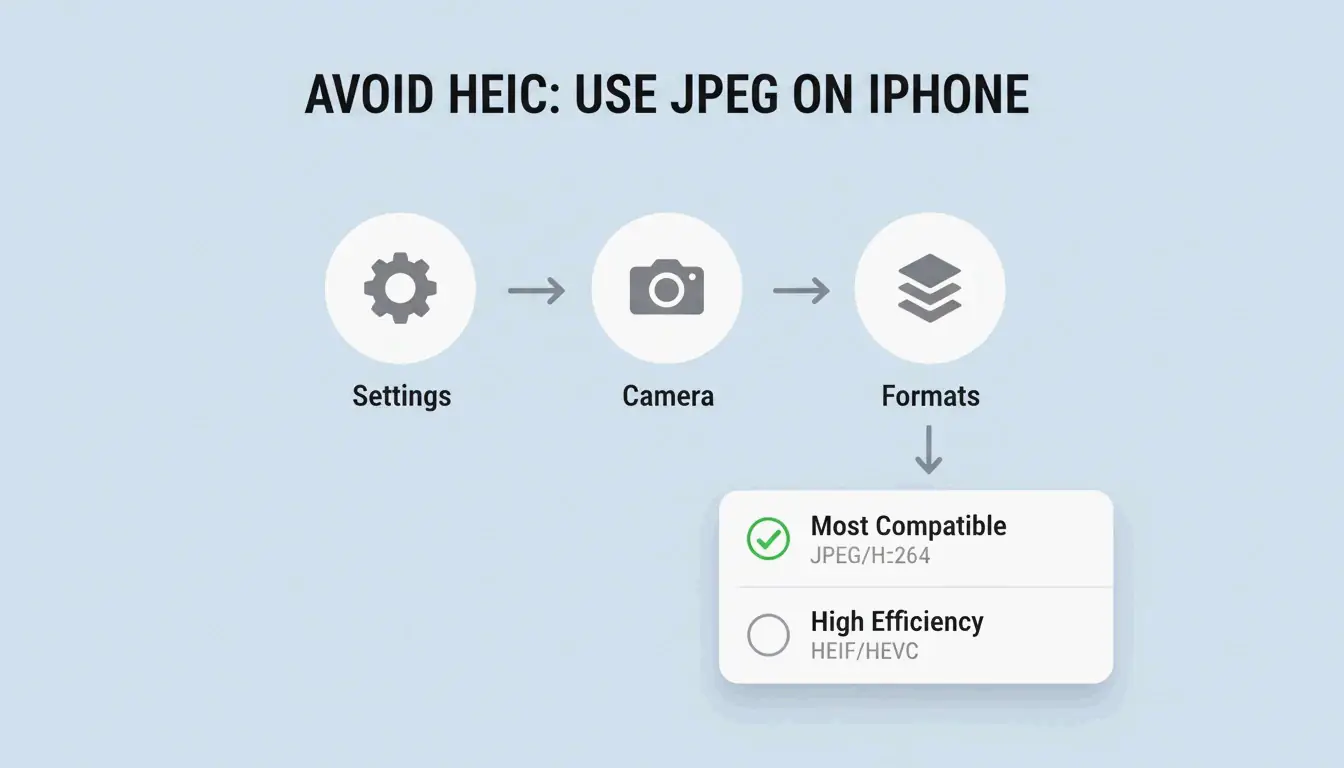
    To stop using HEIC on iPhone: Settings → Camera → Formats → “Most Compatible” forces all new photos to save as JPEG.

    A simple 3-step path to change iPhone camera format settings

    Conclusion

    Compressing HEIC at 80–85% quality cuts files by 40–50% with no visible loss. Use privacy-first browser tools that process locally. For web use, convert to WebP or JPEG XL for maximum efficiency. On Windows, install the HEIF extensions or use free third-party viewers. Always strip EXIF data before sharing publicly.

    FAQ

    Does compressing HEIC to JPEG result in quality loss?

    Yes — it is a lossy-to-lossy conversion. You lose 10-bit color depth and may introduce compression artifacts. ConvertIMG recommends keeping JPEG quality at 80% or higher during conversion to minimize visible degradation.

    How can I strip GPS metadata from HEIC files?

    Use compression tools with “EXIF-stripping” or “Metadata removal” toggles. This saves 50–100KB per file. ConvertMinify considers this essential for privacy when sharing photos on social media or public forums.

    Why does Windows require a paid extension for HEIC?

    The HEVC (H.265) codec has licensing fees. Microsoft provides HEIF Image Extensions for free, but the HEVC decoder is often a paid add-on. iformat.io recommends free alternatives like VLC or browser-based compressors to avoid these fees.