Category: Productivity

  • How to Extract ZIP File in Mac: The Fastest Native & Terminal Methods

    How to Extract ZIP File in Mac: The Fastest Native & Terminal Methods

    To extract a ZIP file on Mac in 2026, the quickest way is to simply double-click the file in Finder. macOS uses a built-in tool called Archive Utility to automatically decompress the file into a new folder in the same location. If you need more control, you can right-click the file and select “Open,” or use the Terminal command unzip [filename].zip.

    The Fastest Way: Using Finder and Archive Utility

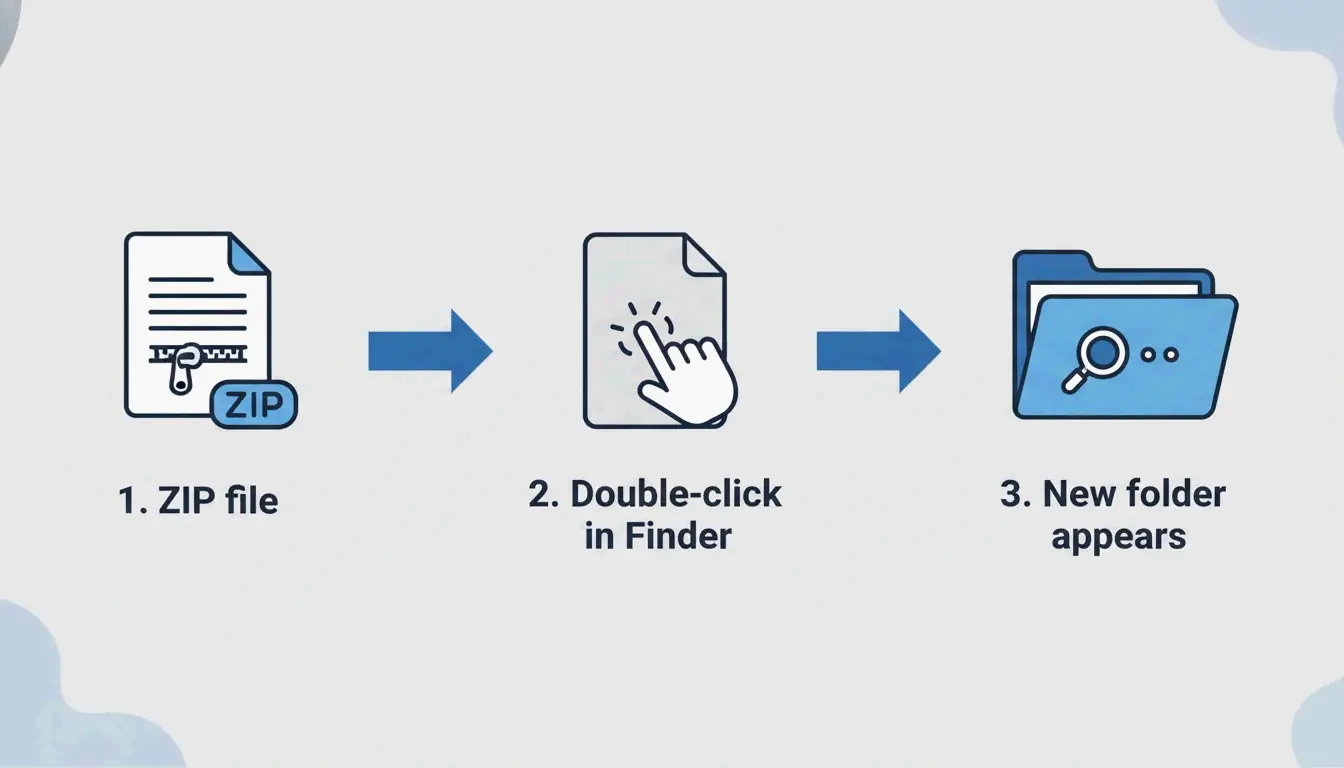
    For most people, the “double-click” method is all you’ll ever need. Since macOS has native support for ZIP files, there’s no need to download extra apps for standard archives. When you double-click a ZIP in Finder, the system runs Archive Utility in the background to unpack the contents almost instantly.

    By default, your new files will appear in the same folder as the original ZIP. This remains the standard for macOS Sonoma and newer versions, and it works perfectly across Apple Silicon hardware like the M1, M2, and M3 chips. As noted by Bernina, Mac users can easily access items like PDF patterns or documents just by using a simple double-click.

    Security Tip: Should You Auto-Open ZIPs in Safari?

    Safari can be set to unzip files as soon as they finish downloading. You can find this toggle in Safari > Settings > General by checking “Open safe files after downloading.” While this saves a step, many security experts suggest keeping it turned off. This prevents unknown files or scripts from running automatically without you checking them first.

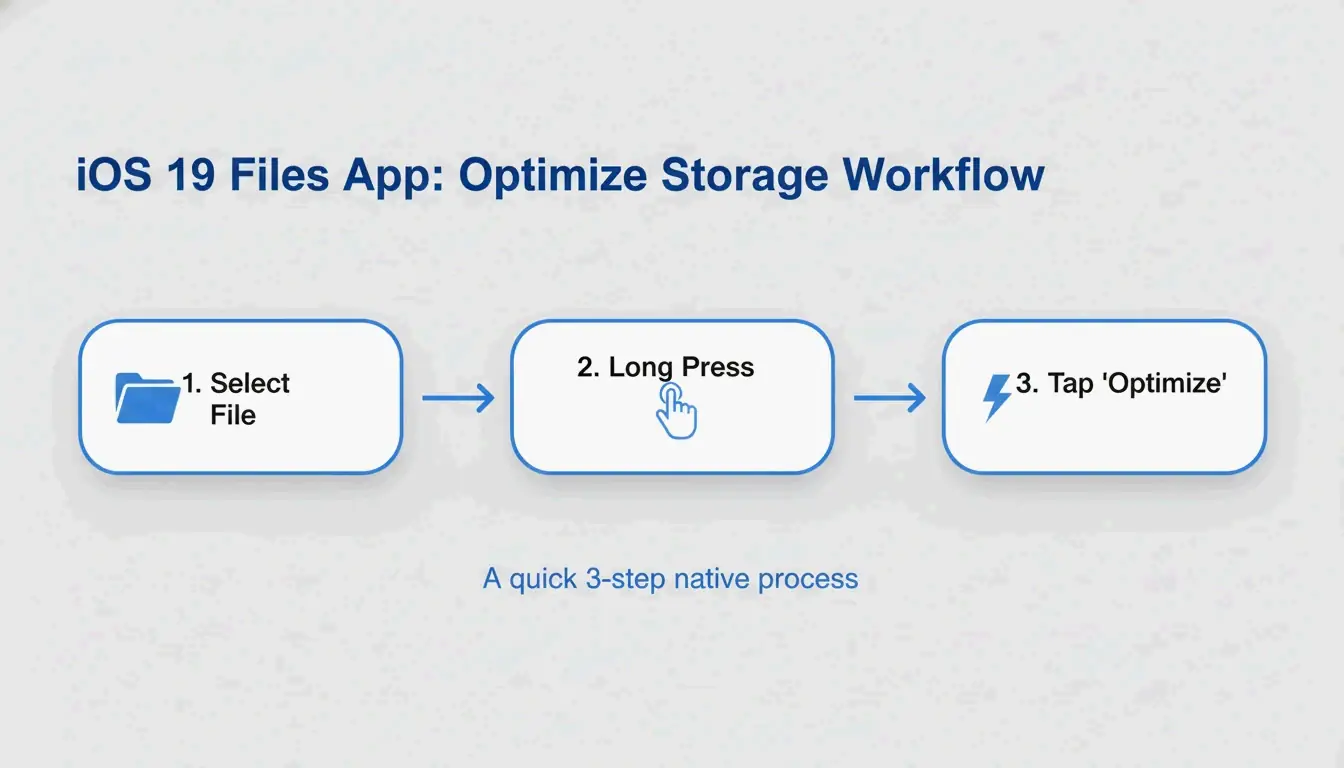
    Simple 3-step visualization of the double-click process

    Why Use Terminal for ZIP Extraction?

    Finder is great for everyday tasks, but the Terminal is a better tool when things get technical. The command line is especially helpful if you see “Decompression Failed” messages or run into “Error 1” permission problems that sometimes pop up in the regular interface.

    According to Apple Terminal documentation, unzip and tar are the go-to commands for complex archives. Running unzip [filename].zip gives you more control and handles hidden system files (like .DS_Store) or nested folders more reliably.

    Expert Olga Weis recommends a specific workflow to keep things organized: “When I download a developer package that includes nested archives, I usually move it into a clean folder first and unpack it there.” This keeps the extracted files from cluttering up your main Downloads folder.

    Extracting Non-Native Formats: RAR, 7z, and More

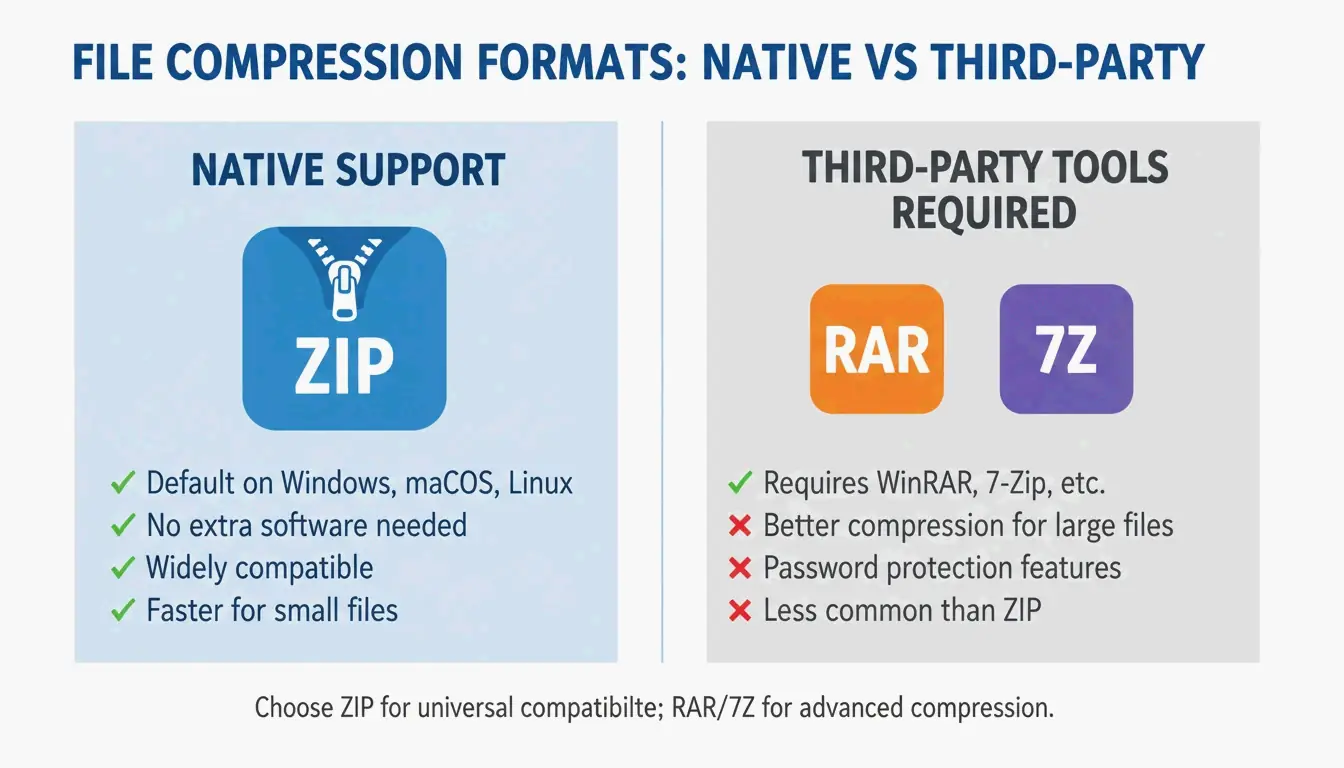
    A major downside of the Mac Archive Utility is that it doesn’t support formats like RAR or 7z. If you try to double-click one of these, macOS will likely show an error or won’t know how to open it.

    To open these files, you’ll need a third-party app. Tools like iBoysoft MagicMenu or Bandizip add a right-click option that lets you extract these formats just as easily as a standard ZIP. According to Bandisoft, their software supports over 40 formats, including RAR5 and ZIPX, and uses multi-core processing to speed up the process for large files.

    If you don’t want to install anything new, cloud-based tools are a solid alternative. ZIP Extractor, a web app based on JavaScript, has been used by over 300 million users. It lets you decompress ZIP, RAR, and 7z files directly in Google Drive or your browser—perfect for a quick one-time job on a shared computer.

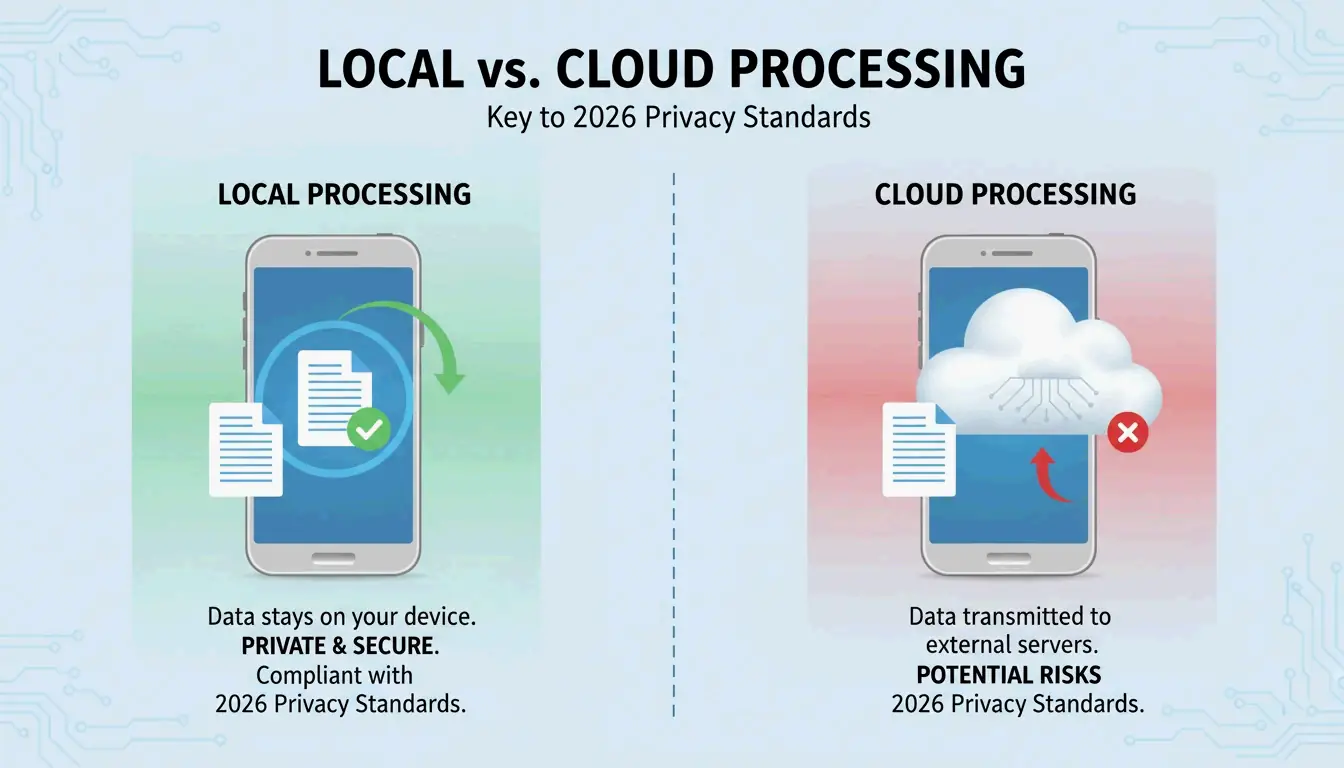
    Comparison between Native support vs. Third-party needs

    Troubleshooting: When You Are Unable to Expand ZIPs

    If you see an “Unable to expand zip” or “Decompression Failed” error, it’s usually caused by one of these three things:

    1. File Corruption: If the download was interrupted, the ZIP file might be broken. The best fix is to simply try downloading it again.
    2. Permission Conflicts: If you’re working in a protected folder or on a shared drive, you might not have “Write” permissions to create a new folder. Try moving the ZIP to your Desktop or Documents folder before unzipping it.
    3. Insufficient Storage: As Olga Weis notes, always check your disk space before starting. Unzipped files can take up much more room than the compressed ZIP version.

    Conclusion

    Unzipping files on a Mac is usually as easy as a double-click thanks to the built-in Archive Utility. However, native tools can struggle with encrypted files, rarer formats like RAR, or permission errors. When that happens, using the Terminal or a trusted app like Bandizip or iBoysoft MagicMenu is the way to go. To keep things running smoothly, make sure you have enough disk space and try unzipping files in their own dedicated folder to keep your workspace tidy.

    FAQ

    Where is the ‘Unzip’ button or app on a Mac?

    You won’t find a standalone “Unzip” app in your Applications folder. Instead, Archive Utility works in the background. You activate it by double-clicking a ZIP file or by right-clicking a file and choosing Open With > Archive Utility.

    How can I automatically unzip files downloaded from Safari?

    Go to Safari > Settings > General. At the bottom, check the box for “Open ‘safe’ files after downloading.” This will decompress ZIP files automatically as soon as they finish. Just keep in mind that you might want to disable this if you’re downloading files from sites you don’t fully trust.

    How do I extract a password-protected ZIP file on my Mac?

    If you double-click a ZIP that requires a password, macOS will show a box for you to type it in. If that prompt doesn’t appear for some reason, you can use the Terminal command: unzip -P [password] [filename].zip. Just replace the placeholders with your actual password and the name of your file.

  • How to Unzip Files on Windows: The Complete 2026 Guide for Windows 11 & 10

    How to Unzip Files on Windows: The Complete 2026 Guide for Windows 11 & 10

    To unzip files on Windows, find the ZIP folder in File Explorer, right-click it, and select “Extract All.” Choose your destination folder and click “Extract.” As of May 2026, Windows 11 also natively supports extracting .rar and .7z files directly through File Explorer, so most users no longer need to install third-party software.

    The Fastest Way to Unzip Files Using File Explorer

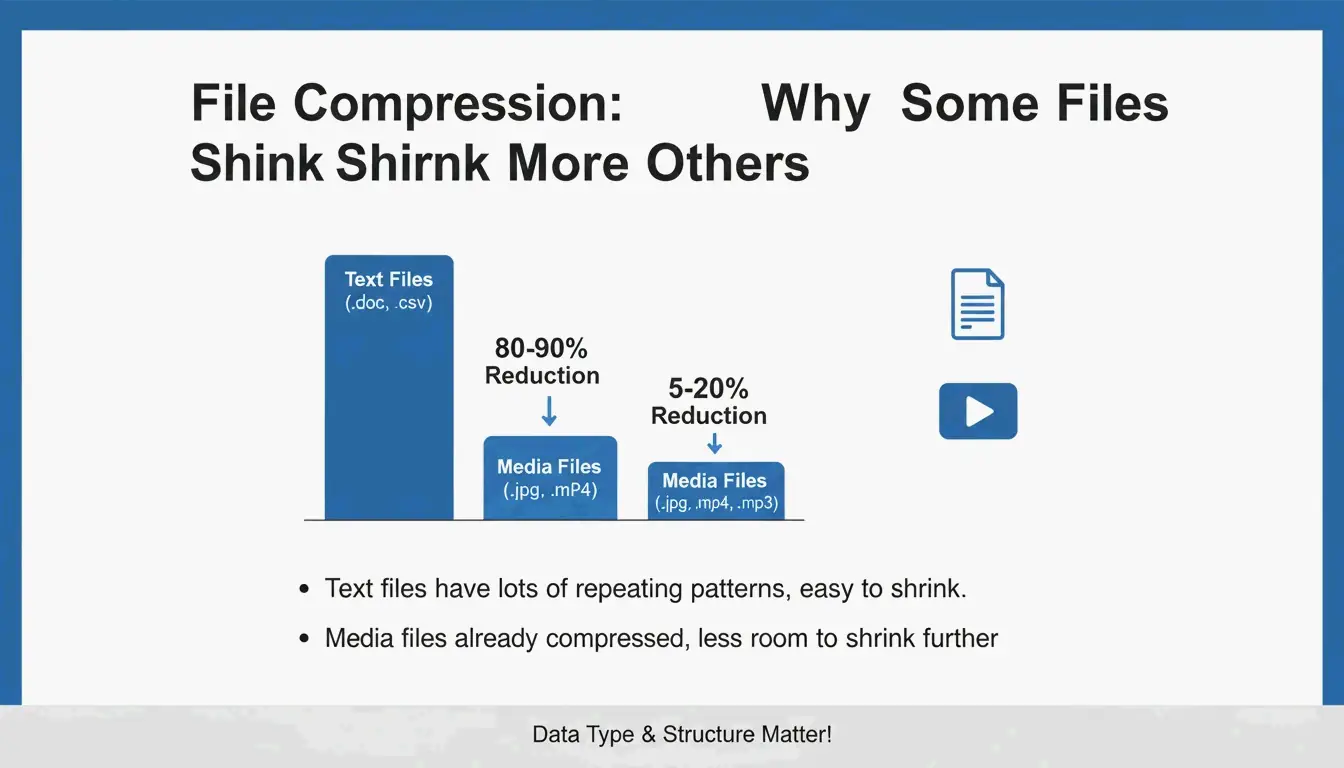
    The easiest way to manage compressed data on a modern PC is by using the built-in Windows tools. Unzipping—or decompressing—is a necessary step because while ZIP files save space, the files inside (like software installers) usually won’t run correctly until they are fully unpacked. According to Serverman, compression results depend on the file type: text documents and spreadsheets can shrink by 60-90%, while media files like JPEGs or MP3s usually see less than 1% reduction because they are already compressed.

    Method 1: Extracting an Entire Archive

    1. Find the file: Open File Explorer and locate your compressed folder (it usually has a zipper icon on the folder).
    2. Right-click: Click the file with your right mouse button to open the menu.
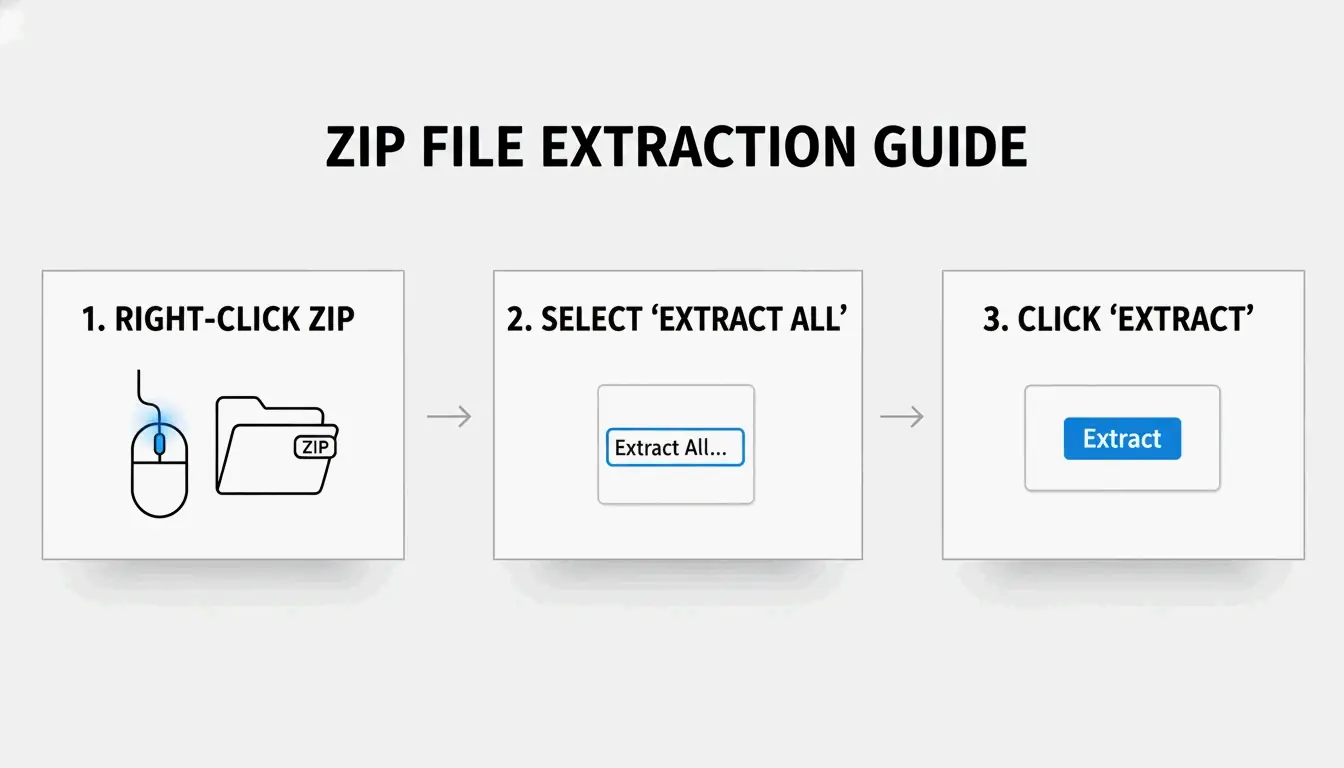
    3. Select “Extract All”: This opens a window asking where you want to save the files (Destination Folder).
    4. Confirm: Windows will suggest creating a new folder in the same spot. Click “Extract” to finish. SupportYourTech points out that you’ll see a progress bar if the archive is particularly large.

    Windows标准解压三步流程图

    Method 2: Drag-and-Drop Individual Files

    If you only need one or two documents from a large ZIP, you don’t have to extract the whole thing. Double-click the ZIP file to “look” inside. Then, just click on the specific items you want and drag them out of the window onto your desktop or into another folder. Windows handles the extraction for those specific files instantly.

    New in Windows 11: Native Support for RAR and 7z

    A big change arrived for Windows users after the November 2023 update. While Windows 10 users still generally need extra tools to open formats like .rar or .7z, Windows 11 users can now open them just like a standard ZIP.

    As noted by PandaOffice Drecov, Microsoft integrated the “libarchive” open-source project to make this possible. There is one catch: while you can extract these formats directly in File Explorer, Windows still only lets you create ZIP archives. If you need to make a high-compression .7z file or a specialized .rar archive, you’ll still need a dedicated app.

    How to Unzip Multiple Files at Once: Batch Extraction?

    If you have dozens of archives to open, right-clicking each one is a waste of time. For professional work, automation is a better path. Modern Windows systems use the ZIP64 extension, which supports archives up to 16 Exabytes in size, according to Wikipedia. This means the system is more than capable of handling massive amounts of data at once.

    Automating with PowerShell Cmdlets

    For power users, PowerShell provides a command called Expand-Archive that is much faster for big jobs. As Serverman suggests, you can use this script to unzip every ZIP file in a specific folder all at once:

    Get-ChildItem -Path "C:\SourceFolder" -Filter *.zip | ForEach-Object { Expand-Archive -Path $_.FullName -DestinationPath "C:\DestinationFolder" }

    This is a lifesaver for IT admins who need to process huge volumes of data or set up automatic weekly backups.

    When Should You Use 7-Zip or WinRAR?

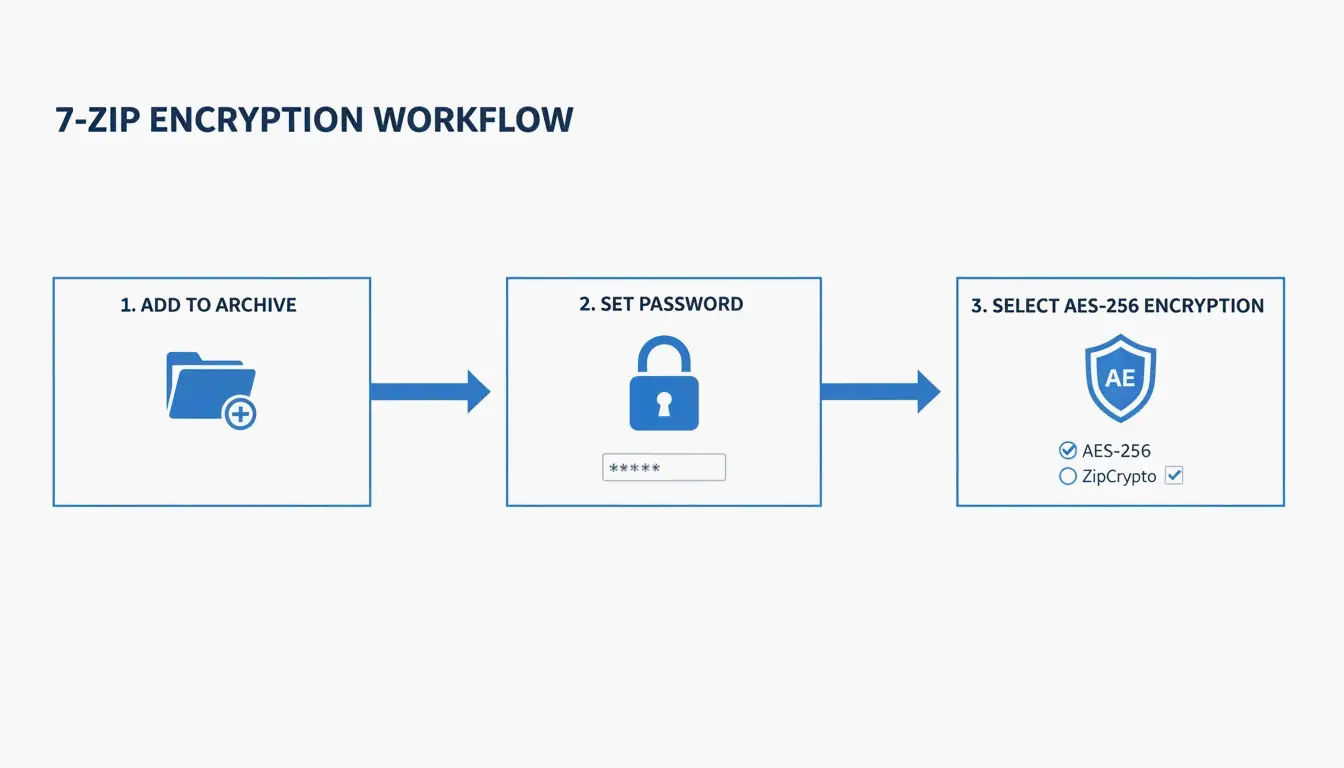
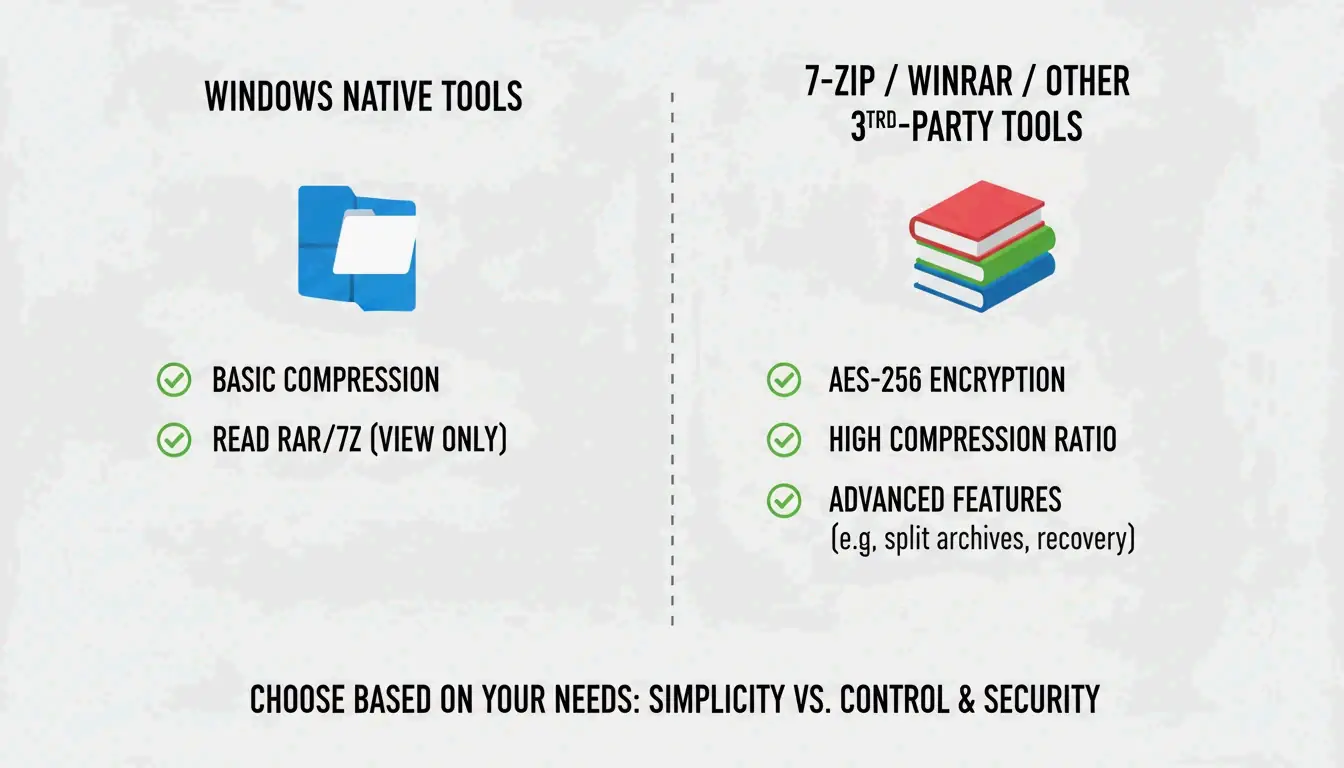
    Even though Windows has improved, third-party apps are still useful for security and advanced features. The built-in Windows tool doesn’t support AES-256 Encryption when you’re creating password-protected files. If you’re dealing with sensitive info, like medical records or tax returns, you should stick with 7-Zip or WinRAR.

    系统原生工具 vs. 第三方软件效率与功能对比

    According to ZIP Extractor, while their web tool runs in your browser for privacy, desktop apps like 7-Zip offer the best protection against “CRC errors” and corrupted files. You should use these tools if:

    • You need to open a password-protected file that Windows can’t handle.
    • You need the highest compression (LZMA/LZMA2) to save as much disk space as possible.
    • You are working with less common formats like GZIP, TAR, or BZIP2.

    Conclusion

    Unzipping files on Windows is now a built-in feature for standard ZIP, RAR, and 7z formats on modern Windows 11 versions. For most people, the right-click “Extract All” method in File Explorer is the simplest and fastest way to go. If you need to handle massive batches of files, PowerShell’s Expand-Archive is the way to go, while 7-Zip remains the best choice for encrypted or password-protected archives. Just make sure you have enough disk space before you start extracting large files to avoid any errors.

    FAQ

    What is the difference between ‘Extract All’ and double-clicking a ZIP file?

    Double-clicking a ZIP file lets you “peek” inside to see the names of the files without actually decompressing them. However, many files—especially apps or installers—won’t work right in this “preview” mode. Selecting “Extract All” fully unpacks the data into a normal folder, which is necessary for the files to run and interact with the rest of your system.

    Why can’t I see the ‘Extract All’ option when I right-click?

    This usually happens if you’ve clicked on a regular folder instead of a compressed archive. Check that the file ends in .zip, .rar, or .7z. Also, if you’ve installed a program like WinRAR, it might have changed your right-click menu. Look for the WinRAR icon or try “Open With > File Explorer” to get the standard Windows option back.

    How do I unzip password-protected files if Windows’ built-in tool fails?

    The standard Windows extraction tool doesn’t always work with high-level encryption. If you have a password-protected file that won’t open, use a dedicated utility like 7-Zip or WinRAR. These programs are designed to handle the secure AES-256 standard that Windows often struggles with natively.

  • How to Compress PNG Files in 2026: The Ultimate Guide to Speed and Quality

    How to Compress PNG Files in 2026: The Ultimate Guide to Speed and Quality

    To compress PNG files effectively in 2026, you can use browser-based tools like ToolTea for quick results or CLI tools like oxipng for lossless optimization. Lossless compression strips away hidden metadata, while lossy quantization cuts down the color palette to shrink files by 60-80% without noticeable quality loss—a move that significantly improves your site’s LCP performance.

    How to Compress PNG: A Step-by-Step Execution Framework

    Optimizing PNGs in 2026 is about finding the right balance between file size and image clarity. Whether you’re a designer fixing a single icon or a developer building an automated workflow, this framework helps you get the smallest file with the least amount of effort.

    Option 1: Instant Browser Compression (ToolTea & Pixotter)

    For most daily tasks, browser tools are the fastest option and keep your data private. According to ToolTea, modern web tools now process images locally using WebAssembly. This means your files stay on your computer and are never uploaded to a server.

    1. Upload: Drag your PNGs or a ZIP file directly into the browser.
    2. Choose Your Strategy: Pick “Lossless” if you need every pixel to stay exactly the same. Choose a specific color count (like 256 colors) if you want the smallest file possible.
    3. Adjust Size: If your image is huge, resize it to web-standard widths (like 1920px) to save even more space.
    4. Download: Hit “Compress All” and save your optimized files.

    Simple 3-step browser compression workflow

    Option 2: Advanced Optimization with oxipng and pngquant

    If you’re a developer or need to handle hundreds of files at once, Command Line Interface (CLI) tools offer much better control.

    • oxipng (v9.1.1): This is currently the gold standard for lossless compression. As Pixotter points out, it’s built on Rust and runs much faster than older tools. Using the command oxipng --opt 4 --strip all input.png will wipe out unnecessary metadata and color profiles that bulk up your files.
    • pngquant (v3.0): Use this for “lossy” compression. It works by converting 32-bit images into a simpler 8-bit palette, often resulting in a 60-80% size reduction. Industry benchmarks from ToolTea show that for logos and UI elements, this reduction is almost impossible for the human eye to spot.

    Lossless Compression vs. Lossy Quantization: Which Should You Choose?

    The right method depends on what the image is for and how perfect it needs to look.

    Lossless compression is like tidying up a suitcase without throwing anything away. Tools like oxipng use the DEFLATE algorithm to store pixel data more efficiently. Since it doesn’t change a single pixel, it’s the safest choice for logos, text-heavy screenshots, or icons where any blurriness would look unprofessional.

    Lossy quantization (like pngquant) actually removes data by limiting the number of unique colors. Pixotter shared a case study where a UI screenshot dropped from 1.2MB to 480KB while keeping 80% quality. This is perfect for complex illustrations or high-res photos where you don’t really need millions of colors to make the image look great.

    Side-by-side comparison of file size vs. visual quality

    One thing both methods handle well is the Alpha channel. Unlike JPEGs, PNGs keep their transparency. This means your rounded corners and drop shadows will still work perfectly even after aggressive compression.

    The 2026 Edge: PNG 3.0 and Modern Web Performance

    In 2026, image weight is a major factor in search engine rankings. Google’s Core Web Vitals focus heavily on Largest Contentful Paint (LCP). Data shows that the LCP element is an image on 70% of all web pages (Source: SammaPix). If your images are heavy, your rankings will likely suffer.

    Implementing PNG 3.0

    The technology took a leap forward with the PNG 3.0 release on June 24, 2025. This update brought several big changes:

    • HDR Support: Images can now handle a much higher dynamic range.
    • Native APNG: Animated PNGs are now an official W3C Recommendation.
    • Better Metadata: New “Exif Data Chunks” make handling photo info much cleaner.

    Decision Matrix: PNG vs. WebP or AVIF

    Even with PNG 3.0, you have to know when to use it. Stick with PNG if you need 100% pixel perfection or if you’re sending emails to old clients. However, SammaPix notes that WebP files are usually 25–34% smaller than JPEGs, and AVIF is even more efficient. If your only goal is a fast-loading website, converting PNG to WebP or AVIF is usually the better move.

    Format selection nodes: PNG vs. WebP/AVIF

    Deep Dive: How the DEFLATE Algorithm and Filtering Work

    To understand why PNGs get so large, you have to look at how they’re built. It’s a two-step process: filtering and DEFLATE.

    The DEFLATE algorithm is the engine. It uses LZ77 and Huffman coding to find repeating patterns. The problem is that DEFLATE reads data in a straight line—it doesn’t “see” that an image is 2D. To help it out, PNG uses Filtering. Before compression, the encoder uses five types of filters (Sub, Up, Average, and Paeth) to predict pixel values based on the ones next to them. This makes the data much more predictable and easier for DEFLATE to shrink.

    For better user experience, the Adam7 algorithm allows for “interlacing.” This makes a blurry version of the image appear almost instantly while the rest of the data loads, which is a lifesaver for users on slow mobile connections.

    Conclusion

    PNG compression is all about finding the sweet spot between file size and looks. By using 2026 standards like PNG 3.0 and tools like oxipng, you can cut file sizes drastically without hurting the user experience. Whether you’re chasing better Core Web Vitals or just trying to save disk space, the key is knowing when to use lossless precision and when to go for the massive savings of lossy quantization.

    Your Action Plan: Start by running your heaviest images through a tool like pngquant. If the 60-80% savings look good to you, stick with it. For professional dev environments, automate the work by adding oxipng or Sharp to your build pipeline to strip metadata and optimize every chunk of data automatically.

    FAQ

    … (Rest of FAQ content)

  • How to Compress JPG: The Ultimate 2026 Guide to Reducing File Size Without Losing Quality

    How to Compress JPG: The Ultimate 2026 Guide to Reducing File Size Without Losing Quality

    As of March 2026, the most effective way to compress JPG files is a simple two-step process: first, resize the image dimensions to match your needs, then apply lossy compression using AI-driven tools like TinyIMG or ShortPixel. This approach can cut file sizes by up to 90% while keeping quality in the 75-85% “sweet spot” required for fast page speeds and strong SEO.

    The 2-Step Protocol: How to Compress JPG for Maximum Reduction

    If you try to compress a massive 5MB photo without changing its dimensions, the results are often blurry or disappointing. Professionals avoid this “quality drama” by focusing on two things: how big the image is physically and how much data it holds.

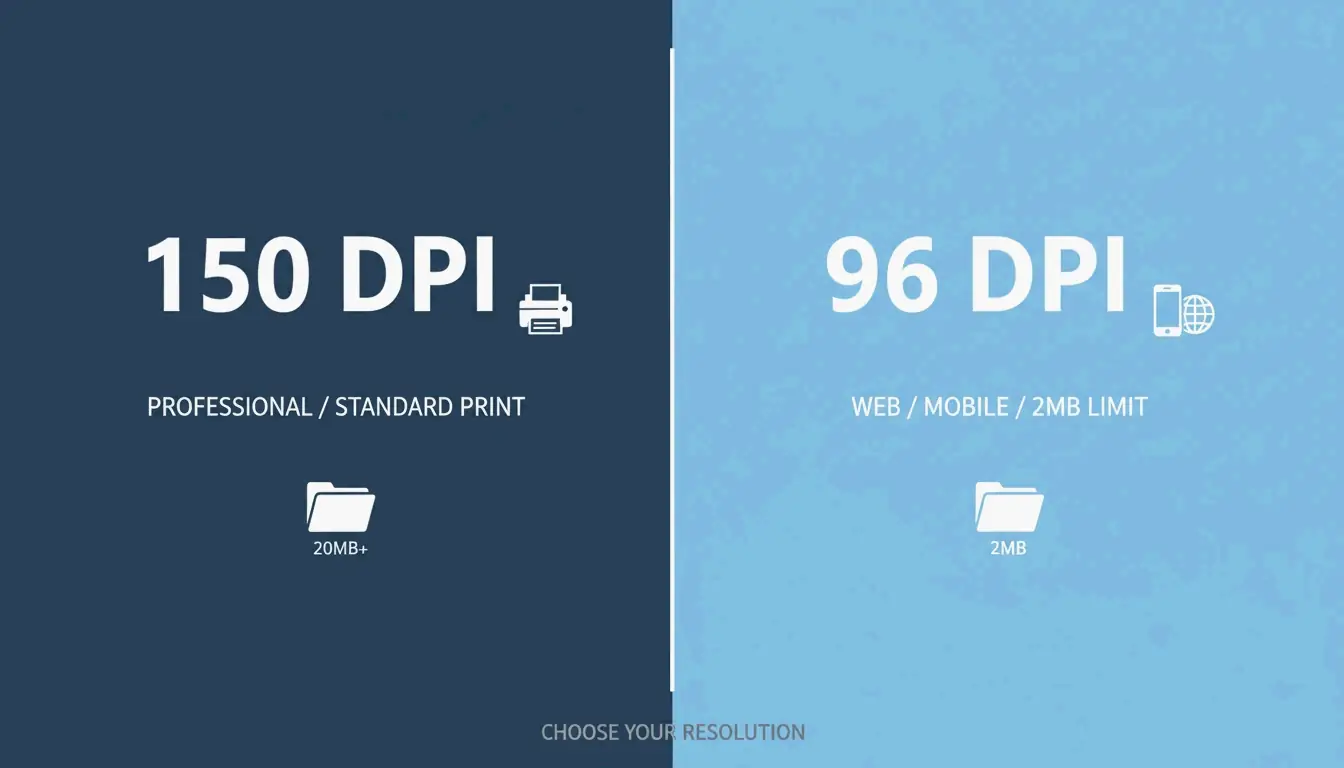
    According to ShortPixel, forcing a 2000px wide image into a tiny 100KB limit usually makes it look pixelated. However, by resizing the width first and then applying a lossy algorithm, ShortPixel showed that a 5MB image can shrink to 100KB—a 98% reduction—while still looking crisp to the naked eye.

    Why ‘Resize Then Compress’ is the Gold Standard in 2026

    In 2026, an Online Image Compressor works best when it isn’t processing “ghost pixels.” If your website only displays an image at 1200px wide, uploading a 4000px original is just wasting bandwidth. By resizing to the actual display size first, the compression tool can focus its power on the data people actually see. This is the most efficient way to balance Visual Quality vs. File Size.

    The 2-step optimization workflow: Resize then Compress

    Understanding Lossy Compression: The Science of Small Files

    To compress JPG effectively, you need to get comfortable with Lossy Compression. This method slashes file sizes by stripping away image data that humans can’t really see, like tiny variations in color shades that our eyes ignore.

    The engine behind this is something called Discrete Cosine Transform (DCT). As explained by GWAA, this algorithm breaks an image into 8×8 pixel blocks and turns visual data into frequencies. It then rounds off the high-frequency details—basically “simplifying” the parts you won’t miss—to save space.

    Research from GWAA suggests that setting your quality between 75% and 85% is the ideal balance for the web. At this level, images usually lose 40-70% of their weight, but most people can’t tell the difference unless they’re looking at a side-by-side comparison.

    Visual Quality vs. File Size "Sweet Spot" (75-85%)

    Top Tools to Compress JPG: Online and Offline Solutions

    The right Online Image Compressor depends on whether you’re fixing one photo in your browser or running a massive website.

    • TinyIMG & ShortPixel: These are the top picks for AI-driven optimization. TinyIMG offers a Shopify app and web tools that can shrink files by up to 98%.
    • GWAA & AllImageTools: Great for privacy. These tools process images right in your browser. According to AllImageTools, this “client-side” approach is more secure because your photos are never actually uploaded to a server.
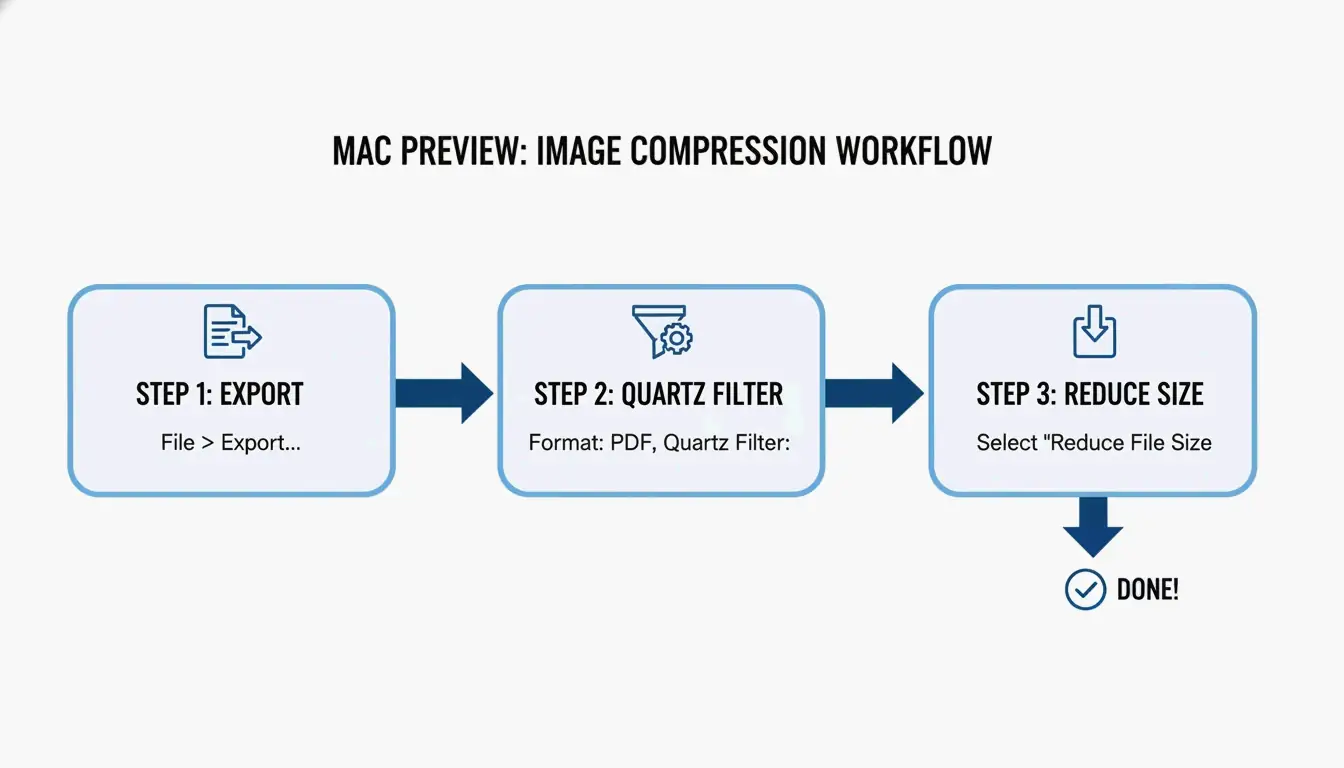
    • Windows & Mac Native Tools: You don’t always need a website. On Windows, use the Photos app’s “Resize image” feature. On Mac, use Preview under “Tools > Adjust Size” to quickly drop the resolution and quality.
    • ImageMagick: This is the go-to for developers. Bitget Academy recommends this for Batch Processing. A quick command like convert input.jpg -quality 85 output.jpg can optimize thousands of images in seconds.

    How to Strip EXIF Metadata for Extra Savings

    Almost every JPG hides “extra” data called EXIF Metadata, which includes camera settings, dates, and even GPS coordinates. While helpful for photographers, it’s dead weight for a website. Tools like ShortPixel let you uncheck the “Keep Exif” box, saving a few extra KB per image without changing a single pixel.

    Why Image Size Matters: Core Web Vitals and SEO?

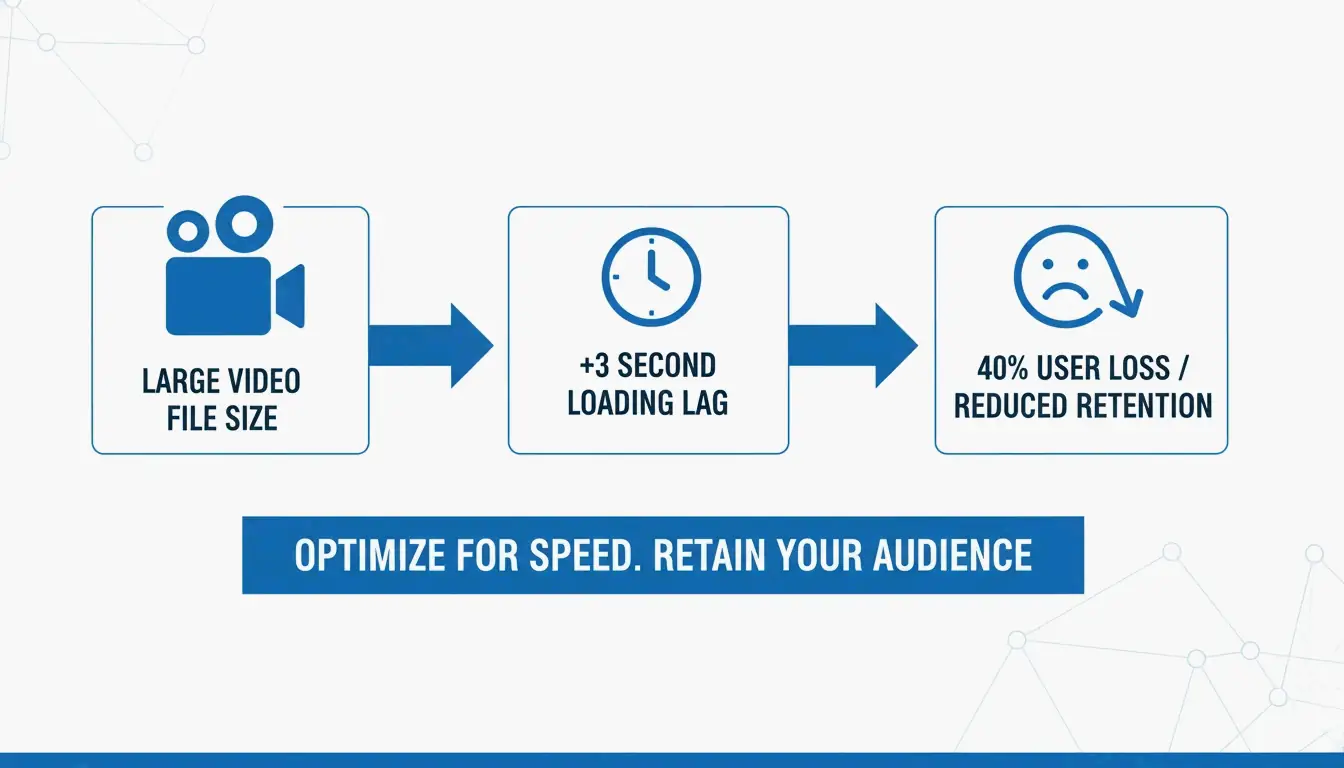
    Image weight is usually the main reason a site fails the Largest Contentful Paint (LCP) test—a key Core Web Vitals / SEO metric Google uses to rank you. Large, unoptimized files make pages sluggish, which frustrates users.

    A study by AllImageTools found that 53% of mobile users will leave a site if it takes more than three seconds to load. Additionally, Google Developers noted that modern formats like WebP / AVIF are 25-34% smaller than JPEGs at the same quality. Switching to these formats is a smart move for 2026 search rankings.

    Connection between image size and page loading speed

    Troubleshooting: What to Do When Your JPG is Still Too Large

    If your file is still over a strict limit (like a 100KB cap for a government form), you have to trade a little more quality for size.

    1. Lower the Quality Slider: AllImageTools points out that you can drop the slider to 30-40% for strict upload forms. You might see some “noise,” but the file size will drop significantly.
    2. Avoid Generation Loss: Never re-compress a JPG that has already been compressed. This makes the image look “muddy” very quickly. Always go back to your original high-quality photo and start over with more aggressive settings.
    3. AI Neural Compression: Use tools like Nero AI or TinyIMG. They use “smart compression” to remove detail only in areas where the human eye is least likely to notice.

    Conclusion

    Compressing JPGs is a mix of art and science. By resizing your images first and then applying a 75-85% compression level, you can drastically reduce file size without anyone noticing a drop in quality. To stay competitive in 2026, make optimization a habit before you upload. Check your site’s speed via Google PageSpeed Insights, then use a tool like ShortPixel or TinyIMG to tackle your heaviest images. It saves storage space, keeps users happy, and gives your SEO a direct boost.

    FAQ

    Is 50 KB considered a small enough image size for most web forms?

    Yes, 50 KB is an excellent target for profile pictures and standard web use. Most government, school, or job portals set their limits between 100KB and 500KB. For large “hero” images on a website homepage, try to stay under 200KB to keep the page loading fast.

    Does compressing a JPG multiple times ruin the image quality?

    Yes, this causes “generation loss.” Since JPEG is a lossy format, every time you save or re-compress it, the algorithm runs again and deletes more data. This creates “artifacts” or digital noise. For the best results, always run your compression on the original, high-quality file.

    Why should I use JPEG instead of PNG for photographs?

    JPEG is built for photos and complex images with millions of colors; its lossy compression is great at keeping those files small. PNG is “lossless,” which is perfect for logos or text that need sharp edges and transparency, but it makes photo files massive. JPEGs are usually 5 to 10 times smaller than PNGs for the same photograph.