Category: Productivity

  • Optimizing Photos for Website Performance: The 2026 Technical Guide

    Optimizing Photos for Website Performance: The 2026 Technical Guide

    Optimizing photos for your website in 2026 requires prioritizing modern formats like AVIF and WebP, resizing dimensions for responsive displays, and applying lossy compression. By implementing lazy loading, descriptive alt text, and CDNs, you significantly improve Core Web Vitals (LCP) and visibility in both traditional and AI-driven search engines.

    The 2026 Framework for Optimizing Photos for Website Speed

    In 2026, image weight is still the biggest hurdle for web performance. According to NeedleCode, images make up over 60% of the total “weight” of a typical webpage. This extra bulk directly hurts your Core Web Vitals, specifically the Largest Contentful Paint (LCP)—the metric that tracks how fast your main content appears. Data from SimpleResizer shows that images trigger the LCP on 70% of pages, which means your search rankings are essentially tied to your photo loading speeds.

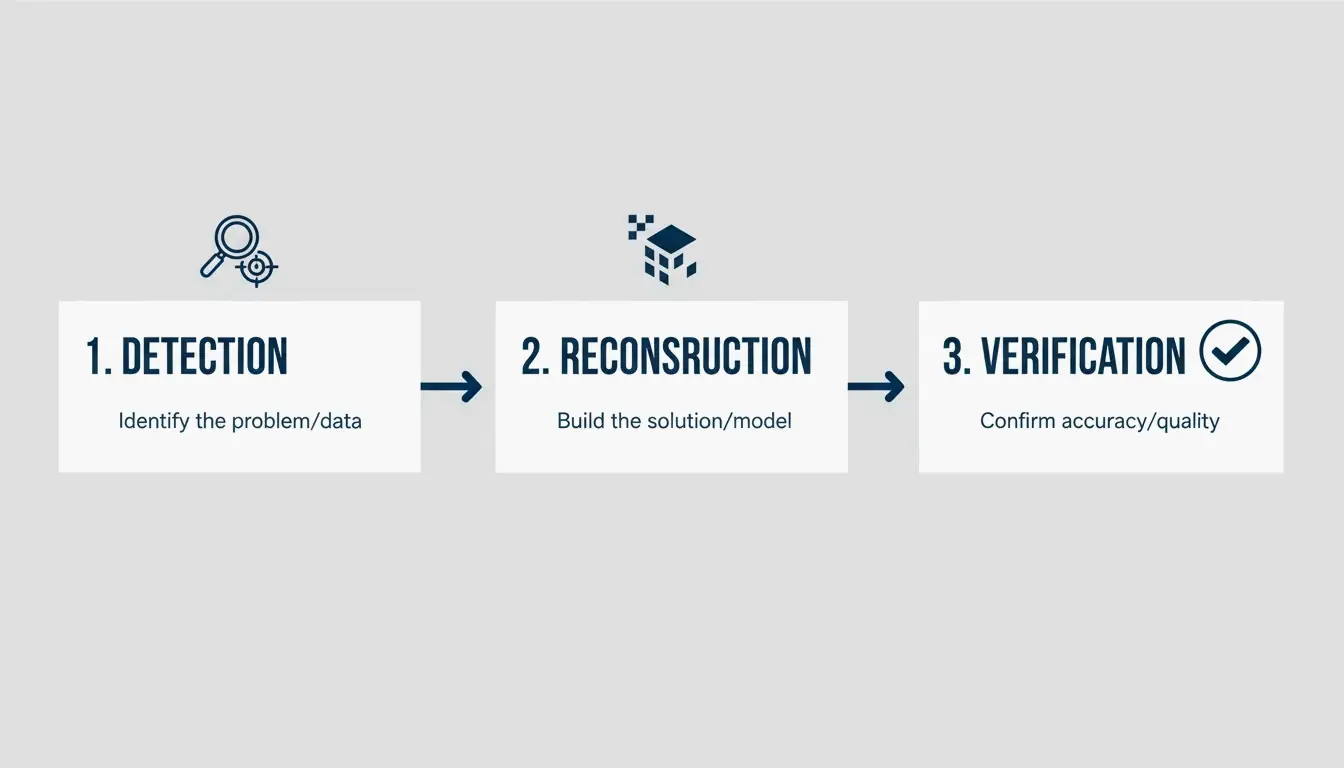
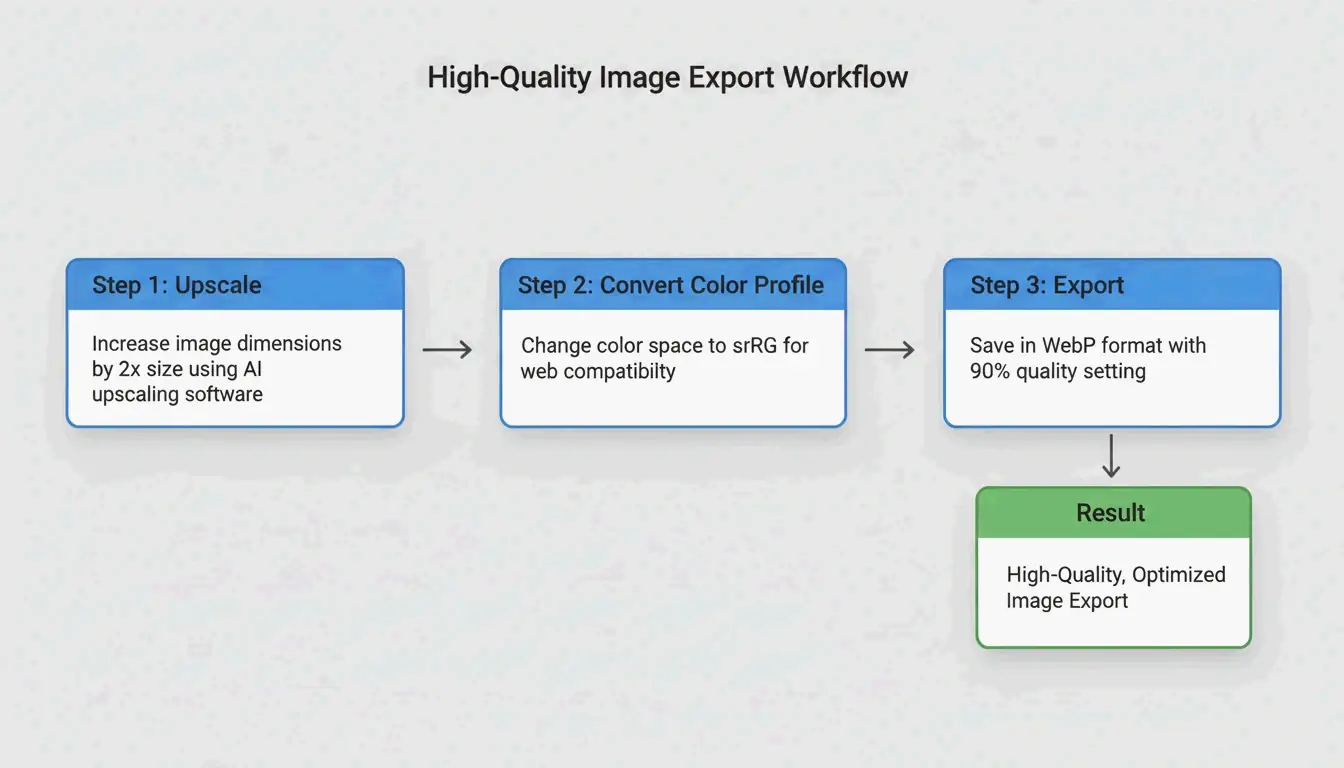
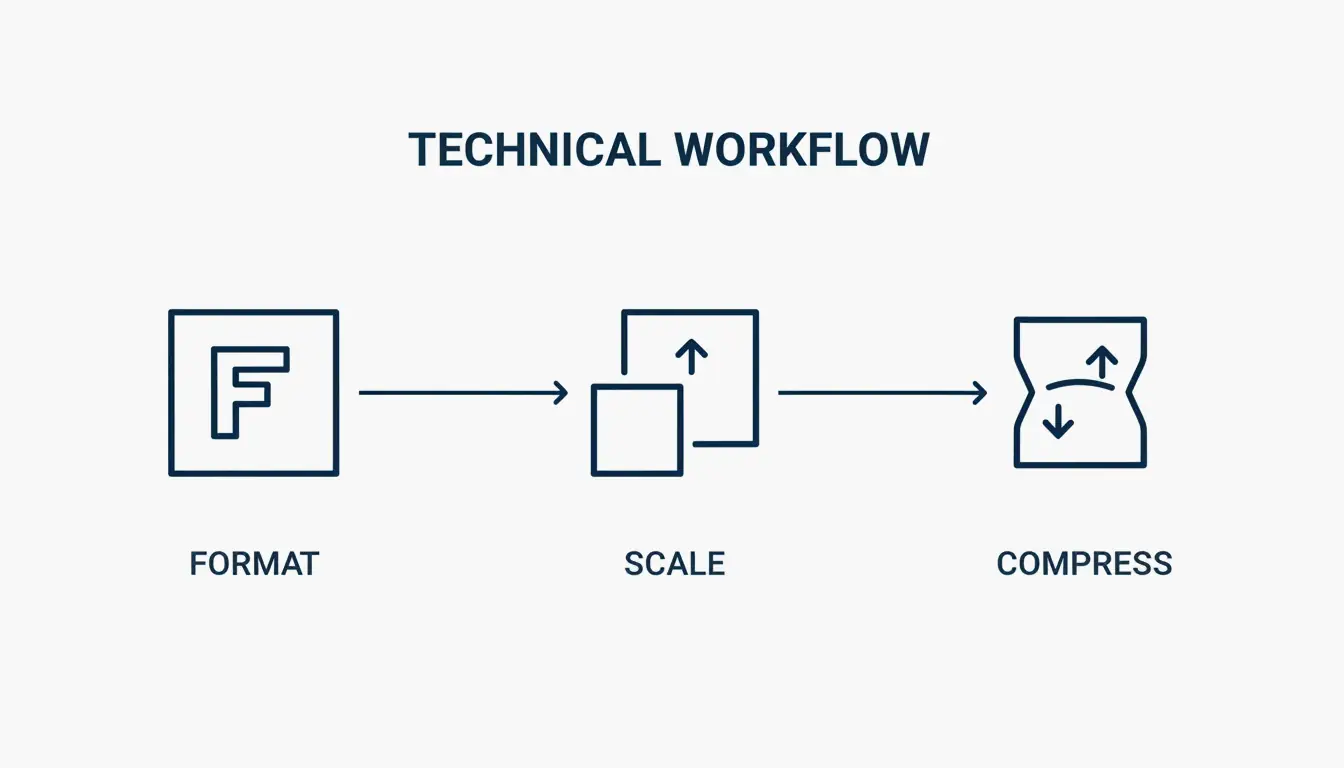
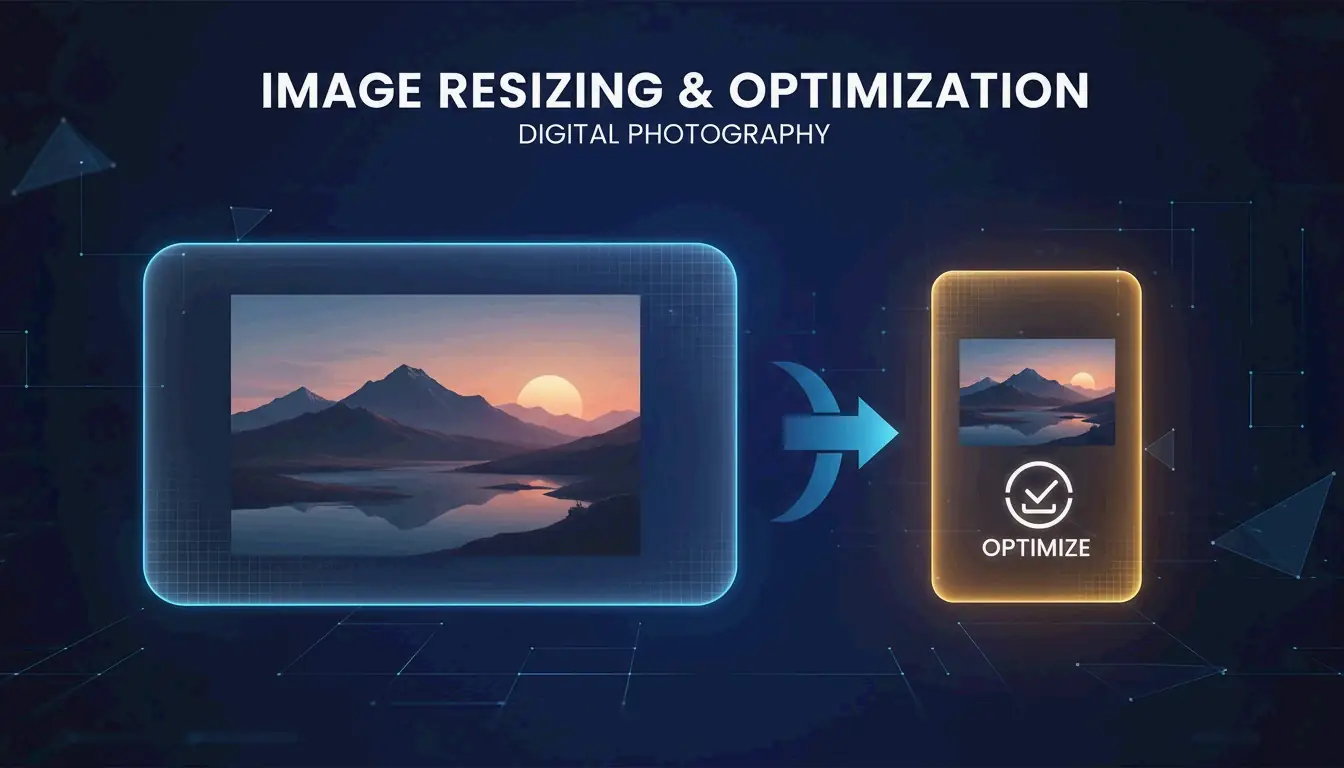
    To get your site running fast, follow this 3-step order: Format -> Scale -> Compress. Start by choosing a modern file type, resize the image to the exact size it will appear on the screen, and finally, use a compression algorithm to trim away hidden, unnecessary data.

    The 3-step optimization workflow: Format, Scale, Compress

    Auditing Your Current Performance with DebugBear

    Before you start changing files, you need to see where you stand. Tools like DebugBear let you track “Page Weight (Images)” as a specific metric. This helps you find the specific pages where heavy media is slowing everything down. In 2026, it’s smart to set a “Performance Budget”—for instance, you could set an alert to trigger if a key page climbs over 600 kilobytes in image weight.

    Choosing the Right Format: Why AVIF is the 2026 Standard

    Picking the right format is the easiest way to see big gains. While JPEG used to be the standard, it’s mostly phased out in professional web development today.

    • AVIF: This is the 2026 gold standard for hero images and high-quality photography. It offers incredible compression and looks better than WebP even at much smaller file sizes.
    • WebP: The reliable “all-rounder.” It provides high compression and works on almost every browser, making it a great default for general site images.
    • PNG: Save this for flat graphics, logos, or anything that needs a transparent background.
    • SVG: Best for icons and simple logos. Since they are code-based, they stay sharp at any size without adding bulk.

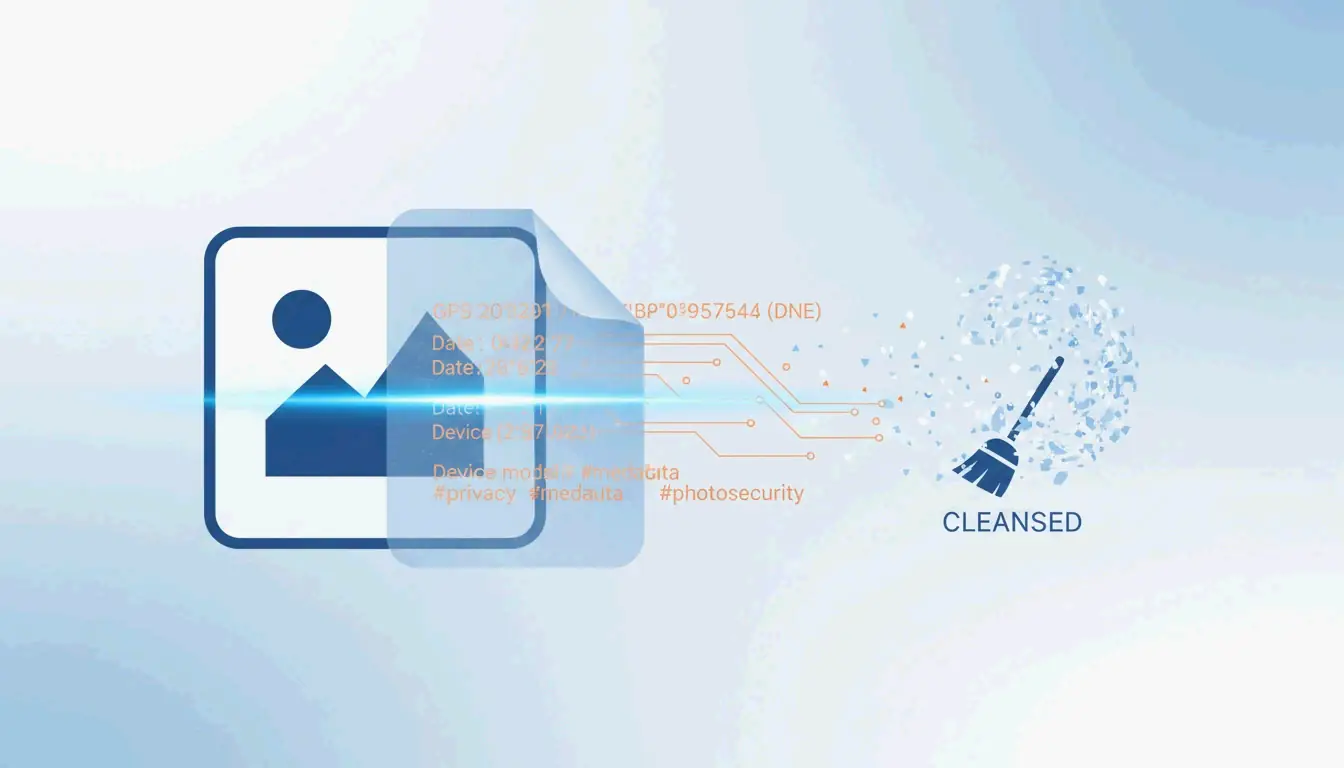
    One step people often skip is stripping EXIF Data. Every photo you take with a camera hides metadata like GPS coordinates and timestamps. SimpleResizer notes that removing this data shrinks the file and protects privacy without changing how the photo looks. If you prefer a manual workflow, a WordPress Support case study found that exporting a JPEG via GIMP at Quality 60 (with 4:2:0 subsampling) can cut file size by 64% with almost no visible difference.

    Developer Cheat Sheet: Implementing AVIF with WebP Fallbacks

    To use the newest formats without leaving older browsers behind, use the <picture> element. It lets the browser pick the best format it can handle:

    <picture>
      <source type="image/avif" srcset="image.avif">
      <source type="image/webp" srcset="image.webp">
      <img src="image.jpg" alt="Descriptive text" loading="lazy">
    </picture>
    

    Technical Implementation: Resizing and Responsive Delivery

    A frequent mistake is uploading a massive 4000px wide photo into a space that’s only 1200px wide. If your content area is 600px wide, WordPress Support recommends serving an image about 1.5 to 2 times that width (1200px). This keeps the image looking sharp on high-resolution “Retina” screens without wasting bandwidth.

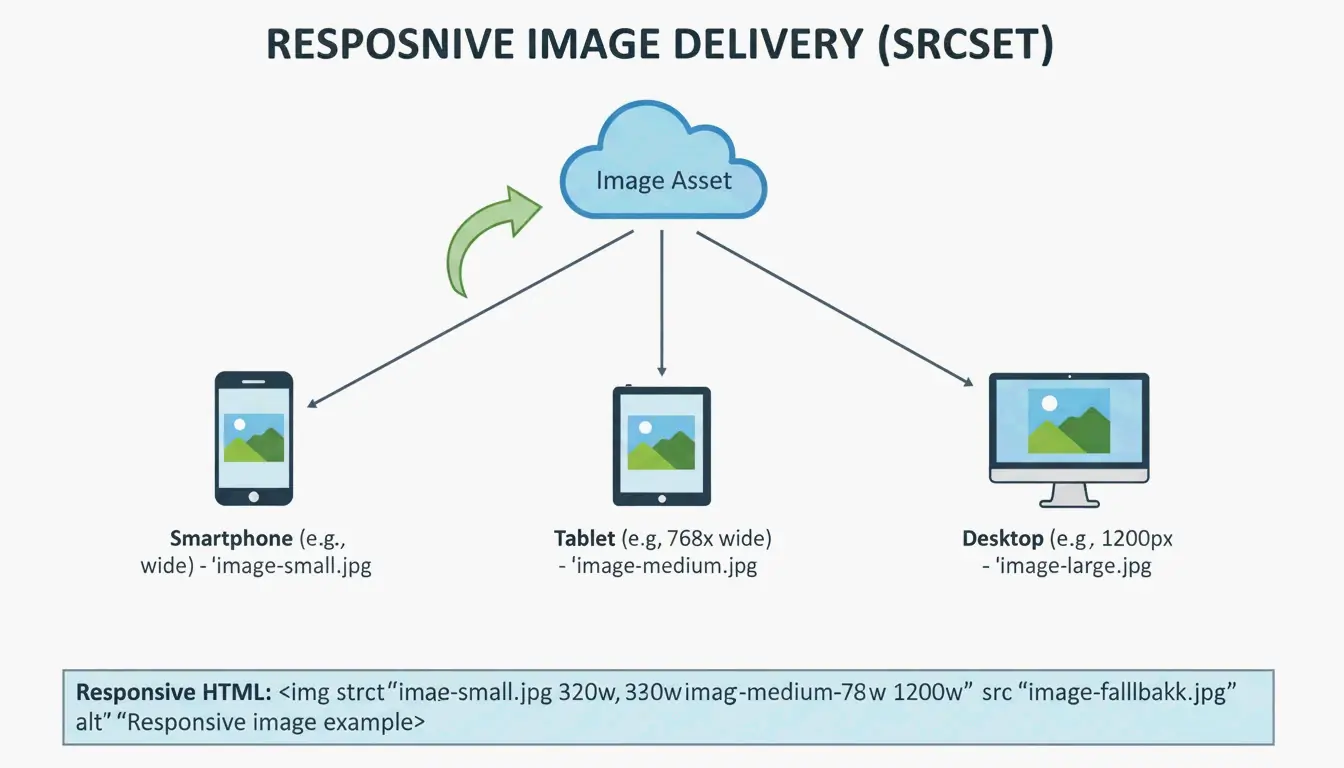
    Use the srcset attribute to offer a “menu” of different sizes. This way, a person on a small phone doesn’t have to download a giant desktop-sized image. For manual work, Squoosh and TinyPNG are the go-to tools for keeping quality high while files stay small. DebugBear points out that resizing a standard Pexels image from its original 7108px width down to 1266px can slash the file size by 89%.

    Responsive image delivery: serving different sizes to different devices

    The Role of a CDN in Global Image Delivery

    Even a perfect image will feel slow if it has to travel halfway around the world from one server. A Content Delivery Network (CDN) like Cloudflare or BunnyCDN keeps copies of your images on “edge servers” closer to your users. Many modern CDNs can even handle the formatting and resizing for you automatically based on the user’s device.

    Future-Proofing for GEO: Image SEO in the AI Era

    By 2026, optimizing photos for your website is about more than just speed—it’s about Generative Engine Optimization (GEO). AI search tools and visual search like Google Lens need to “read” your images to understand your content. Statistics from SimpleResizer show that 20–30% of all e-commerce traffic now comes from Google Images and visual discovery tools.

    To stay visible, follow these steps:

    1. Descriptive Filenames: Use red-leather-armchair.webp instead of a generic IMG_4837.jpg.
    2. Alt Text: Write factual descriptions (e.g., “Barista pouring milk into a latte to form a tulip pattern”) so AI models understand exactly what’s in the photo.
    3. Placement: Keep images near the text they actually relate to. This helps search crawlers understand the context.

    Lazy Loading: Improving UX and Initial Paint

    Native lazy loading should be used for any image “below the fold” (the part of the page you have to scroll to see). By adding loading="lazy" to your tags, you tell the browser to wait to download those images. This saves data and speeds up the Critical Rendering Path. Just remember: never lazy load your top “hero” image. That image is your LCP, and delaying it will hurt your SEO.

    Conclusion

    Modern image optimization is a balance between keeping things pretty and keeping them fast. It’s no longer enough to just click “Save for Web.” You need to use next-gen formats like AVIF, set up responsive srcset delivery, and make sure your images are ready for AI through clear Alt Text.

    To stay ahead in 2026, start by auditing your site with PageSpeed Insights or DebugBear. Move your workflow toward AVIF as your default, automate your compression where possible, and make sure every image has a clear reason for being on the page. Doing this will boost your Core Web Vitals and make sure you’re found in the new world of visual search.

    FAQ

    Does image optimization affect my Core Web Vitals (LCP/CLS) scores?

    Yes, images are the primary driver of Largest Contentful Paint (LCP), which measures how fast the main content of your page loads. Furthermore, providing explicit width and height attributes for your images prevents Cumulative Layout Shift (CLS) by allowing the browser to reserve space before the image downloads, ensuring a stable visual experience.

    Should I use a WordPress plugin or optimize images manually before uploading?

    Manual optimization using tools like Squoosh offers the highest level of quality control and is ideal for critical assets like hero banners. However, for high-volume sites or blogs, WordPress plugins like Smush, Imagify, or EWWW Image Optimizer are superior for bulk automation, ensuring that every user-uploaded image is resized and compressed consistently.

    What is the ‘blur-up’ technique and how does it improve user perception?

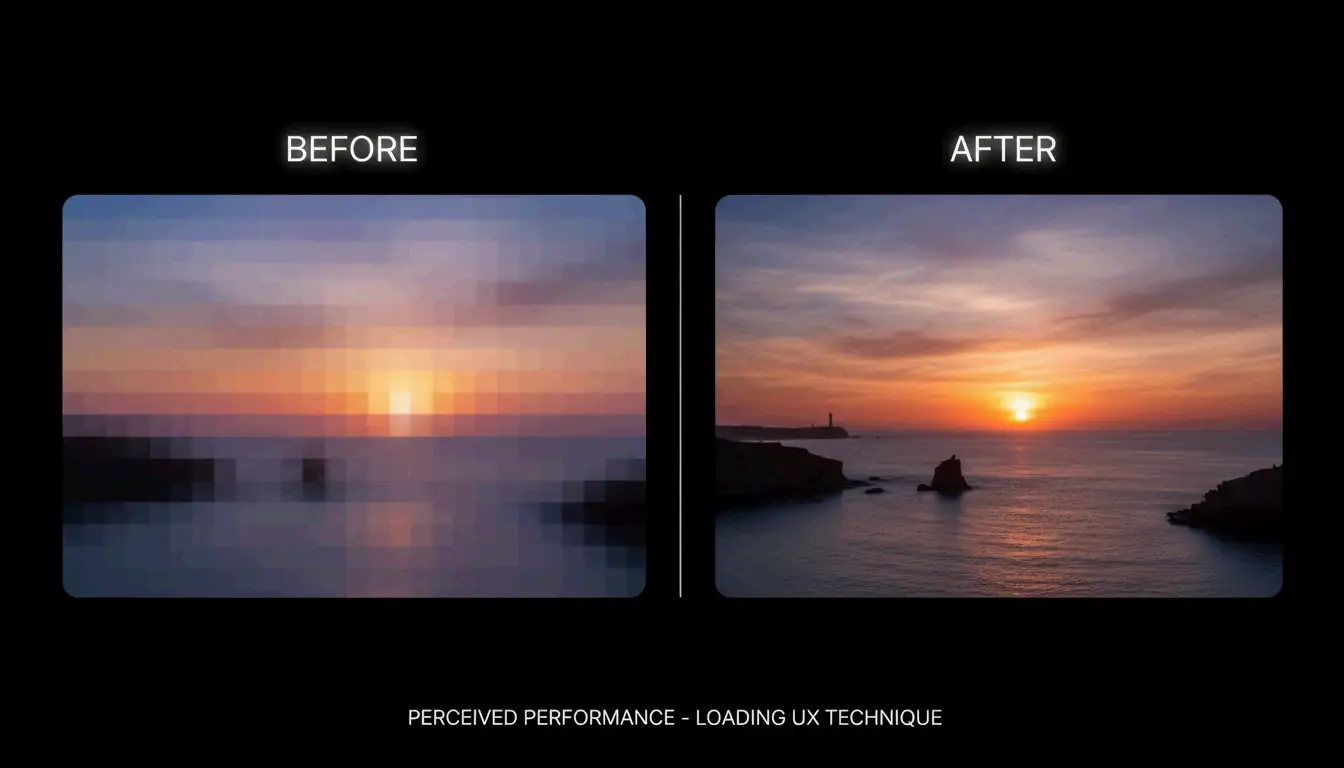
    The “blur-up” technique involves loading a tiny, low-resolution placeholder (often just 10-20 pixels wide) that is stretched and blurred to fit the image container. As the high-resolution image downloads in the background, it replaces the placeholder. This improves “Perceived Speed” by giving the user a visual hint of the content immediately, reducing bounce rates.

    Comparison of 'blur-up' vs standard loading

  • How to Compress Photos in 2026: The Ultimate Guide to Reducing File Size Without Losing Quality

    How to Compress Photos in 2026: The Ultimate Guide to Reducing File Size Without Losing Quality

    To compress photos in 2026, use online tools like TinyJPG or professional software like Adobe Photoshop. You can reduce file sizes by up to 90% by adopting modern formats like WebP or AVIF, setting quality sliders to the 75-85% “sweet spot,” and resizing dimensions to a standard 1000px width for web use.

    The 2026 Standard: How to Compress Photos Efficiently

    By 2026, photo compression has moved beyond simple file shrinking. Today, it’s all about AI-driven optimization. The goal is straightforward: get the smallest File Size (KB/MB) possible without losing that professional, crisp look. Modern standards now favor next-generation formats like AVIF over traditional JPEG / JPG because they pack much more visual data into a smaller footprint.

    To get professional results, follow these three core steps:

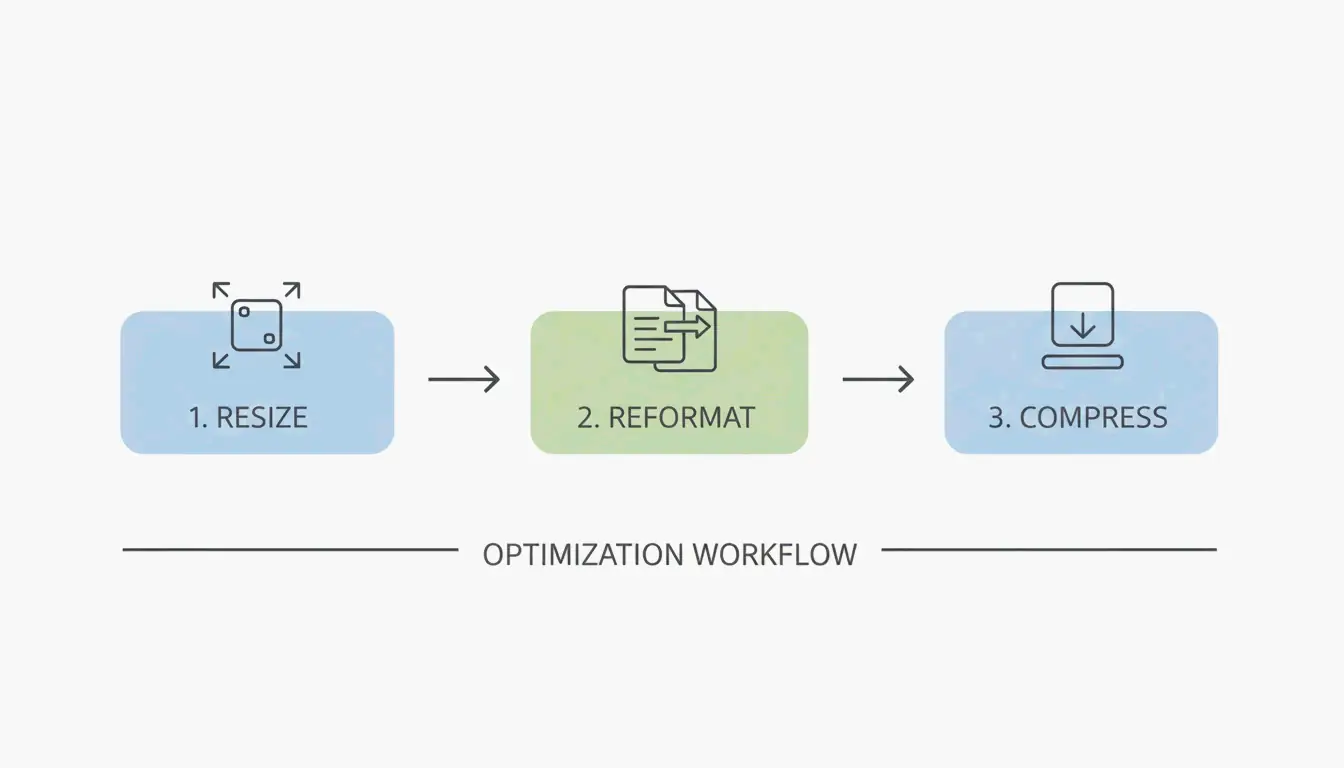
    1. Resize: Scale down the pixel dimensions to fit where the image will actually be displayed.
    2. Reformat: Switch older formats to high-efficiency types like WebP or AVIF.
    3. Compress: Use a quality reduction algorithm to strip away data the human eye won’t notice.

    A simple 3-step workflow: Resize -> Reformat -> Compress.

    A key rule for 2026 is the “Sweet Spot” principle. Setting your compression quality between 75% and 85% is the gold standard for the web. This range cuts the megabytes significantly without causing “pixelation” or blurry artifacts. As the Tech Guide Admin puts it, “Smart compression is better than aggressive compression.” In other words, it’s better to optimize intelligently than to ruin an image just to save a few extra kilobytes.

    According to Mass Image Compressor, modern utilities can now achieve a 90% reduction in size. This makes it easy to share high-resolution galleries instantly, even over mobile networks.

    Setting the Right Resolution / Dimensions for Web

    High-end cameras often take photos much larger than any digital screen can actually show. For typical web use, the UCSC web optimization standard recommends a maximum width of 1000 pixels for the longest edge. Resizing a 3000px image down to 1000px slashes the file size before you even start the actual compression process.

    Why WebP and AVIF are the New Kings of Compression?

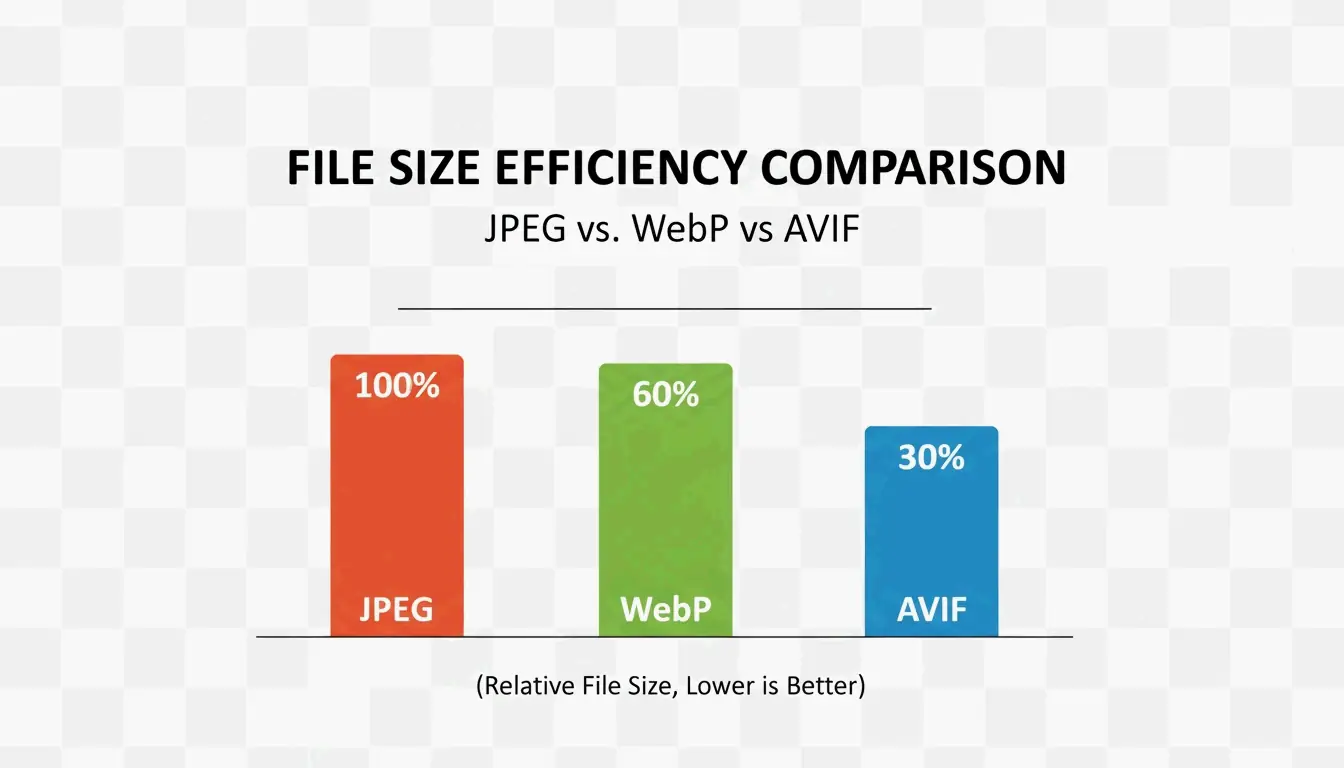
    Image formats have evolved to keep up with mobile data limits and the need for instant loading. While JPEG / JPG is still the most compatible format, it isn’t the most efficient anymore. WebP is now the industry standard for the web, offering file sizes 25-35% smaller than JeneGs of the same quality.

    In 2026, AVIF has taken the lead for mobile-first environments. It compresses even better than WebP, often shrinking files by another 20% while keeping fine details sharp in high-contrast areas. Since most modern browsers now support AVIF, it’s the top choice for anyone looking to save on cloud storage.

    A clean comparison of file sizes between JPG, WebP, and AVIF.

    Professional Tools for Batch Compression

    If you’re working with hundreds of images, Batch Compression is a lifesaver. Professional software like Adobe Photoshop gives you total control via the “Export As” function. You can head to File > Export > Export As to adjust the quality slider and see a real-time preview of the final file size.

    Managing mobile formats is also a common hurdle. To use HEIC files from an iPhone on a Windows PC or the web, tools like Ashampoo Image Compressor (which noted an 80% size reduction capability in 2024) or Easy Photo Compressor allow you to convert them to JPEG or WebP while keeping all your important metadata intact.

    Best Free Online Compressors for Quick Gains

    If you just need to fix a few images without downloading software, these browser-based tools work great:

    • TinyJPG/TinyPNG: The go-to for automatic JPEG and PNG optimization.
    • JPG20KB: A specialized tool for shrinking images to tiny targets, like 20KB, which is often required for government forms or IDs.
    • pdfFiller: A helpful option for compressing photos to 300kb or smaller when you need to embed them in legal documents.

    Troubleshooting: How to Fix Over-Compressed Photos?

    Over-compression happens when the quality slider is pushed too low, leading to “blocking” or “banding” (those ugly blocks of color in your sky or shadows). If your photos look blurry, you’ve likely gone below the 75% quality floor.

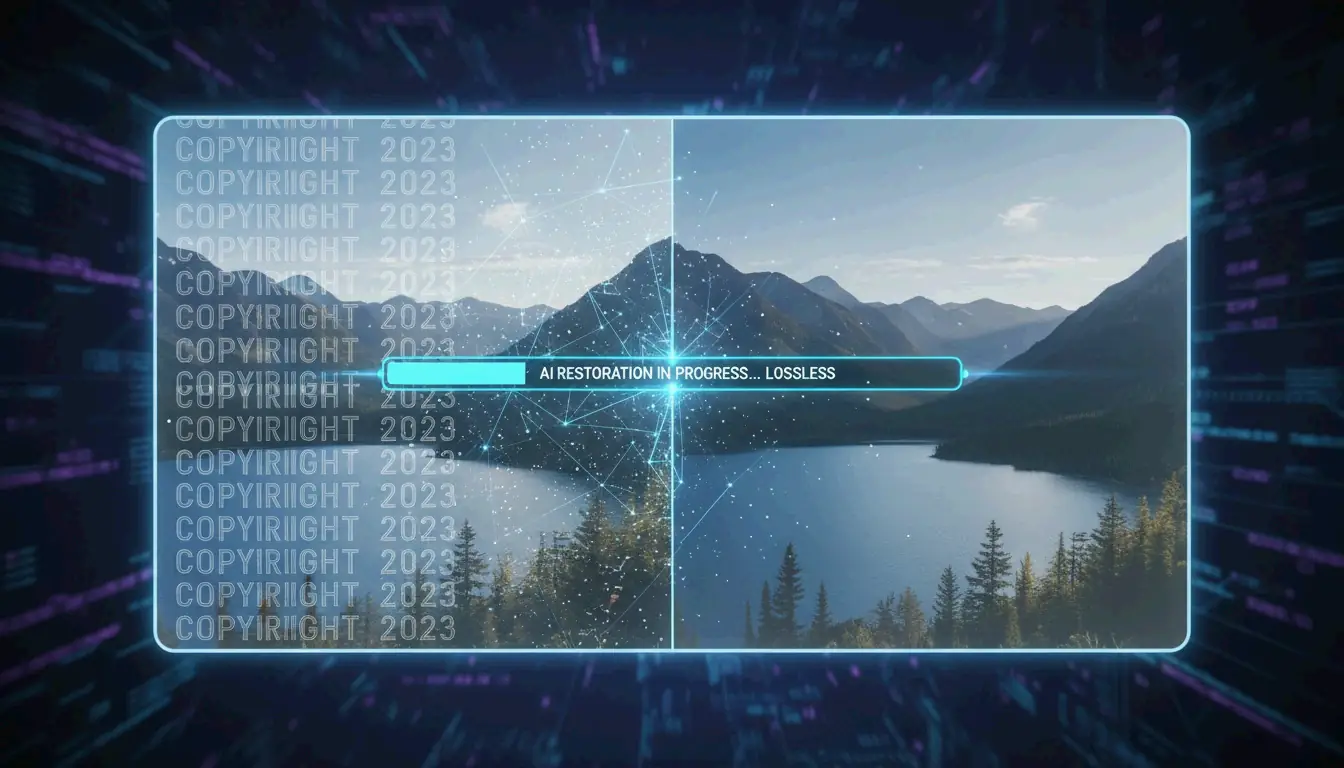
    To fix a damaged file, you can try an AI-driven tool like 4DDiG AI Photo Enhancer. According to 4DDiG, these tools use neural networks to “fill in” the missing data. They essentially upscale the image and clean up the compression mess to bring back the original clarity.

    Conclusion

    Compressing photos in 2026 isn’t just about JPEGs; it’s about using AVIF and AI tools to reach that 80-90% reduction mark without the image looking “cheap.” High-res files from modern cameras can easily top 50MB, but with the right workflow, you can make them small enough to share anywhere. For the best results, start by converting your library to WebP or AVIF and aim for that 75-85% quality “sweet spot.” By resizing your images to 1000px wide for the web, you’ll keep your content fast, professional, and accessible on any device.

    FAQ

    What is the difference between lossy and lossless compression?

    Lossy compression, used in formats like JPEG and WebP, removes certain data to shrink file sizes significantly, making it ideal for web use and social media. Lossless compression, used in PNG and TIFF, keeps all original data for perfect quality, but results in much larger files, which is best for professional printing or high-end archival.

    How do I compress photos on an iPhone without losing quality?

    The most effective way is to use the “High Efficiency” (HEIC) format found in your Camera Settings, which captures high-quality data at half the size of a JPEG. For sharing, you can use the Shortcuts app or third-party tools like Easy Photo Compressor to resize the dimensions and convert the file to WebP.

    Which image format offers the best balance in 2026?

    AVIF is the 2026 leader for achieving maximum compression with high fidelity, especially for mobile users. However, WebP remains the most compatible high-efficiency choice across all platforms and browsers, providing a safe middle ground for web developers and casual users who need both speed and reliability.

  • How to Crop Pics Fast: 2026 Guide for Mobile, Desktop, and AI Bulk Tools

    How to Crop Pics Fast: 2026 Guide for Mobile, Desktop, and AI Bulk Tools

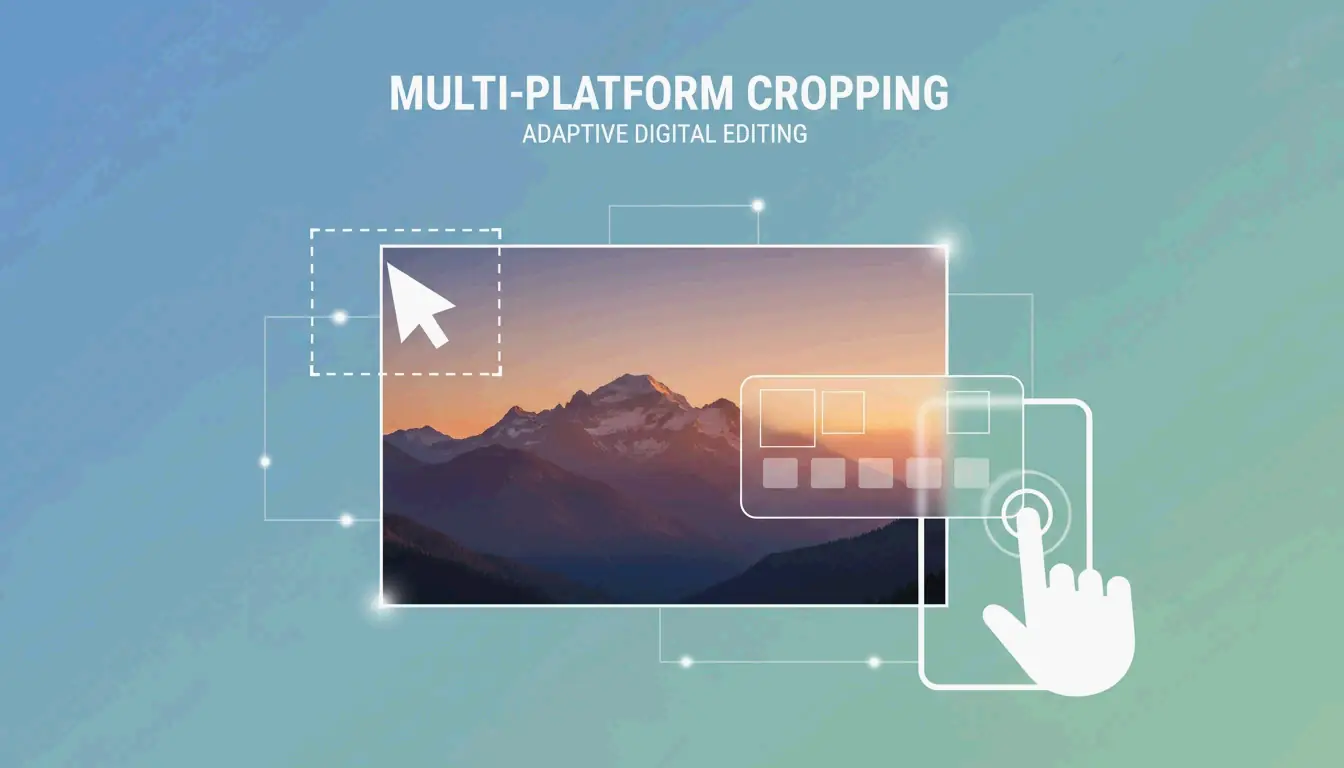
    To crop pics in 2026, you can use built-in apps like Windows Photos or macOS Preview for quick, everyday edits. For mobile users, Google Photos now features AI Enhance for smart framing. If you need to handle many images at once without compromising privacy, client-side tools like BIRME or Pixotter allow you to batch crop locally in your browser so no files ever hit a server.

    How to Crop Pics on Windows and Mac Using Built-in Tools?

    Cropping is the simple act of trimming away the edges of an image. Whether you want to fix a messy composition or fit a specific aspect ratio, your computer’s native apps are often the best choice. They are fast, keep your data private, and won’t degrade your image quality.

    Windows Photos App: The Fastest Offline Method

    If you’re on a PC, the Windows Photos app is your go-to. To crop a pic, just double-click the file to open it. Click the Edit image icon (or hit Ctrl+E) to enter the editor. You’ll see cropping handles appear on the corners and sides immediately. You can drag these manually or pick a standard size like “Square” or “16:9” from the Aspect ratio menu. A quick tip from Pixotter: always use “Save as copy.” Once you close the app, you can’t undo a crop on the original file, so it’s safer to keep a backup.

    macOS Preview: Precision Cropping with Shortcuts

    Mac users can skip the extra software and use Preview. Open your image and click the Markup Toolbar (the pencil icon) or press Shift+Cmd+A. Use the Selection tool to draw a box over the part of the photo you want to keep, then hit Cmd+K to cut everything else away. According to IT@UMN, if you are prepping images for a website, try to keep them under 600 pixels wide. This helps your pages load faster and keeps the layout clean.

    AI Auto-Cropping vs. Manual Control: The 2026 Mobile Standard

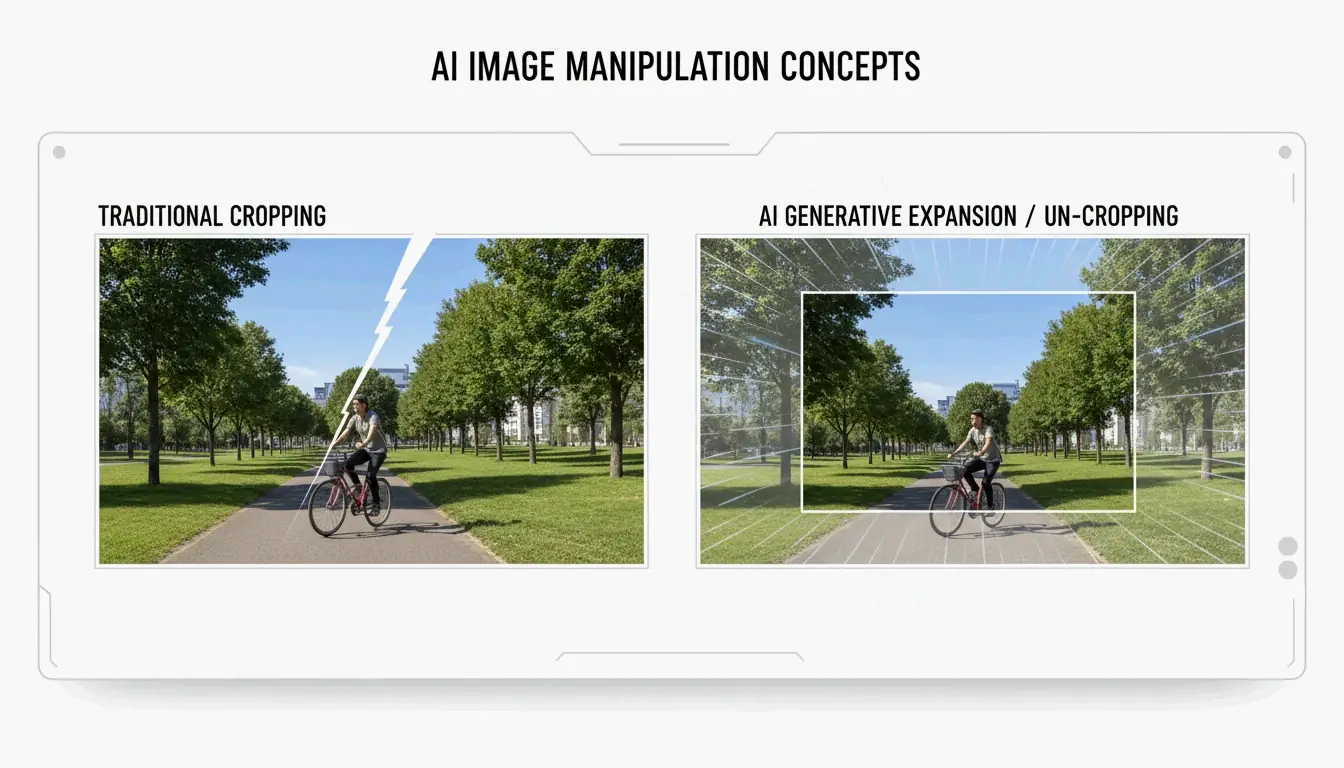
    Phone photography has moved past basic manual editing. Today’s AI tools don’t just cut edges; they understand what’s in the photo and can even “un-crop” or expand the background if you cut things too close.

    A comparison of traditional cropping vs AI generative expansion

    Using Google Photos AI to Auto-Frame Your Shots

    Following the April 2026 rollout reported by ZDNET, the AI Enhance button in Google Photos has become a staple. When you tap it, the app analyzes the main subject and suggests three different framing options. It tries to fix lighting and sharpness at the same time it crops. Just keep an eye on it—as ZDNET points out, AI can sometimes be a bit too aggressive, cutting out background details you actually wanted to keep for the “vibe” of the photo.

    Batch Cropping for Social Media: 2026 Aspect Ratio Cheat Sheet

    If you’re a creator with 50 photos to post, doing them one by one is a waste of time. Batch cropping lets you apply the same dimensions to an entire folder at once, which is the easiest way to keep your Instagram grid or portfolio looking consistent.

    The 2026 Social Media Dimension Guide

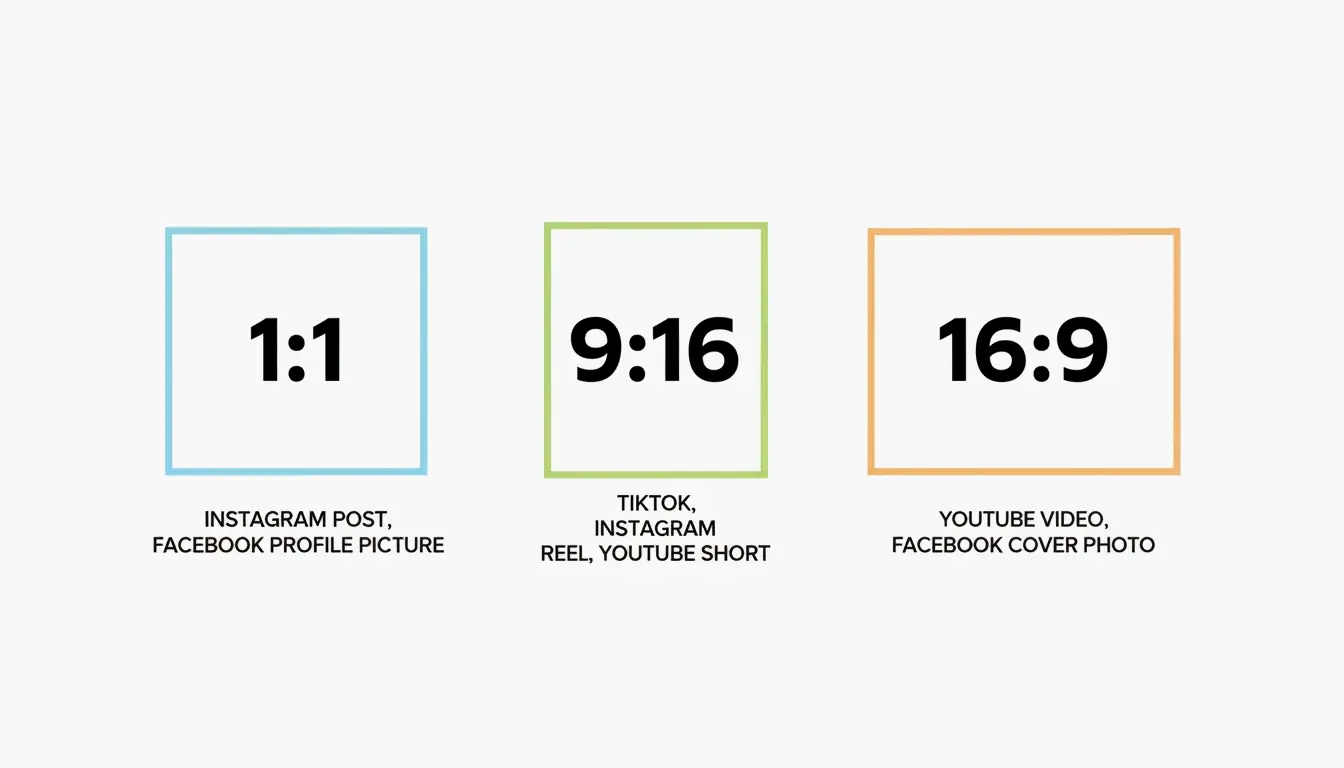
    Every platform has its own rules. To avoid weird stretching or having the app cut off someone’s head, use a tool like BIRME or Private Convert to lock in these ratios:

    Ratio Platform / Use Case
    1:1 Instagram Posts, Profile Pictures
    9:16 TikTok Covers, Instagram Stories
    16:9 YouTube Thumbnails, LinkedIn Banners
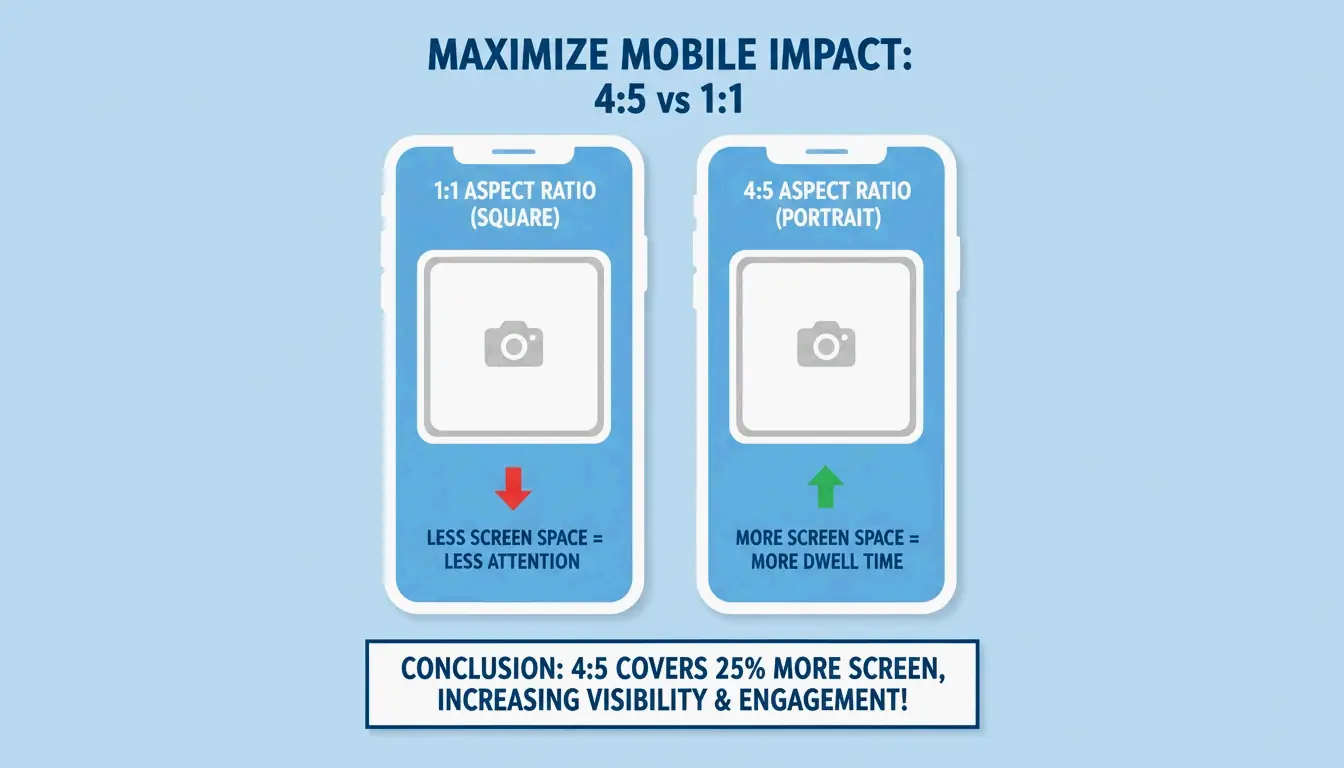
    4:5 Instagram Portrait Posts
    1.91:1 Facebook Open Graph (Link Previews)

    A visual guide of common aspect ratios (1:1, 9:16, 16:9)

    Why Browser-Based Tools are Now Safer Than Ever

    You might be wary of “online” editors, but modern tools have changed. Sites like BIRME use Client-side processing (WASM/Canvas). This means the actual work happens inside your browser’s memory, and your photos never leave your hard drive. As the BIRME Team notes, when you’re saving images for the web, setting the quality to 80% is usually perfect—it keeps the image sharp while making the file small enough for fast browsing.

    Advanced Techniques: ImageMagick for Power Users

    If you’re a developer or someone managing thousands of files, clicking buttons isn’t fast enough. ImageMagick is the pro standard for command-line editing. Using a simple command like convert input.jpg -crop 800x600+50+100 output.jpg, you can tell your computer exactly where to cut. This allows you to automate hours of work into a few seconds of processing.

    Conclusion

    In 2026, cropping pics is about more than just moving corners. You have a choice between the smart, generative framing of Google Photos and the privacy-focused speed of client-side tools like BIRME. For a quick one-off edit, stick to the app already on your computer or phone. But if you’re prepping a whole set for social media, a dedicated batch editor will save you time and keep your data safe.

    FAQ

    Does cropping an image reduce its quality?

    Cropping itself doesn’t lower quality, but it reduces the total pixel count of the image. Aggressive cropping can make an image look pixelated if it is later enlarged beyond its new dimensions. To maintain the best results, always save your crop as a copy to preserve the original high-resolution file.

    How can I crop a photo to exact pixel dimensions (e.g., 1200×630)?

    Use a tool like BIRME or Pixotter where you can manually input “Fixed Dimensions.” Simply set the width to 1200 and the height to 630. These tools allow you to adjust the focal point within that specific box before saving, ensuring the most important part of the image is captured.

  • Fast Online Image Resizer: Resize JPG, PNG, and WebP Without Quality Loss

    Fast Online Image Resizer: Resize JPG, PNG, and WebP Without Quality Loss

    To resize an image in 2026, upload your file to a browser-based image resizer like BIRME. Set your pixel dimensions, lock the Aspect Ratio to prevent distortion, and download the result instantly. Modern tools now process images locally for 100% privacy, supporting next-gen formats like AVIF and iPhone HEIC without requiring a sign-up.

    How to Use an Image Resizer Without Losing Quality?

    Getting a sharp, professional result instead of a blurry mess comes down to precision and where the processing happens. According to FreeImageResizer.net—a platform that has handled over 2.3 million images as of April 2026—the best approach is using tools that work directly in your browser. This “client-side” method means your files never actually touch a third-party server, ensuring zero lag and total privacy.

    Developer Masroor Alam explains that modern utilities aim to “eliminate the complexity of professional editing.” Instead of making you learn heavy software, these tools handle the difficult parts—like complex scaling and compression—right on your own device.

    Step 1: Choose Your Dimensions or Percentage

    Most high-quality resizers give you two easy options: type in exact pixel values (like 1920×1080) or use a percentage slider. If you’re prepping a high-res photo for a blog, scaling it down to 50% is often safer than guessing the width. For things like government forms or online stores, using exact pixels ensures you meet their strict upload rules.

    Step 2: Why ‘Lock Aspect Ratio’ is Non-Negotiable

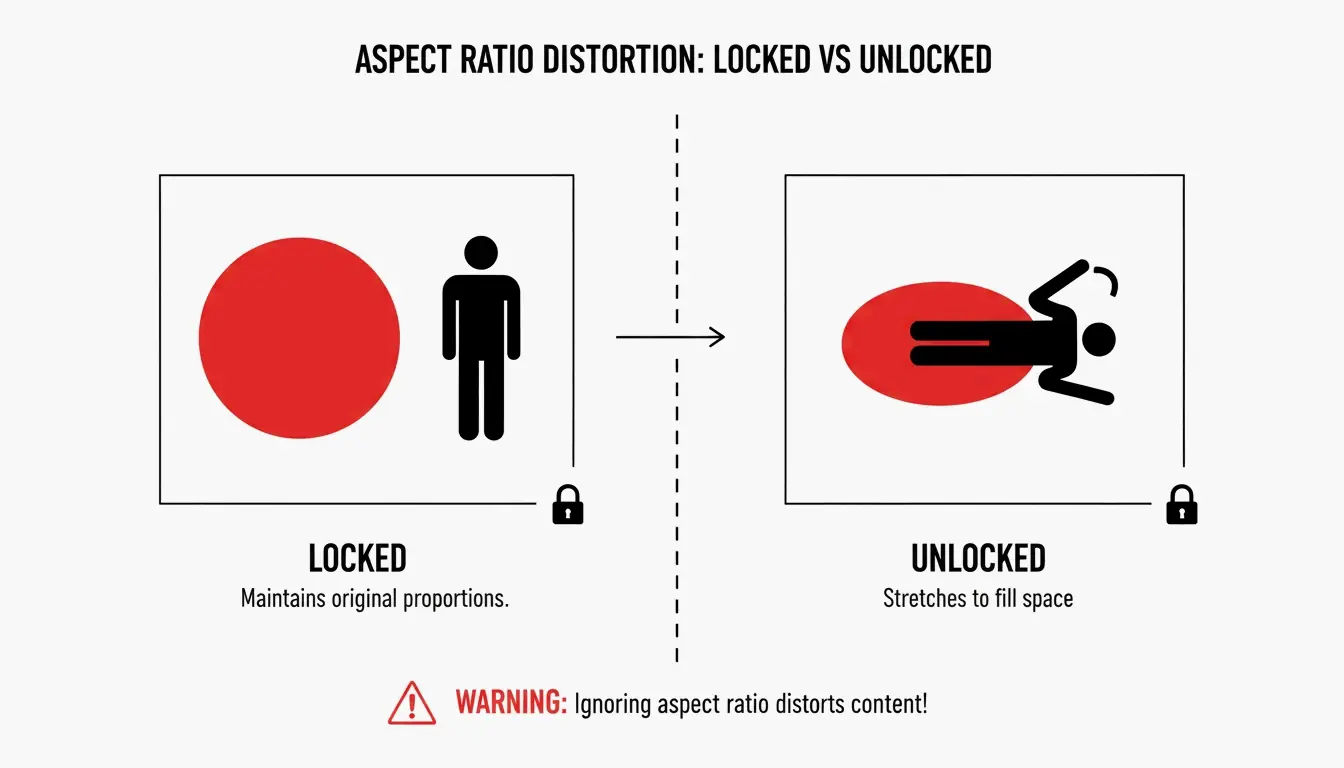
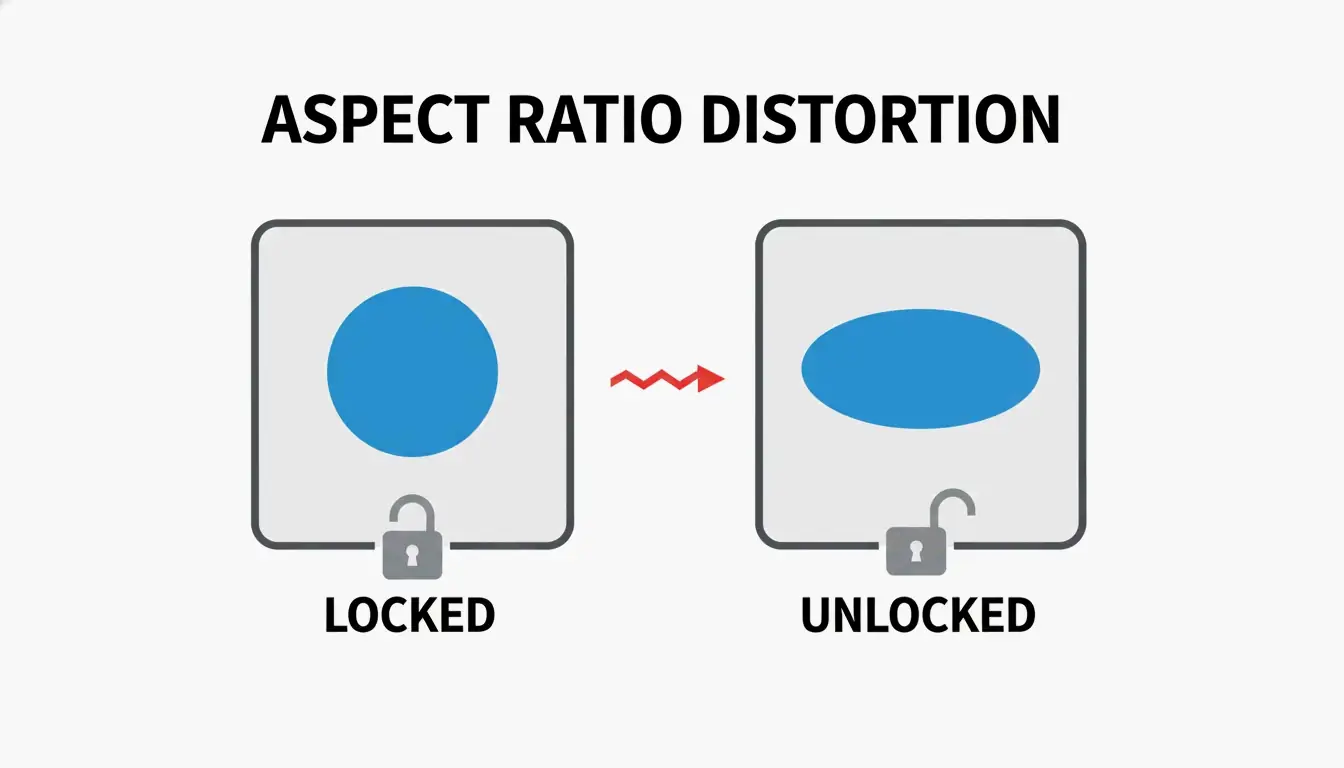
    The “Lock Aspect Ratio” setting is what keeps your photo from looking “off.” When this is turned on, changing the width automatically adjusts the height so the proportions stay the same. Without this lock, images end up stretched or squashed.

    Comparison of Locked vs. Unlocked Aspect Ratio

    This was the exact problem BIRME was built to fix after its creator saw too many WordPress sites ruined by badly cropped uploads.

    The 2026 Standard: Resizing AVIF, HEIC, and Modern Image Formats

    By 2026, the web has moved toward much faster, “next-gen” formats. AVIF is now the top choice for performance, as it shrinks files much more effectively than WebP or JPEG while keeping the details sharp. Tools like FreeConverto let you resize and convert straight into AVIF to help websites load almost instantly.

    Then there is the “iPhone HEIC” headache. While iPhones take great photos in HEIF/HEIC format, these files often won’t open on Windows or older apps. Modern resizers now have HEIC support built-in, so you can drop an iPhone photo into your browser and save it as a standard JPG or WebP in a few seconds.

    Target File Sizes: Passport Apps, Shopify, and Email Limits

    Sometimes the file size (KB) matters more than the dimensions.

    • Passport/Visa Apps: Usually need files under 50KB or 100KB.
    • Shopify/Amazon: They suggest high resolution (2048px+) but require optimized files so your pages still load fast.
    • Email: Most providers cap attachments at 20MB to 25MB, so bulk resizing is a lifesaver when sending a group of photos.

    Efficiency at Scale: How to Handle Batch Resizing

    If you’re a content creator or managing an online shop, resizing photos one by one is a waste of time. Batch processing lets you drop 20 or even 100 images into a tool at once. BIRME, which helps over 50,000 users a month with bulk tasks, suggests that the real secret to efficiency is combining resizing with Smart Cropping.

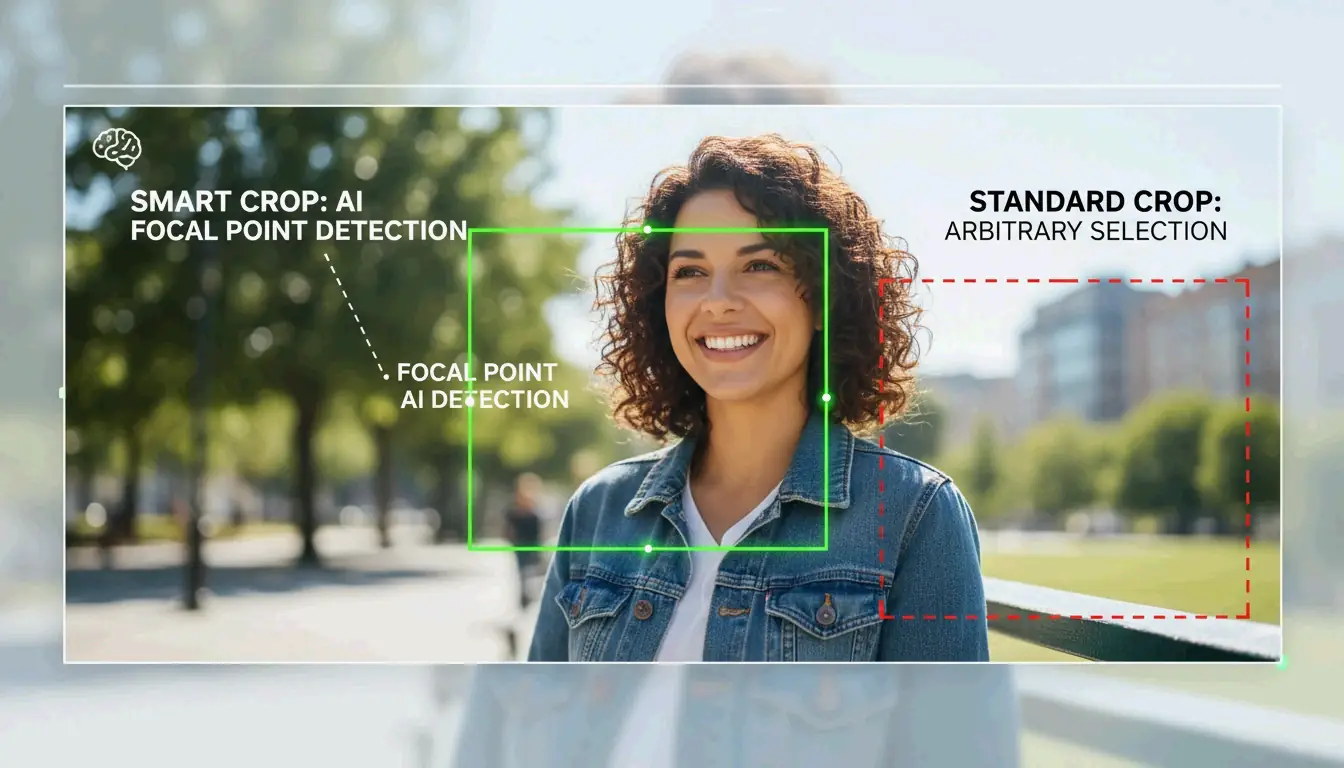
    Smart Cropping: Focal point detection vs. standard center crop

    Smart Cropping uses “auto focal point detection” to find the most important part of a photo—like a person’s face or a specific texture. The tool then centers the crop on that spot. This means when you turn a wide photo into a square, the most important part doesn’t get cut out. This was the core idea behind BIRME, created to help website owners who didn’t have professional editing skills.

    Do You Have the Right Social Media Presets?

    To avoid the “blurry upload” look, your image needs to match the platform’s preferred size. If your image is too small, the platform will stretch it (interpolation), making it look pixelated. If it’s way too big, the platform’s own compression might crunch it so hard that the quality drops.

    Quick Reference Table: IG, FB, and YT Dimensions (2026)

    Platform Usage Dimensions (Pixels) Aspect Ratio
    Instagram Square Post 1080 x 1080 1:1
    Instagram Story / Reels 1080 x 1920 9:16
    Facebook Shared Post 1200 x 630 1.91:1
    YouTube Video Thumbnail 1280 x 720 16:9
    LinkedIn Profile Banner 1584 x 396 4:1

    Conclusion

    Modern image resizers do much more than just change numbers. In 2026, the best tools are browser-based powerhouses that prioritize your privacy by processing everything locally. Whether you’re fixing bulk product shots for Shopify, converting iPhone HEIC files for Windows, or optimizing for AVIF, the secret is simple: always lock your Aspect Ratio and use smart cropping to keep your subject front and center. For the sharpest results, start with the highest-quality original you have and use social media presets to keep your feed looking professional.

    FAQ

    Is it safe to use an online image resizer without my photos being uploaded to a server?

    Yes, you should look for tools labeled as “browser-based” or “client-side.” These utilities use JavaScript to process your images directly on your device’s hardware. Because the data never leaves your computer or phone, your privacy is 100% guaranteed, and there is no risk of your photos being stored on a third-party server.

    What is the difference between ‘Auto Fit,’ ‘Fill & Crop,’ and ‘Stretch’ modes?

    Auto Fit shrinks the image to fit within your target dimensions while adding padding (letterboxing) to keep the whole image visible. Fill & Crop scales the image to cover the entire area, cutting off edges if the proportions don’t match. Stretch forces the image to meet the new dimensions regardless of its original shape, which usually results in a distorted or “squashed” appearance.

    Why do my photos look pixelated or blurry after I increase their size?

    Resizing an image upward requires “interpolation,” where the software attempts to create new pixels to fill the gaps. Standard resizers cannot add detail that wasn’t captured in the original photo. If you need to significantly enlarge a small file, you should use an AI Upscaler, as standard resizing will always result in a loss of sharpness when upscaling.

  • Free Online Photo Pixel Resizer: Resize Images Without Losing Quality

    Free Online Photo Pixel Resizer: Resize Images Without Losing Quality

    To resize a photo by pixels as of April 2026, use a browser-based photo pixel resizer like BIRME or WebToolTrix. Simply upload your image, set your desired width and height, lock the aspect ratio to prevent distortion, and download your optimized JPG, PNG, or WebP file instantly without server-side uploads.

    How to Use a Photo Pixel Resizer Effectively?

    Using a modern photo pixel resizer is a straightforward four-step process: Upload, Set, Lock, and Download. Start by dragging and dropping your files into the tool. Next, enter your target dimensions, such as 1920×1080. Third, make sure the aspect ratio lock is active so your image doesn’t end up stretched or squashed. Finally, hit the process button to get your new file in a matter of milliseconds. According to WebToolTrix, this simple workflow has led to a 4.9/5 user satisfaction rating as of 2026.

    Efficiency matters because oversized files waste bandwidth and storage. As the FastTool Engineering Guide points out: “An image displayed at 400px wide but delivered at 2000px wastes 96% of the downloaded pixels.” By using a dedicated resizer, you cut out that extra weight, which speeds up page loads and makes for a better user experience.

    Maintain Clarity with Aspect Ratio Lock

    The Aspect Ratio Lock is arguably the most important setting in any resizer. It keeps the relationship between width and height consistent. For example, if you have a 1920×1080 image and change the width to 800px, the tool will automatically set the height to 450px. If you unlock this “chain” icon, you’ll likely end up with a distorted image—a common frustration that tools like BIRME were built to fix.

    Visual comparison of locked vs. unlocked aspect ratio

    Privacy First: Why Client-Side Processing Matters in 2026

    By 2026, browser-based (or client-side) processing has become the standard for keeping data private. Unlike older tools that send your photos to a distant server, modern resizers use the HTML5 Canvas API to handle the work right on your own device. As FreeConverto notes, this means sensitive items like ID photos or personal portraits never leave your computer, removing the risk of server-side data leaks.

    2026 Social Media Presets: Are You Using the Right Dimensions?

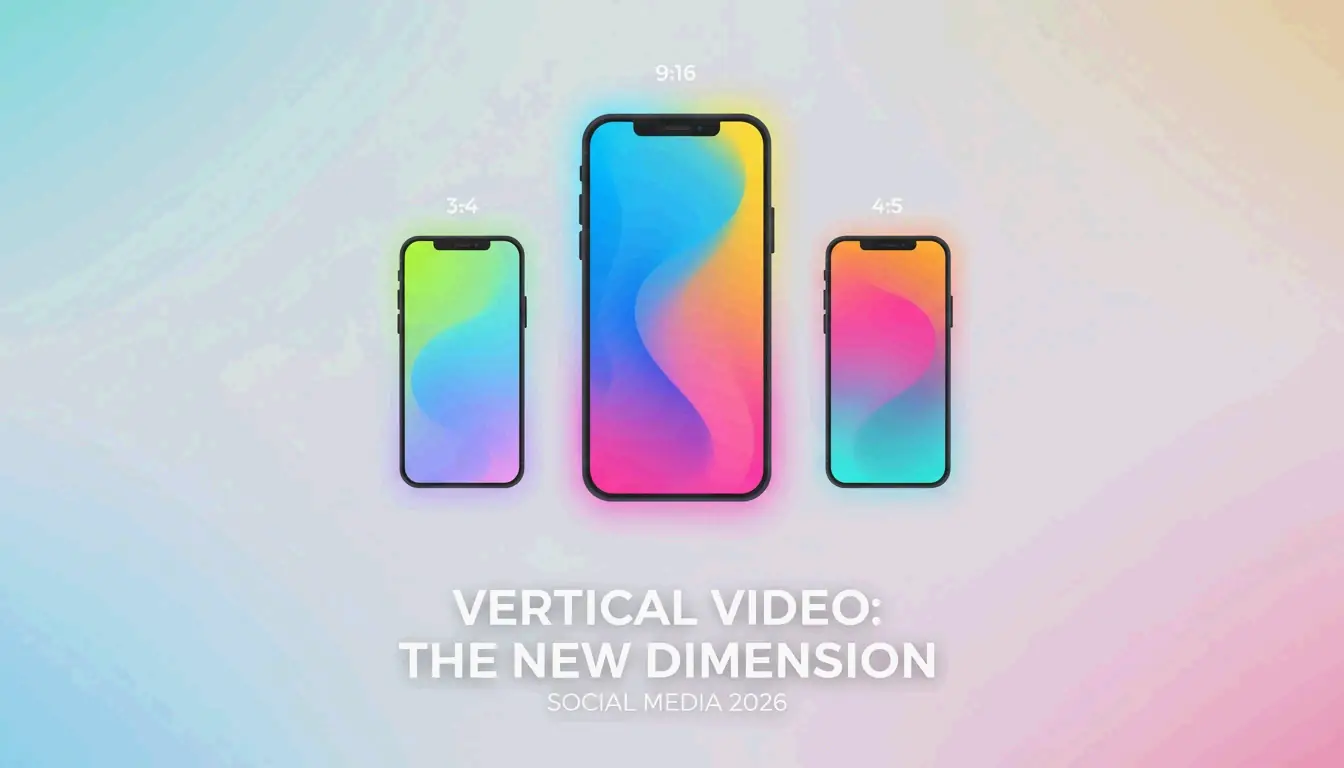
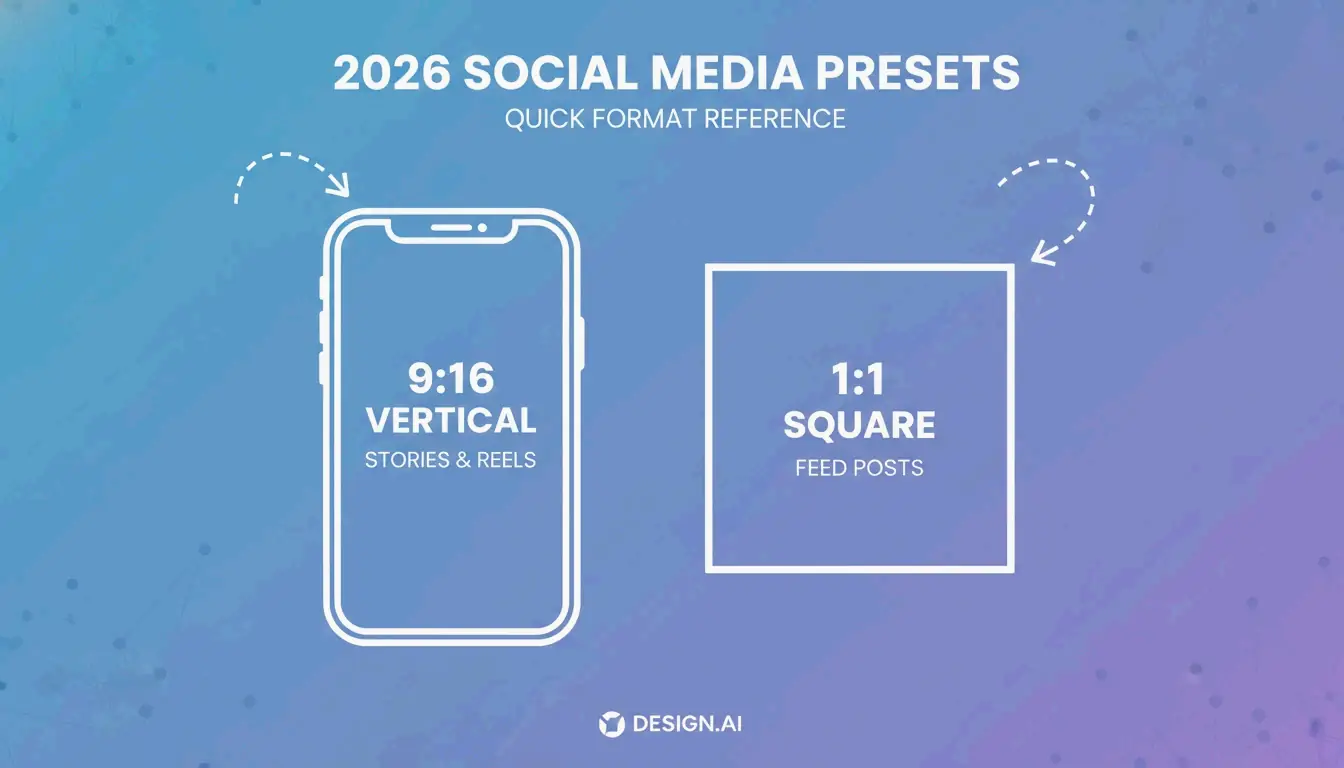
    Social media in 2026 is dominated by 9:16 vertical video and images, driven by TikTok, Instagram Reels, and YouTube Shorts. Using a photo pixel resizer with built-in Social Media Presets saves you from hunting for the latest dimensions and prevents platform algorithms from awkwardly auto-cropping your work.

    Based on the 2026 Social Media Dimensions table, here are the standard pixel targets:

    Platform Format Type Dimensions (Pixels) Aspect Ratio
    Instagram Square Post 1080 x 1080 1:1
    Instagram Story / Reels 1080 x 1920 9:16
    TikTok Video Cover 1080 x 1920 9:16
    YouTube Thumbnail 1280 x 720 16:9
    Facebook Shared Post 1200 x 630 1.91:1
    LinkedIn Profile Banner 1584 x 396 4:1

    Minimalist visualization of common social media aspect ratios

    The Format Decision Matrix: WebP for SEO vs PNG for Logos

    Picking the right format (JPG, PNG, WebP, AVIF) is just as vital as getting the dimensions right.

    • WebP: The go-to choice for web performance in 2026. These files are usually 25-35% smaller than JPEGs but still support transparent backgrounds.
    • PNG: Best for logos or graphics with text where you need “lossless” clarity.
    • JPG: Good for standard photos when you need a small file size but can’t use newer formats like WebP.
    • AVIF: The newest and smallest format available, recommended by BIRME for high-end compression.

    Efficiency at Scale: Master Batch / Bulk Resizing

    If you’re an e-commerce manager or a photographer with hundreds of shots to go through, Batch / Bulk Resizing is a lifesaver. Tools like BIRME, which sees over 50,000 monthly active users as of 2026, let you apply one set of dimensions to a whole folder at once. Once finished, these tools usually bundle everything into a ZIP file for a single download, which is much faster than saving files one by one.

    Safe Scaling Zone: Why You Can’t Simply ‘Enhance’ Pixels

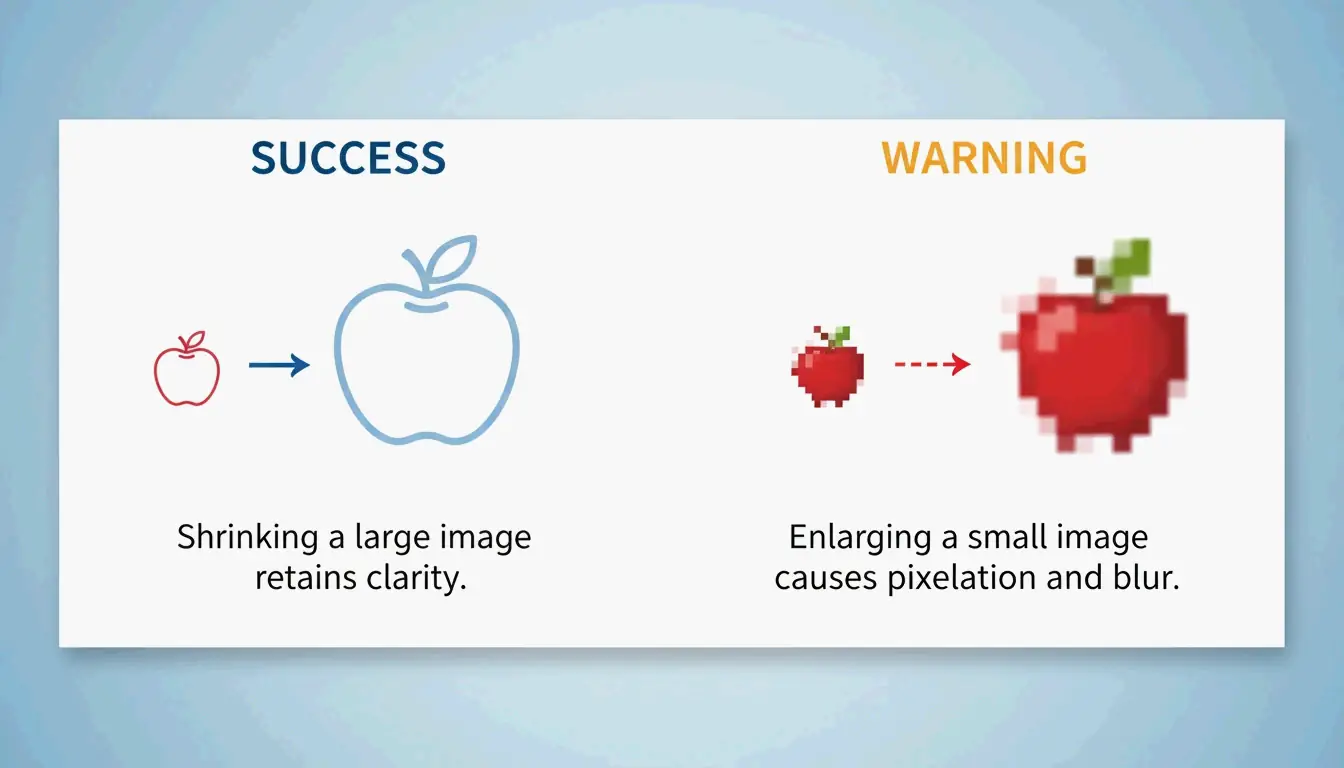
    There is a big technical difference between making an image smaller and making it larger. Downscaling is safe because the software just removes extra data. However, upscaling (making a small image big) forces Interpolation Algorithms like Lanczos or Bicubic to “guess” where new pixels should go. This usually looks blurry or pixelated. As BIRME warns, if your photos look fuzzy after enlarging them, you probably need a specialized AI upscaler rather than a standard resizer.

    The difference between downscaling (sharp) and upscaling (blurry)

    Solving Specific Requirements: KB Limits and Print DPI

    Many government and school portals in 2026 still have strict KB/MB Target Mode rules. For instance, an application might require a photo to be under 20KB or 50KB. A professional photo pixel resizer like WebToolTrix uses smart algorithms to adjust both the dimensions and the compression quality until it hits that exact target.

    For physical projects, DPI (Dots Per Inch) is the key. While 72 DPI works for screens, professional printing needs 300 DPI. To give you an idea, an A4 print at 300 DPI requires 2480 x 3508 pixels. Modern tools also now include HEIC/HEIF Decoding, so you can upload iPhone photos directly and convert them for the web without needing extra software.

    Digital resizing has a long history. A major milestone occurred in 1957 when Russell Kirsch created the first digital photo—a 176x176px scan of his son. Today, we manage millions of pixels, but the goal remains the same: clarity and precision.

    Conclusion

    Resizing photos by pixels isn’t just about changing numbers; it’s about optimizing for speed, privacy, and the specific needs of different platforms. Whether you’re building an online shop or just updating a profile picture, the best approach is to balance dimensions with file size. Check your target platform’s 2026 dimensions, keep the Aspect Ratio Lock on to avoid distortion, and try exporting as WebP for the best results.

    FAQ

    … (Existing FAQ text)

  • How to Shrink My Pictures: 2026 Guide to Resizing Without Quality Loss

    How to Shrink My Pictures: 2026 Guide to Resizing Without Quality Loss

    To shrink your pictures in 2026, use online tools like BIRME for bulk resizing, or built-in apps like Preview (Mac) and Photos (Windows). For mobile, enable HEIC/High Efficiency settings. To save maximum space without losing quality, convert files to AVIF or WebP, which offer 50% better compression than standard JPEGs.

    The Fastest Ways to Shrink My Pictures Today

    When you need to shrink your pictures, the best method depends on your goal: are you trying to change the physical dimensions or just reduce the file size? In 2026, the standard is finding a balance between crystal-clear quality and storage space. According to BIRME, keeping your JPEG quality between 80-85% is the “sweet spot” for most websites—it keeps the image sharp while cutting down the “weight” of the file significantly.

    By shrinking a typical 6MB smartphone photo down to a web-friendly size (like 1200px wide), you can usually get it down to 300-700KB without seeing any blurry pixels.

    Using Built-in Tools (Windows Photos & Mac Preview)

    You don’t need to download extra software to shrink your pictures. On a Mac, just open the image in Preview, go to Tools > Adjust Size, and make sure “Scale proportionally” is checked so your image doesn’t look stretched. On Windows, the Photos app has a three-dot menu in the top-right corner with a “Resize image” option where you can pick a preset or type in your own dimensions. If you prefer the classic way, Microsoft Paint still works; just click “Resize” on the Home tab and switch to “Pixels” to set your new width.

    Why Pixels Matter: Understanding Width and Height

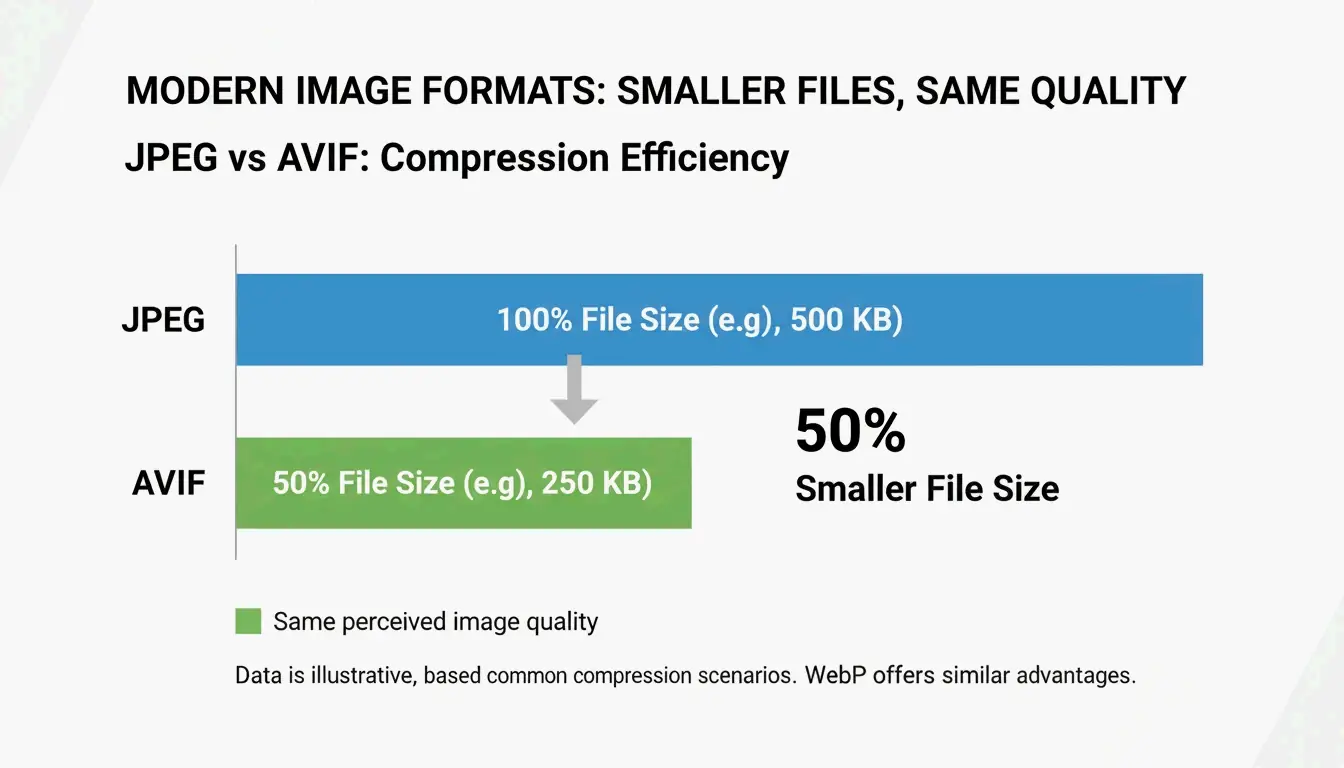
    Shrinking an image is really about changing its Pixels (px)—those tiny dots of color that form the picture. A photo from a high-end camera might be 4000px wide, but most website images don’t need to be wider than 1600px. It’s also helpful to know the difference between JPEG / JPG (the old reliable format) and newer ones like WebP / AVIF. While JPEG works everywhere, it isn’t as efficient as these 2026 formats when it comes to keeping file sizes small at high resolutions.

    A simple comparison of file size vs. quality between JPEG and AVIF.

    How to Bulk / Batch Resize Multiple Images at Once?

    If you have hundreds of photos, doing them one by one isn’t practical. Tools like BIRME and Private Convert let you Bulk / Batch Resize everything right in your browser. A big plus for these tools is that they process images locally using JavaScript. This means your photos never actually leave your computer, which is great for privacy.

    For power users, Private Convert suggests using command-line tools like ImageMagick or the macOS sips utility. Running a simple command like sips -Z 1200 *.jpg will instantly shrink every image in a folder to a maximum width of 1200px.

    Maintaining Aspect Ratio to Avoid Distortion

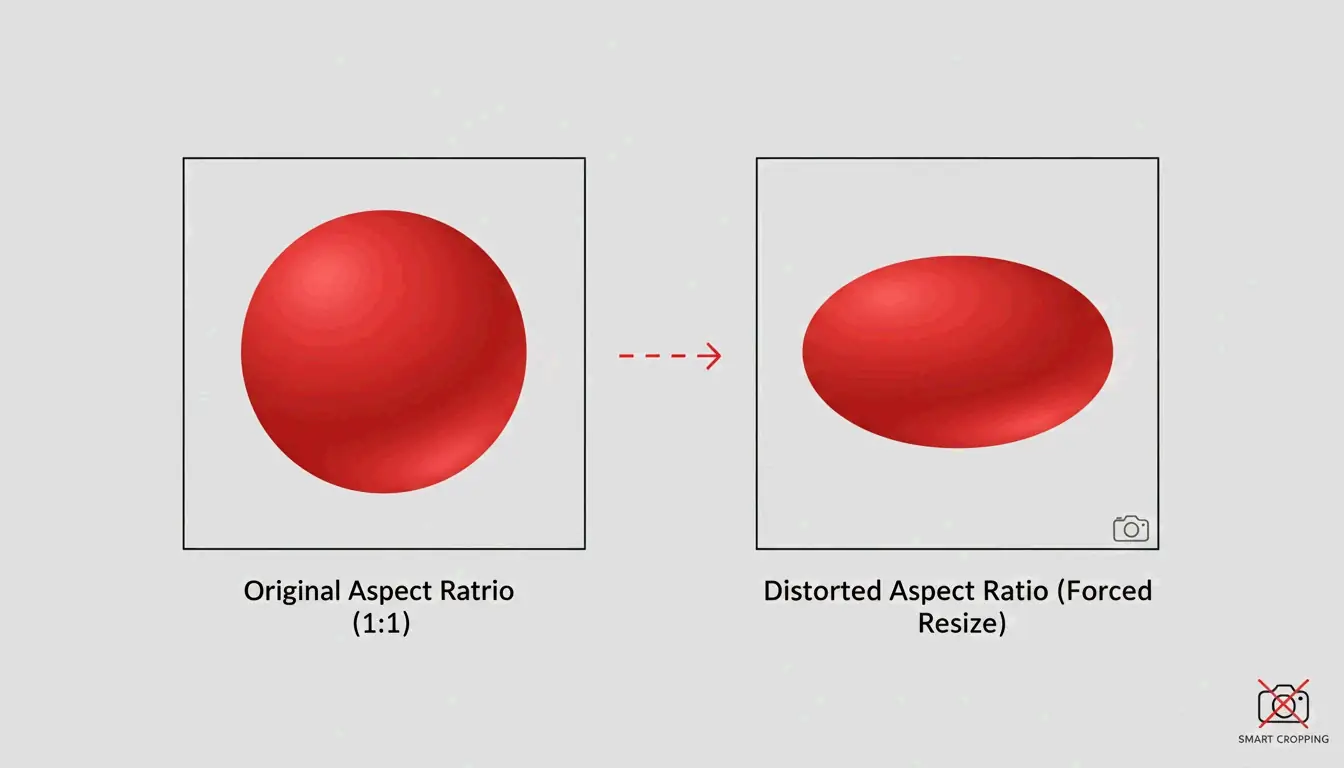
    The biggest mistake people make when shrinking pictures is ignoring the Aspect Ratio—the relationship between width and height. If you force a rectangular photo into a square without cropping it, the image will look “squashed.” To avoid this, use Smart Cropping. Tools like BIRME use AI to detect the “focal point” (the most important part of the photo) and keep it centered while trimming the edges to fit your new size.

    Visual demonstration of correct aspect ratio vs. distorted stretching.

    Future-Proofing Your Files: Is HEIC or AVIF Better?

    In 2026, picking the right file format is the easiest way to shrink a picture’s footprint. HEIC / High Efficiency is the standard for Apple users. As noted by Wondershare UniConverter, if you go into your iPhone camera settings and switch from “Most Compatible” to “High Efficiency,” your phone will automatically save images as HEIC files. These take up much less space than JeneGs, which is a lifesaver for iCloud Photos storage.

    However, for the web, AVIF is the 2026 leader. According to Private Convert, AVIF offers 50% better compression than JPG while looking exactly the same to the human eye.

    Quick Decision Guide:

    • Storing on iPhone/Mac? Use HEIC to save the most phone storage.
    • Uploading to a Website? Convert to AVIF or WebP so the page loads faster.
    • Sending to an older PC? Stick with JPEG (at 80% quality) so anyone can open it.

    Social Media Optimization: Stop the Auto-Shrink Blur

    A common mistake is thinking that uploading the biggest file possible will result in the best quality. Actually, platforms like Instagram and TikTok use aggressive “auto-shrink” tools that can make a 4K file look grainy.

    A study within the TikTok Creator Community found that 1080p uploads often look sharper than 4K uploads. This happens because when you upload 4K, the app’s compression engine has to work harder to shrink the file, often creating ugly digital artifacts.

    Best Dimensions for 2026:

    • Instagram/TikTok Reels: 1080 x 1920 px
    • Instagram Square Posts: 1080 x 1080 px
    • YouTube Thumbnails: 1280 x 720 px

    Conclusion

    Shrinking pictures isn’t just about making them smaller anymore; it’s about choosing a modern format like AVIF and keeping the right proportions for where you’re posting. Whether you’re cleaning out your iPhone or building a professional website, you want to reduce the file size without losing the clear details. Start by checking if your phone is set to “High Efficiency” (HEIC) to save local space. For web projects, use a batch tool like BIRME or Private Convert to turn your JPEGs into WebP or AVIF at 80% quality. Your images will stay crisp and load almost instantly.

    FAQ

    What is the difference between resizing and compressing an image?

    Resizing changes the physical pixel dimensions—the actual width and height of the image. For example, taking a 4000px wide image and making it 1080px. Compressing reduces the file size (MB/KB) by organizing the data more efficiently, often without changing the dimensions at all.

    Why do my pictures look blurry or pixelated after I shrink them?

    Blurriness usually happens because shrinking removes pixels. If you try to stretch that small image back out later, the computer has to “guess” what the missing pixels looked like, resulting in a soft look. Pixelation happens when you compress a file too much—setting the quality below 60% usually creates blocky, “noisy” spots.

    How can I resize images on my phone without downloading a third-party app?

    On an iPhone, you can use the built-in “Shortcuts” app to create a “Resize Image” tool that works directly from your photos. On Android, while the Google Photos “Edit” tool is mostly for cropping, you can use a browser-based tool like Private Convert in Chrome to change pixel dimensions without needing to install a new app.

  • How to Compress Image Without Losing Quality: The 2026 Modern Standard

    How to Compress Image Without Losing Quality: The 2026 Modern Standard

    To compress image without losing quality in 2026, start by resizing the image dimensions to fit your actual display needs, then apply lossy compression at 80-85% quality using tools like TinyIMG or Adobe Express. For the best results, convert files to modern formats like WebP or AVIF, which can cut file sizes by up to 50% more than old JPEG or PNG formats.

    The 2026 Workflow: How to Compress Image Without Losing Quality Step-by-Step

    Optimizing images isn’t just about moving a single slider anymore. It’s a systematic three-step process designed to keep your visuals sharp while stripping away unnecessary weight.

    Step 1: Match Pixel Dimensions to Display Size

    The most effective thing you can do is follow the “Resize Before Compress” rule. Modern phones and cameras take massive photos—often 4,000 to 6,000 pixels wide—which are far too big for most websites. According to a case study by G Saunders, a retired IT instructor, simply scaling an image down from 18,000px to a standard web width of 800px resulted in a 99% reduction in file size before any actual compression happened.

    极简三步压缩工作流

    Step 2: Apply Smart Lossy Compression

    After resizing, use lossy compression and aim for the JPEG Quality Sweet Spot (75-85%). In this range, advanced encoders like MozJPEG strip out data that the human eye can’t really see anyway. As noted by Intellure, dropping the quality setting from 100% to 85% can slash the file size by 60% with almost no visible difference in clarity.

    Step 3: Strip Non-Essential Metadata

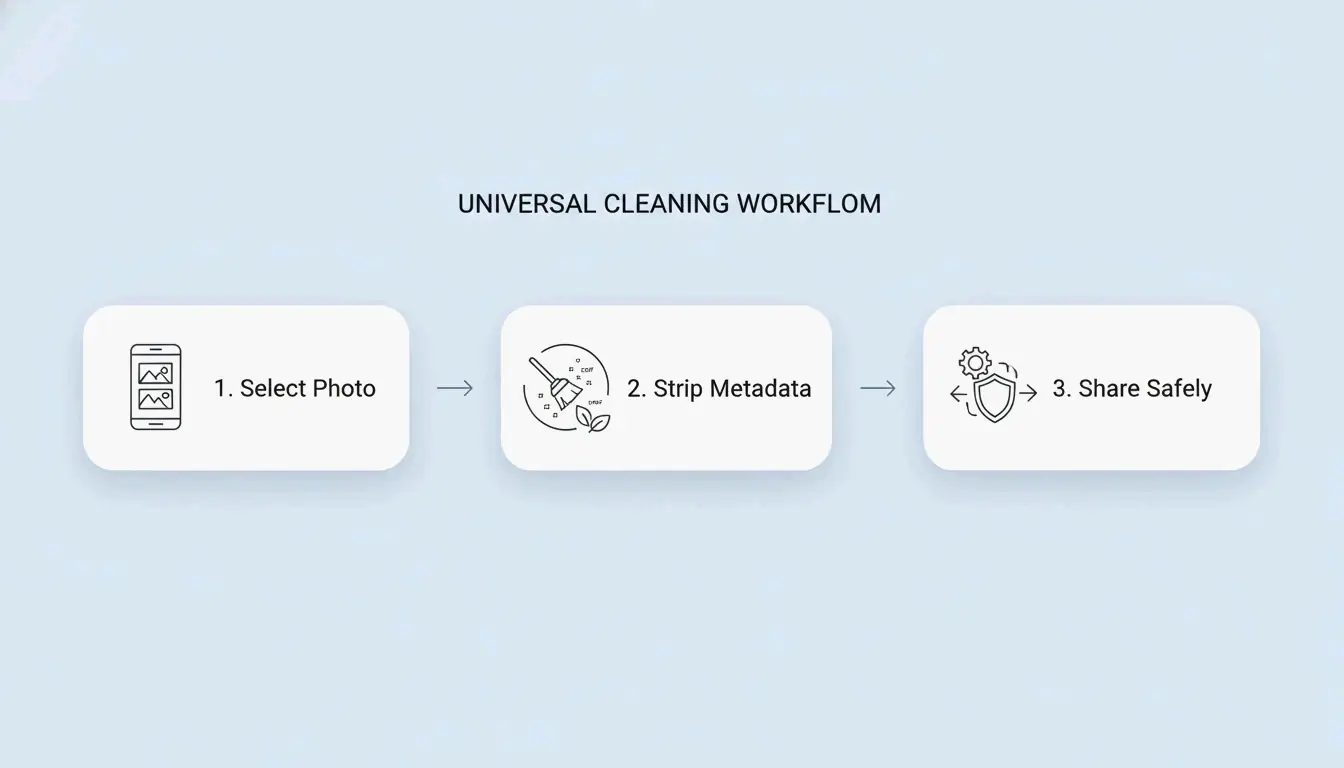
    Every digital photo hides Metadata (EXIF data), including things like GPS coordinates, camera settings, and timestamps. Photographers might need this, but it’s just extra bulk for a website. Removing this data can save between 5KB and 50KB per file. It’s a small change that helps you meet strict upload limits while also protecting user privacy.

    Why Modern Formats Like WebP & AVIF Are Essential in 2026?

    By 2026, old-school JPEGs and PNGs are taking a backseat to next-generation formats that offer much better quality at smaller sizes.

    Data from Google Developers shows that WebP images are 25-34% smaller than JPEGs of the same quality. AVIF is even more efficient; it’s the newest standard and can provide up to 50% better compression than JPEG while keeping high-detail areas looking crisp. Since over 97% of browsers now support these formats, switching to WebP or AVIF is a must for a fast-loading site.

    不同格式(JPEG vs WebP vs AVIF)的文件大小对比

    Lossy vs Lossless Compression: Which Should You Choose?

    The right choice depends on what’s in the image and where it’s going.

    When to Prioritize Lossless (PNG)

    Lossless compression shrinks the file size without throwing away a single pixel. This is the way to go for logos, icons, screenshots with text, or any graphic with sharp lines where even a little bit of “blur” would be obvious. Tools like OptiPNG and oxipng are the go-to standards here, usually saving 10-30% in file size without changing the look of the image.

    Why Lossy is the Web Standard

    Lossy compression is the best fit for photographs and complex background images. It creates huge savings (50-80%) by permanently removing data that people don’t notice. For blogs and online stores, lossy is preferred because the boost in page speed is much more valuable than the “perfect” mathematical data you lose.

    The SEO Impact: Core Web Vitals (LCP) and Speed

    Optimizing your images is a major part of technical SEO. Google uses Core Web Vitals, specifically a metric called Largest Contentful Paint (LCP), to help determine rankings. According to web.dev, images make up about 70% of all LCP elements on the web today.

    The business side is simple: research from Intellure and Google shows that 53% of mobile users will leave a page if it takes more than 3 seconds to load. By compressing your images, you improve your LCP scores, keep users on your site longer, and help your search rankings.

    2026 Quality Checklist: Verifying Your Compression

    To keep your site looking professional, you need to check the final result with your own eyes, not just look at the file size.

    Visual Artifacts to Watch For

    Zoom in to 100% and look for these three issues:

    • Banding: Do smooth areas, like a blue sky, look like they have “steps” or blocks of color?
    • Ringing: Do you see “noise” or weird halos around text or high-contrast edges?
    • Softness: Have fine details, like hair or fabric textures, turned into a blurry smudge?

    视觉质量检查:关注细节的隐喻图

    Privacy-First Tools (No-Upload Options)

    Privacy is a big deal in 2026. Many newer tools, like Pixotter and SammaPix, use WASM (WebAssembly) to process images directly in your browser. This means your photos never actually leave your computer, making them a more secure “no-upload” alternative to older cloud-based tools.

    Conclusion

    Compressing images without losing quality comes down to a simple balance: pick the right format (AVIF/WebP), resize the image to the exact size you need, and use a 75-85% quality filter. By following the “Resize first, compress second” workflow, you can cut file sizes by up to 90% while keeping them looking great. To see the impact immediately, audit your 10 most popular pages today—convert the main images to AVIF and try to keep every file under 200KB.

    FAQ

    Can I compress a PNG without losing any data at all?

    Yes, you can use lossless compression tools like OptiPNG or oxipng. These tools remove redundant metadata and optimize the internal DEFLATE algorithm without altering a single pixel. However, the file size savings are generally modest, ranging from 5% to 20%, compared to the much larger savings found in lossy methods.

    Does compressing images affect my website’s SEO rankings?

    Absolutely. Page speed is a confirmed Google ranking factor, and images are typically the heaviest elements on a page. Optimized images significantly improve your Largest Contentful Paint (LCP) scores, which is a key metric in Core Web Vitals. Better performance leads to higher search visibility, lower bounce rates, and improved conversion rates.

    Is it safe to upload sensitive or personal photos to online compression tools?

    It depends on the tool’s privacy policy. In 2026, it is best to use tools that offer client-side (WASM) processing, where the compression happens entirely within your browser and the files are never uploaded to a server. Always verify that a service deletes files immediately after processing if you choose a server-side tool.