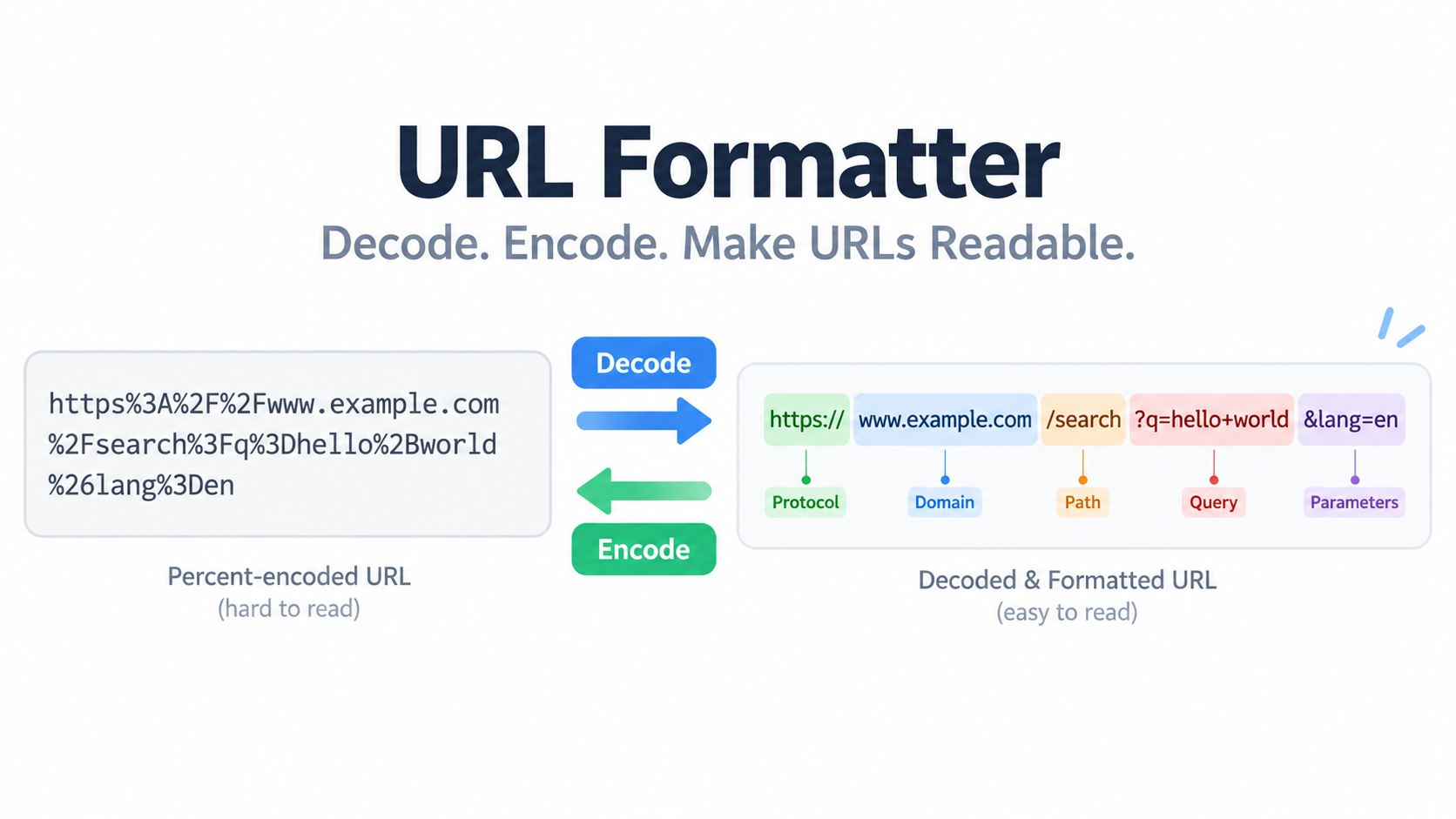
A URL formatter takes a messy or percent-encoded web address and makes it readable. It splits the URL into scheme, host, port, path, query, and fragment, decodes values like %20 back into plain text, and re-encodes unsafe characters according to RFC 3986 and the current WHATWG URL Standard (last updated September 2026).
“URL Formatter” Means Three Different Jobs — Which One Do You Need?
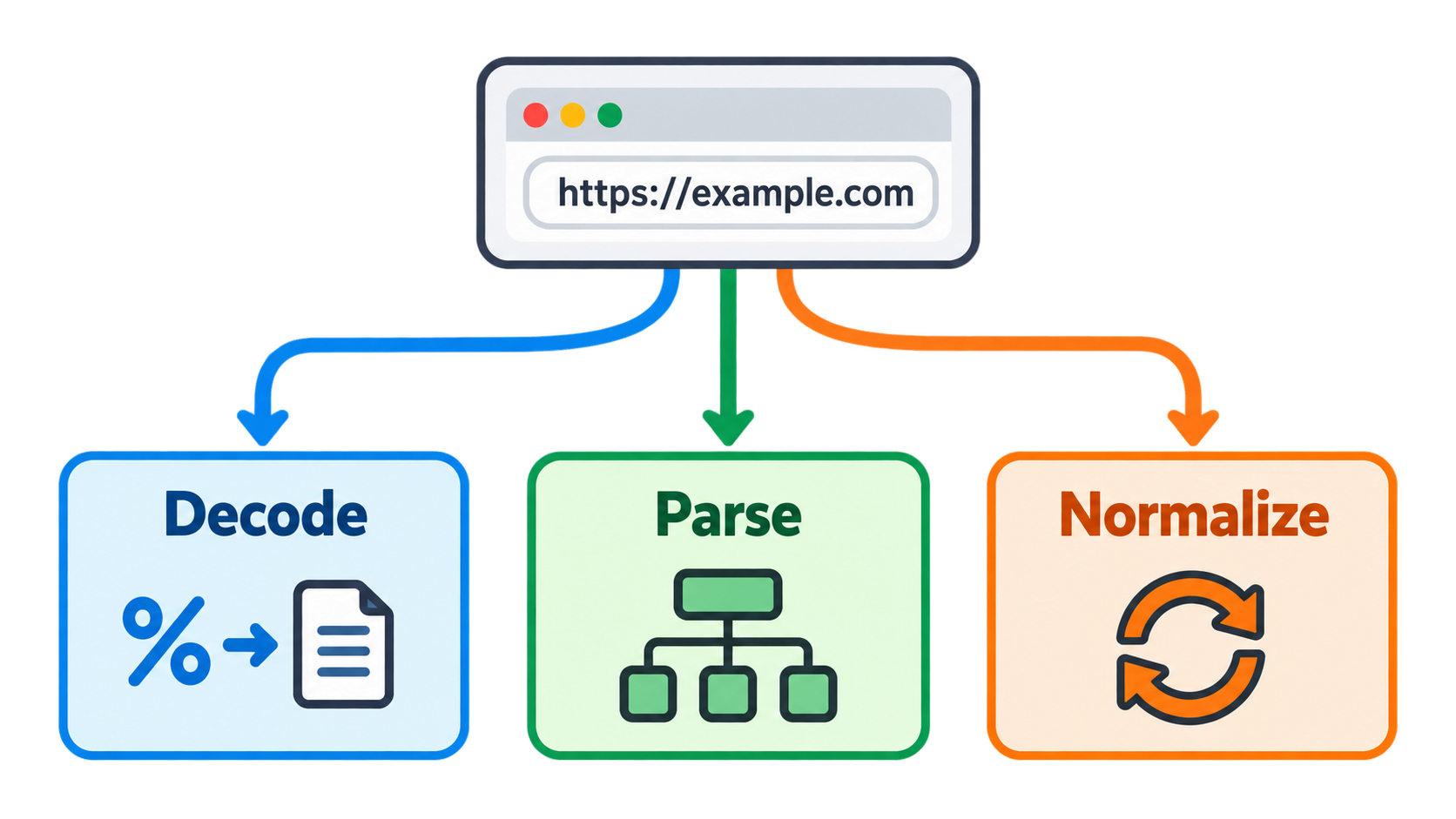
The term “URL formatter” is used loosely, and most tool pages never define it. In practice, it covers three different jobs: decoding percent-encoding back into readable text, parsing a link into its named components, and normalizing a URL so that parsing and re-serializing it produces a stable result. The current WHATWG URL Standard is a Living Standard last updated 10 September 2026, and it defines the parse-and-serialize behavior that browsers actually implement. That is why a formatter can be both a readability tool and a consistency tool.
You can pick the right job from the shape of your input:
- A link full of
%20,%26or%E0%A4runs → you need decode. - A long link you want to see inside (UTM tags, API parameters, redirect targets) → you need parse.
- A URL containing spaces,
&, non-ASCII characters, or a whole URL nested inside a parameter → you need encode.
One clarification saves time: a URL formatter is not an HTML formatter or beautifier. An HTML formatter such as Static.app’s HTML formatter adds indentation and line breaks to markup and does nothing to encoding. The HTML testing tools that rank for similar queries operate on page markup rather than link syntax. If your input is a link, you want a URL tool; if your input is a page of tags, you want an HTML tool.
Most online URL formatter tools do all three jobs in one page, client-side, with no signup — which means you can decode, parse and re-encode without installing anything.
Decode: turn %20 and %C3%A9 back into readable text
Decoding reverses percent-encoding: each %XX sequence is converted back into the byte it represents, and multi-byte sequences are reassembled into a single character. This is the step that turns ?q=running%20shoes into ?q=running shoes, and it is the step most often needed when reading server logs, API responses or tracking links.
Parse: split a long link into scheme, host, path, query, fragment
Parsing separates a URL into named components so you can read one part in isolation instead of scanning the whole string. The MDN URL API documentation exposes exactly these pieces as properties — protocol, host, port, pathname, search, hash — and notes that the URL constructor “can be used to normalize and encode a URL directly.”
Normalize: make the same URL format identically every time
Normalization is the property that parsing and re-serializing the same input keeps producing the same output. The WHATWG URL Standard states as an explicit goal that the parser, serializer and API combination “guarantee idempotence” — a non-failure result of a parse-then-serialize operation should not change with further parse-then-serialize operations applied to it. That is what makes two URLs comparable.
How to Format a URL in 4 Steps (Decode, Parse, Verify)
This is a repeatable order of operations, and the standard you check the result against matters as much as the steps.
Step 1 — Identify the task before touching the string. Decoding an entire URL, decoding a single parameter value, and encoding one value produce three different outputs. Picking the wrong one is the most common cause of broken links, because the structural characters that hold the URL together get treated as data.
Step 2 — Parse first, never string-replace. Paste the URL into an online URL formatter or pass it to a URL object so the components separate correctly. The query is everything between ? and #; the fragment is everything after #. Once you have that split, you know precisely which substring is data and which is structure, and you can stop guessing with find-and-replace.
Step 3 — Encode or decode only the query values. Never encode the structural characters :, / or ?. The correct treatment is per-value, encodeURIComponent-style, rather than treating the whole URL as a single string. The WHATWG URL Standard defines distinct percent-encode sets for fragments, queries, paths and userinfo, which is the formal reason a single one-shot replacement cannot be correct for every position in a URL.
Step 4 — Verify by re-parsing the output and counting key=value pairs. A URL that round-trips back to the same number of parameters, with the same decoded values, is correct. If your input had three parameters and the output parses as four, an unencoded separator leaked into the data.
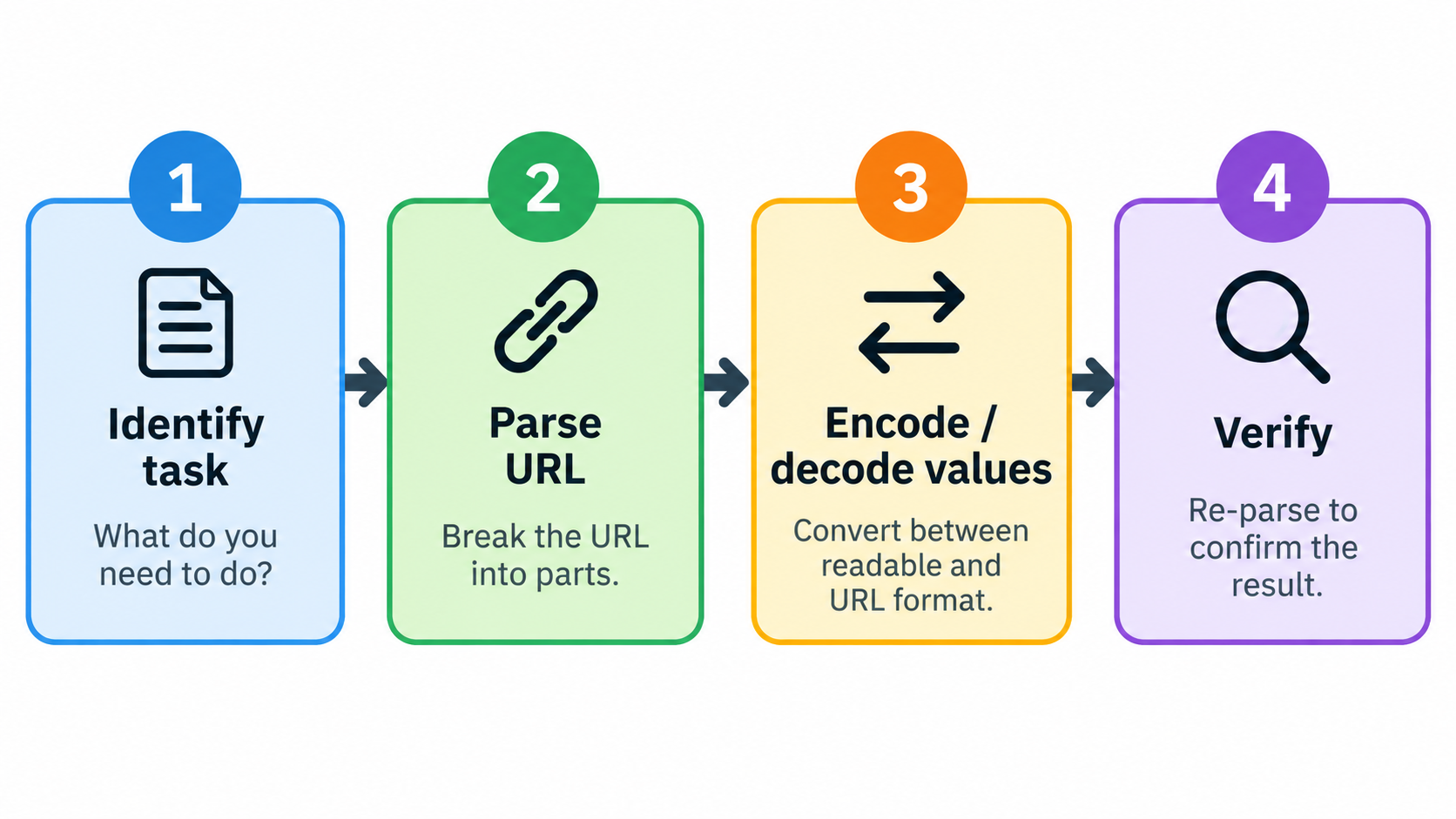
The two things that make this a how-to rather than a definition are the fixed execution order above and a standard to check against: RFC 3986 for percent-encoding rules, and the WHATWG URL Standard for parsing and serialization. According to MDN’s URL API page, the URL interface’s job is to “parse, construct, normalize, and encode URLs,” which is precisely the three-part job a good formatter exposes.
Before and after: one messy URL, fully formatted
Take a URL copied from a chat message: https://docs.foobar.com:8000/knowledge/area/?name=article&topic=seo#top — this is the component example published in Unicode UTS #58. A formatter splits it into scheme (https://), host (docs.foobar.com), port (:8000), path (/knowledge/area/), query (?name=article&topic=seo) and fragment (#top).
Now take a messier real-world variant: the query arrives as ?q=New%20York%20%26%20Los%20Angeles&utm_source=newsletter. Parsing plus decoding yields two readable pairs — q = New York & Los Angeles and utm_source = newsletter — and the %26 stays inside the value instead of splitting it into two parameters. Re-encoding the same URL produces output identical to the input, which is the round-trip check from Step 4.
The 6 URL Components Every Formatter Splits Out
Scheme, host, port, path, query and fragment form the skeleton used by every parser, by the MDN URL API, by the WHATWG URL Standard and by UTS #58. Mapping your own URL onto these six slots is the fastest way to understand what a formatter is showing you.
| Component | Example (from UTS #58) | Sent to the server? |
|---|---|---|
| Scheme | https:// |
Yes (defines the request type) |
| Host (incl. domain) | docs.foobar.com |
Yes |
| Port | :8000 |
Yes |
| Path | /knowledge/area/ |
Yes |
| Query | ?name=article&topic=seo |
Yes |
| Fragment | #top |
No — browser-side only |
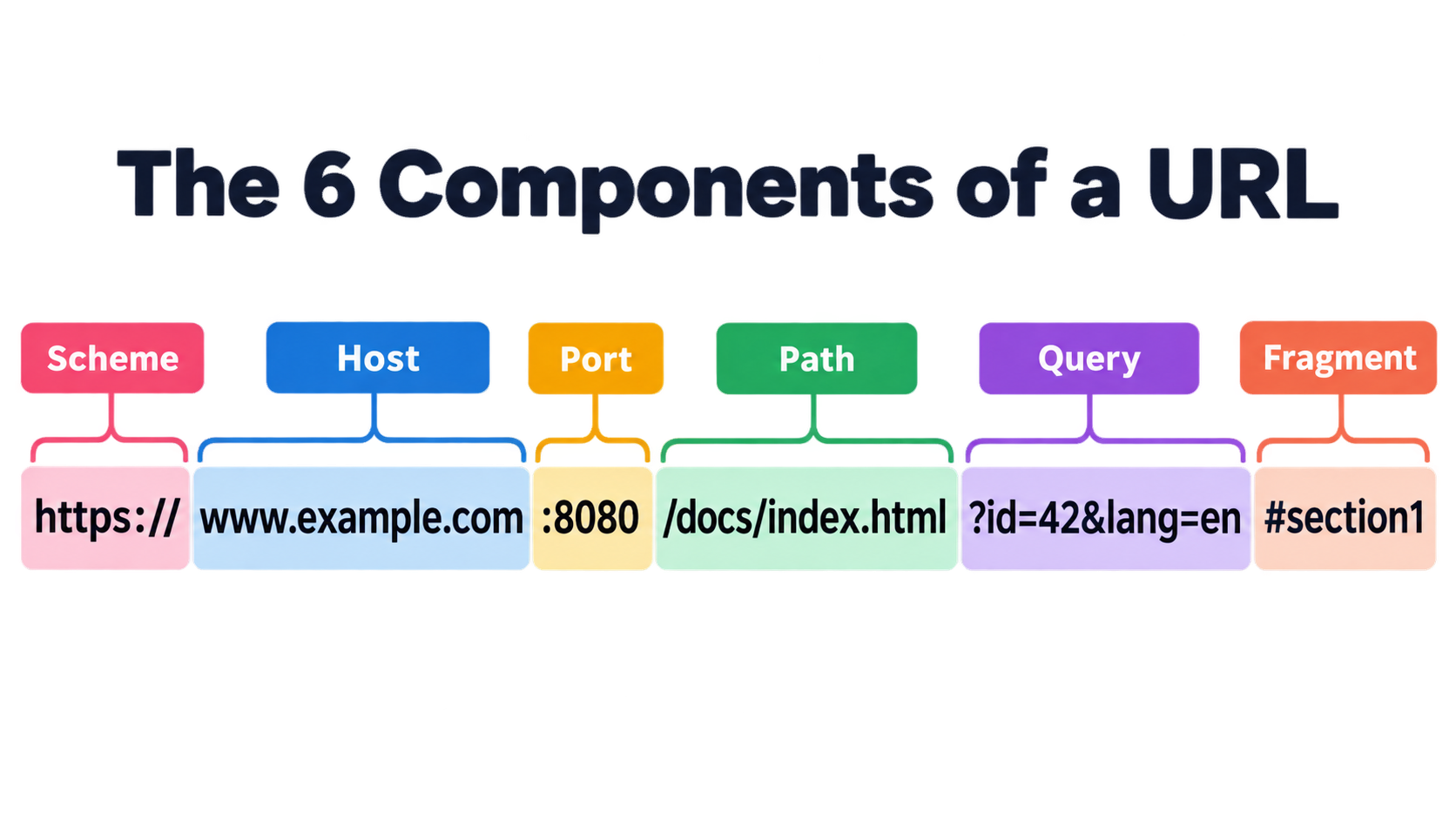
Two components cause most confusion. The query starts at ? and is transmitted to the server; the fragment starts at # and is kept in the browser. Static.app’s URL parser page makes the same distinction in its output, splitting a pasted URL into “host, full URL, path, query string, and hash” with a decoded parameter table.
Scheme, host and port: the origin
The scheme, host and port together identify the resource’s origin. In the MDN URL API, origin is a read-only property returning exactly those three pieces, while host combines the hostname and the port when a port was specified. Non-ASCII hostnames take a separate path through IDNA processing rather than percent-encoding, which is why a domain like bücher.de is handled differently from an accented character inside a path.
Path and query: what the server sees
Path and query are the components you can safely edit without changing which server answers. The path is a list of segments separated by /, which is also why an encoded %2F inside a value is treated as data while a literal / creates a new segment. The query is typically a list of key-value pairs separated by &, with each key separated from its value by =, as UTS #58 describes.
Fragment and text directives (:#:~:text=)
The fragment has structures defined by web applications rather than by the URL syntax itself, and it can end with one or more fragment directives that begin with the separator :~:. UTS #58 gives the example https://example.com#:~:text=foo&text=bar, and notes that inside a fragment directive the comma and ampersand act as separators that clear the open-bracket stack — a detail most formatters simply ignore because the fragment never reaches the server.
Percent-Encoding Explained: Why %20, %26 and %C3%A9 Exist
Percent-encoding follows one deterministic rule: take the character’s byte value, express it in hexadecimal, and prefix it with %. AuraxTools’ URL encoder reference lists the mappings that cover almost every real-world case.
| Character | Encoded | Why it must be encoded |
|---|---|---|
| Space | %20 |
Illegal in URLs; breaks parsing at every layer |
& |
%26 |
Query parameter separator — splits data accidentally |
= |
%3D |
Key-value separator — corrupts parameter structure |
+ |
%2B |
Read as a space in form-encoded data |
# |
%23 |
Fragment identifier — truncates everything after it |
? |
%3F |
Query start marker — confuses the parser mid-value |
/ |
%2F |
Path separator — becomes a directory delimiter |
: |
%3A |
Protocol-host separator — must be encoded inside values |
@ |
%40 |
Separates credentials from host |
% |
%25 |
The encoding prefix itself |
é, ü, ñ |
%C3%A9… |
Non-ASCII characters encode as multi-byte UTF-8 |
The underlying reason is transport: as AuraxTools puts it, HTTP only understands the ASCII set, so spaces, ampersands, accented letters and emoji either carry special meaning or cannot travel safely. The standard governing the substitution is RFC 3986, and the same hex-substitution logic appears across languages — encodeURIComponent() in JavaScript, urllib.parse.quote() in Python, urlencode() in PHP.
Reserved vs unreserved characters
RFC 3986 divides characters into those that change the URL’s meaning if left literal (reserved, such as &, =, ?, #) and those that carry no reserved purpose (unreserved marks such as -, ., !, ~, *, ', (, )). MDN’s encodeURI() reference documents that both encodeURI() and encodeURIComponent() leave the unreserved marks untouched, because they are allowed in a URI as-is. Reserved characters inside a data value are a different matter: they must be encoded or they will be read as structure.
One byte or several? Why é = %C3%A9
é is not one byte. It is a two-byte UTF-8 sequence, and each byte is escaped separately, producing %C3%A9. MDN’s encodeURI() documentation explains the general mechanism: characters are replaced by one, two, three or four escape sequences representing the UTF-8 encoding of the character. That is why a single accented letter can consume six characters in the encoded form, and why an entire non-Latin sentence expands into a long %XX run.
Space: %20 or +?
%20 is the correct encoding for a space in a URL path and in modern query encoding. The + character means space only in application/x-www-form-urlencoded data — the format HTML forms submit — and in query strings parsed under that convention. The WHATWG URL Standard makes the distinction explicit by defining the application/x-www-form-urlencoded percent-encode set, which is the only set that maps space to +. Outside form-encoded bodies, a + in a value is a literal plus sign.
Query Strings: Decoding key=value Parameters with URLSearchParams
Query parameters are the part users need decoded most often — UTM tags, API parameters, search terms — and the part most often decoded incorrectly. The official read/write API for query strings is URLSearchParams, exposed by the URL API’s searchParams property; per MDN’s URL API page (last modified 28 September 2026), the interface has been Baseline widely available across browsers since July 2015. It handles encoding, duplicate keys and ordering without regular expressions.
The rule that prevents damage: never decode the entire URL string at once. If you do, the ?, & and = characters get converted into data along with everything else, and the parameter list collapses into one meaningless value. Decode per value, or let URLSearchParams return already-decoded pairs.
Reading parameters without regex (URLSearchParams)
Iterating url.searchParams yields [key, value] pairs with percent-encoding already resolved, which is what the encoded-parameter table in a formatter is showing you. Duplicate keys and array-style parameters should be displayed as a list of pairs rather than last-value-wins, because ?tag=a&tag=b legitimately carries two values and collapsing it silently loses data.
Decoding UTM and ad-tracking links
Marketers receive tracking links from email platforms and ad networks in percent-encoded form, where campaign names appear as Summer%20Sale or Q3%20Email%20%26%20Social. Decoding them reveals the real campaign name and the real destination. The reverse matters just as much before launch: encoding UTM values prevents a space or ampersand from splitting one tracking parameter into two, which corrupts attribution silently — the link still loads, but the campaign data no longer matches. AuraxTools documents the same failure mode in its URL-encoding reference and warns that its tool flags strings that appear already encoded, which guards against the double-encoding mistake covered next.
encodeURI() vs encodeURIComponent(): The Bug That Duplicates Your Parameters
The rule fits in one line: encodeURI() is for a complete URL you are not editing; encodeURIComponent() is for a single value you are inserting into a URL.
The difference is the character set each one escapes. Per MDN’s encodeURI() documentation (page last modified 2 September 2026), encodeURI() leaves the reserved set ; / ? : @ & = + $ , # untouched, because those characters may be part of URI syntax. encodeURIComponent() encodes that identical set to %3B%2C%2F%3F%3A%40%26%3D%2B%24%23. Both leave the unreserved marks -._!~*'() alone, and both always encode a space as %20.
How the “Ben & Jerry’s” bug happens
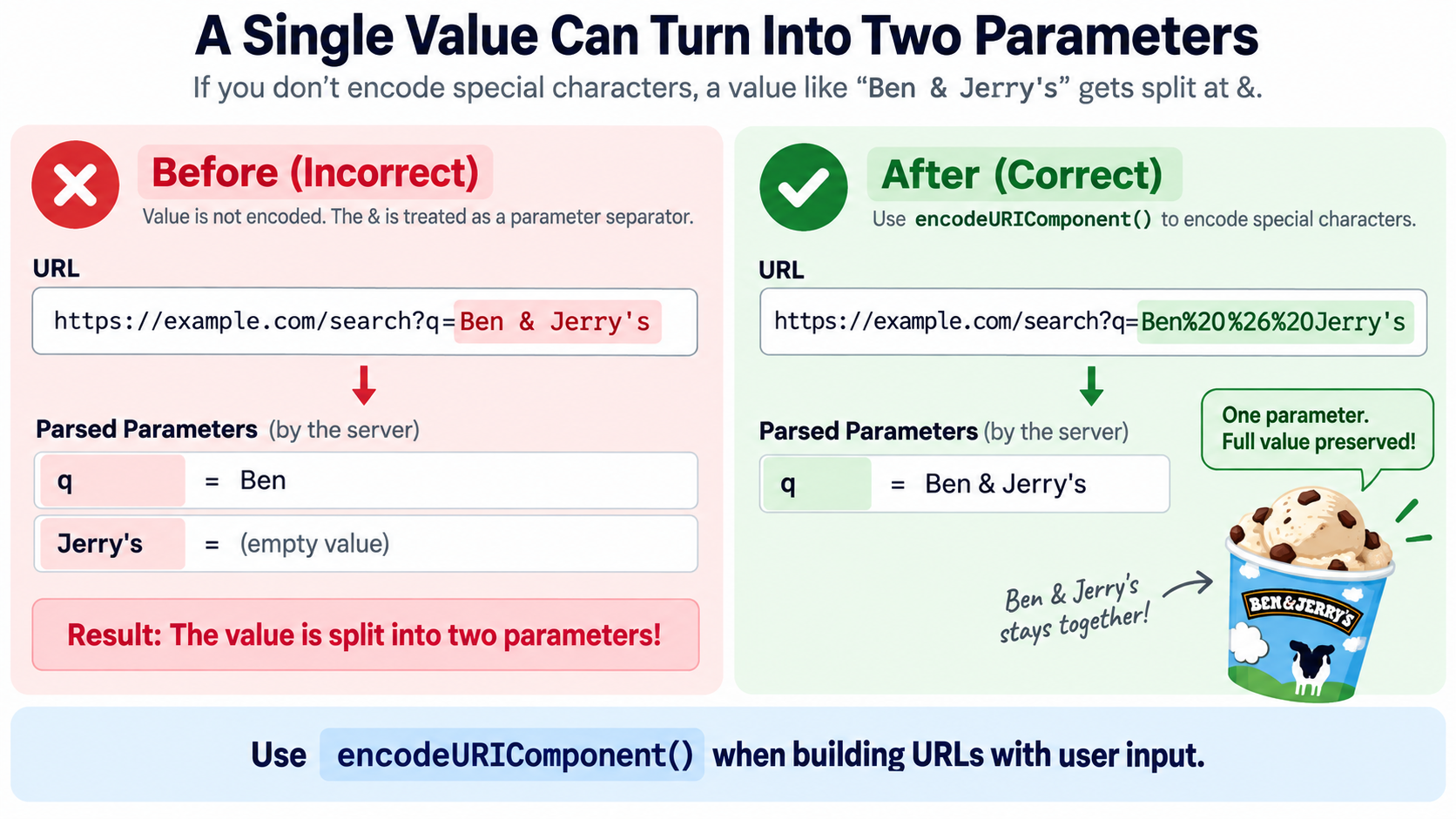
MDN reproduces the failure directly. With name = "Ben & Jerry's", building a link as encodeURI(\https://example.com/?choice=${name}`)produceshttps://example.com/?choice=Ben%20&%20Jerry’s. Parsing that string back yields two parameters —[[‘choice’, ‘Ben ‘], [” Jerry’s”, ”]]— because the ampersand survived as a separator. UsingencodeURIComponent(name)produces?choice=Ben%20%26%20Jerry’s, which parses back to a single correct pair:[[‘choice’, “Ben & Jerry’s”]]`. One parameter became two because the wrong function was used on a value.
The double-encoding trap: %20 vs %2520
Encoding an already-encoded value turns %20 into %2520, because the percent sign itself gets escaped to %25. The server then reads the literal text %20 instead of a space, and the parameter matches nothing. The detection method is simple: look for %25 in the output of an encode operation. If it appears where your input had no literal percent sign, you encoded something that was already encoded.
MDN’s own example of correct whole-URL encoding is encodeURI("https://mozilla.org/?x=шеллы"), which returns "https://mozilla.org/?x=%D1%88%D0%B5%D0%BB%D0%BB%D1%8B" and is reversible with decodeURI(). That worked because the Cyrillic text sat inside a value that needed encoding, while the URL’s own structure was left intact.
Which URL Standard Applies? RFC 3986 vs WHATWG vs UTS #46/#58
Four documents are relevant to a URL formatter, and they operate at different layers. Knowing which one your tool is following tells you what its output means.
| Standard | Scope | Status / anchor date |
|---|---|---|
| RFC 3986 | URI syntax and percent-encoding rules | The encoding rules MDN’s URL API cites; language encoders follow it |
| WHATWG URL Standard | How browsers parse and serialize URLs | Living Standard, last updated 10 September 2026 |
| UTS #46 | IDNA / Punycode processing for domain names | Referenced by the WHATWG URL Standard for IDNA compatibility processing |
| UTS #58 | Link detection and minimal escaping in plain text | Version 18.0, 14 September 2026, Revision 3 |
The WHATWG URL Standard is explicit about its relationship to the RFCs: one of its stated goals is to “align RFC 3986 and RFC 3987 with contemporary implementations and obsolete the RFCs in the process,” on the grounds that concepts like spaces, other illegal code points, query encoding, equality and canonicalization were not fully shared or defined between them. It also states the intent to unify the terminology — “URI and IRI are just confusing” — and to standardize on the term URL.
The practical consequence is straightforward: when an RFC-derived encoder and a browser disagree about how a URL parses, the browser follows WHATWG. The standard worth checking your output against is the one matching the runtime you ship to.
Where RFC 3986 and the browser disagree
The clearest disagreements are in host handling. The WHATWG standard enumerates validation errors and failures that RFC-derived parsers do not treat the same way: forbidden host code points, IPv4 addresses with too few or too many parts (https://1.2.3/, https://1.2.3.4.5/), IPv4 parts exceeding 255, IPv6 addresses with too many pieces or multiple compressions, and ports above the valid range. It also documents that hosts are percent-decoded before processing when a URL is special, so https://exa%23mple.org becomes exa#mple.org and triggers an IDNA error. A formatter that follows WHATWG will flag these; a string-level encoder will not.
Why Do Non-English URLs Explode into %E0%A4… Strings?
Browsers, copied links and clipboard text frequently over-escape. Characters that are perfectly valid in a URL get converted into multi-byte UTF-8 %XX runs even when escaping is not required, and the result is technically functional but effectively unreadable.
UTS #58 documents real examples. A YouTube handle shown as www.youtube.com/@핑크퐁 is copied in many browsers as https://www.youtube.com/@%ED%95%91%ED%81%AC%ED%90%81. A Wikipedia article at https://en.wikipedia.org/wiki/Antonín_Dvořák is copied as https://en.wikipedia.org/wiki/Anton%C3%ADn_Dvo%C5%99%C3%A1k. Hindi text expands even further: https://hi.wikipedia.org/wiki/महात्मा_गांधी becomes a %E0%A4%AE%E0%A4%B9%E0%A4%BE%E0%A4%A4%E0%A5%8D%E0%A4%AE%E0%A4%BE… string.
The report’s assessment is blunt: while many people cannot read महात्मा_गांधी, nobody can read the escaped version. The cost is practical — over-escaped links are unreadable in chat, email and print, they add length where length may be limited, and the unescaped forms work fine as plain text and display properly in the address bar when pasted back.
IDNA and Punycode hostnames
Domain names take a different path from paths and queries. Non-ASCII hosts go through IDNA processing and appear in Punycode form, which is why UTS #58 says bücher.de/bücher should be displayed — not xn--bcher-kva.de/b%C3%BCcher. The WHATWG URL Standard applies the same principle in its host parsing examples, where faß.example serializes as xn--fa-hia.example in domain form. A formatter with an IDNA-aware display can show the readable host while the underlying transmission form stays ASCII.
Minimal escaping: when one character is enough
UTS #58 defines a minimal escaping rule for the path, query and fragment: a character is percent-escaped only if it would otherwise terminate link detection, if it is an unmatched closing bracket, or if it is one of the part’s own separators. The demonstration case is https://ja.wikipedia.org/wiki/アルベルト%29アインシュタイン, where exactly one character needs escaping — the unmatched %29 parenthesis — while the Japanese text stays readable.
The payoff is that a minimally escaped URL inside flowing text is still detected as one complete link, and it still works when pasted into a major browser’s address bar. A formatter that applies minimal escaping produces output that looks like the URL people typed, not a wall of hex.
Copy-Paste Code: JavaScript, Python, PHP and curl
No tool page or specification page in this space provides runnable cross-language snippets, so here are four short blocks with the round-trip check built in. All four follow the same RFC 3986 percent-encoding logic described in AuraxTools’ reference.
JavaScript and Node.js
const u = new URL("https://example.com/search?q=New%20York%20%26%20LA#top");
console.log(u.hostname);          // example.com
console.log(u.pathname);          // /search
console.log(u.hash);              // #top
console.log([...u.searchParams]); // [['q', 'New York & LA']]

// Building a value correctly:
const name = "Ben & Jerry's";
const good = `https://example.com/?choice=${encodeURIComponent(name)}`;
console.log([...new URL(good).searchParams]); // [['choice', "Ben & Jerry's"]]
The mistake that double-encodes here is calling encodeURIComponent() on a value you already decoded and re-encoded, or wrapping a whole URL in encodeURIComponent(), which turns https:// into https%3A%2F%2F.
Python 3
from urllib.parse import urlparse, parse_qs, quote, quote_plus, urlencode

u = urlparse("https://example.com/search?q=a%20b%26c#top")
print(u.scheme, u.netloc, u.path, u.fragment)  # https example.com /search top
print(parse_qs(u.query))                       # {'q': ['a b&c']}

print(quote("a b&c"))       # a%20b%26c
print(quote_plus("a b&c"))  # a+b%26c
print(urlencode({"q": "a b&c"}))  # q=a+b%26c
urlparse() splits the components, parse_qs() decodes the values, and the quote() versus quote_plus() split mirrors the %20 versus + distinction: use quote() for path-style output, quote_plus() or urlencode() when the receiving side expects form-encoded data. The double-encoding trap is passing an already-encoded query string into urlencode() again.
PHP and the command line
$u = parse_url("https://example.com/search?q=a%20b%26c#top");
parse_str($u['query'], $params);
print_r($params);                    // ['q' => 'a b&c']
echo rawurlencode("a b&c");          // a%20b%26c
echo urlencode("a b&c");             // a+b%26c
parse_url() splits the URL, parse_str() decodes the query, and rawurlencode() versus urlencode() separates the same two space conventions: rawurlencode() maps space to %20, urlencode() maps it to +.
On the command line, let curl do the escaping rather than writing %20 by hand:
curl --get --data-urlencode 'q=a b&c' https://example.com/search
The --data-urlencode flag encodes the value before it is placed in the query string, which is the same per-value treatment as encodeURIComponent(). Writing the URL out yourself with a raw & inside a value is what splits one parameter into two.
How to Pick a Safe, Client-Side URL Formatter Tool
A formatter is a viewer, not a validator. The WHATWG URL Standard is direct on this point in its security considerations: when a URL passes from party A to B, “B should never trust A, as at some point URLs from A can come from untrusted sources.” A tool that decodes a URL for inspection tells you nothing about whether that URL is safe, and it must not be used as a security check.
Comparison tables on tool sites — including Static.app’s own table against FreeFormatter, Browserling and CyberChef — are vendor self-assessments. Useful, but not neutral. A neutral evaluation rests on observable behavior instead.
One timeliness caveat matters when reading tool marketing: as of 3 October 2026, the tool pages referenced here — Static.app’s URL parser, AuraxTools’ URL encoder, and FreeDailyPro’s URL encoder — did not display a last-updated date. Capability claims on undated pages should be checked against current browser behavior rather than assumed current.
Six checkboxes before you paste a production URL
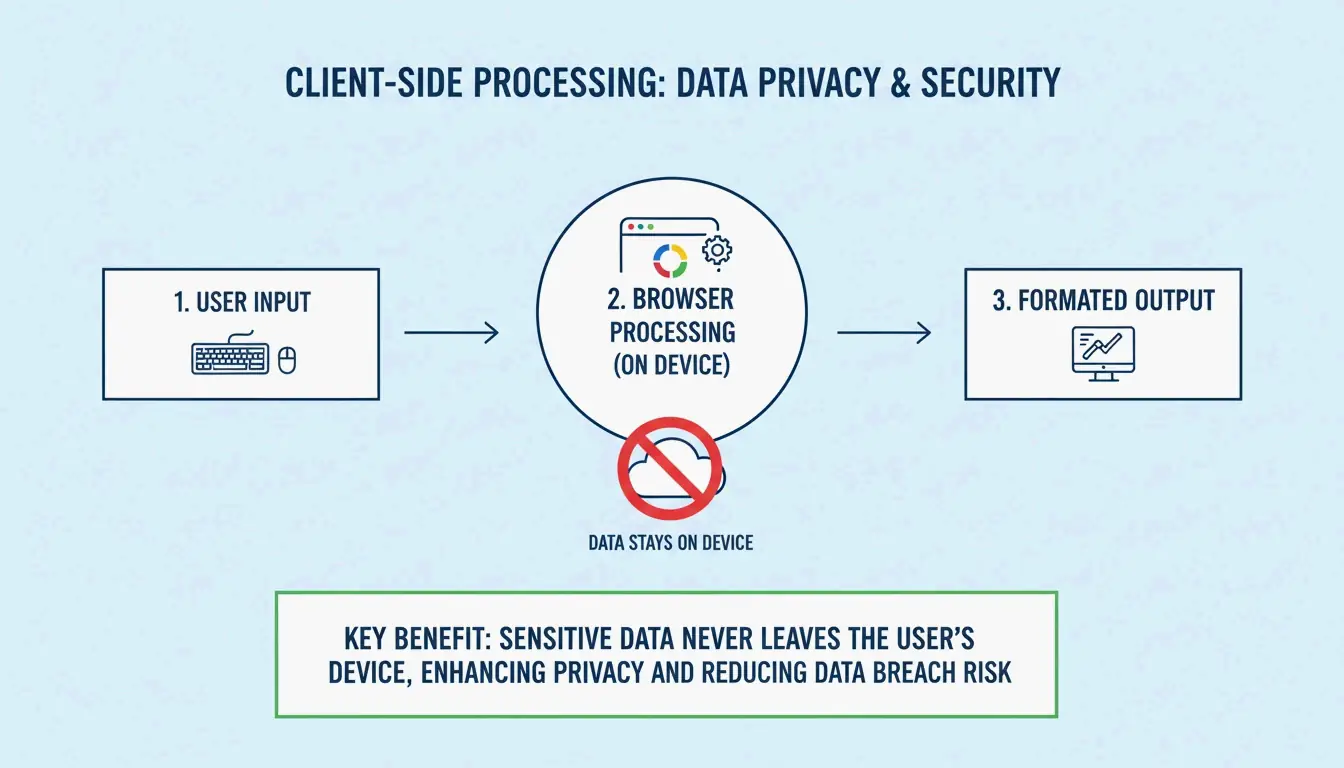
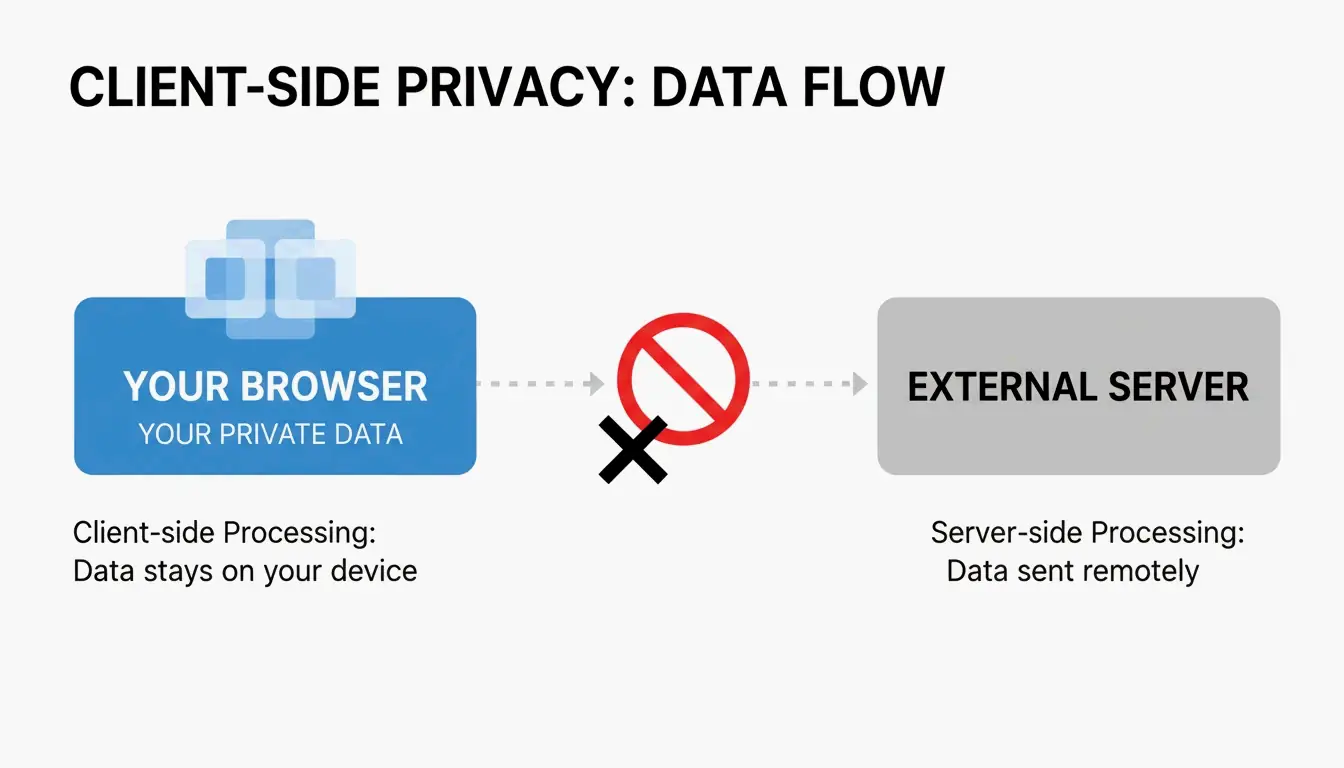
- Client-side processing. The tool parses in JavaScript using the URL API and
URLSearchParamsrather than posting your URL to a server. Static.app and AuraxTools both claim all processing happens in the browser; AuraxTools states “0 bytes” sent to any server. - A decoded parameter table. The output should list each query key with its decoded value, not a single decoded blob.
- Multi-byte UTF-8 support. Feed it
%C3%A9and confirm it returnsé, not two mojibake characters. - A double-encoding warning. Good tools flag input that already looks encoded. AuraxTools explicitly says it detects and warns when a string appears already encoded.
- IPv6 and IDNA host handling. Test
[::1]and a Punycode or non-ASCII host to see whether the parser treats the host as a host or as a path fragment. - Original and encoded side by side. Without both columns you cannot verify the round trip from Step 4 of the how-to.
Treat “data never leaves your browser” and “no signup” as vendor claims until you confirm them. The confirmation method is simple: open developer tools, watch the network tab while you paste a test URL, or disable connectivity and retry. If the tool still works offline, the processing is local.
For Marketers: Decode UTM Links, Then Re-Encode Before Launch
The non-developer workflow is short. Paste a received campaign link into a formatter to read three things: the real destination page, the real campaign name hiding behind %20 and %26, and any nested redirect URL that has itself been encoded as a parameter value. Redirect-based tracking, as AuraxTools describes it, works by embedding the destination URL inside the redirect URL’s query string, which means the destination’s own :, / and ? arrive fully encoded.
Before publishing, check that campaign names containing spaces or ampersands are encoded. This is the “Ben & Jerry’s” failure from MDN translated into marketing terms: an unencoded ampersand turns one parameter into two, and attribution breaks without producing any visible error. AuraxTools’ guidance on UTM parameters makes the same point — a campaign name like Summer Sale 2025 or Q3 Email & Social left unencoded “will silently corrupt your campaign’s query string,” while encoding the value before it is appended costs seconds.
Nested URLs need the per-value rule again: encode the entire destination URL as one value when it is inserted into a redirect= or url= parameter, exactly as encodeURIComponent() does.
The one-line warning that ties this section together: decoding is for reading, not for re-publishing. Decode to inspect, then re-encode the value before it goes back into a live link.
Conclusion
A URL formatter isn’t one tool but three jobs — decode percent-encoding, parse a link into its six components, and normalize it so parse-then-serialize is stable — and the encoding rules come from RFC 3986 while the parsing behavior you actually ship against comes from the current WHATWG URL Standard, last updated 10 September 2026.
Paste your URL into a client-side URL formatter first to see the decoded parameter pairs, then fix the problem at its source: use encodeURIComponent(), Python’s quote(), PHP’s rawurlencode(), or curl --data-urlencode on each individual value — never on the whole URL — and re-parse the output to confirm the parameter count and values are unchanged.
FAQ
Is a URL formatter the same thing as a URL encoder/decoder?
It overlaps but is broader. Encoding and decoding are two of its three jobs. A formatter also parses a URL into scheme, host, port, path, query and fragment, and can normalize the result so repeated parsing produces the same output. A pure encoder only converts characters to %XX form and back, with no component breakdown and no structural view of the link.
Why does my URL contain %20, %26 or %C3%A9 — and is it broken?
It is not broken. Percent-encoding replaces characters that would otherwise change the URL’s meaning: %20 is a space, %26 is a literal &, and %25 is a literal percent sign. %C3%A9 is a two-byte UTF-8 sequence representing é, because non-ASCII characters always occupy multiple %XX bytes. It only becomes a problem when a value was encoded twice, producing %2520.
Can I format or decode a URL without sending it to a server?
Yes. Browser-based tools can do the entire job in JavaScript using the URL API and URLSearchParams, both of which are Baseline widely available since July 2015 according to MDN. You can verify the claim yourself: open developer tools and watch the network tab, disconnect from the network and retry, or paste a test URL and confirm the result still appears offline.
What is the difference between encodeURI() and encodeURIComponent()?
encodeURI() encodes a complete URL and leaves ; / ? : @ & = + $ , # intact so the structure survives. encodeURIComponent() encodes a single value and escapes that same set to %3B%2C%2F%3F%3A%40%26%3D%2B%24%23. Use encodeURI() for whole URLs you are not editing, and encodeURIComponent() for any value you are inserting into one.
Why does copying a link with non-English characters give me a long %E0%A4… string?
Browsers and clipboard handlers often over-escape readable characters into multi-byte UTF-8 sequences. UTS #58 (Version 18.0, 14 September 2026) shows real examples from YouTube and Wikipedia, and its minimal-escaping rule implies far fewer characters need encoding than most tools produce — in one documented case, only a single unmatched %29 required escaping. The link still works; it is simply harder to read and share.
Is a “URL formatter” the same as an HTML formatter?
No. An HTML formatter indents and beautifies markup and does nothing to encoding. The two get matched by the same search query, which is why results often look unrelated to what you need. If your input is a link, you want a URL formatter; if your input is a page of tags, you want an HTML formatter.